


How to Use HandBrake Batch Convert Function: Is It Easy
When it comes to video format conversion, HandBrake is not as popular as other multimedia software, as the tool was primarily known for its role as a DVD ripper and encoder. However, the program works excellently if you want to use it for format conversion. In this article, we provide a detailed guide on using HandBrake to batch convert videos utilizing the practical queueing system within the software. We will provide guides for single file selections, folder selections, and an alternative tool for easily batch converting videos.

- GUIDE LIST
- Part 1. How to Batch Convert in HandBrake on Windows/Mac/Linux
- Part 2. Best Alternative to HandBrake - ArkThinker Video Converter Ultimate
- Part 3. FAQs About Batch Conversion in HandBrake
Part 1. How to Batch Convert in HandBrake on Windows/Mac/Linux
For an easier time getting started with your format conversion process, we will now dive straight into the guides for using. The batch conversion option in HandBrake, utilizing its queue feature, is highly efficient for converting multiple files.
We will provide two different guides for multiple single-file conversions, as well as an option for converting files in folders.
One by One Batch Conversion
Open HandBrake and then select File in the import section to add the single file you want to convert.
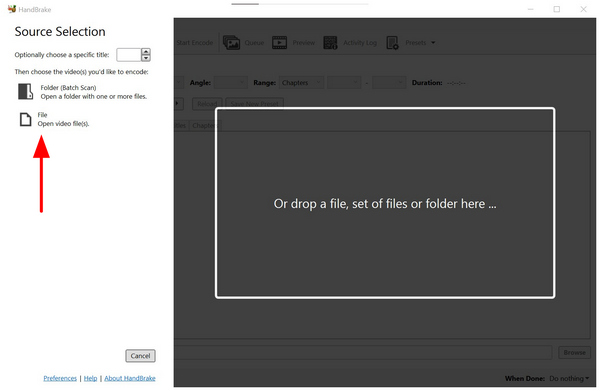
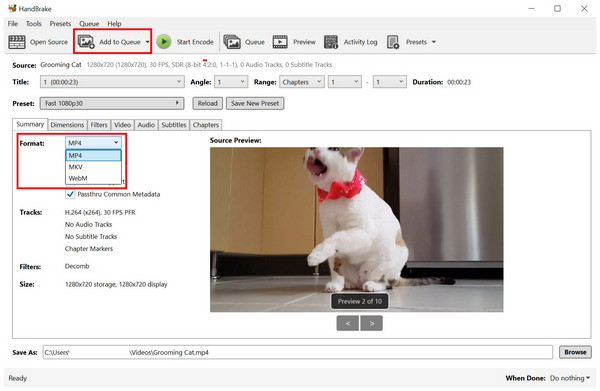
After adding the file to the program, click on Format and then select the desired file type for saving the video. Then click on Add to Queue.
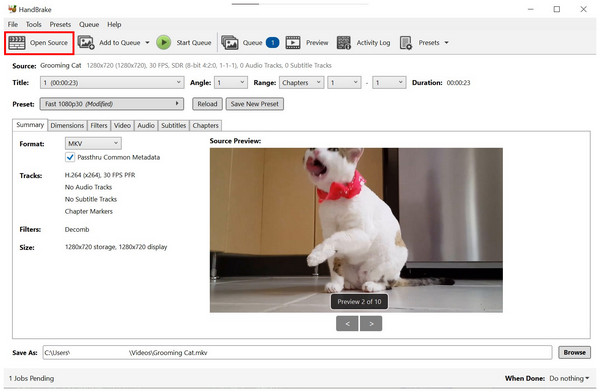
Once the file has been added to the encoding queue, click on Open Source to add the next file you want to convert. You will go back to the Source page featured in Step 1. Repeat the process.
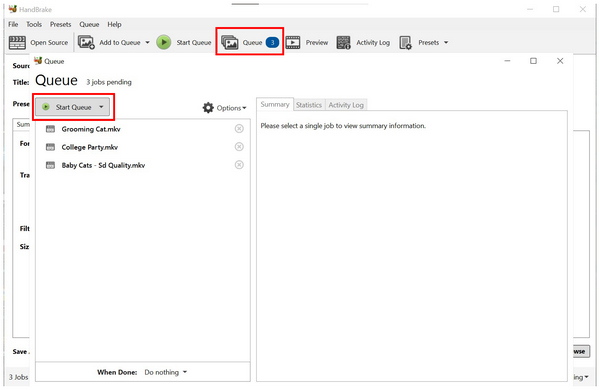
Once you have added the files you want to batch convert, click on Queue, labeled with numbers corresponding to the number of files you have imported. In the Queue menu, select Start Queue to begin the conversion process for the files added to it.
If you want to queue different videos from multiple locations on your computer, this option is the best solution. However, it is not the most efficient option to batch convert MP4 to MOV or any other file type in HandBrake. To learn the most practical way to convert multiple video files, be sure to read our guide on folder batch conversion.
Folder Batch Conversion
Open HandBrake and then select Folder (Batch Scan) to choose a folder from your file manager where the videos you want to edit are located.
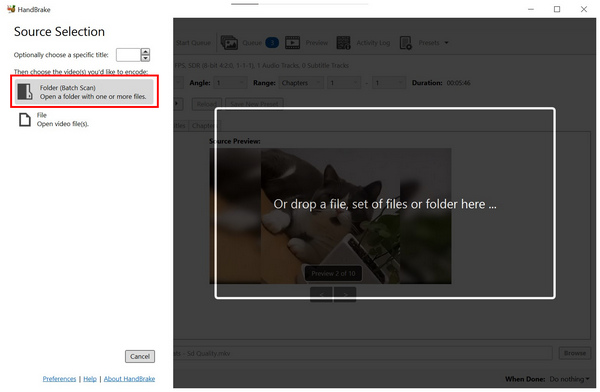
After selecting the folder, its video content will be automatically added to the Queue. In the main converter menu of HandBrake, select Format and then choose the file type you want to save the video in.
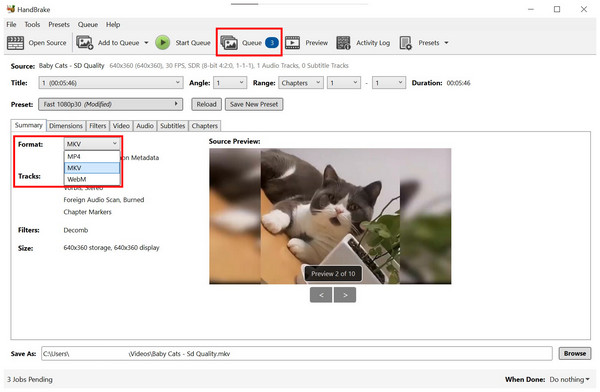
Click on Queue to open the files you added for format conversion. Then, click on Start Queue to begin the conversion process for the files you have added.
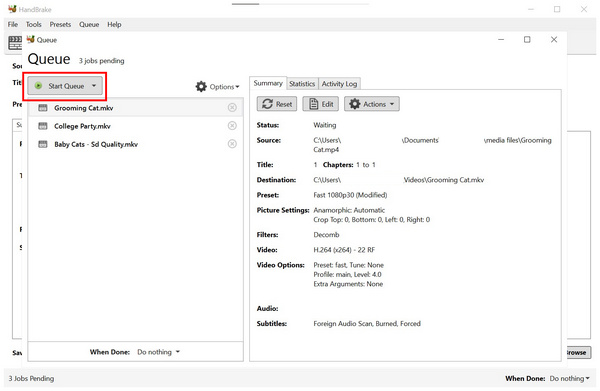
Since Handbrake's batch converter for a folder automatically reads the content of the selected location, this option requires a little setup, involving compiling all the videos you want to convert into the HandBrake queue in a single location. This is the most practical way to batch convert videos on HandBrake.
Part 2. Best Alternative to HandBrake - ArkThinker Video Converter Ultimate
Although HandBrake is a good option for basic format conversion, its limited support for video file types is a major limitation. If you want to convert your video into a format other than MP4, MKV, or WebM, you should consider using ArkThinker Video Converter Ultimate instead.
Unlike the HandBrake multimedia program, ArkThinker Video Converter Ultimate was exclusively designed for format conversion work. Due to this background, the program supports over 500 video formats, both as input files and as output formats for conversion.
Additionally, the software properly batch processes videos, unlike HandBrake, which only converts them one at a time via a queuing system. This essentially makes ArkThinker Video Converter Ultimate a full upgrade, not just an alternative.
To learn more about what makes the program a good option, make sure to read its Main Features below.
Main Features:
- • Equipped with a beginner-friendly format converter tool for single or batch files.
- • Offers file compression features that can reduce the size of video files.
- • GPU-accelerated and converts videos way faster than HandBrake.
- • Offers true batch processing, rather than only file queueing in HandBrake.
- • Preserves the quality of videos successfully converted.
For an easier time following our tutorial guide, you may download ArkThinker Video Converter Ultimate using the provided link.
Open ArkThinker Video Converter Ultimate and select Add Files to open your file manager and browse for the videos you want to convert.
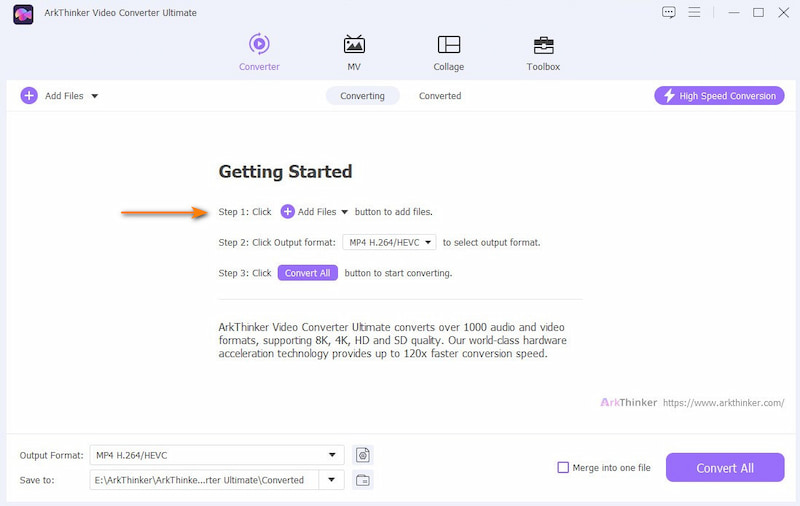
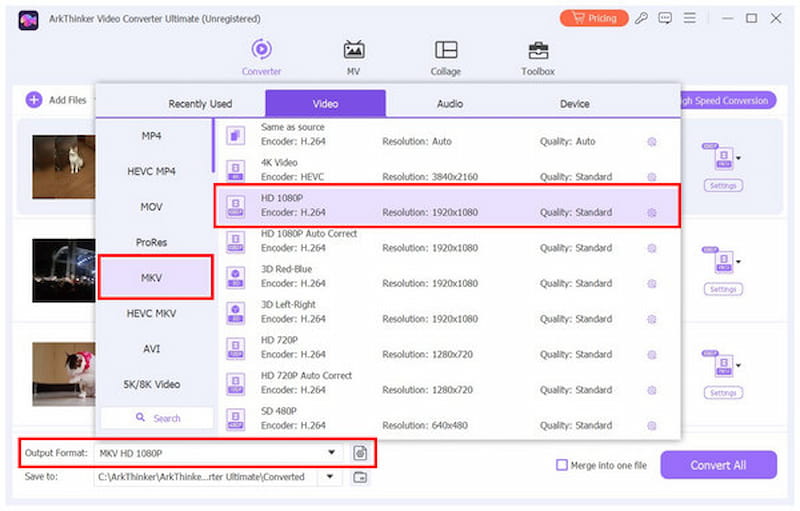
After adding the videos you want to convert, click on Output Format and select the desired Output Profile for the videos. This will set their format and quality.
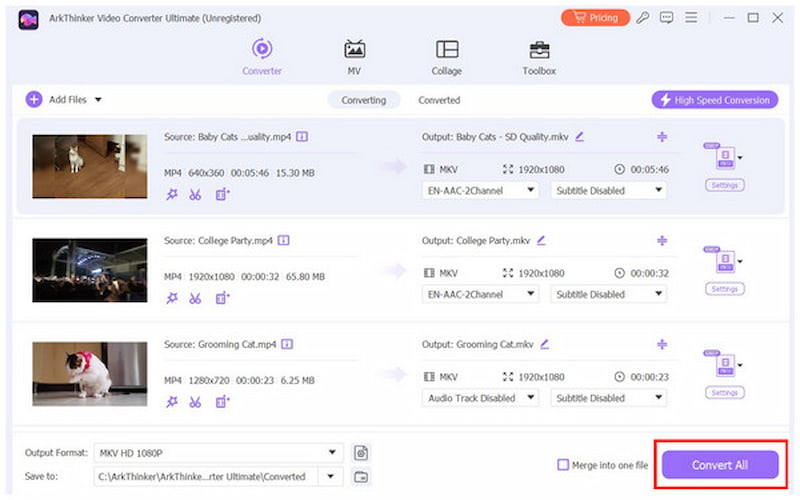
After setting up the Output Profile for the videos you want to convert, simply click on Convert All. This will immediately begin the batch process for format conversion.
Once the conversion process is done, you will be automatically redirected to the file manager location where your format-converted videos are saved. This simple process adds significant practicality and improves access to your edited files.
Part 3. FAQs About Batch Conversion in HandBrake
Can HandBrake batch convert with subtitles ?
Yes, it can. However, the program does not necessary batch process videos. It can only process one video at a time by putting them in a queue.
Can I batch convert AVI files to MP4 using HandBrake?
Yes, you can. HandBrake supports the AVI format, and MP4 is a supported file type for file conversion in the program. As such, you can use the tool as an AVI to MP4 converter.
Is there a HandBrake command-line option for batch conversion?
No, there is not. HandBrake does not support command lines. It only processes videos using the options on its main interface.
Can HandBrake batch convert subfolders ?
Yes, it can. All you have to do is select the folder in your file manager. HandBrake will automatically scan its content and add it to its queue.
Is it hard to batch convert videos?
No, it is not. You can easily convert videos using different software. Among them, the easiest option is ArkThinker Video Converter Ultimate.
Conclusion
Now that we have provided our readers with a detailed guide on batch converting videos in HandBrake, we hope this article has offered you practical tips that you can apply to your personal files. For maximum practicality and ease of use, consider ArkThinker Video Converter Ultimate, which can be downloaded using the link below.
What do you think of this post? Click to rate this post.
Excellent
Rating: 4.9 / 5 (based on 650 votes)


