


How to Convert AAC to MP3 for Better Compatibility in 2026
Storage space has become more in demand in recent years, as multimedia files are getting larger with the rise in popularity of 4K UHD videos and lossless music players. As such, the niche of lossy formats optimized for compression is gaining popularity, with AAC among them. Unfortunately, the AAC audio file is a modern format, which means it is not the most compatible with older players, car sound systems, and Android devices. To address this issue, this article will feature a detailed tutorial to help our readers convert AAC audio files to MP3 to directly overcome AAC's compatibility limitations. We will review three methods in this article, based on their best uses, and provide a detailed 3-step guide on using the tools.

- GUIDE LIST
- Part 1. AAC vs MP3: Which Format Should You Use
- Part 2. How to Convert AAC to MP3
- Part 3. AAC to MP3 Settings: What Bitrate Should You Choose
- Part 4. FAQs About AAC to MP3 Conversion
Part 1. AAC vs MP3: Which Format Should You Use
Among lossy and compressed audio files, both AAC and MP3 are popular options. Both formats are popular because they are excellent choices for storing music files for offline use. However, they still have key differences.
Since AAC is a modern format originally designed for modern devices, it has inherent advantages in sound quality. It was optimized with advanced algorithms that deliver better sound quality and higher compression rates, even at lower bitrates.
On the other hand, MP3 files have a significant advantage in terms of universal compatibility. Although it is an older file type, this has become a strength since most hardware and media players can play MP3 files with no problem.
Simply put, AAC offers better quality and compression and, on average, is smaller than MP3. However, MP3 files are more compatible, as they are considered the universal audio format. All you have to do is choose between modern efficiency and the reliability of a tenured file format when converting AAC audio to MP3.
Part 2. How to Convert AAC to MP3
Method 1: iTunes or Apple Music (Built-In)
Best For: Importing AAC audio from Apple Music or iTunes storage to MP3 using the program's built-in settings.
To get started converting AAC audio to MP3, we will first use the built-in solution in Apple software players such as iTunes and Apple Music. Fortunately, Apple Music has a built-in Convert feature which can be used to create a copy of an audio file in your Apple library.
However, since AAC is a popular format on Apple devices, it is the default file format when using Apple Music's Convert feature. To set MP3 as the file type for importing Apple Music audio, you need to edit Apple Music's Import Settings.
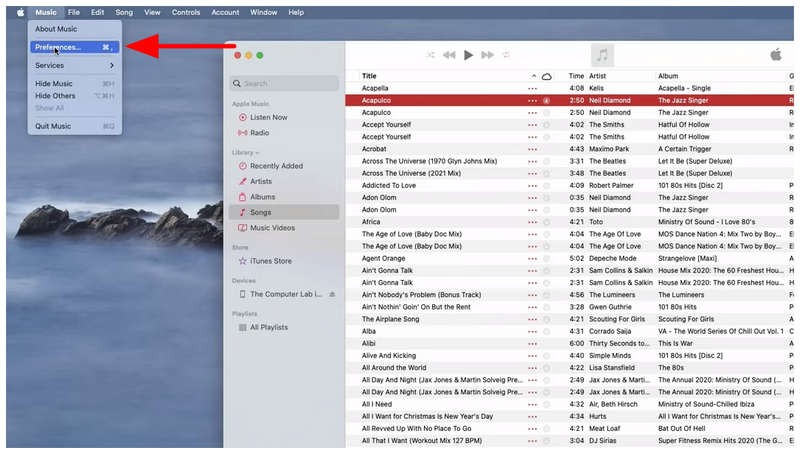
Open Apple Music and click on the Music tab. Then, select Preferences.
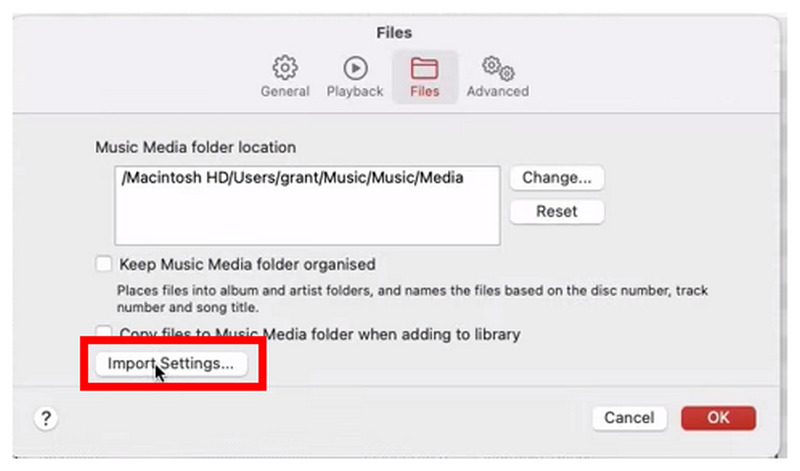
In the File menu that will open, select Import Settings.
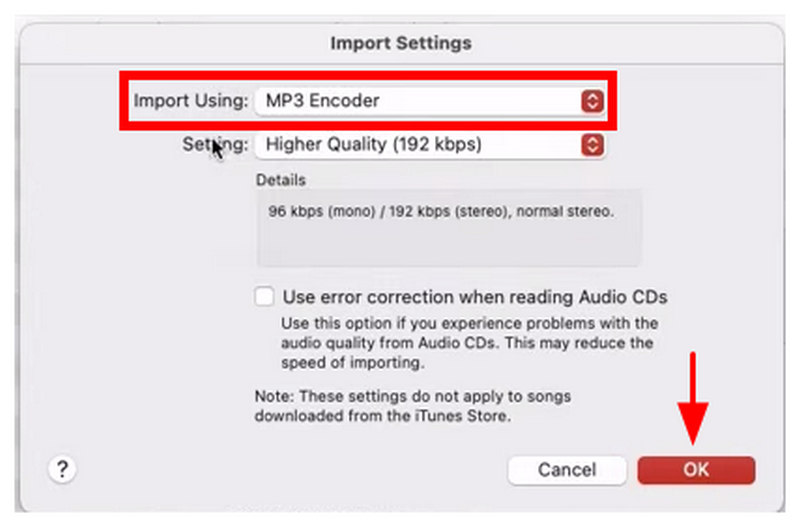
In the Import Settings menu, select Import Using and choose MP3 Encoder. Click OK to confirm the encoder option you selected.
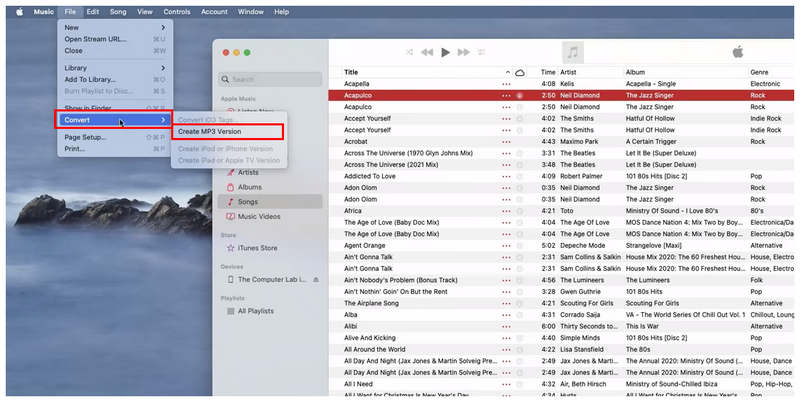
With the import setting set to MP3, click File > Convert, then select Create MP3 Version. This will then prompt Apple Music to create a local file copy of the selected audio saved in MP3 format.
If you are using an Apple device and want to import AAC audio to devices outside Apple, the built-in Convert feature in Apple Music is a good choice, as it is readily available.
Method 2: Convert AAC to MP3 with Audacity
Best For: Exporting audio files to MP3 and editing advanced audio settings to media files.
Since the previous option is only available for Apple hardware, the second method we will discuss is a program available on platforms such as Windows. This will be none other than the audio editing program Audacity.
Originally built as audio editing and engineering software, Audacity offers advanced export settings for saving edited audio files in MP3 format. As such, this method provides a detailed guide to transferring AAC to MP3 using Audacity's Export Settings.
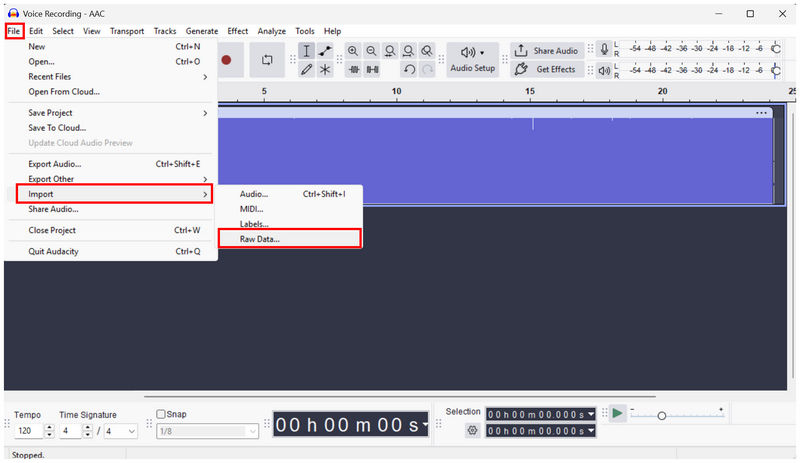
Open Audacity and select File > Import > Raw Data. Instead of the normal Open File, use the Import option to open AAC in the program, since it does not support AAC by default.
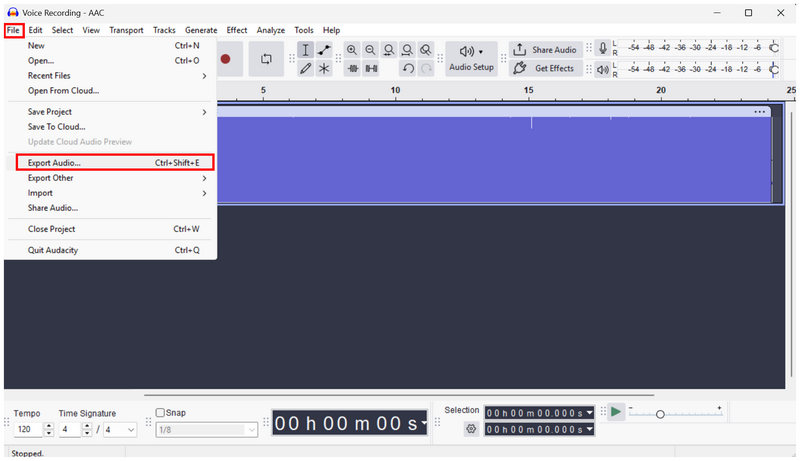
Once the AAC audio is imported, click on File again and select Export Audio.
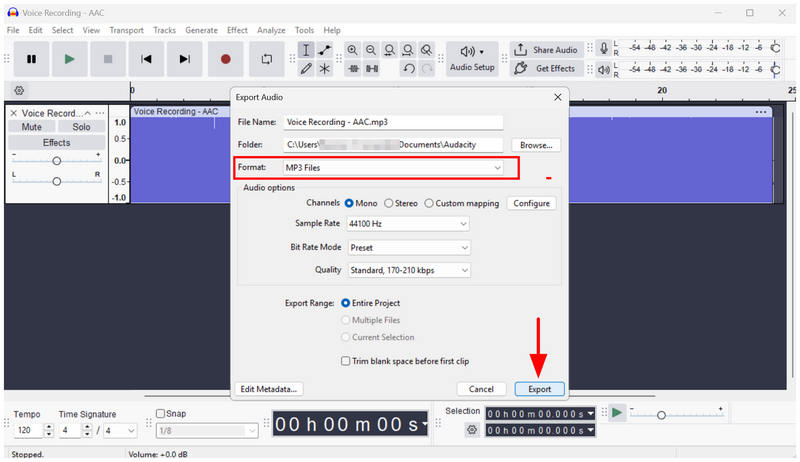
In the Export Audio settings, set the Format to MP3 Files. Then select Export to convert the AAC file to MP3 using this third-party workaround.
When editing audio files, Audacity is a popular choice. Fortunately, its background made the tool a reliable solution for editing file formats, thanks to its advanced import and export settings.
Method 3: Convert AAC to MP3 Online with Arkthinker Free Audio Converter Online
Best For: Converting AAC to MP3 without installation or setup.
With the two previous options for desktop-based format conversion, let us now move on to the most beginner-friendly option in this list: ArkThinker Free Audio Converter Online. As its name suggests, this software is designed exclusively for format conversion, making it a direct solution for converting AAC to MP3.
Unlike the two previous options with the convert function of Apple Music and the export settings of Audacity, changing file types in ArkThinker’s online tool is as simple as importing the AAC audio, setting the output format to MP3, and moving forward with the conversion process.
Although it is easy to use, it also offers advanced editing options for experienced users, allowing them to edit the audio file’s encoder, sample rate, channels, and bitrate. All of which are designed to affect the quality of the media file.
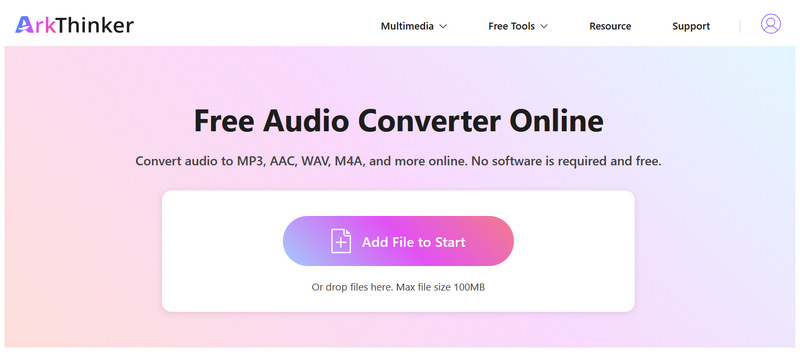
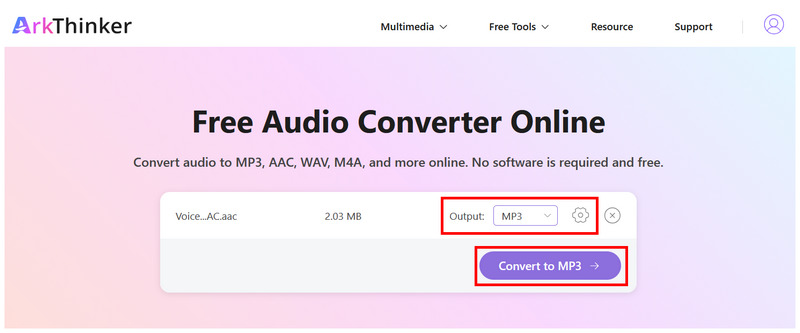
Open ArkThinker Free Audio Converter Online and select the Add File to Start option to import the AAC file you want to convert.
Once the AAC audio is uploaded, the Output option is set to MP3 by default. You can now click Convert to MP3. Optionally, you can click Settings to manually edit the file’s encoder, sample rate, channels, and bitrate.
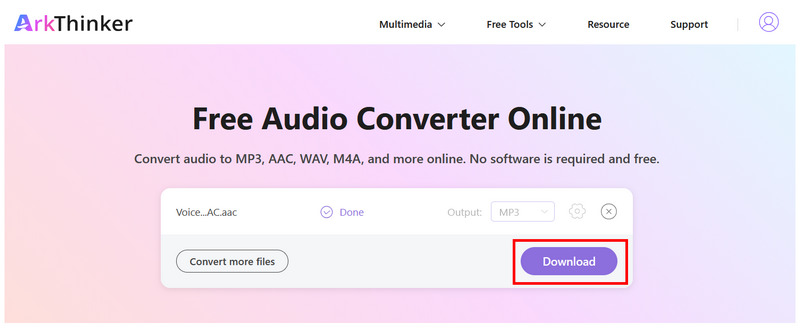
After the conversion process, click Download to save the converted MP3 file to your device.
Due to the program's automated format conversion and optional advanced settings, ArkThinker Free Audio Converter Online makes for a solid choice for both beginners and advanced users. This is very practical, especially for software readily available on browsers.
Part 3. AAC to MP3 Settings: What Bitrate Should You Choose
When converting AAC to MP3, a good bitrate for good-quality audio is 192 kbps to 320 kbps. Although AAC may sound good even at a lower bitrate, MP3 requires a higher bitrate to maintain the same quality as AAC. As a general rule, select a higher bitrate, preferably 256 kbps or even 320 kbps, if you don't mind sacrificing a little storage space.
Part 4. FAQs About AAC to MP3 Conversion
Are AAC audio files high-quality?
Yes, they are. AAC uses advanced technology to deliver good audio at a lower bitrate. Compared to an MP3 of the same bitrate, AAC will have better quality.
Why are AAC files so small?
AAC files have a small file size since they are efficiently compressed. This is the main strength of the AAC format as a modern audio file. Better quality and compression rate.
Should I save MP3 files in high bitrate?
Yes, you should. MP3 files have a standard bitrate. As such, saving it at a high bitrate, at least 192 kbps, is advisable.
Can I play AAC files on Android?
Yes, you can. However, most Android devices by default cannot play AAC audio. You have to download third-party music players that support AAC.
Is MP3 a good conversion option?
Yes, it is. MP3 is advisable for format conversion due to its universal compatibility. To fix problems with unsupported audio formats, converting to MP3 is a good solution.
Conclusion
Now that we have discussed the best options for improving the accessibility of audio files through AAC-to-MP3 conversion, we hope this article will help you manage your multimedia files more efficiently. For quick conversions, we highly recommend using ArkThinker Free Audio Converter Online to ensure your converted AAC files are playable on any hardware or music player.
What do you think of this post? Click to rate this post.
Excellent
Rating: 4.9 / 5 (based on 706 votes)


