


How to Convert MP4 to MPEG Format Using Media Converters
When it comes to modern video formats, MP4 is hands down the most popular option, as it offers the best compatibility with both modern and classic devices. Unfortunately, MP4s are designed primarily for digital consumption, making them not a good option for producing physical media by burning video data to DVDs and other legacy devices. This is where the MPEG format will swoop in. Designed for legacy media, MPEG videos are built to be versatile and compatible with VCD, DVD, and digital video, giving it a notable advantage over MP4 in terms of compatibility with legacy platforms. In this article, we will provide three programs you can use to convert MP4 to MPEG; we will also highlight the differences among MPEG file versions and provide a quick guide on which MPEG format you should use based on your needs.

- GUIDE LIST
- Part 1. MPEG, MPEG-2 and MPEG-4 are Not the Same
- Part 2. Before You Start: Pick Your Target First
- Part 3. How to Convert MP4 to MPEG
- Part 4. How to Convert MP4 to MPEG Without Losing Too Much Quality
- Part 5. FAQs About Converting MP4 to MPEG
Part 1. MPEG, MPEG-2 and MPEG-4 are Not the Same
Since the MPEG format has been around since 1993, multiple versions of the video file have been created over time. Among them, the most notable iterations of the file type are MPEG, MPEG-2, and MPEG-4. Although they are all MPEG formats at their core, each version is designed for different uses.
MPEG-1, or simply MPEG, is the pioneer format in the MPEG family. It was designed as the format for early digital videos and for writing media on VCDs. The original format is MPEG-2, which was designed as a direct upgrade, since these videos are built for DVD burning and digital televisions. MPEG-2 is essentially a direct upgrade from the original format.
Finally, MPEG-4 is the most recent iteration of the MPEG family and is commonly used for efficient digital video streaming, including modern computers, smartphones, and video streaming platforms.
With the distinct ideal uses and backgrounds of the various MPEG formats now discussed, we can proceed to the guide for choosing which MPEG version best suits your needs.
Part 2. Before You Start: Pick Your Target First
With the main uses of each MPEG version now discussed, this article will recommend which version to choose based on your specific needs. To start, we will answer the question of the best format for burning content to DVDs: none other than MPEG-2. Moving on, we suggest using the original MPEG-1 format when playing videos on older hardware. Finally, MPEG-4 is the best choice if you plan to stream your video online, as it uses modern codecs for smooth playback.
With the specific uses of each MPEG version now discussed, let us proceed to the guides to learn how to convert an MP4 file to MPEG.
Part 3. How to Convert MP4 to MPEG
Convert MP4 to MPEG with ArkThinker Free Video Converter Online
Best Used For: Installation-free format conversion to ensure accessibility and ease of use.
When looking to convert MP4 files to MPEG, one of the most accessible options is an online format converter, such as ArkThinker Free Video Converter Online. Among the programs on this list, ArkThinker’s online tool also excels in versatility, despite being browser-based.
In addition to MPEG conversion, ArkThinker Free Video Converter Online can convert videos to 20+ audio and video output formats, making it an all-around multimedia converter tool, not limited to videos.
To learn how to use one of the best tools to change MP4 to MPEG, make sure to read our tutorial featuring the online tool below.
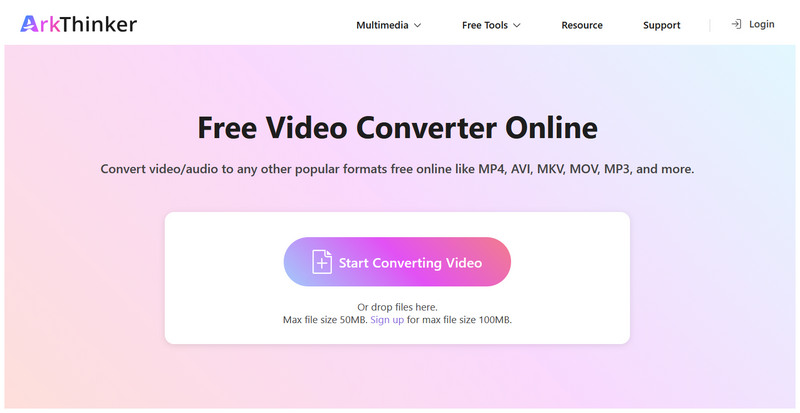
Open the ArkThinker Free Video Converter Online website and select Start Converting Video to import your MP4 file for conversion.
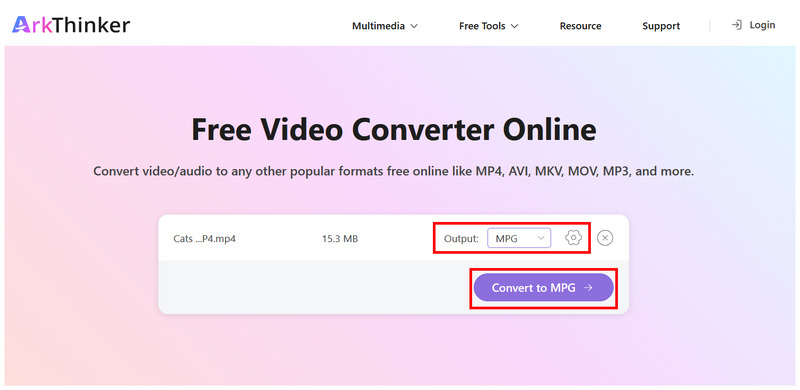
Once the MP4 file is uploaded to the online tool, set the Output to MPG. Optionally, you can click Settings to access more advanced video editing tools. Otherwise, click on Convert to MPG to proceed.
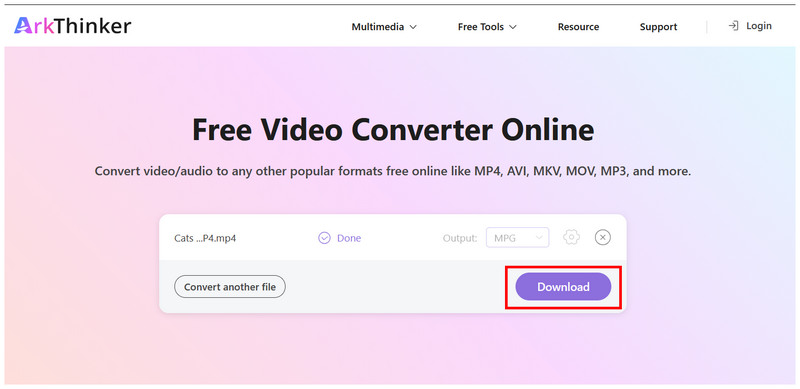
Wait for the conversion process to finish. Then click Download to save the converted MPG video to your computer.
The MPG format available in the ArkThinker Free Video Converter online tool uses the MPEG-2 standard, making it fully compatible with both modern use and DVD burning.
Convert MP4 to MPEG with HandBrake
Best Used For: Transcoding large MP4 videos using MPEG codecs.
In addition to converting MP4 to MPEG, an alternative is to use MPEG as the video encoder. This is what HandBrake does since the multimedia transcoder software offers an option to encode videos undergoing conversion using MPEG.
Unfortunately, it does not offer an option to save the video for conversion to MPEG format; it only supports MP4, MKV, and WebM as output formats. With that, we recommend using MP4 as the conversion format and the MPEG codec as an alternative.
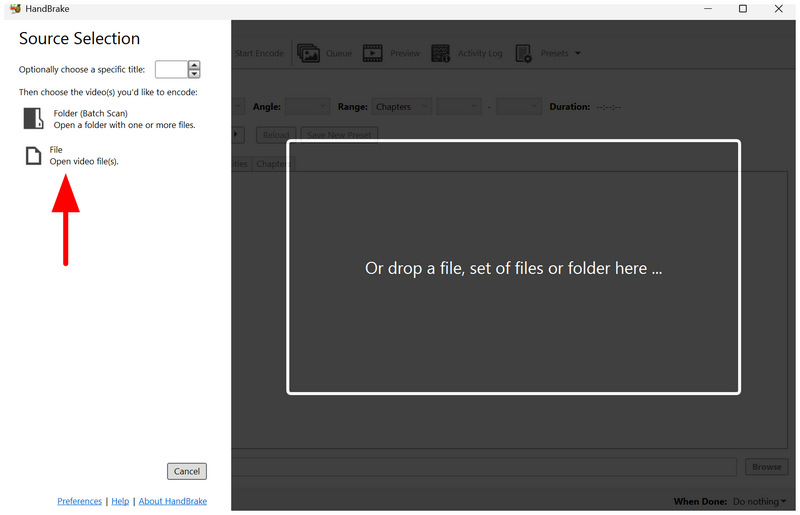
Open HandBrake, then click on File to open and upload the MP4 video for conversion.
With the MP4 video opened in the tool, go to the Video tab. Then click Video Encoder and select the MPEG-2 or MPEG-4 option.
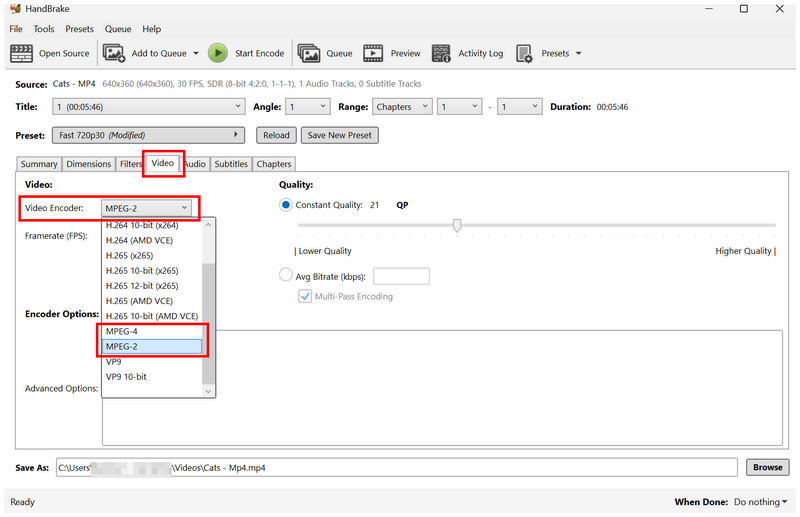
Now that you have set the Encoder option, go back to the Summary tab. Set the Format to MP4 and click Start Encode.
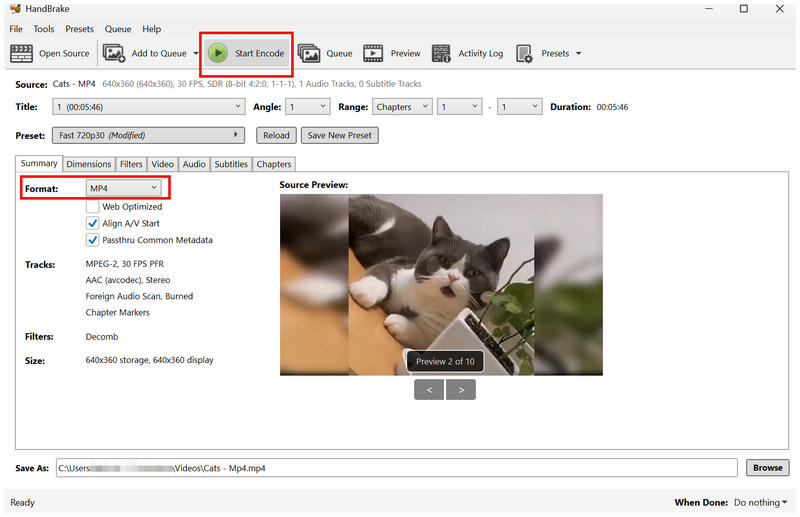
If you want to keep your video format as MP4 but still get the advantages of MPEG, HandBrake is a suitable choice.
Convert MP4 to MPEG with VLC
Best Used For: Quick MP4 conversion to modern MPEG-4 format.
With the two format converter tools that cover converting MP4 to MPEG or MPEG-2, the next option we will discuss is converting to the modern MPEG-4 format using VLC Media Player.
Originally developed as a multimedia player, VLC also offers an advanced Converter feature that converts uploaded media files to various audio and video formats. This includes an MPEG-4 for modern usage on televisions.
Open VLC Media Player and select Media > Convert/Save.
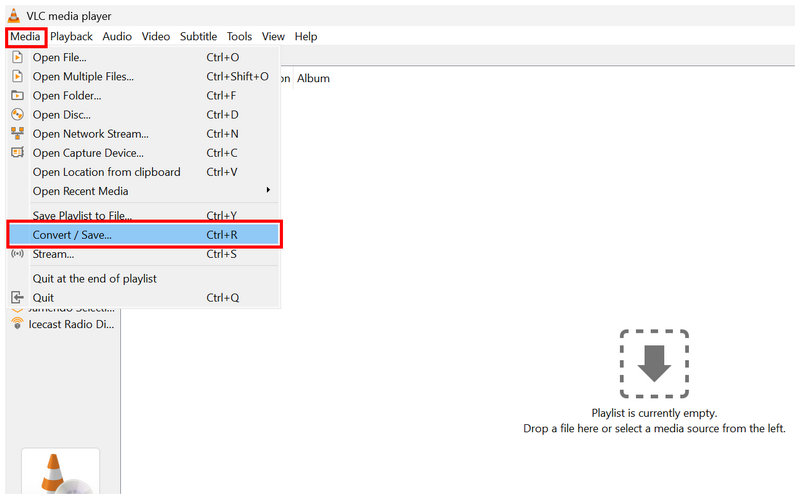
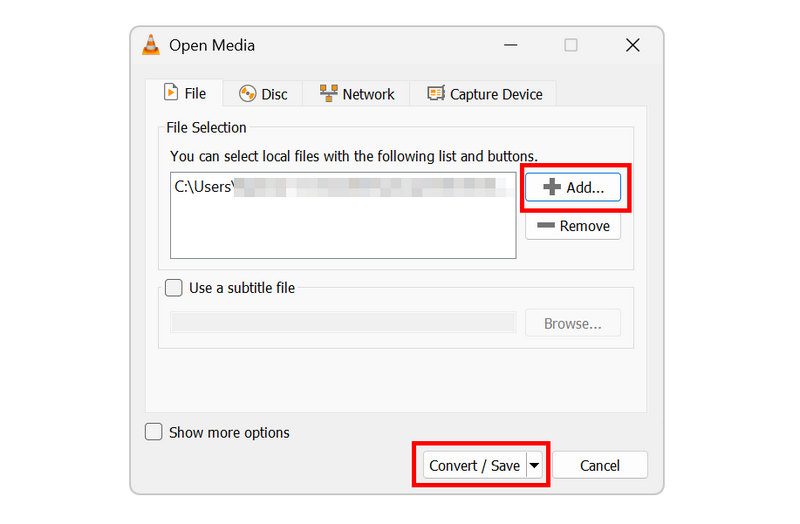
In the Open Media menu, click on Add to import your MP4 video. Then select Convert/Save to proceed to the converter section.
In the Convert menu, set the profile to the Video for MPEG4 option. Then click Browse to select the destination file. Finally, click on Start to begin format conversion.
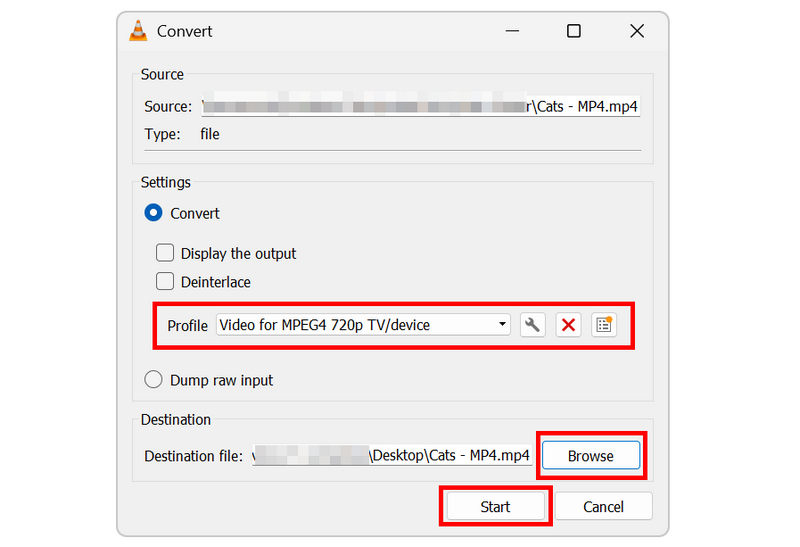
Since one of the main uses of modern MPEG is playback on modern hardware, converting MP4 to MPEG4 is a great way to optimize modern entertainment.
Part 4. How to Convert MP4 to MPEG Without Losing Too Much Quality
Since MPEG is a dated video format and not the standard for modern entertainment, you need to learn the optimal resolution, bitrate, and frame rate for the videos you will convert to avoid unnecessary quality loss after converting your MP4 file.
In this case, we recommend using 720p as the standard resolution, 6 Mbps as the bitrate, and 25-29 FPS as the frame rate. These standard quality settings are good for avoiding unnecessary quality loss.
Part 5. FAQs About Converting MP4 to MPEG
Are MPEG files a modern format?
No, it is not. MPEG files are classic video formats. However, there is a modern MPEG format in MPEG-4.
Should I convert my MP4 to MPEG?
It depends on your needs. If you want to burn videos to DVDs, converting them to MPEG-2 is a good idea. For modern standards, MPEG-4 is better.
What is good software to convert video formats?
You can use exclusive multimedia converter tools. For browsers, a good choice is ArkThinker Free Video Converter Online. For desktop tools, VLC or HandBrake is a good option.
Are MPEG-4 and MP4 the same?
No, they are not. MP4 and MPEG-4 are two different formats. However, both options are designed for modern use, with MPEG-4 having an edge in video streaming.
Why should I convert to MPEG format?
Converting to MPEG is a good choice for DVD burning. Modern MPEG is also good for streaming videos online. Although they are unconventional, MPEG has its niche.
Conclusion
With the programs to convert MP4 to MPEG now discussed, we hope you can proceed to manage your video files more effectively. If you plan to burn videos on DVD, MPEG is a good option. Among these programs, we recommend ArkThinker Free Video Converter Ultimate for converting to accessible formats.
What do you think of this post? Click to rate this post.
Excellent
Rating: 4.9 / 5 (based on 603 votes)


