


3 Ways to Convert Video to iPad Format with Full Tutorials
If you are new to the Apple ecosystem and are having trouble playing videos on your iPad, you may be experiencing a format incompatibility. Fortunately, this is a common issue, as most Apple devices are known for their subpar compatibility with external media files and formats. As such, fixing this issue won’t be complicated. In this article, we will discuss the best tools for converting videos to iPad format to resolve video incompatibility issues. The programs we will discuss are all designed to provide presets and output formats fully optimized for the Apple tablet. To learn how to use these tools, make sure to read our detailed review and tutorial on these three reliable options.

- GUIDE LIST
- Part 1. Apple iPad Video Playback Specifications and Supported Formats
- Part 2. Standard Ways to Convert Video to iPad Format Effortlessly
- Part 3. How to Import Your Files After You Convert Video to iPad Format
- Part 4. FAQs About Converting Videos to iPad Format
Part 1. Apple iPad Video Playback Specifications and Supported Formats
Before proceeding to our programs for converting MP4 to iPad video, let us first discuss why converting to iPad video format is usually needed. Perhaps the most notable reason is that the iPad has limited video format support, as it can only play videos saved in MP4, MOV, or M4V.
Moreover, you need to use specific codecs to ensure your video plays smoothly on your iPad. Fortunately, the converter programs we featured in this article automatically apply Apple-compatible media codecs when converting.
To learn the specifics of the playback requirements of iPad videos, please refer to our table below.
iPad Video Supported Specifications
| Format | MP4, MOV, M4V |
| Video Codec | H.264 (AVC), H.265 (HEVC), MPEG-4 Part 2, Apple ProRes |
| Audio Codec | AAC, ALAC, Dolby Digital |
| Resolution | Up to 4K UHD |
Part 2. Standard Ways to Convert Video to iPad Format Effortlessly
Option 1: Use ArkThinker Video Converter Ultimate
Best Use For: Converting videos to optimised iPad format.
The first option we will discuss for converting videos for iPad is a dedicated multimedia format converter, ArkThinker Video Converter Ultimate. As its name suggests, this program is specifically designed for format conversion, making it an exclusive solution for incompatibility problems.
Among the programs on this list, the ArkThinker multimedia converter tool features an exclusive Output Format designed to convert videos for full compatibility with Apple devices. Among them, dedicated formats for iPad, iPad Air, and iPad Pro are all available.
When using these conversion profiles, your videos will be converted to settings compatible with iPad devices, including audio and video codecs, file formats, resolutions, bitrates, and more. Since all these settings are predetermined, simply using any of the iPad conversion profiles will make incompatible videos playable on Apple’s tablet hardware.
To learn how to use ArkThinker Video Converter Ultimate, read our three-step guide below. Make sure to download it as well for an easier time learning how to use the program.
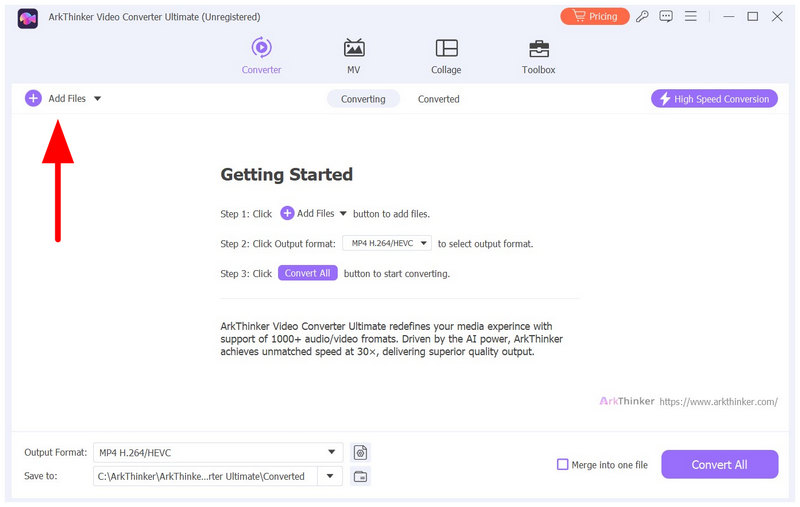
Open ArkThinker Video Converter Ultimate and select Add Files in its Converter tab.
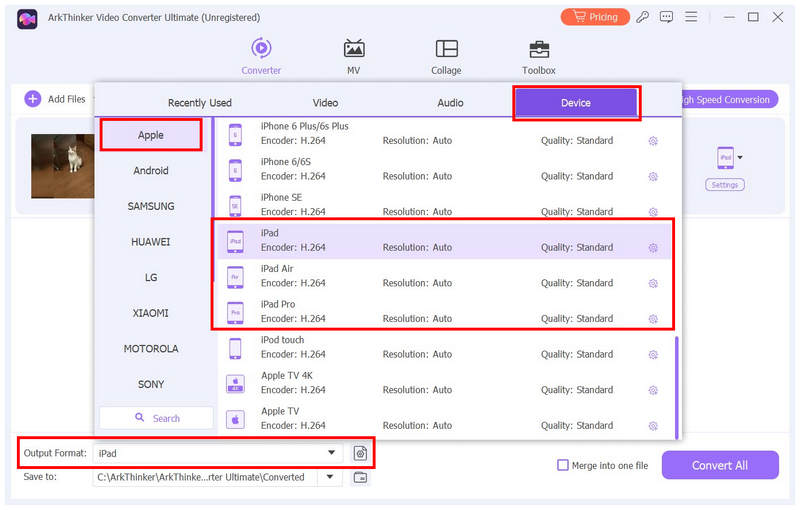
Next, select Output Format, go to Device, and select Apple. Then scroll down to select the iPad conversion profiles you want to use.
With the conversion profile now set, you will be redirected back to the Converter tab. Select Convert All to begin converting your video to an optimised iPad format.
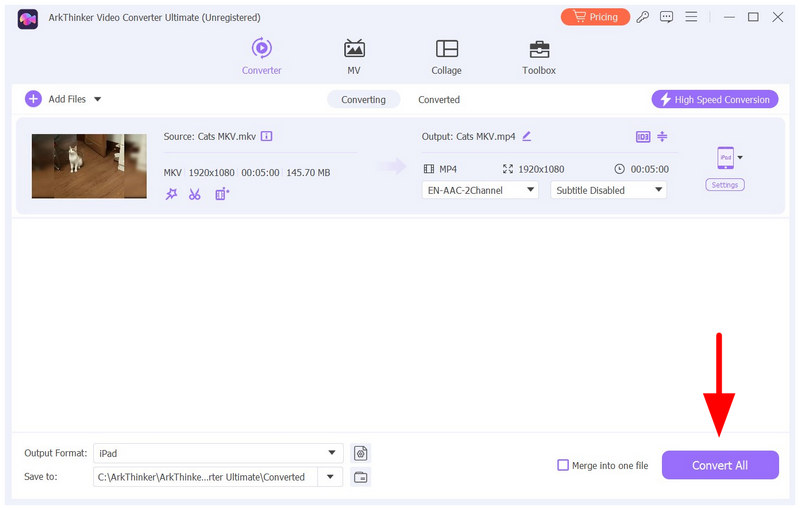
Among the options on this list, the access to multiple iPad conversion profiles is the biggest advantage of using ArkThinker Video Converter Ultimate. This made the tool a safe choice if you are unsure whether the presets for the following options will be compatible with your iPad’s version.
Option 2: Use HandBrake Built-in iPad and Apple Device Profiles
Best Use For: Converting unsupported videos to Apple-specific presets.
If you are a fan of open-source programs, the HandBrake encoder might be one of the first tools you consider. Unlike the previous option, HandBrake uses Apple-specific presets to make videos compatible with Apple devices.
Since it is more generalized, the videos converted using HandBrake may not be as optimized for iPad. However, it still gets the job done if you are only looking for a solution for video format issues. Using any of the Apple presets will make your incompatible video playable on iPad devices.
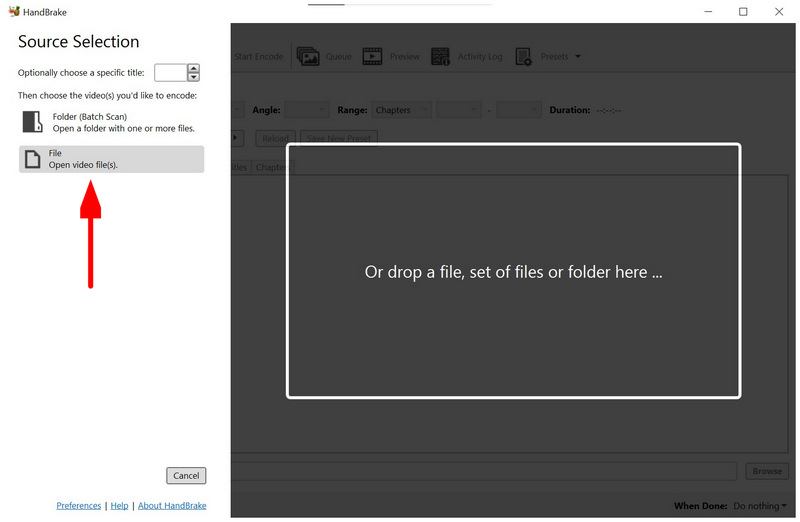
Open HandBrake and select File to open your video.
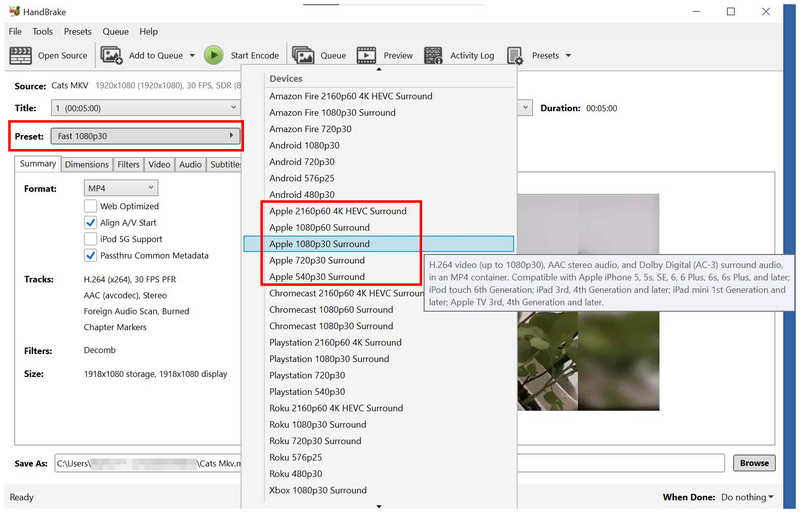
Once the video file is added, select Preset, scroll down to Devices, and select any of the Apple presets. In this guide, we used the Apple 1080p30 Surround preset.
With the Preset now selected, click on Start Encode to begin converting your uploaded video to a format optimized for Apple.
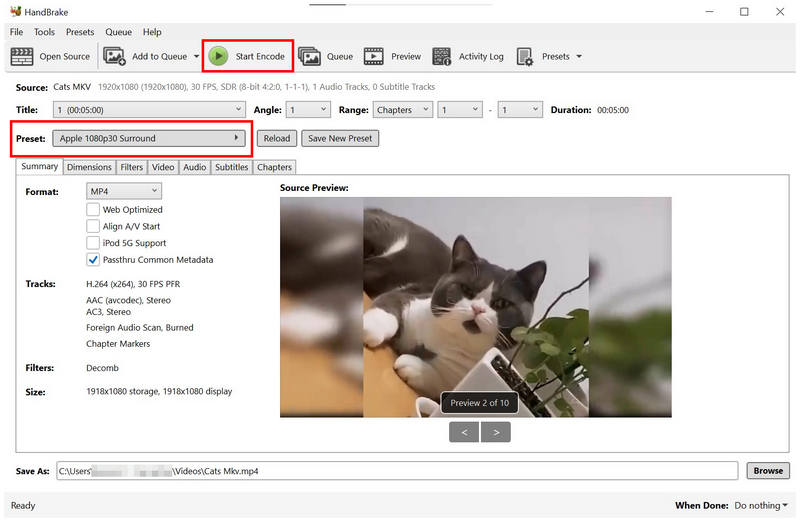
Since HandBrake is not GPU-accelerated, allow a few minutes for the software to convert your video. This could take a while depending on the file size of your media.
Option 3: Use Any Video Converter for Desktop Bulk Processing
Best Use For: Converting video files to native Apple QuickTime format (MOV).
The last option we will discuss is another video converter tool, Any Video Converter, optimized for format conversion. Similar to the first option on this list, this software is designed exclusively for multimedia conversion.
Due to its background, the software is capable of bulk processing video files. As such, this niche is the software’s specific advantage over its competitors. It also offers conversion to MOV and support for iPad-specific output formats, making videos playable on iPad.
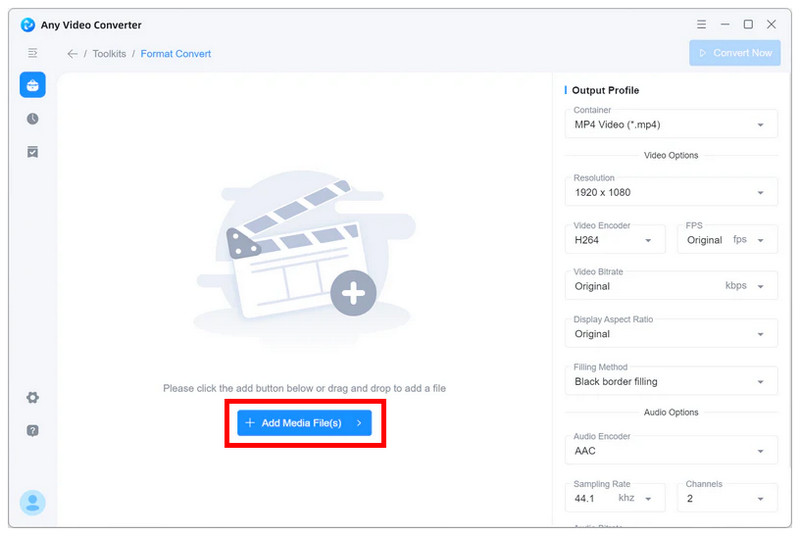
Open Any Video Converter and select the Add Media File option in the Format Convert menu.
Once your video files have been uploaded, select the Container option under the Output Profile. Then, select the Apple QuickTime Movie (MOV) option. Select Convert Now.
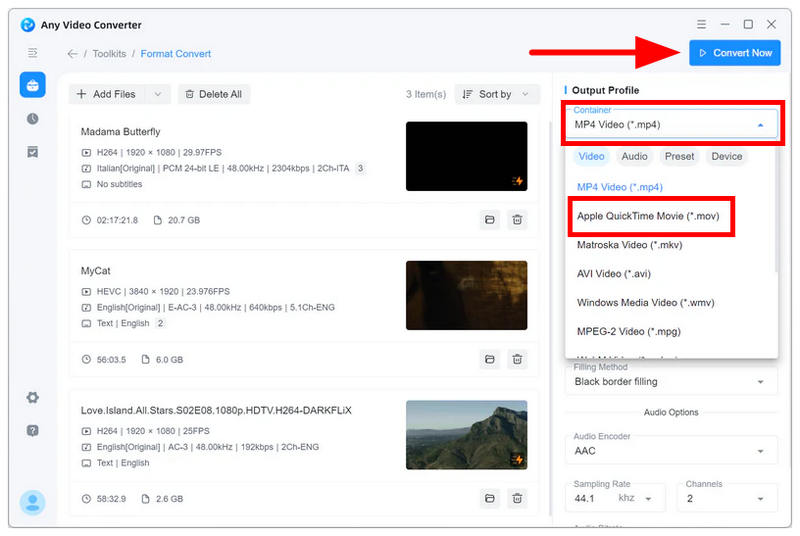
After selecting Convert Now, your uploaded video files will be converted. Wait for the conversion process to finish.
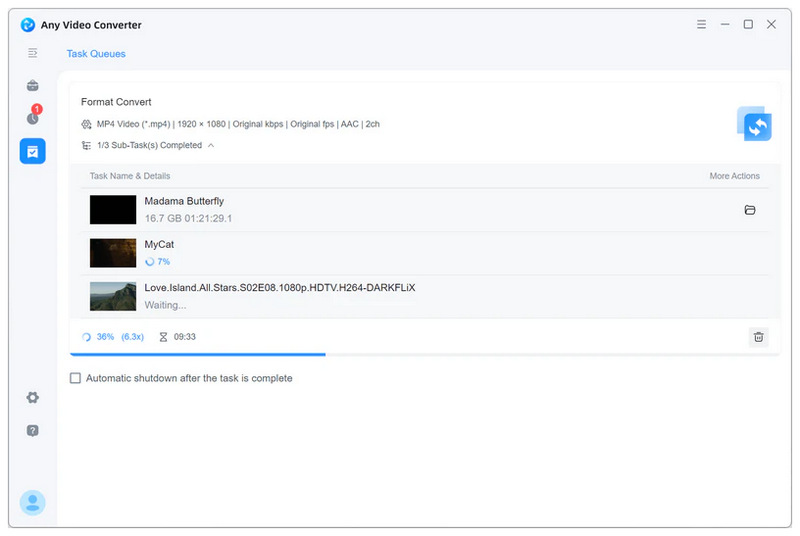
Although the software offers device-specific options, an alternative solution to make your videos playable on iPad is to save them in MOV format.
Part 3. How to Import Your Files After You Convert Video to iPad Format
Once you have converted your videos to be compatible with iPad, the next step is to import them onto your device. With that in mind, we will provide a detailed guide on using cloud storage services as an important tool to save converted videos to your Apple devices.
Go to your preferred cloud storage and upload the converted video file from your computer. In this tutorial, we used Google Drive.
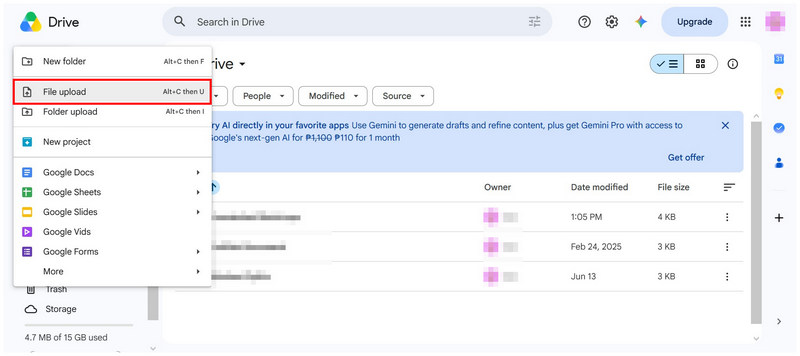
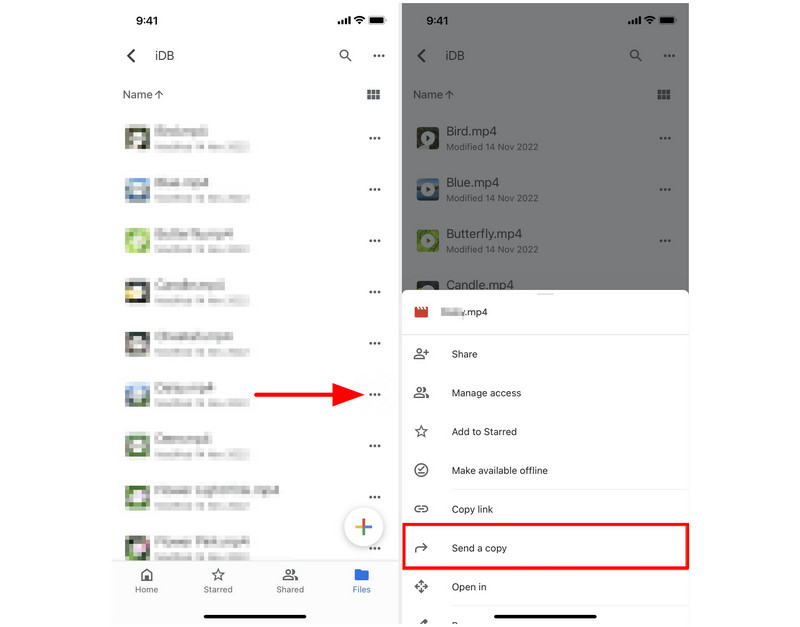
Once your video has been uploaded to the cloud, open Google Drive and locate the video you have added. Select the Three-Dot button next to the file name, then select Send a Copy from the pop-up menu.
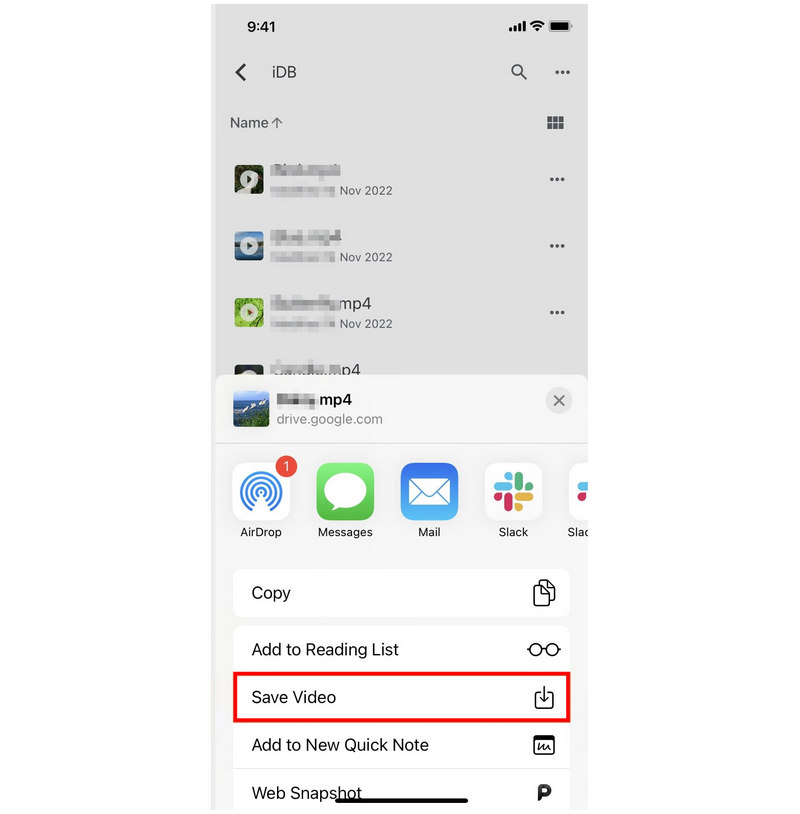
In the menu that opens, select Save Video to download the converted video to your device from Google Drive.
Once you have saved your iPad-ready video to your device, you can watch it without compatibility issues.
Part 4. FAQs About Converting Videos to iPad Format
How to convert a video to iPad format online ?
There are numerous online tools you can use. Some good examples are CloudConvert and FreeConvert. Of the two options, FreeConvert is better because it offers a dedicated iPad output format.
Is it complicated to convert an MP4 video to an iPad format ?
No, it is not. Converting to an iPad-supported format is quite easy. You can do so by converting them to MOV or via conversion to iPad iPad-specific profile.
Do I need to convert MKV videos before importing them to my iPad?
Yes, you should. The MKV format is not natively supported on iPad devices. You must convert your file to MP4, MOV, or M4V.
What video format does the iPad support?
iPad has limited video support. Natively, it can only play MP4, MOV, or M4V. However, you can use third-party video players to play more video formats outside these three.
Are media format converters useful?
Yes, they are. Format converters are a practical choice to improve the accessibility of media files. They are very useful for opening files that your device usually doesn’t support.
Conclusion
Now that we have discussed the importance of video formats and why the iPad has compatibility issues, we hope the 3 ways for converting video to iPad formats we have reviewed in this article will help fix your problems. Among these three options, we strongly recommend ArkThinker Video Converter Ultimate, as it offers device-specific formats and is the best solution. Make sure to download it using our link below.
What do you think of this post? Click to rate this post.
Excellent
Rating: 4.9 / 5 (based on 611 votes)


