


How to Convert MP4 to WMV Format Using 3 Ways in 2026
When you are already using the MP4 format, the reasons to convert to a less popular option are very limited, unless for specific compatibility reasons with niche platforms. One format where converting from MP4 makes sense is WMV, since this file type is highly compatible with Windows-specific software and older devices. To help our readers learn how to convert MP4 to WMV, make sure to read our tutorial on three format-conversion tools, each with a detailed step-by-step guide.

- GUIDE LIST
- Part 1. Why Convert MP4 to WMV
- Part 2. How to Convert MP4 to WMV
- Part 3. FAQs About MP4 to WMV Conversion
Part 1. Why Convert MP4 to WMV
Converting videos to WMV format from a universal file type like MP4 may be unconventional. However, the WMV format has a significant advantage in compatibility with older Windows devices. Specifically, the Windows-optimized format offers superior compression efficiency, making videos extremely small and compact. This makes it a good option for storing video files or for opening media on dated Windows devices. If these two factors work for you, learning to transcode MP4 to WMV is a solid option.
Part 2. How to Convert MP4 to WMV
Convert MP4 to WMV with ArkThinker Free Video Converter Online
Best Used For: Installation-free video format conversion for beginners.
We will start this article by featuring the most accessible option: ArkThinker Free Video Converter Online. Although an unconventional combination, the software has significant strengths in accessibility, versatility, and advanced settings. All of these elements make the program a solid choice for users of all skill levels.
For beginners, ArkThinker’s online tool works well, as it can convert uploaded media files to WMV or one of its 20+ supported output formats with just a few clicks. However, it also caters to experienced users, with an optional advanced setting to edit video settings such as bitrate and encoder.
To learn more about why the tool is a solid choice for versatile transfer of MP4-to-WMV, make sure to read the program’s key features and refer to our three-step guide to learn how to use it.
Main Features:
- • No software installation or setup required.
- • Supports 25+ video and audio output formats.
- • Offers advanced editing tools with encoder, frame rate, bitrate, sample rate, and more.
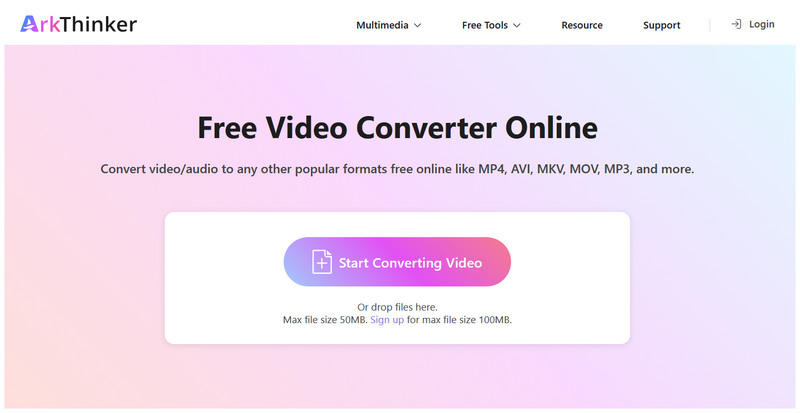
Go to the ArkThinker Free Video Converter Online’s website and select the Start Converting Video button to upload your MP4 file for conversion.
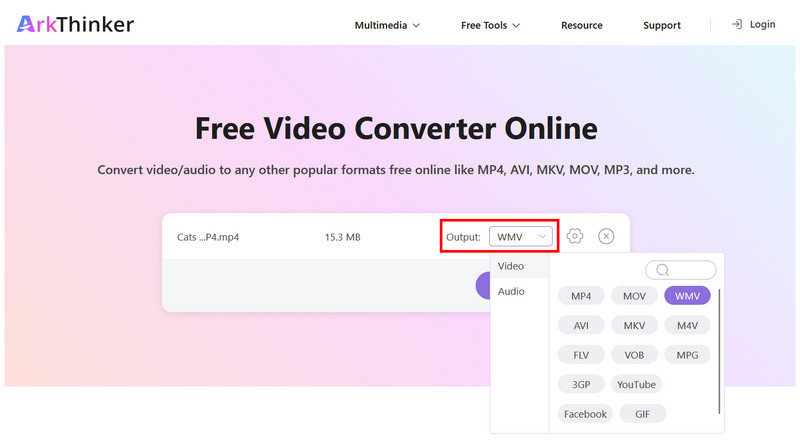
With the MP4 file uploaded, select Output >Video, then choose WMV as the format.
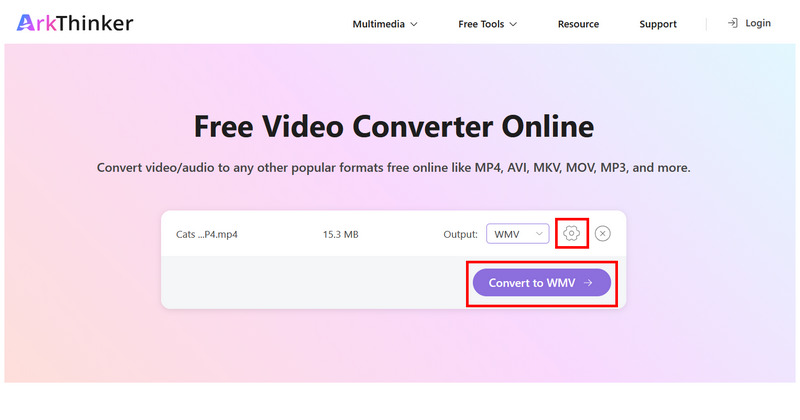
To access the advanced and manual settings, select the Settings button to configure options such as encoder, frame rate, bitrate, resolution, and more. Otherwise, click Convert to WMV to begin the conversion.
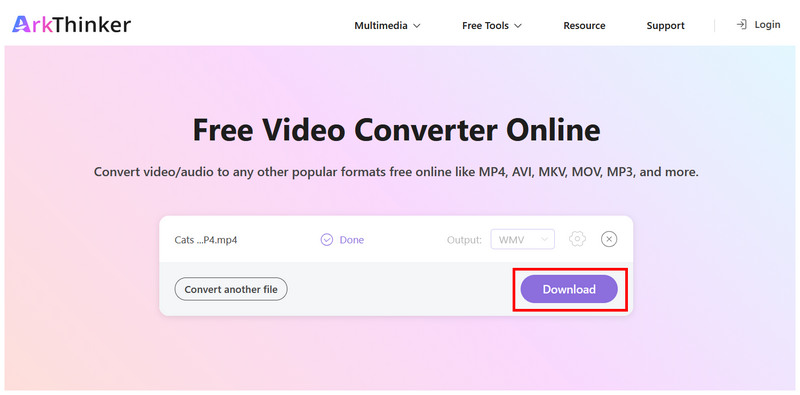
Finally, click Download to save the WMV video to your computer.
Among the options on this list, the versatility of ArkThinker’s online tool makes it a recommended solution both for beginners and experienced users.
Convert MP4 to WMV with VLC
Best Used For Converting video formats directly within the video player.
If you are using a Windows or macOS computer, you will most likely use one of the most popular third-party media players, VLC Media Player. If so, you can easily use the program as a free MP4-to-WMV converter thanks to its Convert/Save feature.
Unfortunately, VLC’s advanced video format conversion feature is quite hard to use because it is not highlighted in the program. It is considered an extra feature that is not explicitly advertised to its users.
To bridge this gap, we have provided a quick guide on using the Convert/Save feature of VLC Media Player.
Main Features:
- • Equipped with an exclusive Convert/Save feature for converting video and audio.
- • Wide format support for input, output, or conversion.
- • Open-source freeware for Windows, macOS, Linux, and mobile.
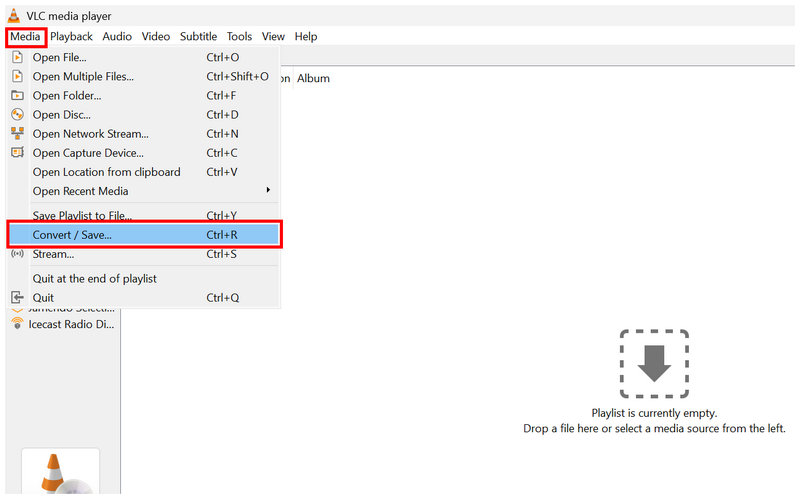
Open VLC Media Player and select Media > Convert/Save.
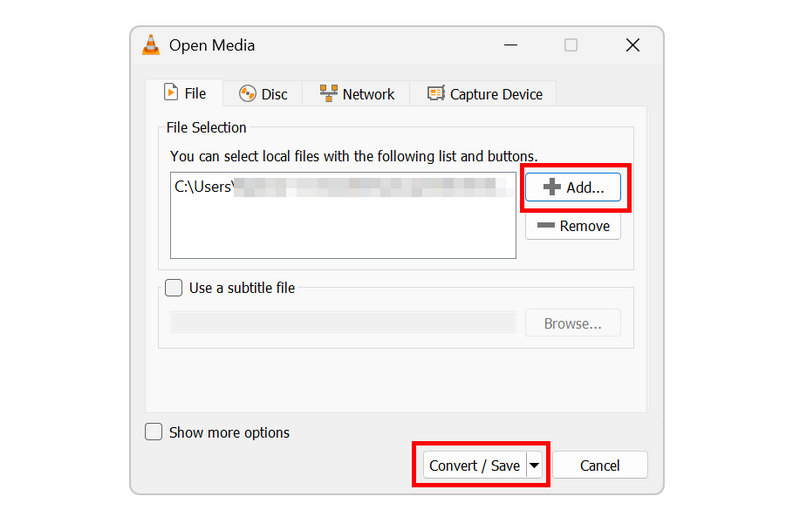
In the Open Media menu, select Add to import the MP4. Then, click on Convert/Save to proceed.
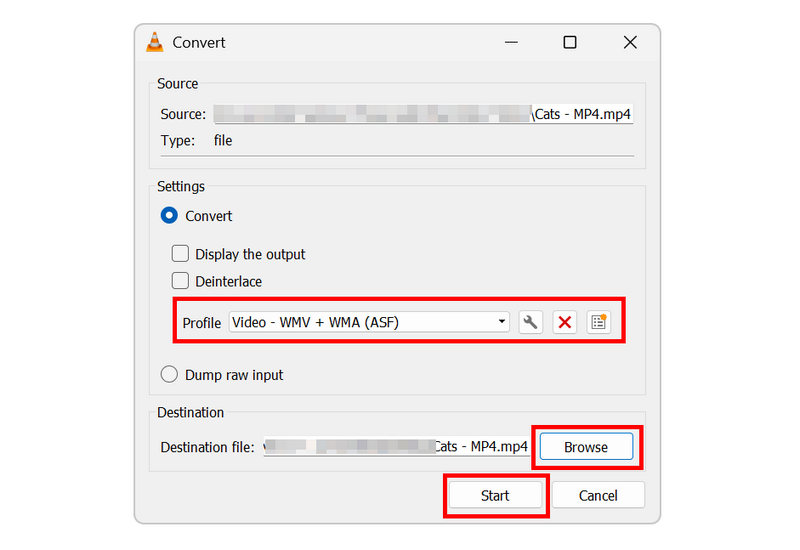
In the Convert menu, set the Profile to Video - WMV + WMA (ASF), since this profile uses WMV format for the video. However, if a profile labeled Video for Windows is available, select it.
Once the conversion profile is set, select Browse to choose a destination file for the WMV video you want to convert. Once done, click Start to begin conversion.
Although it requires a few steps, the Convert/Save feature in VLC Media Player is better suited to intermediate users rather than beginners. However, our guide should help you get started with the program.
Convert MP4 to WMV using FFmpeg
Best Used For: Command-based format conversion for experienced multimedia practitioners.
Finally, the FFmpeg option, our third program, is software designed exclusively for experienced users and those with a background in scripting and command-line tools. As such, this software makes for a good option for converting MP4 to WMV on OSX, Windows, and even Linux.
Unfortunately, the FFmpeg plug-in has a major accessibility disadvantage: it lacks a graphical user interface. However, if you have sufficient knowledge to use it, this option is the most efficient format-conversion tool across all platforms.
Main Features:
- • 100% command-line-based multimedia editing tool.
- • Supports editing codecs, bitrate, resolution, frame rate, and audio.
- • More efficient than VLC and ArkThinker Online for conversion.
Open the terminal software on your computer. Command Prompt on Windows or Terminal on macOS.
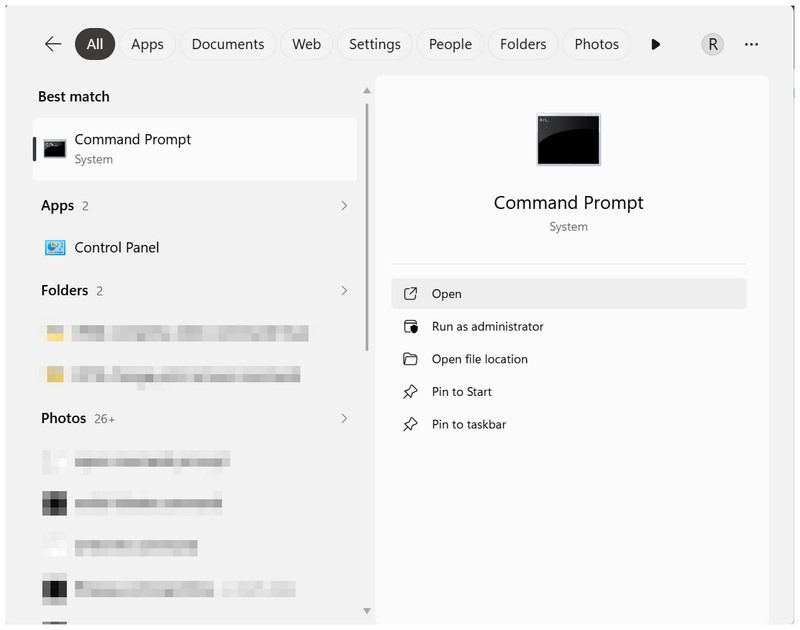
In the terminal app, copy and paste the script: ffmpeg -i input.mp4 -c:v wmv2 -c:a wmav2 output.wmv.
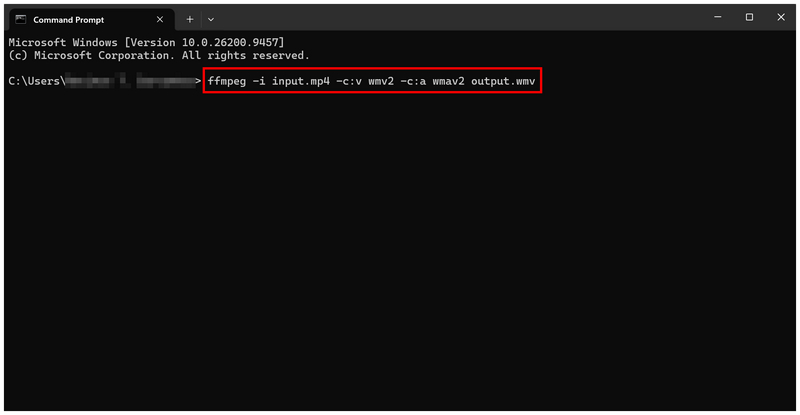
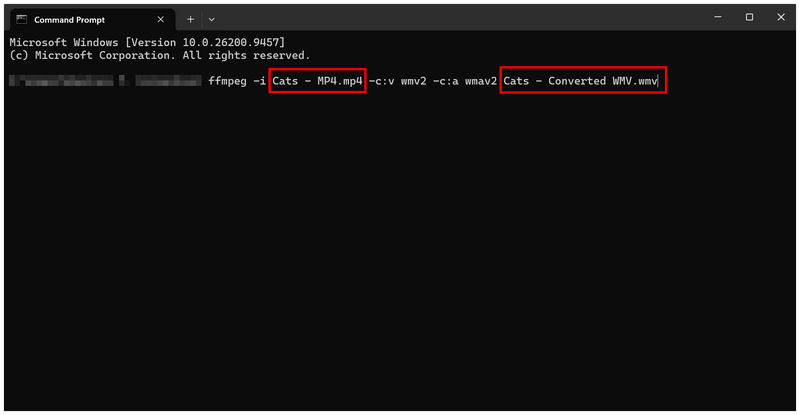
Then rewrite the “input.mp4” and “output.wmv” commands. Set the input to the name of the MP4 file you want to convert, and set the output to the name you want to give the WMV file.
If you are not familiar with scripts and command lines, we strongly recommend avoiding FFmpeg for basic multimedia format conversion. Wrong commands may affect not only your video file but also your entire computer.
Part 3. FAQs About MP4 to WMV Conversion
IS MP4 universally compatible?
Yes, it is. MP4 is playable on most devices and platforms. It is the standard format for modern video players.
What should I use my WMV videos for?
WMV files are ideal for Windows computers, especially older ones. WMV is also a good option for users who want extremely compact videos.
Are WMV videos compact?
Yes, they are. WMV files are very small. They are compressed efficiently to save space.
What format is best for MP4 conversion?
It depends on your priority. For a smaller file size, WMV is a good choice for Windows computers. However, for a versatile format, MKV may be better.
Are WMV files high-quality?
It is not. WMV files have standard video quality. They sacrifice quality for the extremely compact file size.
Conclusion
Now that we have provided the best steps and programs to convert MP4 to WMV, you can make your video files more compatible with older computers. Additionally, we recommend using WMV conversion tools to save storage space, as WMV files are more compact than MP4 files. To get started with format conversion, make sure to use ArkThinker Free Video Converter Online.
What do you think of this post? Click to rate this post.
Excellent
Rating: 4.9 / 5 (based on 618 votes)


