


3 Ways to Convert MPEG to MP3 Format: Full Tutorial in 2026
When downloading music videos online, most media on video-sharing websites are saved in optimized formats for browsers, such as MPEG. Unfortunately, videos are harder to consume since they are tricky to play on smartphones without closing your main display. As such, learning which programs you can use to convert MPEG to MP3 is a good way to transfer music files to music players for accessible entertainment easily. We will provide three multimedia conversion tools to simplify video-to-audio conversion, along with their best uses as format converters.

- GUIDE LIST
- Part 1. What Happens When You Convert MPEG to MP3
- Part 2. Best Ways to Convert MPEG to MP3
- Part 3. How to Choose MP3 Quality from MPEG
- Part 4. FAQs About MPEG to MP3 Conversion
Part 1. What Happens When You Convert MPEG to MP3
Converting an MPEG file to MP3 will save the video’s audio track as an MP3 file. This will convert your video file into an audio file that can be scanned by music players and used as an editing asset. Since MPEG videos are the standard format for online uploads, the most common use of MPEG-to-MP3 conversion is to download music files for offline consumption after the video is converted to audio.
Now that we have discussed what will happen during format conversion, let us proceed to the best ways to convert MPEG videos to the more accessible MP3 format.
Part 2. Best Ways to Convert MPEG to MP3
ArkThinker Free Video Converter Online
Best Used For: Installation-free format conversion for multimedia files.
For beginners, the best way to learn how to convert MPEG to MP3 is to use online format converters, since they are specifically designed for ease of use. One great example is ArkThinker Free Video Converter Online, which can convert multimedia files into audio or video.
Since it was designed to handle media files of different types for conversion to audio or video formats, ArkThinker’s online tool can handle MPEG-to-MP3 conversion just fine. Although it was labeled a video converter, the software offers versatile output formats for 20+ video and audio media files.
Fortunately, these output formats include the standard audio format MP3. This makes the program perfectly capable of converting any video files imported into the software to MP3 audio. To learn how to use ArkThinker Free Video Converter Online, read our three-step guide below.
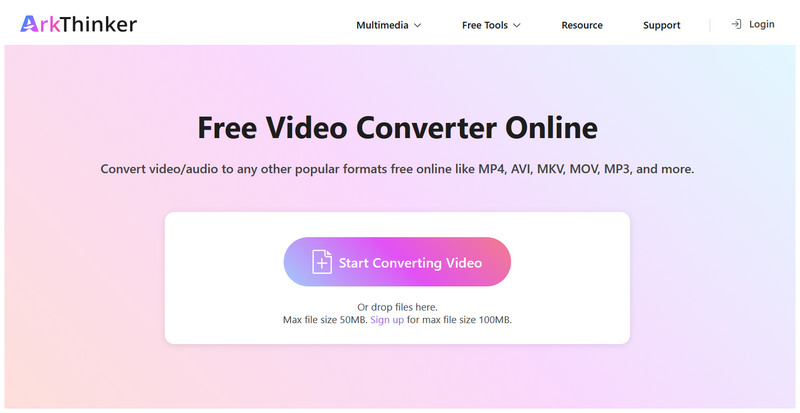
Go to the ArkThinker Free Video Converter Ultimate website and click the Start Converting Video option to import the MPEG video you want to convert to MP3.
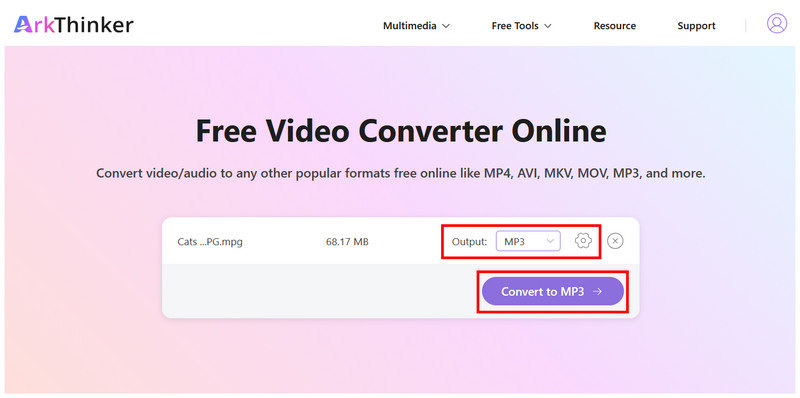
Once the MPEG video is uploaded, set the Output to MP3. Then you can click Settings to access advanced options such as sample rate, channels, bitrate, and encoder. Otherwise, click on Convert to MP3 to begin conversion.
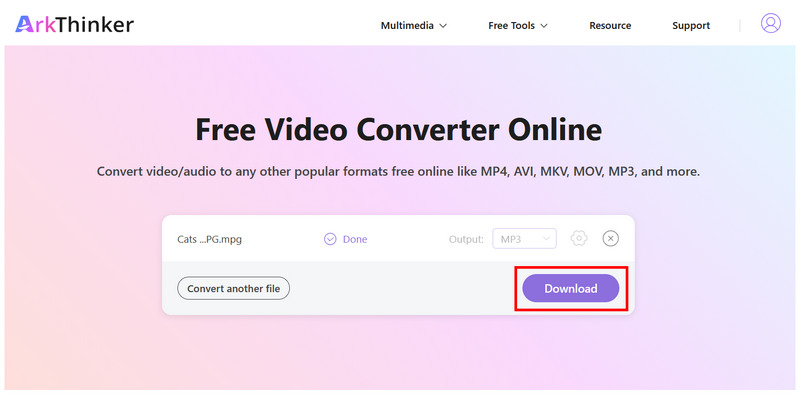
Finally, once the conversion is complete, click Download to save the converted MP3 file to your device.
Among the options on this list, ArkThinker Free Video Converter Online strikes the right balance between features and accessibility. As such, this makes the software a solid choice for beginners. Since it also offers an optional advanced setting, even experienced users can use the program and make manual audio quality adjustments.
VLC Media Player
Best Used For: Multimedia player with basic format conversion features.
Moving forward, we will use a desktop tool to convert an MPEG-4 movie to MP3, leveraging VLC Media Player's advanced features. If you plan to convert a long MPEG-4 video, such as an interview or a video podcast episode, to audio, VLC's Convert/Save feature may be your solution.
Although known as multimedia player software, VLC Media Player is equipped with an advanced converter feature readily available to users tinkering with the software. However, keep in mind that VLC lacks hardware acceleration, which may slow or even make conversion unstable.
Unfortunately, the convert feature is slightly tricky to use, so a quick guide is warranted.
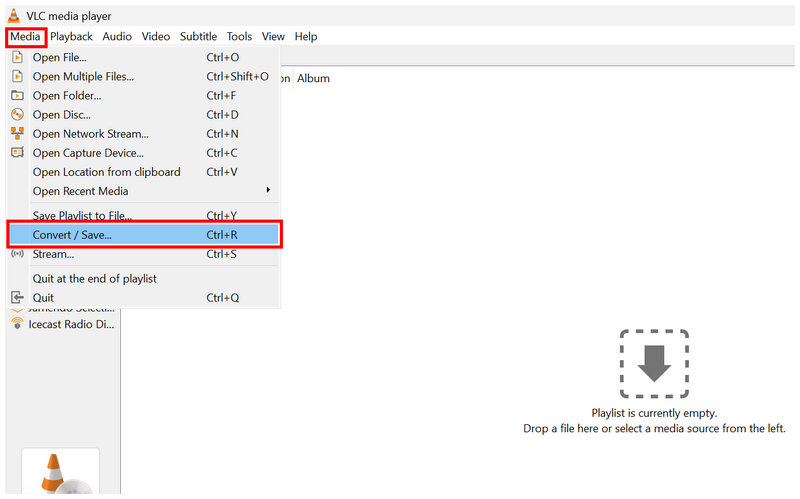
Open VLC Media Player, select the Media tab, then click Convert/Save.
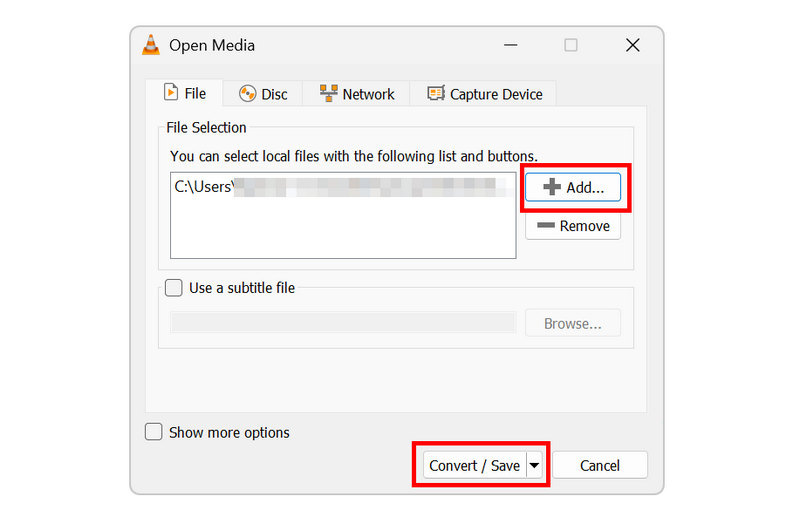
In the open media menu, click on Add to import the MPEG file you want to convert, then select Convert/Save to proceed.
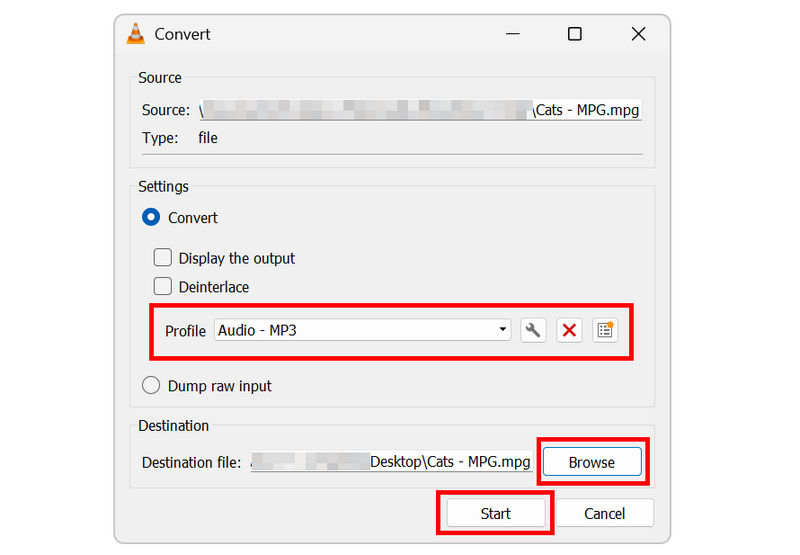
Finally, in the Convert menu, set the conversion profile to Audio - MP3. Then, set the MP3 save file by clicking Browse. Click on Start to begin format conversion.
Now that we have provided the steps to convert MPEG video to MP3 audio in VLC's advanced features, we hope this article helps you learn how to use the multimedia program for basic conversions.
FFmpeg
Best Used For: Command-based multimedia format conversion for quick file editing.
Finally, let us proceed to the advanced option to transfer MPEG to MP3 using the FFmpeg multimedia plug-in. Unlike the previous programs, this software lacks any GUI since it is exclusively command-based.
Compared to online tools and other desktop-based programs, FFmpeg has an efficiency advantage, as it can start format conversion with a quick command line. Unfortunately, learning what command line to write is the tricky part. You have to learn the right script, and writing the wrong one may affect your file or computer.
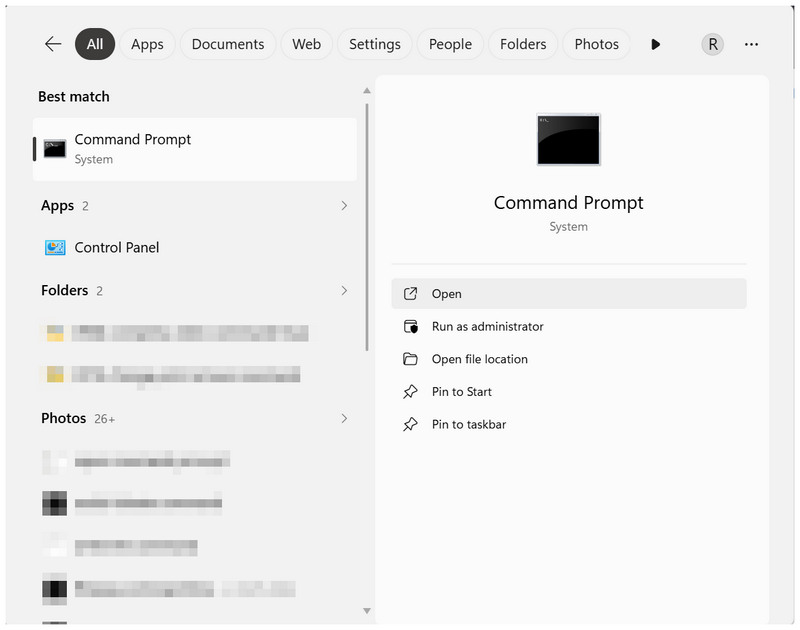
Open the terminal software on your computer. In this tutorial, we are using a Windows computer, so that we will use the Command Prompt.
In the Terminal app’s main display, copy and paste the command: ffmpeg -i input.mpeg -vn -c:a libmp3lame -b:a 192k output.mp3.
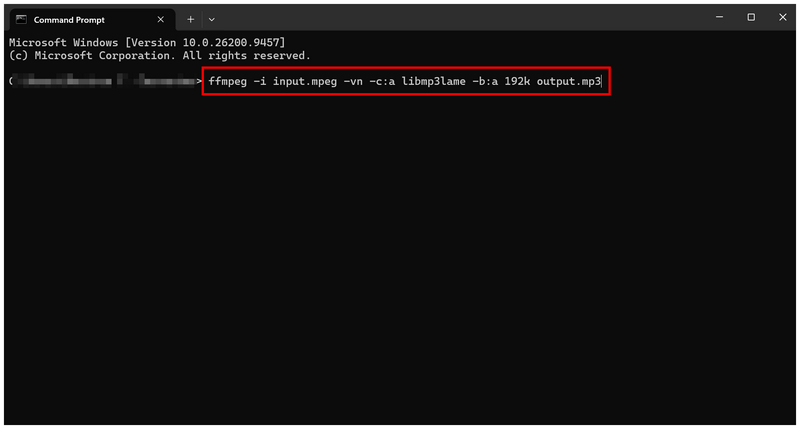
Then, rename the “input.mpeg” to the name of the MPEG file you want to convert. Next, edit the “output.mp3” to the file name you want to save your MP3 file as. Once done, press Enter to apply the command line.
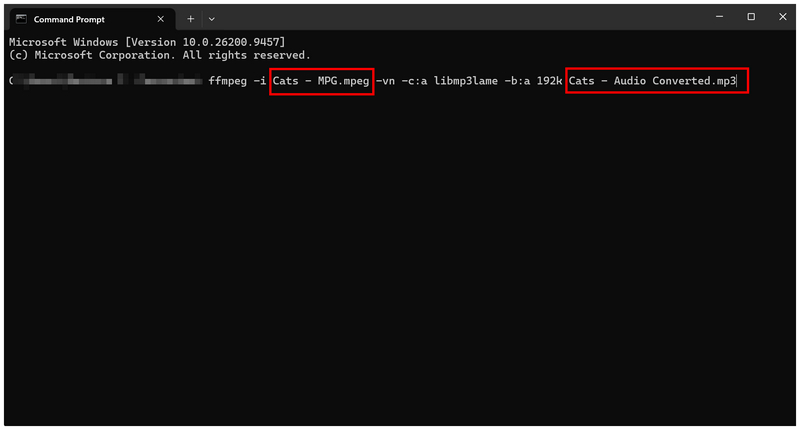
Although FFmpeg has a major advantage in efficiency, the program has inherent limitations in accessibility. Its not being beginner-friendly makes the tool not advisable even for intermediate users.
Part 3. How to Choose MP3 Quality from MPEG
If you are using format converters to create MP3 audio, you need to learn the ideal settings to ensure your audio file is high quality. As such, we have provided a good baseline setting for format conversion. In terms of bitrate, 128kbps is a good starting point for speech-based media such as podcasts. For music files, a good starting point is 192kbps.
However, if you are expecting clear audio quality from a converted MP3, we regret to inform you that MP3 files are not lossless and therefore have reduced audio quality.
Part 4. FAQs About MPEG to MP3 Conversion
Are MPEG files videos?
Yes, they are. MPEG files are video formats. They are among the first video formats and became the standard before MP4.
Are MP3 files high-quality audio?
Yes, they are. MP3s have good-quality audio. However, they are not made for lossless listening, since MP3 is a lossy format.
Should I use MP3 for audio format conversion?
Yes, you should. MP3 is a good output format since it has good compatibility. This makes such an audio playable on most devices.
What format should I use when converting video to audio?
When converting to audio, a good option is MP3. When converting to video, MP4 is a good choice. Both formats are universally compatible with most hardware and software.
Is MP3 a good audio format?
Yes, it is. MP3 is a solid choice for an audio format. It has good-quality audio and is superb.
Conclusion
With three of the most reliable tools to convert MPEG to MP3 now discussed and featured, we hope this article helps you enjoy offline listening by making it easy to convert online videos into high-quality MP3 audio. For ease of use, we highly recommend using ArkThinker Free Video Converter Ultimate.
What do you think of this post? Click to rate this post.
Excellent
Rating: 4.9 / 5 (based on 601 votes)


