


How to Use Google Photos to Convert HEIC to JPG (2026 Guide)
When handling phone memory, cloud storage services such as Google Photos are among the most popular and trustworthy solutions. However, most of these services back up images in their original format. With that in mind, it is a common problem for Google Photos users on iOS to save their images in HEIC format, which has poor compatibility outside the Apple ecosystem. In this article, we will provide three methods you can use to learn how to use Google Photos to change HEIC to JPG format. These methods range from browser tricks and third-party solutions to built-in options in Google Photos’ settings.

- GUIDE LIST
- Part 1. Why Does Google Photos Store My Images as HEIC
- Part 2. How to convert Google Photos from HEIC to JPG
- Part 3. FAQs About Google Photos for HEIC to JPG Conversions
Part 1. Why Does Google Photos Store My Images as HEIC
When using Google Photos as your primary storage backup, the program’s default backup setting is set to Original Quality. Using this option, files uploaded to the app are saved in their original format. As such, HEIC images backed up from your device will be saved in their original format.
To learn how to convert Google Photos from HEIC to JPG , make sure to read our proposed methods below. To provide our users with solutions for this problem, these JPG conversion options have various options to help our readers choose the most suitable option for their needs.
Part 2. How to Convert Google Photos from HEIC to JPG
Method 1: Using the “Save As” Trick on a Web Browser
To start this guide, we will begin with the classic Save As option on browsers. This works by uploading your HEIC file directly to Google Photos via your browser. Then, download the uploaded image using the default “Save As” option when you right-click it.
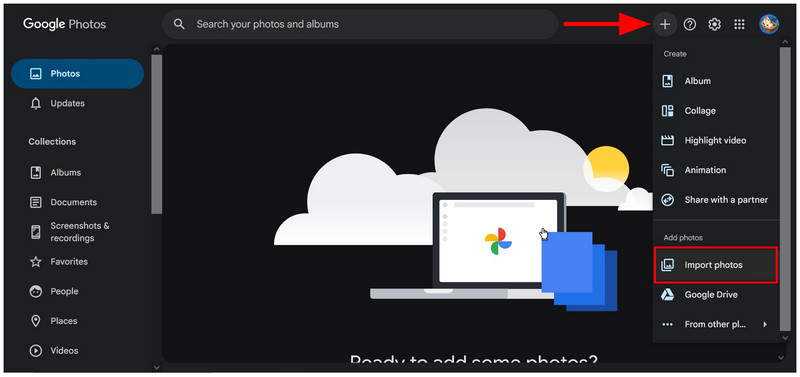
Go to the Google Photos website and select the Add button. Then click Import Photos in the dropdown menu that opens.
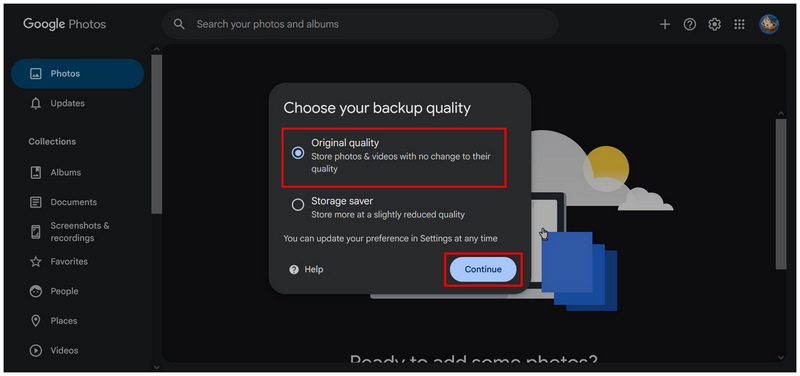
In the Backup Quality pop-up, select Original Quality to import the images in the original HEIC format and quality. Click on Continue to confirm.
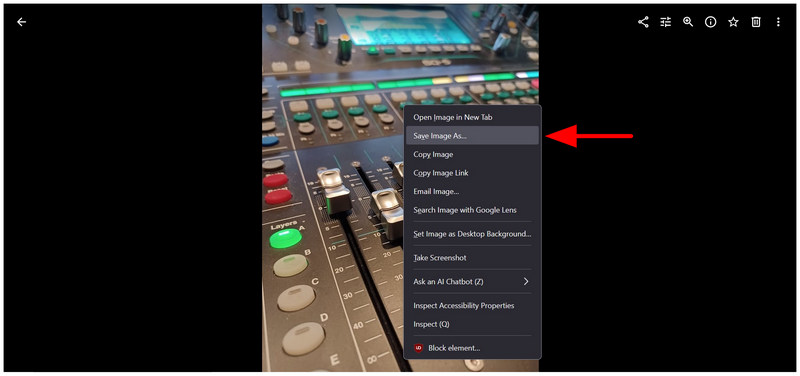
Once your HEIC image is uploaded to Google Photos, open it, then right-click the image you want to save. Then, select Save Image As.
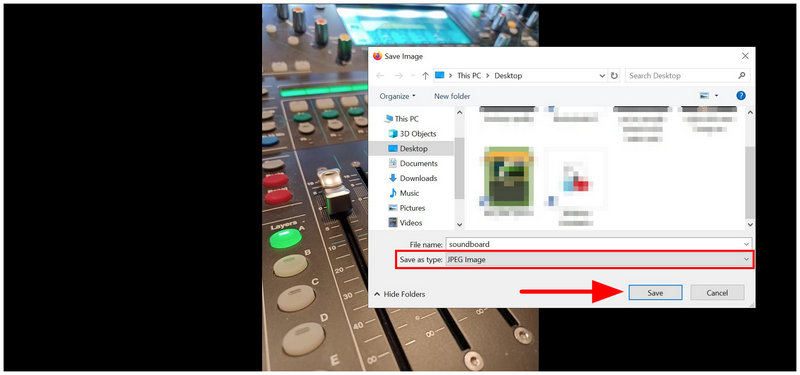
In the Save Image menu, check that the Save as Type option is set to JPEG Image. Once done, select Save to download the uploaded HEIC image as a JPG.
Although it may be considered one of the oldest tricks in the book, the Save As option is still reliable for users who want to learn how to download HEIC files as JPGs from Google Photos.
Method 2: Batch Downloading & Converting with Arkthinker HEIC Converter
Although the web browser’s save as option works well for downloading images in JPG format, it is inefficient because you have to repeatedly use it for multiple images. If you are looking for a more efficient solution, batch downloading and converting is your way to go, and ArkThinker Free HEIC Converter Online is your best choice.
As its name suggests, ArkThinker is an online tool that instantly makes it more accessible than other traditional file format converters. This makes the software more beginner-friendly, as it can be used without prior setup or installation.
Moreover, its conversion setup was highly optimized to be as beginner-friendly as possible. This makes the program highly usable as a format converter, saving HEIC files as JPG in two simple steps.
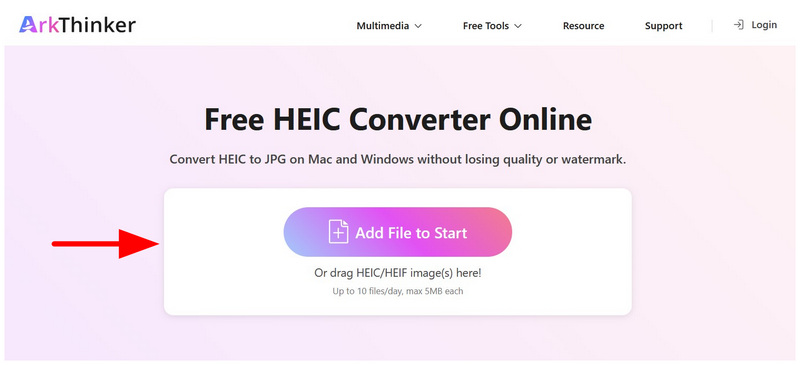
Go to ArkThinker Free HEIC Converter Online’s website. Click the Add Files to Start option, then select the HEIC images you want to convert from your file manager. For bulk conversions, you may drag and drop up to 10 files into the Upload Box.
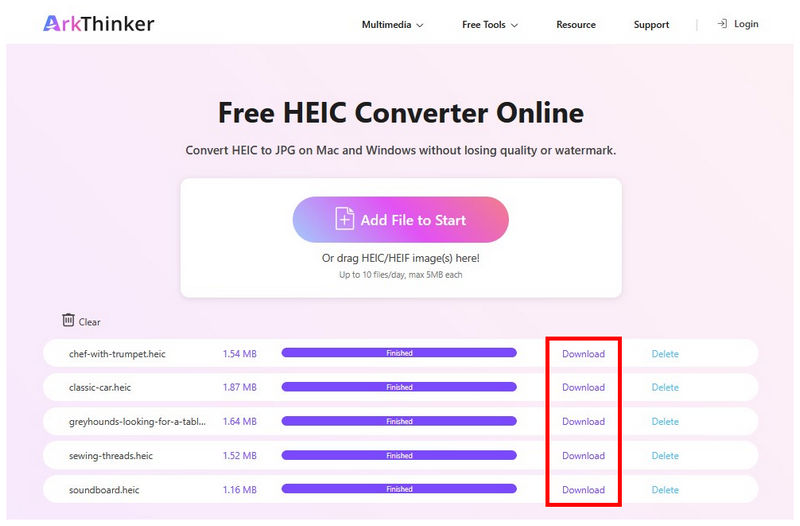
Once your files have been uploaded, ArkThinker’s conversion process will begin instantly. Simply wait for a few seconds until the conversion process is done. Finally, click the Download button for each uploaded HEIC file to save the converted JPG to your device.
Among the options on this list, ArkThinker Free HEIC Converter Online is the most practical solution for converting HEIC to JPG while maintaining its original quality. Consider using the online tool if you prefer higher retention and conversion efficiency.
Method 3: Changing Google Photos Upload Settings on iPhone
If you are using an iPhone, you can adjust the backup settings in your Google Photos app to save your backup settings to Storage Saver. Based on our tutorial on the browser option, this setting will also save your mobile backups in JPG format.
To learn how to set up this option, read our guide below.
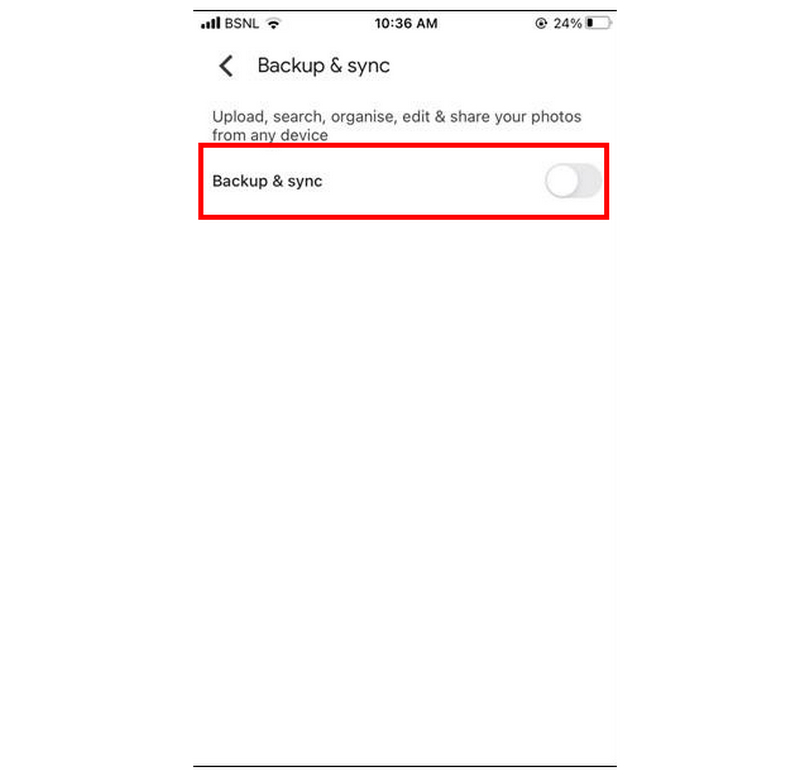
Open the Google Photos app and go to Settings. Then go to the Backup & Sync options. Then, turn on the backup function.
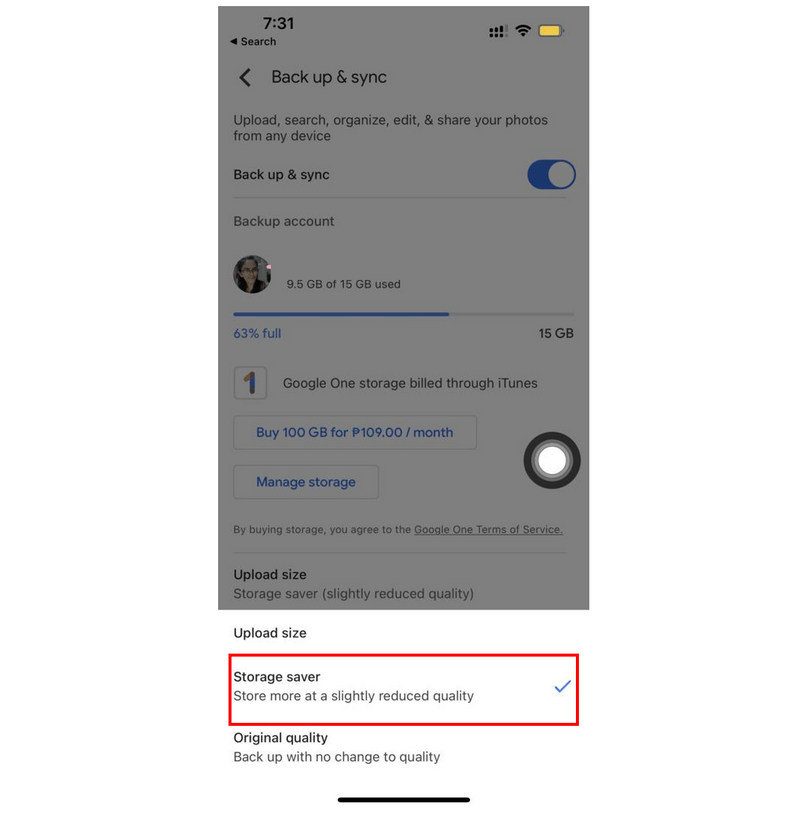
Go back to the Backup & Sync settings, select Upload Size, and tap on the Storage Saver option.
Now that you have set up the Backup settings and Storage Saver option, go back to Google Photos Backup options, and select Start Backup to begin syncing your device’s HEIC images to Google Photos.
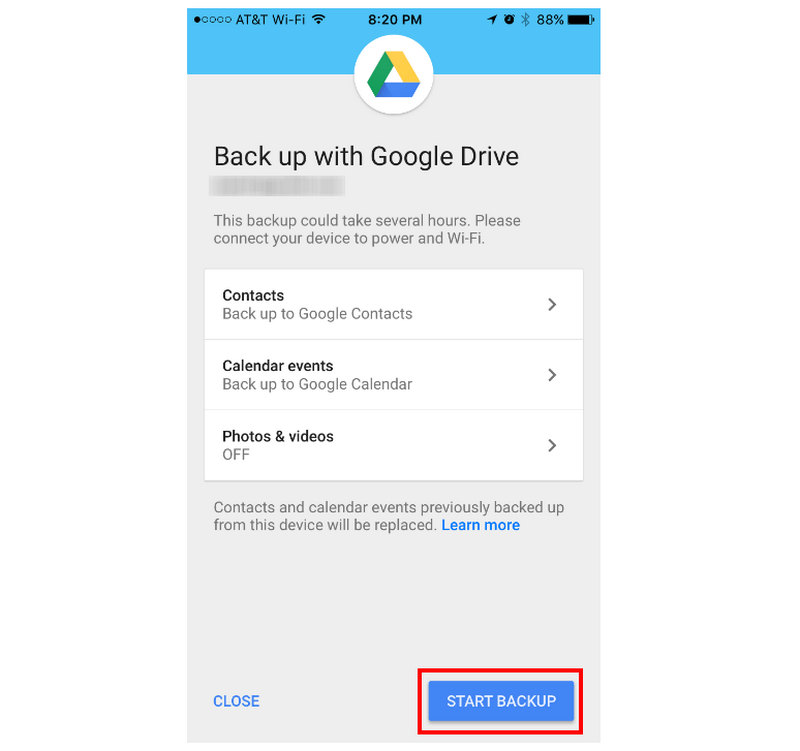
Since you have set the Backup Quality to Storage Saver, Google Photos will back up your HEIC images as JPGs. Although HEICs are more compressed than JPGs, Google Photos automatically backs up images in the JPG format when the Storage Saver setting is active. This was set because other image formats, like PNG, are usually larger than JPG files.
Part 3. FAQs About Google Photos for HEIC to JPG Conversions
Is HEIC high quality?
Yes, it is. HEIC is a high-quality image captured by iPhone cameras. They are the standard image format used by iOS devices.
Which is smaller, HEIC or JPG files?
HEIC files are more compressed than JPG files. They also have better quality overall. Unfortunately, HEIC is poorly supported on non-Apple devices, making JPG the better choice.
Can Google Photos back up images in HEIC format?
Yes, it can. Google Photos can save images in their original format or compress them in JPG. This can be adjusted by selecting either the Original Quality or Storage Saver option.
Are online tools safe?
Yes, they are. However, you need to use the right online tools, as privacy concerns are common among them. We recommend ArkThinker, AnyMP4, or FreeConvert for safe online tools.
What format should I save my HEIC image in?
JPG is a good option. It has the best compatibility among image formats. For quality retention, PNG is also a good choice. However, both JPG and PNG are good formats with good compatibility.
Conclusion
With the methods you can use to save HEIC images as JPG in Google Photos, we hope you can now start using the right image format for your device. If you are using an iOS smartphone, make sure to learn how to edit your cloud storage settings to avoid incompatibility issues. Otherwise, you can use online tools such as ArkThinker Free HEIC Converter Online to convert your captured images to the accessible JPG format.


