


How to Loop a Video on DaVinci Resolve Using 3 Methods
Among video editing tools, DaVinci Resolve has gained traction in recent years due to its ability to handle advanced video editing tasks, especially SFX-related adjustments. However, learning the basics remains important, and knowing how to loop a video in DaVinci Resolve is a vital skill for editors at different skill levels. In this article, we will highlight three video looping methods you can use for adding video repeat effects to your media files when editing with DaVinci software.

- GUIDE LIST
- How to Loop a Video on DaVinci Resolve
- Method 1: Enable Loop Playback for Previewing
- Method 2: Copy and Paste Clips on the Edit Page
- Method 3: Create a Seamless Loop in the Fusion Page
- Tips: Quick Loop Export Using ArkThinker Free Video Looper Online
- FAQs About Looping Videos in DaVinci Resolve
How to Loop a Video on DaVinci Resolve
If you are looking to loop a video you are editing in DaVinci Resolve, you have three built-in methods. Fortunately, we highlight these methods in the following sections of the article.
Each method below ranges from the simplest option of enabling looping during preview, the go-to solution for adding loops on exported clips, to the advanced option that can be used for seamless video looping.
As a bonus, we also provided a beginner-friendly web-based alternative for simple video looping, powered by an exclusive video looper tool.
Note: The video looping methods we will highlight differ from the repeat button in multimedia players like Windows Media Player or VLC Media Player.
Method 1: Enable Loop Playback for Previewing
We will start this guide with the most basic option for video looping in DaVinci Resolve, which will only apply to the preview window of your media file. Unlike the other methods in this guide, this option will only loop the video in the preview section, making it only useful during the editing process.
To learn how to enable a loop for video previews, please read our two-step guide below.
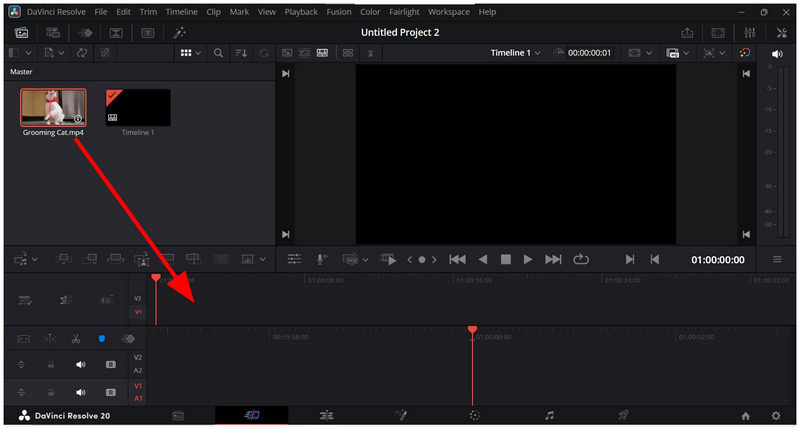
Open DaVinci Resolve and add the video you want to edit to the Timeline by clicking and dragging it from the Media Pool.
In the editing timeline, click on the video file to select it. Then, go to the Preview window and select the Loop button to enable repeat playback.
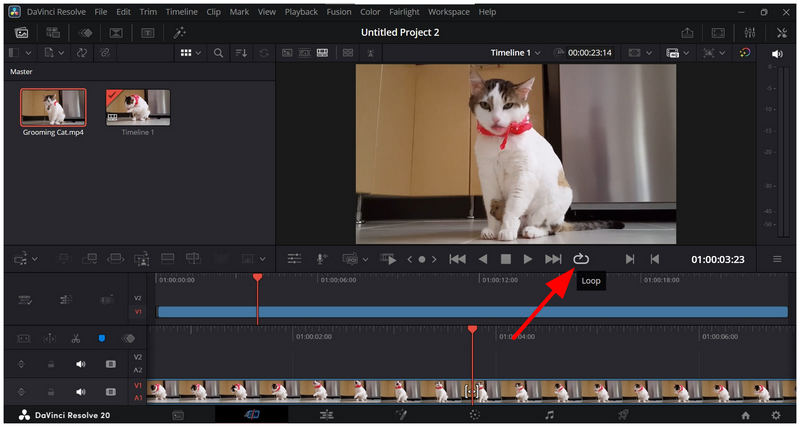
Note: This method will only loop your video during the editing process. Make sure to proceed to the next options below for video looping after file export.
Method 2: Copy and Paste Clips on the Edit Page
Moving forward to the next option, we have video clip copy-pasting, perhaps the easiest option to apply looping on videos after exporting. This essentially works by copying the original file in your timeline and then pasting the copy beside the original video file.
To learn how to use this option, please read our guide below.
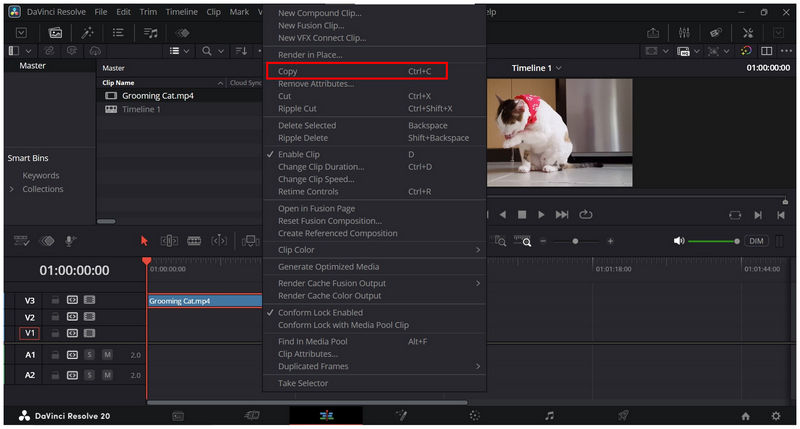
Select the video in the timeline that you want to copy. Right-click on it and select Copy. You can also use the Control+C keyboard shortcut.
Go to a blank area of the Editing Timeline and right-click, then select Paste. Alternatively, use the Control+V shortcut.
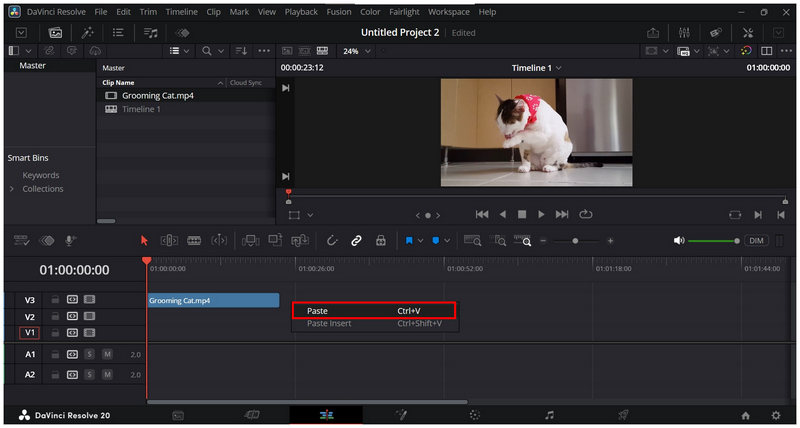
Afterwards, the video you have copied will not appear in the timeline. Click and drag it to link the video to the original clip you have copied.

Another strong suit of this method is that you can repeat it as many times as you want, based on how many times you want the video to loop.
Method 3: Create a Seamless Loop in the Fusion Page
Since most video looping options only replay the video, it will not look seamless, and the transition between the end and the start will be quite obvious. If you wish to apply seamless looping, you have to learn how to use the Fusion page of DaVinci Resolve.
For a basic guide to using this option, please see the guide below.
Go to the Fusion page, select Media Pool, and click-and-drag the video you want to edit to the Nodes section.
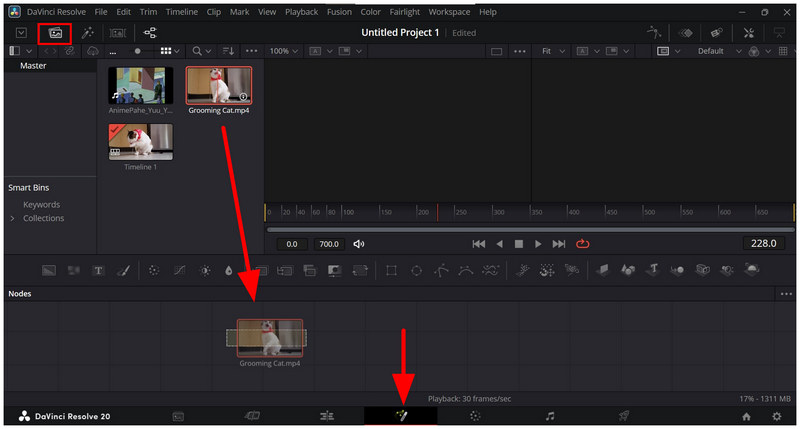
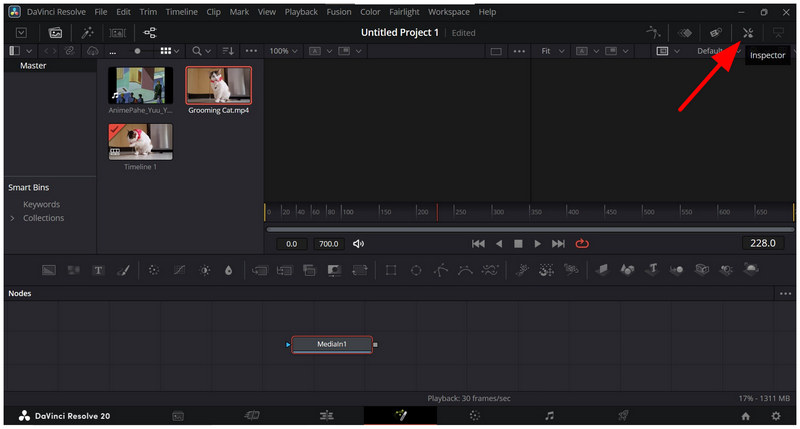
With the video added to the Nodes tab, click on the Inspector button.
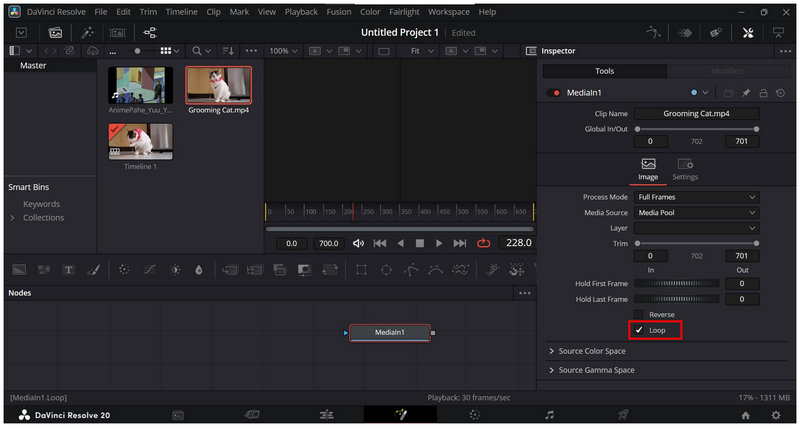
In the Inspector menu, enable the Loop option to apply the repeat video effect on your imported media file.
Since the Fusion tab of DaVinci Resolve is one of its most technical features, the guide we have provided only loops videos as simply as possible. To learn how to apply seamless looping, you have to learn the more advanced skill in using DaVinci Resolve and the more advanced features in the Fusion tab.
Tips: Quick Loop Export Using ArkThinker Free Video Looper Online
Although DaVinci Resolve is a solid option in terms of versatility and editing potential, these benefits come at the cost of a steep learning curve. As such, most users look for an alternative tool to loop videos. In this case, ArkThinker Free Video Looper Online should be one of your top considerations.
Since it was designed for beginners, the program can apply video looping effects within a few clicks. This is a huge practical upgrade compared to DaVinci Resolve, which requires at least intermediate video editing skills in order to use it effectively.
Moreover, the software also offers minor adjustment tools such as a video trimmer and a playback speed editor to make seamless video looping possible. To learn how to use the program, make sure to read our guide below.
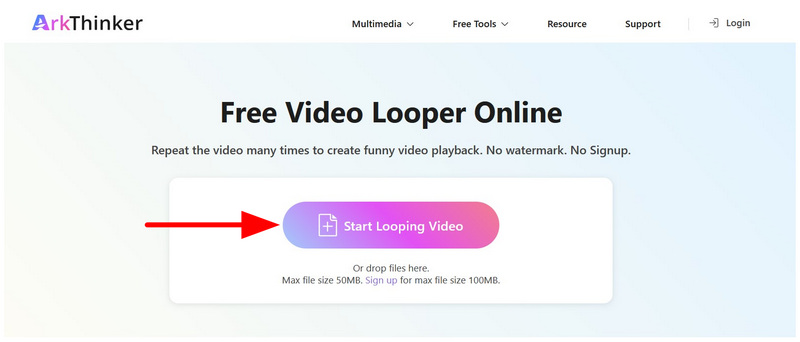
Go to ArkThinker Free Video Looper Online’s website to access the web-based software. Then, select the Start Looping Video option to import the media file you want to edit. Simply wait for the uploading process to finish.
Once your video has been uploaded, you can apply minor adjustments to it using the Trim Sliders and Playback Speed settings.
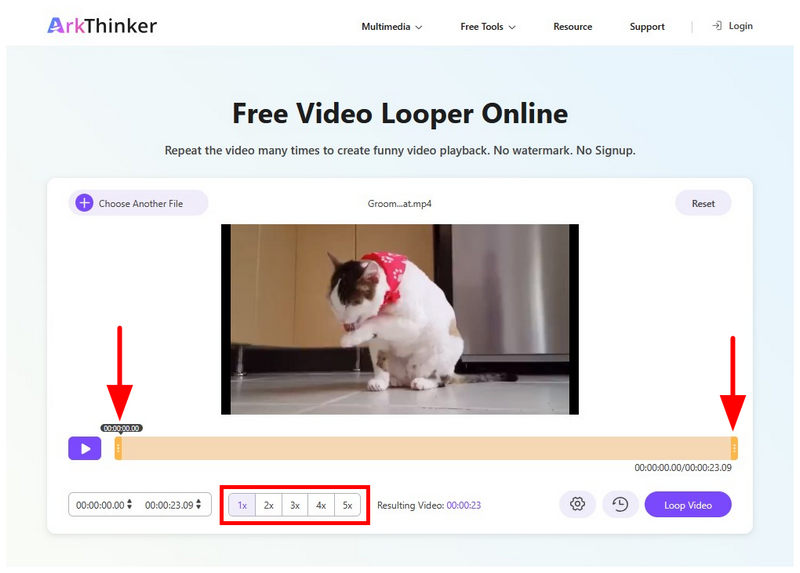
When you are done applying the adjustments or if you are satisfied with the base setup of the video, click on Loop Video to begin producing your file now on a loop.
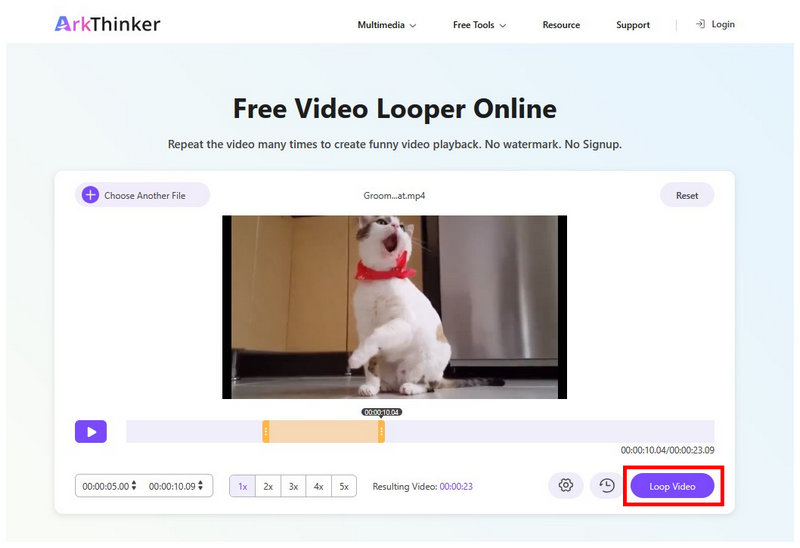
Using three simple steps, you can now reliably edit your media files with smooth looping playback. It also helps that ArkThinker Free Video Looper Online was optimized for ease of use, making it a solid alternative to traditional video editors like DaVinci Resolve.
FAQs About Looping Videos in DaVinci Resolve
How to loop videos in DaVinci Resolve?
You have three good options. For looping during video editing, simply use the loop button under the preview window. For producing looped videos, copy-pasting in the timeline or using the Fusion page should be your way to go.
Should I use online tools for basic video editing?
Yes, you can. Online tools are a good alternative for basic video adjustments. It also helps that there are exclusive options for basic video editing, like ArkThinker Free Video Looper Online and Canva video looping settings in its online editing tool.
Is DaVinci Resolve hard to use?
Yes, it is. DaVinci Resolve is a technical video editor. It requires at least an intermediate amount of knowledge to use effectively.
Is DaVinci Resolve free?
Yes, it is. DaVinci Resolve’s free version is a complete software. Its paid version is completely optional
Is DaVinci Resolve beginner-friendly?
No, it is not. DaVinci Resolve is too complex for amateur editors. It was designed for experienced and professional editing.
Conclusion
Now that we have provided our readers with solutions for looping videos in DaVinci Resolve, we hope you can apply the repeat video effect to your media files. For users who prefer ease of use, we highly recommend using web-based alternatives like ArkThinker Free Video Looper Online, especially for beginners, since DaVinci Resolve is optimised for professional editing.


