


How to Fix Recovered Video Files That Are Corrupted (2026)
File recovery has gained popularity over recent years since the technology to access older digital storage has become accessible. Unfortunately, not all recovered files function correctly due to various reasons, usually because the digital storage they were on experienced minor corruption. In this article, we will provide detailed solutions for this problem by featuring three options that you can use to make recovered video files that are corrupted accessible. We will also discuss the common causes of file corruption in recovered videos that usually occur.

- GUIDE LIST
- Part 1. Common Causes of Corrupted Recovered Videos
- Part 2. How to Fix Corrupted Recovered Videos
- Part 3. FAQs About Why Recovered Videos Are Corrupted
Part 1. Common Causes of Corrupted Recovered Videos
Incomplete or Interrupted Recovery Process
The most common reason why recovered MP4 files and videos won't play is usually due to an incomplete or interrupted storage recovery process. This result to files that are accessible at first glance, but faces error when loading the media file once you try to play it.
Underlying File Corruption Not Fixed During Recovery
Aside from files failing to open, file corruptions may also occur or fail to be repaired during file recovery. This may be caused by underlying file corruption to the file you are recovering, or the corruption itself may be triggered during recovery.
Storage Device Errors or Bad Sectors
When files are stored for a long time, and the digital storage you are using is not maintained, storage device errors may occur. This usually happens to offline storage that is not fully maintained or to cloud storage services that face privacy breaches and hacking.
Incompatible Video Codecs or Formats
If you are lucky, the reason why your video failed to play could only be due to its file codec or unsupported format. Compared to other corruption sources, this one is by far the easiest to solve. All you need to do is use software that can re-encode or change the format of your file.
Part 2. How to Fix Corrupted Recovered Videos
VLC Video Repair for Basic Index Errors
If you are using VLC Media Player as your primary video player software, you are in luck since the program is equipped with advanced features that can handle basic index errors.
This was made possible by the Input and Codecs option in the program that can be set to automatically fix AVI videos and other common formats. It is a perfect solution to fix choppy video playback on VLC.
To learn how to use VLC for basic video index repairs, you may read our guide below:
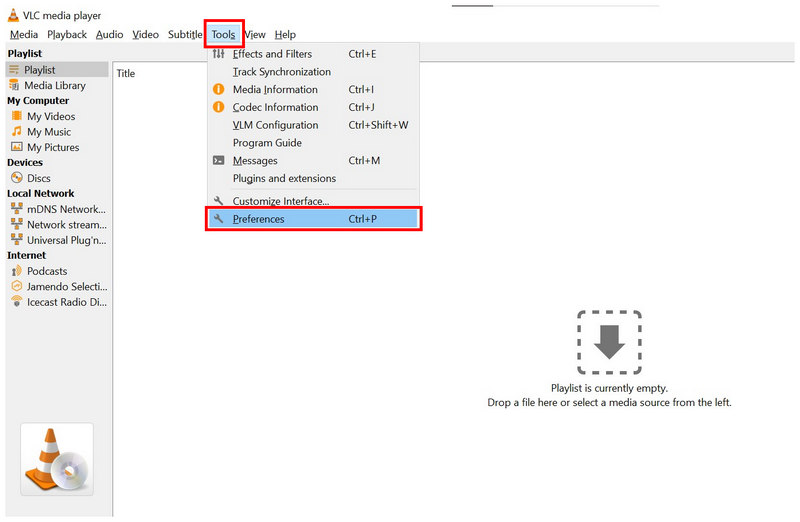
Open VLC Media Player and then select the Tools tab, then click on Preferences in the drop-down menu.
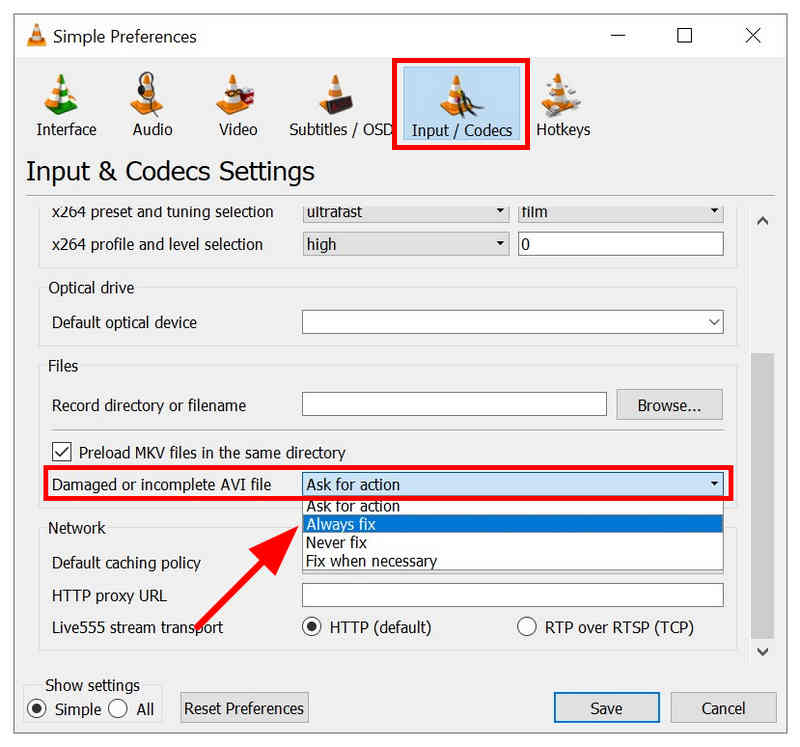
In the Preferences menu, select the Input/Codecs option. Then scroll down to the menu next to Damaged or Incomplete AVI file, and set the action to Always Fix.
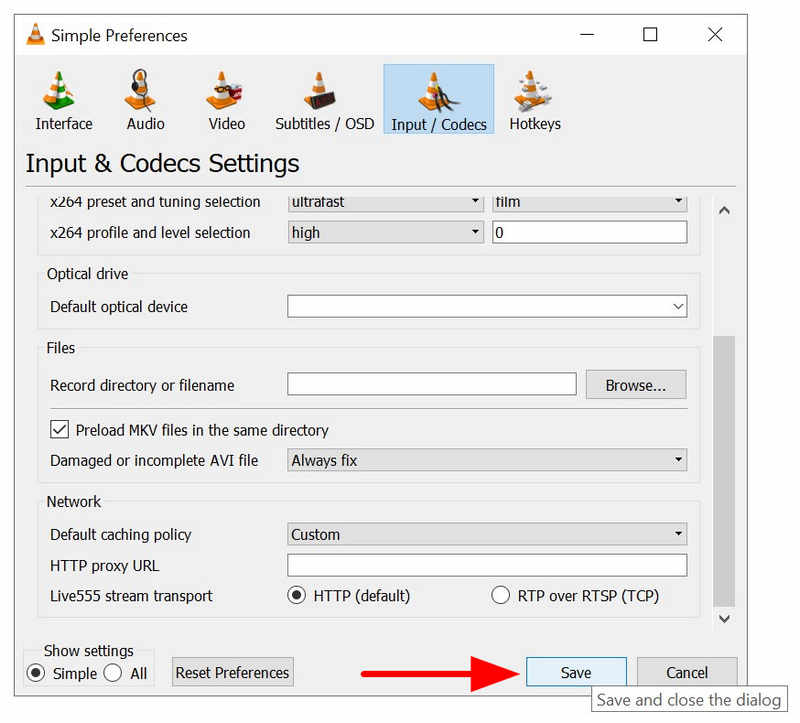
Once the action is set to Always Fix, click Save to confirm the adjustment you set in the Input/Codecs menu.
Although the menu only indicates AVI files, VLC can handle other video formats aside from it. This includes MP4, MKV, MOV, and other commonly used video formats.
Re-Encode the Video Using ArkThinker Video Converter Ultimate
If you think that your video’s playback issues only stem from codec problems and its format being unsupported, the easiest solution you can use is through format converter software such as ArkThinker Video Converter Ultimate.
Since format converter tools also re-encode videos that are processed on them, ArkThinker Video Converter Ultimate automatically solves both codec corruption and unsupported format issues. This factor made the software the best option if you are only facing minor problems with your video.
Together with its built-in format conversion and video re-encoding function, the program is also equipped with other highly practical main features listed below.
To learn how to use the program, make sure to read our tutorial and download it for an easier time following our guide.
Main Features:
- The Video Converter tool is made for changing video file formats.
- The Video Converter tool also re-encodes video files to fix any codec issues.
- Video compressor tool designed to reduce the file size of videos.
- Easy-to-use video editor tool made for beginners.
- It can read over 500+ video formats for accessible video editing and conversion.
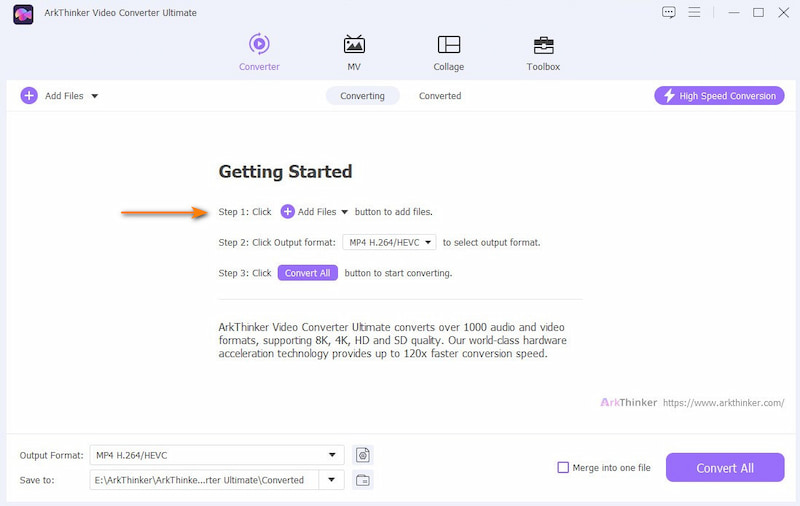
Open ArkThinker Video Converter Ultimate and then select the Add Files button in the Converter tab.
Next, click Output Format, then select the format you want to convert your video into, or choose the same format if you only want to re-encode. Make sure to check the encoder type to ensure whether you will use the H.264 or HEVC codec.
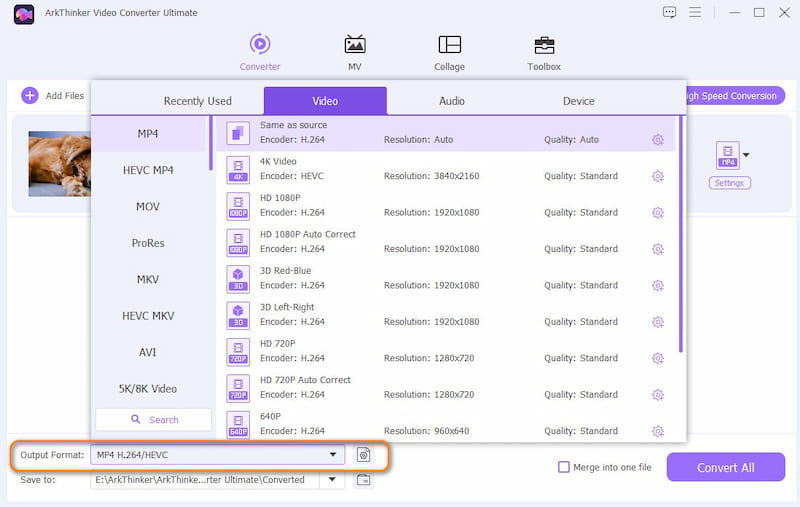
Finally, after setting the Output Format and Encoder type, return to the main Converter menu and click Convert All to begin the format conversion or the re-encoding process.
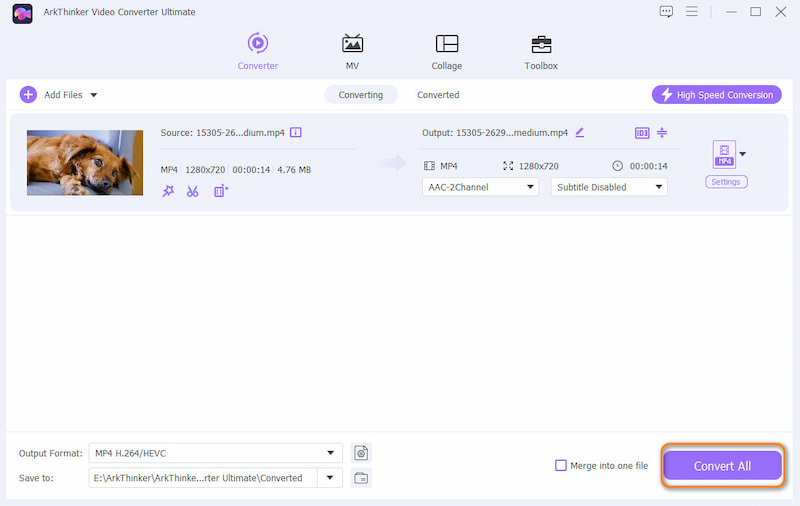
If you are lucky and your video is only corrupted through the codec, or it has an unsupported format, ArkThinker Video Converter Ultimate is the best solution. However, if you are having issues with more severe corruptions, please refer to the next option below.
Use ArkThinker Video Repair Software to Repair the Video
When facing more advanced video problems, such as file corruption from format conversion, exporting issues, poor transfer signal, or storage crashes common for recovered files, you need to use ArkThinker Video Repair software.
As its name suggests, this program is a professional-grade video repair tool optimized for handling complex file corruption issues. With that in mind, using this software should be your next step if index repairing, re-encoding, and format conversion are not enough.
Additionally, the software is also easy to use, and it has low requirements for the repair process. It only requires its users to upload a reference video saved in the same format as the file they want to repair.
With its repairing capabilities now discussed, make sure to read its main features below. Do not forget to download it as well to make following our tutorial easier for complete beginners.
Main Features:
- Fixes broken videos caused by failed format conversion, hard drive crashes, export issues, file transfer issues, and more.
- Easy-to-use video repair process with a modern AI-supported system.
- Fixes corrupted videos three times faster than other repair tools.
- Repaired videos will keep their original quality.
- Simple interface design that requires only a few clicks and a sample video to repair media files.
Open ArkThinker Video Repair, then select the Add button on the Orange Box to add the corrupted video you want to repair.
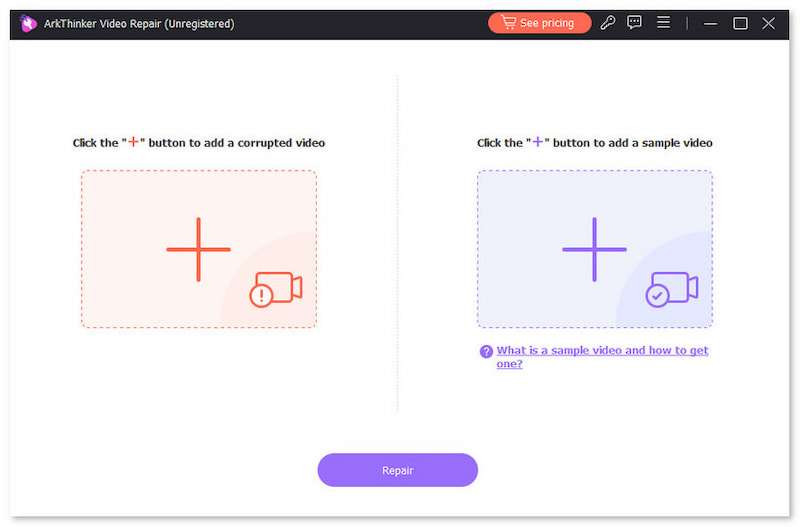
Next, select the Add button in the Purple Box to import the Sample Video; its format should be the same as the video you want to repair. It will be used as the reference during the repair process.
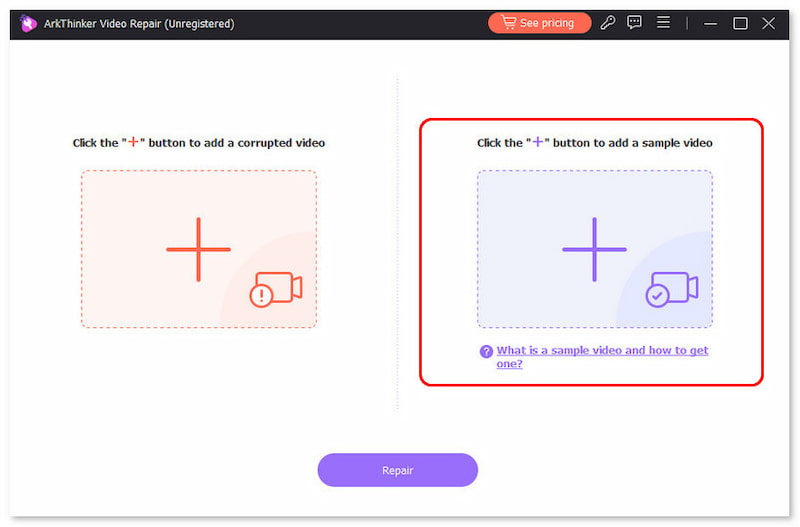
Once both the Corrupted Video and the Sample Video are added, click Repair to begin repairing your video.
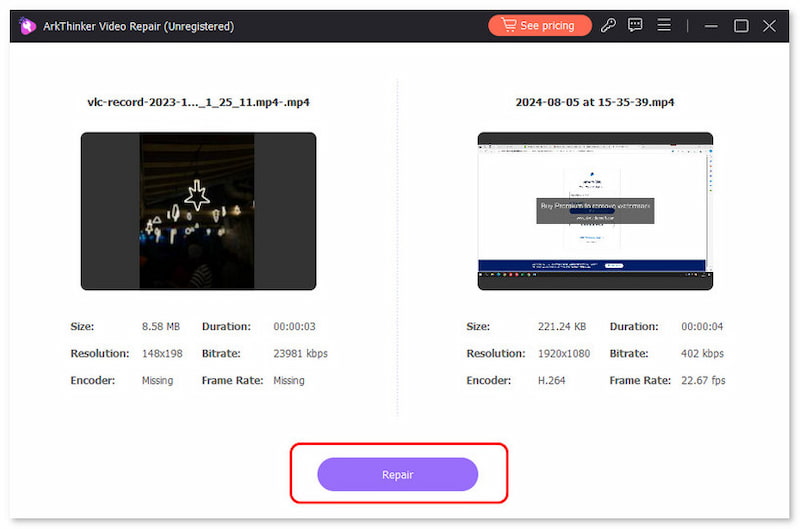
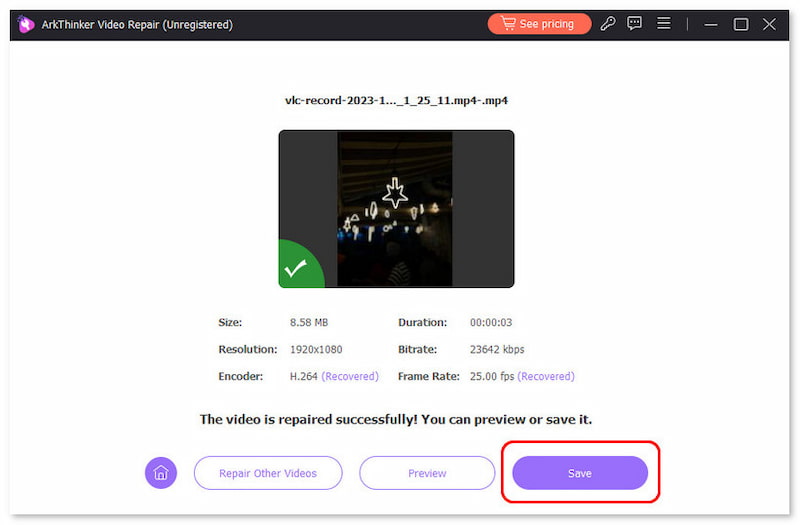
After the repair process, click Preview to watch the repaired file and check if it plays properly. Finally, click on Save to import the repaired video on your computer.
For complex video corruption issues, ArkThinker Video Repair should be the one on top of your priority software. This program is a good option regardless of the issue with your video file.
Part 3. FAQs About Why Recovered Videos Are Corrupted
Why do recovered video files get corrupted?
There are multiple issues with why corruptions happen. This is usually related to storage issues or an underlying problem before the file was stored. Unfortunately, file corruption may range from simple to heavy, causing file repair to be slightly complex.
Is it hard to repair corrupted videos?
It depends on the option you will use. Among the options in this guide, VLC is the most accessible but the most complicated. On the contrary, ArkThinker Video Repair is the easiest one to use.
Can I use VLC to handle file repairs?
Yes, you can. VLC Media Player can handle basic video index issues. This made the tool a good choice for handling minor file errors.
Is it hard to fix codec-related issues?
No, it is not. You can easily use converter tools to fix codec problems. Among the options in this guide, ArkThinker Video Converter Ultimate is the best solution.
What is the best option for repairing heavy file corruption?
You should use a program that is easy to use and capable of advanced repairs. ArkThinker Video Repair is a good option. It is advisable for users who want the combination of ease of use and repair capabilities.
Conclusion
With the best software to repair recovered videos now discussed, we hope that you can now select the tool based on the severity of the file you want to fix. For basic issues, you may use VLC Media Player; however, the most reliable option in ArkThinker Video Repair could be considered the best overall option. You may download it using the link below.
What do you think of this post? Click to rate this post.
Excellent
Rating: 4.9 / 5 (based on 553 votes)


