


How to Use VLC to Repair MP4 Videos: A Detailed Tutorial
When it comes to watching multimedia files on desktop computers, VLC Media Player is a prime example of a reliable, free video player for MP4 and other advanced video formats. Unknown to its users, VLC Media Player has a built-in option to fix corrupted MP4 files, made possible by its codec repair tool and format converter. With that in mind, this article provides a detailed guide to learn how to repair MP4 files in VLC Media Player. We will provide a detailed step-by-step guide featuring the two video repair options in VLC, as well as an alternative video repair tool for files with more complicated media corruption.

- GUIDE LIST
- Part 1. How VLC Repair Works
- Part 2. Step-by-Step Guide to Repair an MP4 in VLC
- Part 3. Limitations of VLC Repair
- Part 4. Best Alternative to VLC Repair MP4
- Part 5. FAQs About VLC to Repair MP4
Part 1. How VLC Repair Works
VLC Media Player’s video repair feature rebuilds the missing or damaged indexes of video files it plays. This feature can be accessed in the program's Preferences, under the Tools tab. Aside from basic video index rebuilding, the software can also convert video file formats, re-encode corrupted codecs, or repair minor issues such as MP4 files with no sound.
With that in mind, the repair tools in VLC Media Player may be considered basic and more inclined towards simple file corruption issues. To learn how to use these repairing features, make sure to read our step-by-step guide in the next section of the article.
Part 2. Step-by-Step Guide to Repair an MP4 in VLC
Enable 'Always Fix' Option
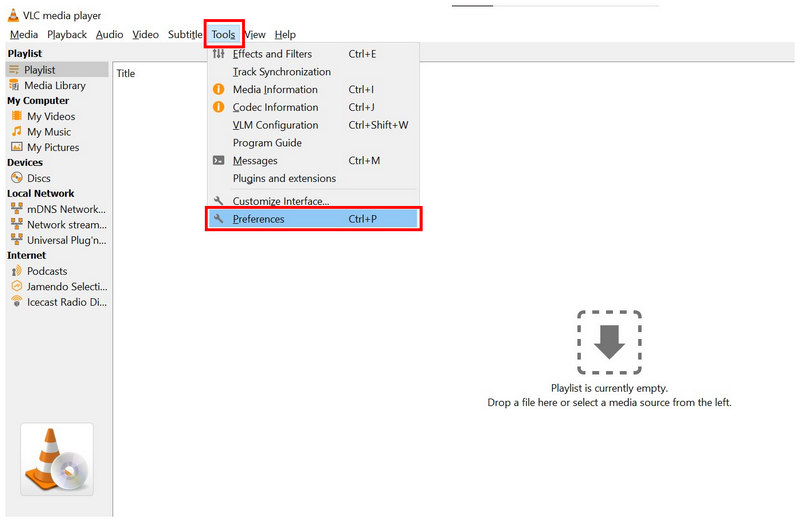
Open VLC Media Player and then select the Tools tab, then click on Preferences in the drop-down menu.
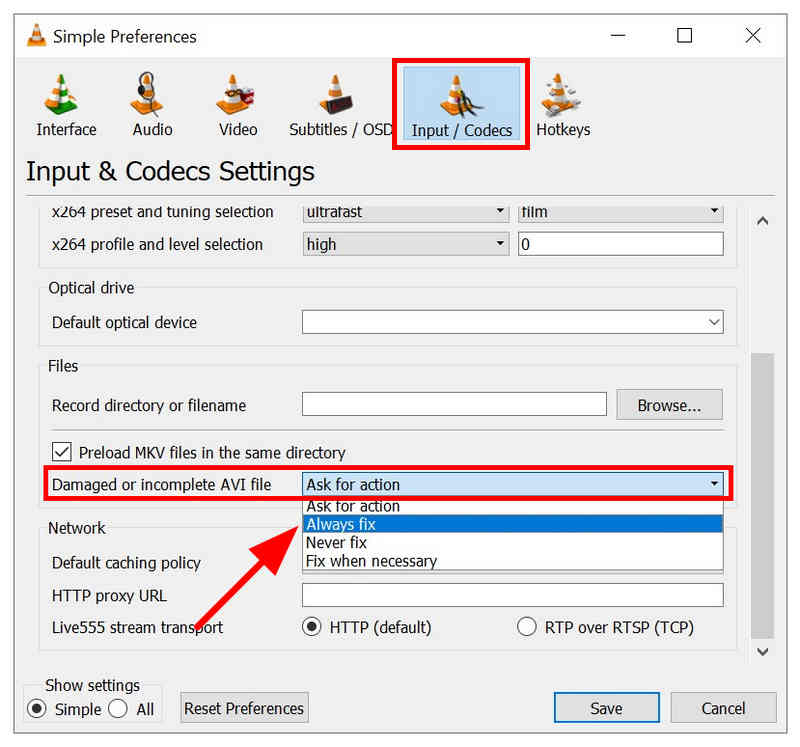
In the Preferences menu, select the Input/Codecs option. Then scroll down to the menu next to Damaged or Incomplete AVI file, and set the action to Always Fix.
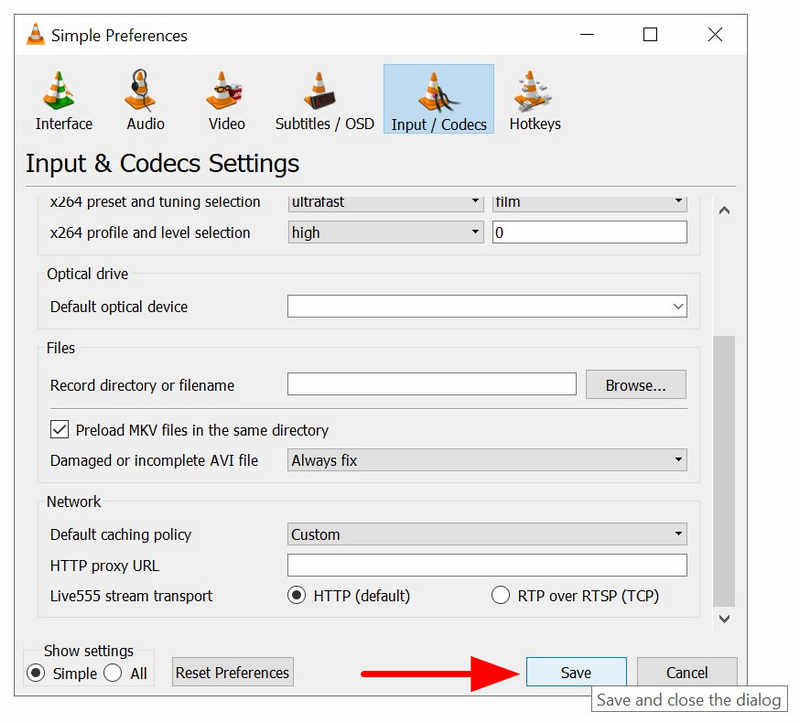
Once the action is set to Always Fix, click Save to confirm the adjustment you set in the Input/Codecs menu.
With the Input/Codec menu set to Always Fix, VLC will auto-repair minor codec issues in videos opened in the program. Although the settings only support AVI, it can also repair MP4 files without issue.
Use 'Convert/Save'
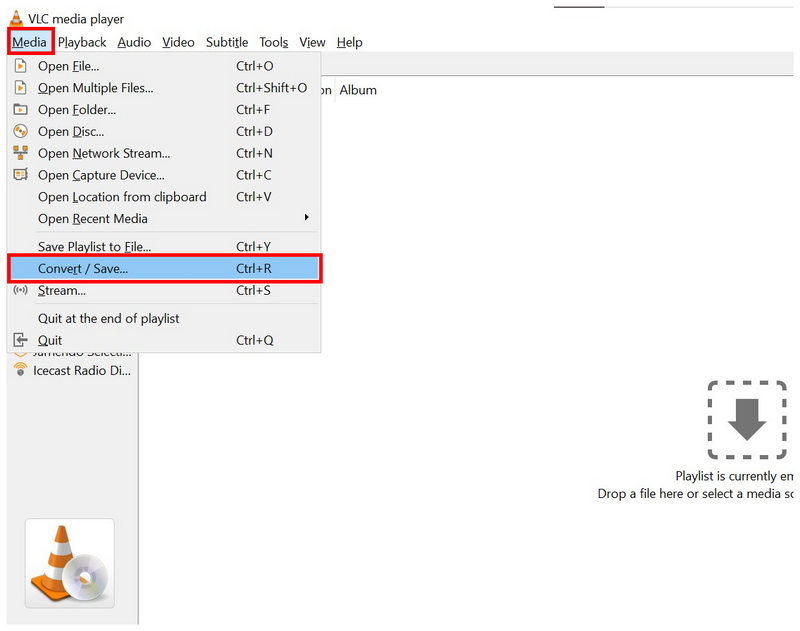
Open VLC Media Player and then select Media, then select Convert/Save from the drop-down menu.
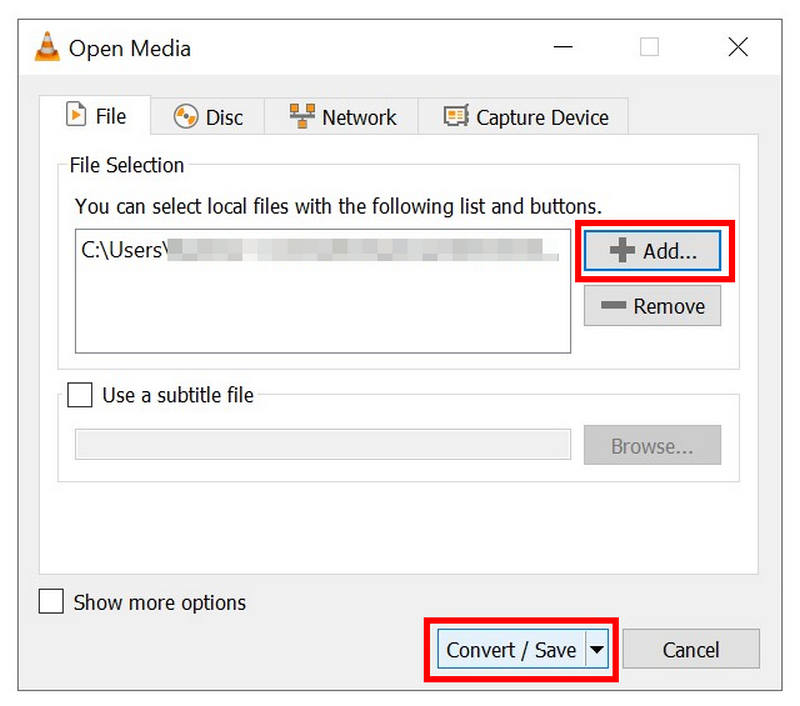
In the Open Media tab that will open, select Add to import the MP4 video you want to convert. Once a file has been added, click on Convert/Save.
Once you are in the Convert tab, select the conversion Profile you want to use to convert your MP4 video. Then, set its Destination where the video will be saved. Finally, click Start to begin the conversion process.
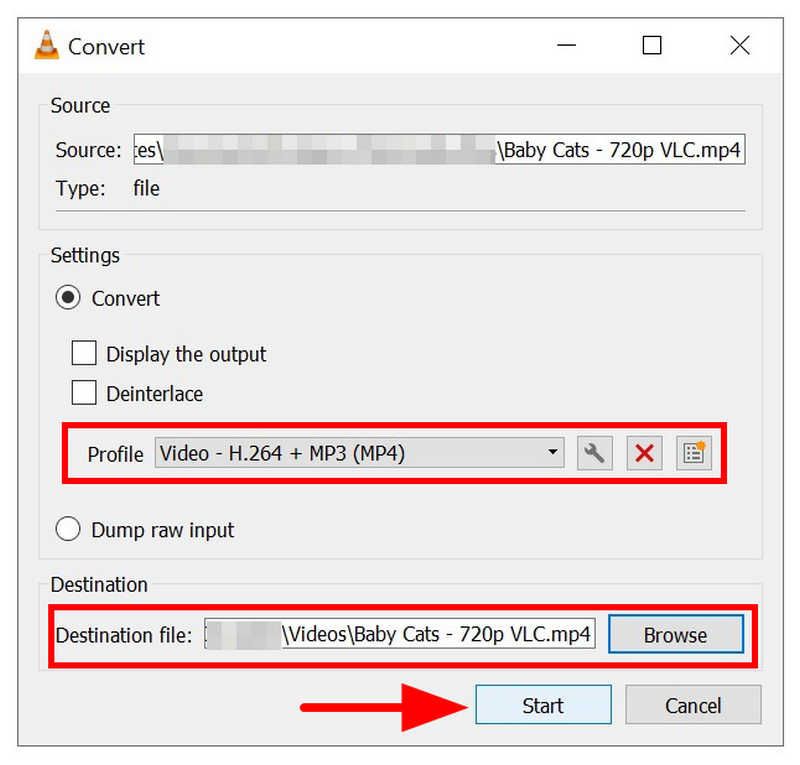
To fix videos with codec errors, format conversion is a good option. This is because most video converter tools, including VLC, also re-encode the video files they convert. This results in a file with repaired codecs.
Part 3. Limitations of VLC Repair
Although you can fix MP4 files with VLC, it is limited to basic codec issues and video index problems. As such, it cannot repair files with severe corruption or missing video frames. Files repaired by the program also suffer from reduced audio and video quality.
VLC Media Player may get the job done, but its repair capabilities are far from efficient or effective. As such, using an alternative video repair tool for handling more advanced video file corruption is still advisable.
Part 4. Best Alternative to VLC Repair MP4
When it comes to professional video repair tools, ArkThinker Video Repair is one of the most trusted options for handling advanced file corruptions. This includes issues stemming from failed format conversions, hard drive crashes, export issues, and poor file transfer signals.
In addition to the program fixing these advanced corruption issues, videos repaired by it will retain their original quality. This is a vital feature, as most video repair tools fail to retain the quality of repaired files, like VLC Media Player.
With its video repair capabilities and advanced handling of file corruption, ArkThinker Video Repair is an excellent choice for users looking to fix media files with severe corruption or damage.
To learn more about the program's capabilities, read its main features below and our three-step guide to using the software. Do not forget to download it as well for easier learning.
Main Features:
- • Fixes severe video corruption caused by failed format conversion, hard drive crashes, export issues, file transfer issues, and more.
- • Automated video repair process powered by an AI-supported system.
- • Repairs broken videos three times faster than other video repair tools.
- • Retains the original quality of fixed video files.
- • Simple interface design that requires only a sample video to repair media files.
Open ArkThinker Video Repair, then click on the Add button on the Orange Box to add the broken video you want to repair.
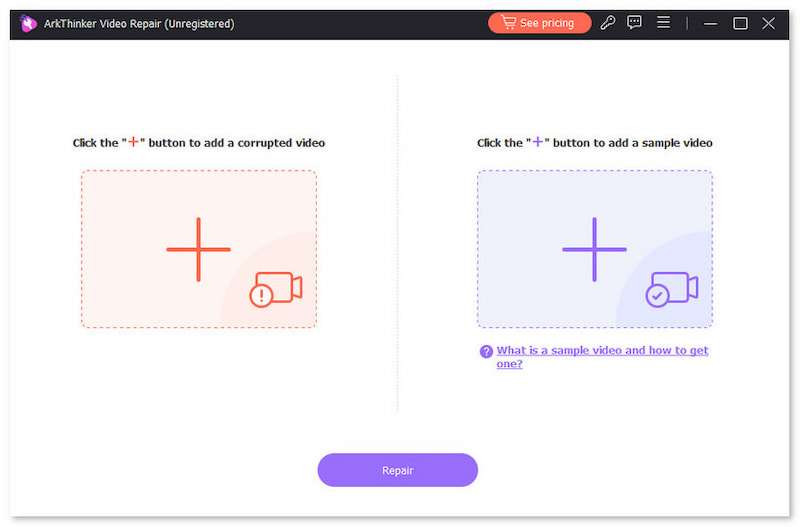
Next, select the Add button in the Purple Box to import the Sample Video. Both the Corrupted and Sample Video should be in MP4 format, as the Sample Video will serve as the reference file during the repair process.
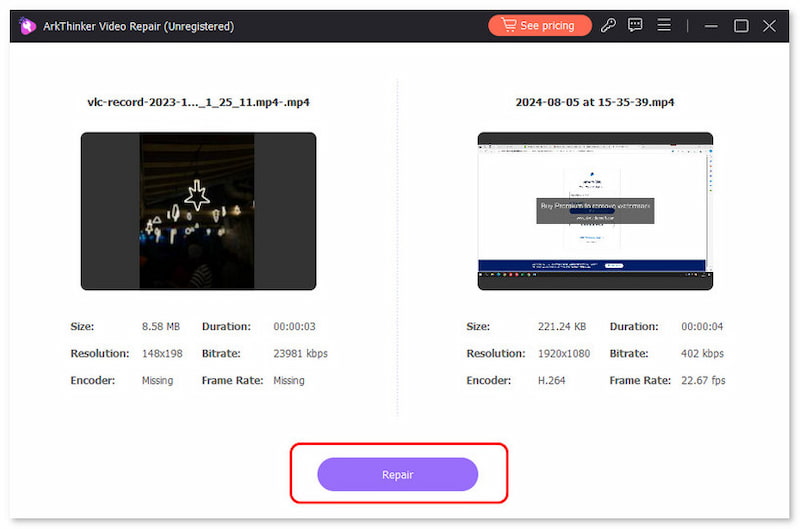
Once both the Corrupted Video and the Sample Video are added, click Repair to begin fixing the errors in your MP4 video.
After the video repair, click Preview to watch the fixed media file and to also check if it plays properly. Finally, click on Save to import the repaired MP4 file on your computer.
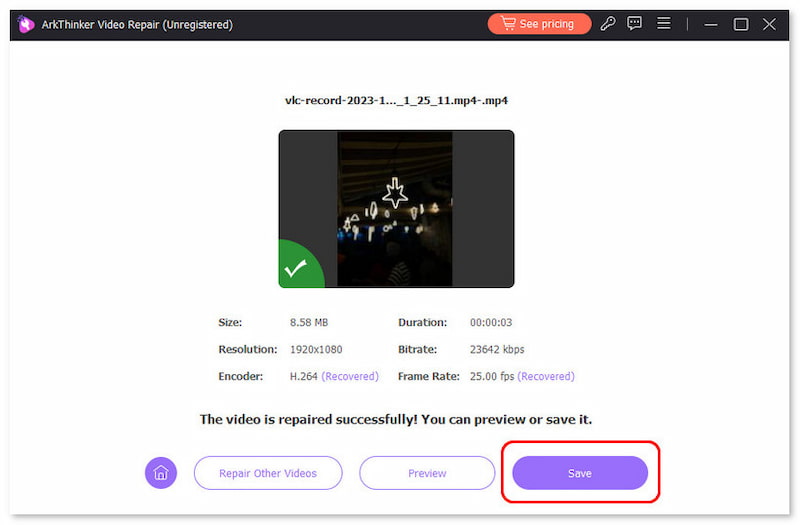
By following this quick three-step guide, you can now ensure your broken files will be fixed with no problem. This is a big step toward convenience, as the ArkThinker Video Repair process is automated.
Part 5. FAQs About VLC to Repair MP4
Can VLC fix corrupted videos?
Yes, it can. However, it can only handle videos with simple codecs or index issues. It cannot fix files with major file corruption, such as errors loading media files.
Why is VLC so popular?
VLC is popular for its superb compatibility. The media player can be used on desktop and mobile devices. It also runs well on different operating systems.
What platforms does VLC support?
VLC is available for both desktop and mobile devices. For desktop, it is available for both Windows and macOS. On mobile, it supports both Android and iOS.
Should I use VLC to repair videos?
Yes, you can. However, it can only work on basic codec issues. These include simple codec and video index problems.
How to fix corrupted MP4 files using VLC?
VLC offers two video fixing options for its users. It can fix index problems using the Preference tab repair. It can also rewrite video codecs using its format conversion feature.
Conclusion
Now that we have featured VLC's video repair options for MP4, we hope you can use the program to fix minor video problems. Otherwise, we recommend using ArkThinker Video Repair if you encounter more advanced issues, such as file corruption or missing frames. You may download the software using the link below.
What do you think of this post? Click to rate this post.
Excellent
Rating: 4.9 / 5 (based on 532 votes)


