


How to Compress Videos for Google Drive Uploading (2026)
When creating a new Google account, 15GB of Google Drive storage comes free. Although it is not the biggest, free cloud storage is valuable for most people because its size is sufficient for backing up a handful of media files. However, a common concern among users is whether Google Drive automatically compresses videos when they are uploaded. This is important since quality preservation is a common concern when transferring video files. With that in mind, this article discusses everything you need to learn to avoid unintended compression. We will also highlight the best media compressor tools you can use to preserve Google Drive storage when uploading videos to it.

- GUIDE LIST
- Part 1. Does Google Drive Compress Videos
- Part 2. How to Check Google Drive Video Resolution
- Part 3. How to Compress Google Drive Video Online/Desktop
- Part 4. FAQs About Google Drive Compressing Videos
Part 1. Does Google Drive Compress Videos
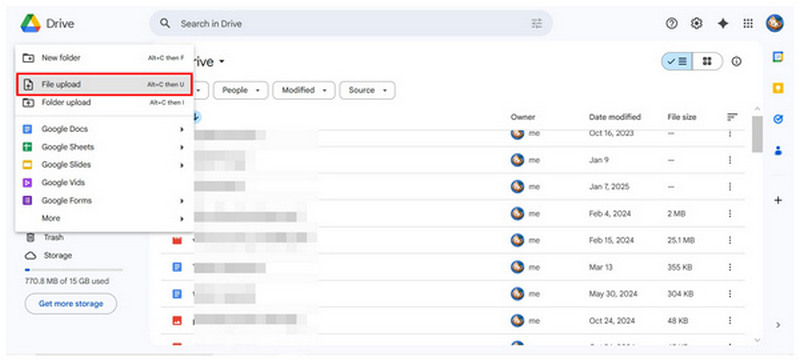
Google Drive stores videos by having its users upload media files to it. Since it is a cloud storage service, Google Drive essentially acts as a file manager for your desktop, but it operates online, and your files are stored on Google’s cloud servers.
If you want to know whether Google Drive compresses videos saved online, there is no need to worry, since uploaded media files won’t lose any quality. You can safely use Google’s cloud servers as your additional storage without worrying about file quality decline.
Now that you have learned that your 720p and 1080p videos are safe in Google Drive, let us move on to the steps you need to take to check video resolution for files stored there.
Part 2. How to Check Google Drive Video Resolution
With the video resolution of files on Google Drive now discussed, let us proceed to the steps you need to check the video quality of media files uploaded to your Google Cloud Storage.
Open Google Drive and then select the video you want to check. You may right-click on it or select the three-dot button.
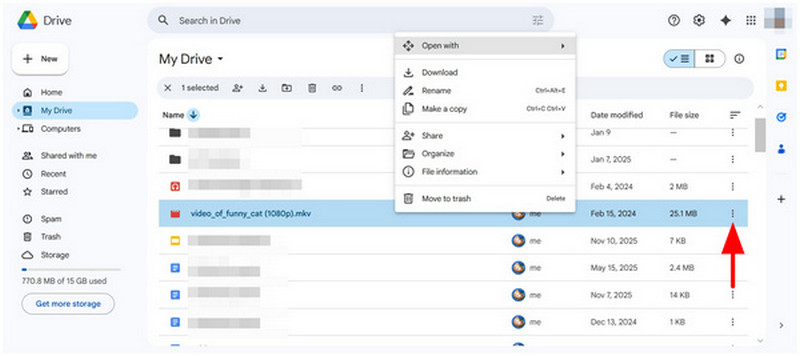
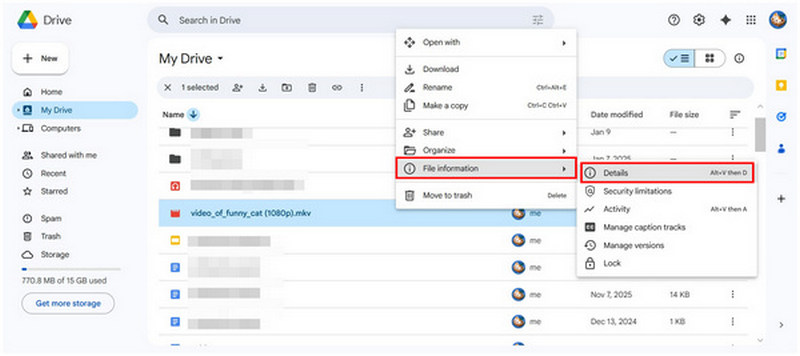
In the menu that opens, hover your cursor over File Information, then select Details.
In the Details menu, scroll down to find File Details. There, you can see the video resolution under Dimensions.
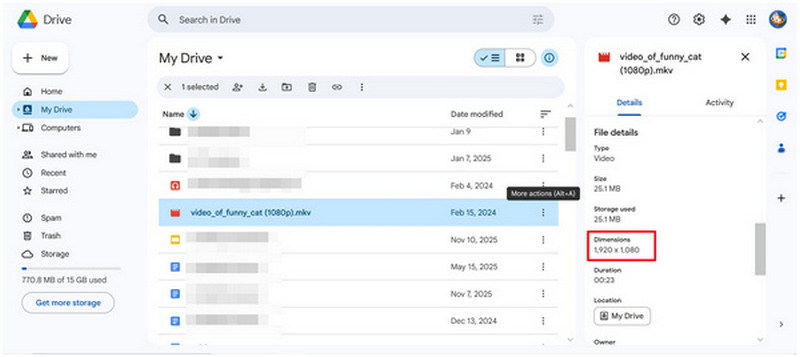
Although the label on Google Drive is set to dimensions, the quality of video files is usually Standard, HD, or UHD. As a general rule, videos at 720p or lower are considered standard, videos higher than 1080p are HD, and UHD files are 4K or higher.
Part 3. How to Compress Google Drive Video Online/Desktop
ArkThinker Free Video Compressor Online
The first option we recommend is the Google Drive video compression software, which you can use online. Among the numerous web-based options, ArkThinker Free Video Compressor Online is a good choice.
Designed to handle videos with smaller file sizes, this web-based option can handle media files from 50MB to 100MB, including popular video formats such as MP4, MOV, AVI, WMV, and more. Its process is fully automated to ensure your videos are compressed as simply as possible.
Moreover, the program can preserve the original video's quality without any annoying watermarks. Unfortunately, these features are only available if the video file you are trying to compress is 100 MB or less.
To learn how to use the web-based option for quick video compression, make sure to read our three-step guide below:
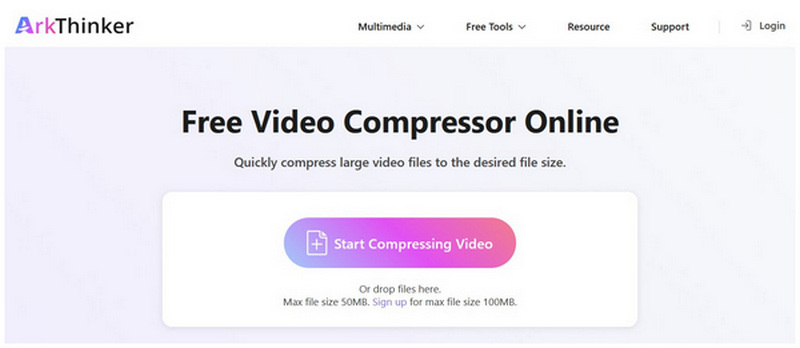
Open ArkThinker Free Video Compressor Online’s website, in the main menu, select the Start Compressing Video option.
Once the file has been selected, wait for the uploading process to finish.
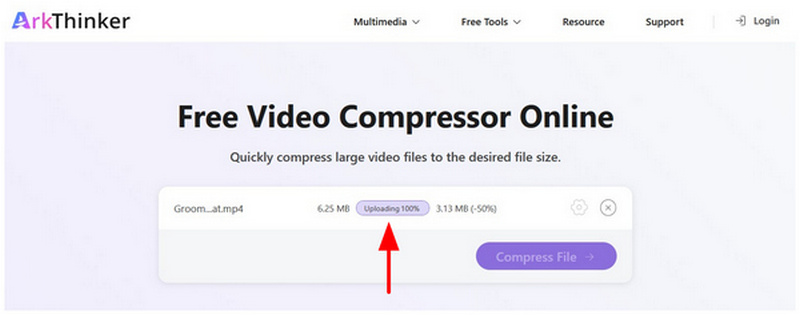
With the Google Drive video uploaded, select Compress File to start producing a lower-file-size version of the media.
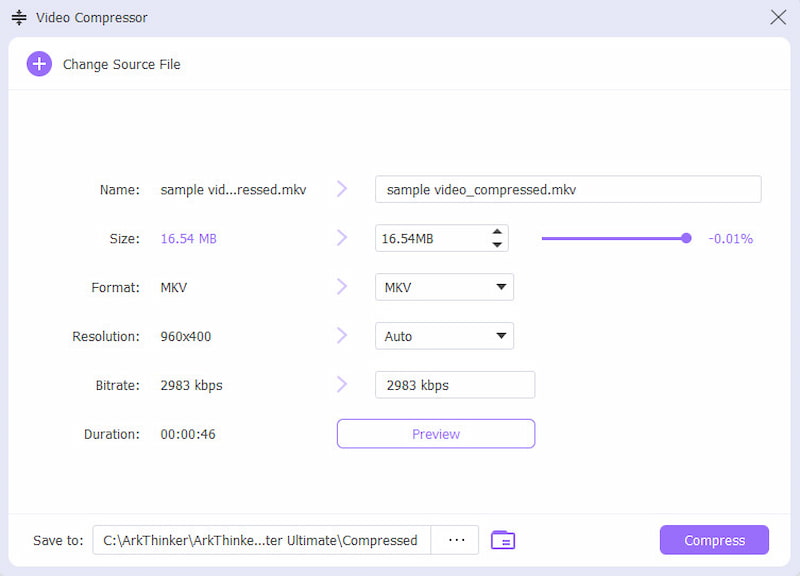
With its features now discussed, we highly recommend using ArkThinker Free Video Compressor Online for users who are looking to compress videos on a one-off occasion. This is best used before uploading your video file to Drive.
ArkThinker Video Converter Ultimate
With the previous option we have provided being limited to only smaller video files, users who are looking to compress 4K videos for Google Drive are much better advised to use ArkThinker’s desktop-based counterpart, ArkThinker Video Converter Ultimate.
Optimized well to support over 500+ media formats, ArkThinker Video Converter Ultimate is equipped with a fully functional video compressor tool in its Toolbox. This allows the program to compress videos using more advanced settings, such as Format, Resolution, and Bitrate.
However, if you don’t want to tinker with these advanced configurations, you can rest easy, as the Compression Rate option in the software can reduce file size without affecting the original quality of your video and without adding watermarks.
To learn how to use the software, read our three-step guide below. Do not forget to download it as well for an easier time learning to compress your first video using the program:
Open ArkThinker Video Converter Ultimate and go to the Toolbox tab. Next, select the Video Compressor tool.
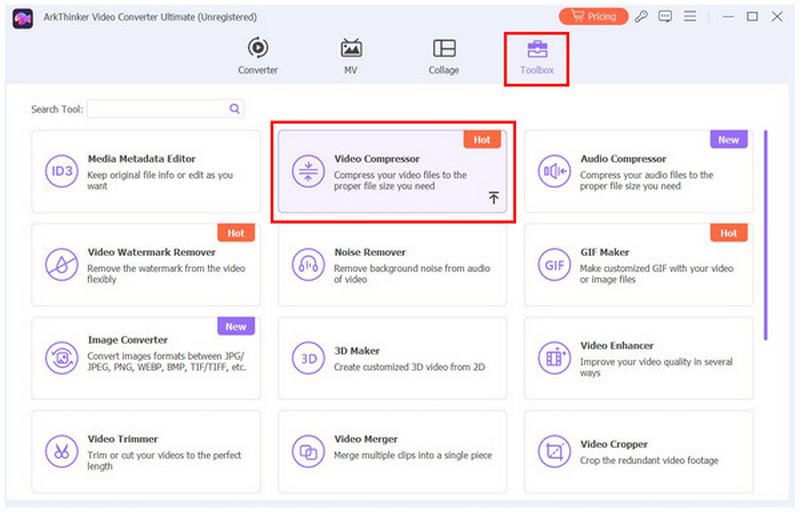
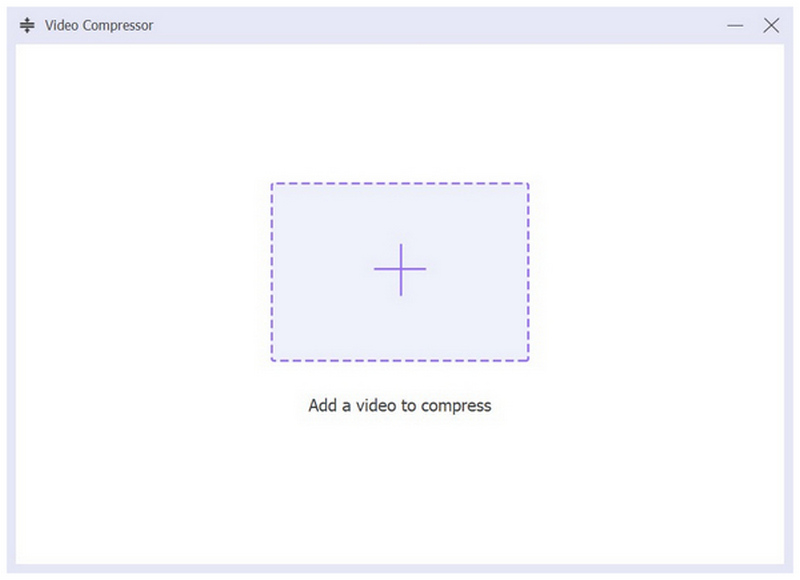
In the pop-up menu that will open, select the Add button to import the video file you want to compress.
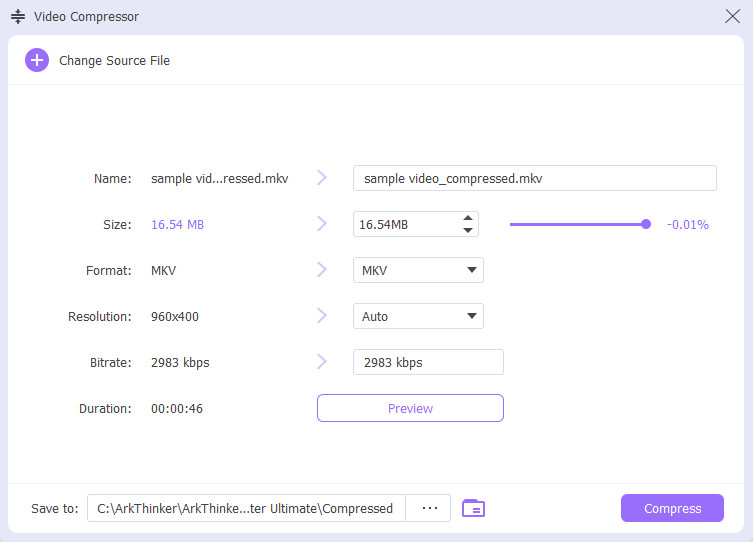
With the video added to the Video Compressor tool, you can now compress the file by editing the Compression Rate, Format, Resolution, and Bitrate. Finally, select Compress to begin compressing the Google Drive file you are editing.
Among format converter tools, ArkThinker Video Converter Ultimate offers the best balance for beginner users and experienced multimedia practitioners. This makes the software the best option if you are planning to maximize your Google Drive storage by compressing videos before uploading them to the cloud.
Part 4. FAQs About Google Drive Compressing Videos
What is the default Google Drive space of a Google account?
A newly created Google account has free Google Drive storage. By default, there will be 15GB of free cloud storage. To get more storage space, you may avail yourself of Google's yearly subscription services, ranging from 100GB to 2TB.
Is there a video compressor tool directly in Google Drive?
No, there is not. Google Drive does not include a compressor for 4K videos or lower-resolution formats. You need to use third-party media converters to save space when uploading videos to cloud servers or offline storage.
Does Google Drive automatically compress videos uploaded to it?
No, it does not. Google Drive will not reduce the file size of videos you upload to it. When downloading videos back to your device, the file retains its quality.
Why do I need to compress videos before uploading them to Google Drive?
It is not necessary to compress videos before uploading them to Google Drive. However, it is extremely helpful since the free cloud storage of Drive is very limited, especially for videos. You also need to reduce video file size when sending videos on apps, making video compression for WhatsApp, Messenger, and other tools advisable.
Do videos uploaded to Google Drive have reduced quality?
No, it does not. Video files uploaded to Google Drive will not have reduced quality. These files will maintain their original video resolution.
Conclusion
Now that we have provided the best Google Drive video compression options you can use, we hope this article has given you the information you need to learn about compressing video files for cloud storage. Among the options on this list, we highly recommend using ArkThinker Video Converter Ultimate for a perfect balance of ease of use and advanced options. You can download it using the link below.
What do you think of this post? Click to rate this post.
Excellent
Rating: 4.8 / 5 (based on 589 votes)


