


4 Methods to Convert WMA to MP3: Full Review and Tutorial
Among traditional audio formats, Windows Media Audio (WMA) is one of the most notable options, as Microsoft itself developed it as the primary format for Windows computers. Unfortunately, since it was exclusively for Windows, it lacks universal compatibility when transferred outside the operating system. In this case, converting WMA to MP3 format is a logical step to make your unsupported files playable in any media player or device. In this article, we will provide a detailed guide to four methods for converting audio files to MP3. We will review each program based on its best uses, pros, and cons and provide a quick guide on how to use them.

- GUIDE LIST
- Part 1. Choosing Your Ideal WMA Audio Converter
- Part 2. 4 Ways to Change the WMA Format to MP3
- Part 3. Audio Guide: How to Batch Convert WMA to MP3 Without Losing Quality
- Part 4. FAQs About Converting WMA to MP3 Format
How We Test and Review
- • The audio conversion tools were tested on a Windows laptop running a Ryzen 5 processor with 16 GB of RAM.
- • The WMA files we tested for conversion were 3-minute music audio files.
- • To test the efficiency of each tool, we batch converted five WMA files at a time.
- • During the conversion, we ensured that only the tool under test was running. For online tools, it is the only open tab.
- • We measured the duration it took to convert each audio file.
Part 1. Choosing Your Ideal WMA Audio Converter
Before proceeding to the programs we will feature and review, let us first discuss how each WMA-to-MP3 converter in Windows 10/11 compares to one another in terms of performance, quality retention, ease of use, and price points.
| WMA Converter Tool | Speed Performance | Sound Quality Retention | Ease of Use | Pricing |
| Arkthinker Video Converter Ultimate | Very Fast (GPU Accelerated) | 1:1 Retention | Easy | Free – $15.60 |
| CloudConvert | Slow to Fast (Based on internet quality) | Minimal Reduction | Easy | Free – $18.00 |
| Windows Media Player | Moderate | 1:1 Retention | Moderate | Free (Built-in) |
| VLC Media Player | Moderate | Minimal Reduction | Complex | Free (Open-source) |
Part 2. 4 Ways to Change the WMA Format to MP3
Method 1: Arkthinker Video Converter Ultimate: Lightning-Fast Batch WMA to MP3 Converter
Best Used For: Fast batch conversion with lossless audio files.
The first method we will discuss for selecting a program to convert WMA to MP3 for free is an all-in-one multimedia converter, ArkThinker Video Converter Ultimate. As its name suggests, this software is designed to handle specific format conversions, including processing uncommon WMA files to a more popular MP3 format.
As a dedicated desktop-based tool, it is fully optimised to use your device’s resources thanks to its GPU acceleration feature. This makes the software a solid option if you want to batch-convert a handful of WMA files or a small library of files.
For advanced users, the software also provides options for bitrate, sample rate, encoder, and channel adjustments, which are useful additions. Access to these settings is a solid addition for users who want full control over their converted MP3 files.
To learn more about the software, make sure to read its pros and cons below. Do not forget to read our three-step guide on how to use it as well.
Make sure to download the program to efficiently batch-convert your WMA files.
- GPU-accelerated conversion for batch and single files.
- Customizable bitrate, sample rate, encoder, and channels.
- Preserves the original quality of the converted audio file.
- Most of its advanced features are locked behind its paid version.
- 5-minute conversion limit when converting individual files.
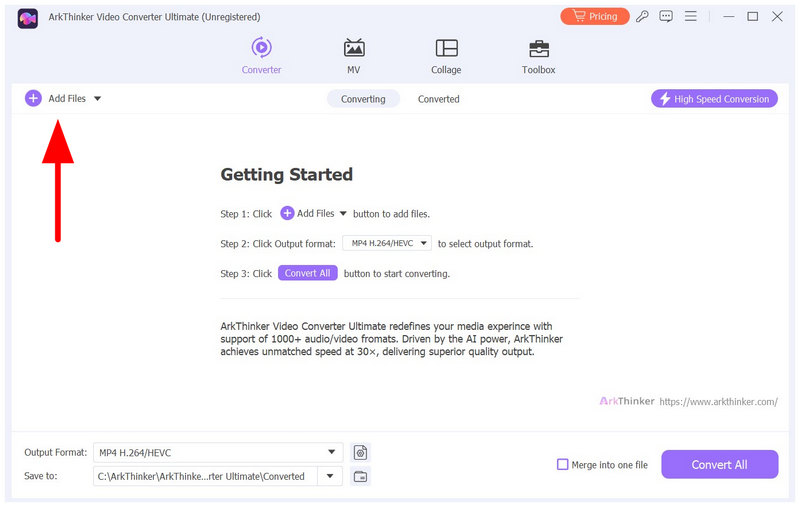
Open ArkThinker Video Converter Ultimate and select Add Files in the Converter tab to import the WMA for conversion.
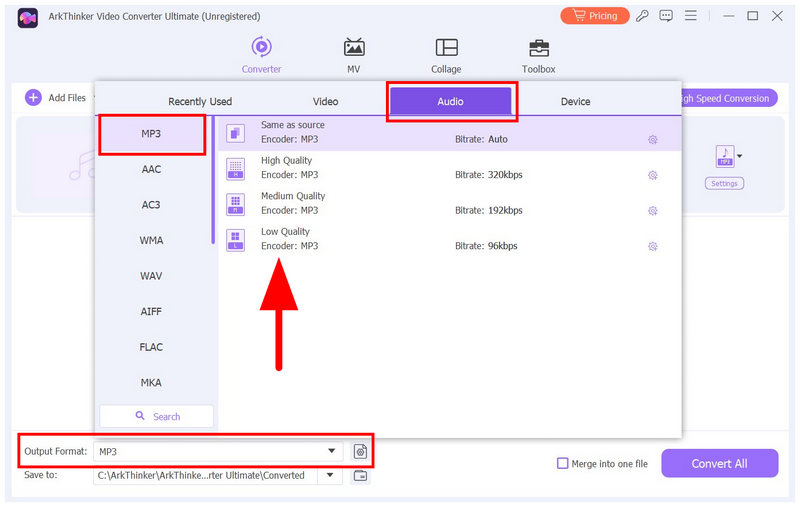
Once the WMA is uploaded, select Output Format, then Audio, and choose MP3. Then choose the conversion profile you want to use.
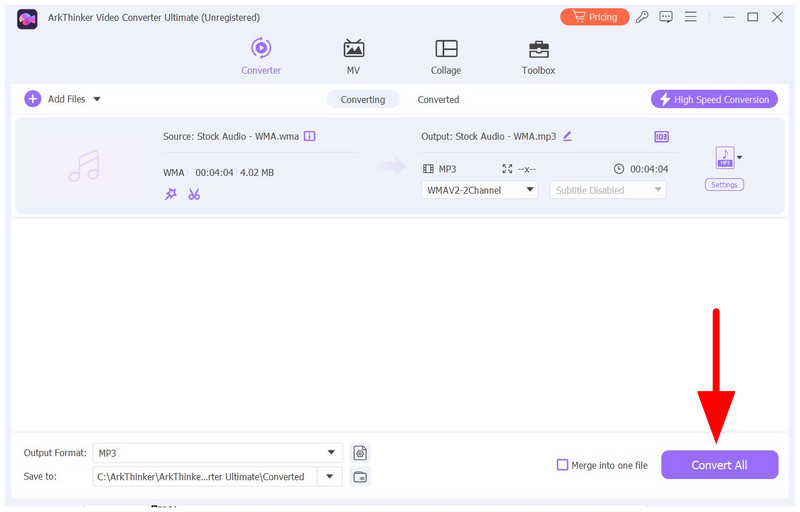
With the conversion settings now set, you will be redirected back to the Converter tab. There, select Convert All to begin converting your WMA audio to MP3.
If you want to batch-convert with the program, follow the first step in our guide, then select multiple WMA audio files and import them into the Converter tab. During conversion, all your imported WMAs will be converted in batches.
Method 2: CloudConvert: Dependable Online WMA to MP3 Conversion Service
Best Used For: Occasional conversion or one-time file format adjustments.
Moving on to the second method, we present the best online WMA-to-MP3 converter, CloudConvert. Designed as an online multimedia conversion tool, this program offers audio conversion, including an option to convert WMA to MP3.
The software benefits from the practicality of online tools, as it requires no installation or setup. However, it is also limited by this background since their users will be completely reliant on the quality of their internet connection for both importing and downloading processed files.
- No installation required.
- Optimised for ease of use.
- Accesses cloud storage such as Google Drive and Dropbox.
- File upload and download heavily rely on the quality of the internet connection.
- The free version has file size and daily conversion limits.
- Subpar privacy and user protection since files for conversion are uploaded to their servers.
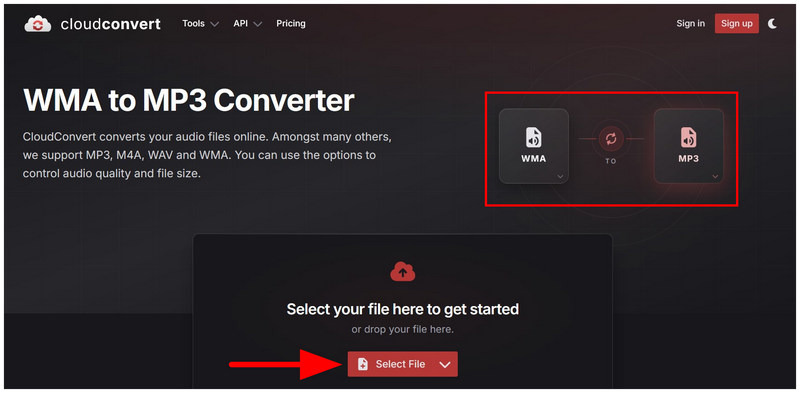
Go to the CloudConvert online tool and set the conversion setting to WMA to MP3. Then, click on Select File to import your audio for conversion.
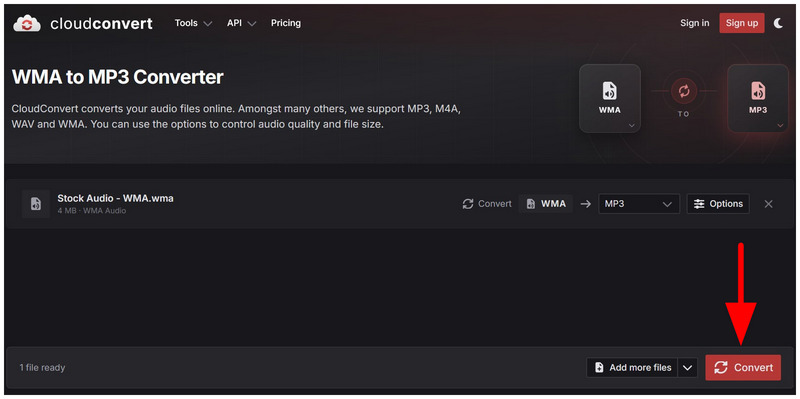
Once the WMA is uploaded and the output set to MP3, select Convert.
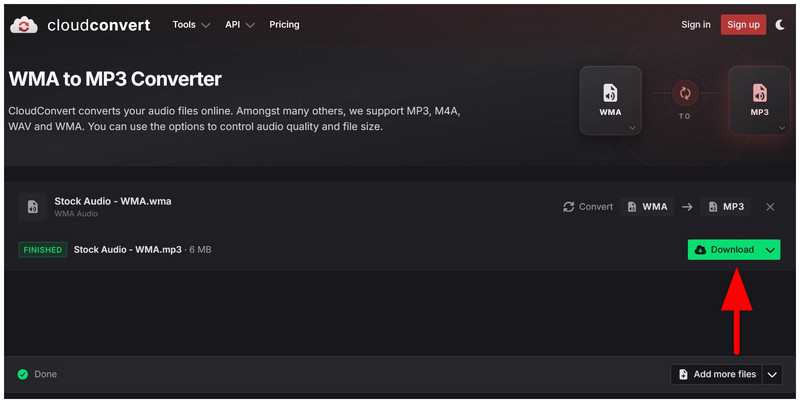
After the conversion process, select Download to begin saving the now converted MP3 file to your device.
Since CloudConvert has file upload and processing limits, CloudConvert is more practical for one-time conversions.
Method 3: Windows Media Player: Built-In Method to Play WMA Without Converting to MP3
Best Used For: Playing WMA files natively without needing any format conversion.
If you are already using a Windows computer, there is no need to use Windows Media Player to convert WMA to MP3. First, the program is a multimedia tool, and it does not have a conversion feature. Second, the software natively supports WMA, and you can simply use it to play your audio.
As such, our tutorial below outlines the steps to open WMA files in Windows’ built-in multimedia player.
- Natively supports WMA audio.
- Eliminates the need for MP3 conversion.
- Built-in multimedia player on Windows.
- Does not fix the WMA incompatibility issue outside Windows.
- Basic music and video player features.
- Unpopular even among Windows users.
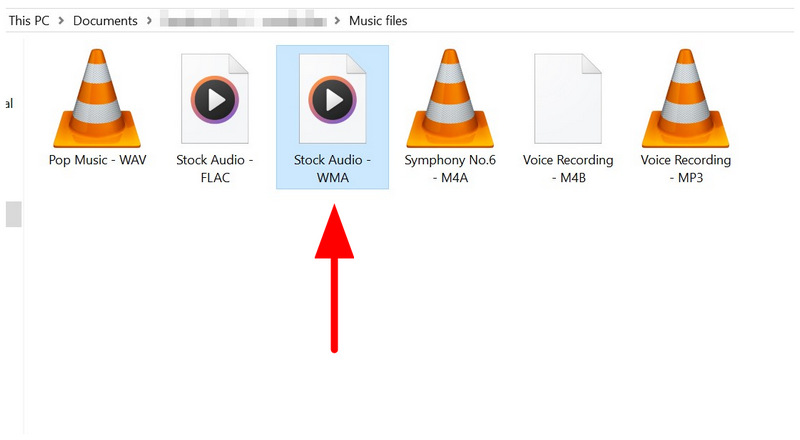
Locate the WMA audio you want to open.
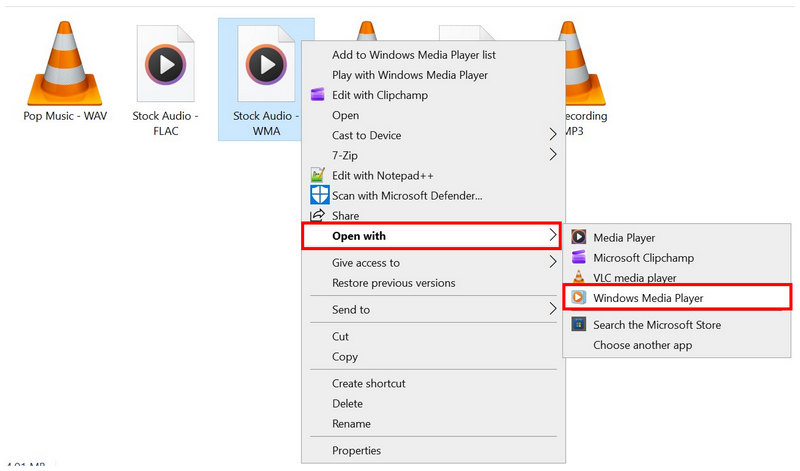
Right-click the media file, hover over Open With, and select Windows Media Player.
Your WMA file will now play in Windows Media Player, as the software natively supports it.
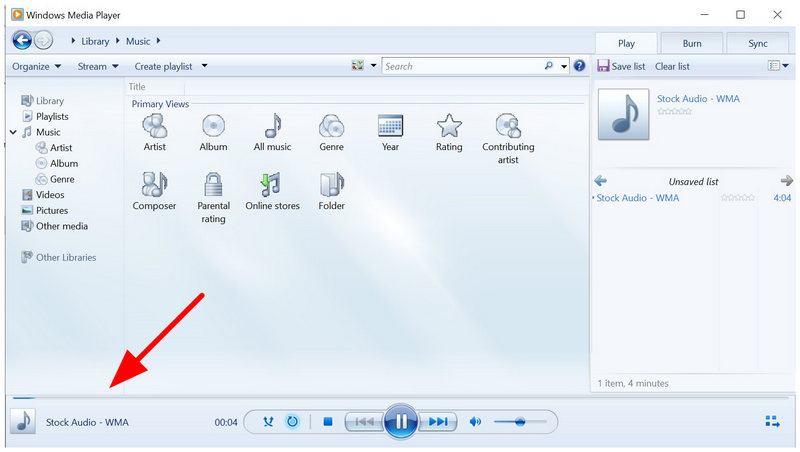
If you want to avoid repeatedly opening WMAs in the program, you can add the WMA files to the software’s library. This will make them instantly accessible in Windows Media Player.
Method 4: VLC Media Player: Free Open-Source Media Player and Audio Converter
Best Used For: Converting single WMA files to MP3, OGG, or FLAC.
Since the previous option on this list is a multimedia program without a video converter, the final method we will discuss is another media program that does have a format converter. In this method, we will show how to use VLC Media Player, a free software player, to convert WMA to MP3.
Popularly known as a cross-platform media player, VLC has a hidden advanced feature that converts multimedia files, including WMA files. However, beware that its convert feature is only an additional function, and its reliability is subpar; reports of failed conversions are quite common.
- Open-source and free to use.
- Cross-platform compatibility for Windows, macOS, Android, and iOS.
- Natively supports playing WMA files.
- Its convert feature is hidden among its advanced settings.
- Audio format conversion is limited to only three file formats.
- Reliability issues are common for larger file types.
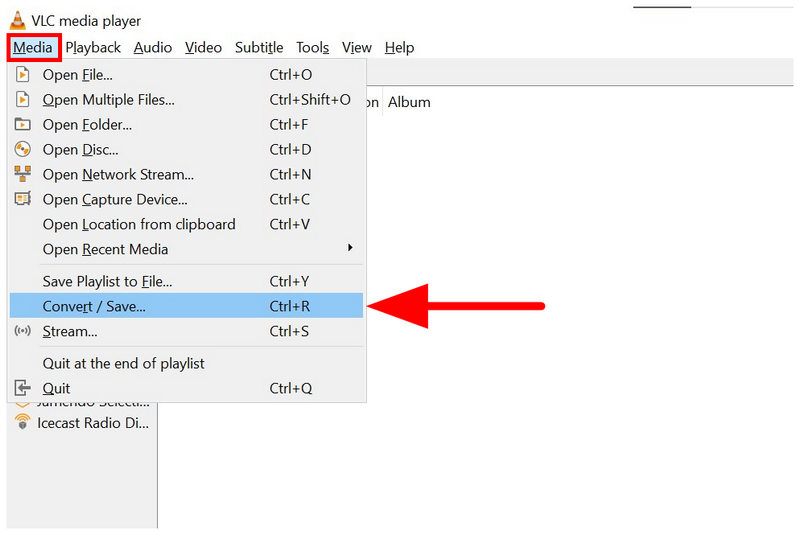
Open VLC Media Player and click on Media, then select Convert/Save.
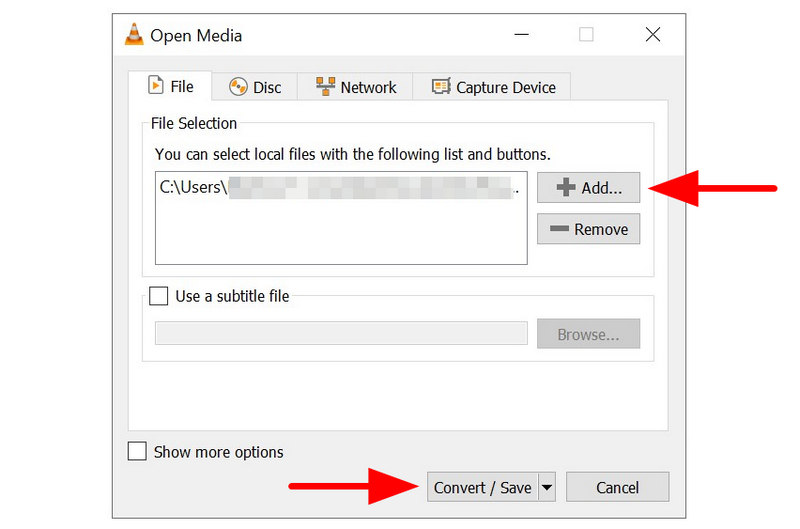
In the Convert menu that will open, select Add to import the WMA file you want to convert. Then, select Convert/Save.
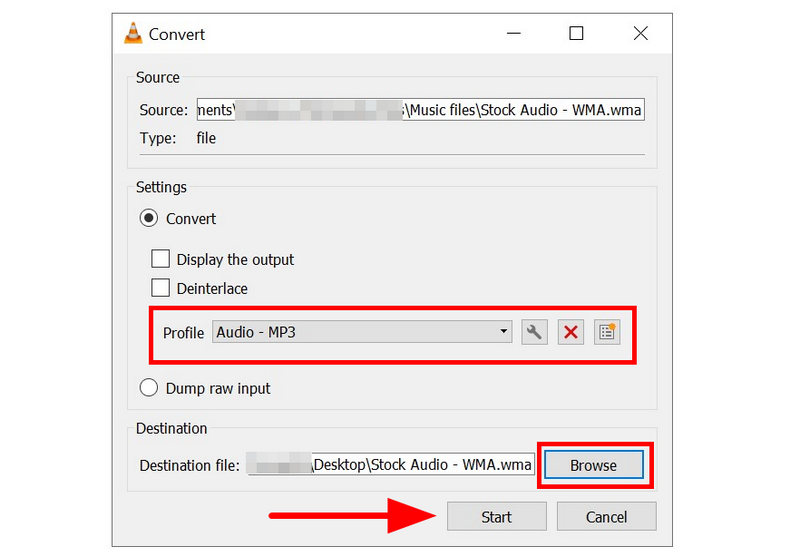
In the next conversion menu, select Profile and set it to Audio - MP3. Then, set the save destination for the converted audio by clicking on Browse. Once done, select Start to begin format conversion.
Aside from MP3 conversion, you can also use the program to convert your WMAs to FLAC or OGG.
Part 3. Audio Guide: How to Batch Convert WMA to MP3 Without Losing Quality
To batch-convert audio files such as WAV, WMA, or OGG to MP3 without quality loss, you need dedicated multimedia conversion tools. Among the options on this list, ArkThinker Video Converter Ultimate is a solid example. For a detailed guide on using the program, make sure to read our review and tutorial on how to use multimedia converted in our featured first method.
Part 4. FAQs About Converting WMA to MP3 Format
Can I use Android apps to convert WMA to MP3?
Yes, you can. There are dedicated apps for converting audio formats. However, you can still use online tools on mobile such as CloudConvert.
Are WMAs compatible with Apple devices?
No, they are not. WMA files cannot be played natively on Apple. You need to convert them or use third-party media players.
What audio format should I convert to for best compatibility?
MP3 is a good format for file compatibility. If you prefer both quality and compatibility, WAV files are good alternatives. Both of these formats are good options for making audio files playable across programs.
Are online tools safe to use?
Yes, they are. However, their privacy is not the best. Although they can convert files effectively and safely, using them involves uploading media files to online servers.
Is MP3 a high-compatibility format?
Yes, it is. MP3 is one of the most universally supported digital formats. It may be the media file with the best compatibility, even surpassing MP4 videos.
Conclusion
Now that the 4 easy ways have been discussed and reviewed to convert WMA to MP3, we hope that this article has provided you with enough knowledge to make unconventional audio formats way more accessible by converting them to MP3. Among the options on this list, we highly suggest using ArkThinker Video Converter Ultimate if you want to enjoy an efficient and stable conversion process. Do not forget to download the program to learn more about the tool.
What do you think of this post? Click to rate this post.
Excellent
Rating: 4.9 / 5 (based on 601 votes)


