


Save Audacity File as MP3: 4 Ways to Save a Project
Audacity is a free-to-use audio editing program available for Windows, Mac, and Linux desktop devices that allows users to have access to sound engineering and production tools to produce pitch-perfect audio or music used for podcasts, music production, and more. As an open-source tool, many users have experience being overwhelmed by the user interface of the Audacity tool, making it harder for them to navigate and potentially use the software's tools and features to the fullest.
An instance is Audacity’s Save Project function, which confuses some users about their project being saved as a retrievable file instead of having a playable MP3 file. This article uses this opportunity to help out Audacity users on how they can effectively export their project into a playable MP3 file in four ways, as well as inform users of the difference between the save project function and export function of Audacity save file as MP3.
- GUIDE LIST
- Part 1. Why "Save Project" is Different from "Export" in Audacity
- Part 2. How to Save an Audacity File as an MP3
- Part 3. FAQs about How to Save Audacity File as MP3
Part 1. Why "Save Project" is Different from "Export" in Audacity
Using Audacity to produce perfect-sounding audio for your project is one thing Audacity can help users with. While using the tool can either comes easy or slightly throw off novices, with the way Audacity is designed, it can easily be learned. One example problem that is being experienced by novices or new users of the software is when they try to have their project as a playable MP3 file, but confuse the Save Project function with the Export Audio.
Save Project
Save Project is a function in the software that allows users to save their project as an editable file in Audacity. The purpose is for users to have a backup of their project, just in case they need to change or edit their audio file without losing the progress they made in their project.
Export Audio
Export Audio or the Export function in Audacity is the tool users should use or press when they want their project to be fully saved as a playable MP3 file on their device. This function will export the project as an MP3 file, perfect for sharing and usage in the project.
Part 2. How to Save an Audacity File as an MP3
If you are curious, how do I save an Audacity file as an MP3 regardless of your Audacity version? This section presents four methods on how to do it, of which three are by using Audacity, and the other one is the use of a third-party, easy-to-use alternative to Audacity to MP3 converter tool.
Method 1: Step-by-Step Guide to Exporting as MP3
This method is a straight-up step-by-step guide on how to save and export your audio file project as an MP3 file using Audacity's built-in export settings. Hence, you may also take these steps to Audacity convert to MP3 file.
Open your audio project in your Audacity software. Or create a new project you want to export as an MP3 file using the software.
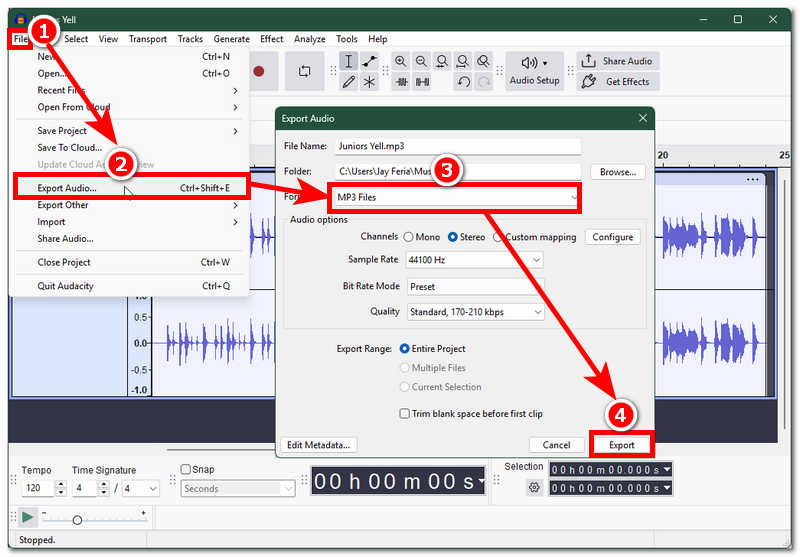
To export your project as a playable MP3 file on your desktop device. Simply head over to the upper-left corner of Audacity and from the menu section, click on the File, and under the File section, click on the Export Audio.
After clicking on the Export Audio function, a new window will appear on your screen. From there, carefully choose the right export setting for your audio project, like setting your file as MP3 Files.
Finally, after changing your export file format setting to MP3, click on the Export button to finally save your project as an MP3 playable file on your device's designated export folder.
Method 2: Installing the LAME Encoder (For Older Versions)
This method is more likely a troubleshooting guide for when your Audacity software tool has an outdated version, and for some reason, you can not update to the latest one. Hence, regardless of how old your Audacity version was, performing the following steps may help you to still use Audacity export to MP3.
Open an existing project or create a new one in Audacity using your desktop device (Windows, macOS, Linux)
Note: For older versions of Audacity, if the MP3 file format is not available in your Audacity version, you may do the following to check and install the LAME encoder using only the Audacity software.
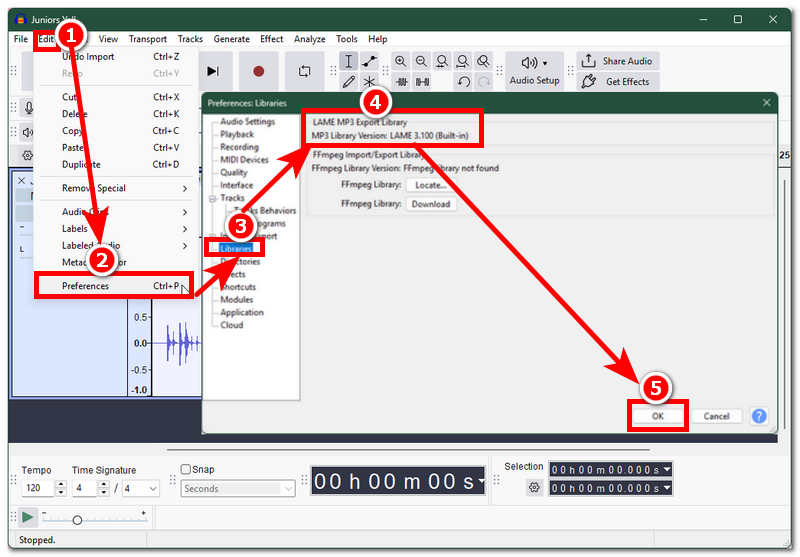
On the upper navigation setting of Audacity, click on the Edit menu and from it, head over and click on the Preferences tab.
Once you have opened the Preferences setting, a new window will appear on your screen. From there, locate and click on the Libraries to access the LAME MP3 Export Library.
Note: By doing this, you will be able to check if your version of Audacity is capable of exporting MP3 file format. Otherwise, you may continue to the next steps to install the LAME encoder.
If your Audacity doesn’t have the LAME encoder for you to export an MP3 file, click on the Locate button right next to your MP3 Library.
Then, proceed with Browse and in the ‘Where is libmp3lame. so? Dialog, simply select it in your LAME Encoder Library and click OK to finish setting it up.
Method 3: Using Macros for Batch Exporting
To create a Macro in Audacity to perform multiple or batch exporting, users should firstly have to create a macro.
Go to the Tools menu section of Audacity and from there click on the Macro Manager.
In the Macro Manager window that will appear on your screen. Firstly, click on the New button to create a new macro and rename it Batch Processing.
After renaming a new macro, proceed now to the right part of the Macro Manager and click on Insert, and from the selection of steps, simply locate and click on the Export as MP3 and hit OK to proceed.
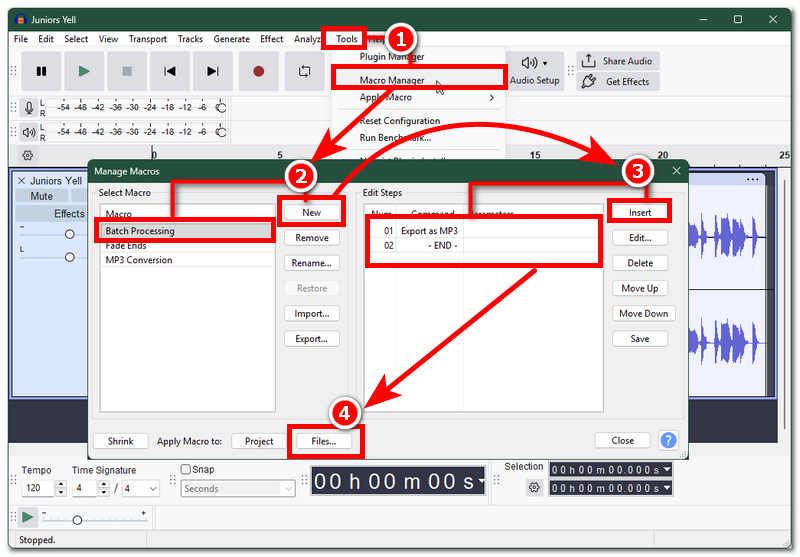
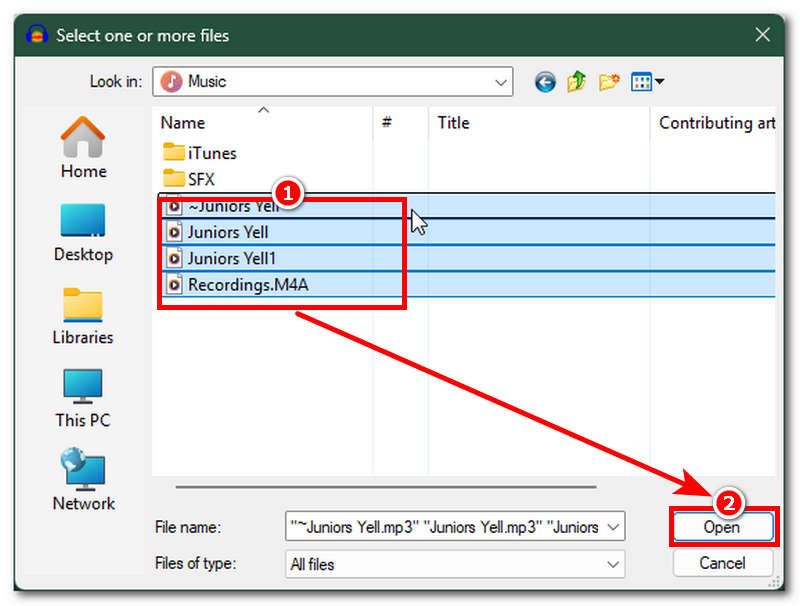
After you create a macro for multiple file batch processing, from your Macro Manager window, click on the Apply Macro to Files and select all the audio files you wish to batch export as MP3 using Audacity, and click on Open. Let Audacity automatically export your file as MP3.
Method 4: Best Format Converter - ArkThinker Video Converter Ultimate
If you still find exporting your audio projects in Audacity complicated and time-consuming despite our simplified approach above, then you may use this fourth method to cater to your MP3 file exporting needs using ArkThinker Video Converter Ultimate. A free-to-use and lightweight software tool for desktop devices that consists of multiple video and audio editing features. ArkThinker is regarded as the best Audacity MP3 converter alternative, known for its easy-to-navigate user interface and functionality to perform both simple video and audio editing, like MP3 conversion.
How to Use ArkThinker Video Converter Ultimate to Export MP3 File Format
Open the ArkThinker Video Converter Ultimate software from your desktop device, or use the direct link below if you have not yet installed the software on your desktop.
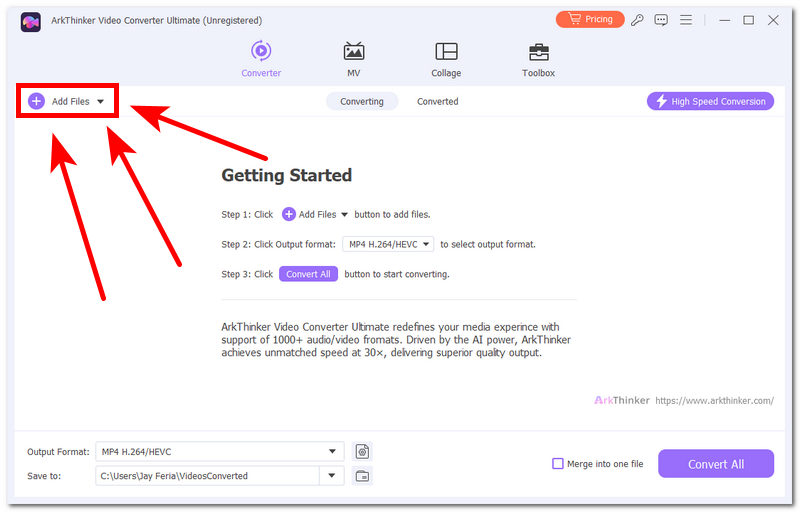
Once the software tool is installed on your desktop device, from its main interface, click on the Add Files button situated in the upper-left part of the tool to load the audio file you wish to export or convert to an MP3 file using the tool.
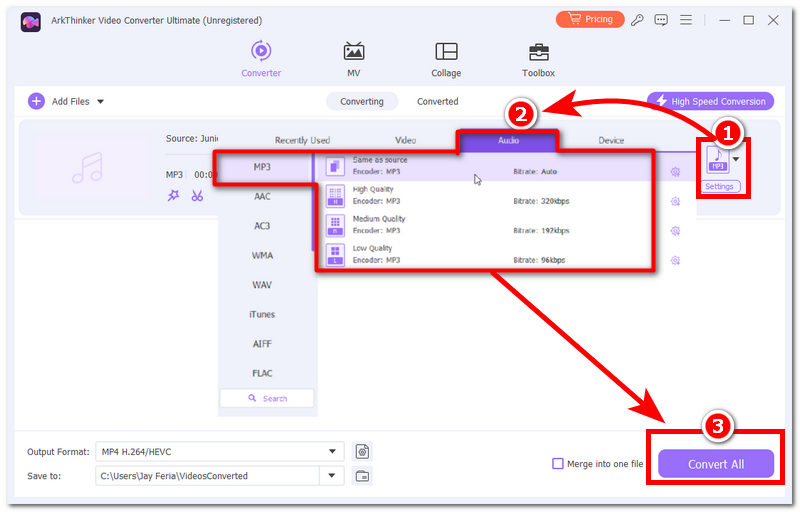
Once you load your audio file into the tool’s interface. Click on the file format setting of your file situated in the right part of your file, and from there, simply navigate into the Audio tab and select MP3 as your file format.
Once you have selected MP3 as your file format to export your audio file, click on the Convert All button to have your audio file be exported as an MP3 playable file in your desktop designated folder.
Part 3. FAQs about How to Save Audacity File as MP3
Can Audacity save files directly as MP3?
Yes, user may save their files instantly as an MP3 without creating an editable file by using the Export Audio function of the software.
Does exporting to MP3 reduce quality?
No, as MP3 usually is the right file format to contain clear and audible audio, you can say that exporting your project into MP3 will do just fine.
Conclusion
This article has cleared some misunderstanding use of Audacity specially differentiating the Save Project to Export Audio function of Audacity, for user to have a clear understanding of what to use the function for their needs. In addition, not only are simplified steps listed in this article for guides, but this article also features step-by-step instructions on how to make Audacity files into MP3s by using the best file format converter, ArkThinker.
What do you think of this post? Click to rate this post.
Excellent
Rating: 4.8 / 5 (based on 414 votes)


