


7 Best Tools to Convert HEIC to JPG for Free: PC and Online
Format conversion may be a simple file adjustment process for most people; however, it can affect your media file’s compatibility, especially with how it opens. With that in mind, most users are reluctant to pay for format converters, especially when freemium and open-source alternatives are readily available. In this article, we will review some of the most reliable tools to convert HEIC to JPG for free, including their best uses, step-by-step guides, and the platforms on which they are available.

- GUIDE LIST
- Part 1. Top Free Online Converters (Web-Based)
- Part 2. Best Free Desktop Software (Unlimited)
- Part 3. FAQs About Converting HEIC to JPG for Free
| HEIC to JPG Converters | File Limit (Size and Batch Processing) | Ad Presence | Watermark | Supported Platform |
|---|---|---|---|---|
| ArkThinker Free HEIC Converter Online | 5 – 10 MB Up to 10 files at once. | No ads | No watermark | Web-based |
| CloudConvert | 1 GB No batch processing. | No ads | No watermark | Web-based |
| FreeConvert | 1 GB No batch processing. | Ad presence | No watermark | Web-based |
| iMazing Converter | No file size limit. Unlimited batch conversion. | No ads | No watermark | Windows, macOS |
| CopyTrans HEIC | No file size limit. Unlimited batch conversion. | No ads | No watermark | Windows |
| GIMP Editor | No file size limit. Unlimited batch conversion. | No ads | No watermark | Windows, macOS |
| Paint.NET | No file size limit. Unlimited batch conversion. | No ads | No watermark | Windows |
Part 1. Top Free Online Converters (Web-Based)
ArkThinker Free HEIC Converter Online
Best Used For: Online batch processing of a handful of HEIC images.
We will start this guide by featuring the most reliable online image converter, specifically optimized for HEIC: ArkThinker Free HEIC Converter Online.
Compared to other format conversion tools on this list, this software operates more efficiently because imported images are automatically converted to JPG upon upload. This makes file conversion and saving converted files way faster.
Moreover, files uploaded to their servers are immediately deleted once you are done downloading your imported file. This is an excellent security and privacy feature, especially since it involves uploading image files to their servers.
You can start using the ArkThinker Free HEIC Converter Online in two simple steps, as featured in our tutorial below.
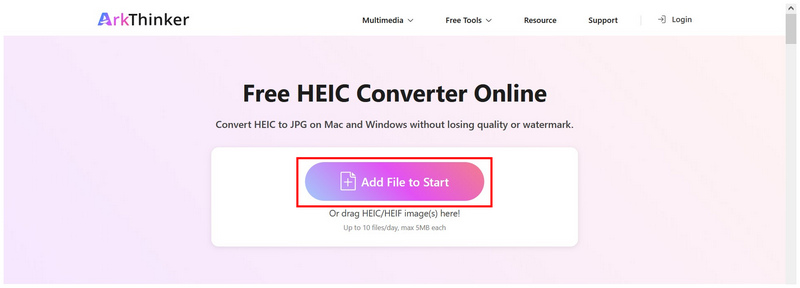
Open ArkThinker HEIC Converter Online’s website. Then, select the Add Files to Start option to add the HEIC image. You may also upload up to 10 files to the upload box for batch processing.
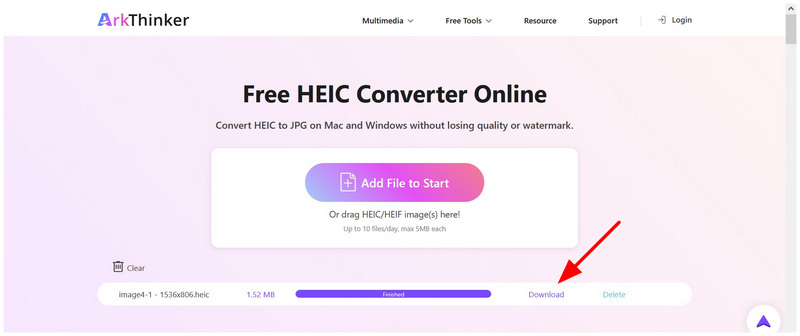
Once your HEIC files are added to the software, they will be automatically imported into JPG files. Wait for the conversion process to finish. Select the Download button to save the JPG image to your computer.
If you are looking for a free, accessible, and easy-to-use HEIC converter freeware, this online tool should be among your top considerations. Aside from ease of use and automated conversion, its measures for user privacy are way better than those of other software.
CloudConvert
Best Used For: Clean interface and high-quality online conversion.
If you are looking for a high-quality online file conversion platform to convert HEIC to JPG online for free, CloudConvert is another good choice. To improve practicality, it also offers advanced settings and high-quality output. Unfortunately, the free version of the online tool uses a very limiting credit system, making it only reliable for one-off or occasional JPG conversions.
To learn how to use CloudConvert’s free version for HEIC to JPG formats, please read our guide below.
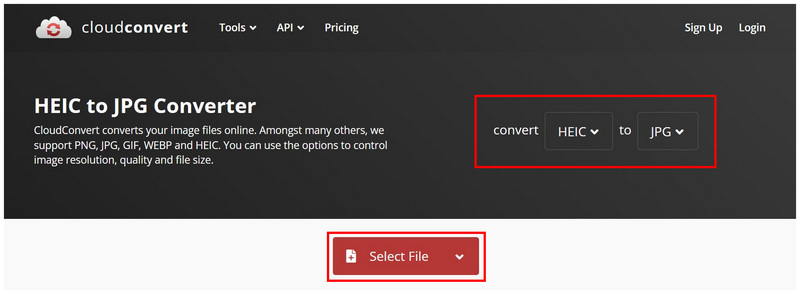
Open CloudConvert’s online tool. Set the Convert-To tabs to HEIC and JPG. Then, click on Select File to import the HEIC image you want to convert.
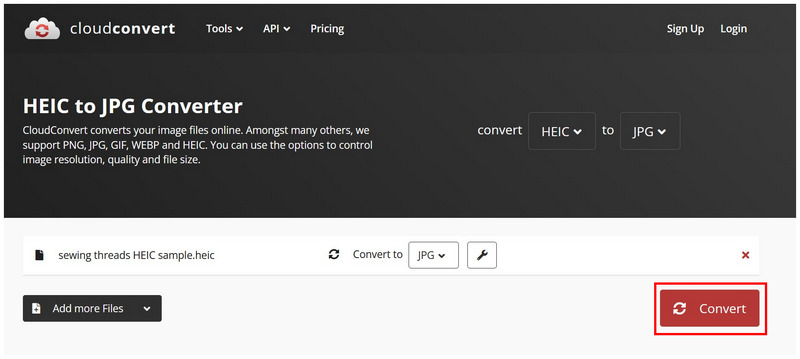
Once the HEIC file has been imported into the program, click on Convert.
When the conversion process is complete, click Download to save the file as a JPG.
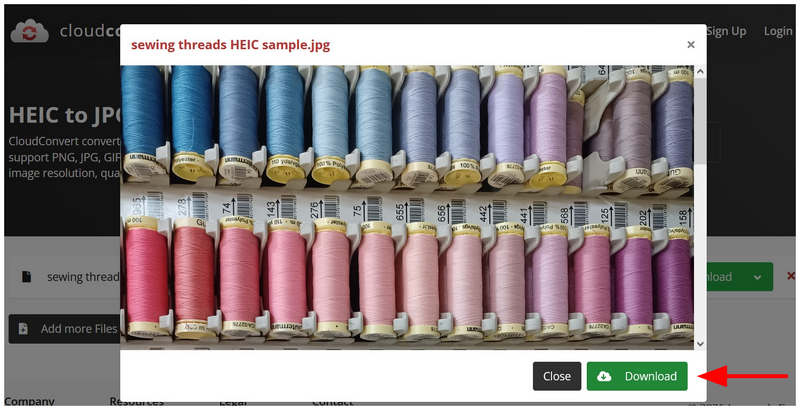
Based on the performance of other software in this article, CloudConvert’s image quality has slightly declined after the conversion. This makes it suitable for users who prioritize file compression, but it is not ideal for those who want image quality.
FreeConvert
Best Used For: Large file conversion at the expense of ad presence.
Moving forward, we will now continue with a feature-rich online image converter known for supporting large file sizes (up to 1GB), even in its free version, with FreeConvert. Developed to be flexible and powerful, to support different files and formats. This software has found its niche in converting HEIC files to JPG for free, as well as in converting files of different formats and sizes.
Unfortunately, the ad presence is one of its most significant limiting factors; depending on the browser you use, FreeConvert’s ads may affect the overall user experience. Learn how to use FreeConvert with the help of our three-step guide below.
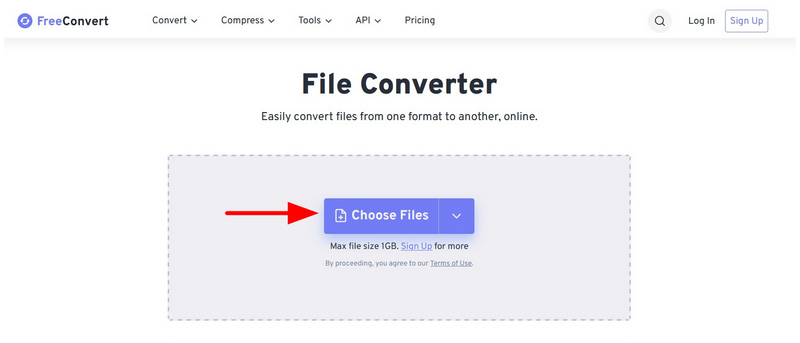
Go to FreeConvert’s website and then select the Choose Files button.
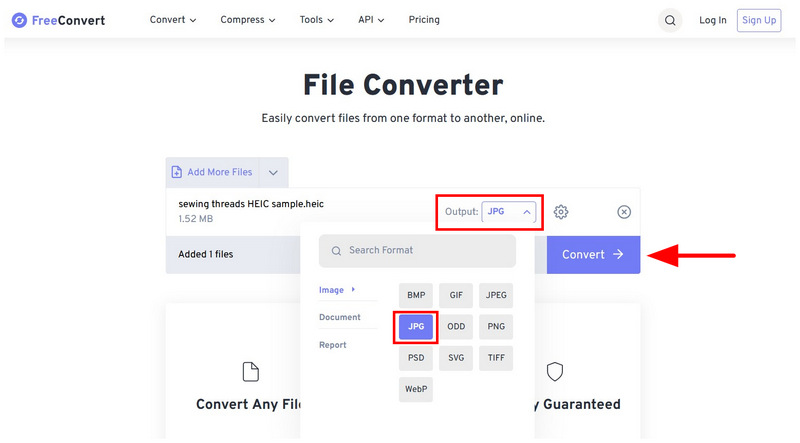
After the image file is imported, select Output and set it to JPG. Then, click on the Convert button.
Once the image has been converted, click the Download button.
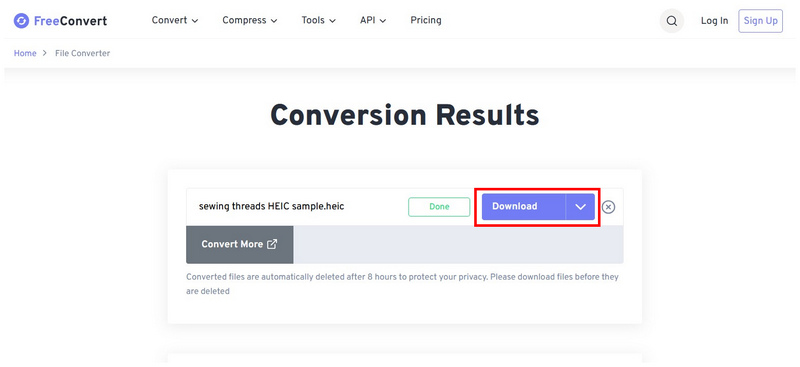
The converted JPG should be downloaded to your browser. Select the Download Progress button to manage your downloads.
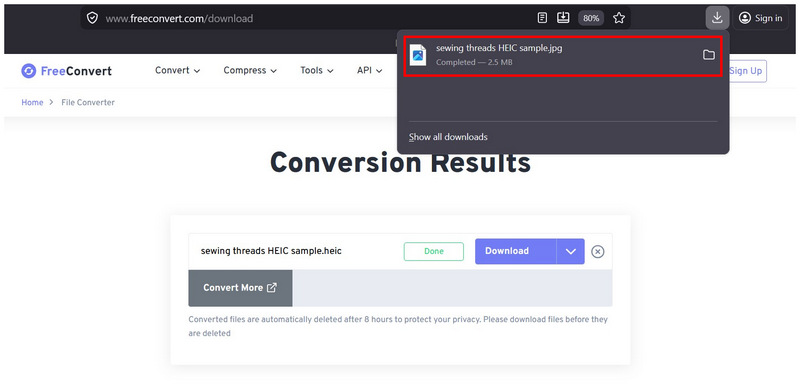
If you don’t mind ad presence or are using a reliable ad-blocker plug-in, FreeConvert should be suitable for converting HEIC to JPG online for free.
Part 2. Best Free Desktop Software (Unlimited)
iMazing Converter (100% Free)
Best Used For: Fully offline file conversion.
We will start highlighting our desktop tools, including iMazing Converter, a lightweight file management tool built specifically for HEIC conversion. Due to its development background, it supports batch processing, lossless compression, delivers fast performance, and has no file size limits, making it one of the best free options for converting large numbers of images offline. This gives the program a strong score if you want to convert HEIC to JPG in bulk for free.
Despite that, iMazing Converter has limitations in terms of format support, as it can only save images as JPG or PNG. This may not be limiting for general uses, but more advanced image files should be added to the software to improve its practicality.
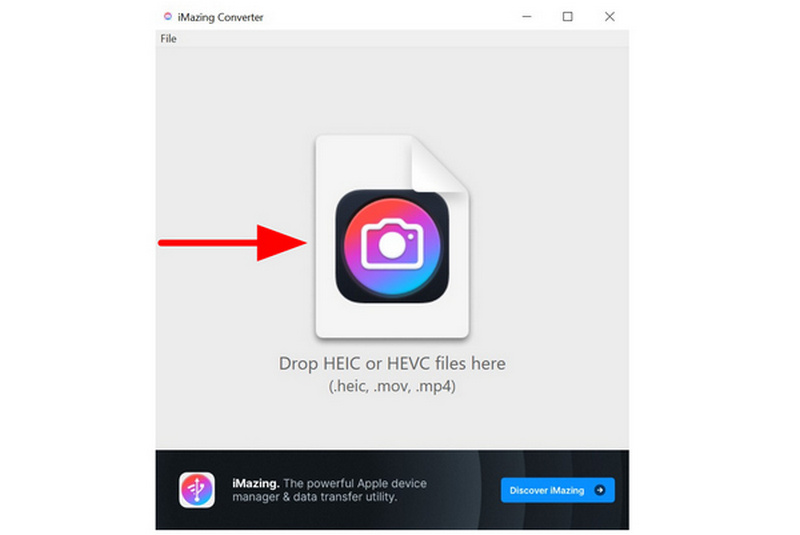
Open iMazing Converter on your computer and drag-and-drop the HEIC image you want to edit.
Once the image has been imported, set the Format to JPEG. Then, select Convert.
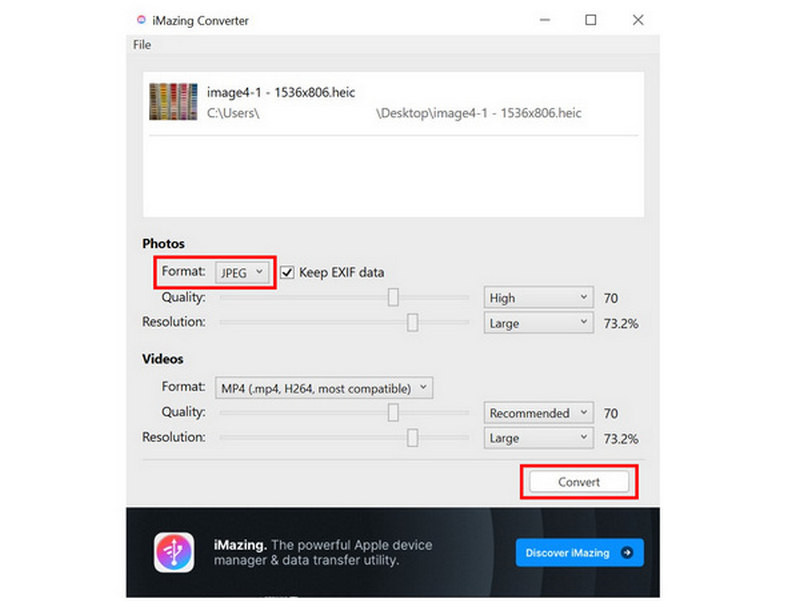
After selecting Convert, a JPEG file will be saved to the location of the original HEIC image.
If you want to convert HEIC images to more common JPG or PNG formats, iMazing is the best option. However, make sure to convert only images that require no adjustments, since the tool lacks editing features.
CopyTrans HEIC (Free for Personal Use)
Best Used For: Using the Windows interface for integrated format conversion.
If you are comfortable using Windows plug-ins, CopyTrans HEIC should be one of your top considerations. More than just a converter, this tool adds native HEIC support to Windows, allowing you to view and convert files directly.
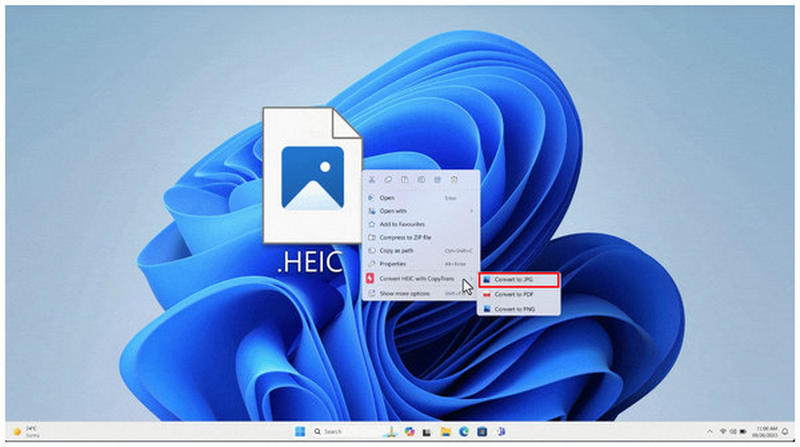
Given its format, you can easily right-click the HEIC file and then use CopyTrans to convert it to JPG. However, its more advanced nature and complete lack of a GUI make it very tricky to set up; this is not advisable for complete beginners.
Install the CopyTrans HEIC plug-in on your computer. Once done, right-click the HEIC file you want to convert, then hover over the Convert HEIC with CopyTrans option.
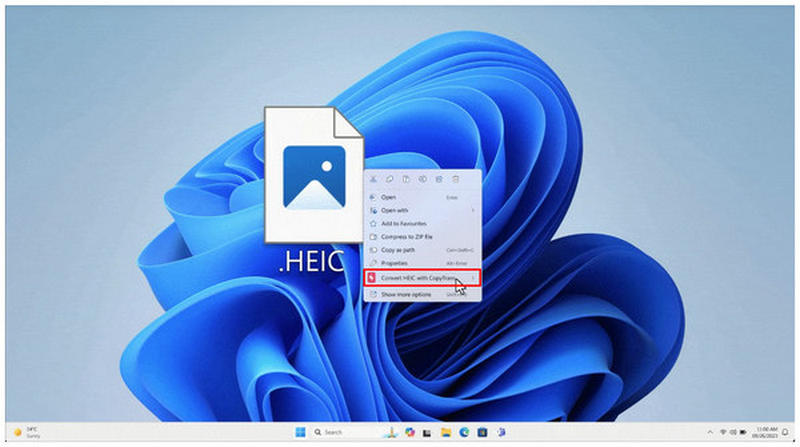
Next, select the Convert to JPG option.
After a few seconds, a new JPG file will be saved in the same location as your HEIC file.
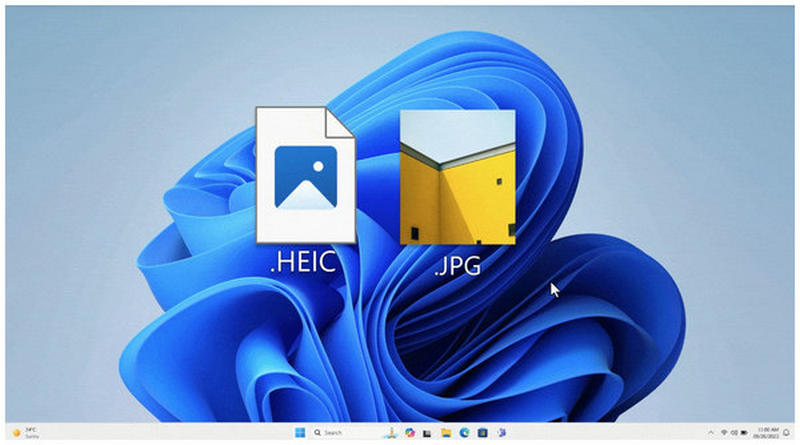
Similar to iMazing, CopyTrans’s conversion exclusivity limited it in other features, such as editing options. With that in mind, make sure to apply the adjustment you want for your HEIC file before converting it with this tool.
GIMP (Open Source Editor)
Best Used For: Editing the HEIC image and then importing it into JPG format.
Moving forward to a more unconventional solution, we have GIMP Photo Editor, a powerful open-source image editor that can handle HEIC files and export them as JPG. This program is an optimal solution if you want to solve the lack of editing materials in the other software in this list.
This makes it best suited for users who want to apply photo edits while converting their files. It may be overkill for simple conversions, especially when compared to the online tools and exclusive format converters we have presented.
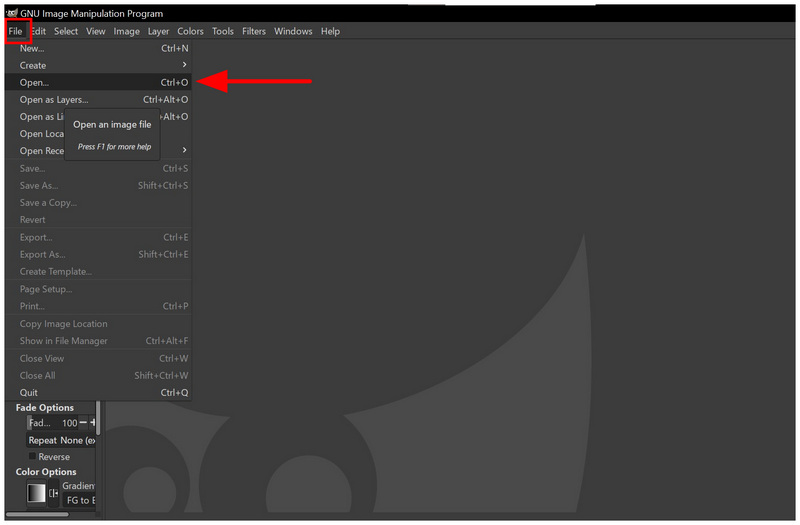
Open the GIMP editor, select the File tab, then choose Open.
Once the HEIC image is added to the editor window, click File, then select Export As.
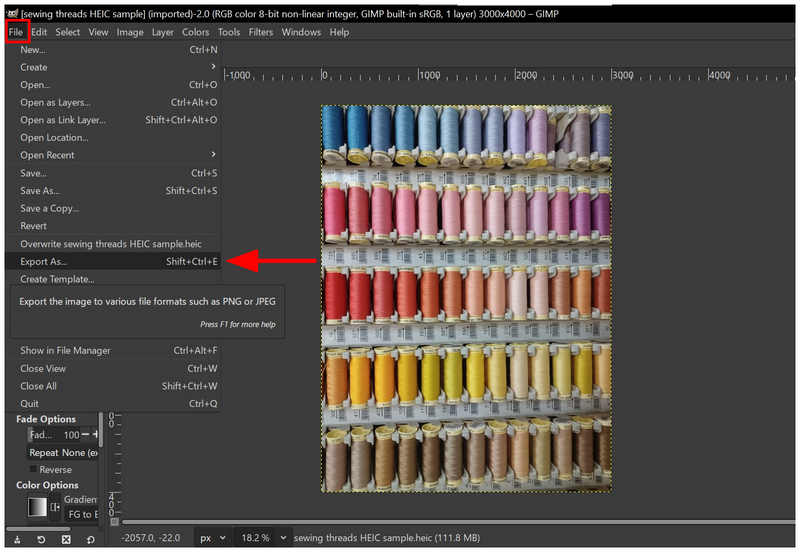
In the Export Image menu that opens, scroll down to JPEG Image and select it. Then select Export to create a JPG copy of the image.
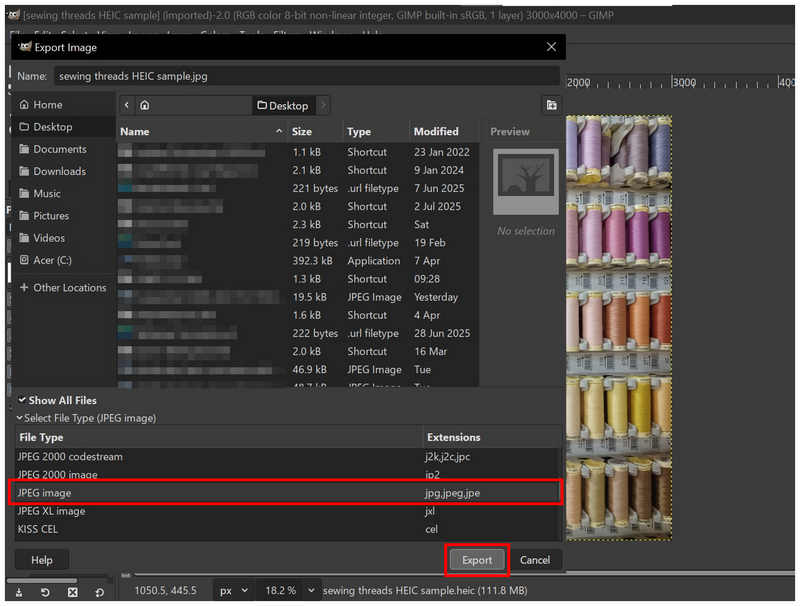
Although it requires a little more technical skill, GIMP should be enough for users who want to handle editing and conversion in a single software package.
Paint.NET (With Plugin)
Best Used For: Applying basic photo adjustments and exporting the image in JPG.
If you want an exclusive Windows image editor that is both lightweight and highly familiar, consider using Paint.NET. Designed as a successor to classic Microsoft Paint, this video editor can be used as an HEIC-to-JPG converter with the right plugin installed.
It’s easy to use and fast for single images, but it lacks native HEIC support and batch conversion features. However, this can be solved by downloading the right plug-ins to support HEIC.
Open Paint.NET, then select File and then choose Open.
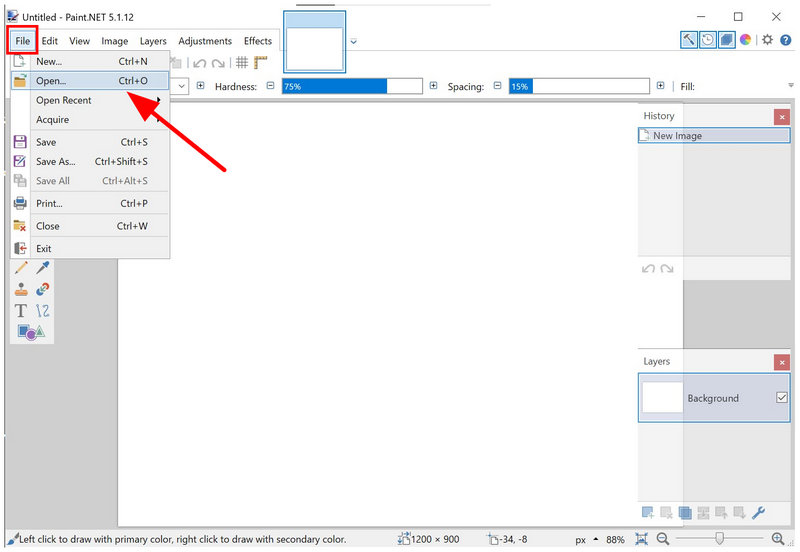
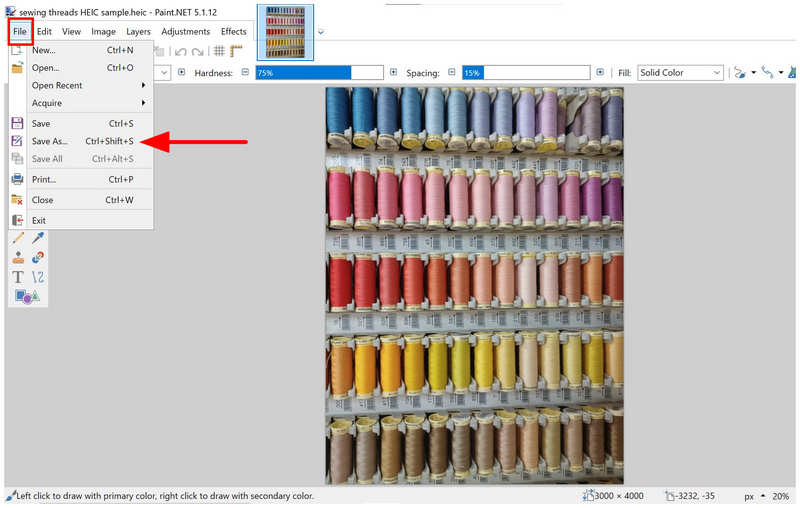
Once the image is imported, click File again, then select Save As.
In the Save As menu, set the Save as type option to JPEG. Then, select Save.
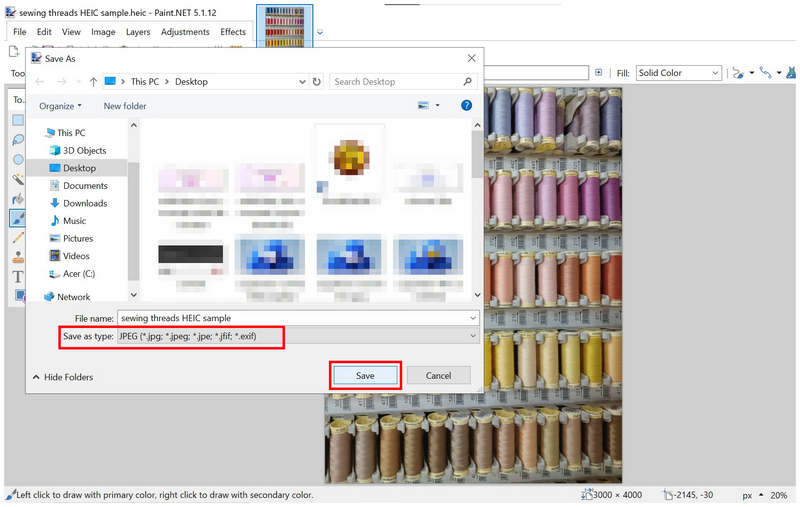
Although it is reliable for format conversion, the initial requirement to install plug-ins is a valid reason to choose another option instead.
Part 3. FAQs About Converting HEIC to JPG for Free
Is it hard to convert HEIC to JPG format?
No, it is not. Multiple tools can easily convert image formats. Some of the easiest tools are web-based software such as ArkThinker Free HEIC Converter Online.
Will the quality of my photo be affected if I change its format?
Yes, it will be. Format conversion will affect quality. However, the converter you will use may minimize the quality reduction.
Should I use JPG for format conversion?
Yes, you can. JPG is an excellent format for conversion. It has top-notch compatibility and is very compact.
Is a PNG of higher quality than a JPG?
Yes, it is. PNG has better quality than JPG. This format also supports transparent images.
What format should I convert my HEIC image into?
Images with wide compatibility are best for HEIC conversion. JPG and PNG are good examples. If you want maximum compatibility, choose JPG.
Conclusion
Now that we have provided seven of the best free tools to convert HEIC to JPG, we hope the programs we have featured in this guide will cover all your format conversion needs. If you want software designed for ease of use and user privacy, consider using ArkThinker Free HEIC Converter Online.
What do you think of this post? Click to rate this post.
Excellent
Rating: 4.8 / 5 (based on 497 votes)


