


Top 6 Methods to Convert HEIC to JPG: Best Uses, Pros, Cons
Are you having trouble opening Apple-native HEIC files, and are you planning to use format conversion to JPG as your solution? Read this article for a detailed review of six of the best image converter tools designed to handle converting HEIC to JPEG format. We will provide a detailed overview and tutorial on using the best tools for online and desktop file conversion. Each program will be reviewed based on its best uses, pros, cons, and overall rating as a converter tool.

- GUIDE LIST
- Top 6 Methods to Convert HEIC to JPG (Fast & Quality)
- Method 1: ArkThinker HEIC Converter (Best Online)
- Method 2: TunesBro HEIC Converter (Best for Batch Desktop)
- Method 3: CopyTrans HEIC (Best Windows Plugin)
- Method 4: Preview App (Best Native Mac Method)
- Method 5: Microsoft Photos/Paint (Native Windows 11 Method)
- Method 6: iMazing Converter (Free Desktop Tool)
- FAQs About Converting HEIC to JPG
How We Test
- • We converted HEIC files with similar file sizes across programs.
- • The conversion duration was timed to test performance.
- • Each program has its Pros and Cons listed.
- • Based on the results, we added the best uses of each tool.
- • All programs are rated based on test results.
| Converter Tool | Platform | Batch Processing Support | Privacy/Security | Pricing |
|---|---|---|---|---|
| ArkThinker HEIC Converter | Web-based | ✅ | High | Free |
| TunesBro HEIC Converter | Windows | ✅ | Standard | $20.00 – $40.00 |
| CopyTrans HEIC | Windows | ❌ | High | $19.99 – $29.99 |
| Preview App | macOS | ❌ | High | Free (Mac Built-in) |
| Microsoft Photos/Paint | Windows | ❌ | High | Free (Windows Built-in) |
| iMazing Converter | Windows, macOS | ✅ | High | Free |
Top 6 Methods to Convert HEIC to JPG (Fast & Quality)
Based on our testing methods and research, we have selected six image format converter tools you can use across different platforms. These programs range from built-in tools to web-based software and third-party apps, all designed for HEIC-to-JPG conversion.
Fortunately, software designed specifically to convert HEIC files is common, since the Apple-exclusive image format often causes compatibility issues when shared outside Apple devices. Additionally, the JPG or JPEG format is the most used conversion output since it is the most widely supported image format.
To help our readers select, we have added the subjective best uses for each program, along with their most significant strengths and limitations. Finally, a three-step guide was added to make it way simpler to convert images to JPG.
Method 1: ArkThinker HEIC Converter (Best Online)
Rating: ⭐⭐⭐⭐⭐
Best Used For: Online batch conversion without the need for installation.
When it comes to image format converters, online tools are becoming more reliable because multimedia conversion is inherently easy. However, the catch for most web-based options is that users’ privacy is often sacrificed. Fortunately, ArkThinker HEIC Converter provides high-quality conversion without compromising user safety.
Unlike other online converter tools, ArkThinker HEIC Converter deletes converted videos from its servers immediately after the conversion process is complete. This applies whether you use the tool for single-file conversion or for batch conversion of HEIC to JPG for up to 10 files.
To make it more practical for users, the software automatically saves converted HEIC files as JPGs. ArkThinker is aware that JPG is the most practical image format and has designed its HEIC converter tool to support such files.
To learn more about the software, read its Pros and Cons below. Do not forget to follow our two-step tutorial as well, since the online tool offers a much more efficient workflow than the other methods on this list.
- Free-to-use web-based solution for image format conversion.
- Exclusively designed for handling HEIC to JPG conversion.
- Extremely simple workflow (Upload, Convert, Download).
- Limited batch conversion up to 10 files only.
- Not accessible offline.
Go to ArkThinker HEIC Converter’s website. Then, click on the Add Files to Start button to import the HEIC file you want to convert. You may also drag and drop up to 10 files into the drop-off upload box.
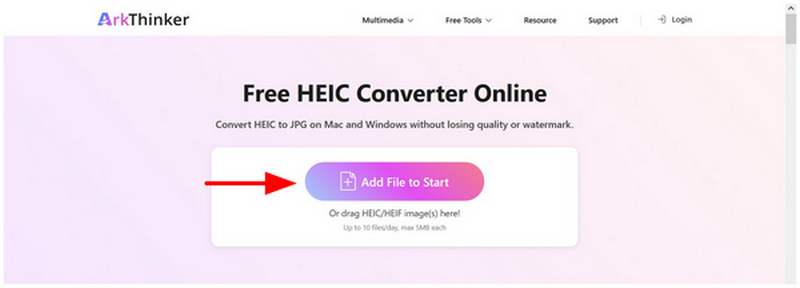
After dropping the files, wait a few seconds for the import to finish. Then click the Download button to save it back to your computer.
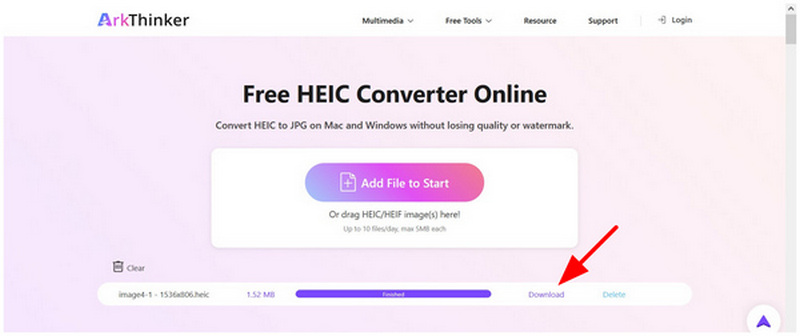
By following two simple steps, you can now convert your HEIC files into a much more compatible JPG format with ease. This makes ArkThinker HEIC Converter one of the most reliable online image converter tools for one-off conversion or batch processing a handful of photographs.
Method 2: TunesBro HEIC Converter (Best for Batch Desktop)
Rating: ⭐⭐⭐⭐
Best Used For: Large-batch conversion of 100+ image files.
If you are looking for a desktop-based option that offers batch conversion for your video files, TunesBro HEIC Converter is a safe pick. Capable of batch processing up to 500+ images at once, this software has found its niche in bulk video conversion. This makes it the best choice for users learning how to batch convert HEIC to JPG .
Unfortunately, these premium features and offerings are locked behind a paywall since the software is a paid tool. It does not offer a free version, making it overkill if you only plan to convert a few files.
To learn more, you may read its pros, cons, and tutorial below.
- Supports batch converting 500+ image files at once.
- Fast conversion speed.
- Maintains the quality of converted images.
- Paid software.
- Does not offer a free version.
- Overkill for simple or one-time conversion use.
Open TunesBro HEIC Converter, then drag and drop the HEIC files you want to convert into the program’s Upload Box.
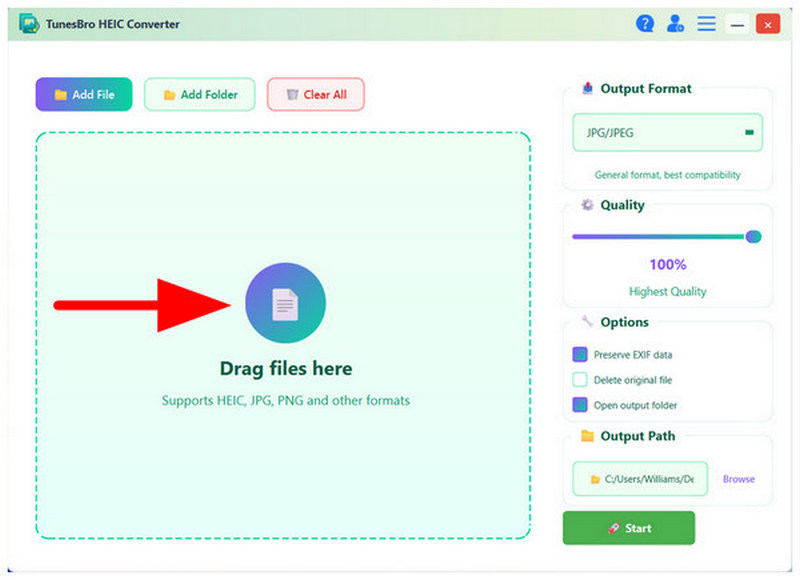
Once the images you want to convert have been added to the program, select the Output Format option and choose JPG/JPEG. Click on Start to begin conversion.
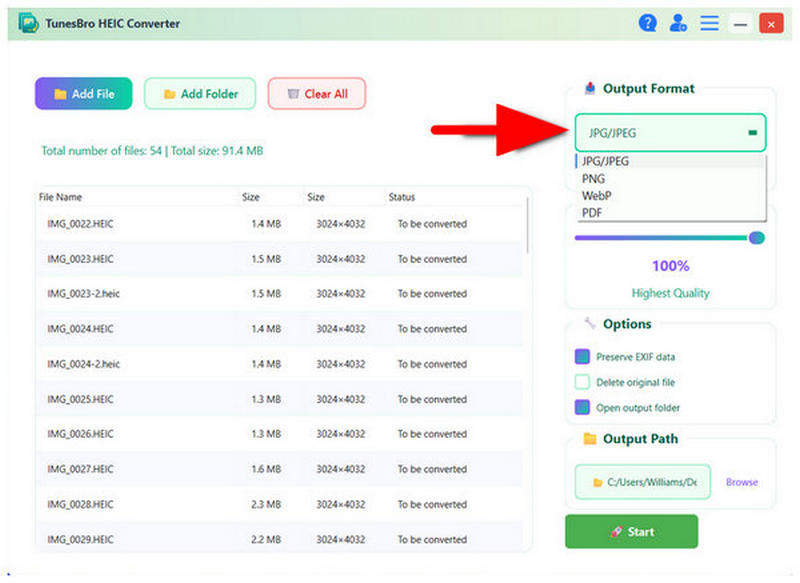
During and after the conversion, a pop-up menu will appear to update you on the progress. Once everything is done, click Open Folder to locate the converted HEIC file, now saved as a JPG.
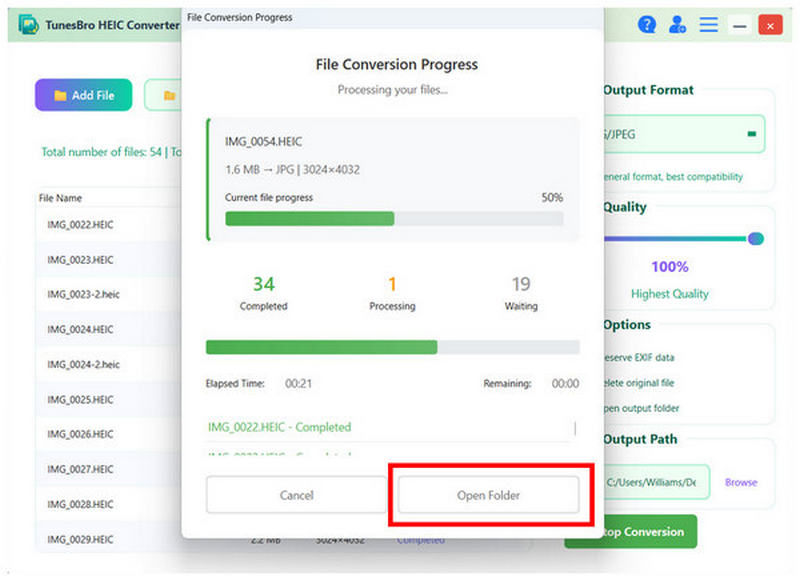
If you plan to handle a large batch of HEIC files, using the paid TunesBro HEIC Converter is a good option. However, it is not advisable if you plan to convert only a single file or only a handful.
Method 3: CopyTrans HEIC (Best Windows Plugin)
Rating: ⭐⭐⭐⭐
Best Used For: Direct viewing of HEIC files on Windows desktop before conversion.
For users who want convenience, the CopyTrans HEIC plug-in is the best choice. Designed to integrate with the operating system, this tool uses your Windows computer’s main function to perform format conversion. Unfortunately, this essentially removed the software’s GUI menu. Although you can convert HEIC to JPG with it, it is not the best choice for batch processing.
To learn how to use this format converter plug-in, please read our guide below.
- One-click conversion process.
- Works within the Windows interface.
- No advanced editing features.
- No functional GUI.
- Limited to Windows PCs.
Install the CopyTrans HEIC plug-in on your computer. Once done, right-click the HEIC file you want to convert, then hover over the Convert HEIC with CopyTrans option.
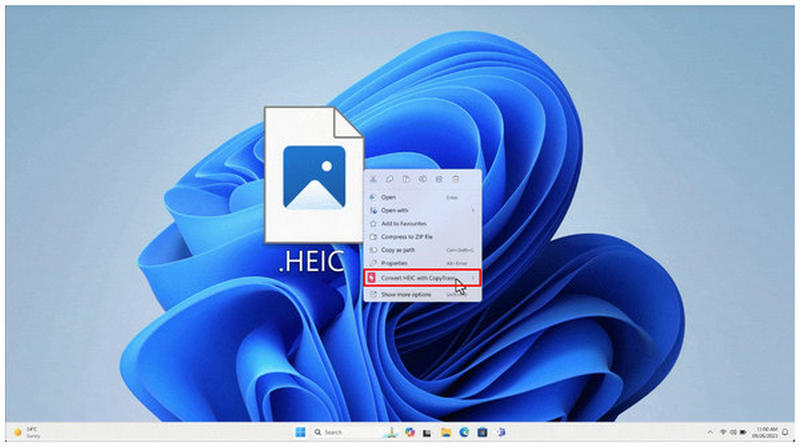
Next, select the Convert to JPG option.
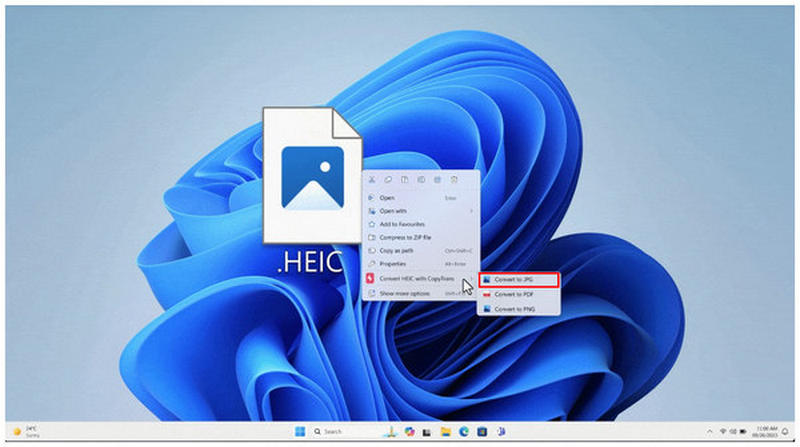
After a few seconds, a new JPG file will be created in the same location as your HEIC file.
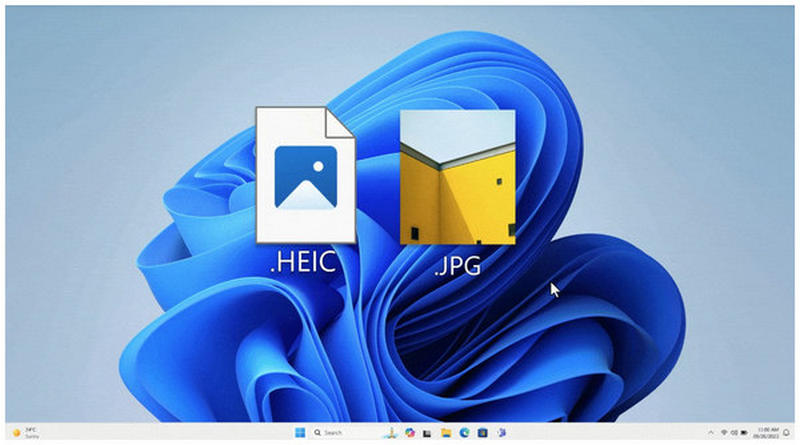
Due to the nature of the CopyTrans plug-in, it is a good option for single-file conversion. However, it is extremely inefficient for converting bulk files.
Method 4: Preview App (Best Native Mac Method)
Rating: ⭐⭐⭐⭐⭐
Best Used For: Built-in HEIC to JPG converter tool on macOS desktops.
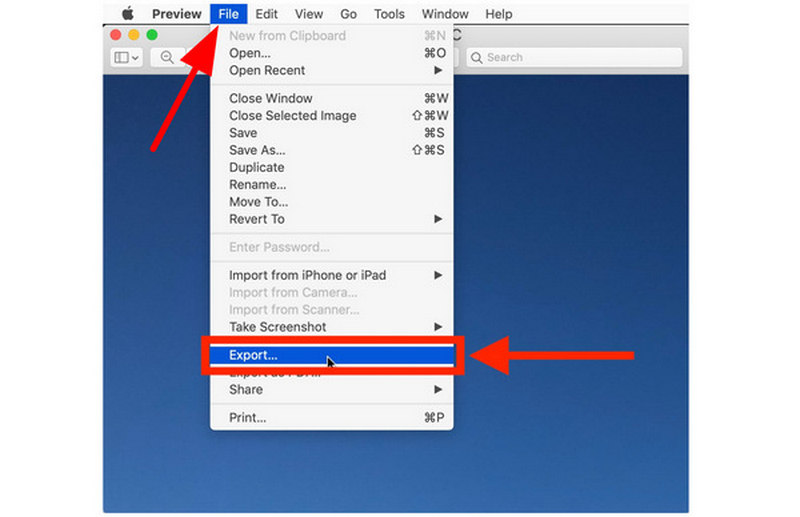
To remove the need for format conversion after file transfer, the Preview App on macOS offers built-in format conversion in the Export tab. Among the available formats, JPEG/JPG is available. This is a good solution if you want to make your Apple images much more accessible and remove the need to convert HEIC to JPG.
Read our guide below to learn how to use it.
- Built-in on macOS computers.
- Equipped with basic adjustment tools.
- Only allows single file conversion.
- Limited editing and conversion features.
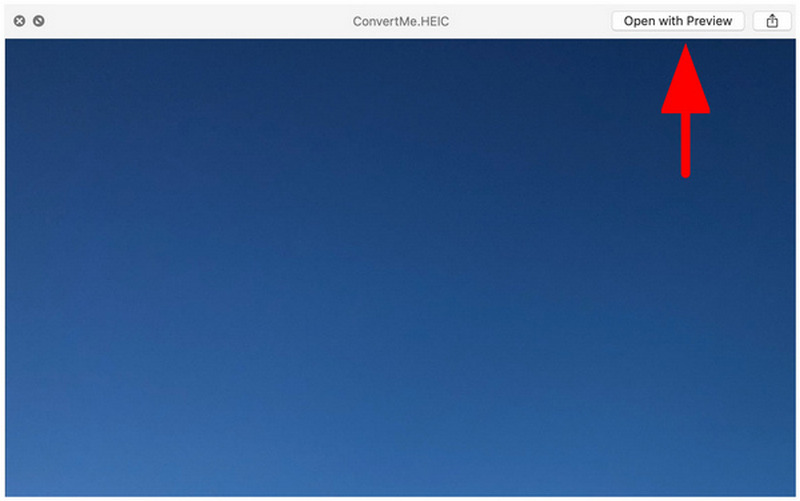
Open the HEIC image on your Preview app.
In the Preview program, click File, then select Export.
In the Export menu, set the Format to JPEG. Then click on Save.
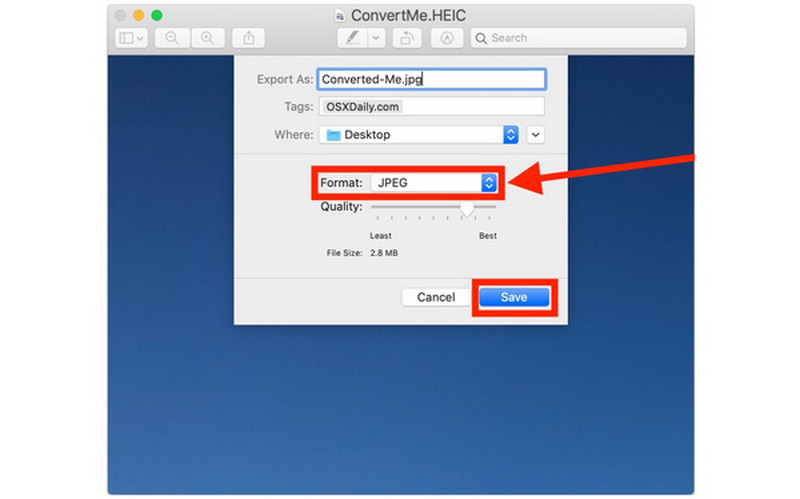
Once your file has been saved as a JPEG, you can transfer it without worrying about compatibility issues.
Method 5: Microsoft Photos/Paint (Native Windows 11 Method)
Rating: ⭐⭐⭐
Best Used For: Basic image conversion on Windows desktops.
Although this method is inconsistent, Microsoft Photos/Paint can sometimes open HEIC files and use its Save As feature to convert them to JPG. However, this method is not completely reliable, as some versions of Paint or the Photos app cannot open HEIC files.
If you plan on testing whether your app can convert HEIC to JPG, please read our guide below.
- Built-in on Windows desktops.
- Simple file conversion interface.
- Some versions do not allow HEIC files to be opened.
- Time-consuming for batch conversion.
Right-click on the HEIC file you want to edit, then select Open With and choose Paint.
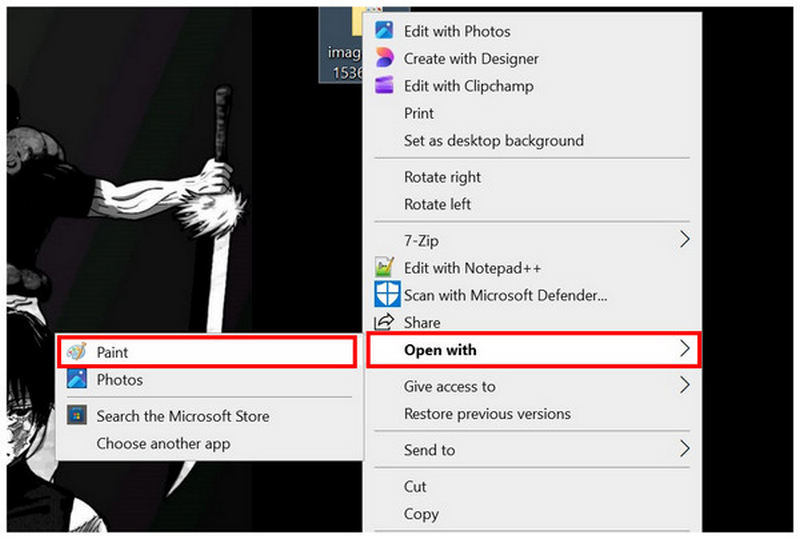
Inside Paint, select File, and then click on Save As. Then choose JPEG Picture.
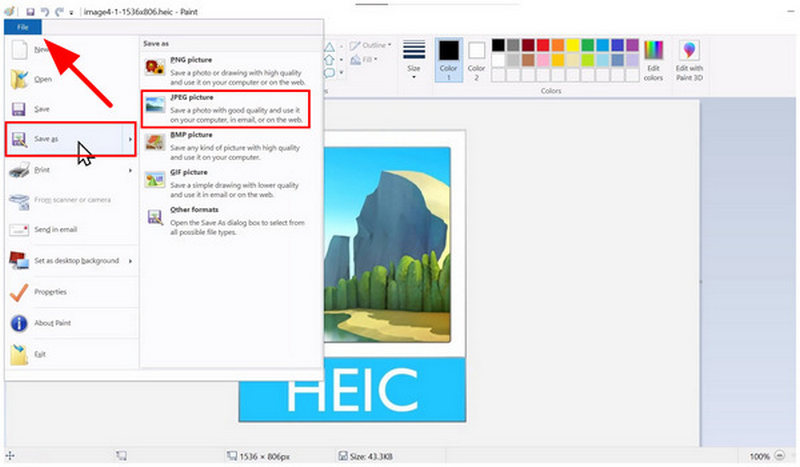
Then, set the save destination of your converted image file. Click on Save to confirm.
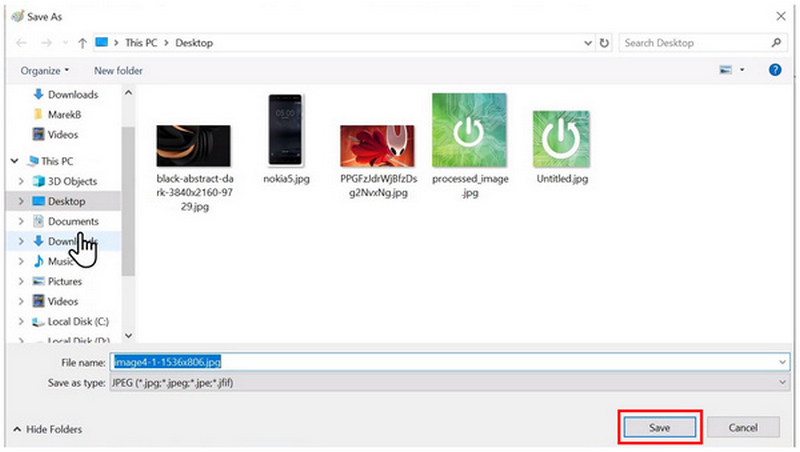
If your Paint or Photos app can open HEIC files, you can use this tool. However, it is common for such programs to trigger a Cannot Read this File error when trying to open HEIC images.
Method 6: iMazing Converter (Free Desktop Tool)
Rating: ⭐⭐⭐⭐⭐
Best Used For: Desktop-based high-quality format conversion on Windows PCs.
Last but not least, let us now proceed to one of the most reliable, free-to-use desktop tools: iMazing Converter. If you want stability and accessibility, this software is a safe choice, as it is free to use and available for Windows and macOS. It gets the job done and was designed to be as simple as possible. Unfortunately, it lacks advanced editing tools and features, making it a one-dimensional program.
Learn how to use it by following our three-step guide.
- Completely free to use.
- Available for both Windows and macOS desktops.
- Offers image quality and resolution adjustments.
- No advanced editing tools.
- Basic interface design.
- Lacks advanced features.
Open iMazing Converter on your computer and drag-and-drop the HEIC image you want to edit.
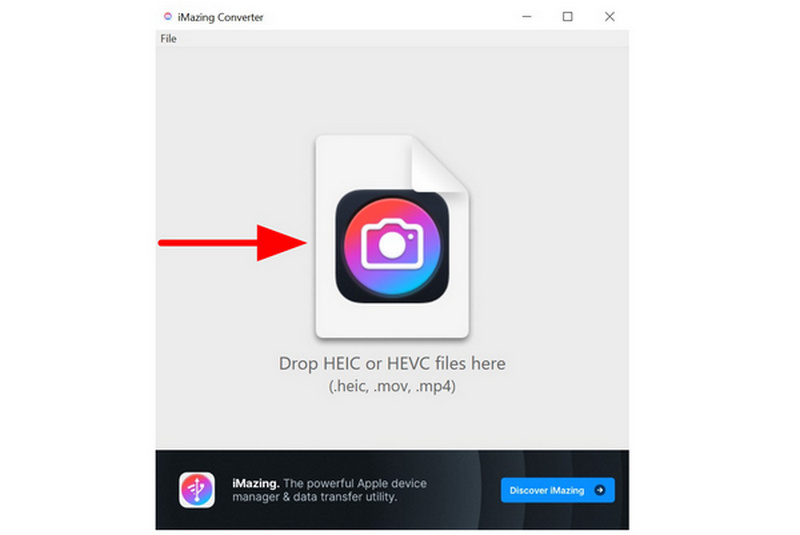
Once the image has been imported, set the Format to JPEG. Then, select Convert.
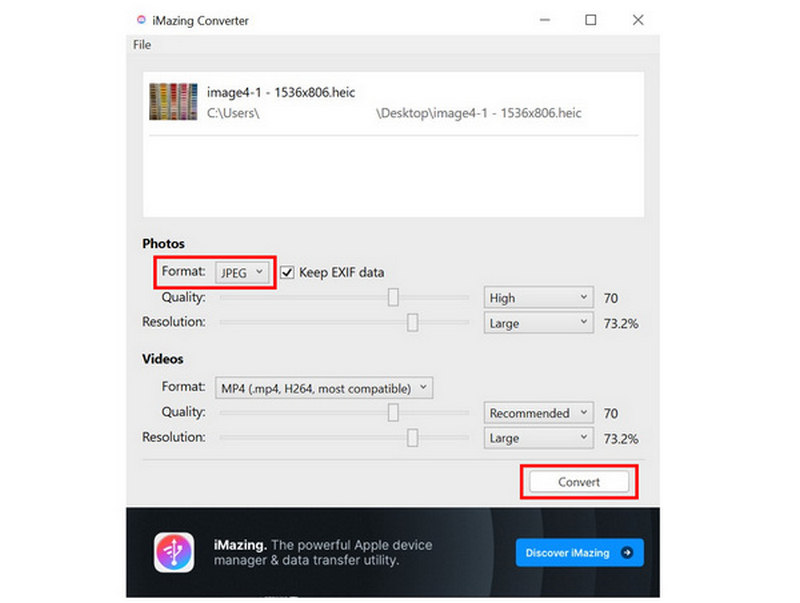
After selecting Convert, a JPEG file will be saved to the location of the original HEIC image.
Although the tool’s GUI is very minimal, it gets the job done, especially since it was designed as a one-dimensional tool.
FAQs About Converting HEIC to JPG
What is the HEIC format?
High Efficiency Image Container, or HEIC, is the modern image format used by Apple devices. It was designed to have a smaller file size and higher quality. It is the default format used by modern iPhone devices.
Why does JPG have high compatibility?
JPG is highly compatible because it is the industry standard for images. It was introduced in 1992 and has been the standard since then. However, it has lower quality than other formats, such as PNG or HEIC.
Will converting HEIC reduce its quality?
Yes, quality reduction will be the natural cause of converting HEIC files. However, the severity will be controlled by the converter tool you use. Some programs preserve quality, while others do not.
What is the easiest way to convert HEIC to JPG?
Among the options in this guide, ArkThinker HEIC Converter is the easiest because it does not require installation. This is the main advantage of online batch image converter tools. Moreover, its security and privacy measures are solid, unlike those of other web-based solutions.
What format should I convert my HEIC image into?
The JPG/JPEG format will always be a safe choice. It offers the best compatibility since it is the industry standard. Another alternative format is PNG, a close relative of JPG.
Conversion
Now that we have provided the best tools for HEIC-to-JPG conversion, we hope you can manage your image files much more efficiently. When handling one-off conversions, consider using the best online tool for the job: ArkThinker HEIC Converter.
What do you think of this post? Click to rate this post.
Excellent
Rating: 4.8 / 5 (based on 507 votes)


