


How to Convert HEIC to JPG on iPhone Using 6 Methods (2026)
Among modern image formats, HEIC is one of the most efficient due to its higher quality and compression efficiency. This made images saved in this format have better quality at a lower standard file size. However, HEIC files have a limitation: they are usually compatible only with Apple devices. As such, it is common for iOS users to look for a solution on how to change HEIC to JPG on an iPhone directly. In this article, we will provide a quick review and tutorials on using five of the most reliable HEIC-to-JPG conversion methods readily available on iPhone.

- GUIDE LIST
- Part 1. Can You Convert HEIC to JPG on iPhone
- Part 2. How to Convert HEIC to JPG on iPhone
- Part 3. FAQs About Converting HEIC to JPG on iPhone
| Conversion Method | Ease of Use | Max Photos per Batch Conversion | Requires App Installation | Setup Complexity |
|---|---|---|---|---|
| iOS Files Copy and Paste | Very Easy | No batch conversion. | No | Easy |
| Changing Camera Settings | Easy | N/A (No converting) | No | Easy |
| ArkThinker Free HEIC Converter Online | Easy | Up to 10 photos. | No | Very Easy |
| Google Photos | Intermediate | No batch conversion. | Yes | Intermediate |
| Dropbox Upload | Intermediate | No batch conversion. | Yes | Intermediate |
| Send Via Mail | Easy | 8 – 10 photos (Up to a total of 25MB) | No | Easy |
Part 1. Can You Convert HEIC to JPG on iPhone
Before proceeding with our guide on how to change iPhone photos from HEIC to JPG, let us first discuss why you should convert to JPG first. With that in mind, the most notable reason to change the format is compatibility with devices outside Apple.
Although HEIC is highly optimized for quality and file size efficiency, other devices, particularly Windows PCs and Android devices, lack native support for the format. Despite its superior features, universal compatibility is way more important.
With the reason for saving HEIC as JPG on iPhone now discussed, let us move on to the best solution for converting HEIC images to JPG directly on your iPhone.
Part 2. How to Convert HEIC to JPG on iPhone
Method 1: The “Files” App Hack (Copy & Paste Trick)
Best Used For: One-off file conversion.
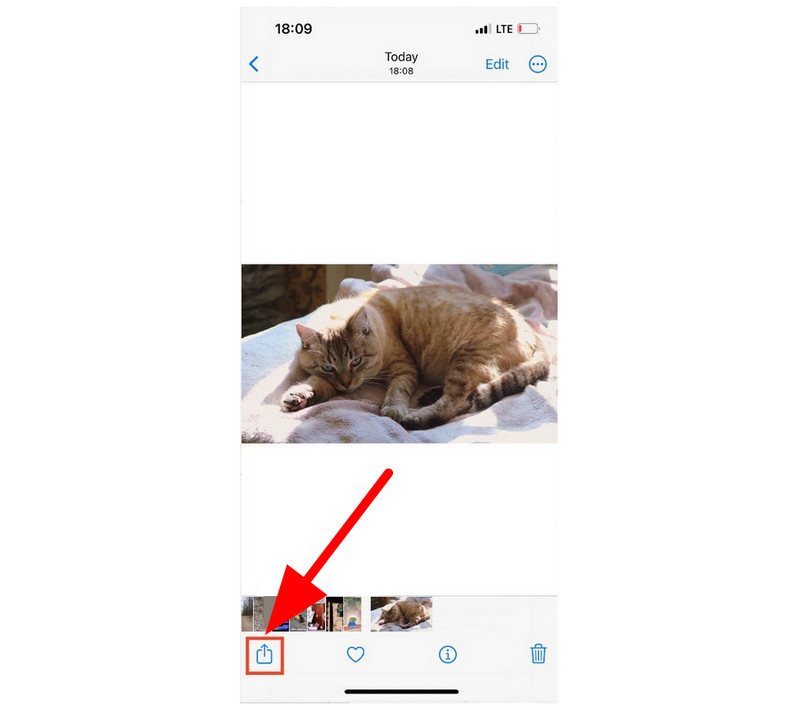
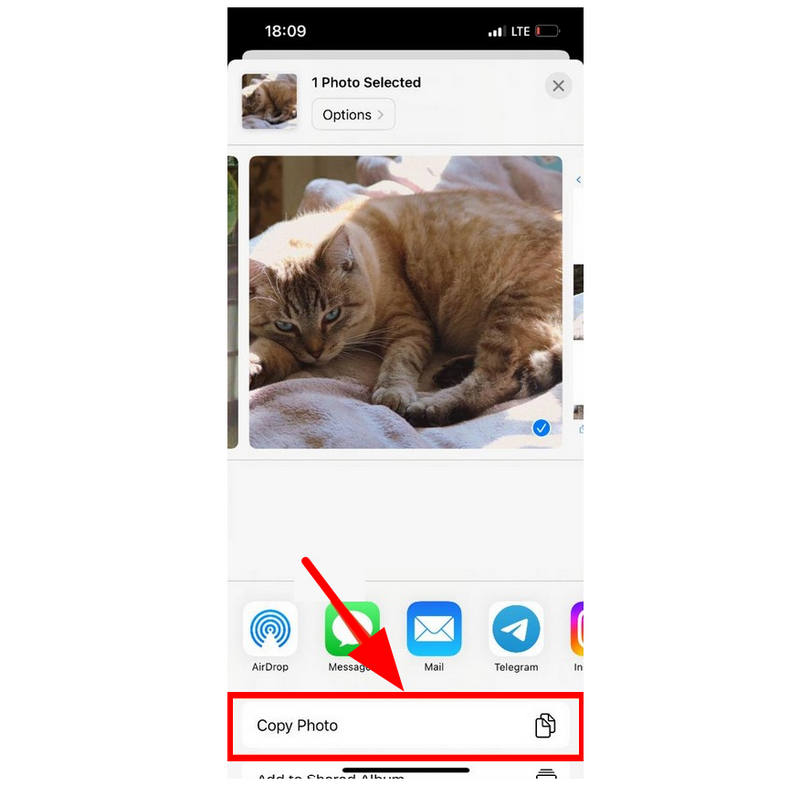
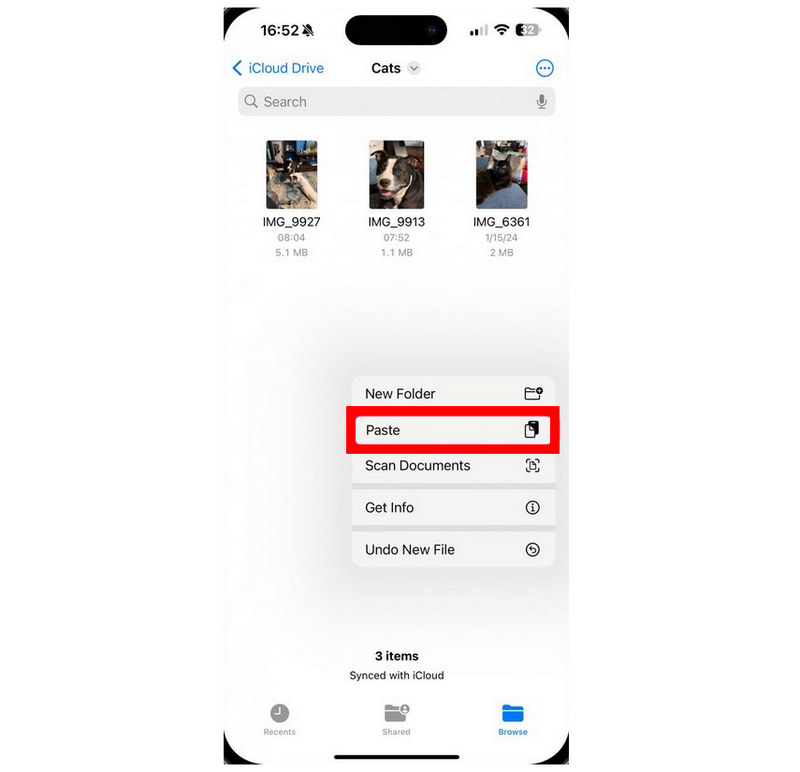
The first built-in solution for converting files on iPhone is to copy a photo from the Photos app and paste it into the Files app, which automatically converts the file to JPG. Widely known as a trick or application hack, this built-in option is one of the fastest and most reliable ways to convert a single HEIC image to JPG.
To learn how to use it, please read our guide below.
Open your Photos app, then select the Share button on the HEIC image you want to convert.
In the Share menu, select Copy Photo.
Then go to the Files app, long-press in a folder, and select Paste. The HEIC image from the Photos app will be pasted as a JPG file.
Note that this trick only works for a single HEIC image file, and copying and pasting multiple files will not apply the conversion hack.
Method 2: Changing Camera Settings (Prevent Future HEIC)
Best Used For: One-time setup to save captured images to JPG by default.
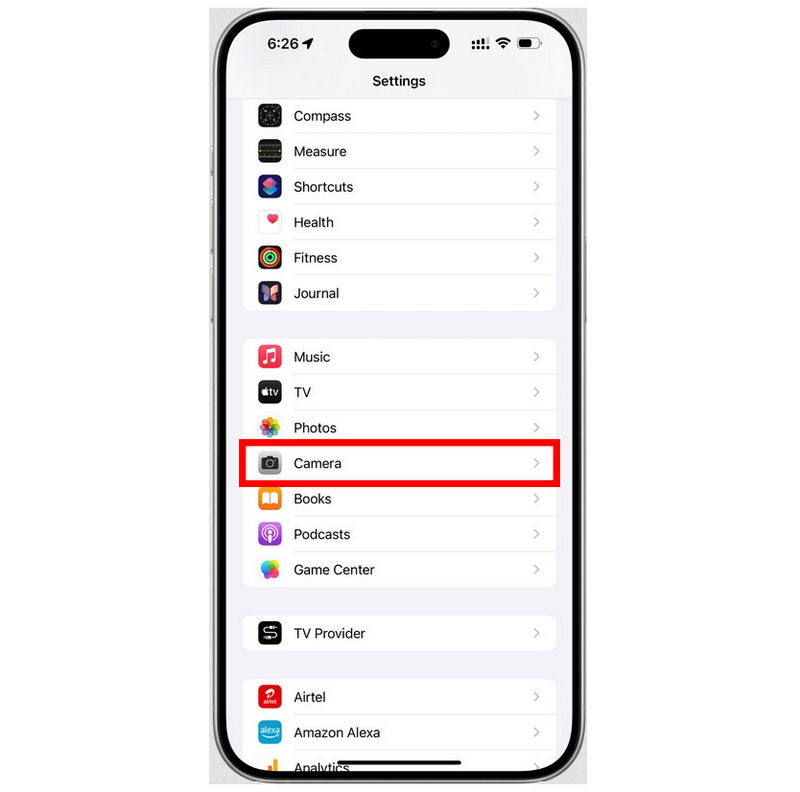
By default, images captured by iPhone devices are saved in HEIC format. However, you can fix this by switching your Camera Capture setting to Most Compatible to ensure future camera captures are saved as JPG. Using iPhone settings to convert HEIC captures to JPG is the best way to avoid future conversion.
Open Settings and then select Camera.
Inside the Camera settings, select Format.
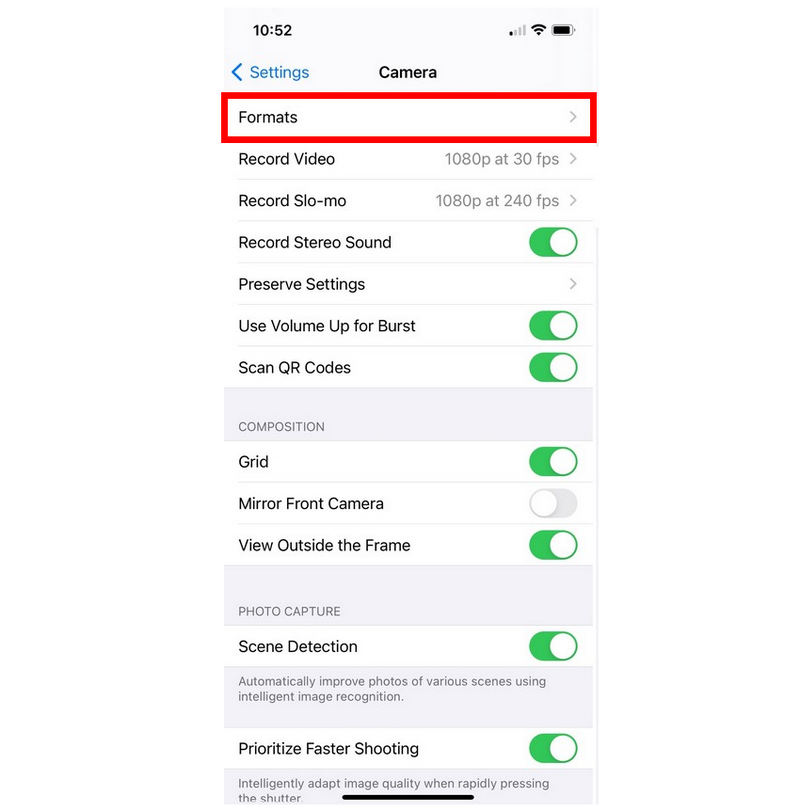
Change the Camera Capture setting to Most Compatible from the default High Efficiency option. The default setting saves images in HEIC format, while Most Compatible saves in JPG.
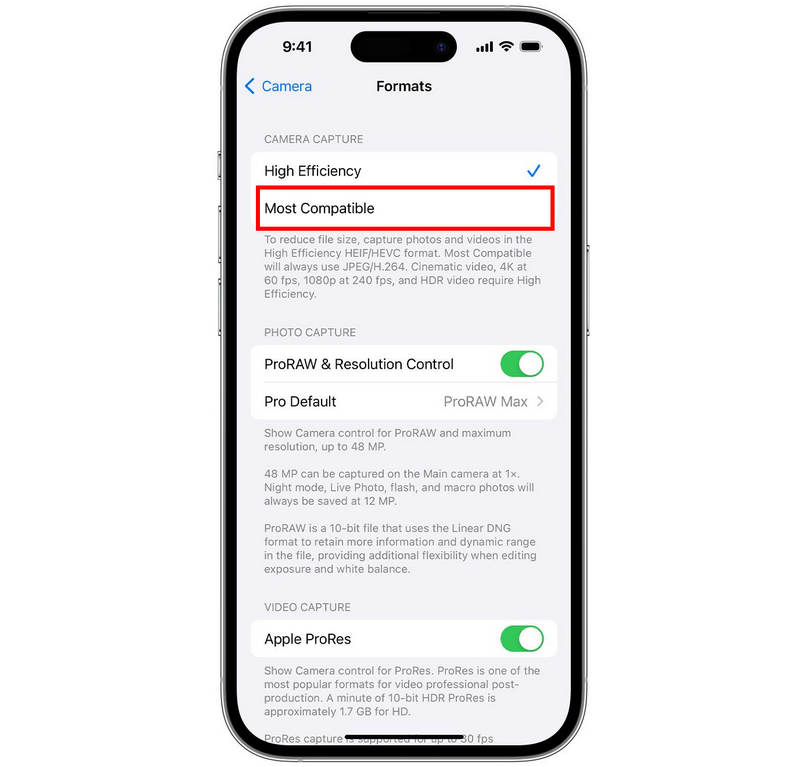
Unlike other options on this list, which essentially apply format conversion, this simple setting adjustment is a preventive measure that sacrifices the advantages of the HEIC format to ensure universal compatibility.
Method 3: Use ArkThinker Free HEIC Converter Online
Best Used For: Batch converting up to 10 images at once.
With two of the most practical built-in solutions for converting HEIC and changing the settings to JPG format now discussed, let us now move on to a third-party solution that serves as a better conversion tool: ArkThinker Free HEIC Converter Online.
Capable of batch-converting up to 10 images at once, this software already tops the copy-paste trick for workflow convenience and efficiency. Moreover, file conversion in ArkThinker Free HEIC Converter Online takes only a few seconds after file import, and the converted image can be downloaded on the spot.
To stand out from other online tools, ArkThinker designed its HEIC converter to prioritize user security. This was made possible since uploaded files in the converter tool are automatically deleted from their servers after the conversion is done.
Learn how to use the program by following our simple two-step guide below:
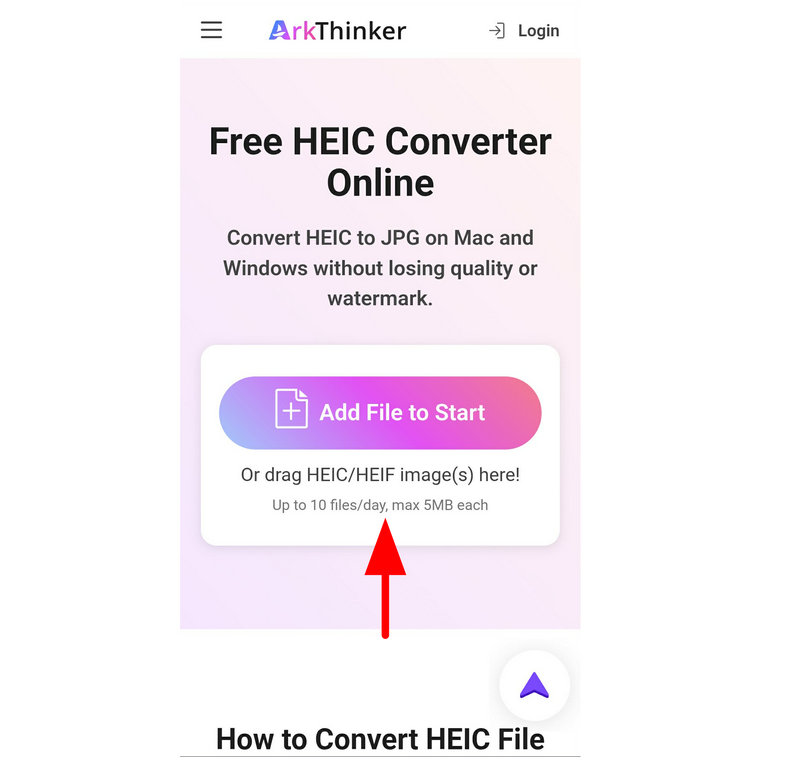
Go to ArkThinkler Free HEIC Converter Online’s website on your browser of choice. Then, tap on the Add File to Start button to import the HEIC image you want to convert.
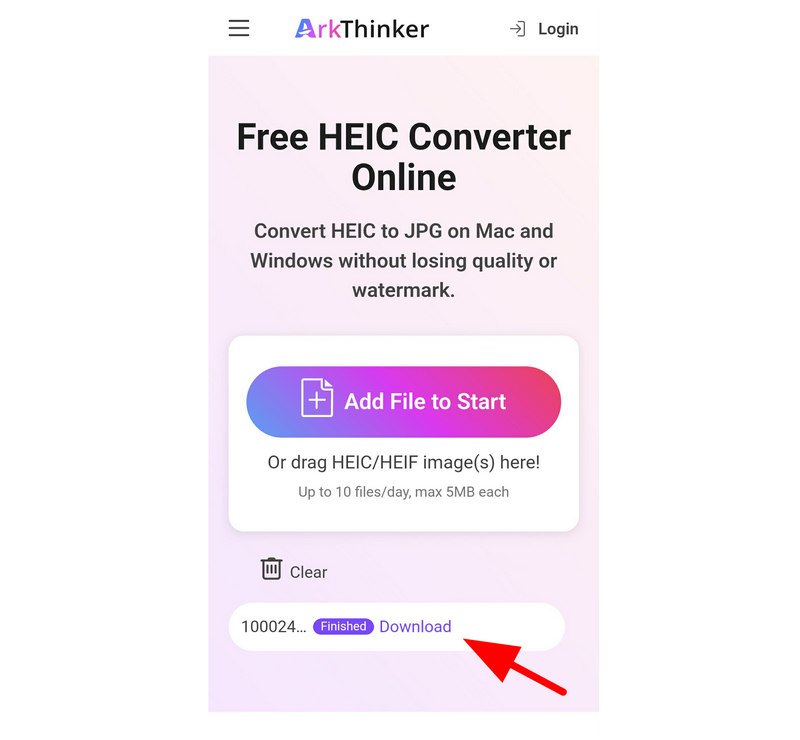
Wait for a few seconds for the conversion process to finish. Then tap Download to save the converted JPG file to your device.
With all these features in mind, consider using online image converters like ArkThinker Free HEIC Converter Online as one of your top options when selecting a third-party tool to convert HEIC to JPG on iPhone.
Method 4: Google Photos (Download as JPG)
Best Used For: Downloading HEIC backups as a JPG file.
Well-known as a cloud storage app, Google Drive is designed to prioritize compatibility when downloading files saved in it. Images are not an exception, since HEIC files downloaded from the cloud storage are automatically saved as JPGs when exported.
To learn how to download HEIC files from Google Drive, please read our guide below.
Open Google Photos and then select the images you want to download on your iPhone. Then, tap on the Share button.
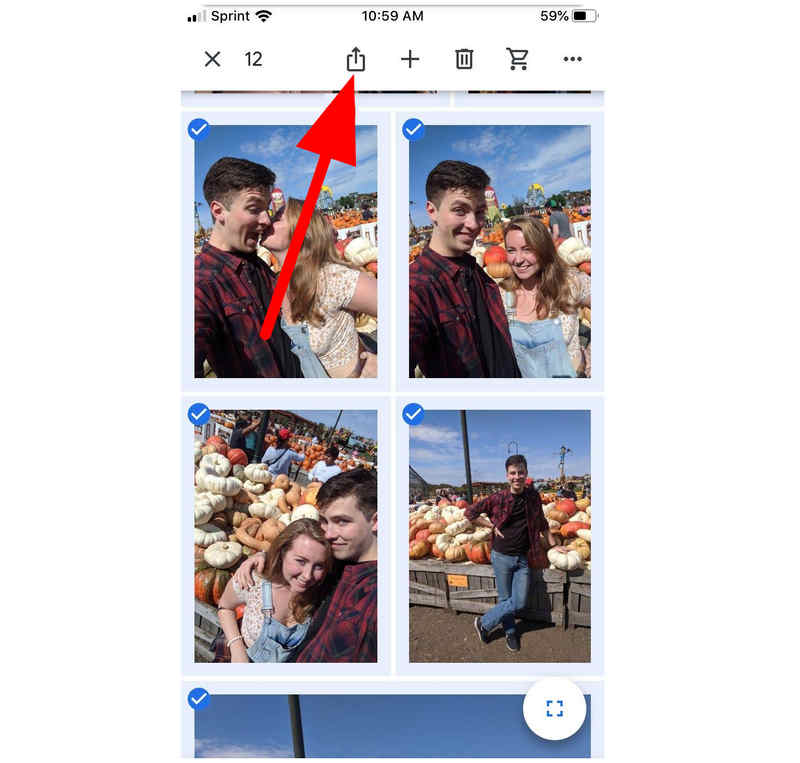
In the Share options, select Save to Device.
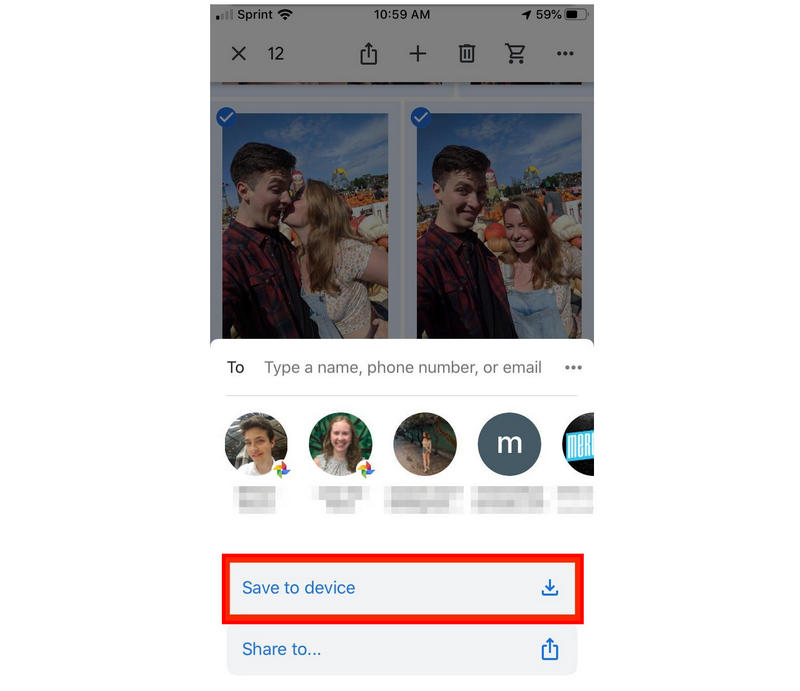
Once the image file is saved back to your device, it will now be in JPG format. Google Drive automatically converts downloaded images into JPG for maximum compatibility.
Since this option relies on Google Drive’s system, it is more of a workaround than a dedicated converter. Moreover, automatic format conversion is inconsistent when downloading files from the cloud storage.
Method 5: Dropbox (Upload as JPG setting)
Best Used For: Saving uploaded HEIC backups as JPG on your device.
Similar to the previous option, Dropbox can also occasionally convert HEIC format to JPG when downloading files from it. However, it is more inconsistent than Google Photos. It is more common to experience format preservation when downloading files from Dropbox.
Select the HEIC files you want to save on your iPhone. Then, tap on More (three-dot button).
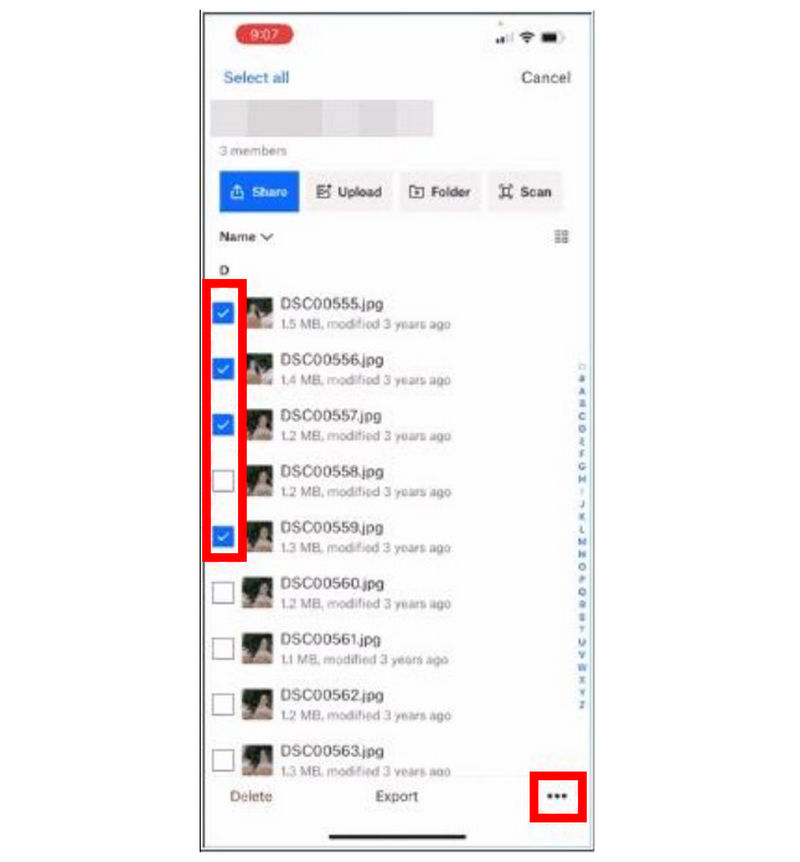
In the settings that will open, select Export.
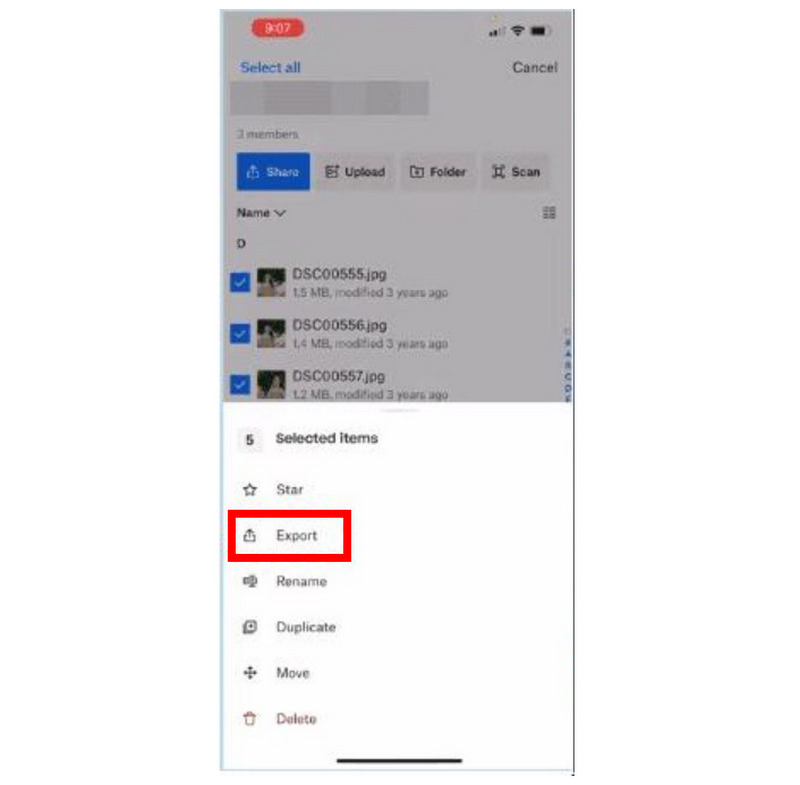
Then, select Save Images in the export settings that will appear.
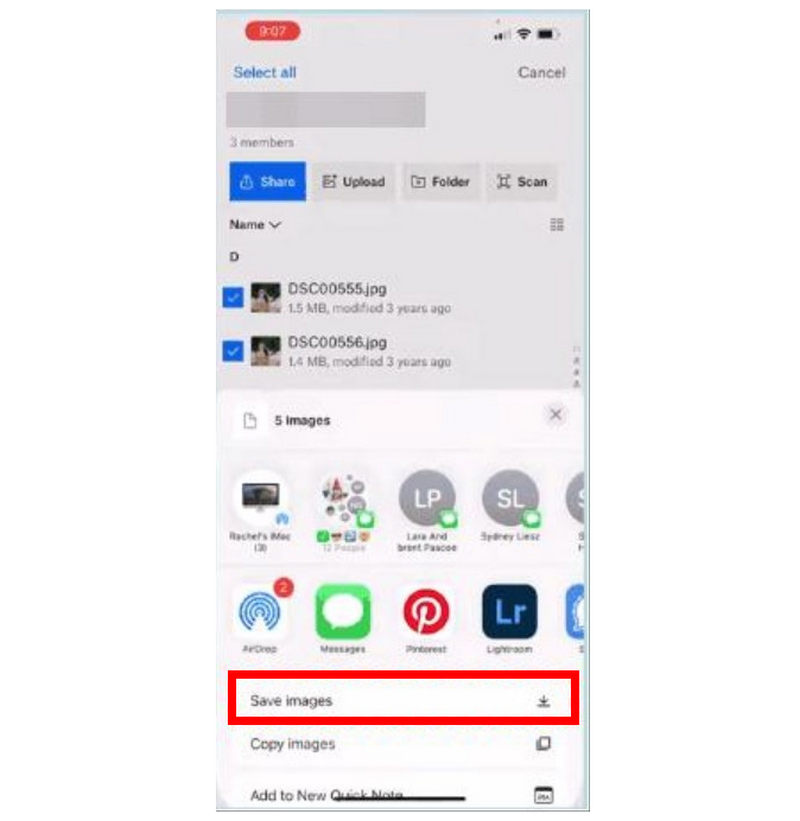
Since Dropbox and Google Drive are essentially the same, it is recommended to use Google Drive instead if you want a workaround for your HEIC files.
Method 6: Sending via Mail (Auto-Conversion)
Best Used For: Sending HEIC images via email.
Finally, we will now apply the simplest method for automatic conversion: emailing photos from your iPhone. This essentially works the same way Google Drive does. Image files sent via email are automatically converted to JPG upon receipt by the other party.
In the Photos app, go to the HEIC image you want to send, then select the Share button.
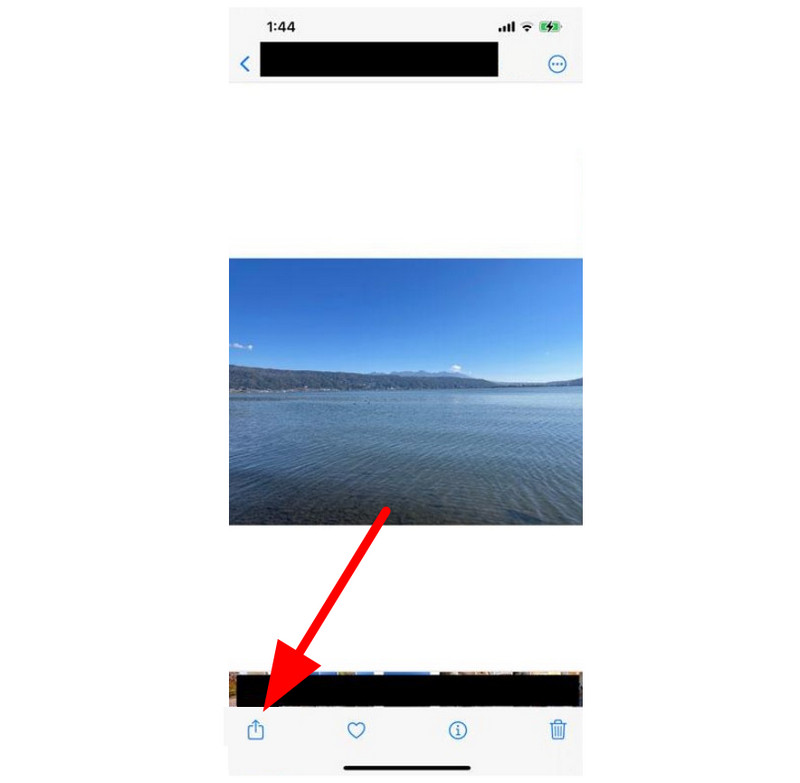
Among the Share options, select Mail.
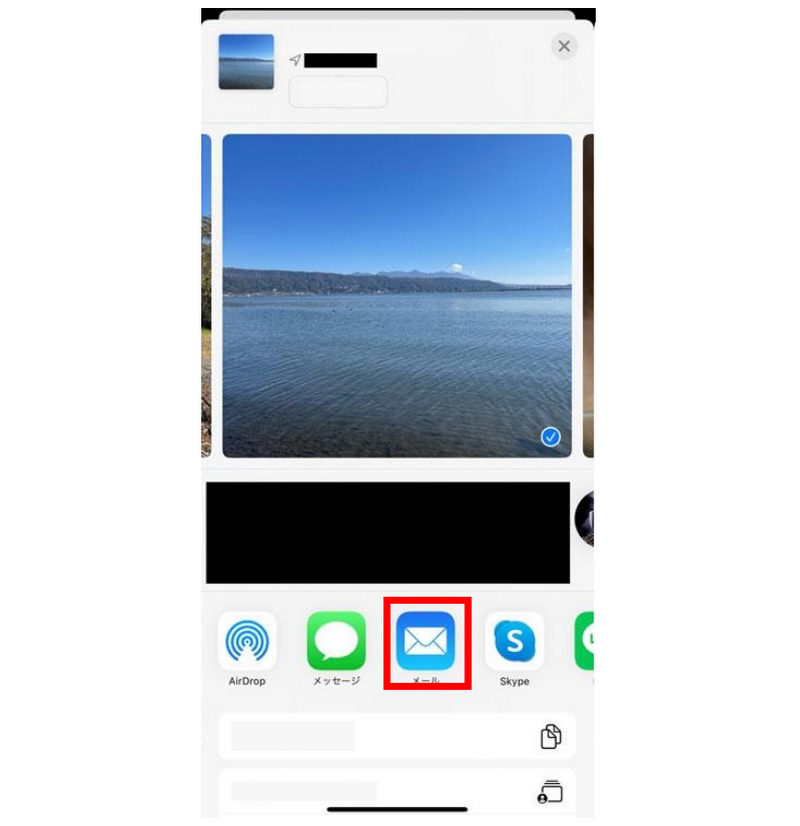
In the Mail app, the photo you have shared is automatically attached. When downloaded by the recipient, it will be saved as a JPG.
Surprisingly, this option supports batch image conversion, allowing you to send multiple HEIC images at once. You are only limited by the attachment file size of 20-25 MB, which should be enough for 8-10 images.
Part 3. FAQs About Converting HEIC to JPG on iPhone
Can you convert HEIC to JPG on iPhone ?
Yes, you can. iPhone has multiple built-in format conversion options and tricks. The simplest way is to copy the HEIC file in the Photos app and then paste it into Files.
Do copied HEIC images get saved as JPG when pasted?
Yes, it will. However, make sure to copy the image in the Photos app. Then paste it into Files.
How to save iPhone camera captures as JPG?
Open Settings, then select Camera. In the Camera settings, select Format. Then change Camera Capture to Most Compatible.
Is HEIC widely supported?
No, it is not. HEIC is only natively supported on Apple devices. However, some Android devices can open it natively.
Should I convert my image to JPG or PNG?
Choosing between JPG and PNG depends on how you want to use it. For maximum compatibility, save in JPG. For quality and versatility, use PNG.
Conclusion
Now that we have discussed some of the best solutions for converting HEIC to JPG on an iPhone, we hope you can now resolve any compatibility issues you may face when transferring HEIC images outside your Apple devices. If you expect to handle multiple files, make sure to use ArkThinker Free HEIC Converter Online as one of your top options.
What do you think of this post? Click to rate this post.
Excellent
Rating: 4.8 / 5 (based on 510 votes)


