


How to Use FFmpeg to Convert MKV to MP4: A Detailed Tutorial
When looking for reliable video formats today, MKV and MP4 are among the most widely used due to their broad compatibility and optimized compression. However, among these formats, MP4 is more favorable because it is more popular and supported across different devices and platforms. With that in mind, learning how to convert MKV to MP4 using FFmpeg is a common online inquiry, as MP4 offers superior compression. In this article, we will provide the best solution to avoid FFmpeg errors when converting video formats, along with an alternative piece of software you can use to avoid the complexity of command-line tools.

- GUIDE LIST
- Part 1. Why Users Convert MKV to MP4
- Part 2. FFmpeg Basics for Video Conversion
- Part 3. How to Convert MKV to MP4 with FFmpeg Command Line
- Part 4. Best Alternative to FFmpeg to Convert MKV to MP4 (No Tech Needed)
- Part 5. FAQs About Converting MKV to MP4
Part 1. Why Users Convert MKV to MP4
Although both MKV and MP4 are widely used, MP4 has inherent advantages over MKV, including superior compatibility, smaller file size, and support for standard H.264 and more advanced H.265 codecs.
Despite MKV’s superior codec and multi-track support, these advanced features are usually optional when your goal is to watch videos and save storage space. In this case, MP4 is the better option, which requires using FFmpeg to batch-convert MKV to MP4.
With that in mind, we can now discuss the basics of using FFmpeg to convert MKV to MP4 with H.264, lossless quality, and subtitles.
Part 2. FFmpeg Basics for Video Conversion
Unlike other multimedia software, FFmpeg does not have a main menu or a Graphical User Interface (GUI), as it is completely command-based and operates within your computer's system. It essentially serves as an upgrade to your computer’s terminal or command prompt, giving you the option to directly edit the parameters of your multimedia files, such as formats, codecs, file size via compression, and more.
For a quick overview, we have provided below some of the most common command lines for editing media files using FFmpeg:
| Direct MKV to MP4 conversion | ffmpeg -i input.mkv -c copy output.mp4 |
| MKV to MP4 conversion with re-encoding of video and audio. | ffmpeg -i input.mkv -c:v libx264 -c:a aac output.mp4 |
| Batch convert MKV to MP4 | for %i in (*.mkv) do ffmpeg -i \”%i\” -c:v libx264 -c:a aac \”%~ni.mp4\” |
| Changing video codec | ffmpeg -i input.mkv -c:v libx264 -c:a copy output.mp4 |
| Changing audio codec | ffmpeg -i input.mkv -c:v copy -c:a aac output.mp4 |
| Video file compression | ffmpeg -i input.mp4 -c:v libx264 -crf 23 -preset medium -c:a aac -b:a 128k output.mp4 |
To learn how to apply these basic command lines to your multimedia files, please read our step-by-step guide below.
Part 3. How to Convert MKV to MP4 with FFmpeg Command Line
Basic MKV to MP4 Conversion
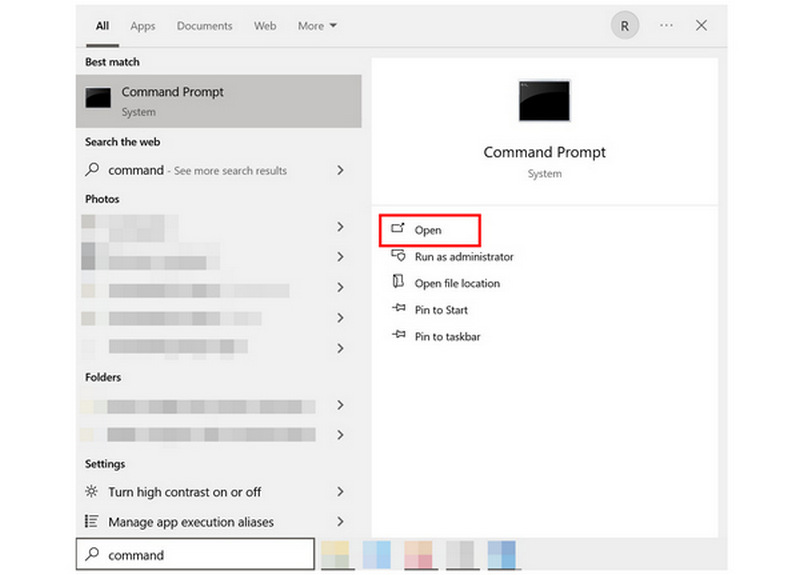
Search for the Command Prompt or Terminal on your computer to open it.
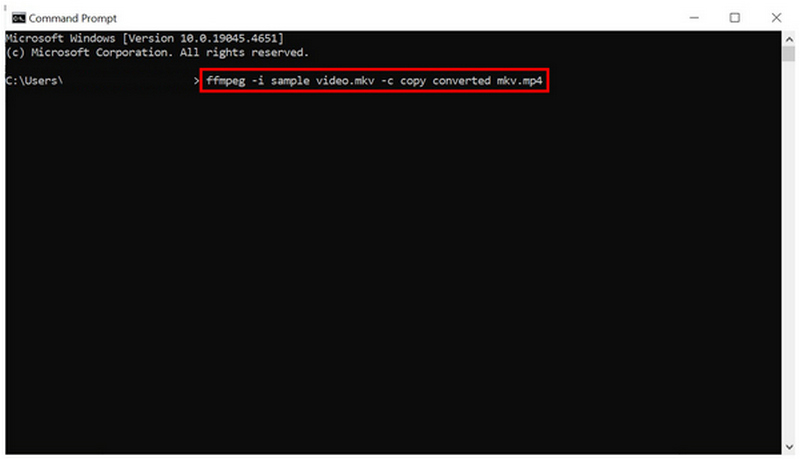
In your command prompt, copy and paste this FFmpeg command line: ffmpeg -i input.mkv -c copy output.mp4. Make sure to change the input.mkv and output.mp4 to the file name of the MKV file you want to convert.
Once you have identified the name of your MKV file, modify the command line and then press Enter on your keyboard.
Batch Conversion of All MKV to MP4 Video
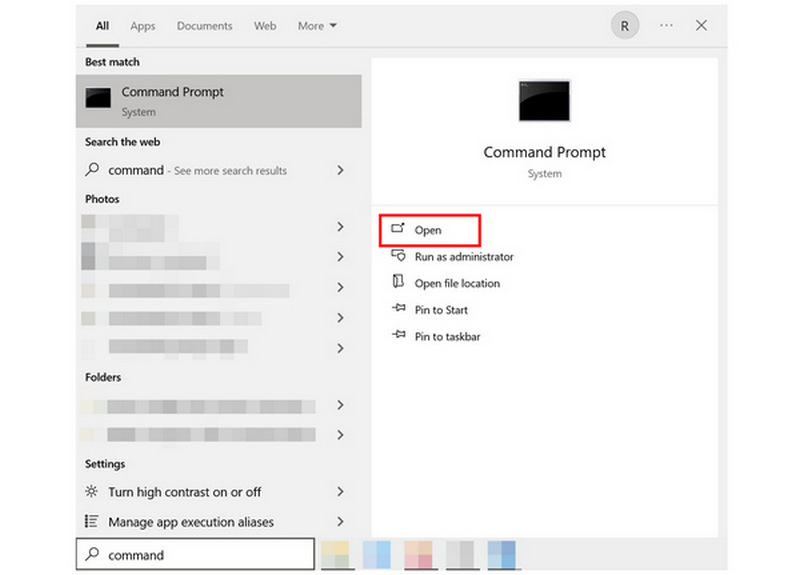
Search for the Command Prompt or Terminal on your computer to open it.
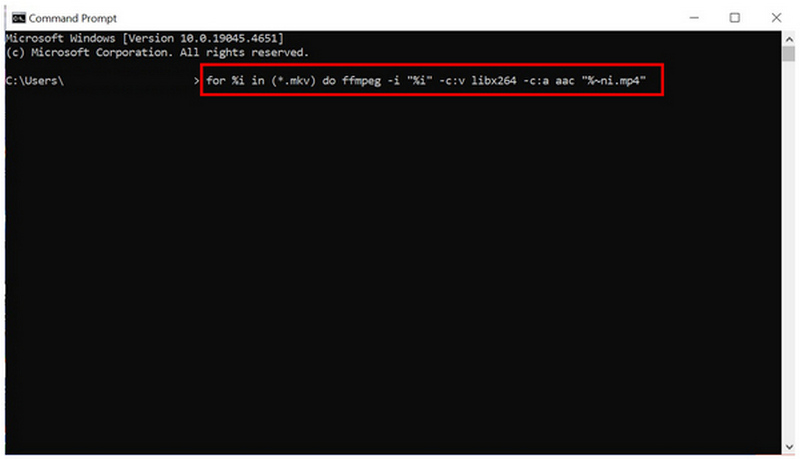
In your command-line tool, copy and paste the following command: for %i in (*.mkv) do ffmpeg -i "%i" -c:v libx264 -c:a aac "%~ni.mp4". This command line will run a simple conversion loop over all MKV files on your computer, converting them to MP4 with the same name.
Once you have pasted the batch conversion command, press Enter on your keyboard.
Although we have provided the basic command lines for FFmpeg to convert MKV to MP4 with audio and the proper codecs, command-based adjustments may still be considered too advanced for complete beginners. With that in mind, the alternative we provided below is best suited for beginners, as it offers a functional GUI.
Part 4. Best Alternative to FFmpeg to Convert MKV to MP4 (No Tech Needed)
Although FFmpeg is the best in terms of efficiency and conversion speed, its steep learning curve is too much for most users. Command lines are too complicated, and mistakes may harm your files. To avoid such issues, using exclusive format converter tools like ArkThinker Video Converter Ultimate is recommended for beginner and intermediate users.
Capable of supporting 1000+ media formats, this format converter tool can rival FFmpeg in processing speed, thanks to GPU-accelerated batch conversion. Moreover, it is optimized to be as beginner-friendly as possible, with all its multimedia features from format converter, video compressor, video quality enhancer, watermark remover, and other features.
Aside from the mentioned features, listed below are some of the most notable features available in ArkThinker Video Converter Ultimate, which you must consider when selecting a format converter software.
- • Supported Formats: MP4, AVI, MKV, MOV, WMV, FLV, MP3, M4A, WAV, and more.
- • Conversion Speed: 30X faster than standard speed with GPU acceleration.
- • Ease of Use: Beginner-friendly.
- • Batch Conversion: Supports converting multiple files at once.
- • Other Advanced Tools: Metadata Editor, Volume Booster, MV Editor, and more.
This essentially makes ArkThinker Video Converter Ultimate a beginner-friendly substitute for most of FFmpeg’s multimedia management functions.
To learn how to use the easiest solution to convert MKV files to MP4, please read our three-step guide below on using ArkThinker Video Converter Ultimate’s format converter feature.
Make sure to download it to start converting video formats without relying on command-line solutions.
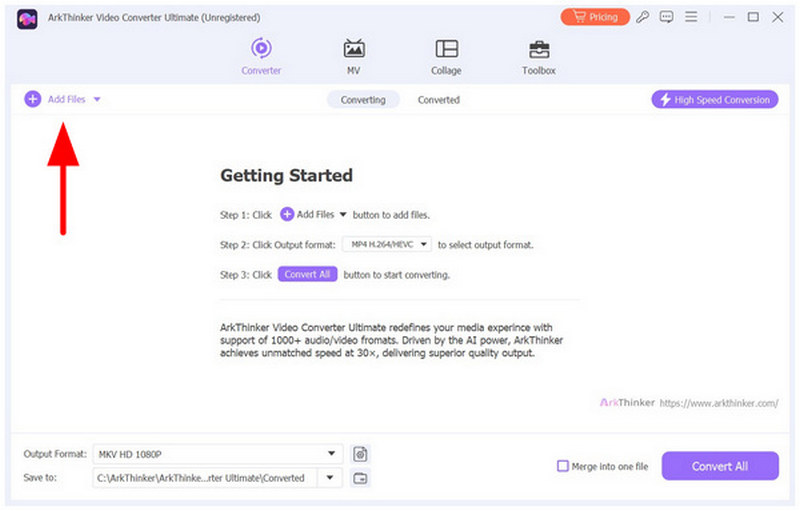
Open ArkThinker Video Converter Ultimate and then select Add Files to import the MKV video you want to convert to MP4.
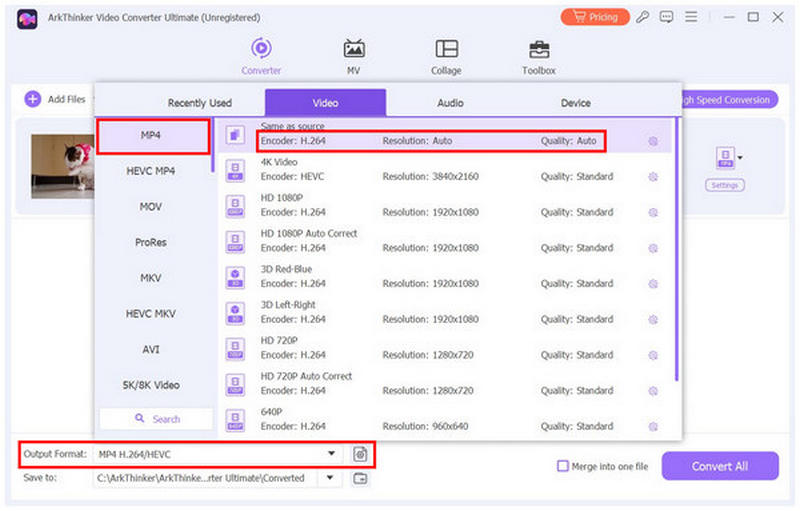
With the MKV file now imported, select Output Format, choose MP4, and then select the Conversion Profile you want to use to set the encoder, resolution, and quality of your converted MP4 file.
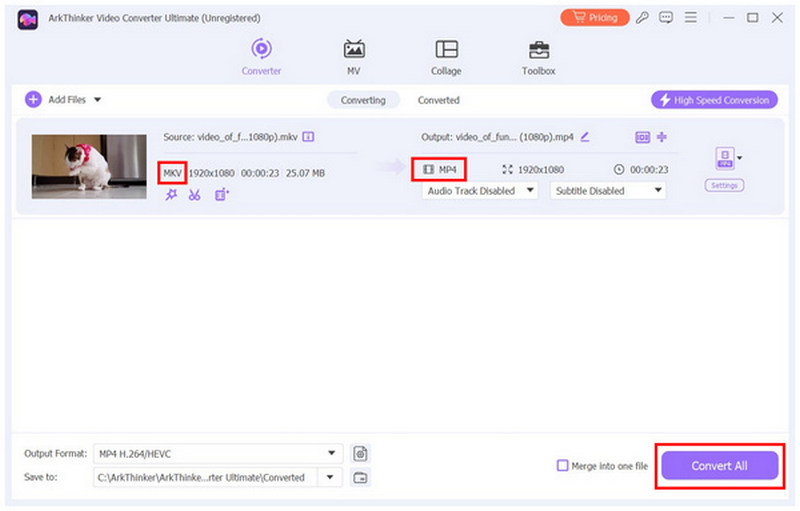
Once the output format is set, return to the Converter menu. Click Convert All to start the MKV-to-MP4 conversion.
Now that we have discussed the best way to use FFmpeg to convert MKV to MP4 with multiple audio tracks, we hope this article has helped you realize that converting video formats is not complicated if you choose the right software.
Part 5. FAQs About Converting MKV to MP4 Using FFmpeg
What are the advantages of using the MKV format?
MKV is better if you are concerned about audio, video, and subtitle codecs. It also has better video quality than MP4. Among its benefits, its error resilience is the most significant.
Why are videos often converted to MP4?
Conversion to MP4 is recommended for storage solutions. On average, its file size is smaller than that of other formats. Among its perks, MP4’s compatibility is the best.
What video file has the best compatibility?
MP4 is the best in this department. It can be played on all operating systems and platforms. Most devices can also play it from mobile, desktop, and televisions.
Do MKV videos have higher quality than MP4?
No, it does not. The quality of videos is not connected to their format. A 720p MKV and MP4 video will have the same quality.
Is using FFmpeg easy?
No, it is not. FFmpeg is complicated because of its command-line interface. It does not have a complete GUI or menu.
Conclusion
Now that we have provided a detailed tutorial on how to use FFmpeg to convert MKV to MP4, we hope you can now effectively change the file type of your file. As an alternative, we recommend using ArkThinker Video Converter Ultimate, a beginner-friendly solution available for download below.


