


Learn to Convert from FLV to MP3 Using 3 Methods in 2026
Among classic video formats, FLV is one of the more popular options because it was designed to be highly compatible with early Adobe Flash content. As such, most videos downloaded from the mid-2000s to early 2010s are most likely saved in FLV format. Unfortunately, FLV files now have subpar compatibility with modern software. As such, learning to convert FLV to MP3 audio is an essential skill to make nostalgic content easier to consume as music or podcast episodes. In this article, we will provide a detailed review to help our readers learn the basics of extracting an audio track from classic FLVs through video-to-audio format conversion.
- GUIDE LIST
- Part 1. Why Extract MP3 from FLV
- Part 2. How to Convert from FLV to MP3
- Part 3. FAQs About FLV to MP3
Part 1. Why Extract MP3 from FLV
Before proceeding to tutorials on using programs to convert FLV to MP3, let us first answer the question of why extracting audio from classic FLV videos is necessary. To start, FLV files are now very unconventional and rarely used in 2026. This makes the file harder for general users to access or open. Moreover, since classic videos are often saved in FLV, it is wise to convert nostalgic music from older music videos to audio for listening or as an editing asset.
Part 2. How to Convert from FLV to MP3
Method 1: ArkThinker Free Video Converter Online
Best For: Quick and simple conversion without the need to set up or install.
To get started with our guide, let us first discuss the program to convert FLV to MP3 online for free. This will be possible using a reliable online tool designed for multimedia format conversion, ArkThinker Free Video Converter Online.
Although labeled a video converter, the software is versatile, offering multiple output formats for video and audio. This makes the program a solid choice to convert video files to an audio-only format.
As such, converting classic FLV videos to MP3 may be done in the software, making it a solid choice for high-quality multimedia format conversion. To learn how to use the software, make sure to read the most accessible video-to-audio format converter for your browser.
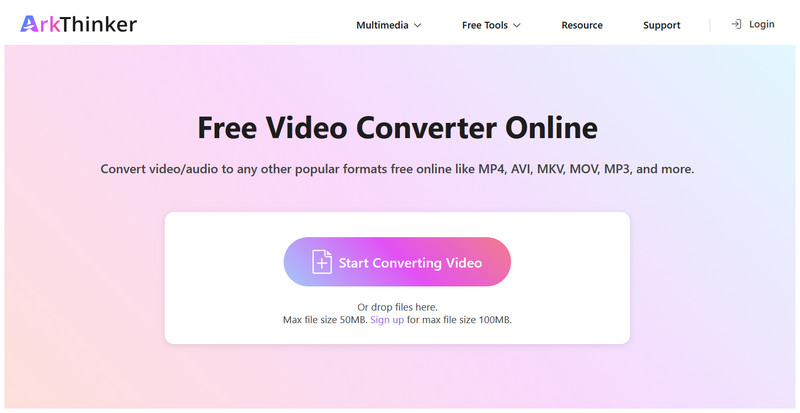
Open ArkThinker Free Video Converter Online, then click Start Converting Video to import the FLV you want to convert to MP3 audio.
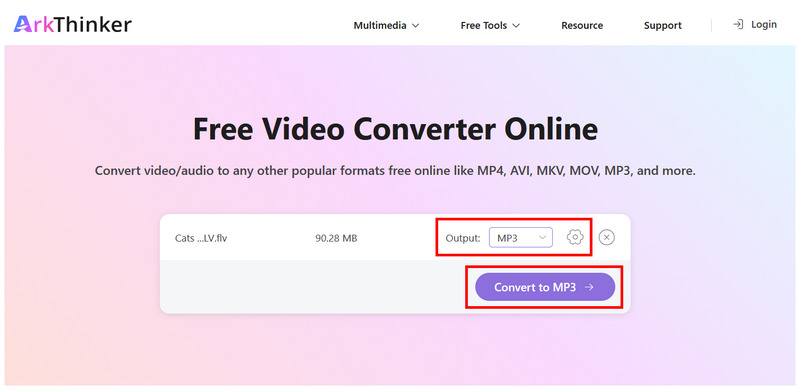
Once the FLV is uploaded, select Output > Audio, and then choose MP3. To access the advanced editing options, click Settings. Otherwise, select Convert to MP3 to proceed.
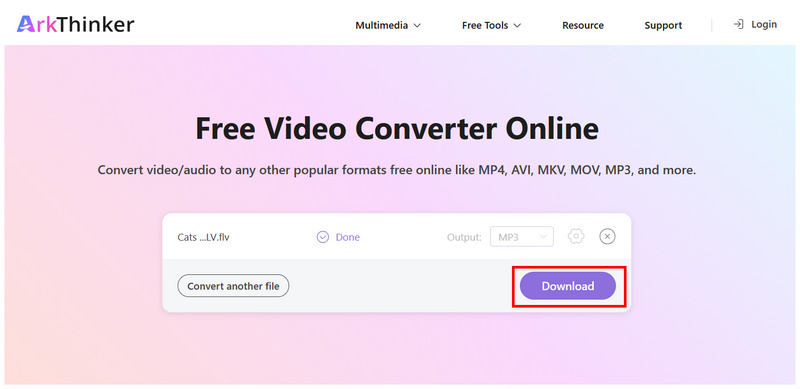
Wait for the conversion process to finish. Once done, click Download to save the converted MP3 to your computer.
Among the programs that convert FLV to MP3, ArkThinker’s online tool offers both versatility and ease of use. For beginners, direct format conversion may be enough. However, it also offers optional settings to adjust bitrate, sample rate, audio bitrate, and other parameters.
Method 2: VLC Media Player
Best For: Desktop-based conversion of short FLV videos.
Moving on to the next option, we will feature a popular multimedia player with advanced settings for converting media files. This is none other than the open-source multimedia player VLC.
Although better known as a video player software, VLC has an advanced feature that makes it a good tool for converting FLV to MP3 as freeware. To help our readers learn how to access the Convert/Save feature in VLC, make sure to read our three-step guide below.
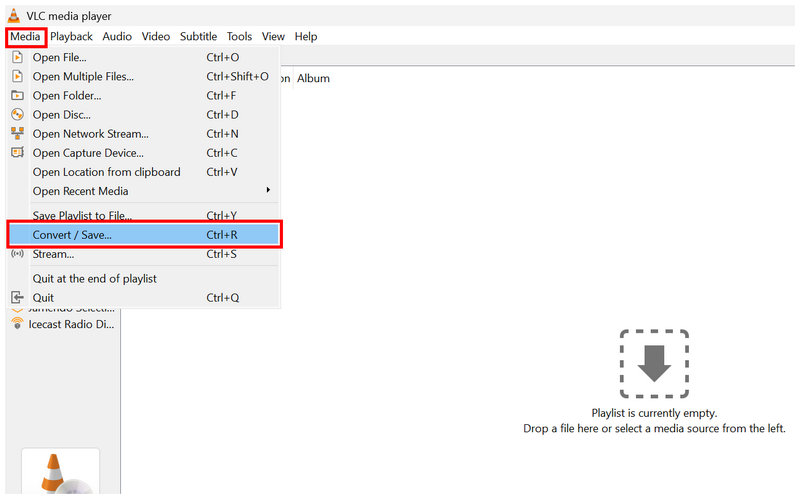
Open VLC Media Player and select Media > Convert/Save.
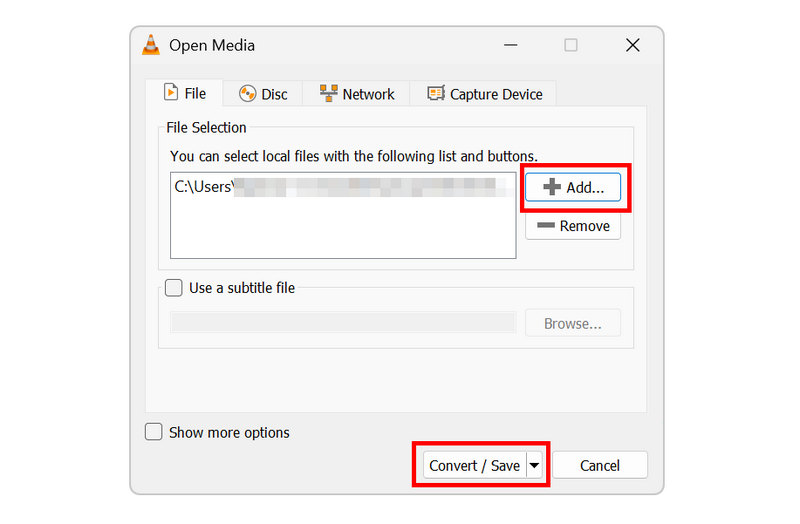
In the Open Media tab, click on Add to import the FLV file for conversion. Then click Convert/Save to open the Convert menu.
Finally, in the Convert menu, set the Profile to Audio - MP3. Then select Browse to set the file’s save destination. Finally, click on Start to begin format conversion.
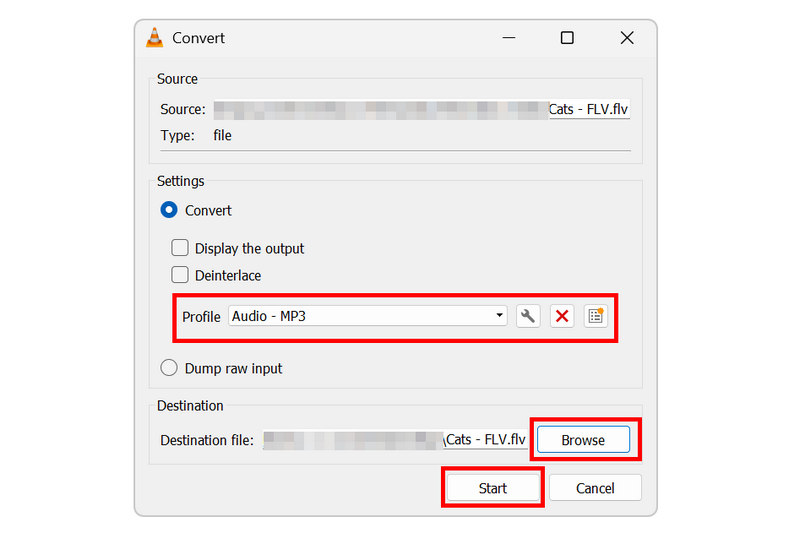
Despite being video player software, the program includes a dedicated profile to convert videos to MP3. This makes it possible to use VLC to either watch classic FLV files or convert them to the universal MP3 format.
Method 3: FFmpeg
Best For: Efficient format conversion at the expense of more technical conversion steps.
Finally, the third method in this article is software for advanced users using FFmpeg. Since the program is designed for video and multimedia adjustments, converting video to audio won’t be a problem, as FFmpeg was designed for multimedia management.
In terms of efficiency, FFmpeg is by far the fastest compared to ArkThinker and VLC. However, it requires its users to learn the correct command-line syntax to perform format conversion effectively. However, writing the wrong script can affect your entire system, making FFmpeg advisable only for experienced practitioners.
Open your computer’s terminal software. In this tutorial, we will use the Command Prompt app of Windows.
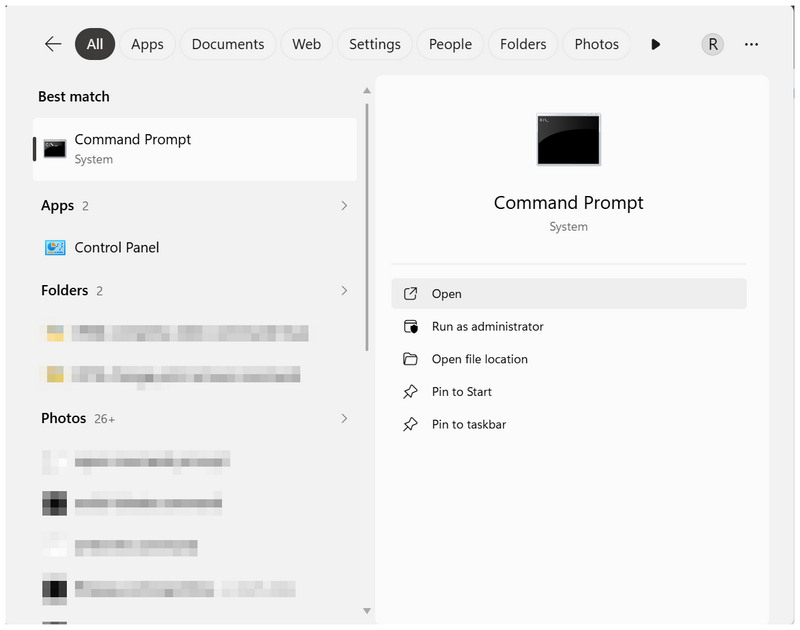
Write the following script in your computer’s terminal: ffmpeg -i input.flv -vn -c:a libmp3lame -b:a 192k output.mp3.
This uses the standard audio bitrate of 192 kbps; you may change the value to 256 or 320 for better quality.
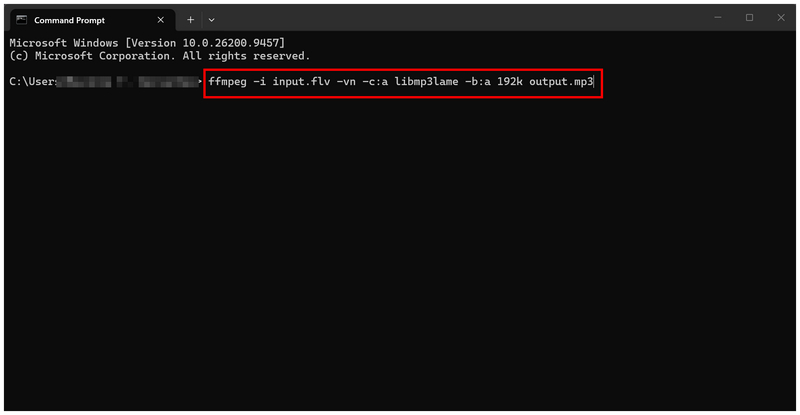
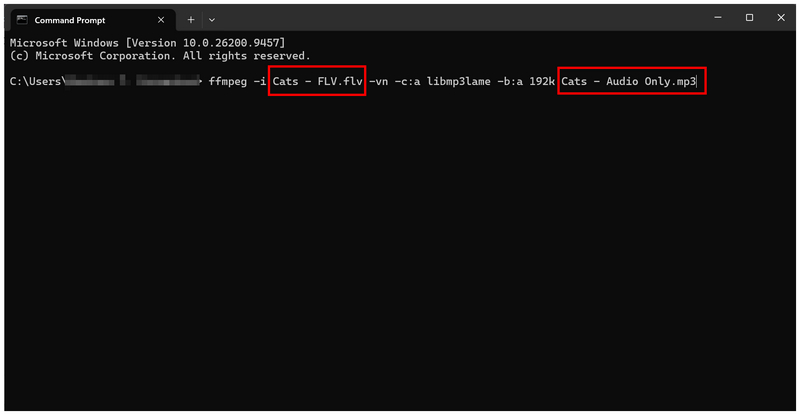
With the script copied and pasted into the terminal, rename “input.flv” to the name of the FLV being converted. Then, change the “output.mp3” option to set the name for your converted MP3. Press Enter to begin format conversion.
If you are experienced with multimedia management and writing commands, FFmpeg is a good choice for you. However, be wary when using the program, as it requires prior knowledge and experience to use effectively.
Part 3. FAQs About FLV to MP3
Are there reliable tools to convert FLV to MP3 online?
Yes, there are. ArkThinker Free Video Converter Ultimate is a good online option. There are also numerous freewares for desktop conversion, such as VLC.
Are FLV playable on modern devices?
Yes, they are. However, you need third-party video players with advanced codecs. Unfortunately, built-in video players cannot open FLV.
Do MP3s have good audio quality?
Yes, they do. MP3 has good audio quality. However, they are far from lossless formats such as WAV or FLAC.
What format should I convert my FLV into?
It depends on whether you want to convert it to audio or video. For audio files, MP3 is widely compatible. MP4 is also good for the same reason.
Can format converters process video to audio?
Yes, they can. Most multimedia converters can process videos to audio. Among the options on this list, ArkThinker Free Video Converter Ultimate and VLC are good options.
Conclusion
Once you have learned the steps to convert FLV to MP3 audio, you can now make nostalgic classic videos easier to listen to on modern hardware. The MP3 format is a solid choice to convert your video file to audio without compatibility issues. To get started, make sure to use ArkThinker Free Video Converter Ultimate for online users, VLC for desktop users, or FFmpeg for advanced practitioners.
What do you think of this post? Click to rate this post.
Excellent
Rating: 4.8 / 5 (based on 575 votes)


