


2 Ways to Convert WebM to GIF: Best Uses, Pros, and Cons
When it comes to videos and digital content for webpages, WebM has taken over other media formats because it is fully optimised and developed by Google specifically for streaming. Unfortunately, WebMs are not particularly friendly when shared on messaging platforms or social media comment sections. In this case, shorter formats, such as animated GIFs, are better. In this article, we will provide two multimedia software programs you can use to learn how to convert a WebM file into a GIF, making short online videos easier to share outside websites.
- GUIDE LIST
- Approach 1: Convert WebM to GIF with High Frame Rate Using ArkThinker Video Converter Ultimate
- Approach 2: Turn WebM Clips Into GIFs Online Using Ezgif Maker
- Part 3. Expert Tips on How to Optimise Your Converted GIF File Size
- Part 4. FAQs About WebM to GIF Conversion
Approach 1: Convert WebM to GIF with High Frame Rate Using ArkThinker Video Converter Ultimate
Best Used For: Efficient single-file or batch conversion of WebM videos to animated GIFs.
We will start this guide by featuring the most stable WebM-to-GIF converter for local multimedia conversion with ArkThinker Video Converter Ultimate. Among the two options we prepared in this guide, this program works best for users who prefer reliability, conversion efficiency, and ease of use.
Whether you are looking to convert a single WebM video or batch convert a small handful of video files, ArkThinker can handle these processes efficiently, thanks to its GPU-accelerated feature, ensuring your files are converted in no time.
Aside from WebM-to-GIF conversion, the program can also handle media file conversion for 500+ formats. Whether you want to convert a video or audio to another format, or if you want to convert a video file into an audio-only media.
To learn more about the strengths and limitations of ArkThinker Video Converter Ultimate, make sure to download the program using the link below.
- Exclusively designed as a multimedia format converter for audio, video, and others.
- GPU-accelerated program designed for handling large or bulk media files.
- Equipped with advanced GIF adjustment settings such as frame rate, resolution, color settings, and looping.
- Supports 500+ multimedia formats for conversion, editing, and more.
- Cross-platform availability on Windows and macOS.
- Its free version has slightly limited features.
- Conversion cap of 5 minutes per file when using their free version.
For an easier time learning how to do WebM to GIF conversions, make sure to read our three-step guide below on using the Converter feature of the software.
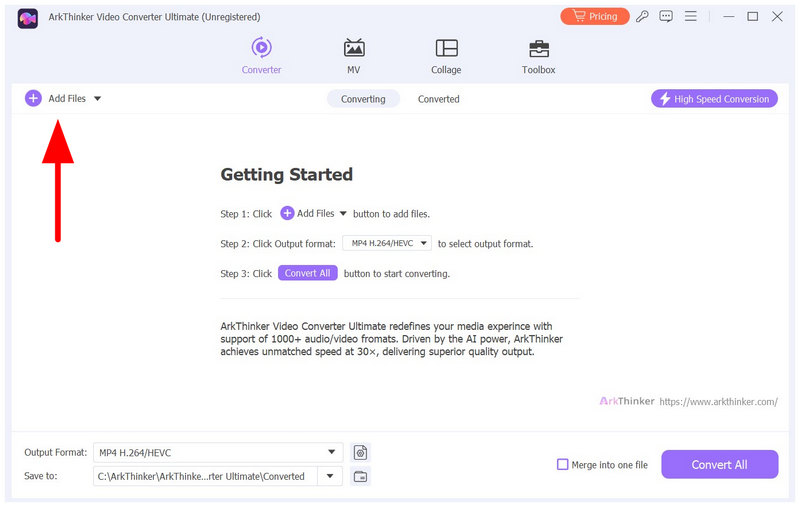
Open ArkThinker Video Converter Ultimate and select Add Files in the Converter tab to import the WebM file to be converted.
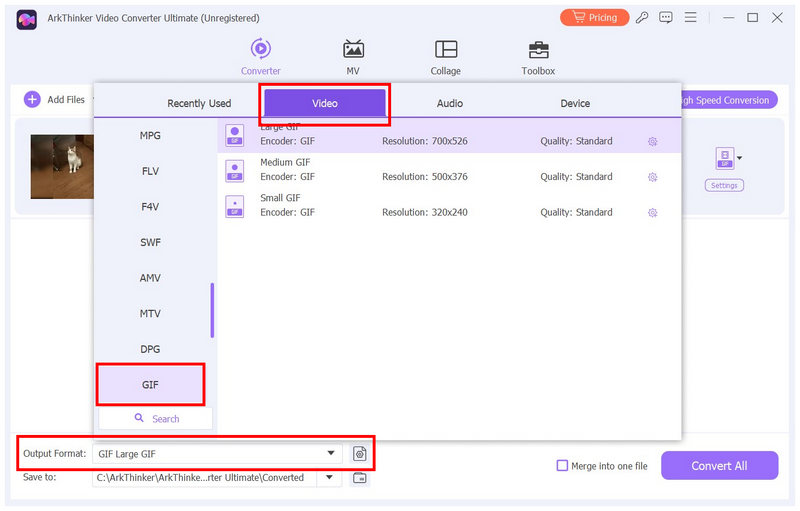
Once your WebM file has been imported, select Output Format, go to Video, and scroll down to find GIF. Then, select the conversion profile you want to use.
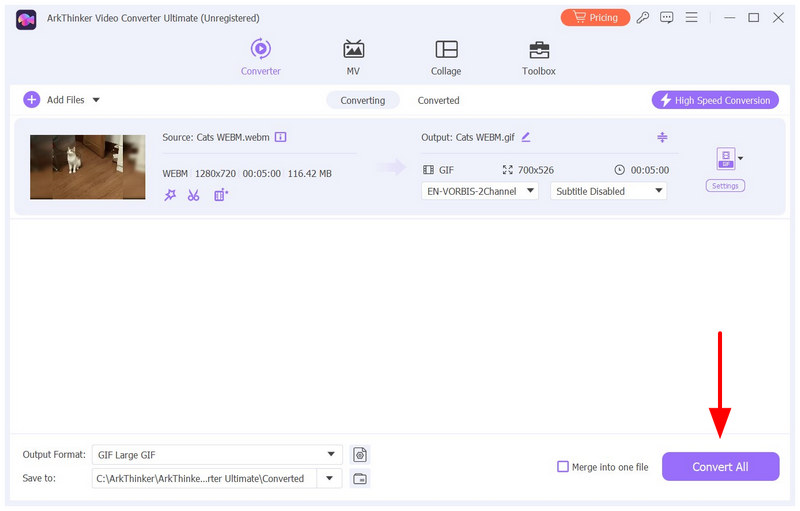
When you select your preferred conversion profile, you will be redirected back to the Converter tab. There, select the Convert All option to begin processing your WebM video to an animated GIF.
Now that you have learned the most reliable tool to change WebM to GIFs on desktop devices, we hope that using ArkThinker Video Converter Ultimate will enhance your work efficiency tenfold.
Approach 2: Turn WebM Clips Into GIFs Online Using Ezgif Maker
Best Used For: Quick format conversion without installation or setup.
Moving on to the next method, we will now use one of the more reliable tools to convert WebM to GIF online for free: Ezgif. As its name suggests, this program is exclusively designed to create GIFs easily, and producing one from video files such as WebM is its most used feature.
Given its background, the software is among the most accessible on the market, as it requires no installation or setup. However, you also have to deal with its limitations as a web-based program: a 200 MB file size limit per upload and settings that are not the most intuitive.
- No installation is needed to use the tool.
- An online tool designed exclusively for GIF creation.
- Exclusive Video to GIF conversion mode.
- Dated-looking website design.
- It has a maximum file size of 200 MB per video upload.
- The complex GIF editing settings may overwhelm new users.
To learn how to use one of the most popular GIF creation online tools, make sure to read our three-step guide on how to use it below.
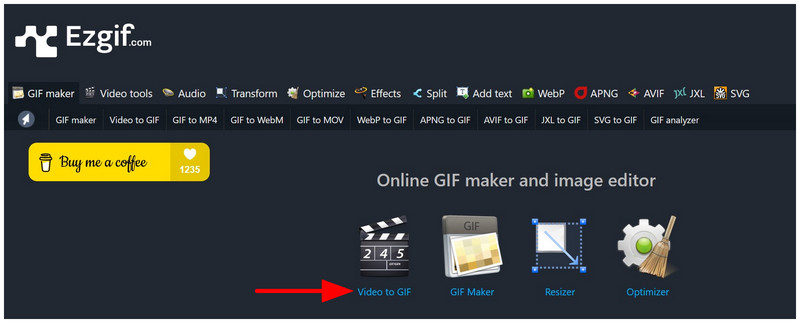
Go to the Ezgif website and select the Video to GIF option.
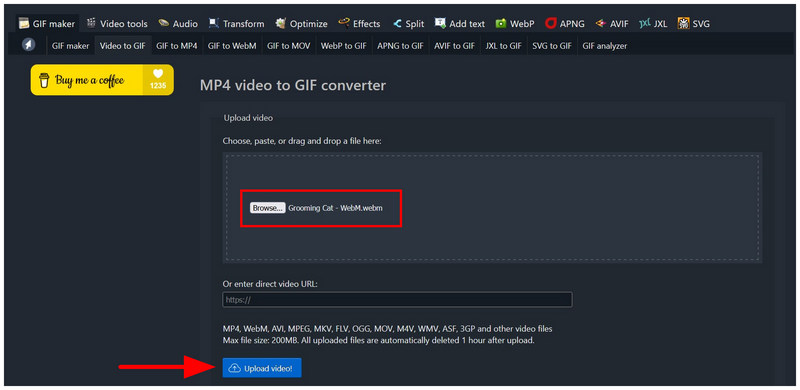
In the Video to GIF tab, click Browse to open your files to find and import the WebM video. Once selected, click on Upload Video. Wait for the file to be uploaded.
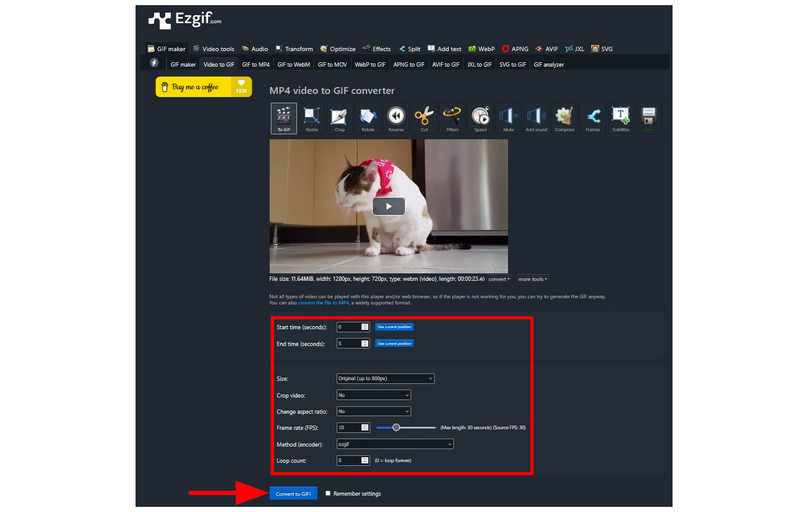
Once the video has been uploaded, you can adjust the GIF editing settings in the tool, including Frame Rate, Encoder Method, Size, and more. Afterwards, select Convert to GIF to begin importing the WebM video to GIF format.
Now that you have learned how to use the most reliable online WebM-to-GIF converter, we hope you can efficiently handle quick video-to-GIF conversions directly in your browser.
Part 3. Expert Tips on How to Optimise Your Converted GIF File Size
Set the Framerate to 10 - 15 FPS
To ensure your converted video to GIF plays smoothly and is not choppy, one of the best options is to set your frame rate to the recommended 10-15 FPS range for animated GIFs. Setting your animated GIFs within this range will ensure that your viewers can clearly understand their content.
Use the Proper Resolution
Aside from the frame rate, another factor that will dictate your GIF quality is the resolution at which you will save your converted GIF from the WebM video. To ensure your GIF looks good and still plays smoothly, use a resolution of 480p (640x480).
Apply Looping for a Smoother GIF
If you are experienced enough with GIFs, you can adjust your video to loop smoothly and look endless when set correctly. Although this is not necessary, a properly looped animated GIF will look better than regular video clips converted as GIFs.
Part 4. FAQs About WebM to GIF Conversion
Can you convert WebM to GIF with FFmpeg?
Yes, you can. You can use advanced scripts to modify media file formats with FFmpeg. However, it is not beginner-friendly and writing the wrong code might harm your device.
What are WebM files used for?
WebM files are used for videos intended for streaming online. They are best used as videos when uploaded to websites. However, WebM is usually unsupported for local viewing.
Are animated GIFs good to use?
Yes, they are. However, GIFs have specific uses. They are often used for messaging or for commenting on social media.
Are online tools safe to use for format conversion?
Yes, they are. Web-based programs are reliable for basic format conversion. However, their safety is a common concern because files must be uploaded to their servers as part of the process.
Should I use desktop tools for bulk conversion?
Yes, you should. Desktop tools are better for bulk conversion because you can use your computer’s full resources. This is of utmost importance, as bulk conversion requires significant resources to run efficiently.
Conclusion
With two of the most popular desktop and online-based converters, the guide we have provided in this article should help you learn how to convert WebM to GIF. We hope you can now easily manage your WebM videos by converting them into a format that is much easier to share in messaging apps and social media comment sections. Among the methods featured on this list, we highly recommend ArkThinker Video Converter Ultimate for its efficiency, ease of use, and overall performance. Make sure to download the program to make it easier to manage your media files.
What do you think of this post? Click to rate this post.
Excellent
Rating: 4.9 / 5 (based on 492 votes)


