


Luma HEIC to JPG Converter for Android: Full Review in 2026
Among modern image formats, HEIC is considered one of the options with the highest quality and compression rate. This makes it a solid choice for efficient file storage. Unfortunately, HEIC is poorly compatible outside the Apple ecosystem, since it is the default file format for iPhone images. In this article, we will highlight one of the most popular HEIC converter apps for Android devices, Luma HEIC to JPG Converter, by reviewing the program's key features, performance, and pricing to give our readers an idea of its capabilities. We will also recommend a web-based alternative that you can use if Luma’s lack of updates is not enough for your needs.

- GUIDE LIST
- Part 1. Luma HEIC to JPG Converter Review
- Part 2. Best Alternative to Luma HEIC to JPG Converter
- Part 3. FAQs About Luma HEIC to JPG Converter
How We Test and Review
- • We tested Luma HEIC to JPG Converter in a modern Android smartphone.
- • A third-party APK version of Luma HEIC to JPG Converter was used during the testing.
- • We converted a total of five high-quality HEIC images in the Android app.
- • During the format conversion, the HEIC bulk conversion was timed to test Luma’s conversion efficiency.
- • The converted JPG quality of Luma and our featured alternative were compared side by side.
Part 1. Luma HEIC to JPG Converter Review
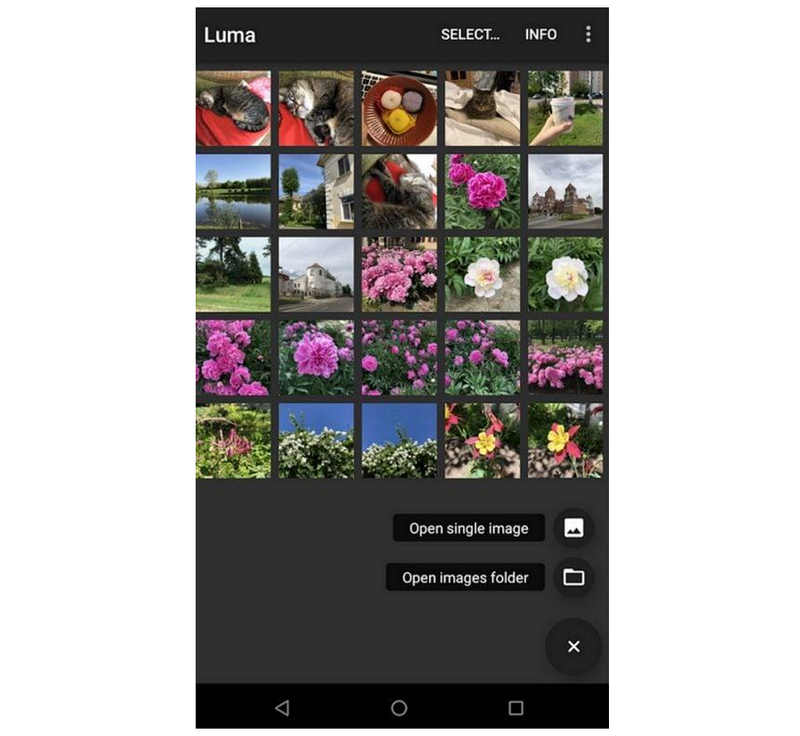
Since HEIC images are rarely supported by devices outside the Apple ecosystem, dedicated apps made for converting such files have been developed. Among these programs, Luma HEIC to JPG Converter is one of the most popular apps for converting HEIC to JPG on Android.
Originally released in 2017, the Luma app was designed to make HEIC images accessible on smartphones. JPG was selected as the app’s conversion format because it offers superb compatibility across devices. Unfortunately, modern Android smartphones now support opening HEIC images in their default gallery. For example, an entry-level Samsung smartphone can open HEIC files in its default gallery app.
If your Android device can install Luma from Google Play, you can reliably use Luma HEIC to JPG. Unfortunately, officially downloading the app on modern devices is not impossible. Luma’s latest update was implemented way back in 2023.
To learn more about the program, make sure to read our detailed review of Luma HEIC to JPG Converter, including its Key Features, Conversion Performance, and whether the app is free.
Key Features
- • Supports offline format conversion without relying on a stable internet connection.
- • Offers reliable batch processing of multiple HEIC files in your Android’s gallery.
- • Preserves the EXIF, copyright information, and other advanced file metadata once the HEIC file is converted.
- • Offers HEIC image preview for Android devices that cannot open HEIC files in their main gallery.
- • Converted HEIC files to JPG format have minimal quality loss.
Conversion Performance
| Aspect | Performance |
| Conversion Speed | Fast conversion speed when handling single image files. Small batches of 10-20 HEIC files are also optimized for mobile devices. |
| Output Quality | Minimal quality reduction for converted JPG files. Close to original quality. |
| Metadata Retention | Preserves EXIF and other image metadata, such as dates, device information, editing history, and more. |
| Ease of Use | Structured workflow designed for intuitive conversion on mobile devices. |
Is Luma HEIC to JPG Converter Free
Yes, it is. Luma HEIC to JPG Converter is a free Android app originally designed to provide built-in conversion of HEIC images to JPG on mobile devices. Unfortunately, it was only built for older Android devices since modern Android smartphones now support HEIC files by default.
Part 2. Best Alternative to Luma HEIC to JPG Converter
Now that we have reviewed Luma HEIC to JPG Converter, including its strengths and limitations as an outdated app, the program’s unavailability on modern devices is a major hurdle. As such, web-based tools like ArkThinker Free HEIC Converter Online should be among your top mobile options for HEIC-to-JPG conversion.
As a web-based solution, the ArkThinker’s alternative requires no installation or setup to start converting HEIC to JPG. All you need to use it is a stable internet connection and the browser of your choice.
In addition to accessibility, it offers improved workflow efficiency, as files uploaded to the online tool are automatically converted to JPG format. Afterward, you may download the program directly from ArkThinker Free HEIC Converter Online.
To learn how to use the best alternative for Luma HEIC to JPG Converter when it comes to Android-based format conversion, make sure to read our two-step guide below for an easier time converting your first HEIC file.
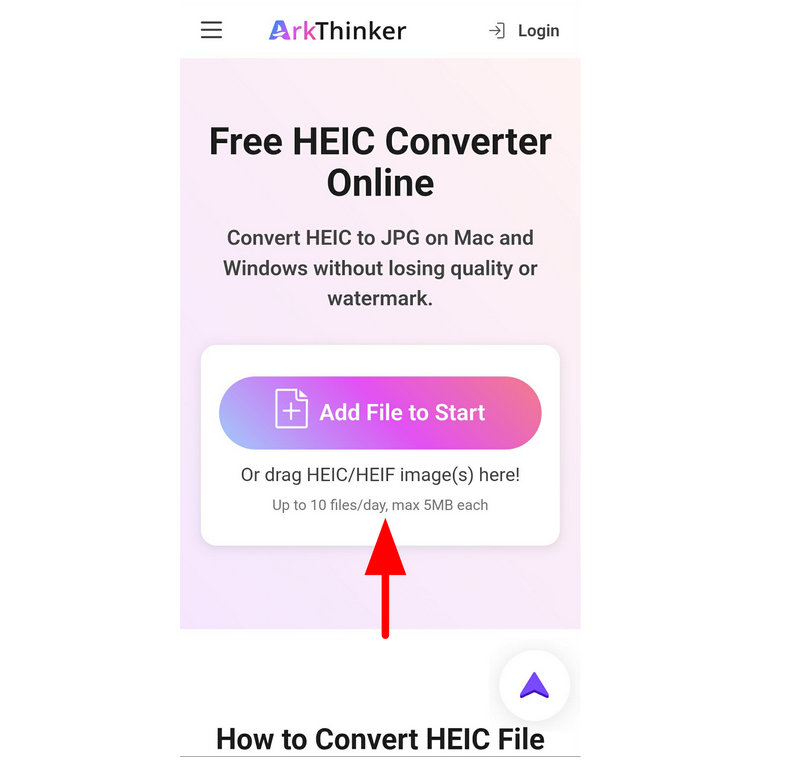
Open your preferred mobile browser and search for ArkThinker Free HEIC Converter Online’s website or select the link in this guide. Next, tap Add File to Start to open your device’s file manager to select the HEIC image you want to convert.
Wait for the HEIC file to be uploaded and automatically converted to JPG. The conversion process will instantly begin once the image is uploaded. Finally, tap Download to save the converted HEIC image back to your device as a JPG.
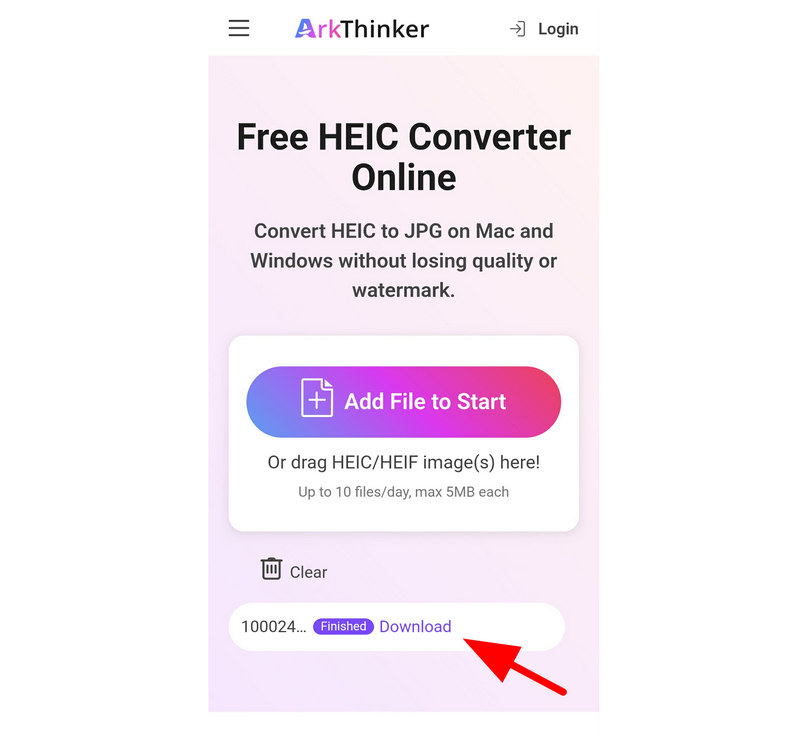
After following two simple steps, you can now save your JPG image with its quality back to your smartphone’s gallery. File sharing will now be much smoother, whether you’re sharing a file to your Windows computer or to another Android device.
Part 3. FAQs About Luma HEIC to JPG Converter
Is Luma HEIC to JPG Converter safe to use?
Yes, it is. It is an official app available on Google Play. Unfortunately, using Luma HEIC to JPG Converter on modern smartphones can be tricky since the app cannot be downloaded on recent Android versions. You can only download the app from third-party APK websites.
Are there good HEIC converters for Android?
Yes, there are. If you are using an older Android device, a good option is Luma HEIC to JPG Converter. However, web-based options like ArkThinker Free HEIC Converter Online may be a better solution.
Can I use online tools on mobile browsers?
Yes, you can. Most web-based tools also have a functional mobile version. If you are looking for a recommendation, we highly suggest ArkThinker Free HEIC Converter Online.
Can Android read HEIC images?
It depends on what device you are using. Most older Android devices cannot read HEIC files. However, modern smartphones can now open HEIC even on default gallery apps.
What format should I convert my HEIC images into?
JPG will always be a safe choice. JPG conversion has great benefits, such as compatibility across different devices and operating systems. However, make sure to use only converter tools that preserve image quality.
Conclusion
Now that we have reviewed one of the most popular HEIC-to-JPG converter apps for Android devices, Luma HEIC to JPG Converter, we hope you can decide whether using the program is a solid choice for your file management needs. If Luma is not available on your modern smartphone, consider using ArkThinker Free HEIC Converter Online for fast image format conversions.
What do you think of this post? Click to rate this post.
Excellent
Rating: 4.9 / 5 (based on 559 votes)


