


How to Remove an Emoji from a Picture on PC, Online, Mobile
Clearing images with apparent markings is a vital editing skill required for editors of all skill levels. Learning how to cleanly remove annoying emojis, overlays, or stickers will greatly improve the presentation and general quality of your image file. In this article, we will highlight the best tools you can use to learn how to remove emojis from pictures on different editing software for desktop, web browsers, and mobile devices. In this article guide, we will provide detailed tutorials on using the best web-based tool, reliable paid and freeware options on mobile, a professional photo editor, and built-in solutions on Windows and macOS.

- GUIDE LIST
- Part 1. Remove Emoji Online Free – AI-Powered Tools (No Install)
- Part 2. How to Remove Emoji from Photo on iPhone & Android (Mobile Apps)
- Part 3. Remove Emoji in Photoshop Using Content-Aware Fill (Desktop Pro)
- Part 4. Remove Emoji with GIMP
- Part 5. Built-in Free Tools – Remove Emoji on Windows & Mac Without Software
- Part 6. FAQs About Removing Emoji from Pictures
Part 1. Remove Emoji Online Free – AI-Powered Tools (No Install)
We will begin this guide by featuring the most reliable tool to remove emojis from pictures online for free, with none other than ArkThinker Free Watermark Remover. As its name suggests, this program is designed to remove watermarks from images, which makes its removal tool also applicable for removing emojis and overlays.
To make the program both practical and intuitive for experienced and amateur users, it uses a simplified Brush Tool that automatically removes the portions that you have selected with it. This gives the users of the program manual control over what portion of the image they can edit out.
For an easier time learning how to use the program, make sure to read our three-step guide on how to use it below.
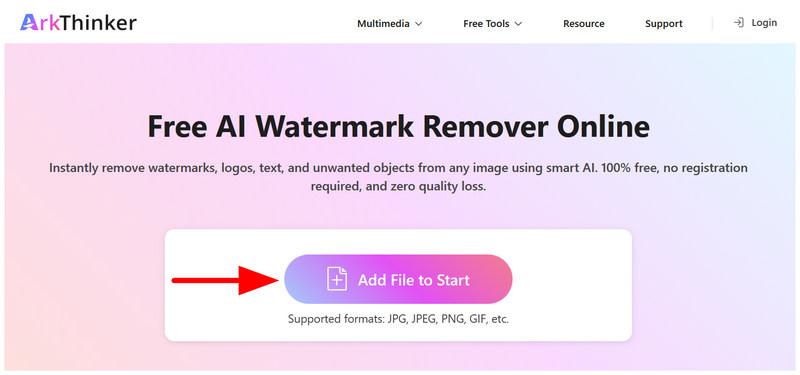
Go to the ArkThinker Free Watermark Remover website, then select Add File to Start to import the image you want to edit.
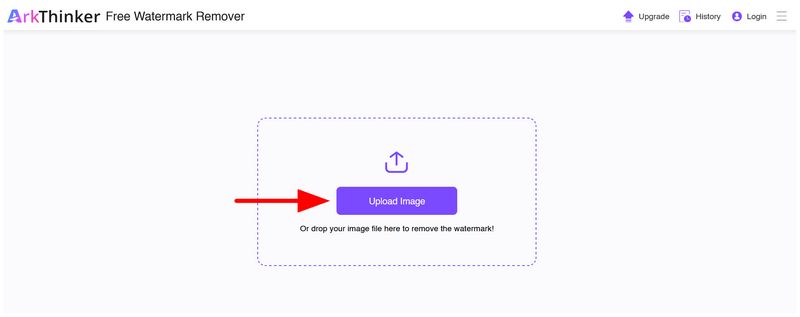
Once Add File is selected, you will be redirected to the uploading menu of the online tool. Here, click on Upload Image to import the picture you want to add.
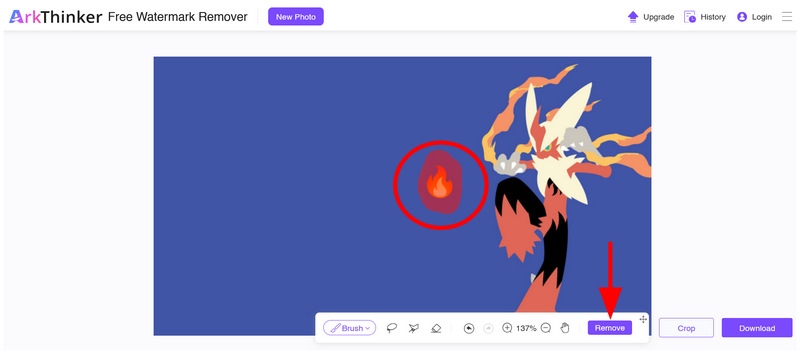
With the image uploaded, use the Brush Tool to select the emoji or overlay you want to clear. Then, click on the Remove button to delete the selected emoji.
Wait for the removal process to finish for a few seconds. Once done, you can now select the Download button to save the image now clear of the emoji or overlay you just edited out.
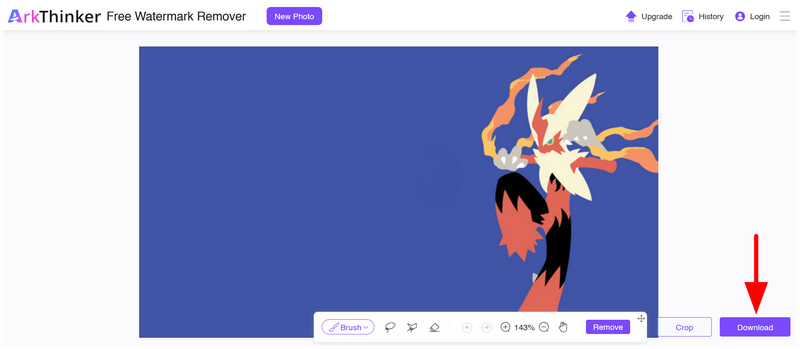
Whether you are an experienced or an amateur editor, the simplified brush tool of the software makes it a reliable and quick solution if you want to quickly remove small overlays and emojis from images.
Part 2. How to Remove Emoji from Photo on iPhone & Android (Mobile Apps)
In the next section of the article, we will now proceed to the best mobile apps that remove emojis from pictures on both Android and iOS devices. To provide options for our readers, we have added two options below for users who prefer paid premium options and free-to-use apps.
Option A: TouchRetouch (Best Paid App)
Open the TouchRetouch app and select the Brush tool.
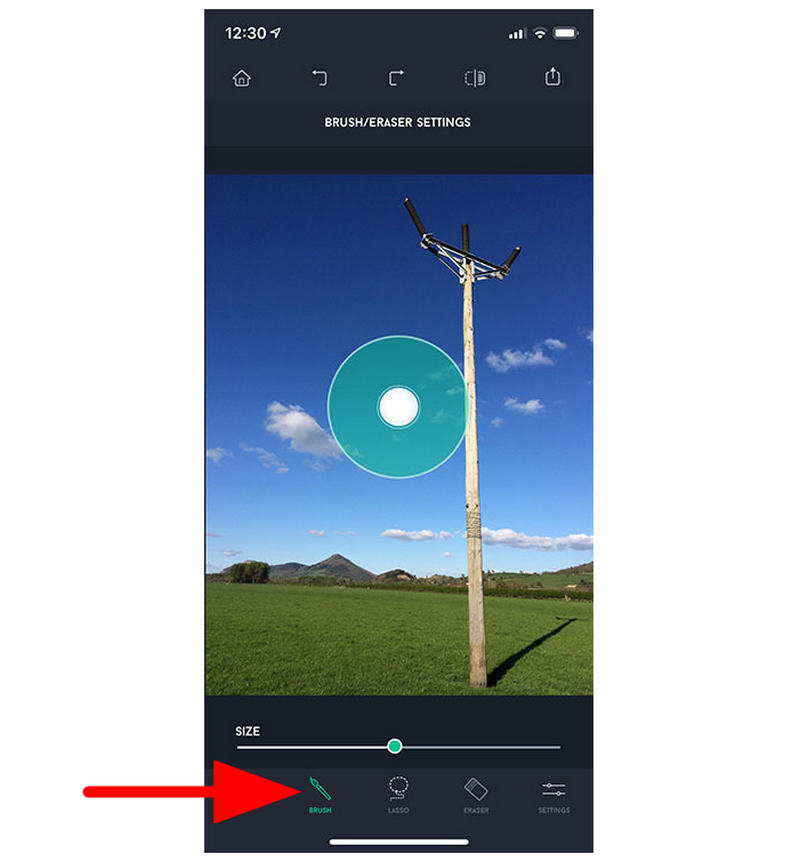
Using the Brush tool, select the portion of the image you want to remove.
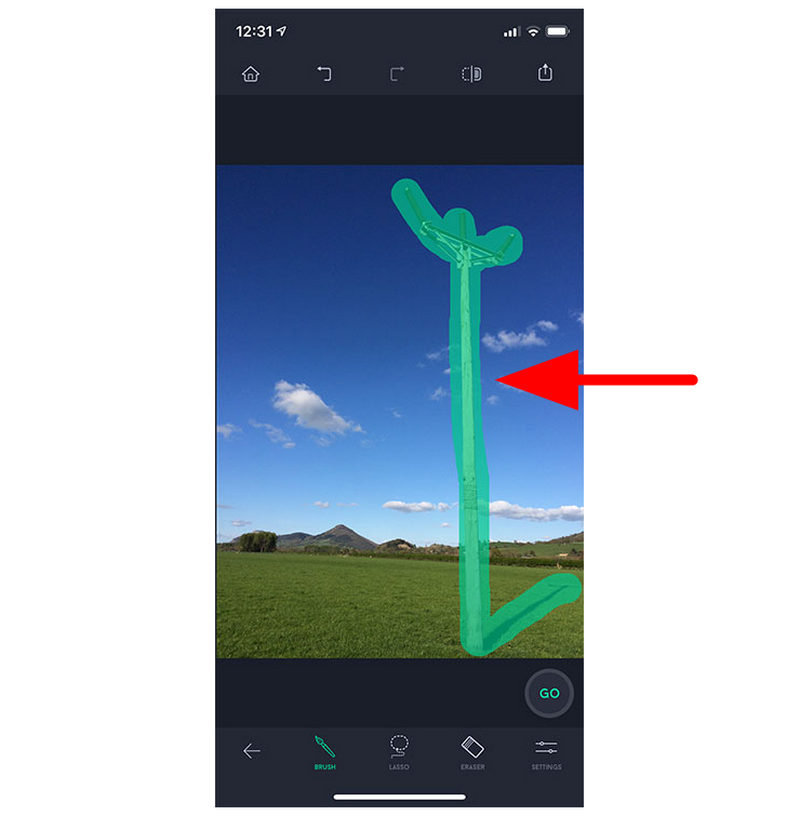
Once the emoji, overlay, or image element has been selected, click on the Eraser tool.
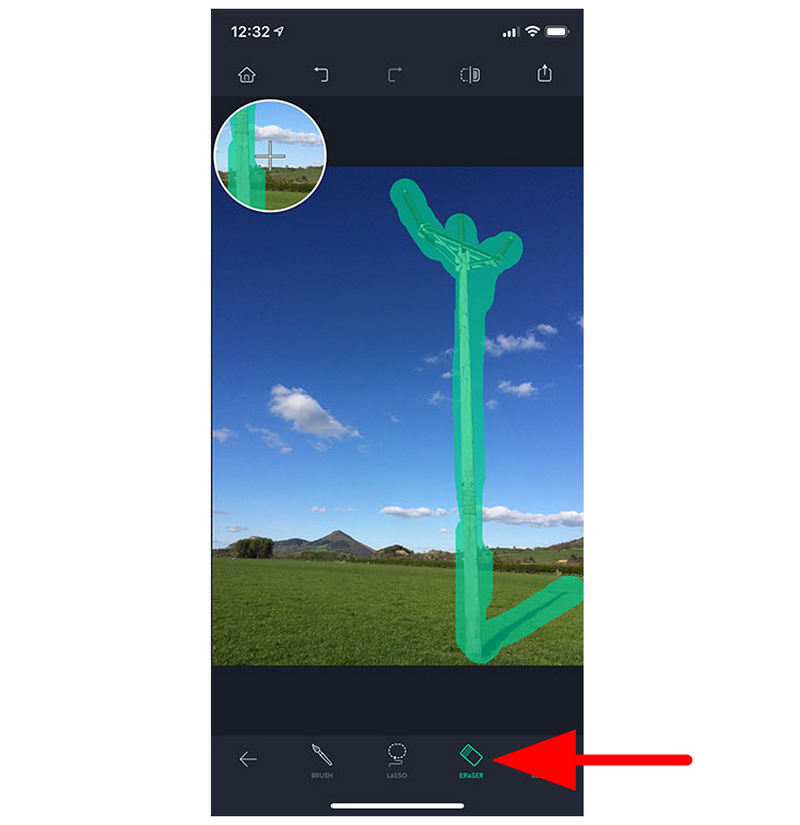
Clicking the Eraser tool will instantly remove the portion you have highlighted with the Brush tool from your image.
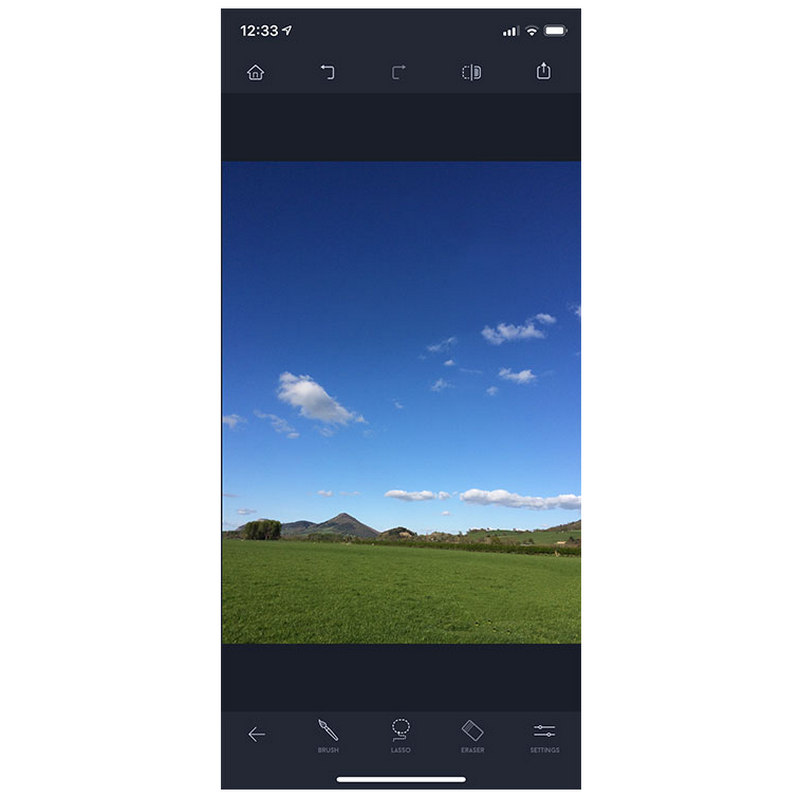
TouchRetouch is one of the most trusted go-to options for basic mobile editing such as simple background removal for e-signatures. Although it is a paid solution, the quality of the program makes it worth it for both Android and iOS users.
Option B: Snapseed (Free Google App)
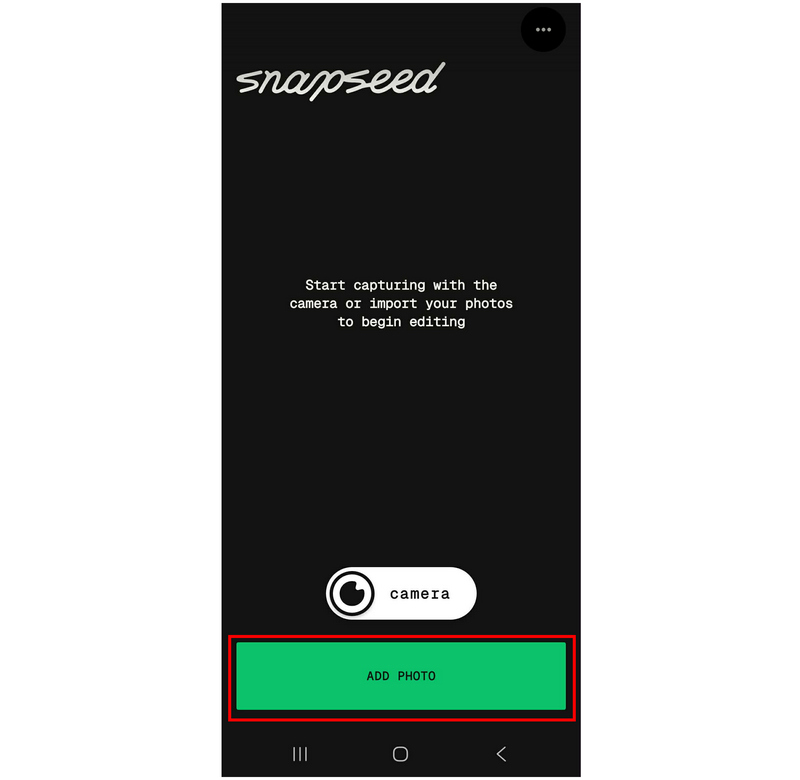
Open the Snapseed app and select Add Photo.
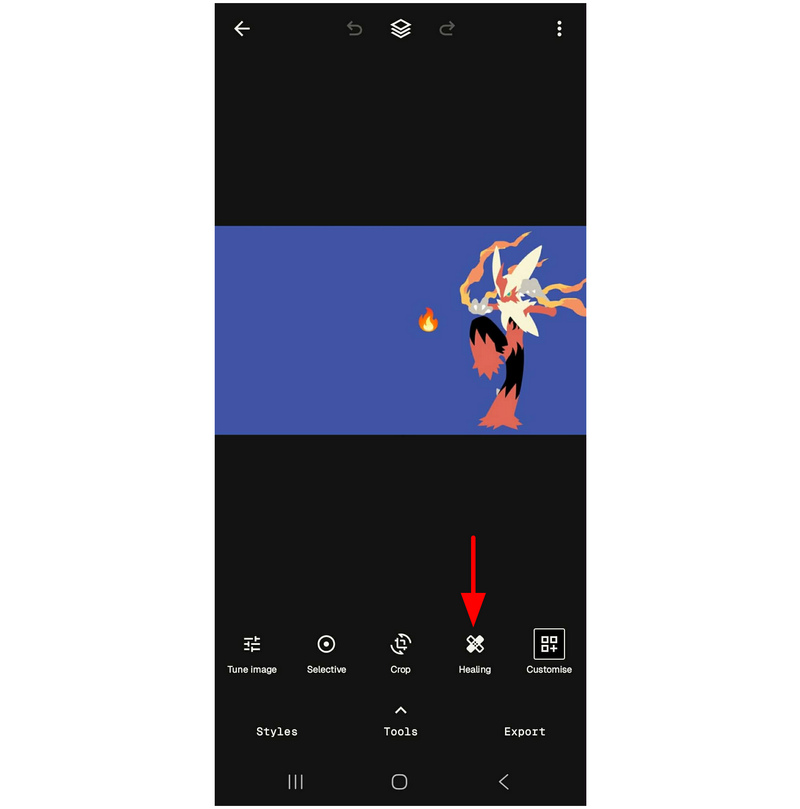
Once your Photo has been uploaded, select the Healing tool.
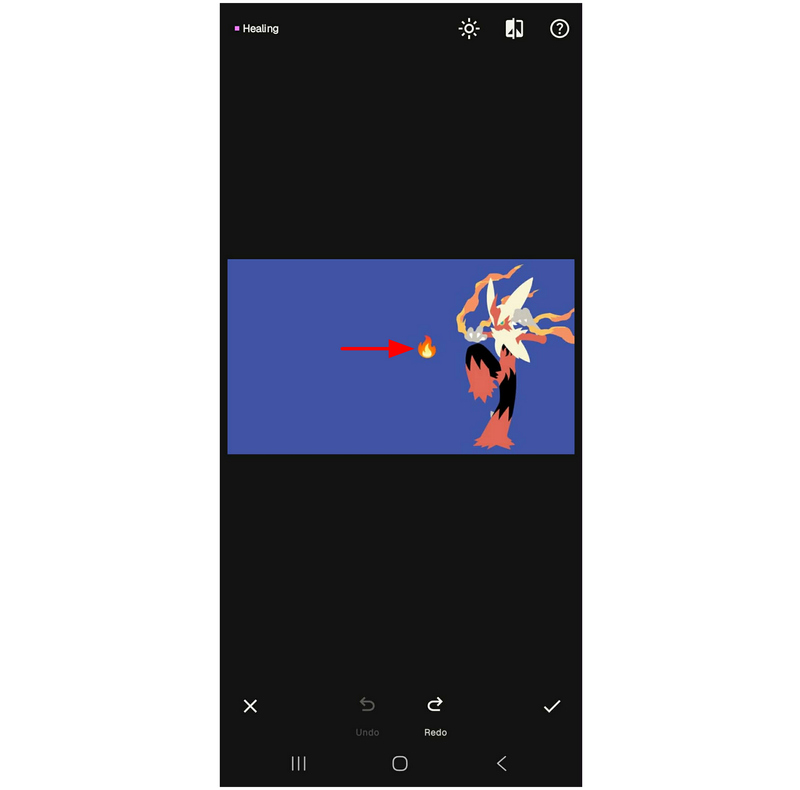
Using the Healing tool, tap on the emoji you want to remove. Based on the size of the object, you may also do the brush motion to select the element for removal.
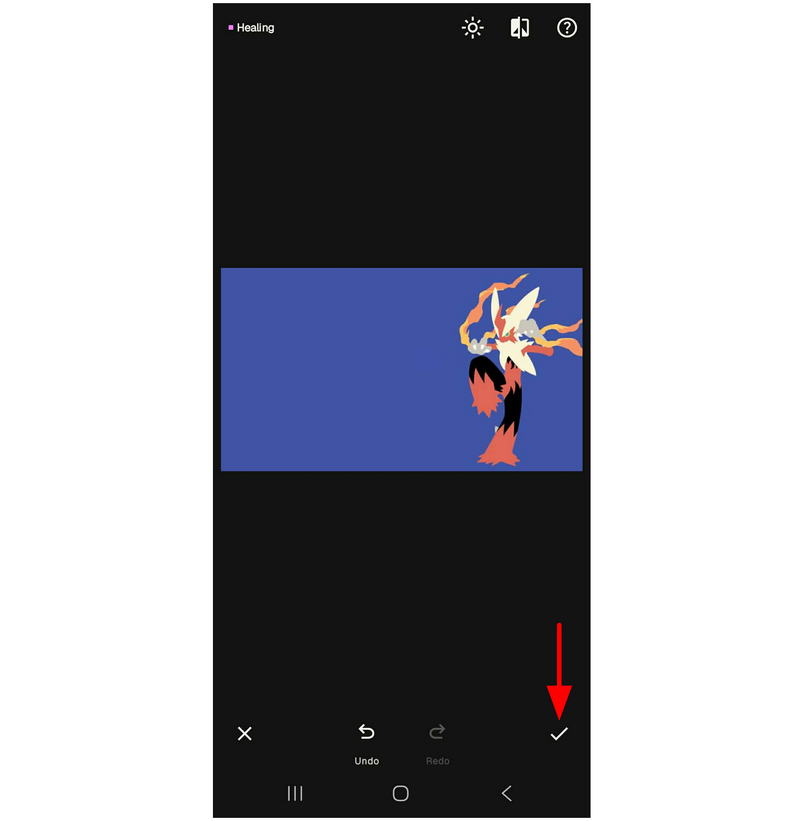
When you are done using the Healing tool for element selection and removal, select the Check button to save the image now free from unwanted overlays or emojis.
If you don’t mind fewer features and basic editing options, Snapseed may be enough for your needs. Since it also has cross-platform compatibility, the program makes for a versatile choice for both Android and iOS devices.
Part 3. Remove Emoji in Photoshop Using Content-Aware Fill (Desktop Pro)
With the previous programs all optimized for beginners and ease of use, let us now move forward to the more professional option for basic photo editing with Adobe Photoshop. Fortunately, the program is equipped with multiple tools to do different actions, and removing emojis is no exception.
If you want to use Photoshop as your main photo emoji remover , you have to learn how to use its Fill menu and the Content-Aware system. Learn how to use it by reading our guide.
Open the image you want to edit in Adobe Photoshop. Then, using your preferred tool, select the element you want to remove. In this tutorial, we used the Rectangle Tool.
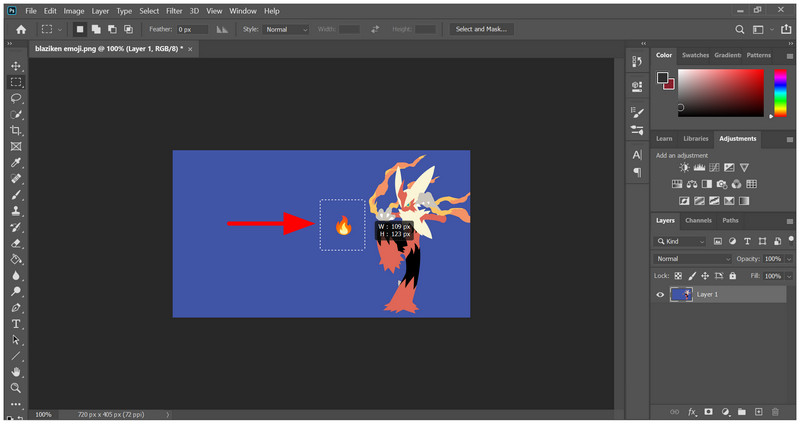
With the element you want to remove now selected, use the keyboard combination Shift + Backspace (Windows) or Shift + Delete (macOS) to open the Fill menu. In the menu, make sure to set the Contents menu to Content-Aware, then press OK to confirm.
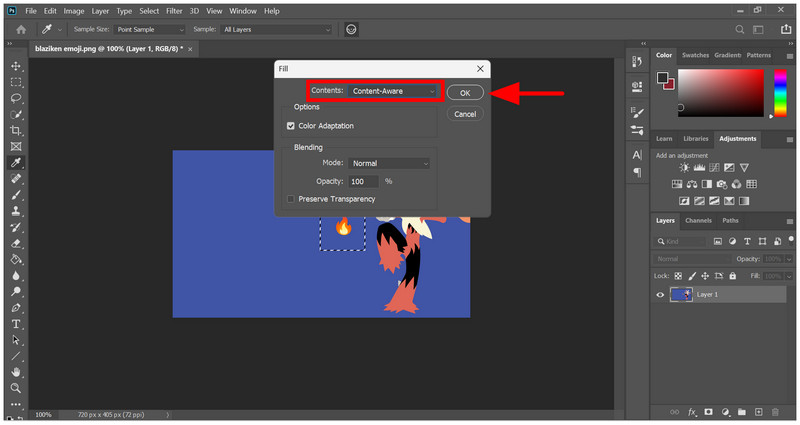
After selecting OK in the Fill menu with the Content set to Content-Aware, the emoji will be removed from your image.
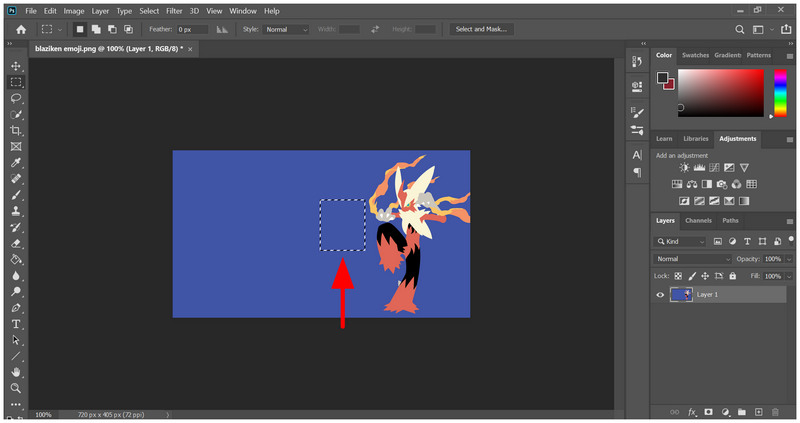
Content-Aware is one of the most practical quality-of-life features in Photoshop. Once you have learned how to use it, removing elements such as overlays, emojis, and unwanted shapes, or changing photo backgrounds will be drastically simplified.
Part 4. Remove Emoji with GIMP
Although Photoshop is highly practical and viable for editors of all skill levels, it is expensive to own since it is only available as a subscription service. As such, Photoshop alternatives such as GIMP are another passable option for basic editing such as removing portions of an image and even advanced editing such as upscaling images.
Among the countless tools for removing small elements, GIMP’s Healing Tool is our selected solution as it offers the balance between practicality to apply and manual control.
Open GIMP and select File from the taskbar, and select Open to access your files and import the image you want to edit.
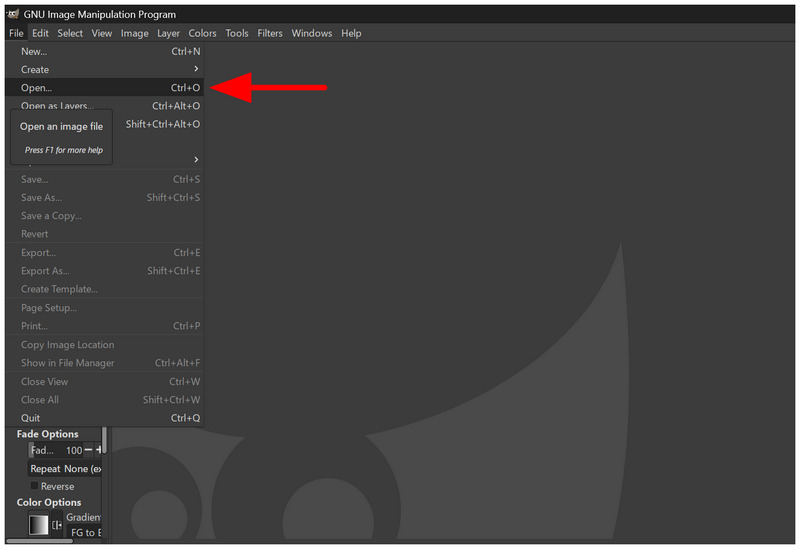
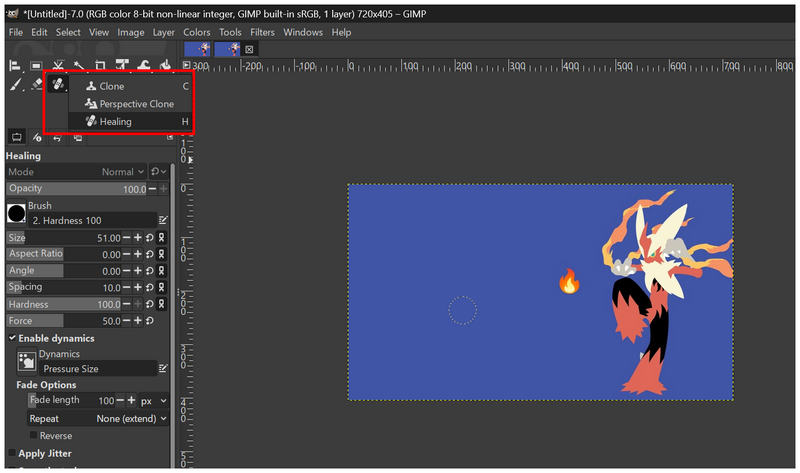
Among the tools of the program, select the Healing Tool by pressing H on your keyboard, or select the Clone tool and click on Healing in the menu that will open.
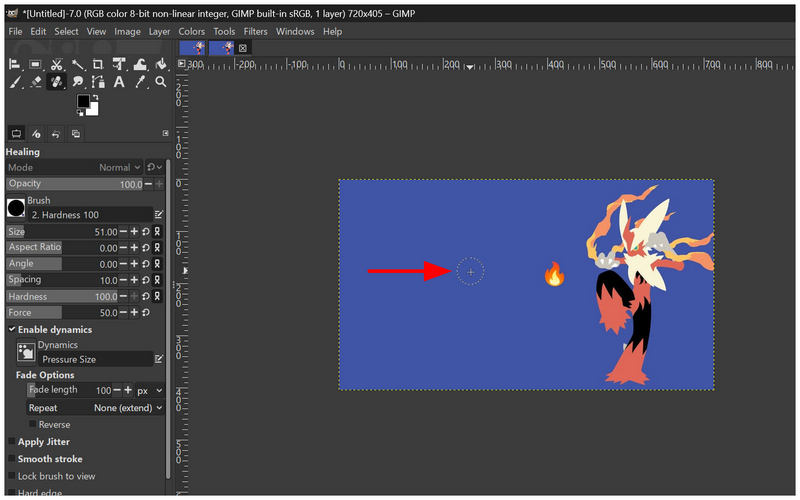
With the Healing Tool now set as the active tool, hover your cursor in the region of the image you want to use to cover the emoji, then press Control on your keyboard and click.
Once you have set the portion of your image to be copied by the Healing Tool, use it to brush or click on the emoji you want to remove.
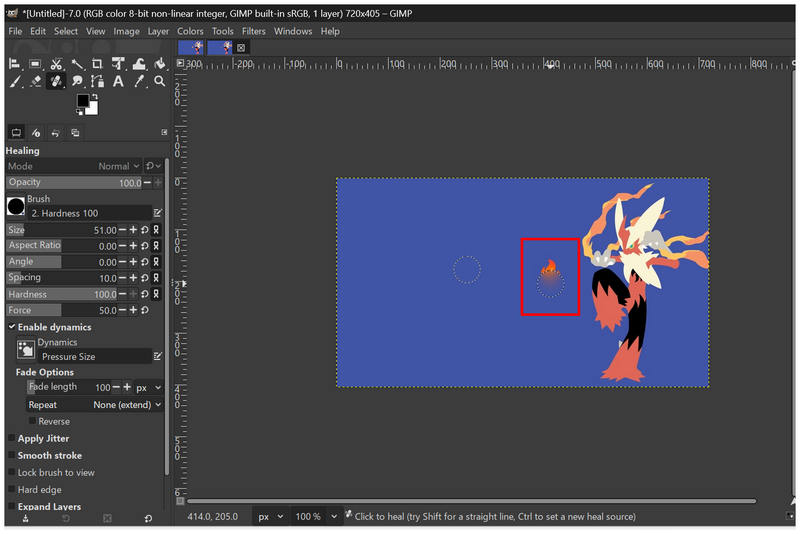
Healing Tool works great if the image you are editing is not in a solid color; when you are handling an image such as our example, using the Brush tool is simpler. However, Healing Tools has way better practicality.
Part 5. Built-in Free Tools – Remove Emoji on Windows & Mac Without Software
With the paid, freeware, and online solutions now discussed, let us now move forward to the built-in solutions for basic photo editing such as removing emojis on Windows and Mac. Both these programs can be used for simple emoji removal, although it is less polished.
Paint 3D for Windows
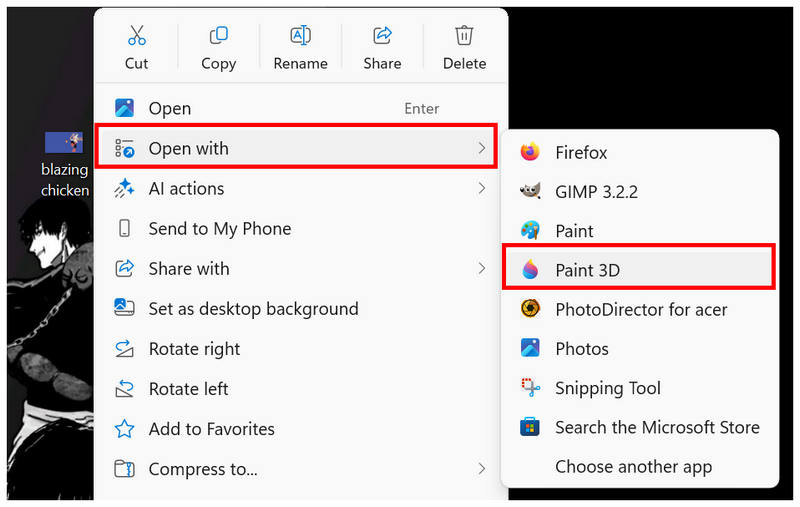
Go to the image file you want to open in Paint 3D. Right-click on it, hover over Open With, and select Paint 3D.
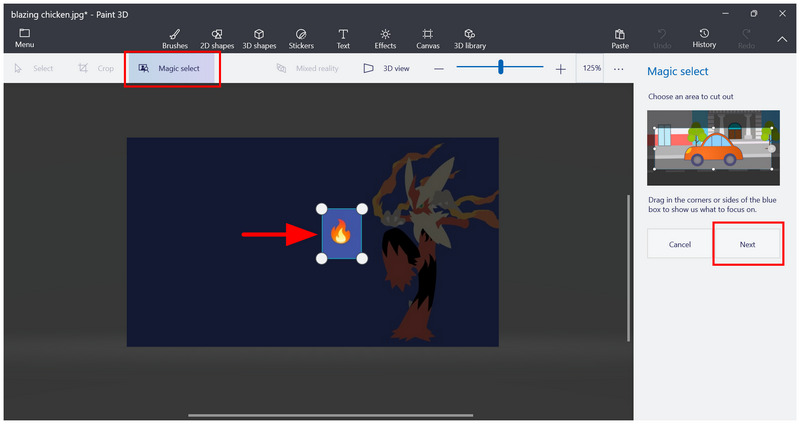
In Paint 3D’s main menu, click on Magic Select and adjust the 4-point selector to select the emoji you want to remove. Then, press Next.
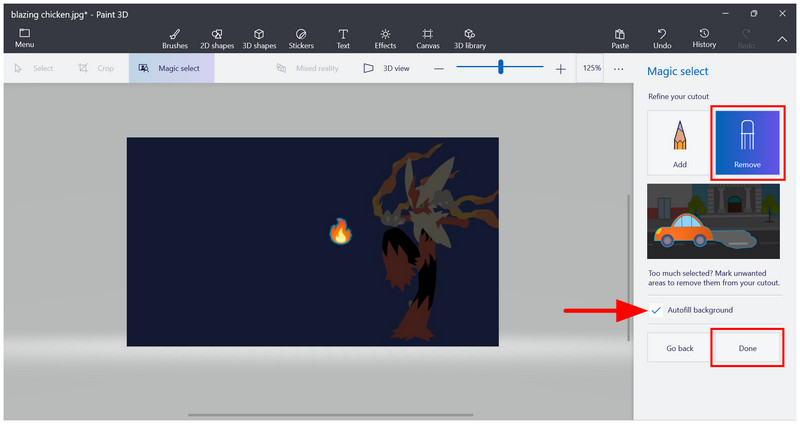
In the following menu, select Remove, enable Autofill Background, and click on Done.
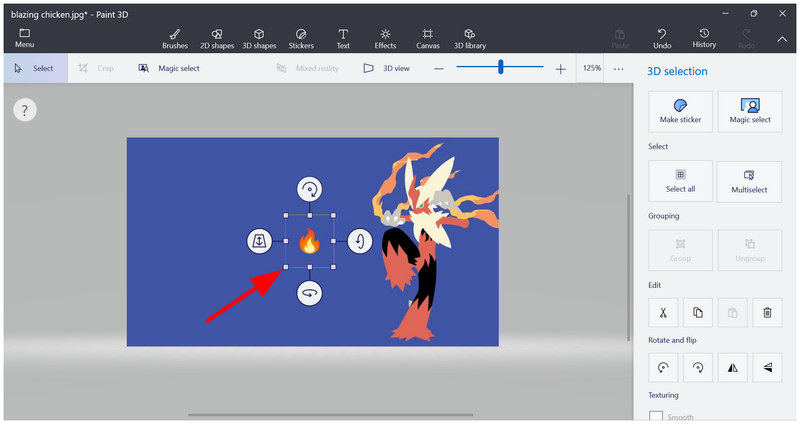
After selecting Done on the Magic Select menu, you will be redirected to the 3D Selection menu where the emoji is now selected. Simply press Backspace on your keyboard while the emoji is actively selected.
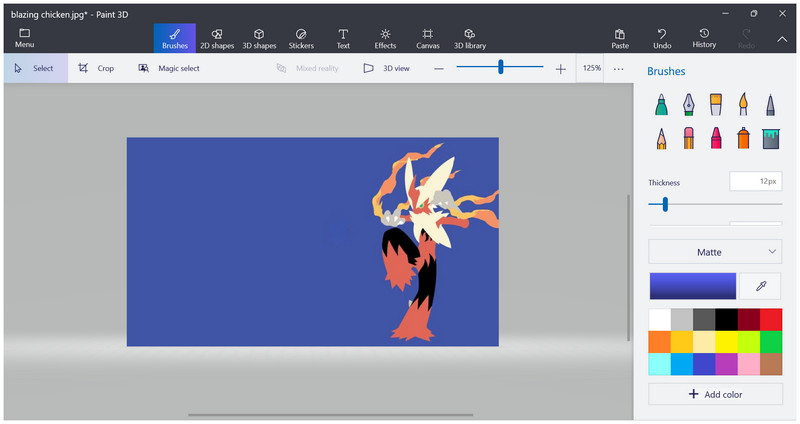
Once you have pressed the Backspace button, the emoji will be deleted.
The modern predecessor of Microsoft Paint, the Paint 3D app, makes the tool a practical solution for simple to intermediate adjustments. Among its features, the Magic Select solution is one of its most notable mid-end additions or upgrades. Since it can select an object in the image, you can also use it to add watermarks to photos.
Photos App for macOS
Open the image you want to edit in your Photos app. Then, select Edit in the upper right menu.
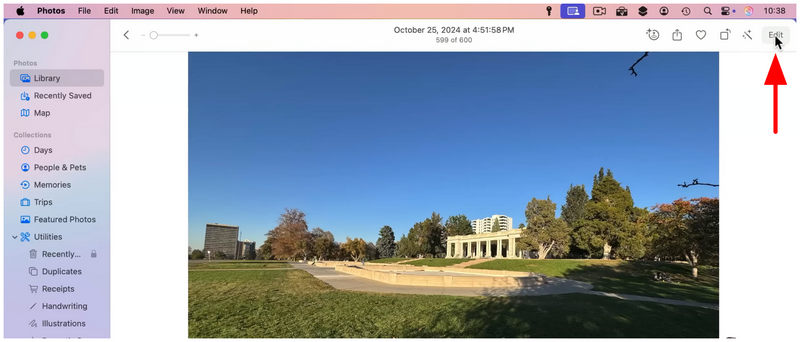
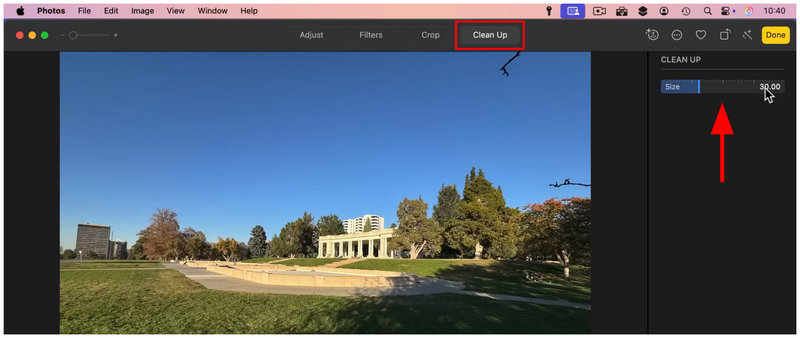
In the Edit section, go to the Clean Up tab. Then, control the brush Size by adjusting the likely named slider option.
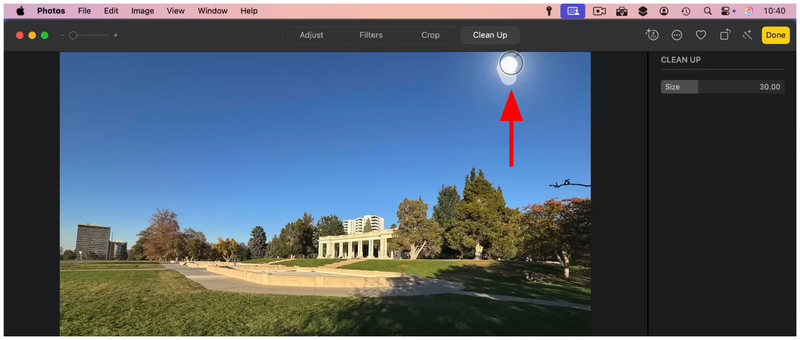
Using your cursor, click and drag over the element in the image you want to edit out, similar to using the brush tool from the other options in this article.
After you have selected your object for removal, it will be automatically cleared out.
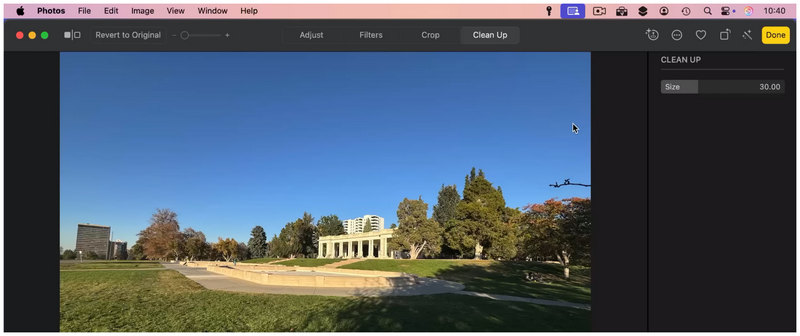
If you are using a macOS computer, your Photos App may be good enough if simple element removal is all you want to do. This will be made possible by the recently added Clean Up option, which can be applied via simple brushing.
Part 6. FAQs About Removing Emoji from Pictures
Are emojis hard to remove from images?
No, they are not. Multiple solutions can easily remove small objects such as emojis or shapes. You can use online tools such as ArkThinker Free Watermark Remover or traditional editors like Photoshop.
Should I use photo editors to remove emojis from image files?
Yes, you can. Photo Editors have multiple solutions for removing emojis. The most common options are Content-Aware in Photoshop or using the manual Spot Healing Tool.
Is GIMP a good Photoshop alternative?
Yes, it can be serviceable. However, it may be tricky to use for users coming from Photoshop. If you are a beginner, GIMP may feel more intimidating than Photoshop in terms of its interface design.
What are good mobile apps for photo editing?
PicsArt, SnapSeed, and TouchRetouch are notable options. For advanced editing, PicsArt Premium is suggested. However, if you want a simple and functional editor, SnapSeed should be one of your options.
Are there good online photo editors for removing emojis from pictures?
Yes, there are. Online photo editors have essential tools for removing emojis, such as Canvas’ Magic Eraser. However, watermark removers like ArkThinker Free Watermark Remover can get the job done much faster and simpler.
Conclusion
Now that we have provided seven of the most practical photo editors for basic shape, overlay, or emoji removal from images, we hope that this article will be enough to make your photo editing experience much more accessible. Whether you are using a Windows PC, macOS, a mobile device, or are a fan of online tools, there is editing software that perfectly suits your needs. Among them, we recommend the web-based option ArkThinker Free Watermark Remover, as it is the most accessible among the operating systems we have discussed.


