


How to Use Adobe Premiere Pro to Compress Videos (2026)
Have you finished your Adobe Premiere Pro project and are looking for a way to reduce its file size while maintaining high quality before exporting? This article guide is for you, as we will discuss everything you need to know about compressing video file size in Adobe Premiere Pro. We will provide an overview of how video compression works in the software, as well as a detailed step-by-step guide to using the software’s compression options in the export settings.

- GUIDE LIST
- Part 1. Adobe Premiere Pro Compression Features Explained
- Part 2. How to Compress Video in Premiere Pro
- Part 3. Best Free Alternative Tool to Adobe Premiere Pro for Video Compression
- Part 4. FAQs About Compressing Videos in Adobe Premiere Pro
Part 1. Adobe Premiere Pro Compression Features Explained
Compressing videos in Adobe Premiere Pro is done via its Export Settings. Like other multimedia software, the program uses presets to make the compression process easier for users unfamiliar with advanced settings.
However, these presets still perform the video compression process by editing the more technical elements of your video files, such as codec, bitrate, resolution, and frame rate. When using the right codec, you can keep your file size small, especially when you use the correct format.
On the other hand, bitrate also affects video quality because it determines the amount of data transferred per second during playback. This causes videos with higher bitrates to have better quality, and vice versa. Finally, both resolution and frame rate directly affect video quality, making them the most significant factors when compressing video files.
Fortunately, learning the concepts of these elements is enough for you if you plan to use Adobe Premiere Pro to export your videos, since these adjustments are automatically applied through presets.
Part 2. How to Compress Video in Premiere Pro
Now that we have discussed how the presets in Adobe Premiere Pro reduce video size, we can move on to the step-by-step guide that shows you how to use Adobe Premiere Pro’s Export Settings to compress videos.
Open Adobe Premiere Pro’s Export Media Settings using the keyboard shortcut Control + M. This opens the export pop-up menu, where presets and video adjustments are available.
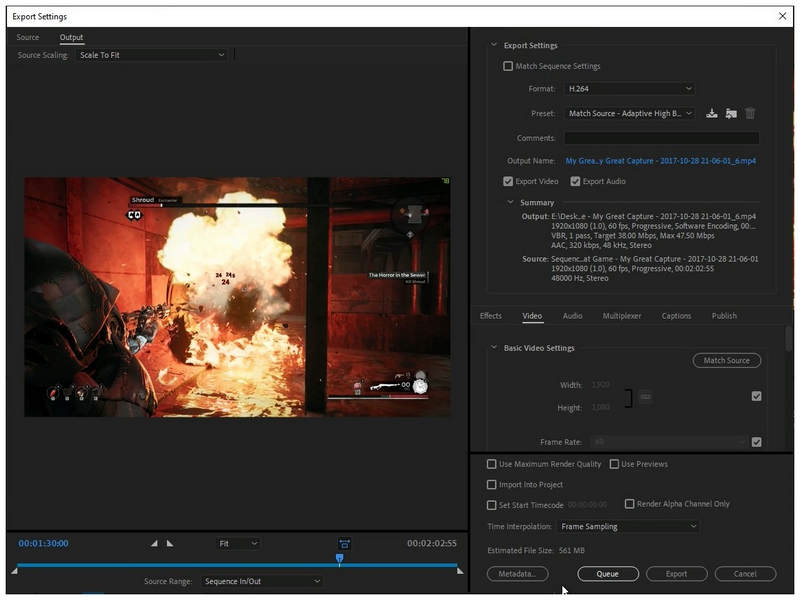
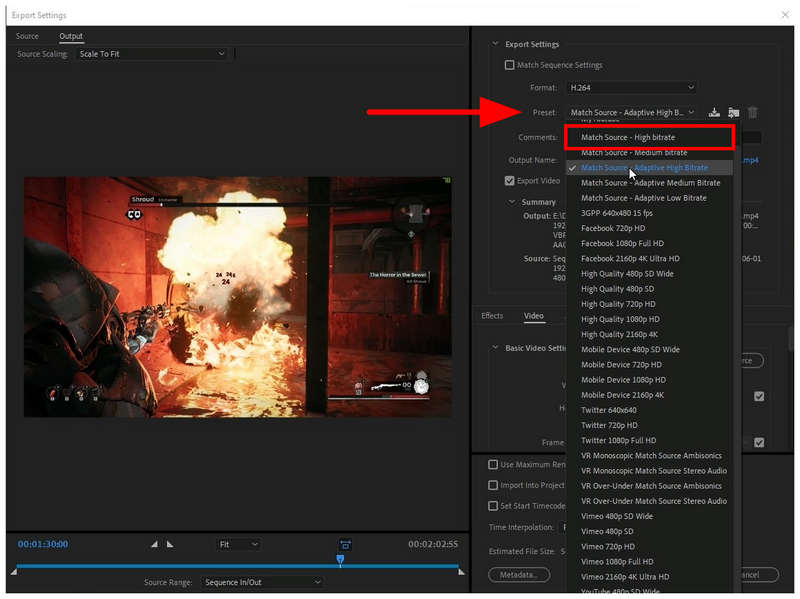
To edit the video presets, click on the Preset drop-down menu to expand the available options. By default, the Match Source - Adaptive High Bitrate preset is applied. To balance file size and acceptable quality, we recommend switching to the Match Source High Bitrate preset instead.
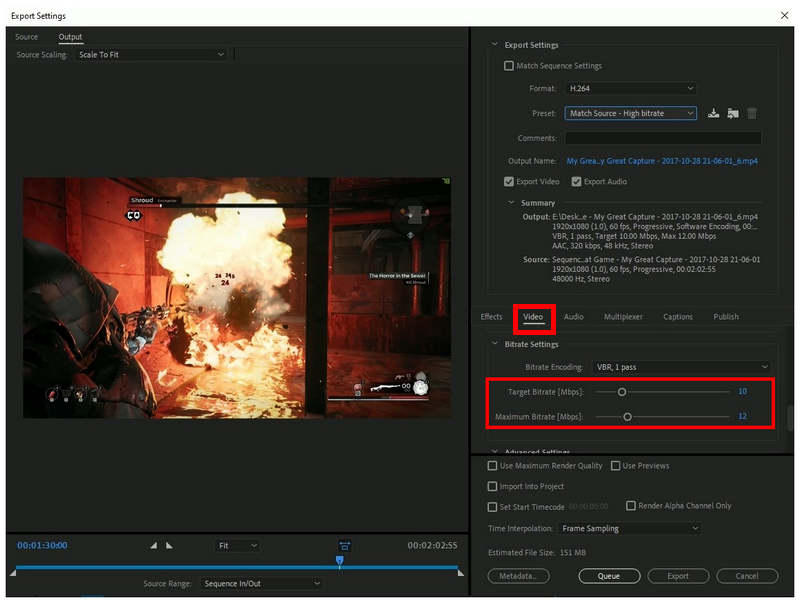
For advanced users, you can also manually adjust your video’s bitrate to achieve a more aggressive file size. To do this, go to the Video tab, scroll down, and find the Bitrate Settings. Then adjust the Target Bitrate and Maximum Bitrate sliders in it.
Once you are satisfied with your video compression settings, click the Export button to begin compress the video.
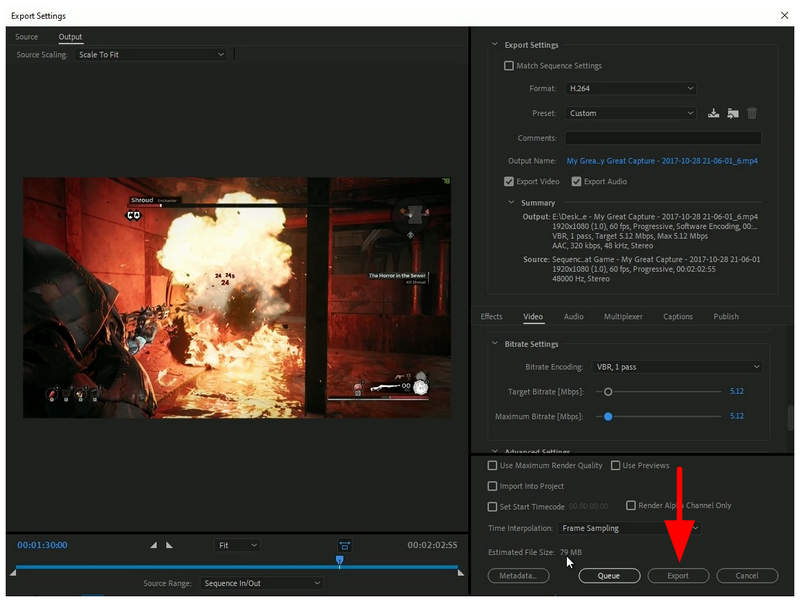
With the help of our proposed settings, the video file we compressed in this tutorial has its file size reduced from 561 MB to 79 MB. However, keep in mind that the presets and bitrate adjustments we added took a toll on the video’s quality; this may be a big tradeoff for some users.
Part 3. Best Free Alternative Tool to Adobe Premiere Pro for Video Compression
Although the compression options in Adobe Premiere Pro’s Export Settings are easy to use, the software itself is an obstacle because Adobe tools are very expensive and limited to monthly subscriptions. As such, online compressor software has its own purpose: if you are looking for an accessible compression tool, consider our proposed alternative, ArkThinker Online Free Video Compressor.
Optimized for web browsers and file compression, this alternative tool is designed to handle smaller videos with file sizes of 50 MB to 100 MB. This makes it the best software if you plan to reduce the size of videos meant for social media uploads.
Moreover, its installation-free setup makes it the most accessible, as the ArkThinker Online Free Video Compressor’s main website bypasses both the download and installation processes.
To learn more about the program, make sure to read its main features below. You may also refer to our three-step tutorial on how to use it.
Main Features:
- • Installation-free video compression tool.
- • Optimized for videos with a smaller file size.
- • Intuitive interface design to cater to beginner users.
- • Preserves the video quality of compressed videos.
- • Supports most video formats from MP4, MOV, AVI, FLV, 3GP, and more.
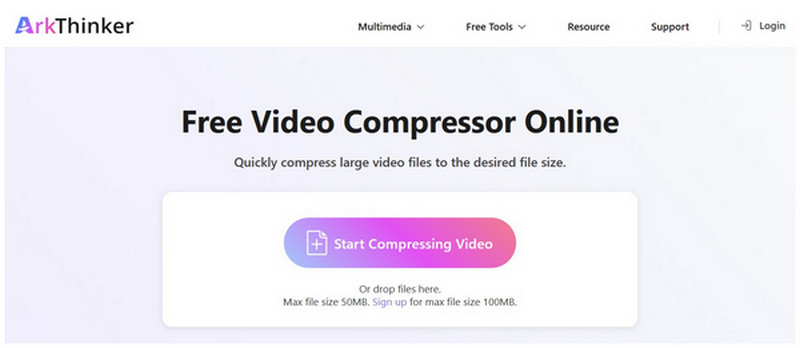
Go to ArkThinker Free Video Compressor Online’s website, then click on the Start Compressing Video button. Browse your file manager to upload the video file you want to compress.
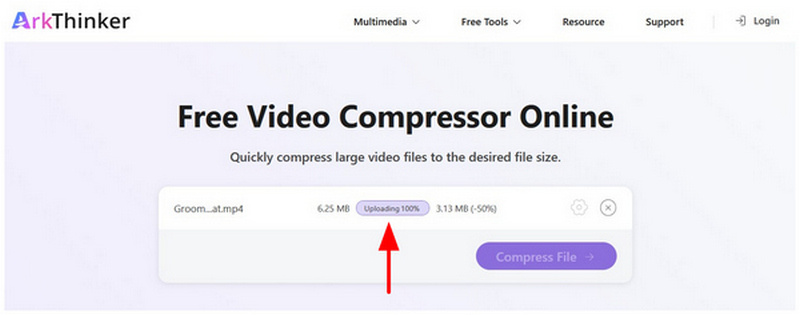
Wait for your selected video to be uploaded. Keep in mind that your internet connection highly influences the upload speed.
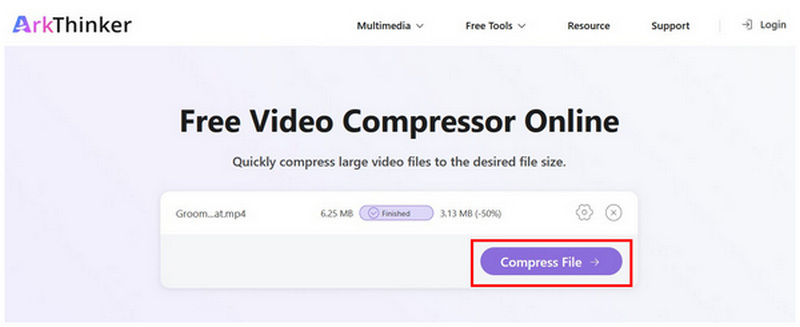
Once your video file has been uploaded, click Compress File to begin the compression process. You can now download the file back to your computer.
On top of being easier to use than Adobe Premiere Pro, ArkThinker Free Video Compressor Online also preserves quality better. Its automated file-size reduction preset allows it to balance video resolution and compression rate.
Part 4. FAQs About Compressing Videos in Adobe Premiere Pro
How to reduce video file size in Adobe Premiere Pro ?
You need to open Adobe Premiere Pro’s Export Settings. In it, adjust the available presets or edit the video bitrate by scrolling down. Make sure to check the estimated file size to keep your video compact.
Is Adobe Premiere Pro hard to use?
Yes, it is. Adobe Premiere Pro is a professional-grade video editor. However, learning its basics is usually good enough for amateur video editing.
How much is Adobe Premiere Pro’s monthly subscription?
Adobe Premiere Pro offers different subscription options. When billed annually, it costs $22.99/month. If you want to pay monthly, the rate will increase to $34.49 to $49.99/month.
Is it possible to compress videos without compromising quality?
Yes, it is. There is multimedia software that can compress files without loss of quality. Some good examples are ArkThinker Free Video Compressor Online and ArkThinker Video Converter Ultimate.
Can Adobe Premiere Pro be used to compress videos?
Yes, it can. Adobe Premiere Pro can compress videos through its file exporting menu. You can use presets on it or apply the adjustments manually.
Conclusion
Now that we have provided our readers with a detailed tutorial on using Adobe Premiere Pro for video compression, we hope this article has made your file management easier and more efficient. If you are looking for an alternative, we highly recommend using web-based solutions, such as ArkThinker Free Video Compressor Online, especially for smaller videos or for one-off file compression.


