


3 Ways to Compress GoPro Videos: A Detailed Tutorial
GoPro videos are one of the best options for users seeking real-time footage from a first-person perspective. It is best suited for long-form YouTube videos, such as travel vlogs and urban exploration content. However, GoPro captures suffer from one issue: they are typically larger in file size, usually 1GB - 4GB for every 10 - 15 minutes of footage. With that in mind, learning how to compress GoPro videos without losing quality will always be a practical solution, since smaller files are easier to import into video editors and upload to social media. Make sure to read our featured options below, ranging from an online tool, command-based software, and a PC-based open-source solution.

- GUIDE LIST
- Part 1. Why You Need to Compress GoPro Video
- Part 2. How to Compress GoPro Videos
- Part 3. FAQs About Compressing GoPro Videos
Part 1. Why You Need to Compress GoPro Video
Given the nature of GoPro videos, these clips are designed to deliver high resolution, a smooth frame rate, and a high bitrate to ensure superb video quality. Unfortunately, these settings made the GoPro-captured files much larger than standard video files. As such, if you plan to edit content captured with a GoPro, you need to learn how to compress MP4 videos first.
Format compression speeds up video processing, making it easier to import into video editors. These files will also be much easier to edit, as they are smaller and use fewer resources.
To learn the best software you can use to adjust the video compression settings of GoPro, make sure to read our tutorials on how to use three of the best file compression software for desktop computers. These options range from online software to command-based solutions to an open-source freeware tool.
Part 2. How to Compress GoPro Videos
Use Free Online Tool - ArkThinker Free Online Compressor
We will start our video compressor recommendations with the ArkThinker Free Online Compressor tool. The browser-based freeware version of ArkThinker is designed specifically to compress video files up to 100 MB, making it ideal for smaller files.
Given the practicality of online tools, this software does not require users to download or install the program to be functional. It instead works fully online and supports file import and compression in a single software package.
However, unlike other web-based tools, the program offers a faster compression rate and supports a broader range of video formats than other browser options. To learn more about the program, make sure to read its most notable main features below.
Do not forget to download it as well to make it easier to follow our full tutorial.
Main Features:
- • Fast video compression speed for a web-based online tool.
- • Compressed videos have balanced file size reduction and quality preservation.
- • Supports widely supported videos from MP4, MOV, AVI, WMV, MKV, FLV, WebM, 3GP, and more.
- • Beginner-friendly interface design for complete amateurs.
- • Watermark-free video compression.
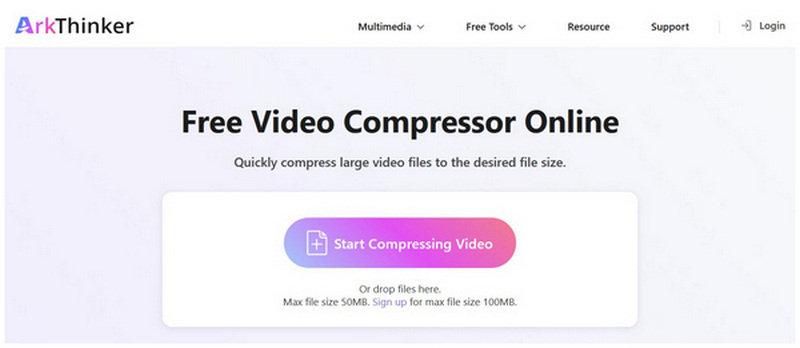
Search for ArkThinker Free Video Compressor Online’s website in your browser. Next, click on the Start Compressing Video button to upload the file you want to compress.
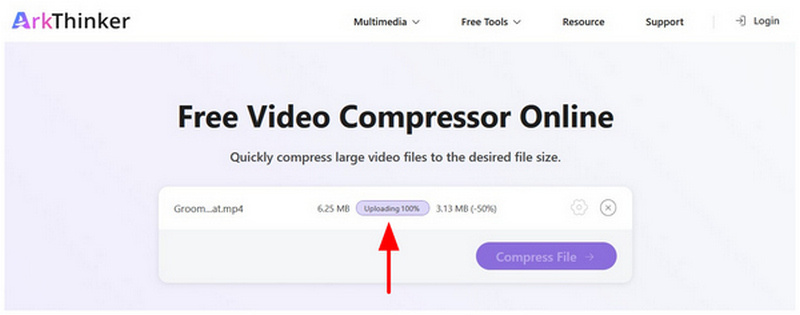
Wait for your video file to be uploaded.
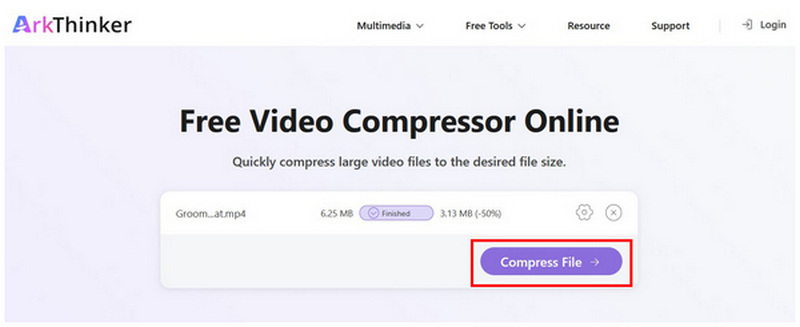
Once your GoPro media is uploaded to the online tool, click Compress File to start the file-size compression process, then download.
Although ArkThinker Free Video Compressor Online has a file-size limit for import, the 100 MB limit is more than enough for compressing videos for messaging apps. This makes it the perfect solution for users who want to learn how to compress GoPro videos for WhatsApp .
Use Command Line - FFmpeg
If you are confident with your command-line skills, FFmpeg may be the better option for you. This command-based multimedia tool fully utilizes commands to adjust specific media files on your computer.
Unfortunately, its nature made it lacking in a standard graphical user interface (GUI), requiring other users to learn commands before using it. This makes it a viable option to apply GoPro 10 video compression settings.
To learn more about the software, please read our main features below, then our quick guide on using it.
Main Features:
- • Fast multimedia adjustment speed with hardware acceleration.
- • Fully customizable compression rate.
- • It can process video formats from MP4, MOV, MKV, AVI, ProRes, GoPro, and more.
- • Comprehensive video element settings from bitrate, CRF, codec, filters, and more.
- • Very technical and difficult to use.
Open your computer’s Command Prompt or Terminal.
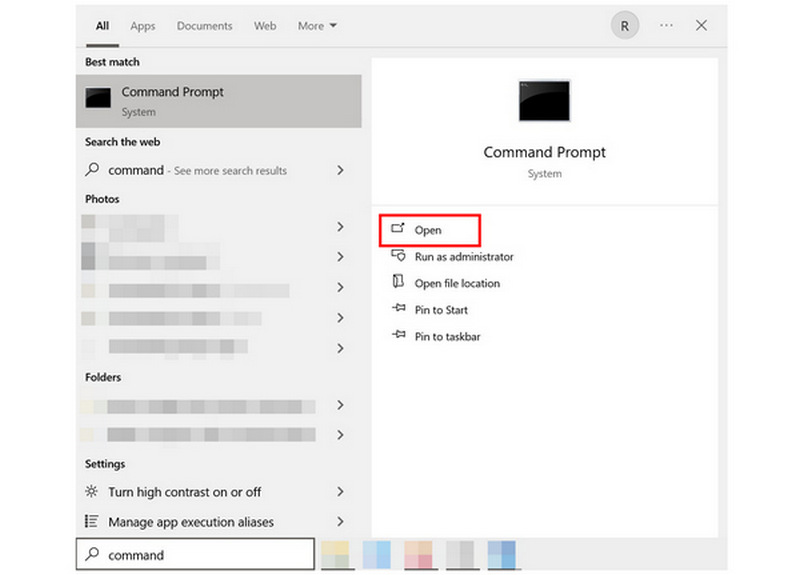
In your command terminal, copy and paste the following line: ffmpeg -i input.mp4 -vcodec libx265 -crf 28 -preset medium -acodec aac -b:a 128k output.mp4.
Make sure to change the input.mp4 line to the name of the file you want to compress. Also, change output.mp4 to the filename you want to save the video as. With these file sets, press Enter.
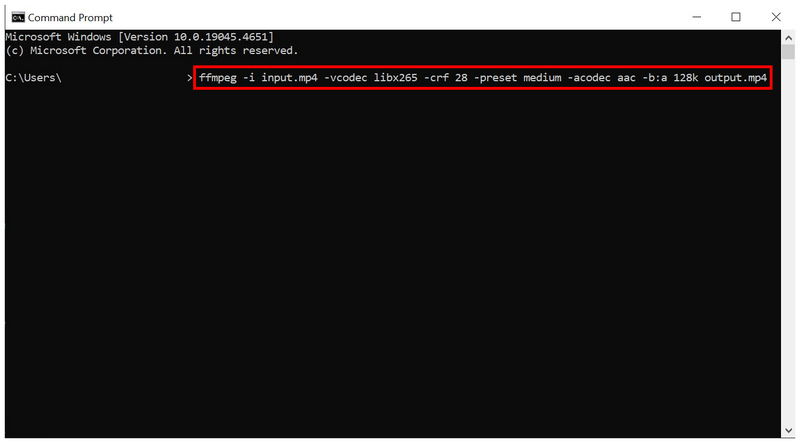
Once you confirm the command line you wrote for video compression, FFmpeg will produce a video with a smaller file size.
Use Free Desktop Solution - HandBrake
With two options now discussed, let us proceed to the best way to compress GoPro videos for Facebook using HandBrake. The open-source video encoder tool also includes a video compression setting.
Made possible by conversion presets and quality-reduction tools, both of these unconventional solutions can get the job done if you only plan to reduce the size of your video files. This makes it optimized for social media posts on Facebook or X (Twitter).
To learn more about HandBrake, make sure to read its main features below. Do not forget to read our quick guide as well for an easier time learning how to use it.
Main Features:
- • Moderate file-compression speed in exchange for desktop stability.
- • Good compression rate, given the significant quality reduction.
- • Supports MP4 and MKV files, popularly used on GoPro.
- • Easy-to-use presets with codec, quality, and batch-file adjustments.
- • More optimized for intermediate users with moderate technical experience.
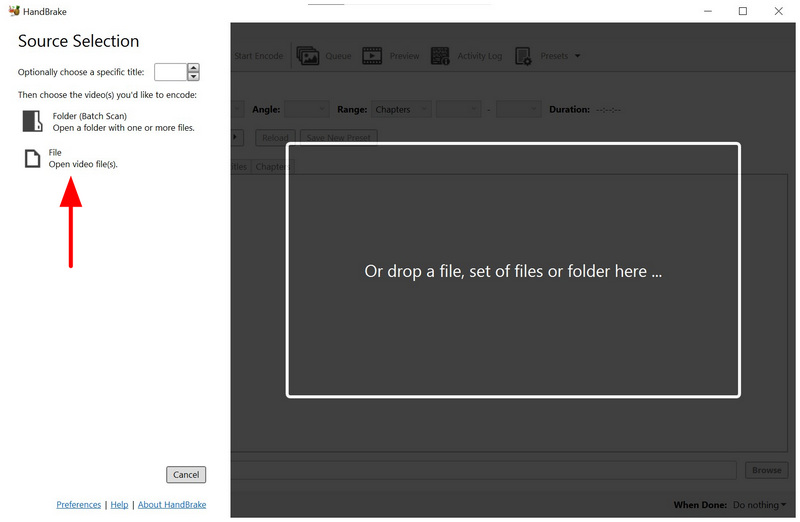
Open HandBrake and select File to open your storage and locate the file you want to compress.
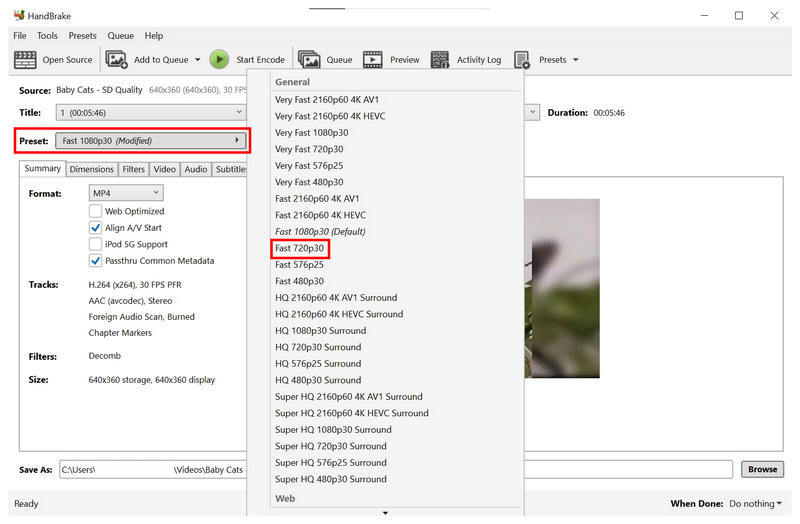
With the video now imported, you can select among the Preset options. For a balanced file size compression with passable video quality, you may select Fast 720p30. This is generally the recommended preset.
Alternatively, you can use manual compression by going to the Video tab. Then, adjust the Quality slider to the left to set your video to Lower Quality. Beware when using this tool, as direct quality reduction significantly reduces the video’s viewing experience.
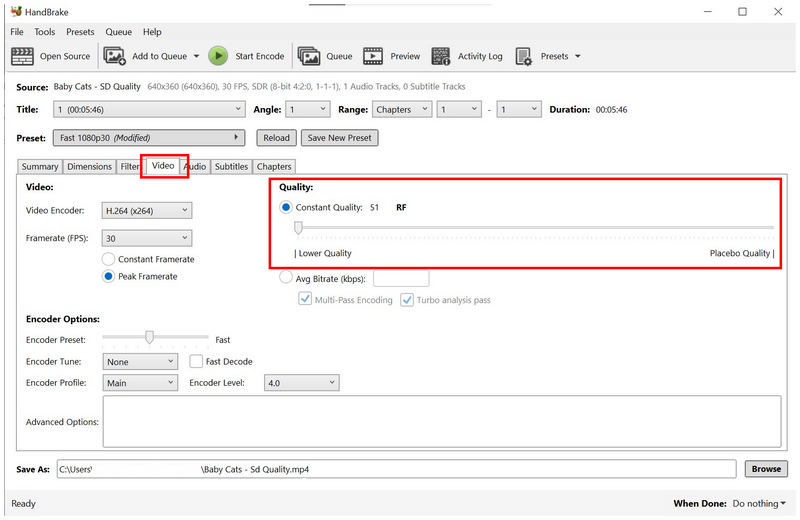
Among the options on this list, HandBrake offers the most aggressive file-size reduction. Unfortunately, it is not recommended as GoPro videos are meant to be watched at a good enough quality.
Part 3. FAQs About Compressing GoPro Videos
What is the format of video files on GoPro?
GoPro uses two formats. It can save video clips as MP4 or MOV files. These formats are selected, as they are the standard formats for Windows and macOS. However, make sure to compress MOV videos or MP4 files first since GoPro clips are very large.
What is the average file size of GoPro clips?
GoPro videos are large on average. It has a regular file size of 1GB to 4GB. These are for short clips, 10-15 minutes long.
Should I use GoPro for video production?
Yes, you can. GoPro is the best for a specific video genre and content. It is best recommended for traveling videos on a motorcycle or a bicycle.
Is editing GoPro videos hard?
No, it is not. It’s only a minor challenge since GoPro videos are very large. You can edit GoPro videos just like how you edit other formats.
What is the best compressor tool for media made for video editing?
It depends on how big your video’s file size is. For smaller videos, ArkThinker Free Online Compressor is good enough. For experienced users, FFmpeg and HandBrake should be good.
Conclusion
Now that we have provided the best solutions for compressing GoPro videos, we hope this article has given you useful information to help you reduce the file size of your video files. For one-off file compression, consider using ArkThinker Free Online Compressor.


