


3 Ways to Combine Videos on iPhone: A Simple Guide for Beginners
Suppose you’ve ever recorded multiple clips for a project, event, or just a fun memory on iPhone. In that case, you might find yourself wondering how to combine those videos into one cohesive piece. Merging videos on an iPhone can be an essential task for those looking to create professional-looking content quickly. Whether you're working on a school project, preparing a birthday surprise, or sharing a travel diary, combining videos on your iPhone is both simple and efficient. In this article, we will share 3 easy methods, some free, others using paid apps to get the best results from each.

- GUIDE LIST
- Part 1: Why Combine Vides on iPhone
- Part 2: 3 Ways to Combine Videos on iPhone
- Part 3: FAQs
Part 1: Why Combine Videos on iPhone
Combining videos on your iPhone is useful for a range of reasons. You may want to create a single, streamlined video for social media, compile different clips of a vacation, or even merge several parts of a longer video into one. Here are some reasons why combining videos on iPhone is a great idea:
1. Easier sharing: Having a single video file is far easier to upload, share, or send to friends than dealing with multiple clips.
2. Professional-looking content: Merging videos ensures a smoother, more polished end product that will look more professional.
3. Creative projects: It helps when you're piecing together a vlog, documentary, or project for school or work.
4. Time-saving: Instead of editing multiple clips, you can combine them into one, speeding up the editing process.
Now, let’s dive into how you can combine videos on your iPhone!
Part 2: 3 Ways to Combine Videos on iPhone
There are multiple ways to combine videos on your iPhone. I’ve tried a few different tools myself and will share my experiences with each one.
iMovie
If you have an iPhone, you already have iMovie. It's Apple’s free, fantastic, and surprisingly powerful video editor. It’s designed to be intuitive, meaning you don't need an editing degree to make great stuff. iMovie is perfect for quickly joining clips, adding basic titles, and dropping in some free background music. It handles large files surprisingly well for a mobile app and integrates seamlessly with your Photos library, which saves so much time compared to importing files from scratch. Plus, the famous iMovie transitions are a super easy way to make the switch between clips look smooth and deliberate, not choppy. Seriously, it's the first place I recommend to anyone starting out.
Open iMovie
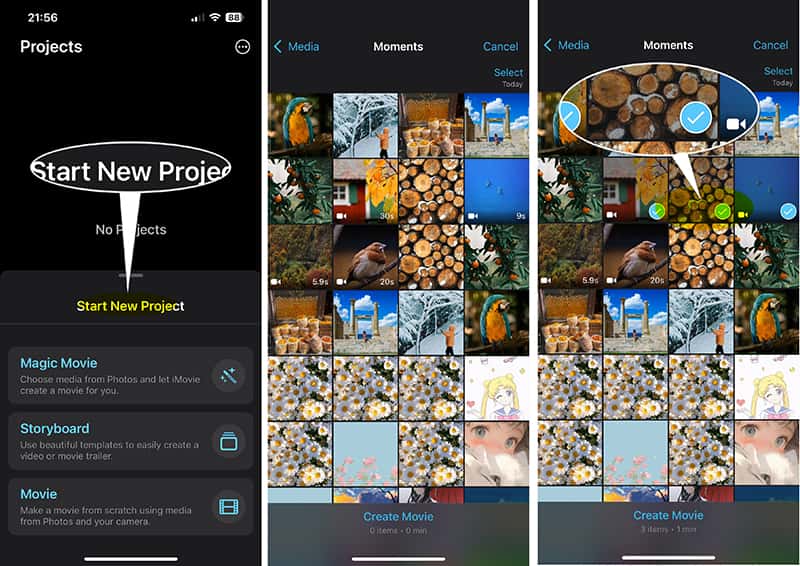
Tap the app and choose Start New Project, then select Movie.
Select Clips
Browse your videos in the Photos section and tap on all the clips you want to combine, in the order you want them to appear. A little checkmark will confirm your selection.
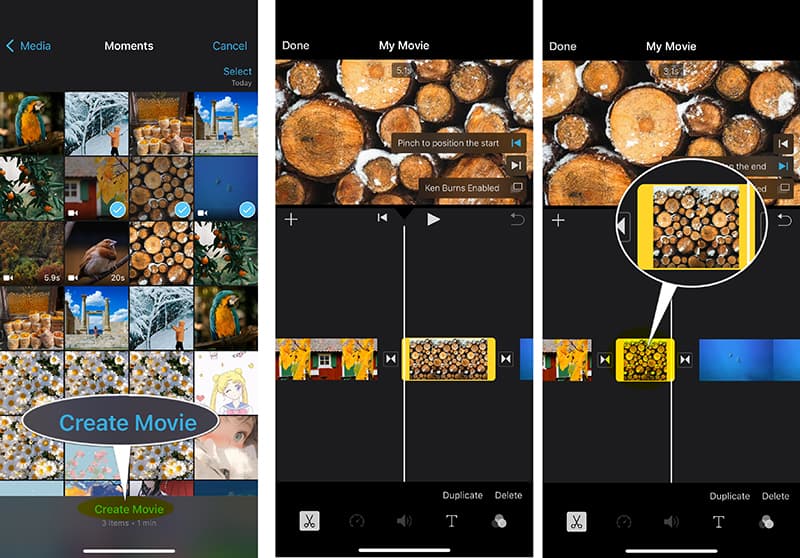
Create Movie
Tap Create Movie at the bottom of the screen. Your selected videos will now appear chronologically on the timeline.
This is an optional step: Drag the ends of clips to trim the video, tap between clips to add a transition, or add text overlays.
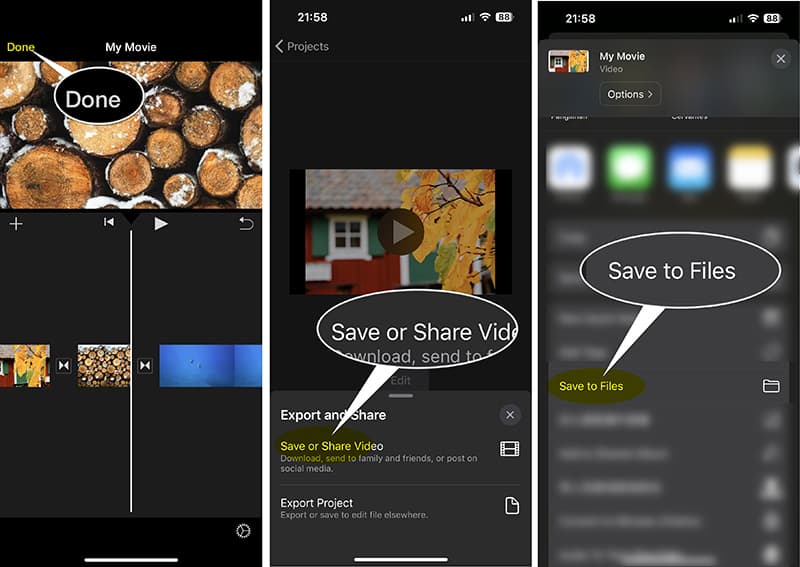
Save Merged Video on iPhone
Tap Done in the upper-left corner, and then use the Share icon (the square with an arrow) to Save or Share Video to pick Save to Files option to store the merged video on your iPhone File.
I personally love iMovie because it’s free and always there. It’s the fastest option for a simple merge, and I can join three clips and save the video in about 90 seconds flat. The biggest limitation, though, is its simplicity. If you want advanced features, and like multi-track editing, fine-tuning your video’s aspect ratio for different platforms, or even something critical like green screen effects, and iMovie hits a wall. For example, if you want to cleanly use an Adobe Express background remover or Adobe background remover on a clip before merging, iMovie won't help you with the final touch-up on that front. It’s a 10/10 for joining, but maybe a 6/10 for advanced polish.
ArkThinker Video Converter Ultimate
Sometimes, you need to go nuclear. If you’re dealing with different video formats, really large files, or you just want a desktop editing experience that gives you more control before sending the final video back to your iPhone, a tool like ArkThinker Video Converter Ultimate is the answer. While it’s not an on iPhone app, using a desktop tool for pre-production gives you a massive quality leap. These programs often come with built-in format conversion and compression tools, which is huge if your iPhone clips are enormous 4K files and you need to optimize them for the web while merging. Besides, its built-in editor feature lets you split the video and rearrange them to keep the parts you want.
Transfer Clips
AirDrop or connect your iPhone to your computer and transfer all the videos you want to combine.
Import Files
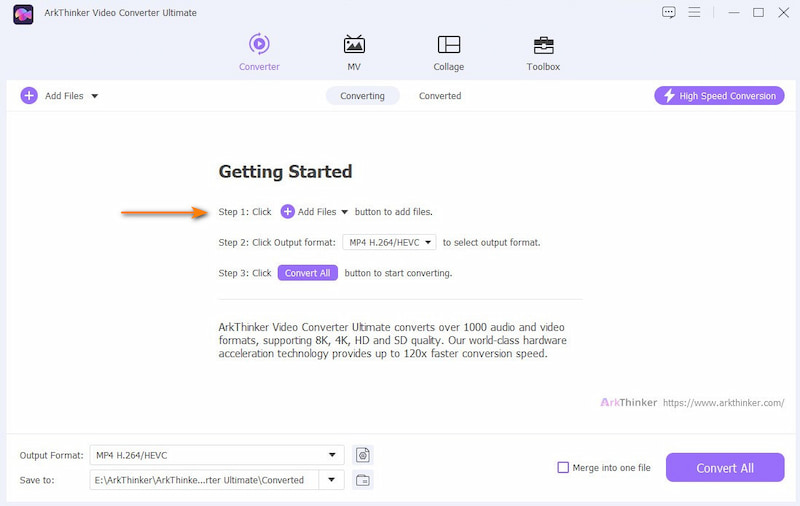
Free download this software, and open it.
Drag and drop all your clips into the program interface.
Arrange the Video Clips
Put the videos in the correct sequence by dragging the video file into the order you want to put. Or clicking the arrow-down/up icon to arrange the order as you wish.
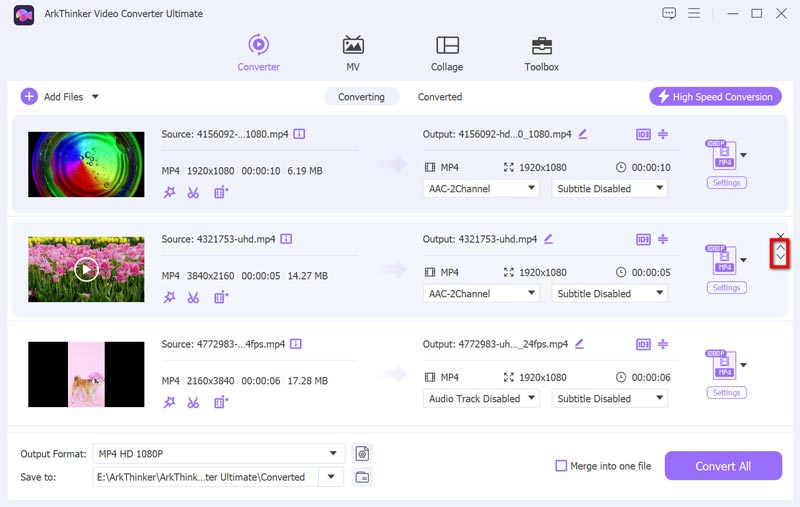
Select Output Format
Select the output format for the combined videos by clicking the dropdown list of Output Format. If you do not want to encoder the source format, just select Same as source.

Merge/Join Videos
Locate the Merge into one file toggle (it’s usually at the bottom or side) and make sure it’s turned ON. Then this software will start putting videos together on iPhone.

Tip: While you merge the videos, the background music may be not suitable for the merged video file. For that, you can also merge MP3 files to set as the new background audio file.
After the process is done, just AirDrop the final merged video back to your iPhone.
My experience with desktop tools like this is that they offer ultimate control. They are fantastic for dealing with weird codecs. The power is its best feature. The obvious limitation? It’s a desktop application, not an iPhone one, so it completely breaks the on-the-go workflow. You have to transfer files back and forth, which can be time-consuming. You pay for the power with a lot of extra steps.
Photos
Ready for the sneakiest, fastest trick? You can technically merge iPhone videos using the Photos app's native feature, but with a major catch. This method is a little complicated, and you need to read it carefully, so that you can catch each step.
Create an Abbum
Go into your Photos app and tap Select in the top right to choose the clips you want to combine in the exact order you want them to appear.
Then tap the Share button to select Add to Album. Then give your new album a new name.
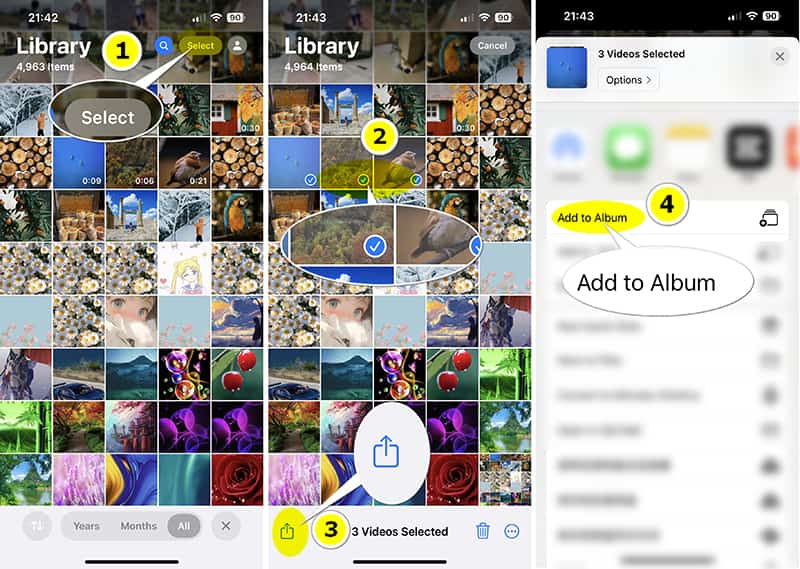
Create Movie from Album
Go back to your Photos, and find your created new albume, hit it to open the album. Then you will be given 2 options at the bottom: Photos, and Movies. Here, we select Movies. Then it will play the selected videos as a video file.
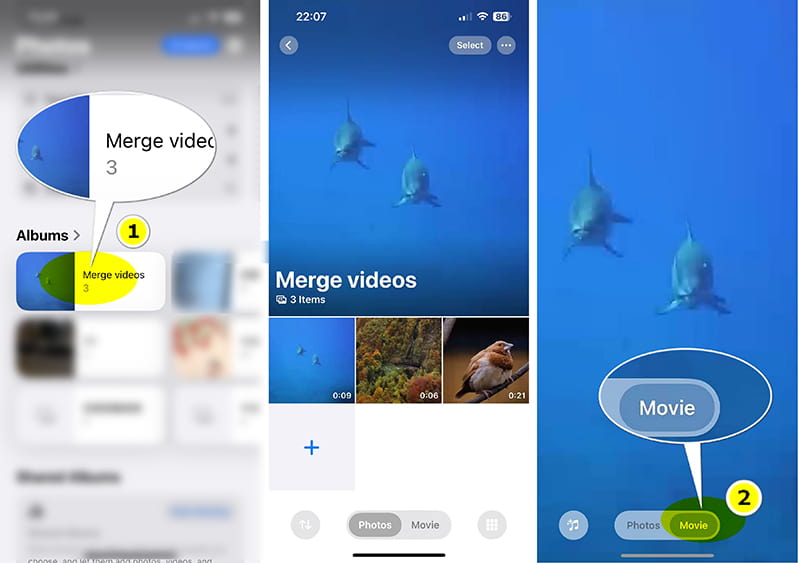
Export Merged Video File
Find the three-dot option at the top-right corner while playing the movie, select the Share button. Instead of Save Video, scroll down and choose Save to Files. Save this file. You can choose your iPhone or iCloud to store the video file.
After that, find the video file you just saved by opening the File app. You now have a single file containing all the videos, but they are stitched together with no transitions and the native duration of the original clips.
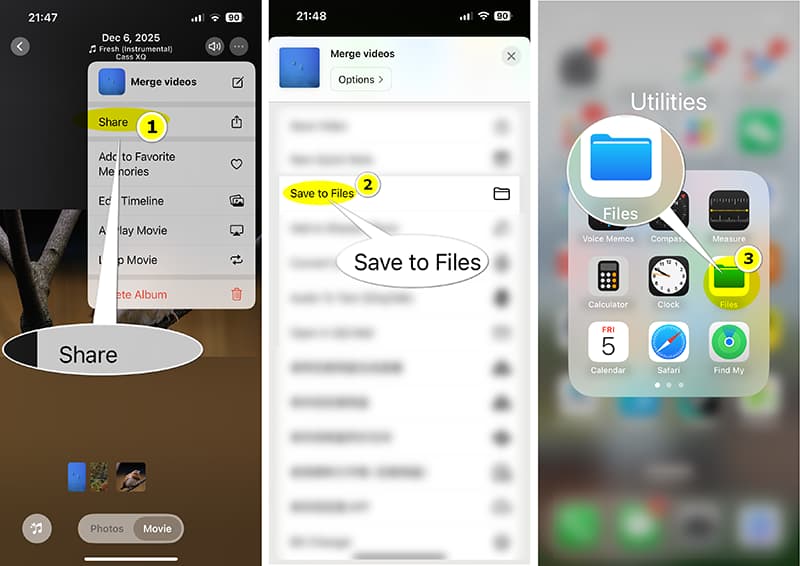
My experience with this built-in Photos app is that it really works. The result is incredibly jarring. There are no transitions, and it just slams the end of Clip 1 straight into the start of Clip 2. It also uses the entire length of the original clips, and you have zero control over the connection point. It feels cheap and unprofessional.
Part 3: FAQs
Q: Does combining videos reduce quality?
A: Not necessarily, but it can. If you export your final merged video at a lower resolution or a higher compression rate than the original clips, the quality will drop. Always try to export at the original resolution (like 1080p or 4K) if your storage allows it.
Q: Can I combine videos and photos together?
A: Absolutely! All the mentioned video merger software (iMovie, ArkThinker Video Converter Ultimate, etc.) treat photos like very long video clips. Just select the photos you want in your timeline and adjust the duration for how long you want each one to appear.
Q: What if I have a green screen video?
A: For add videos together on iPhone with a green screen, you’ll need an app with Chroma Key functionality (like CapCut or LumaFusion).
Q: Is iMovie really the best free option?
A: For pure, no-frills combining on an iPhone, yes. It's stable, free, and efficient. However, other free apps often offer better features for social media (like aspect ratio control and trendy filters).
Conclusion
Phew! We covered a lot of ground, but hopefully, you now feel confident enough to tackle your video backlog. Figuring out how to combine videos on iPhone isn't about finding one magical app; it’s about choosing the right tool for the job. Whether you stick with the trusty, free power of iMovie, level up your game with a powerful desktop editor, the path to great content is clear. Stop hoarding those clips and start stitching them into the incredible stories they were meant to be. Happy editing!
What do you think of this post? Click to rate this post.
Excellent
Rating: 4.9 / 5 (based on 529 votes)


