


Wondershare Video Repair Review: Features, Pros, and Cons
Among multimedia editing tools, Wondershare is a popular brand known for media editing tools geared toward beginners. Aside from the well-known Filmora Video Editor, Wondershare Repairit Video Repair tool is another popular option in their catalogue. As its name suggests, the software is designed to repair video corruption. In this article, we will provide a detailed review of whether Wondershare’s repair tool is a good option for fixing broken and unplayable videos.

- GUIDE LIST
- Part 1. Overview of Wondershare Video Repair
- Part 2. How to Use It to Repair Videos
- Part 3. Wondershare Video Repair: Final Verdict
- Part 4. Best Alternative to Wondershare Video Repair
- Part 5. FAQs About Wondershare Video Repair
Part 1. Overview of Wondershare Video Repair
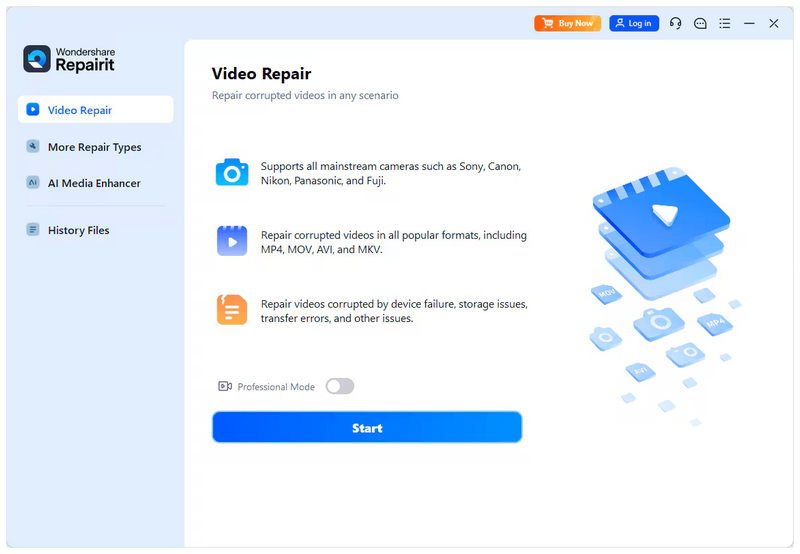
Supported Formats and Platforms
Wondershare Video Repair’s supported format list is impressive, covering a wide range of video files. These range from popular file types such as MP4, MOV, AVI, and MKV. As well as less popular formats like 3GP, FLV, WMV, TS, and more. This wide-format support is a commendable feature, as the program is available on Windows and macOS.
Interface Cleanliness
Interface design and simplicity are other strengths of Wondershare Video Repair, thanks to the brand that developed it. The software’s buttons are well-labeled and highly intuitive, and its overall design is simple and easy to understand, even for beginners.
Multiple Repair Modes
To provide flexibility, the software also offers multiple repair modes tailored to users' repair needs. In total, the program offers two options: Quick Repair and Advanced Repair. This makes it possible to use the program for light issues, such as MP4 videos with no audio, and for more complex file corruption, such as playback failure.
Video Preview
To ensure the quality of repaired videos, Wondershare Video Repair provides a video preview after the repair process is complete. This gives their users confidence that their media files are fixed through reliable video previews.
Cost
Unfortunately, Wondershare Repairit Video Repair does not offer a free version. It only offers a free trial with severely limited file format support and video file size limits. Moving on to its pricing plan, it offers three options: Monthly License, Annual License, and Perpetual License. These plans have prices of $27.99/Month, $48.99/Year, and $69.99 for a one-time payment, respectively.
- Extremely wide format support.
- Beginner-friendly interface design and functions.
- Supports batch repairing.
- Offers a one-time payment plan.
- Cross-platform availability.
- Its free trial version offers extremely limited features.
- More expensive pricing options than other media repair alternatives.
- Slow repair performance for longer, larger videos.
- Inconsistent repairing performance based on their reviews.
- It may fail when handling highly corrupted videos.
Part 2. How to Use It to Repair Videos
With the overview and proper introduction to Wondershare Video Repair now discussed, let us move on to the detailed guide on how to use the software for video repair.
We have provided a three-step guide on how to use the tool, which you can refer to below:
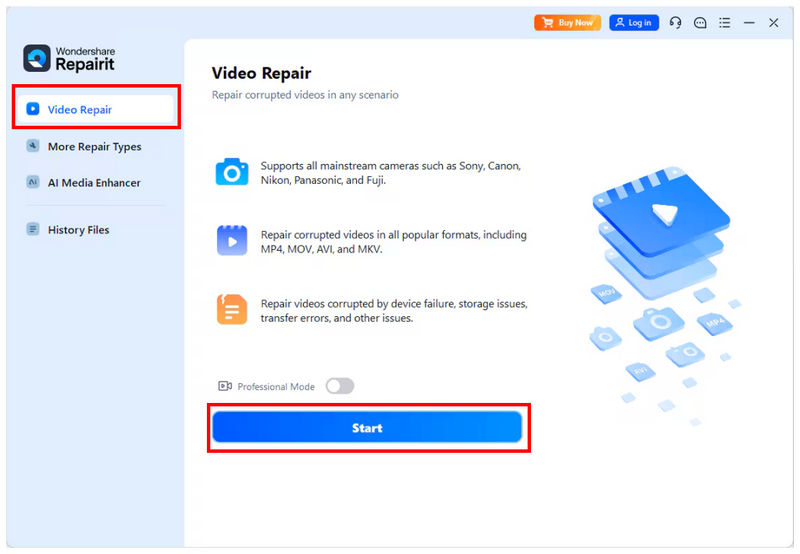
Open Wondershare Repairit and select the Video Repair option. Then, click on Start to import the video you want to edit.
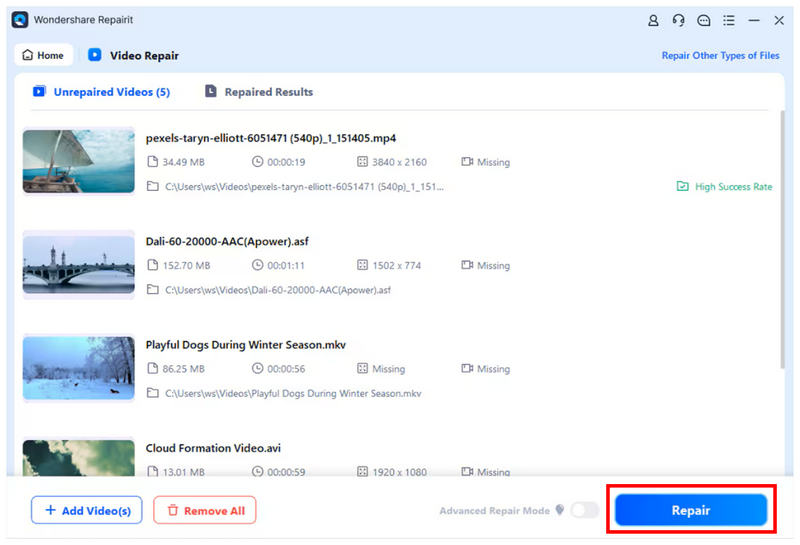
Once the video you want to repair has been added to the program, click on Repair to start the process. You may add only one video or multiple videos at once.
After the repair process is done, a pop-up menu will appear on your screen with two options. To check the quality of your repaired video, click on Preview. To import the repaired file on your computer, select Save.
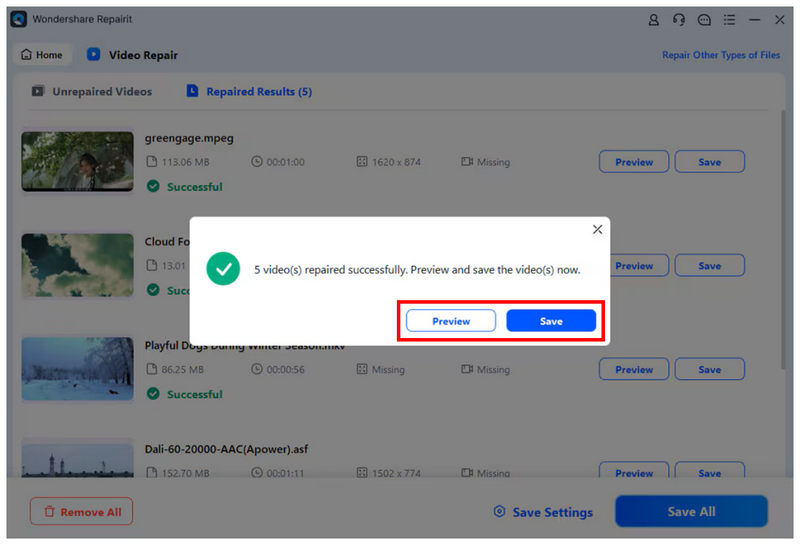
Although you can save your repaired video directly to your computer using the named button, it is still not advisable to do so. To ensure the quality of your repaired file is good, preview it before saving.
Part 3. Wondershare Video Repair: Final Verdict
With the features of Wondershare Video Repair now discussed, we can recommend it to beginners who are still unfamiliar with media file repair. Unfortunately, it is not a good option if you are facing severe file corruption, as its effectiveness in repairing such issues is inconsistent.
To learn more about the best alternative for fixing severely corrupted video files, refer to the next section of the article, which features the best video repair software for major video-related issues.
Part 4. Best Alternative to Wondershare Video Repair
With the video repair capabilities of Wondershare Video Repair now discussed, let us now move on to the best alternative for handling more advanced video corruption issues: none other than ArkThinker Video Repair.
Unlike the video repair process of Wondershare, which relies on AI-powered repairing, ArkThinker Video Repair uses a sample video as a reference for its automated repairing process. This option creates videos that look more natural, unlike the AI-generated frames produced by other video repair tools.
Additionally, the program can handle more advanced corruption sources, including failed format conversion, storage corruption, export issues, and poor signal transfer. This provides a significant performance boost to the alternative program, as several user reviews of Wondershare Video Repair report failed repairs from files with advanced file corruption.
To learn more about what makes ArkThinker Video Repair a good option. Make sure to read its main features below, and do not forget to download it for an easier time following our tutorial.
Main Features:
- Repairs severe video corruption caused by failed format conversion, hard drive crashes, export issues, file transfer issues, and more.
- Fixes videos three times faster than other video repair tools.
- Repaired videos will retain their original quality.
- Automated video repair process powered by AI support.
- Beginner-friendly interface design optimized for new users.
Open ArkThinker Video Repair, then click on the Add button in the Orange Box to import the video you want to repair.
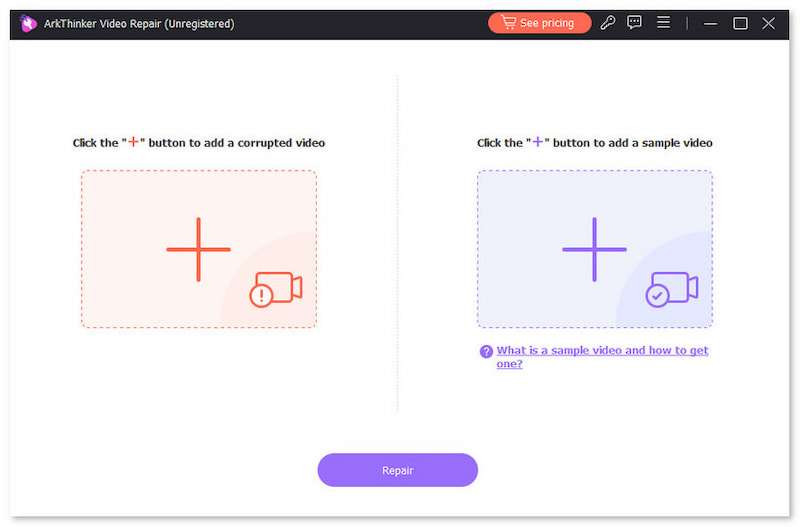
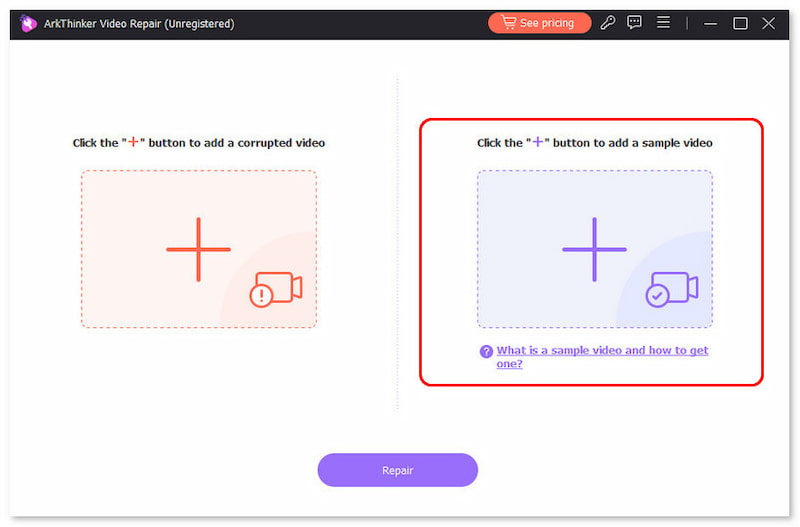
Then, select the Add button in the Purple Box to import the Sample Video. The Corrupted and Sample Videos should be saved in the same format, as the Sample Video will serve as a reference for the repair process.
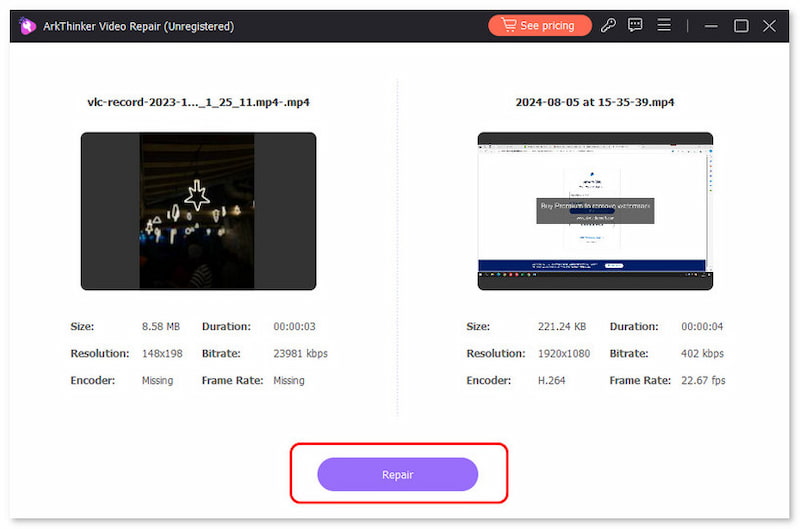
With both the Corrupted Video and the Sample Video imported into the tool, click Repair to begin repairing your video.
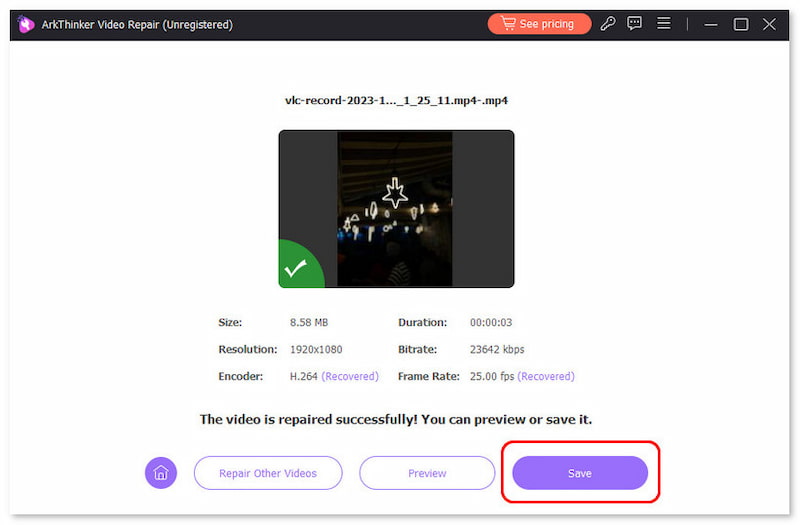
Once the video repair is complete, click Preview to play the repaired media file and check whether it plays properly. Finally, click on Save to import the repaired video file on your computer.
When it comes to handling advanced file corruption, we highly recommend using ArkThinker Video Repair as an alternative. Choosing this option will help you expect a better repair quality for your video.
Part 5. FAQs About Wondershare Video Repair
Is Wondershare Video Repair free?
No, it is not. The program only offers a free trial version. You can only use Wondershare Video Repair by subscribing to one of their paid plans.
Can Wondershare Video Repair fix corrupted videos?
Yes, it can. It offers two repair modes for light and complex file corruptions. These corruption issues range from simple issues, such as muted video, to more complex problems, such as MOV file playback issues.
How much does Wondershare Video Repair cost?
Wondershare Video Repair offers three pricing plans. These range from Monthly to Perpetual licenses. These plans range in price from $27.99 to $69.99.
Are Wondershare Video Repair and RepairIt the same?
Yes, they are. Wondershare Video Repair is the program's former name. Meanwhile, Wondershare Repairit is the modern name.
Is repairing broken videos complicated?
It depends on the repair tool you will use. For beginners, both Wondershare Repairit and ArkThinker Video Repair are good options. They are both designed for newbie users.
Conclusion
With the features, strengths, and limitations of Wondershare Video Repair now reviewed, we hope that you can now decide whether the program is a good option for your needs. For users facing severe video file corruption, we highly recommend using ArkThinker Video Repair, which you can download using the link below.
What do you think of this post? Click to rate this post.
Excellent
Rating: 4.9 / 5 (based on 492 votes)


