


How to Use VLC to Compress Video: Is It Possible (2026)
Among the options in the video player market, VLC Media Player is one of the most trusted, as the program is accessible across various platforms and devices. However, unknown to most of its users, it is more than just a video player tool, as it offers additional media-related editing options in addition to its superb video playback performance. In this article, we will highlight one of these additional features that made the program even more practical. We will provide a comprehensive guide to help you learn how to compress video files using VLC Media Player. These tutorials will include the option to change video format and codec, as well as the more drastic solution of trimming video length.

- GUIDE LIST
- Part 1. Can VLC Compress Video
- Part 2. How to Use VLC Media Player to Compress Video
- Part 3. Best Alternative to VLC that Supports Compressing to a Certain File Size
- Part 4. FAQs About Compressing Video on VLC
Part 1. Can VLC Compress Video
Yes, VLC Media Player can indeed compress video files. However, the program does not work similarly to a traditional file compression tool. Unlike exclusive options, compressing MP4 video in VLC is not done directly.
To compress videos on VLC Media Player, you can do so by changing the video encoder and the format of your file or by trimming the video length itself. Although these techniques do not compress files per se, they can reduce the file size of videos.
If you want to learn how to use these unconventional solutions for file size reduction, whether for compressing videos for Discord, Email, or social media, please read the next section of the article.
Part 2. How to Use VLC Media Player to Compress Video
Change Video Encoder and Format
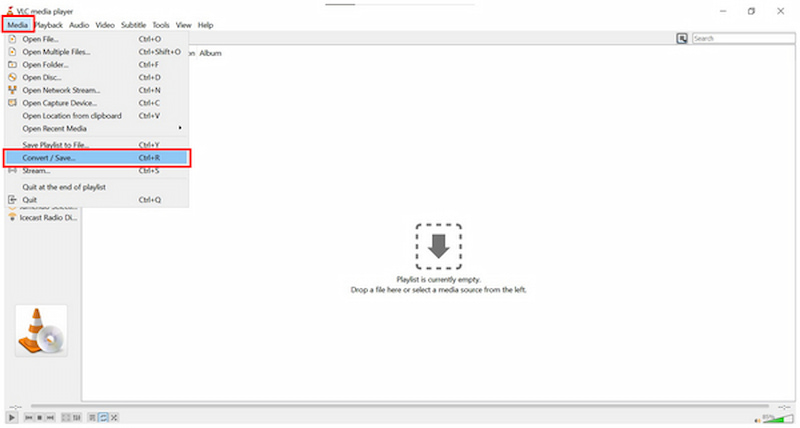
Open VLC Media Player and then click on Media. Select Convert/Save from the drop-down menu that opens.
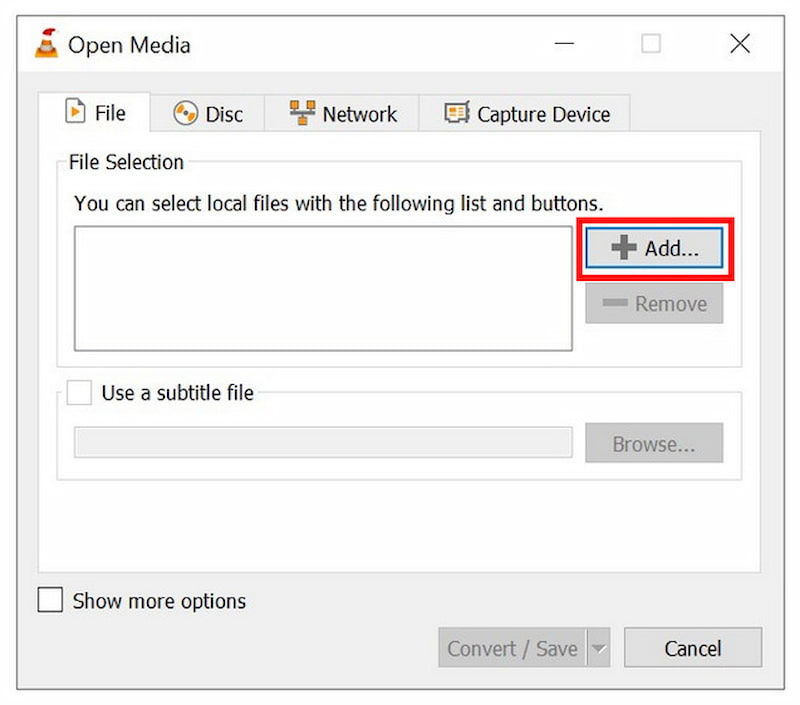
In the Open Media tab that opens, click Add.
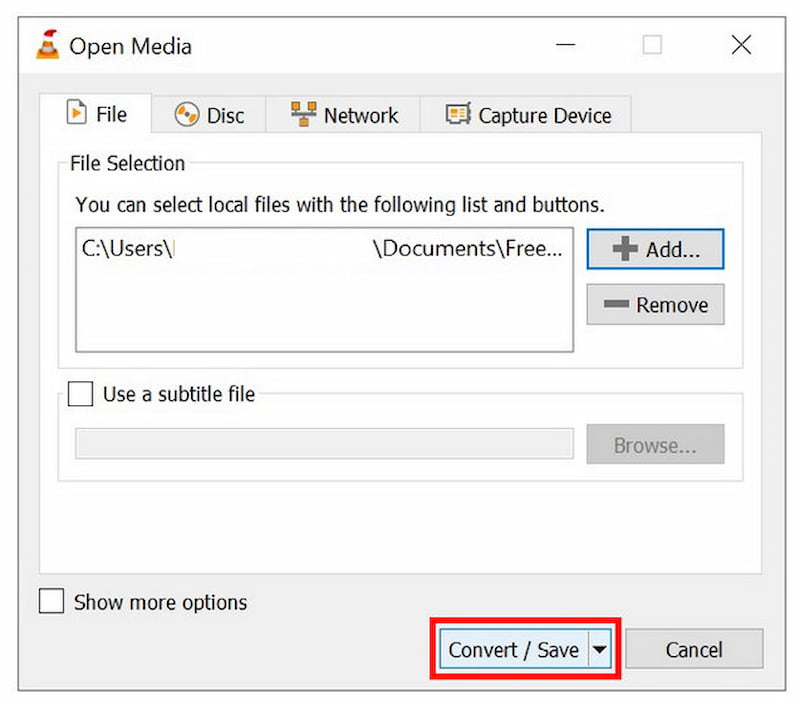
After adding the video file you want to compress, click Convert/Save.
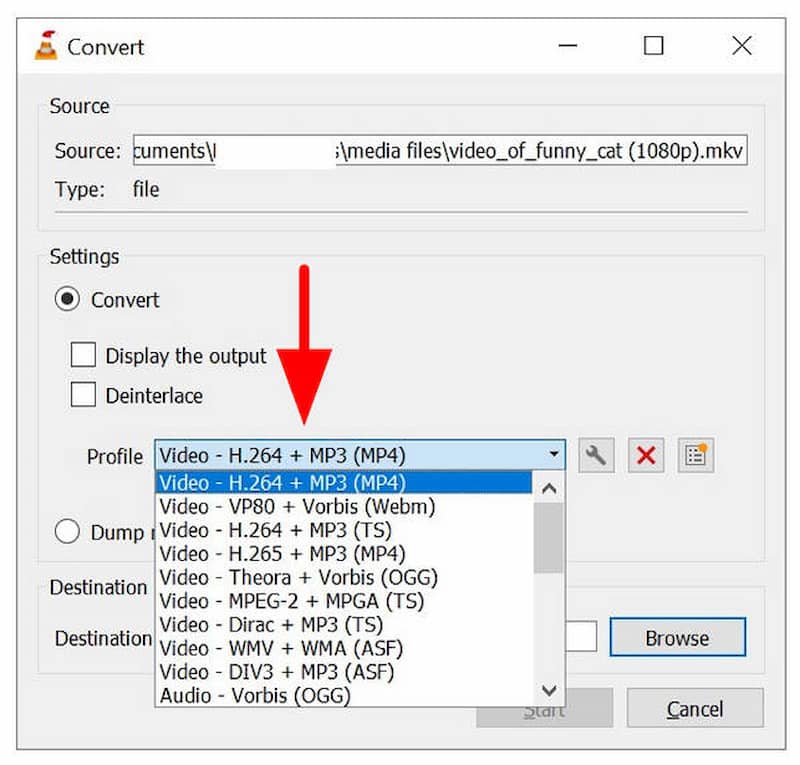
In the Convert tab, select the codec and format Profile you want to apply to your video.
Once the codec and video Profile are selected, click on Browse to set a file manager destination where the file will be saved. Finally, click on Start to begin the process.
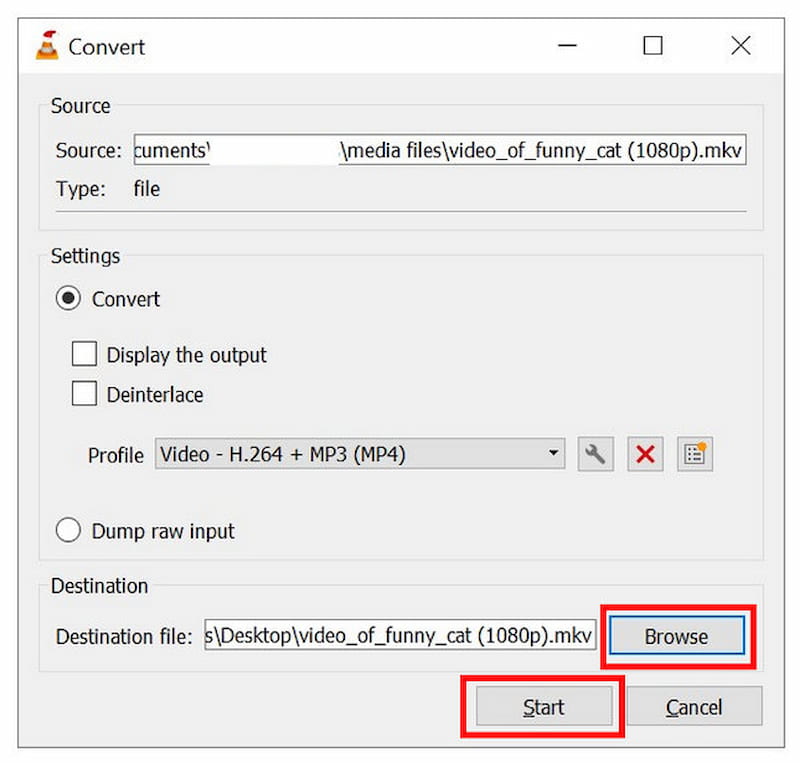
The more indirect solution for video compression is to change the video encoder and its file format. Unfortunately, this option is inconsistent because the selection of conversion profiles on VLC is limited. If your video is already saved in MP4 format and encoded in H.264, you cannot reduce its size further. This essentially rendered VLC an unreliable option for MP4 compression.
Cut Video Length
Open the video you want to have its length cut. Then, click on the View tab, then select Advanced Controls. Afterward, additional video control tools will appear in VLC’s player options.
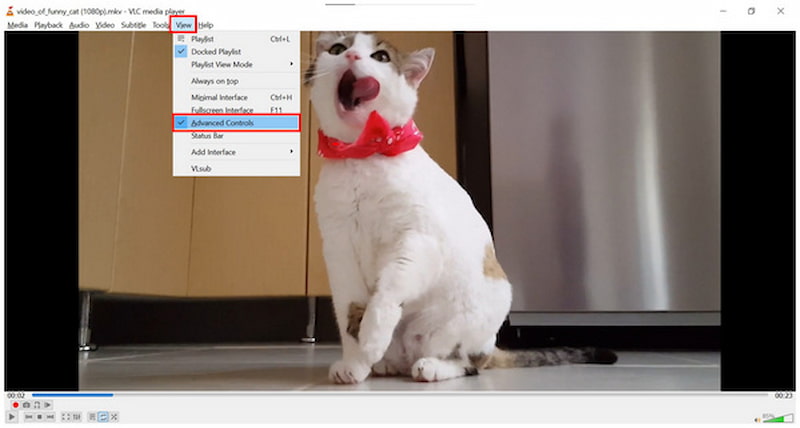
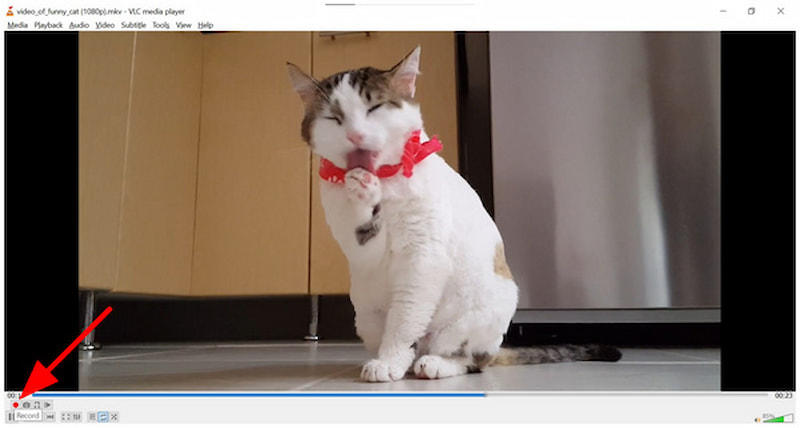
Go to the part of the video you want the trim to start, then click on Record (Red Button). Keep the recording active while your video is playing the part you want to capture. Once done, click on Record again to stop.
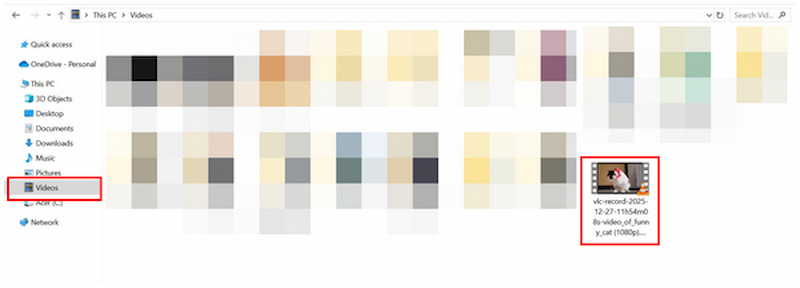
After the recording process, your recorded video will be saved by default on the Videos tab of your File Manager. There, you can find the VLC recorded video with only your selected portion.
Although unconventional, trimming your videos can indirectly make VLC compress videos without losing quality . This technically works since recorded videos by VLC preserve their original quality. However, you can only use this option if there are portions of the video you are willing to cut.
Part 3. Best Alternative to VLC that Supports Compressing to a Certain File Size
Although video compression on VLC Media Player technically works, file compression should not involve forced codec adjustments, format changes, or content trimming. As such, using a multimedia tool that can offer real file size compression works best as a VLC alternative, and ArkThinker Video Converter Ultimate is the perfect option.
Equipped with an exclusive Video Compressor tool, this software offers file compression services that can be controlled and applied as simple as using a slider tool. In addition to the automated slider, you can also manually edit the file’s format, resolution, and bitrate. All of which contributes greatly to file size reduction.
Unlike the video codec and format adjustment options in VLC, videos compressed using ArkThinker Video Converter Ultimate preserve their original quality. To learn more about this practical multimedia editor, make sure to read its main features below.
Main Features:
- • Beginner-friendly video compressor tool that can compress videos to a specific size.
- • Offers format conversion, which can improve the compression rate of videos.
- • GPU-accelerated video adjustments are applied faster than VLC Media Player.
- • Percentage-based compression for controlled file size reduction.
- • Preserves the original quality of compressed videos.
To learn how to use the program, please read our three-step guide on its usage. Don't forget to download it as well, so you can easily follow our guide.
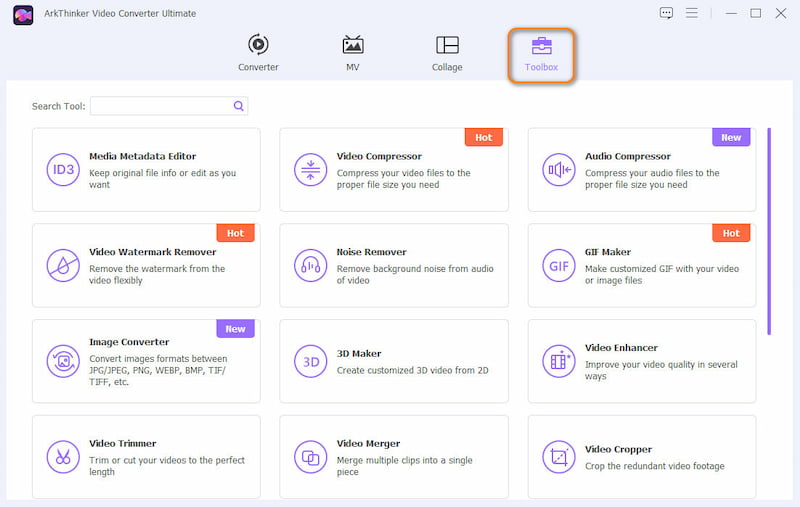
Open ArkThinker Video Converter Ultimate and move to the Toolbox option. Then, select the Video Compressor tool.
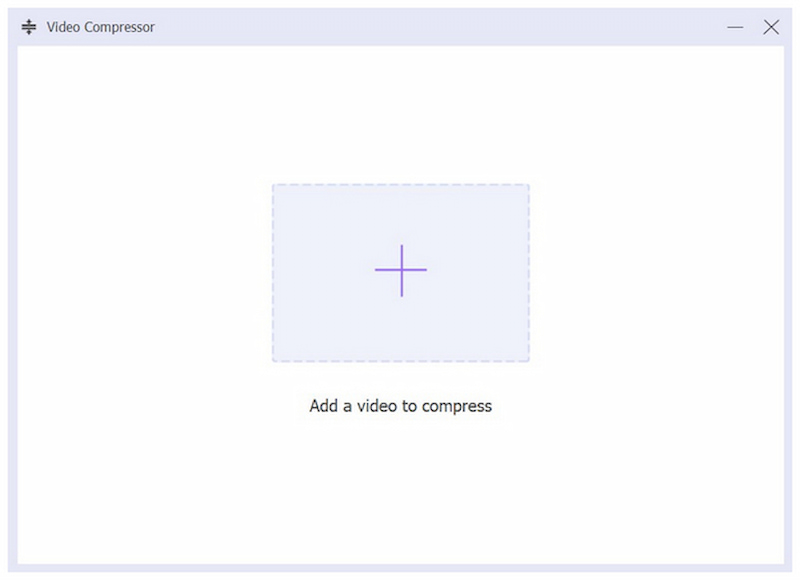
After selecting Video Compressor, click Add File to browse and locate the video you want to compress.
With the video you want to edit added, you can now compress your video file using the Compression Slider. For manual editing, you can also change the Format, Resolution, and Bitrate of the program. Click Compress to initiate the file size reduction process.
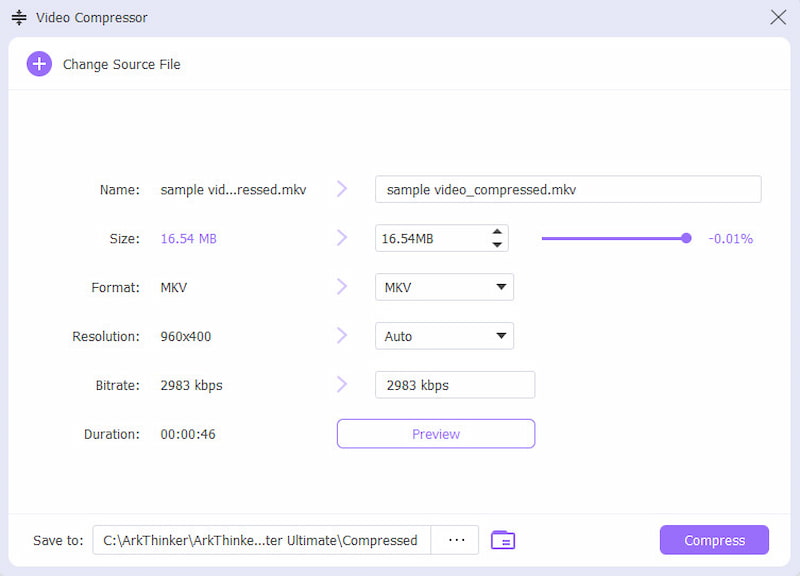
By following three simple steps, you can now ensure that your videos are compressed without affecting their quality. In addition to being easier to use, it also helps that ArkThinker Video Converter Ultimate is significantly easier to use than VLC when it comes to file compression.
Part 4. FAQs About Compressing Video on VLC
Is video compressing possible on VLC Media Player?
Yes, it is. However, it is not the most efficient. VLC file conversion tools are also more complicated to use.
Does VLC Media Player work as a video trimmer?
Yes, it can work as such. However, it is more like a video recorder. There are no traditional trimmer tools in the program.
Why is VLC Media Player popular?
VLC is popular for different reasons. One reason is that it is free to use. It is also available on multiple platforms and devices.
Should I use VLC Media Player for video editing?
No, you should not. VLC does have direct video editing features. It only offers basic file conversion tools.
Can you compress VLC videos online ?
No, you cannot. VLC does not have an online version. However, you can download the program for free and use it on your computer.
Conclusion
Now that we have provided our readers with a step-by-step guide on using VLC to compress videos, we hope this article has provided you with enough information to make editing video files simpler and easier. For a more accessible solution, we highly recommend using ArkThinker Video Converter Ultimate, which can be downloaded below.
What do you think of this post? Click to rate this post.
Excellent
Rating: 4.9 / 5 (based on 701 votes)


