


How to Fix MP4 Files that Won’t Play Using 3 Options
Among modern video file formats, MP4 is the most popular due to its excellent compatibility with a wide range of devices, especially when encoded with a widely supported codec such as AVC (H.264). Despite its compatibility, MP4 files can still experience playback issues, which will be the main topic of this article. We will explore three solutions to fix MP4 files that won’t play: using a professional-grade format converter, a codec repair option, and via codec plug-ins in Windows Media Player.

- GUIDE LIST
- Part 1. Common Errors for MP4 Files That Won't Play
- Part 2. How to Fix MP4 Files That Won't Play
- Part 3. FAQs About MP4 Files That Won’t Play
Part 1. Common Errors for MP4 Files That Won't Play
Unsupported Codec
When you have trouble with large MP4 files that won’t play in your media player, the most common issue is that the file uses a codec your player doesn't support. As such, it is important to learn which codecs your media player supports. However, it is easier to use a popular codec such as H.264 to avoid incompatibility issues and errors involving media files that cannot be played.
Corrupted MP4
When your video file itself is corrupted, the MP4 file won't play on Mac , Windows, or a mobile device. Unfortunately, this issue may only be fixed by dedicated video repair tools. No media player can play a corrupted file.
Damaged Index or Metadata
If you wish to play MP4 videos but are having playback issues, it may be due to corrupted metadata in the file. This can also be solved with video repair tools or the advanced features of media player programs.
Part 2. How to Fix MP4 Files That Won't Play
Fix Corrupted MP4 via Professional ArkThinker Video Repair Software
We will start this article guide by featuring a professional-grade video repair tool with none other than ArkThinker Video Repair software. Optimized to repair videos affected by various file-size corruption issues, this program can handle any problems with your MP4 files.
Regardless of whether your file was damaged from video conversion, storage crashing, exporting issues during editing, or an interrupted file-sharing process, your videos can be repaired in no time as long as you have a file of the same format in hand.
In addition to its widely supported repair capabilities across various causes of file corruption, the software has an impressive success rate in repairing files. This was made possible by its smart AI-supported video restoration tool, which uses a sample video to reference the corrupted file you want to fix.
This made the program very intuitive and easy to use. At the same time, repaired videos retain their original quality, and the program processes video repairs 3 times faster than other file repair options.
To learn more about what makes ArkThinker Video Repair a good option, make sure to read its main features below, then read our article guide to start restoring your corrupted videos with no problem.
Main Features:
- • Seamlessly repairs video via a modern AI-supported system.
- • It can repair three times faster than other video repairing tools.
- • Repairs corrupted video from failed format conversion, hard drive crash, export issue, and file transfer interruption.
- • The repaired video will retain its original quality from its uncorrupted version.
- • High video repair success rate, with only a few clicks required to repair files.
To make following our guide easier, download the program first.
Open ArkThinker Video Repair, then click the Add button on the Orange Box to import the corrupted video.
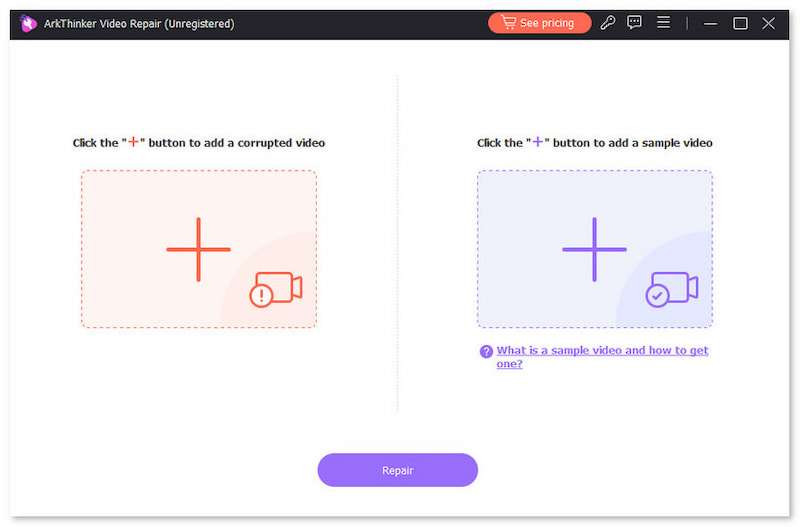
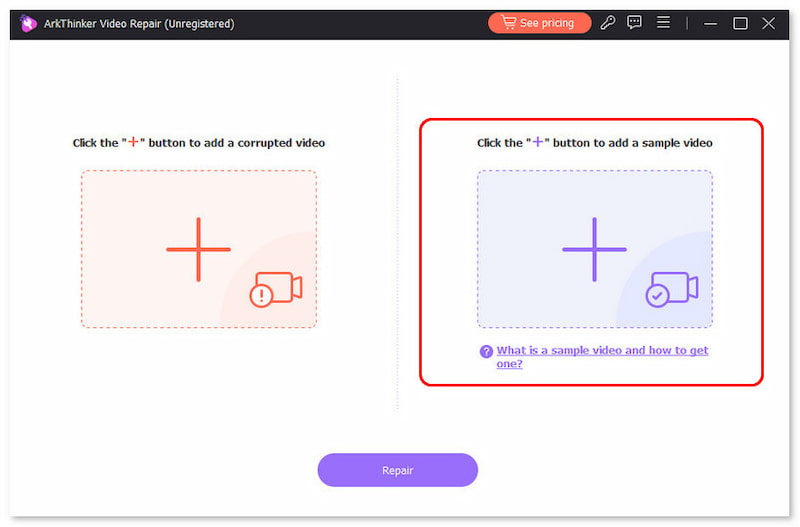
Next, click the other option on the Purple Box to add a Sample Video, which will be used during the video repair process. The Sample Video should be the same format as the corrupted video.
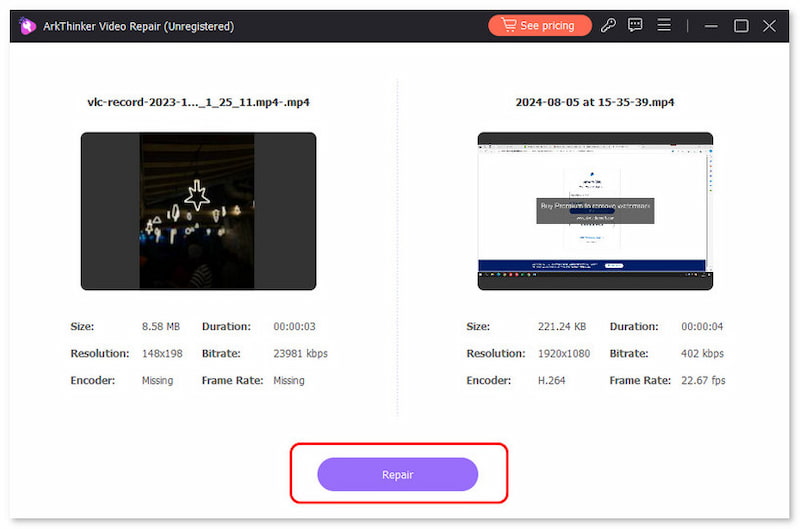
Once both the Corrupted Video and the Sample Video have been added, click Repair to begin fixing the corruption in your media file.
After the video repair, click Preview to play the repaired video and check if it plays properly. Finally, click on Save to import the repaired MP4 file on your computer.
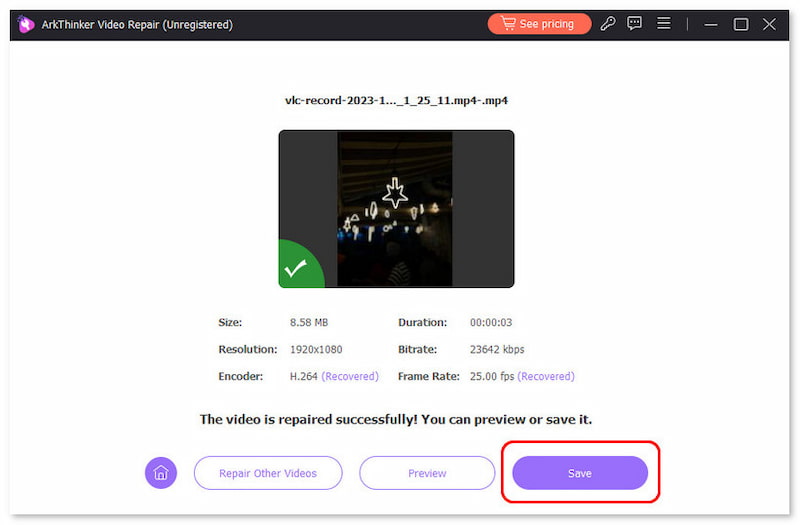
In addition to being easy to use, the program's most impressive feature is that repaired videos retain their original quality. This is very impressive, as the only requirement for it is a Sample Video saved in the same format as the corrupted file.
Fix Videos with Damaged Index with VLC
Although better known as a video player, VLC Media Player offers advanced features that can handle video input and repair basic corruption in video files. Although it cannot handle advanced problems, such as GoPro MP4 files that won't play or corrupted files from data transfer, it can handle simple problems, such as damage index or codecs.
To learn how to use it for such issues, make sure to read our guide below:
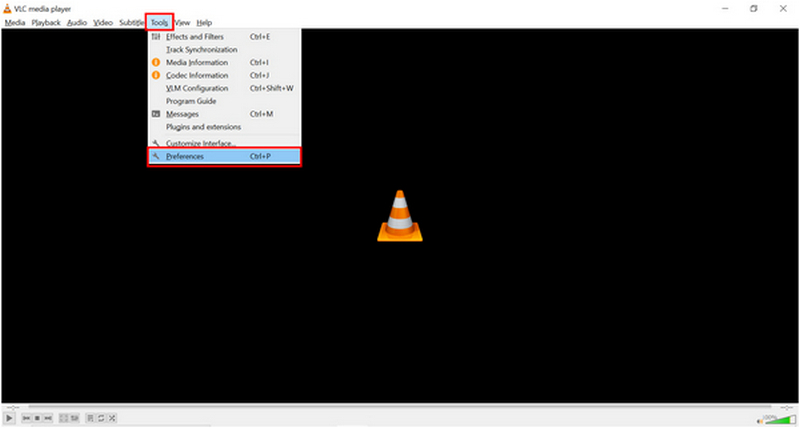
Open VLC Media Player, then click the Tools tab. Select the Preferences option on the list.
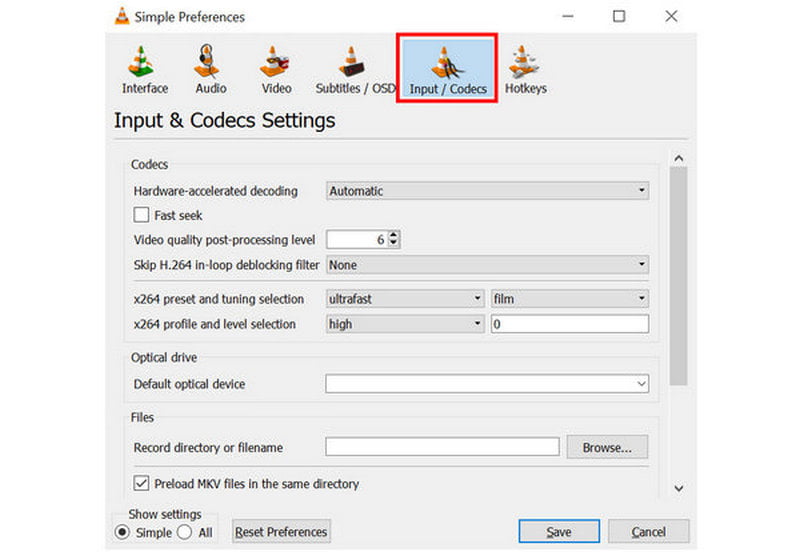
In the settings window that opens, click on the Input/Codecs section.
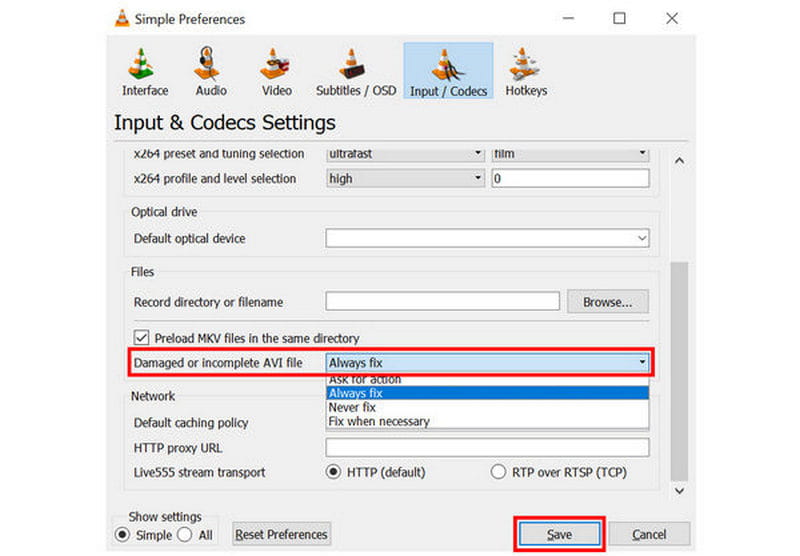
Inside Input/Codecs, scroll down and search for the setting labeled "Damaged or incomplete AVI file." Expand the list of options beside the setting, then select Always fix. Click Save to save the setting.
If you are already familiar with or using VLC, its advanced features are a new realm to explore for basic video adjustment and repair needs.
Fix Windows Media Player's MP4 File Not Playing by Installing Codecs
Finally, the third option we will explore is what to do if an MP4 file won't play in Windows Media Player. Fortunately, this problem can be solved by installing new codecs in the program. Unfortunately, this is not the simplest option, and it requires downloading and installing new files on your computer.
To learn how, make sure to read our guide below:
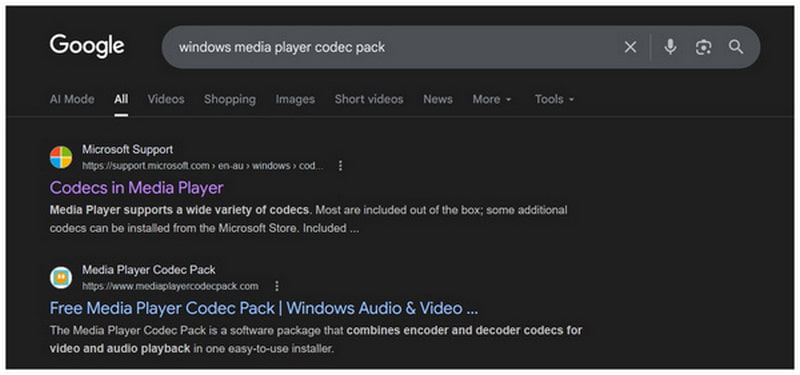
Search online for Windows Media Player’s Codec packs. Among the top results, the paid official option and the third-party Media Player Codec Pack are reliable options. In this article, we will use the free third-party option.
In the website's main interface, select the Standard Edition option.
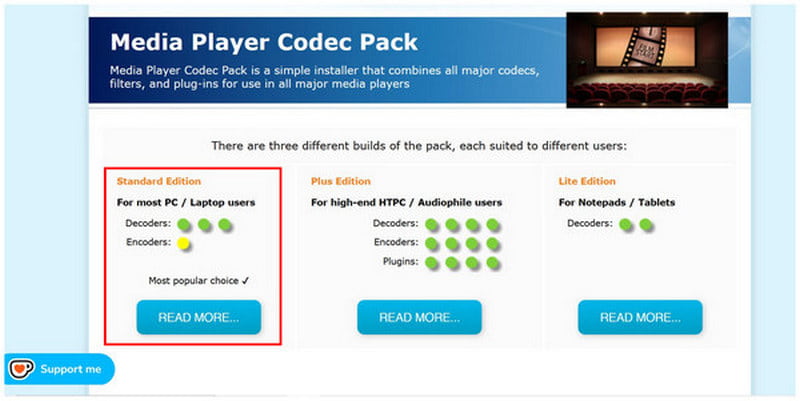
Then, select Download in the codec pack. Install the downloaded file on your computer.
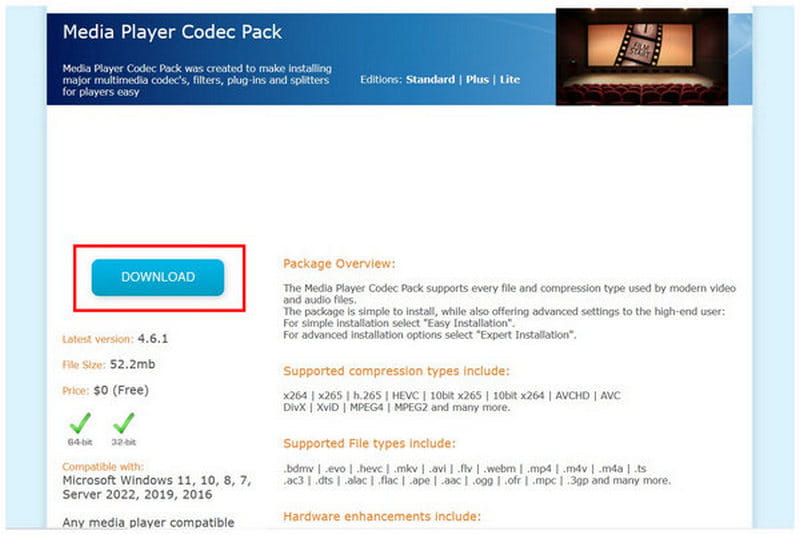
Once the installation is complete, you can watch any MP4 video in Windows Media Player without any problems.

Although free to use, the third-party codec package in the program is inherently risky because it is not an official codec. However, since it gets the job done for free, it is hard to deny that it may be good enough for some users.
Part 3. FAQs About MP4 Files That Won’t Play
Do codecs affect MP4 playback?
Yes, they do. The codec is the one holding both your file’s visuals and audio. If your codec is corrupted, you will not be able to enjoy your file, or it may play with no audio.
Do playback issues always come from fle corruption?
They usually are, but not always. Playback issues may come from different sources, and a corrupted file is the most common reason. Another cause of playback issues is codec problems.
Are MP4 files easy to play?
Yes, they are. MP4 files are widely supported. This made them very easy to play on most media players and devices.
Why can't some media players cannot play my MP4 video?
Your MP4 video might be encoded in the more advanced H.265 codec. Although it is modern, the codec is still not supported widely. This made it unreliable as a codec option for videos intended for sharing.
Why won't an MP4 file play?
There are numerous options. However, the most common are file corrupted, codec issues, or video metadata problems. These can all be fixed by the ArkThinker Video Repair tool.
Conclusion
With the most common problems for MP4 files now discussed, we hope that this article has provided you with enough information to fix MP4 files that are not playing. With that in mind, we highly recommend using our all-around video repair tool, ArkThinker Video Repair, as an all-in-one solution for all video-related issues. You may download it using the link below.


