


How to Convert HEIC to JPG on Android Using 6 Options
Are you on an Android device and having trouble opening HEIC images shared by your iOS user colleagues and friends? Fear not, as there are numerous options to convert HEIC to JPG on Android. With that in mind, we will highlight six of the best options you can use together with a detailed guide on how to use each program. These programs range from online tools, conversion apps, and file management tricks. All of which are free to download and use on Android devices.

- GUIDE LIST
- Part 1. Top 6 Ways to Convert HEIC to JPG on Android
- Part 2. FAQs About Converting HEIC to JPG on Android
| Converter Tool | Internet Required | Bulk Conversion Support | Ease of Use |
| ArkThinker HEIC Converter | Yes | Yes | Very Easy |
| Luma: HEIC to JPG | No | Yes | Easy |
| Google Photos | Yes | No | Intermediate |
| Samsung Gallery | No | No | Easy |
| Files by Google | Yes | No | Intermediate |
| HEIC to JPG Converter | No | Yes | Easy |
Part 1. Top 6 Ways to Convert HEIC to JPG on Android
Arkthinker HEIC Converter (Free Online)
When it comes to changing HEIC to JPG on Android, online tools are perhaps the most reliable option, as they require no installation or setup. With that in mind, we will start this list by featuring an exclusive HEIC conversion tool: ArkThinker Free HEIC Converter Online.
Among the options on this list, this software is the only one designed as a web-based option. On top of that, it is both the most efficient and easiest to use among the other programs. Moreover, ArkThinker’s online image converter also supports batch processing up to 10 files at once, a rare feature on mobile devices.
In addition to its practical offerings, the tool was designed for ease of use and user privacy. Unlike other online software, ArkThinker HEIC Converter Online does not store uploaded images on its cloud servers for long periods. It will be deleted shortly after the converted JPG is downloaded.
To learn how to use the program, make sure to read our quick guide below, which features only two steps, since the software was highly optimized for beginners and quick conversions.
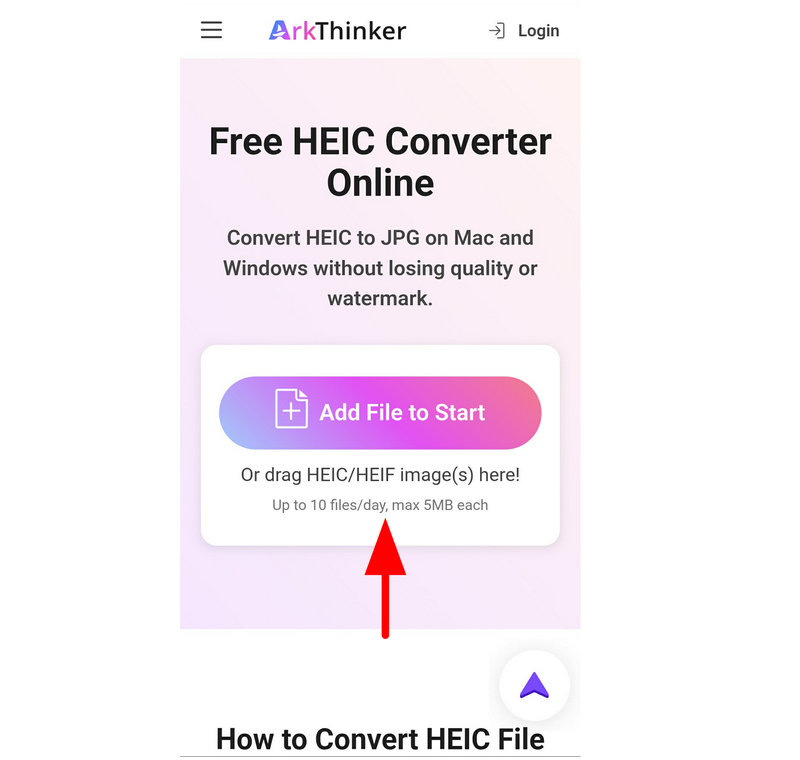
Go to your mobile browser of choice and search for ArkThinkler Free HEIC Converter Online’s website. Then tap the Add File to Start button to import the HEIC file you want to convert.
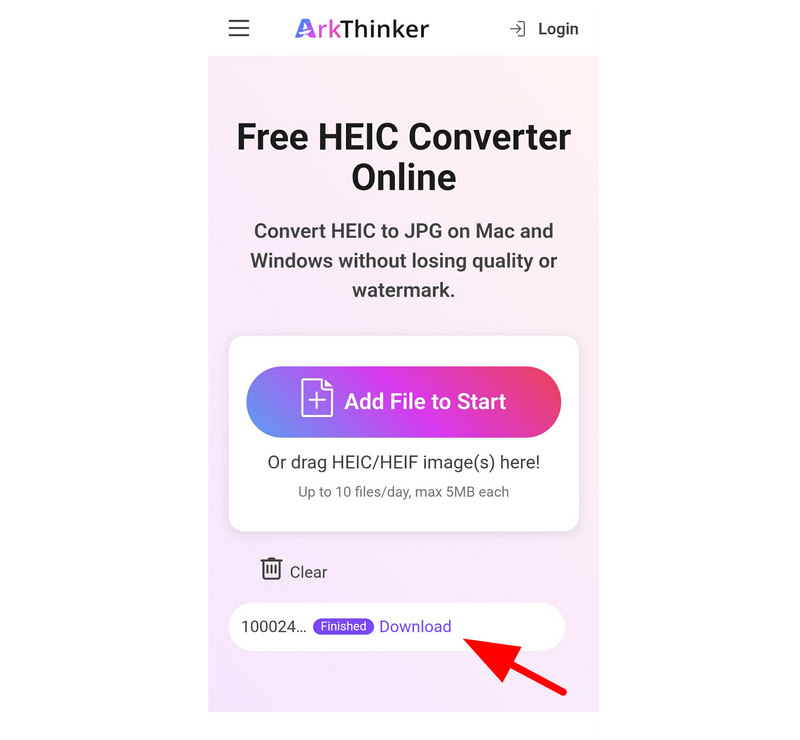
Once the HEIC file has been imported, it will be automatically converted to JPG. Next, select Download to save the converted JPG back to your device.
Now that we have discussed one of the most practical solutions on how to convert HEIC to JPG on Android for free, we hope that the practicality and ease of use of ArkThinker’s web-based image converter will help you solve your format compatibility problems.
Luma: HEIC to JPG (Most Popular Android App)
Luma is a lightweight Android app that reads and converts HEIC images directly on your phone. Since it is an installed app, it works offline and supports batch conversion with the additional benefit of preserving image quality and EXIF information.
Despite that, the official version is not available for modern Android devices. The only way to get this HEIC-to-JPG converter app for Android is to download it from third-party websites. To learn how to use it, please read our guide below.
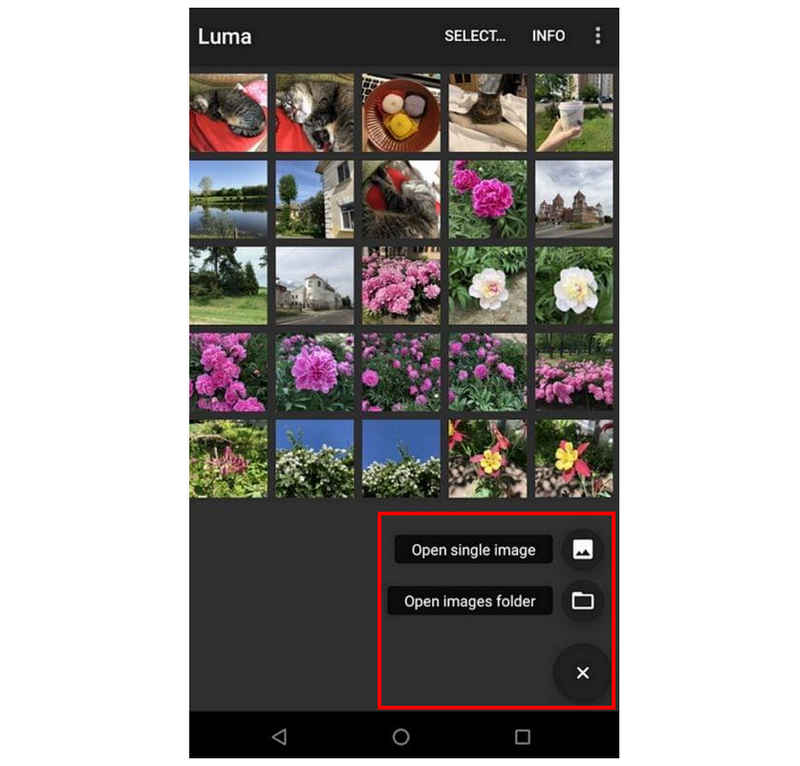
Open the Luma app, tap the Add button, then tap either Open Single Image or Open Images Folder.
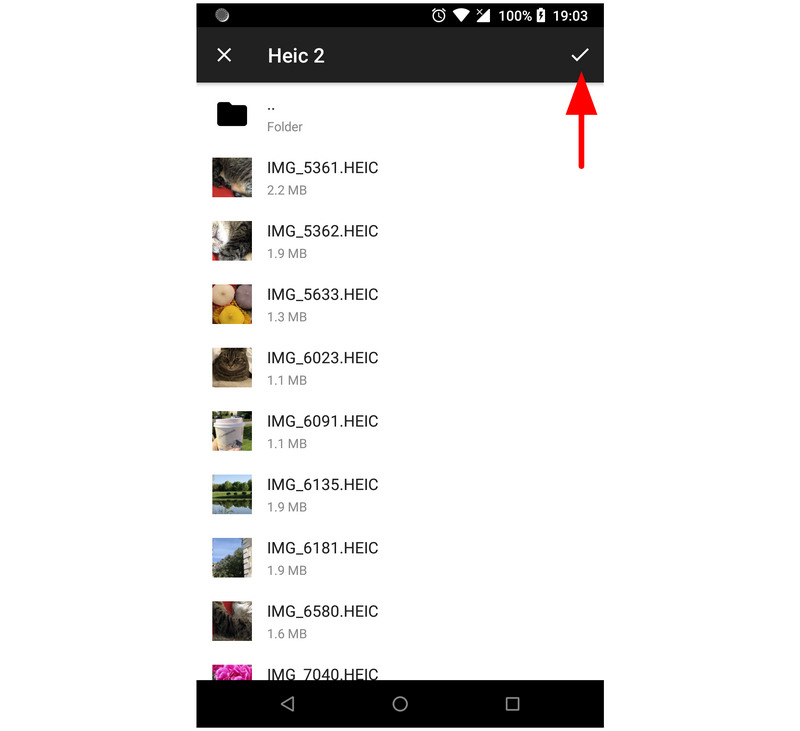
Select the files you want to convert, then tap the Check button to confirm. Then, wait for the conversion process to finish.
After the conversion is complete, the app opens the Conversion Result folder, where your converted HEIC files are now saved.
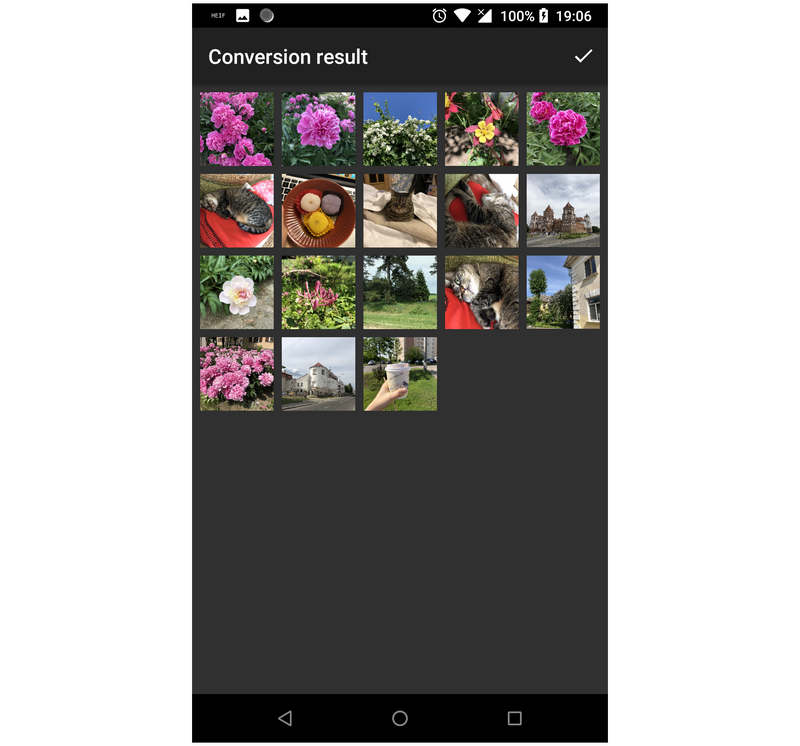
Since it is the first app we have featured in this article, you might want to use it if you don’t mind downloading it from outside the Play Store. However, APK download sites have poor security and privacy, which forces you to manage the associated risks.
Google Photos (Native Cloud Fix)
Moving on to the first file management trick in this article, we will highlight the option to use Google Photos for file uploads and downloads. This trick essentially works by the user uploading HEIC files to Google Photos and then downloading them back to the device, now saved as JPGs.
For a quick guide to uploading images to Google Photos, please see the guide below.
Go to your device’s gallery and select the image you want to convert. Then, select Share.
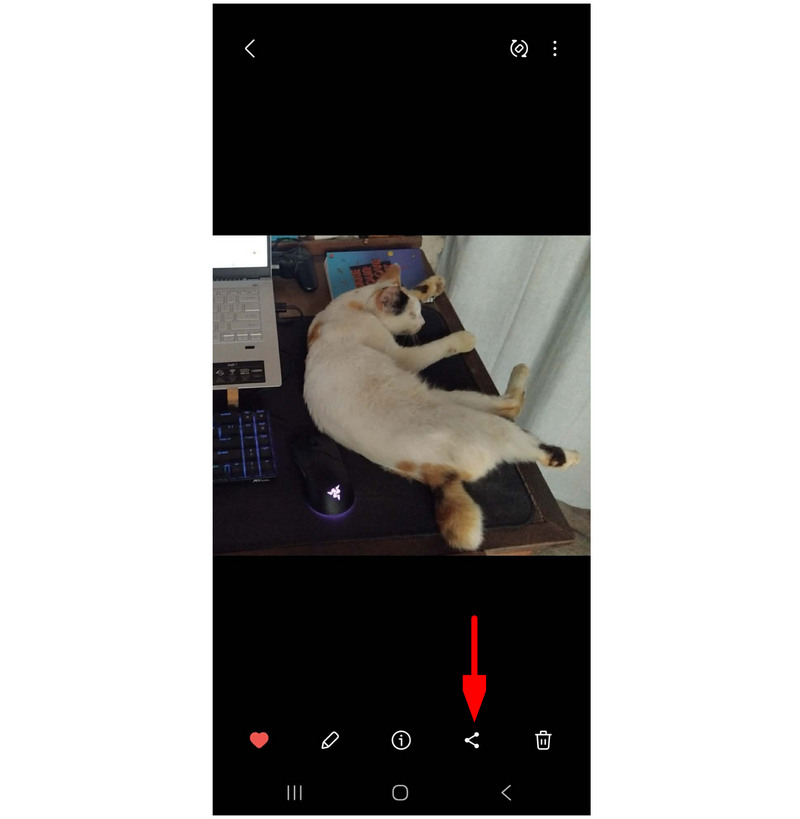
Among the share options, select Upload to Google Photos.
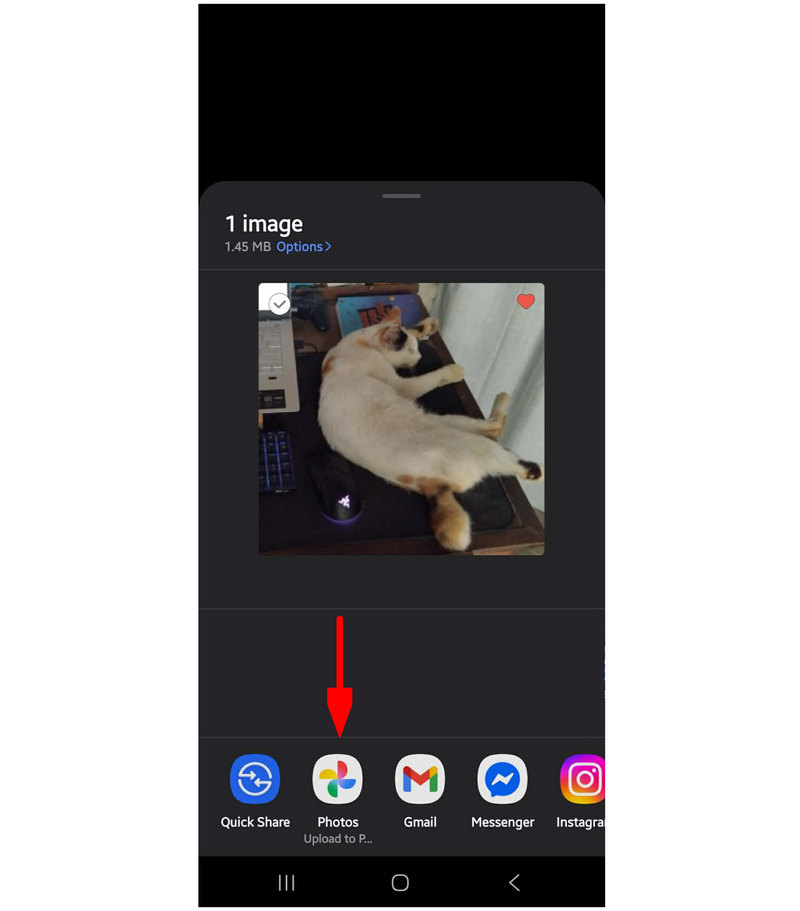
Open Google Photos and find the image you uploaded. Select the Three-Dots menu and select Download from the drop-down menu.
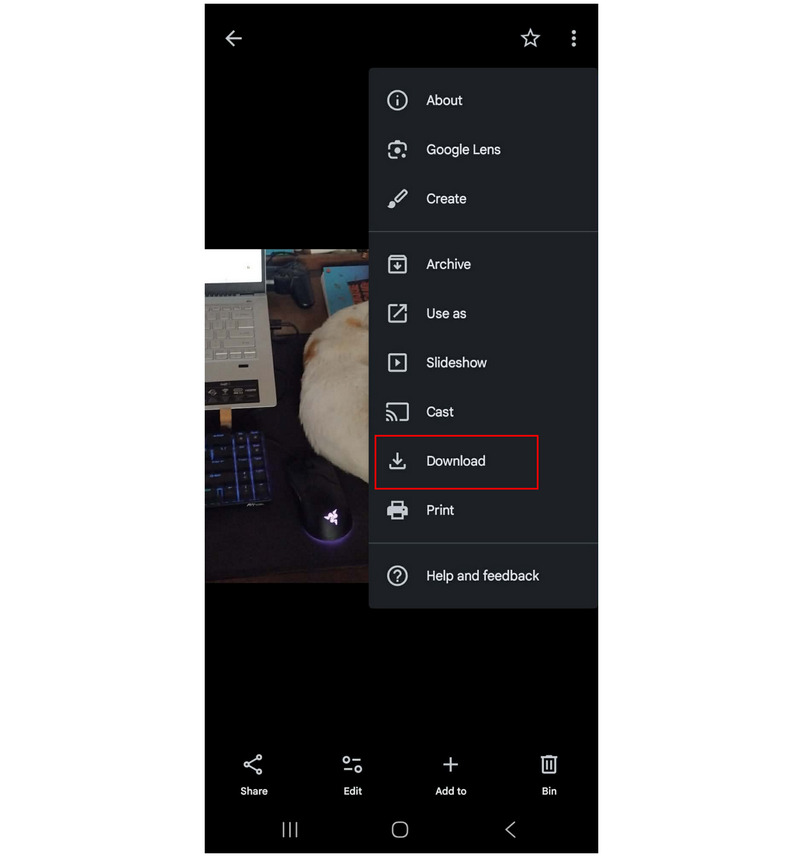
This unconventional option for changing HEIC to JPG on Android is ideal if you don’t want to install extra tools. Still, it requires uploading images first and relies on an internet connection.
Samsung Gallery (Convert When Editing)
If you are using a Samsung device, your Gallery app has a built-in editing feature that can convert HEIC images directly. It is one of the most convenient options because it is already installed, making it a quick solution for casual conversions without additional apps.
Fortunately, the Samsung device we used to write this how-to guide supports HEIC natively, but it still includes the Save as JPEG option.
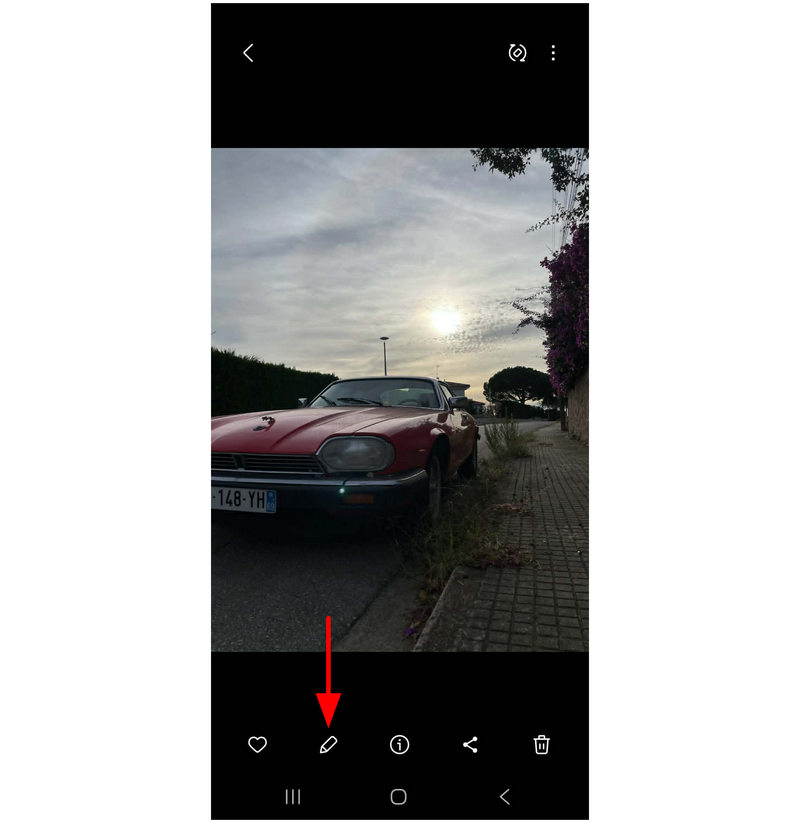
Open the Gallery app on your Samsung device. Go to the HEIC you want to convert and select the Edit button.
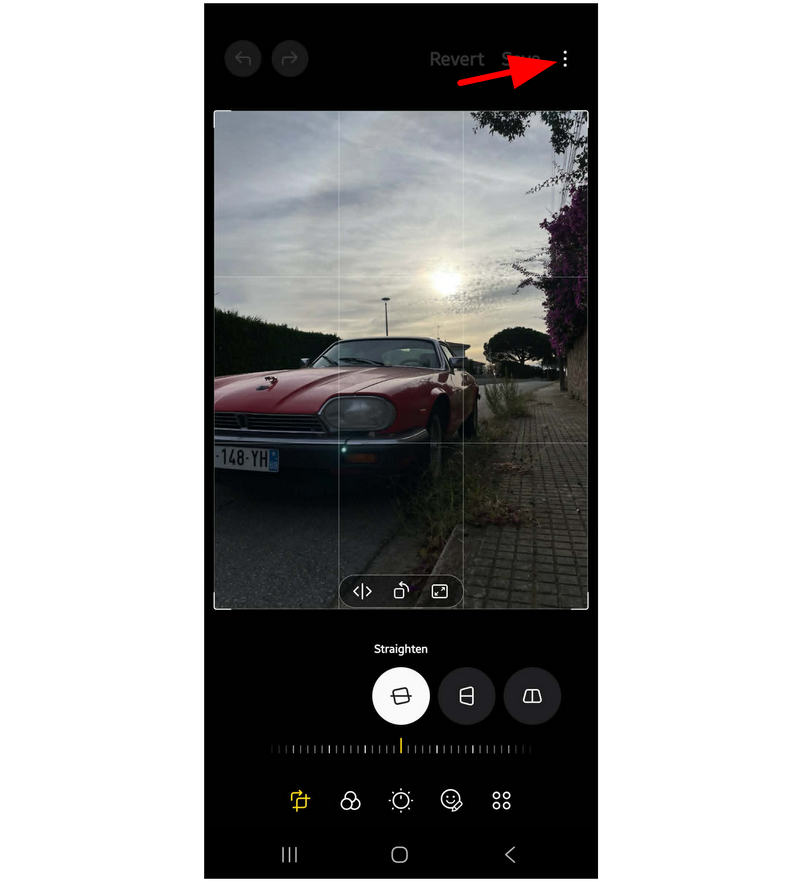
In the Photo Editing menu, select the More Options button.
Finally, tap Save as JPEG in the additional options that appear.
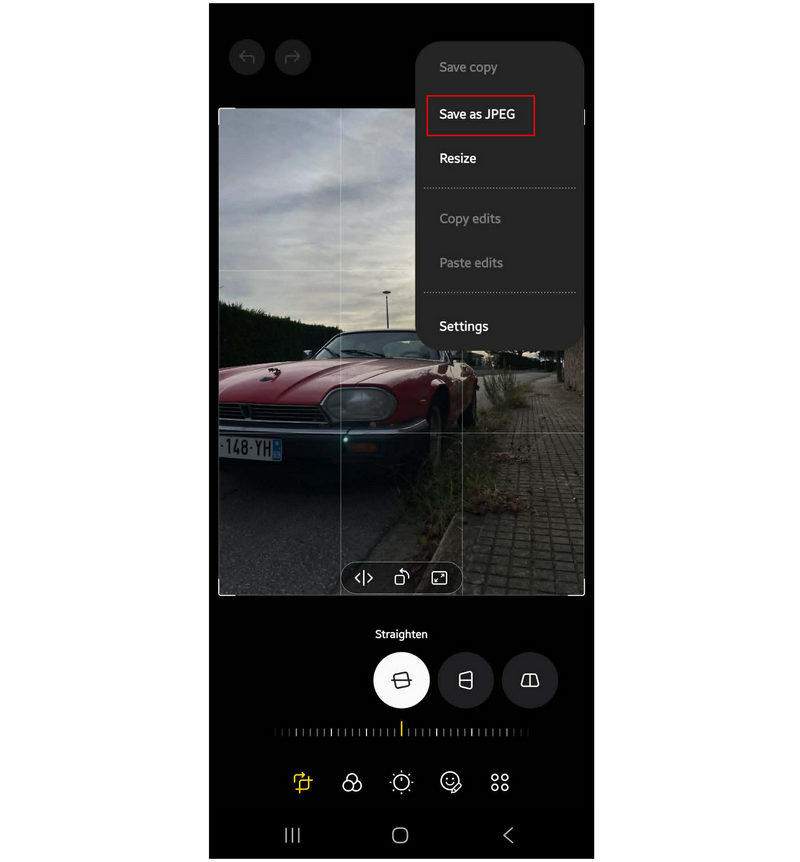
This method creates a duplicate of the HEIC image you selected and saves it as a JPG.
Files by Google (Internal Viewer)
When looking for a solution to share files and convert their format in one go, Files by Google is a good option since it uses automatic HEIC-to-JPG conversion when sharing files via Android’s share system via Drive upload or Gmail attachment. It is a handy workaround for quick conversions, especially on Android 10 and newer devices.
Open Files by Google and locate the HEIC image you want to convert. Select it.
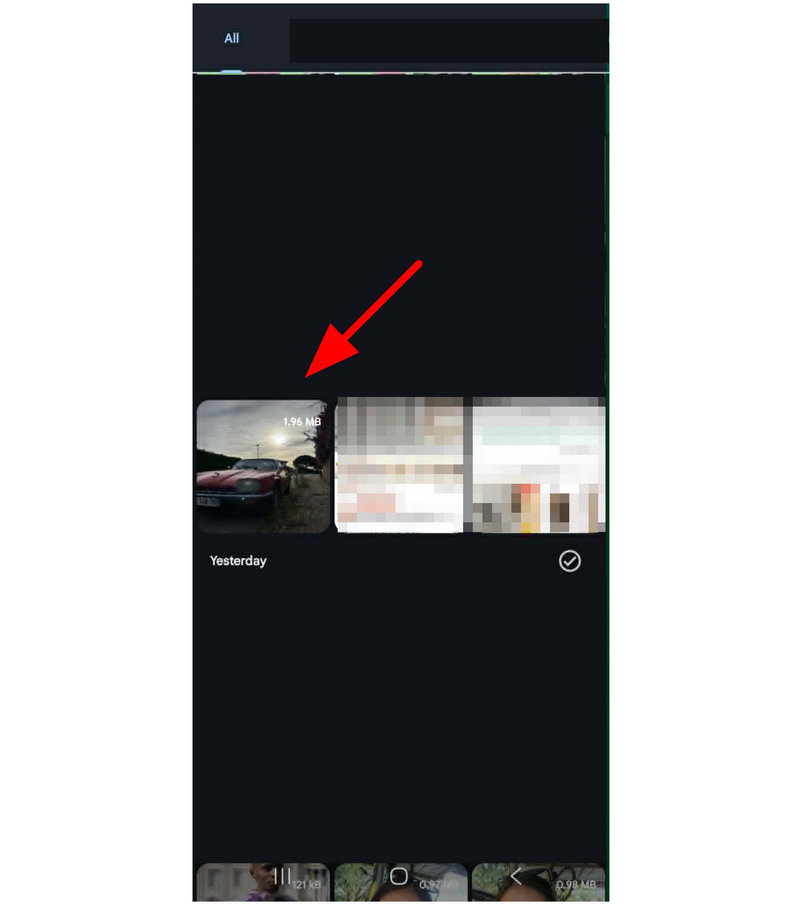
With the HEIC image now open, select the Share button.
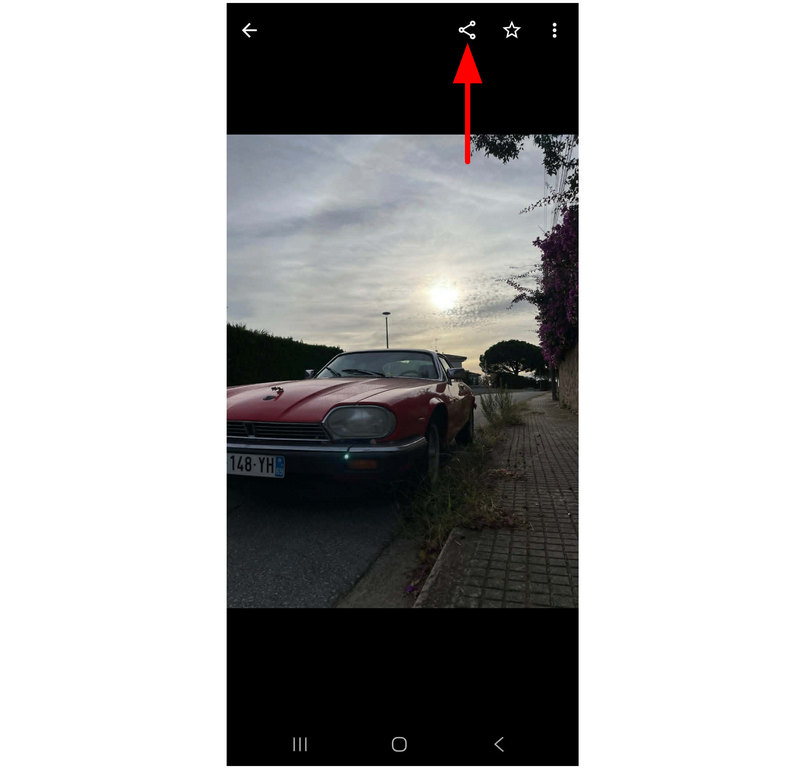
Among the share options, select either Drive or Gmail. By uploading the HEIC file to Drive or attaching it to an Email, the file will be automatically converted to JPG.
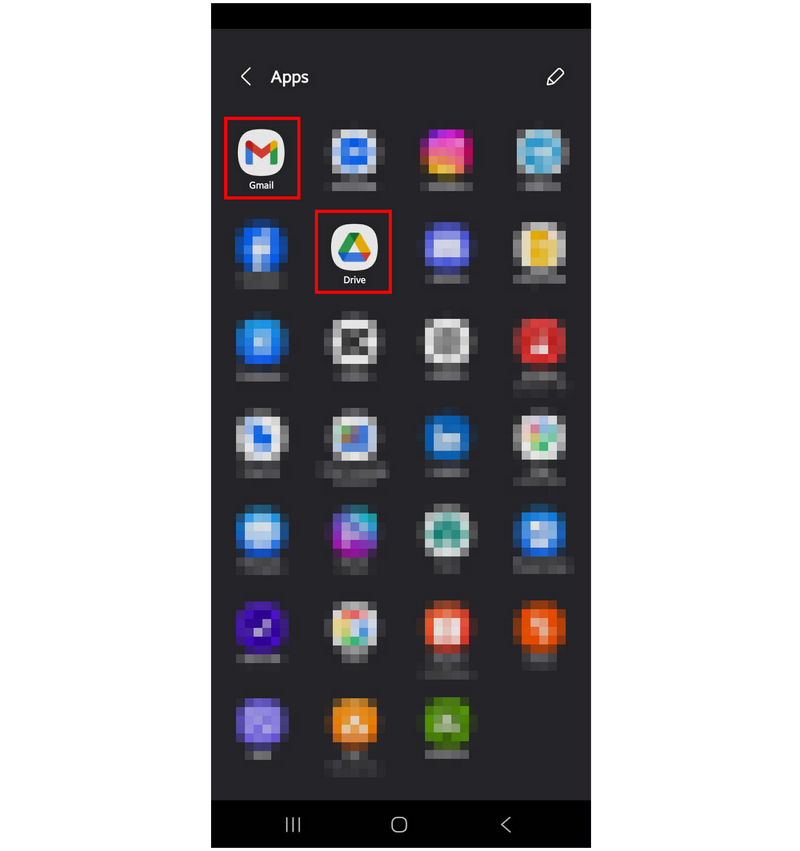
When using this tool, be aware that converted images may lose quality. Since the files that will be shared are technically copies of the original HEIC.
HEIC to JPG Converter (Top Play Store App)
Finally, the last app we will highlight is the HEIC to JPG Converter, which specializes in HEIC images and is available on the Play Store. Although it is an exclusive app from Google Play, its performance is unfortunately subpar compared to other tools on this list.
To start, its conversion speed is very slow, and ads plague it while you use it. Despite these setbacks, it can still get the job done, albeit very slowly.
Open the app and select the Open File button. Locate the HEIC file you want to convert and select it.
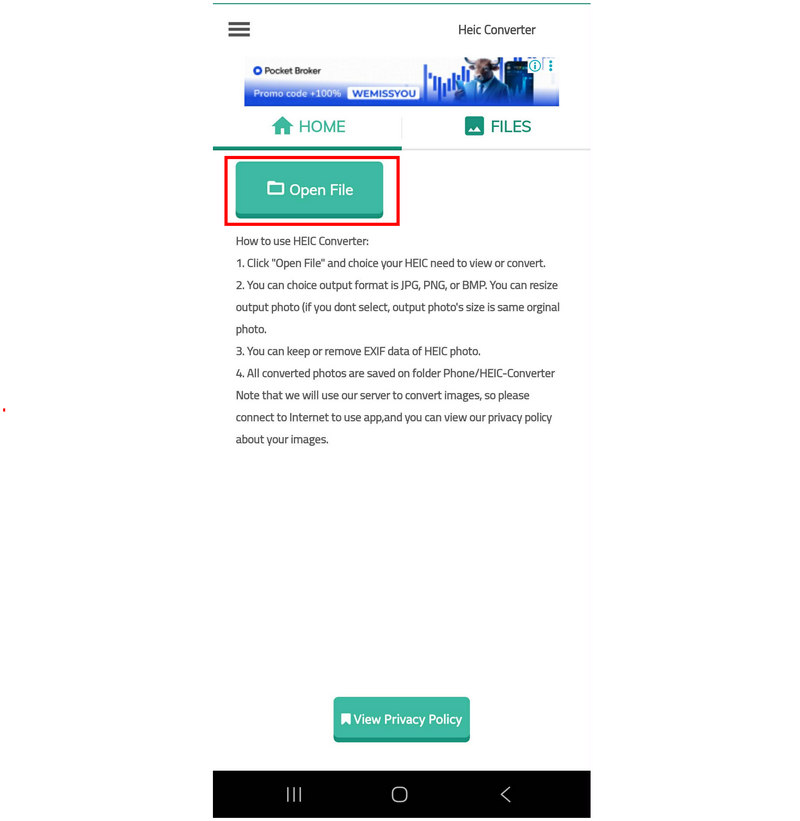
Once the HEIC file is uploaded, tap on Convert. Wait for the conversion process to finish.
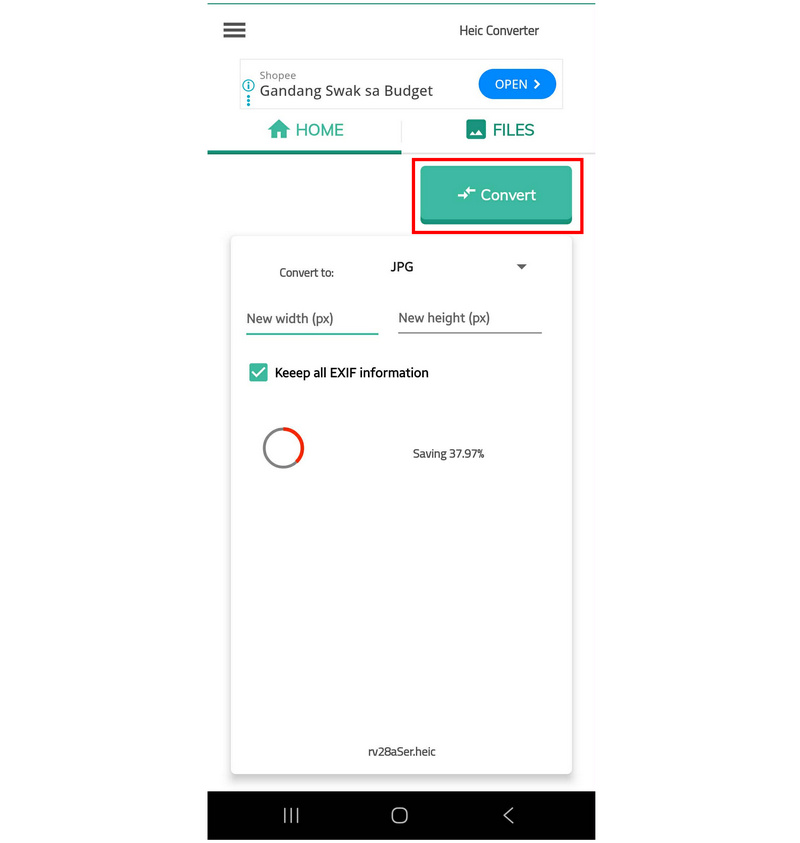
Once done, your HEIC file will be saved and converted into your selected format.
During our review and tutorial, the app’s conversion process took more than 15 minutes. That is for a single HEIC image with a file size under 2MB. With that in mind, we may only recommend this option if you find the other solutions impractical or simply not to your liking.
Part 2. FAQs About Converting HEIC to JPG on Android
Can Android devices open HEIC files?
Some of them can. However, most Android devices cannot read HEIC images. One example of a device that can open HEIC files is Samsung devices, even their entry-level models.
Do Android phones support HEIC natively?
No, they do not. Only a limited number of Android phones can read HEIC. It is more common for Android galleries to be unable to read HEIC files.
Are built-in solutions reliable for image format conversion?
Yes, they are. If you are using a Samsung device, its Gallery app can save images as JPEGs natively. However, it is limited to a single file at a time.
Are the uploaded images on Drive converted to JPG?
No, they are not. Drive saves images in their original format. However, downloading them may automatically convert them to JPG for compatibility.
What should I convert my HEIC image into?
Both JPG and PNG formats are good options. They are widely compatible and have a compact file size. However, PNG has better quality, and JPG is more compact.
Conclusion
Now that we have reviewed six excellent choices for converting HEIC to JPG on Android, we hope that this article has helped you decide which one best suits your mobile file management needs. For maximum compatibility, we highly recommend using online tools such as ArkThinker Free HEIC Converter Online as a starting point for beginners or those looking for a simple solution.


