


How to Convert HEIC to JPG on Windows Using 4 Solutions
One common frustration among Windows users is the “Cannot Open File” error when trying to access imported iPhone photos on their desktop. This is a common dilemma for its users, since the HEIC format is not natively supported on Windows 10/11. In this article, we will provide a detailed solution to this issue by highlighting four of the most reliable software programs for converting HEIC to JPG on PCs. We will review each program based on its best uses and main features, along with a step-by-step guide to using each tool as an HEIC converter.

- GUIDE LIST
- Solution 1. Using the Native "Photos" App (Requires HEIF Extension)
- Solution 2. Using Microsoft Paint (For Single Images)
- Solution 3. Using a Free Online Tool
- Solution 4. Real HEIC to JPG Converter (Microsoft Store App)
- Part 5. FAQs About Converting HEIC to JPG on Windows
Solution 1. Using the Native "Photos" App (Requires HEIF Extension)
Best Used For: Converting HEIC using the native Microsoft app with file extensions.
If you want to learn how to convert HEIC to JPG on Windows 10/11, the easiest program is the default Photos app. Although it cannot open HEIC files by default, an optional plug-in available in the Microsoft Store can be installed to enable the program to support HEIC images.
Unfortunately, the plug-in required to open HEIC files in the Photos app is a paid extension. This makes it a suboptimal choice, especially if you want a quick solution to convert images to JPG.
To learn how to use Photos for changing image formats, please read our guide below.
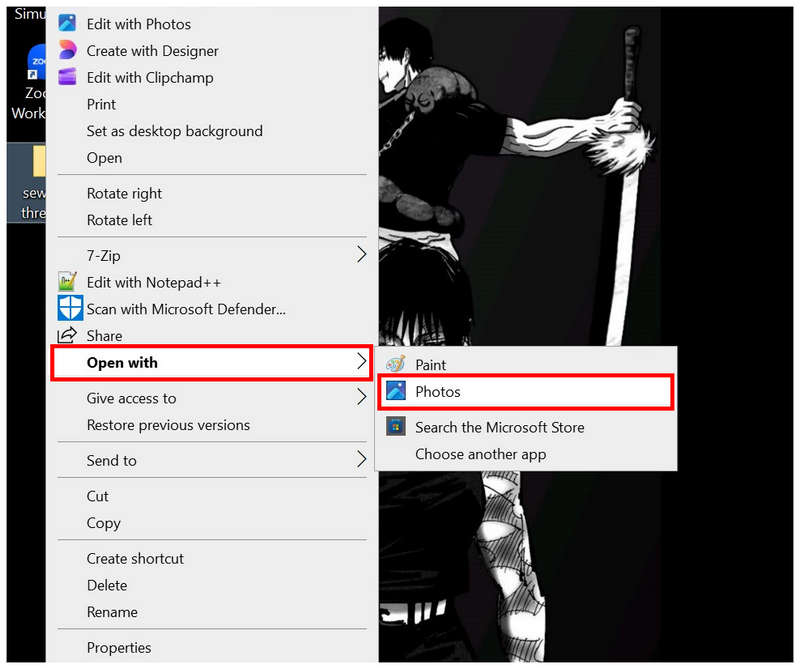
Right-click the HEIC image you want to open and select Open With, then choose Photos.
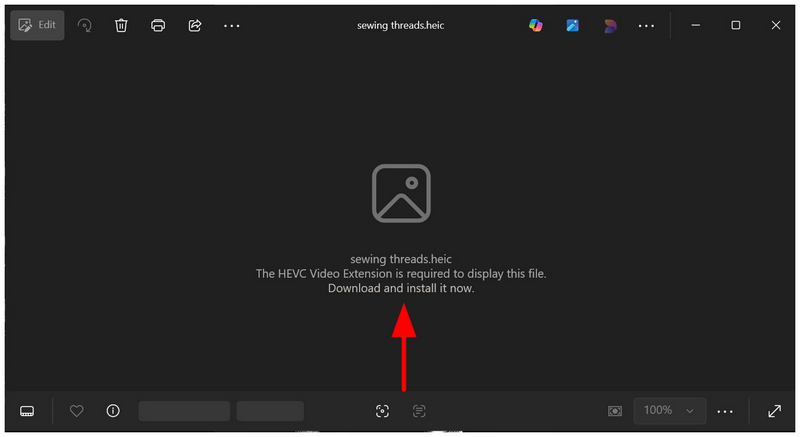
Since the Photos app does not support HEIC by default, it will suggest that the user download an extension to open iPhone image files. Click on it to proceed to the Microsoft Store.
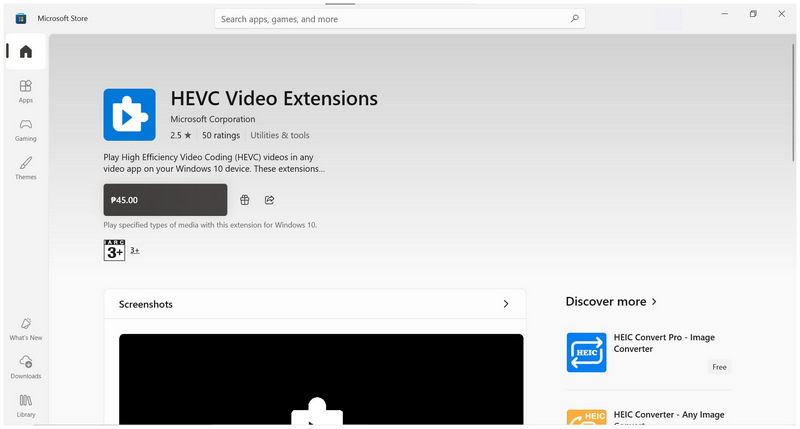
In the Microsoft Store, you can download the paid extension app to open HEIC images. In this guide, we will not download the extension app, but once downloaded, it will allow you to proceed to the next step.
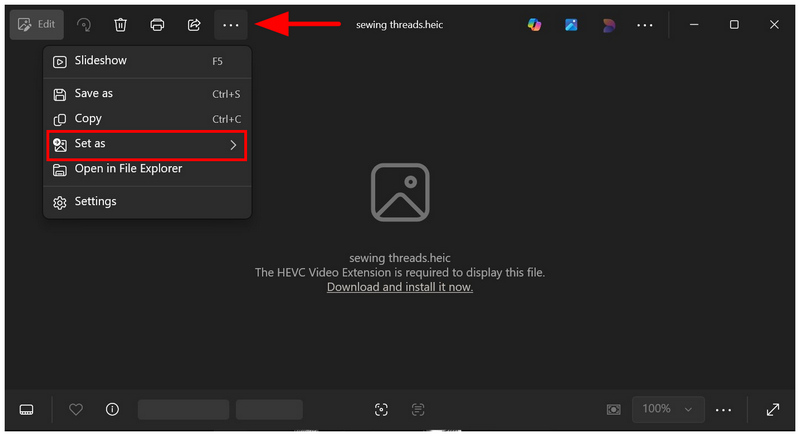
Once you have downloaded the HEVC Video Extensions plug-in, go back to the Photos app. Then, click on the See More options and select Set As.
Finally, set the Save As Type to JPG, then click Save to save the HEIC image as a JPG file.
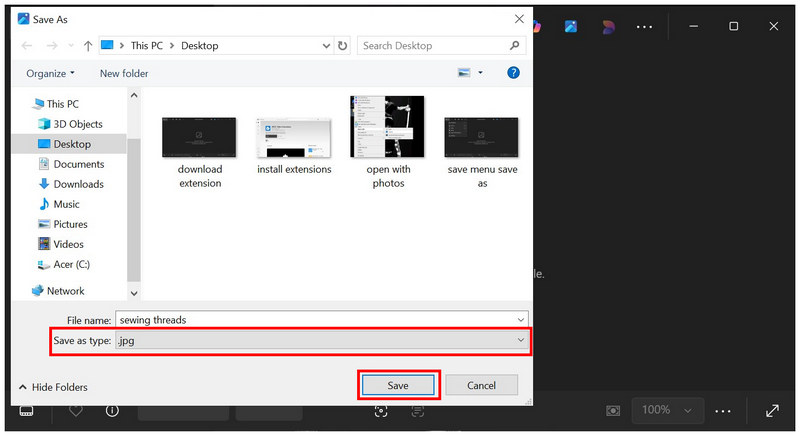
Although it is not the most accessible tool for converting HEIC to JPG on Windows 11/10, it is still technically viable and easy to use once you have moved past the paid plug-in barrier. Fortunately, there are multiple options to convert iPhone images to a more accessible format for free.
Solution 2. Using Microsoft Paint (For Single Images)
Best Used For: Changing the format of an individual HEIC image.
If you want an alternative free HEIC-to-JPG converter for Windows 11/10 aside from the Photos app, the classic Microsoft Paint may do the job, since it can open HEIC files and has the Save As function by default.
Although the tool cannot open HEIC files in image format, the file itself can still be accessed within it. This makes the software functional as a format converter tool. To learn how to use it, please read our guide below.
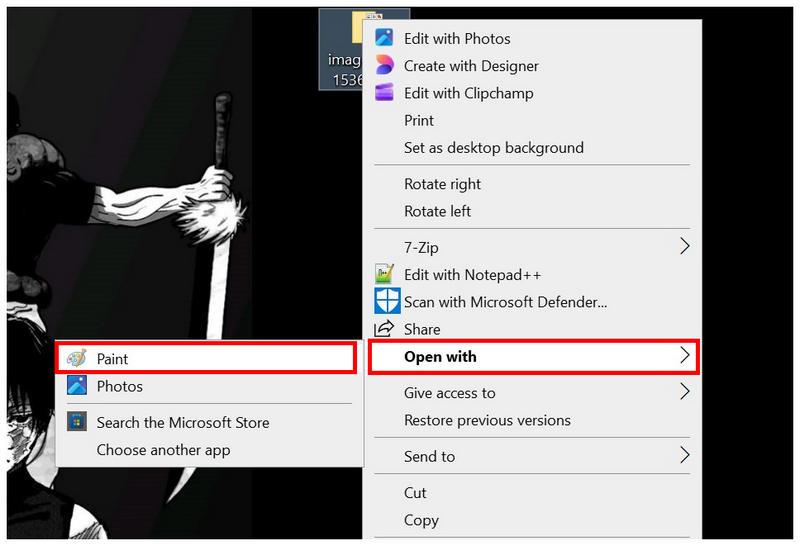
Right-click the HEIC file you want to open in Paint, then select Open With and choose Paint among the available options.
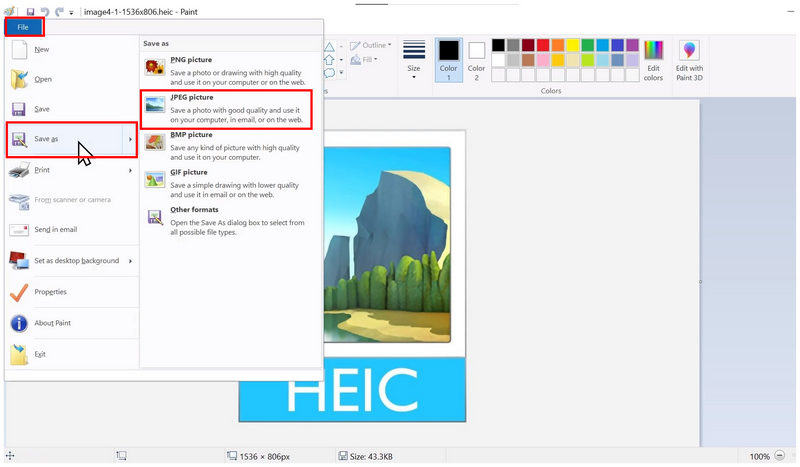
Once your HEIC image is imported into Paint, select File, then click Save As. Then choose the JPEG Picture option to save your image file as a JPG.
Finally, set the save destination for your converted image file using the file manager pop-up that appears. Select Save once you have set the location for your file.
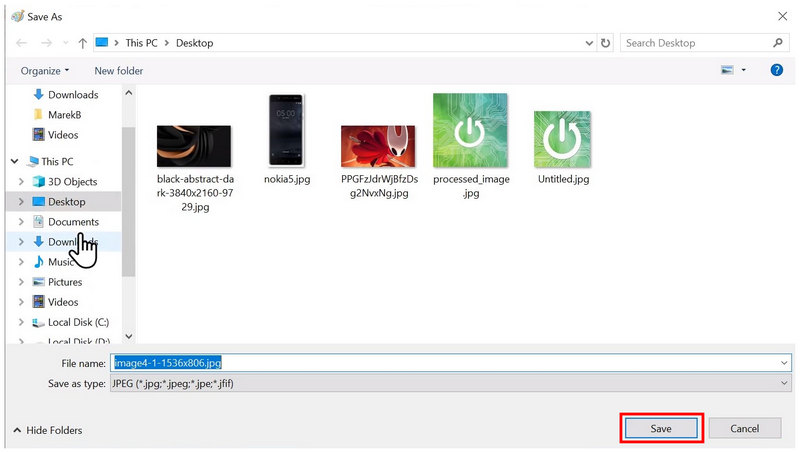
If you plan to use Paint for HEIC conversion, its reliability is still in question, since it is common for the program to encounter a “cannot open file” issue as well. With that in mind, the Photos app with the paid plug-in may still be the more reliable HEIC-to-JPG converter for Windows.
Solution 3. Using a Free Online Tool
Best Used For: Batch processing a handful of HEIC files without installation and setup.
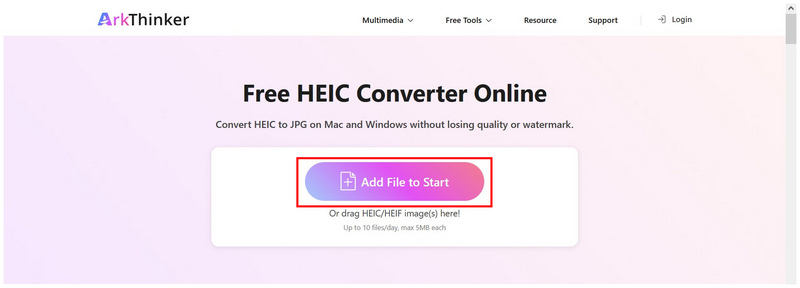
Since both built-in HEIC-to-JPG converters on Windows PCs have their own limitations, online tools should be your next consideration if you want to convert your iPhone images to a more accessible JPG format. In this case, ArkThinker Free HEIC Converter Online should be your first choice.
Unlike the Photos and Paint apps, ArkThinker’s online converter tool can process uploaded HEIC files within a few seconds without any plug-in requirements or stability issues. This makes the program already the most reliable solution for image conversion. If you are concerned about privacy and security, fear not: uploaded images within the software are deleted immediately after they are converted to JPG and then downloaded by the user.
Moreover, it supports batch conversion of HEIC images to JPG, up to 10 images at a time, making its workflow 10x more efficient than Photos or Paint, which are both limited to single-file conversion.
Finally, the software was designed to function as simply as possible, so our tutorial on how to use it can be completed in two simple steps. Please follow our guide to start using ArkThinker Free HEIC Converter Online for your file conversion needs.
Go to ArkThinker HEIC Converter’s website. On the main page of the web-based tool, click on Add Files to Start to import the HEIC image you want to convert. Alternatively, you may drag-and-drop the images you want to upload into the upload box.
Once the images have been imported, wait a few seconds for the file import to finish. Finally, select Download next to the converted image and save it to your computer.
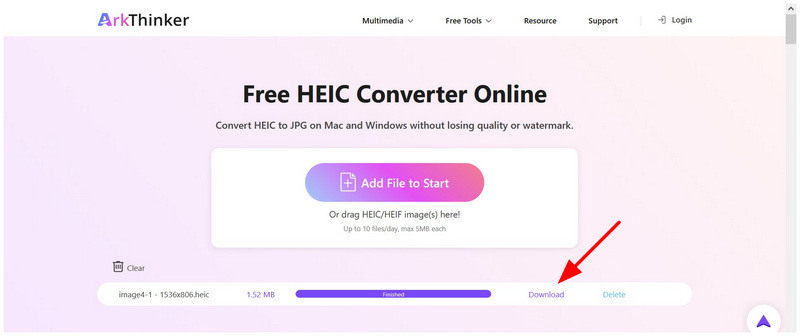
As an online image converter, this alternative is the most reliable option for batch converting HEIC to JPG on Windows or macOS. Unlike other online tools, it offers superb user security because processed images are guaranteed to be deleted once the conversion is complete.
Solution 4. Real HEIC to JPG Converter (Microsoft Store App)
Best Used For: Third-party conversion option that is also desktop-based.
To wrap things up, let us now proceed to the most reliable option for converting Apple HEIC to JPG on Windows computers: a Microsoft Store-exclusive app called Real HEIC to JPG Converter.
Unlike the built-in Windows solution, this software was designed to work as an exclusive HEIC-to-JPG converter app, making its functionality already better than the Save As feature in both Photos and Paint.
It also helps that it supports batch processing by default, greatly improving users’ conversion efficiency. However, its difficulty is not ideal, as it is packed with advanced features that may overwhelm new users.
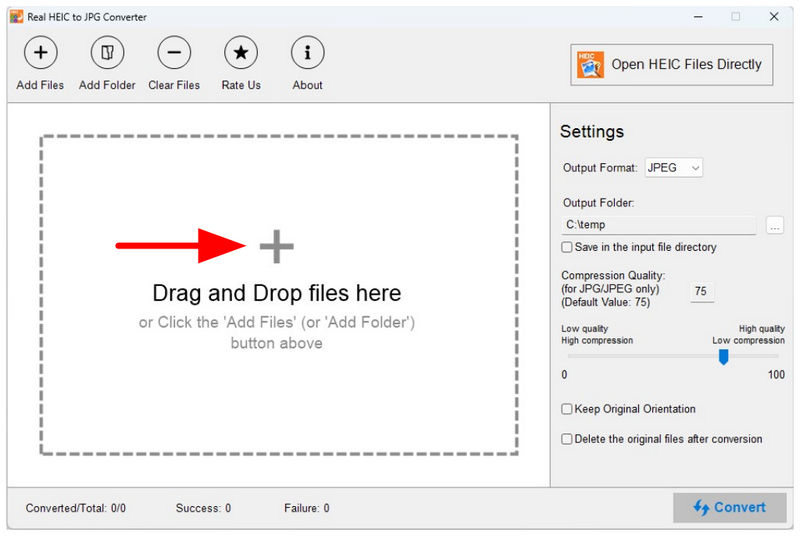
To address this potential issue, make sure to read our tutorial on using Real HEIC to JPG Converter.
Open Real HEIC to JPG Converter, then click on the Add Files or Add Folder button above the main interface. You may also drag-and-drop the files you want to convert.
Once the images you want to convert have been added to the program, you won’t have to change the Output Format since it is set to JPG by default. You can now click on Convert to begin the image format conversion.
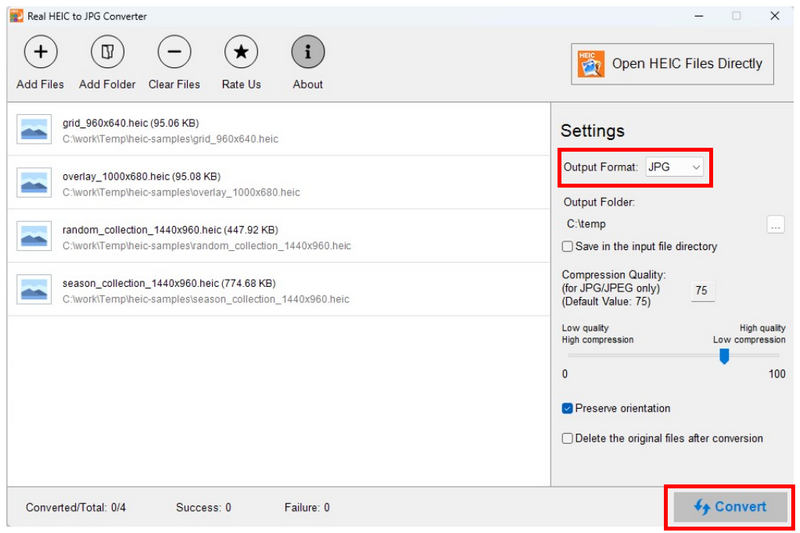
After the Conversion process is finished, you may click Open Folder to open the folder where your converted HEIC images are saved.
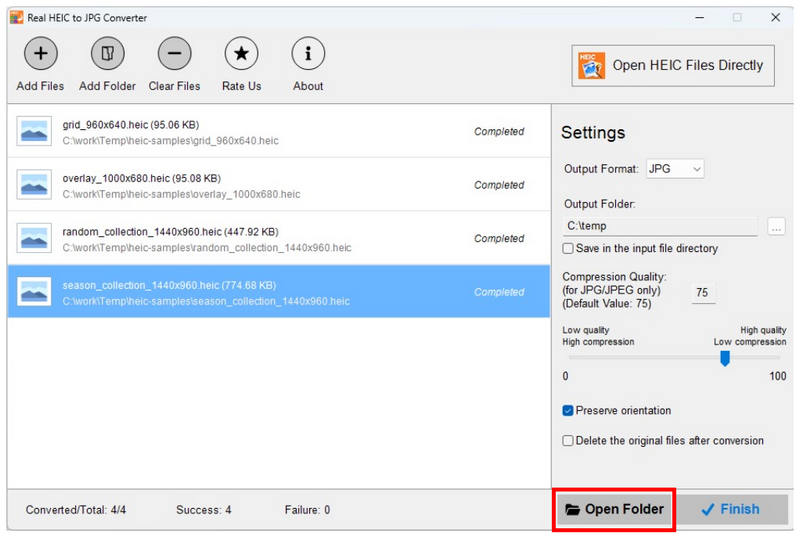
With the Open Folder function, you can now easily locate your converted HEIC files on your computer. This is another notable quality-of-life adjustment for their users.
Part 5. FAQs About Converting HEIC to JPG on Windows
What is an HEIC file?
High Efficiency Image Container (HEIC) files are the default image format of iPhone devices since iOS 11. They are designed to achieve higher compression rates than standard JPGs, which often require image compression due to their large file sizes. Unfortunately, HEIC files are not compatible with non-Apple devices.
How to change HEIC to JPG on Windows?
There are exclusive HEIC-to-JPG converters available on the Microsoft Store, such as Real HEIC to JPG Converter. Online tools like ArkThinker Free HEIC Converter Online are another good option. For built-in solutions, you may install the paid Photos app plug-in to open HEIC files and enable Save As.
Can Windows apps open HEIC files by default?
No, they cannot. The Photos app cannot open HEIC without plug-ins. It is also common for Microsoft Paint to cause an error when trying to open HEIC images.
Will converting HEIC images to JPG reduce quality?
Yes, it will. However, the severity of the quality reduction will depend on the converter you use. Some programs, such as ArkThinker Free HEIC Converter Online, support lossless image conversion to minimize quality loss.
Are online HEIC converters reliable and safe?
Yes, they are. Online HEIC tools can convert image formats effectively. However, user privacy is a common concern since the images will be uploaded to their servers. To avoid such issues, use ArkThinker FreeHEIC Converter Online, which immediately deletes image data after conversion and download.
Conclusion
Now that we have provided some of the most reliable programs to convert HEIC to JPG on Windows computers, we hope you can now handle these image formats to minimize compatibility issues. Fortunately, the programs we have provided are all beginner-friendly. To start, use an online converter, such as ArkThinker Free HEIC Converter Online.
What do you think of this post? Click to rate this post.
Excellent
Rating: 4.8 / 5 (based on 492 votes)


