


Full HandBrake Review: Main Features, Pros, and Cons (2026)
When it comes to DVD or Blu-ray digital media conversion, HandBrake is one of the leading options online due to its open-source background and reliability as a freeware tool with no ads. With that in mind, this review article aims to determine whether the program lives up to its reputation by examining its main features, strengths, and limitations. To determine whether HandBrake is worth your time, please read our detailed review below and consider exploring alternative converters that may better suit your needs.

- GUIDE LIST
- Part 1. Quick Look at HandBrake
- Part 2. Highlight Features of HandBrake
- Part 3. Is HandBrake Safe
- Part 4. How to Use HandBrake for Video Conversion and DVD Ripping
- Part 5. Best Alternative to HandBrake
- Part 6. FAQs About HandBrake Review
Part 1. Quick Look at HandBrake
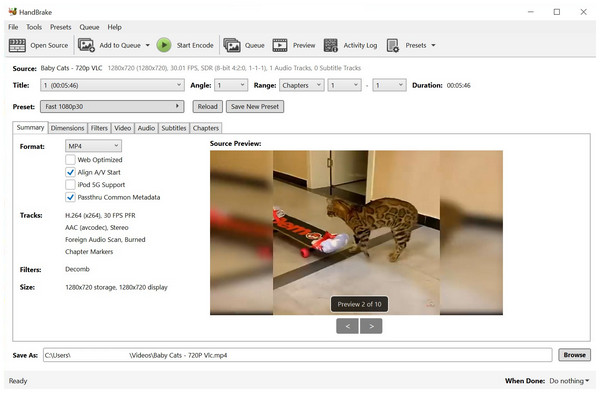
When it comes to open-source options, HandBrake video converter is one of the standout tools due to its accessibility as freeware and the advanced settings it offers, which are specifically designed for experienced practitioners.
Unfortunately, this same design made it a little bit too complicated for beginners. Despite that, HandBrake still manages to secure dedicated users who have even learned how to convert videos and rip DVD and ISO files to MP4 and other digital formats.
For a better understanding of HandBrake's capabilities, please review its pros, cons, and feature limitations.
- Cross-platform availability for Windows, macOS, and Linux.
- Completely free with no ads.
- Supports DVD, Blu-ray, and digital video formats.
- Very demanding learning curve.
- Limited output formats are available for converted digital files.
- Has significant performance issues when processing larger videos.
| Product | Best For |
| FVC Video Converter Ultimate | All-in-one efficiency & beginners |
| Topaz Video AI | Professional cinematographers and archival restoration. |
| AVCLabs Video Enhancer | Face restoration and colorizing black-and-white films. |
| WinXvideo AI | Low-end PCs & basic editing |
| Audials Vision | Movie & series recording enhancement |
Part 2. Highlight Features of HandBrake
Video Converting Capability
Although HandBrake DVD ripper is commonly known as a program for digitizing DVD and Blu-ray media, it can also convert digital videos into various formats. However, this feature has severe limitations, as the program can only convert MKV and other videos into MP4, MKV, or WebM formats.
Ease of Use
Unfortunately, ease of use is not a strong suit of HandBrake. At first glance, the large pile of buttons, tabs, and tools will definitely be overwhelming for complete beginners. Even intermediate practitioners with novice experience may find HandBrake challenging.
Supported Platform
Regardless of the platform your PC is running, you can easily use HandBrake for Mac, Windows, or Linux. This is another significant strength of the program, as it can be used regardless of the desktop operating system you are running.
Part 3. Is HandBrake Safe
In terms of safety, you can trust the program regardless of whether you want to use HandBrake as a video compressor, converter, or DVD ripping tool. This was made possible by the dedicated open-source developers supporting the program.
Furthermore, the security of the tool can be supported by its availability on the macOS platform, as Apple is widely recognized for its robust security measures and user protection. You can safely trust HandBrake not to keep any of your data.
Additionally, the software is available offline, allowing you to open it without an internet connection for greater peace of mind. This will enable you to convert WMV or any other video format to MP4, MOV, or WebM.
Part 4. How to Use HandBrake for Video Conversion and DVD Ripping
One of the weaknesses of HandBrake is its high technical and skill requirements; therefore, we decided to add a quick guide on using the tool’s two primary functions. Below are quick tutorials that utilize both the format converter and DVD ripper functions of the tool.
Video Conversion
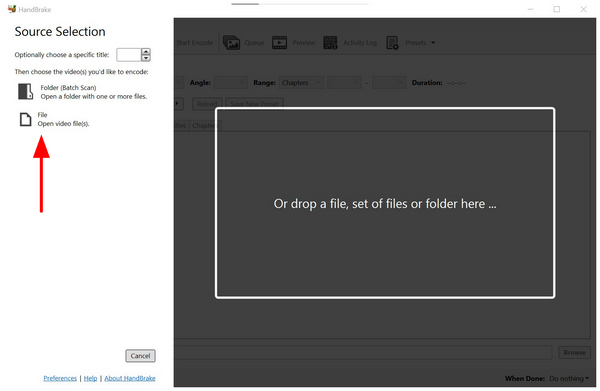
Open HandBrake and then select File to browse for the video you want to convert.
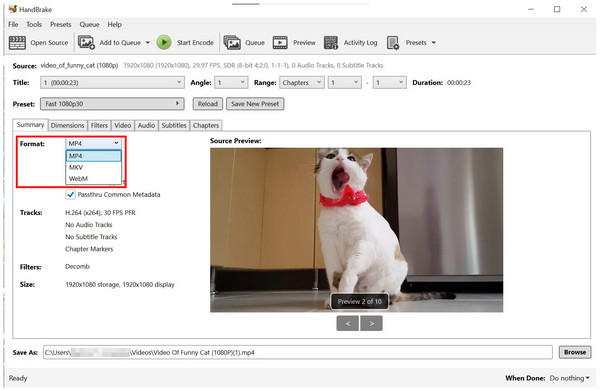
Once the file you want to edit has been exported to HandBrake, click on Format. Then, select the format you want to convert your video into.
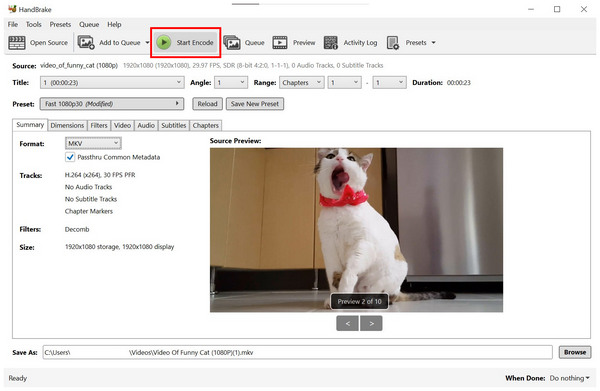
After selecting the desired format, click Start Encode to initiate the video conversion process.
When converting digital videos, HandBrake has a significant limitation as the program can only convert videos to MP4, MKV, or WebM formats. To learn better alternatives that can convert digital files to virtually limitless file types, please read the fifth section of the article.
DVD Ripping
Mount the DVD you want to rip in your PC.
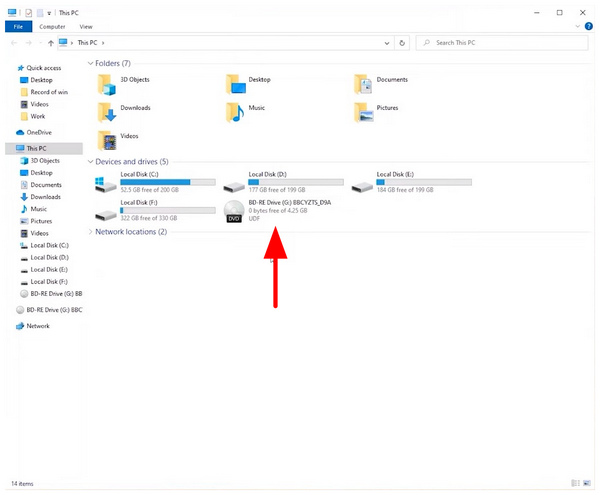
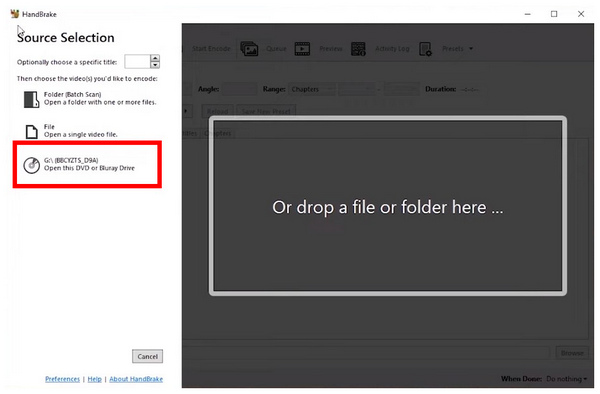
Then, open HandBrake and select the mounted DVD as the source.
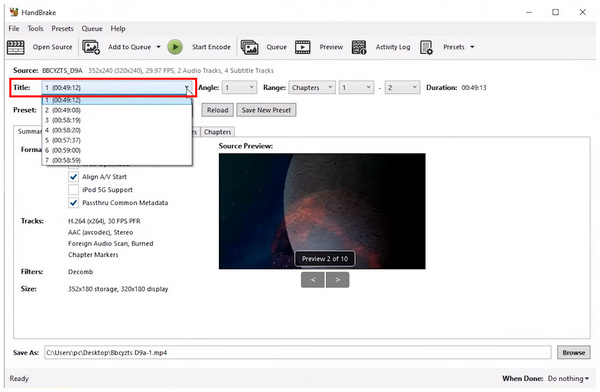
Once the DVD media has been mounted, select the Title you want to rip digitally.
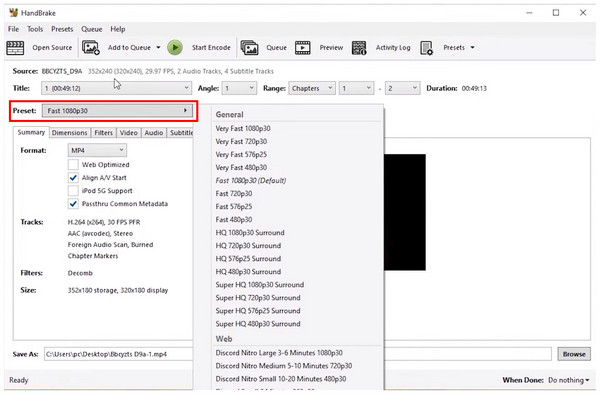
Then, select the Preset you want to save your DVD media into.
Finally, click Browse. Then, navigate through your file manager to set the save destination of your DVD media. Click Save in the destination you selected.
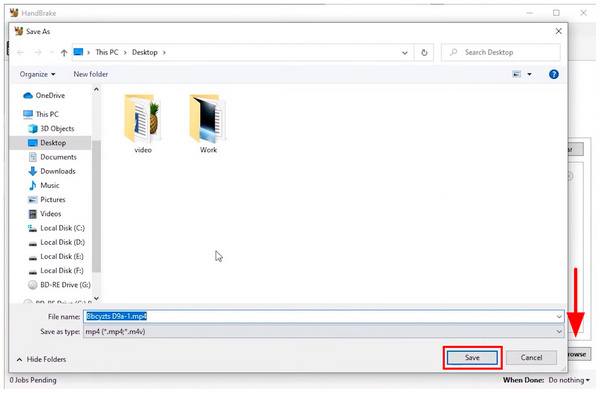
With the destination finally set, click on Start Encode to begin the ripping process.
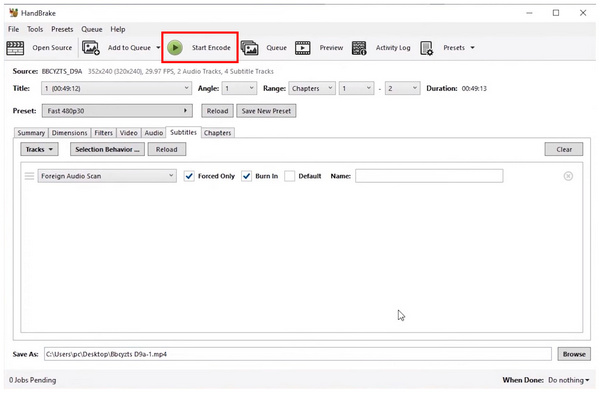
Due to HandBrake's design being focused on converting DVD media digitally, its efficiency and performance in handling this task are optimized and reliable. However, be aware that HandBrake cannot be used to bypass DRM measures, which limits its functionality in this case.
Part 5. Best Alternative to HandBrake
ArkThinker Video Converter Ultimate
Now that we have discussed the strengths, limitations, and what makes HandBrake a good option. Let us now explore a suitable alternative to HandBrake that addresses most of its deficiencies. In this case, ArkThinker Video Converter Ultimate should be one of your top options.
To start, ArkThinker Video Converter Ultimate offers a wide range of conversion options for digital files. Besides MP4, MKV, and WebM, files converted in the tool may also be saved in MOV, AVI, M4A, and other popular video formats.
However, the biggest advantage of this alternative option is its impressive ease of use. Unlike HandBrake, the tool can be used effectively by a complete beginner after spending just a few minutes tinkering with it.
Together with these superb conversion capabilities and impressive accessibility. You can also enjoy additional main features of the program, listed below.
Main Features:
- It is equipped with a high-quality converter tool that allows you to change file types to over 500 formats.
- Built-in DVD ripper software that can bypass DRM protection.
- GPU-accelerated, it can process format conversion 30 times faster than other tools, such as HandBrake.
- Fast and efficient batch conversion feature.
- It can preserve the quality of videos converted through it.
To learn how to use the software, please read our three-step guide below. Don't forget to download it as well to experience firsthand how easy it is to use ArkThinker Video Converter Ultimate.
Open ArkThinker Video Converter Ultimate and then select Add Files to import the video you want to convert.
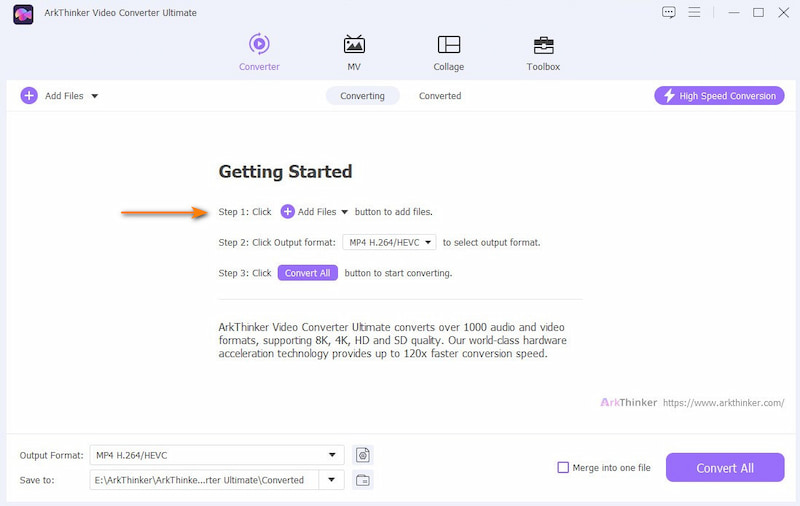
After importing the video, click on Output Format. Then, choose the Output Profile you want to convert your file into, which will set the format and quality of the video.
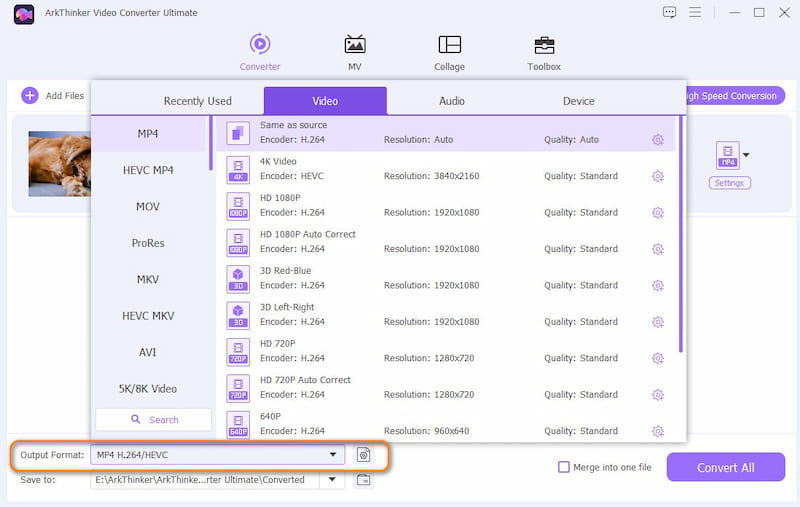
Then, click Save To to set the destination where your output video will be saved.
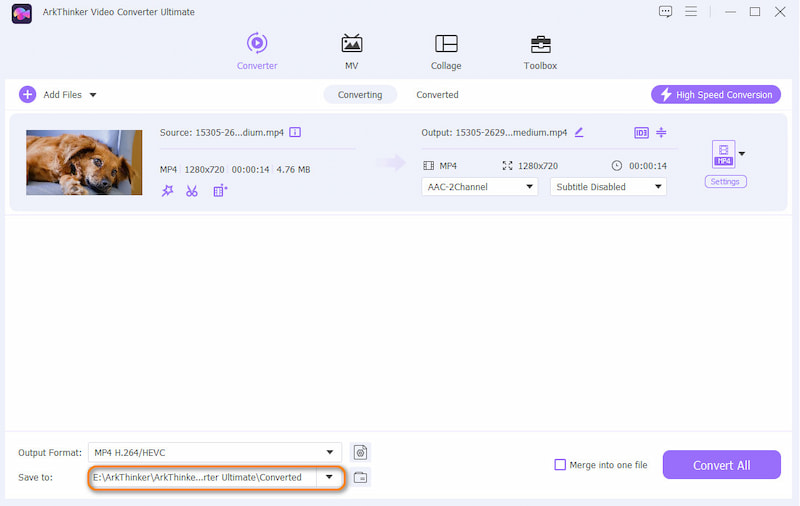
Finally, click Convert All to initiate the format conversion process.
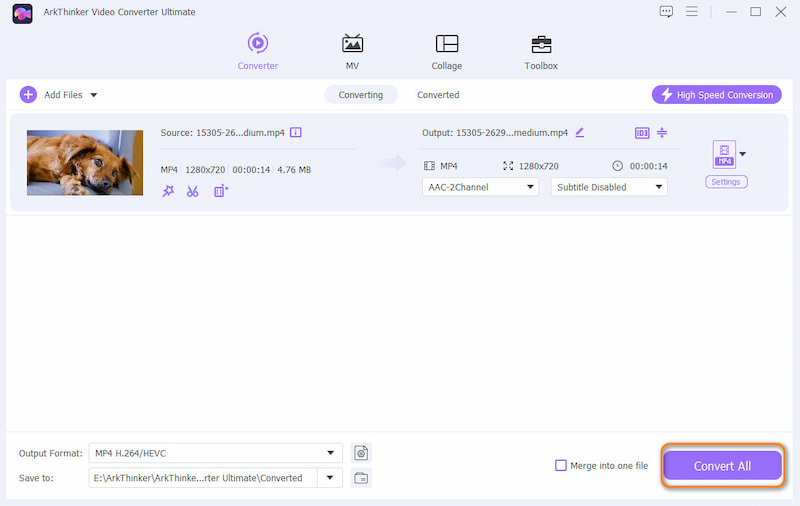
With the help of the well-labeled buttons and simplified output profiles in the tool, ArkThinker Video Converter Ultimate stands out as one of the best tools to choose over HandBrake.
AnyMP4 Video Converter Ultimate
Similar to the previous alternative tool, AnyMP4 Video Converter Ultimate also offers format conversion options and other multimedia adjustment tools for video files. Like ArkThinker’s, the program was also designed as a multimedia editing tool.
AnyMP4 Video Converter Ultimate also covers the main weaknesses of HandBrake, being limited conversion options and a complicated design. If you want to use the program as an easier alternative to HandBrake, you can do so as well.
Main Features:
- Flexible media format converter tool for videos, music, and files.
- Supports over 500+ media formats, both for input and as conversion options.
- Beginner-friendly interface design.
Open AnyMP4 Video Converter Ultimate and select Add File.

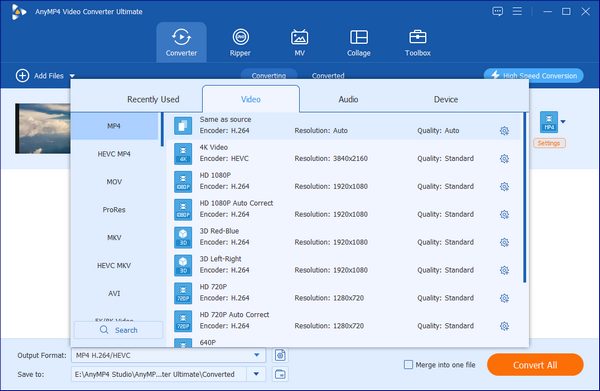
Next, select Output Format. Then, select the Output Profile you want to use to convert your video.
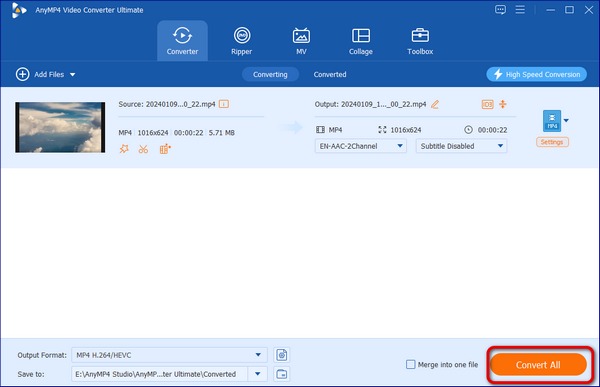
Finally, click Convert All to begin the format conversion process.
Part 6. FAQs About HandBrake Review
Is HandBrake free?
Yes, it is. HandBrake is a free, open-source software with no paid plans. The software is fully open-source.
Can I use HandBrake to edit audio files?
Yes, you can. However, the tool works better for videos. Its audio editing capabilities are more geared towards the audio of video files.
Can HandBrake read DRM-protected DVD?
No, it cannot. DRM-protected content is secured for copyright. HandBrake was not designed to breach it legally.
What platforms does HandBrake support?
HandBrake is available across different operating systems. You can use the tool for Windows, Mac, or Linux. This made the tool very accessible and can be used for various conversion jobs, such as converting MOV to MP4, MKV, or WebM.
Should I use HandBrake if I am a beginner?
No, you should not. HandBrake may be powerful, but it is complex to use. It is recommended to use easier converter options, such as ArkThinker Video Converter Ultimate, first.
Conclusion
Now that we have provided our readers with an overview of the features, strengths, and limitations of HandBrake, we hope this article has provided you with significant information about what makes the program a valuable software. If the software is too technical for your liking, please consider downloading and using our alternative, ArkThinker Video Converter Ultimate, instead.
What do you think of this post? Click to rate this post.
Excellent
Rating: 4.9 / 5 (based on 495 votes)


