


3 Ways to Convert MP4 to MKV: Pros, Cons and Tutorial
The variety of video formats is widening over time. Today, the universal standard in MP4 has equally viable alternative formats such as MKV videos. In this article, we will provide a detailed guide to converting MP4 to MKV. Additionally, we will feature a detailed tutorial on three programs you can use as reliable video format converters, all of which retain video quality, multi-track subtitles, and audio.

- GUIDE LIST
- Part 1. Why Convert MP4 to MKV
- Part 2. How to Convert MP4 to MKV
- Part 3. FAQs About MP4 to MKV Conversion
Part 1. Why Convert MP4 to MKV
Since the MP4 format offers excellent compatibility, converting to MKV is an unusual step for most multimedia users. However, MKV has a specific niche as a better container format. MKV has superior multi-track preservation for both audio and subtitles. As such, we highly recommend MKV conversion for movie and TV show projects.
To make it easier to decide whether using an MP4-to-MKV converter is worth your time, refer to our comparison table below, which highlights the differences between the two formats.
| MP4 | Comparison Factors | MKV |
| H.264, H.265 (HEVC), MPEG-4 | Video Codec | H.264, H.265/HEVC, AV1, VP9 |
| AAC, ALAC, MP3 | Audio Codec | AAC, FLAC, AC-3, DTS |
| Universal | Compatibility | Moderate to High |
| Average | Audio and Subtitle Support | Excellent (Multi-track) |
| General video consumption. | Best Usage | Watching movies and TV shows with a variety of audio and subtitle options. |
Part 2. How to Convert MP4 to MKV
ArkThinker Free Video Converter Online
Best For: Installation-free format conversion.
To get started with the MP4-to-MKV converters we will feature in this article, we will begin with the most accessible and beginner-friendly option: ArkThinker Free Video Converter Online. The program was selected for its superb accessibility: it requires no installation and is the easiest to use among our featured software.
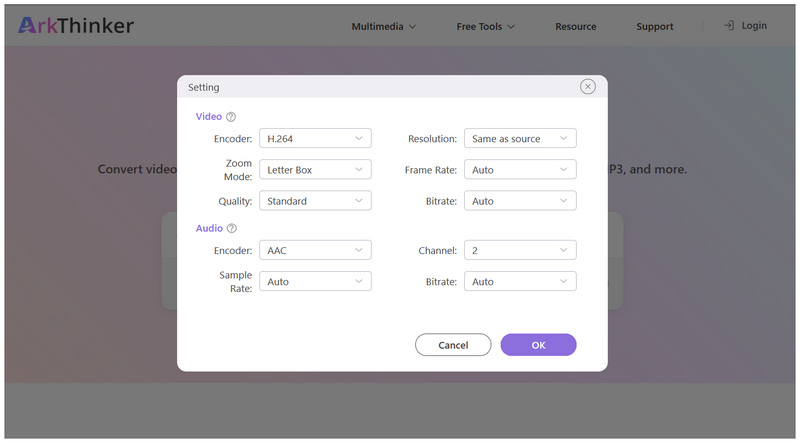
Although it is beginner-friendly, ArkThinker’s online program is not limited in terms of features. Experienced users can access the tool’s optional settings to edit the video’s Resolution, Frame Rate, Encoder, Quality, Bitrate, Sample Rate, and other advanced export settings.
Among the programs featured on this list, ArkThinker Free Video Converter Online is by far the most balanced in terms of ease of use and manual control options. To learn how to use the program, make sure to read our tutorial below.
- Free to use program.
- Does not require any installation.
- Works both as a video and audio format converter.
- Very beginner-friendly.
- Offers 24+ output formats for conversion.
- Not available for offline use.
- It has a file size limit of 50MB - 100MB.
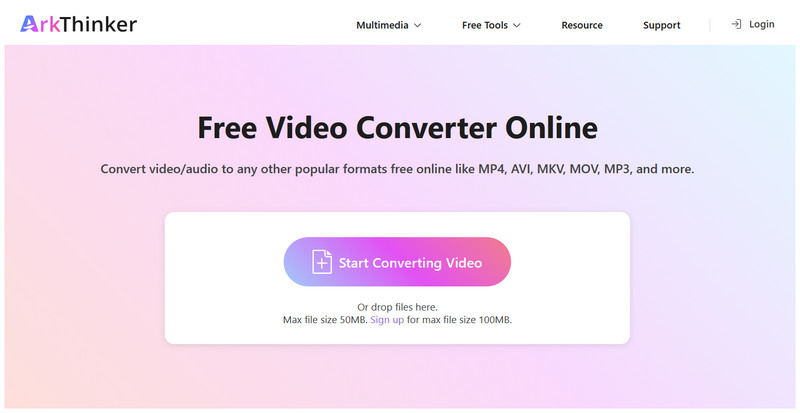
Go to ArkThinker Free Video Converter Online’s website and select the Start Converting Video option to import your MP4 file.
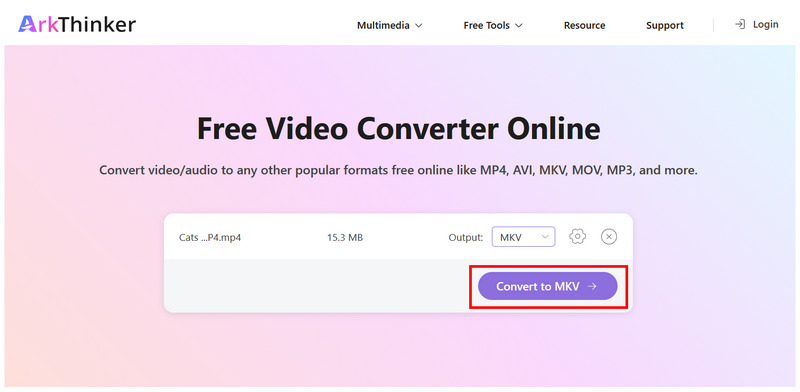
Once the MP4 video is added to the online tool, select Output > Video and select MKV. With the Output now set to MKV, click on Convert to MKV to begin format conversion.
Before converting, you may optionally click on the Gear (Settings) icon to configure the video Encoder, Resolution, Quality, and other advanced settings. Click OK to confirm your adjustments.
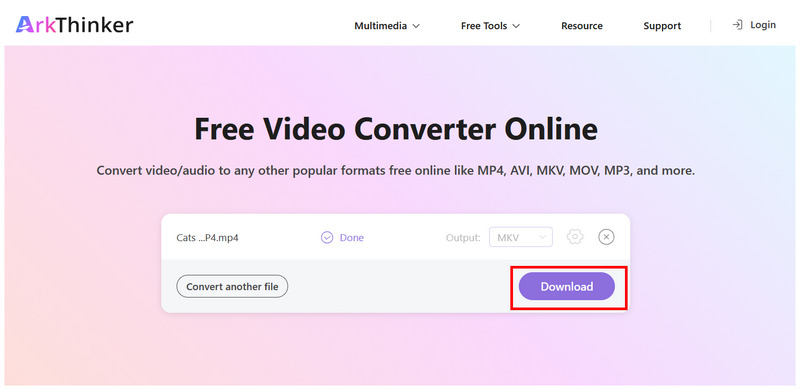
Wait for the conversion process to finish. Once done, select Download to save the video file back to your computer.
Once you have downloaded your converted video, the settings you applied before conversion will be applied. Otherwise, your video will retain its quality and embedded data once it was converted to MKV. As a free-to-use MP4-to-MKV converter, ArkThinker’s online tool surprisingly holds up.
MKVToolNix
Best For: Converting MP4 to MKV without remuxing to preserve quality, subtitles, and other metadata.
If your main concern when converting to MKV format is preserving audio and subtitle tracks, MKVToolNix is a smart choice, as it is an excellent way to preserve all the data written on your MP4 video once it is converted.
Moreover, the program is a direct answer for users who want to learn how to convert MP4 to MKV, since the tool is designed exclusively as an MKV converter. Unfortunately, it has a complex interface design which might be overwhelming for beginners.
To learn the basics of using the tool, please refer to our tutorial below.
- Lossless MP4 to MKV conversion.
- Preserve the original audio quality of the MP4 after conversion.
- Freeware and developed as an open-source tool.
- Confusing interface design, especially for amateurs.
- Limited to conversion to MKV format.
- Requires prior knowledge of video tracks and container technicalities.
Open MKVToolNix and go to the Input tab. Then, right-click and select Add Files. Navigate your file manager to add the MP4 video.
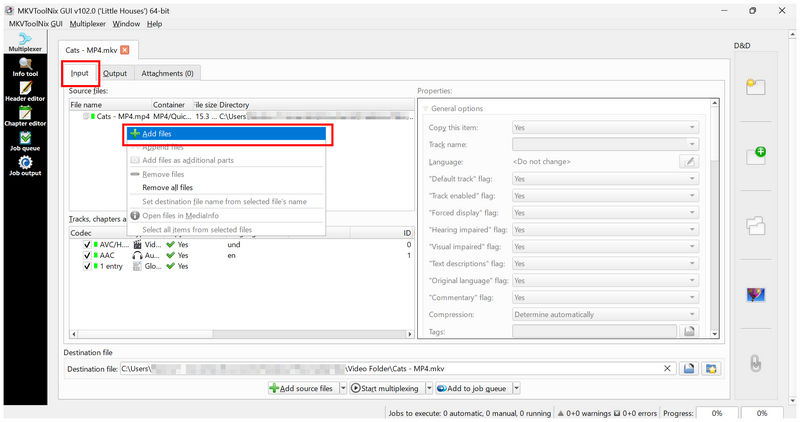
Once the MP4 file is added, go to the Output tab. Then, click on Add to Job Queue.
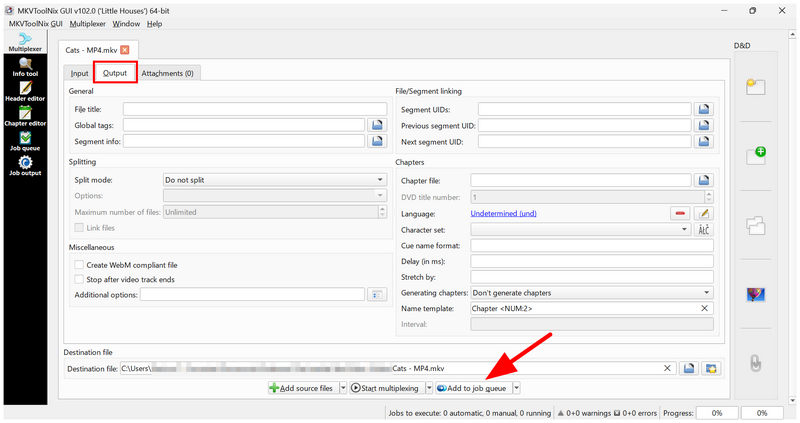
Go to the Job Queue tab, then right-click on the conversion job you have added. Then, select Start Job Manually to begin format conversion.
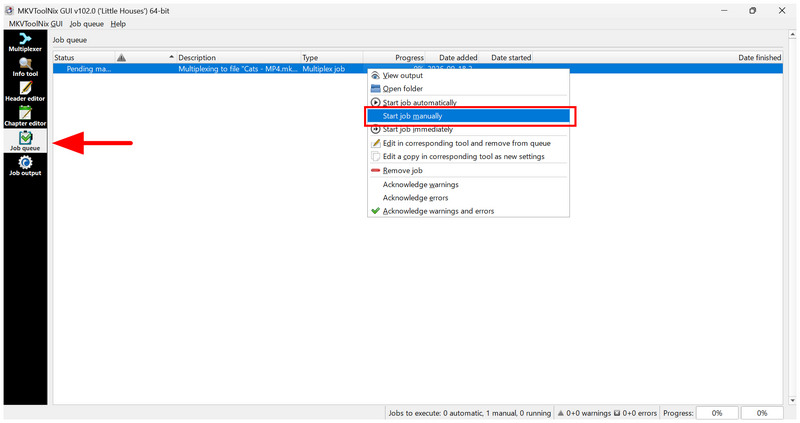
For exclusive or bulk MKV conversion, the exclusive MKVToolNix is a solid option. As such, this makes the tool a practical choice for multimedia practitioners. However, its advanced nature might be confusing for beginners.
Freemake Video Converter
Best For: Desktop-based converter for simple MP4-to-MKV conversion.
Similar to the first method in this article, Freemake Video Converter is a dedicated media converter that can convert MP4 videos to the more versatile, data-packed MKV format.
However, since the program is desktop-based, it offers more stable performance, making it a good choice for processing larger videos. Unfortunately, the software is very limited with the free version. It has several limitations, including poor video quality preservation, speed restrictions, and a large watermark on converted videos.
- Simple format conversion workflow.
- Offers basic video editing features.
- Designed for general video conversion.
- The free version has a video duration limit for conversions.
- Watermarks are added to videos when using its free version.
- Longer conversion time compared to the other options.
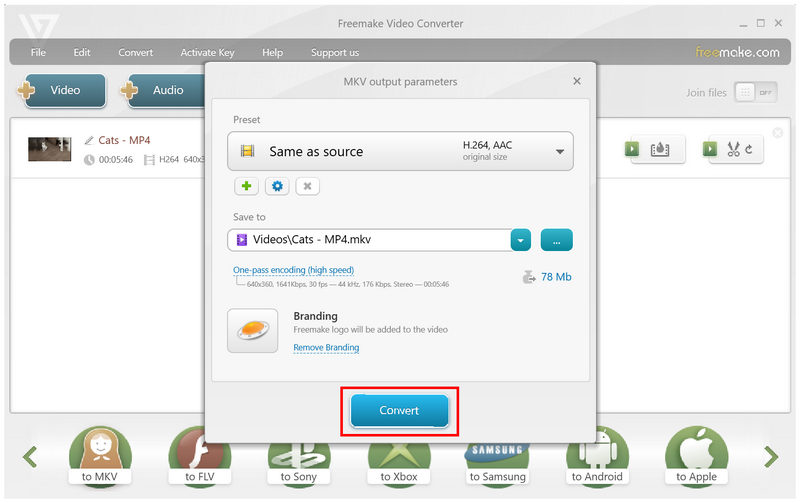
Open Freemake Video Converter and select the Video option in its main interface.

Once the video is imported to the program, click on the Navigation button in the lower-right section of the menu until the To MKV option appears; select it.
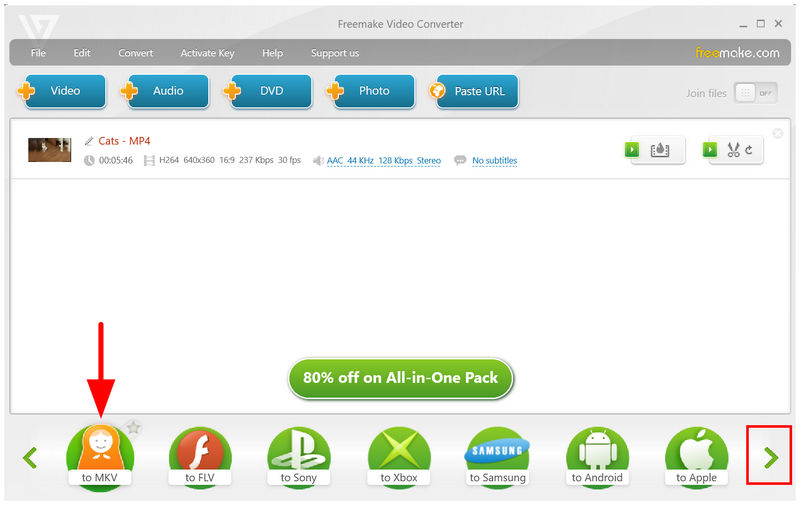
In the MKV output pop-up that appears, click Convert to begin the format conversion.
If you don’t mind the limitations of Freemake and your only concern is to convert to MKV format, it’s a good choice. You may also buy the tool’s premium version to enjoy its more advanced features.
Part 3. FAQs About MP4 to MKV Conversion
Does MP4 have better quality than MKV?
No, file formats do not reflect video quality. In this case, the quality is influenced more by codecs and resolution. MP4 may have better quality than MKV and vice versa.
Which video file format has a larger file size, MP4 or MKV?
MKVs are slightly larger than MP4s. This is to be expected, since MKV is a better container format. It can contain more data such as audio and subtitle tracks.
Are online tools good for converting video formats?
Yes, they are. Online tools are usually enough for simple format conversion. A good example of reliable online software is ArkThinker Free Video Converter Online.
What converter tool is best for batch video conversion?
Among the options in this article, MKVToolNix is best for batch conversion. The tool is a solid choice for processing multiple videos due to its job queue system. This makes the tool a solid choice for bulk conversion.
Should I convert my MP4 file to MKV?
It depends on your needs. If you want to add more audio or subtitle tracks to your video, converting to MKV is a good move. If you prefer better accessibility, keep your video in MP4 format.
Conclusion
With the best steps to convert MP4 to MKV now discussed, we hope the variety of programs we have featured in this article is enough to help you decide which one best suits your needs. To sum it up, we recommend using ArkThinker Free Video Converter Online for beginners; MKVToolNix for batch conversion, and Freemake Video Converter for users who prefer an easy desktop-based solution.
What do you think of this post? Click to rate this post.
Excellent
Rating: 4.9 / 5 (based on 621 votes)


