


How to Convert MP4 to OGG Using Online and Desktop Tools
Among video file formats, MP4 is the go-to option for general media usage. On the other hand, OGG is an unpopular format, more suited to specific niches, such as being open-source, free of licensing, and offering superb compatibility. As such, there is still strong demand for reliable solutions to convert MP4 videos to OGG today. In this article, we will provide a quick review and a guide to three video format conversion tools for browsers and desktops that can convert your MP4 videos to OGG.

- GUIDE LIST
- Part 1. Why Convert MP4 to OGG
- Part 2. How to Convert MP4 to OGG Free Online
- Part 3. Convert MP4 to OGG with VLC
- Part 4. Convert MP4 to OGG with FFmpeg
- Part 5. Extract and Convert MP4 Audio with Audacity
- Part 6. FAQs About MP4 to OGG
Part 1. Why Convert MP4 to OGG
The most notable reason to convert MP4 to OGG is OGG’s strengths as an audio format. Since it can be saved as either a video or an audio file, it is more versatile than MP4, which is a video-only format.
MP4 files converted to OGG are often used because OGG is a royalty-free, open-source audio format. OGG audio is widely used in game development, as most engines natively support the format for SFX or background music.
With the specific niches of converting MP4 to OGG now discussed, let us now continue to the tools you can use for format conversion.
Part 2. How to Convert MP4 to OGG Free Online
Best Used For: Installation-free media file format conversion.
We will get started with the tools for converting MP4 videos using ArkThinker Free Video Converter Online, since it offers the greatest advantages in accessibility and ease of use, as it is browser-based software.
Designed specifically to convert videos to various video and audio formats, ArkThinker’s online tool is an excellent solution for managing incompatible media files that cannot be opened with standard media players.
Unfortunately, since an option to convert to OGG is not available in ArkThinker’s online tool, the best you can do is choose a format that leverages OGG’s strengths. Fortunately, alternative formats that rival OGG in compatibility, open-source background, and suitability for web content are available in ArkThinker, including MKV for video and MP3 for audio.
To learn how to convert MP4 videos to an alternative OGG format, make sure to read our guide below:
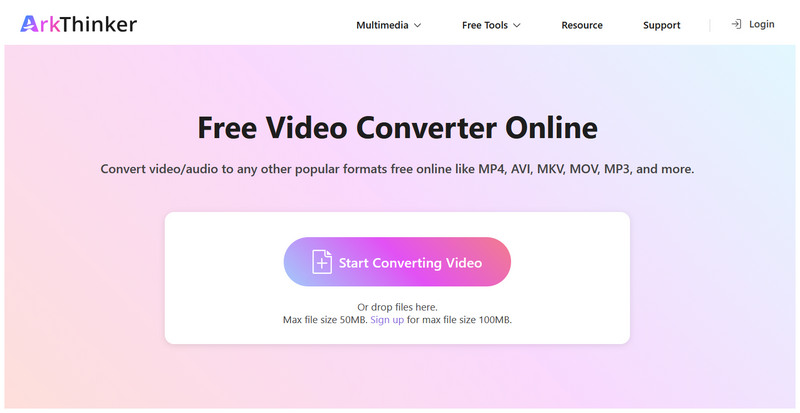
Go to ArkThinker Free Video Converter Online and select Start Converting Video to upload the MP4 video.
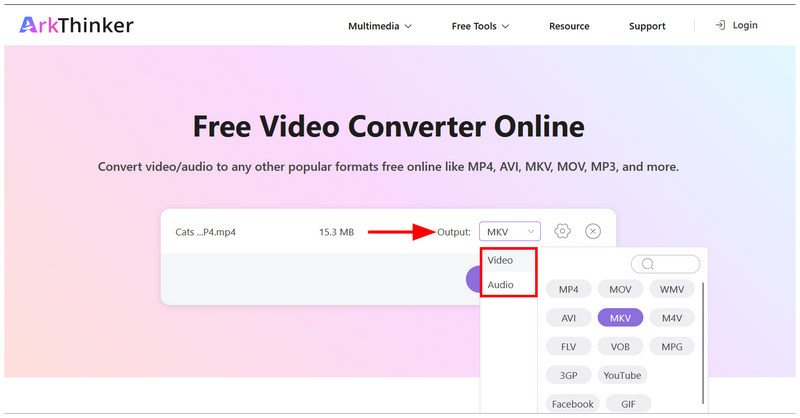
Once the MP4 file is uploaded, select Output and go to Video or Audio. To convert OGG to video format, select MKV. For audio, choose MP3.
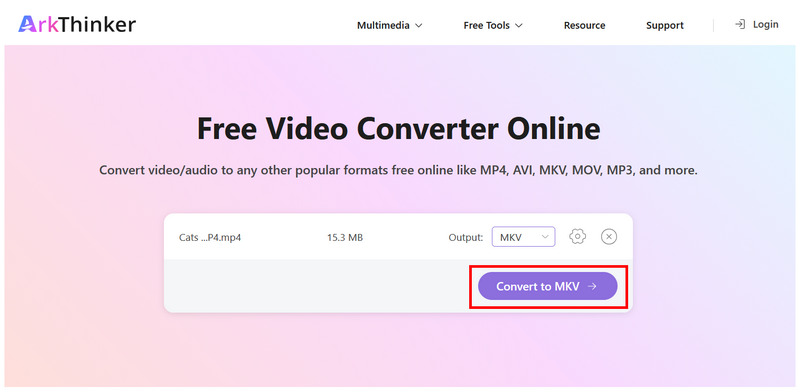
With the format selected, click on Convert to FORMAT. Wait for the conversion process to finish.
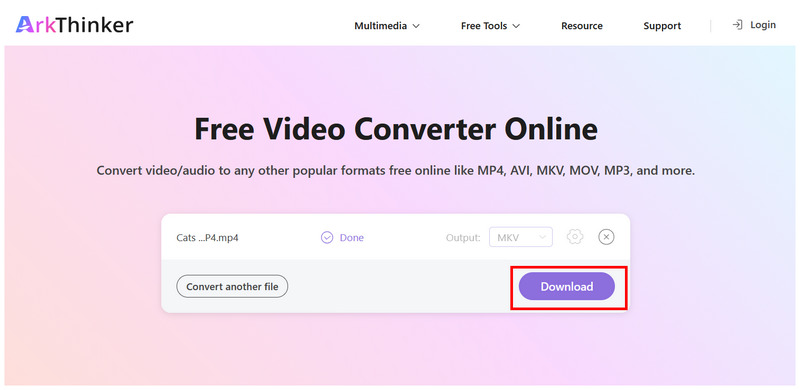
When your MP4 video is converted, click on Download to save the converted video file.
With the best online MP4-to-OGG converter now discussed, you can easily convert MP4 clips to an alternative audio or video format.
Part 3. Convert MP4 to OGG with VLC
Best Used For: Built-in converter tool for users who are already using VLC as a multimedia player.
Popularly known as VLC Media Player, the software offers more advanced features beyond basic file management. Fortunately, one of these options is a format-conversion tool that can handle simple video or audio conversions.
As such, converting MP4 videos to a video or audio format and saving them as OGG files can be done in the program’s advanced settings. To address the VLC problem of tricky settings, we have added a full tutorial below that covers the steps to convert MP4 to OGG.
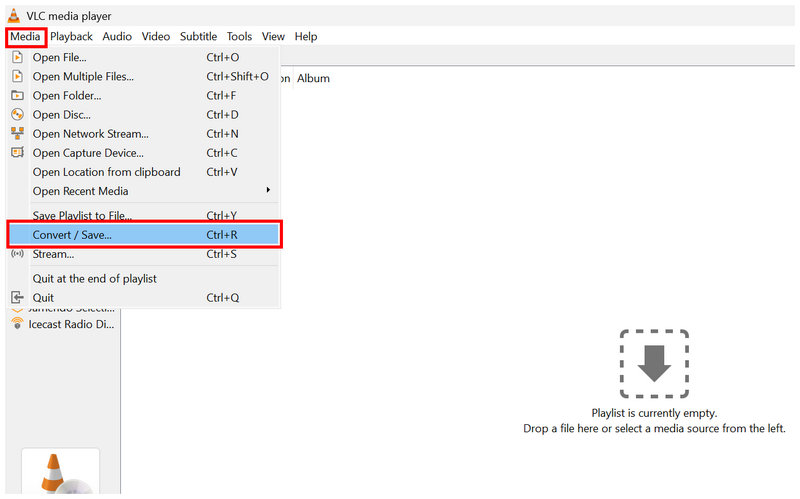
Open VLC Media Player and select Media > Convert/Save.
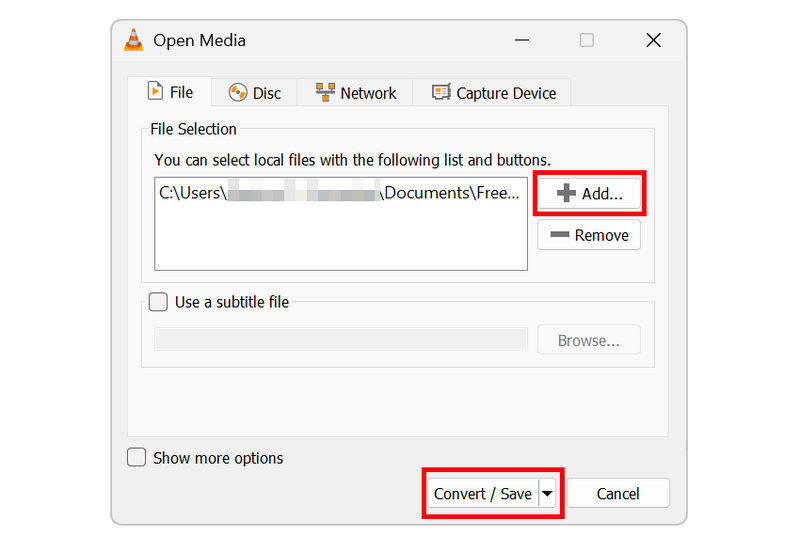
In the Open Media setting, click on Add and import the MP4 video. Then select Convert/Save to open the converter menu.
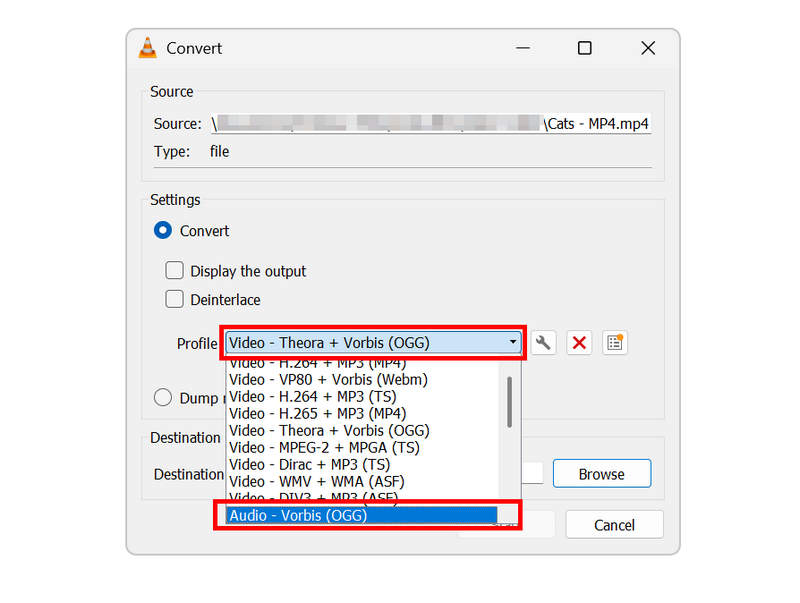
In the Convert tab, click on Profile. Then, select Video - Theora + Vorbis (OGG) to convert to, or choose Audio - Vorbis (OGG).
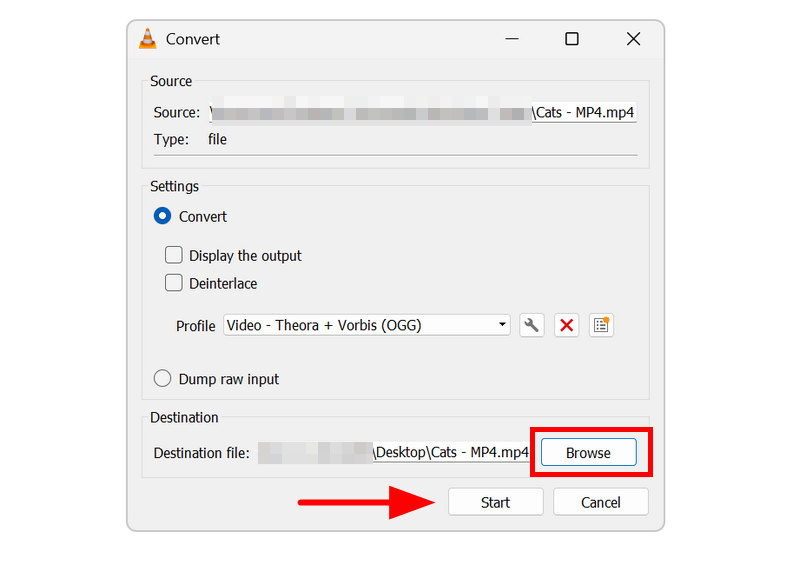
With the profile selected, click on Browse to set where your OGG file will be saved. Finally, click on Start to begin format conversion.
For users already using VLC, we can recommend it for basic file format conversion. However, keep in mind that this is only an added feature in the software, so its performance can be inconsistent at times.
Part 4. Convert MP4 to OGG with FFmpeg
Best Used For: Command-based format conversion for experienced coders.
With the two previous options for accessible MP4-to-OGG conversion, we can now move on to the more advanced solution for converting videos: FFmpeg. This command-line-based multimedia editing tool can convert file formats.
In terms of efficiency, it has a strong advantage, since applying format adjustments or even speeding up videos in FFmpeg can be done with the right command or script at your computer’s terminal. However, the lines themselves are tricky to use and require prior knowledge of which command to write.
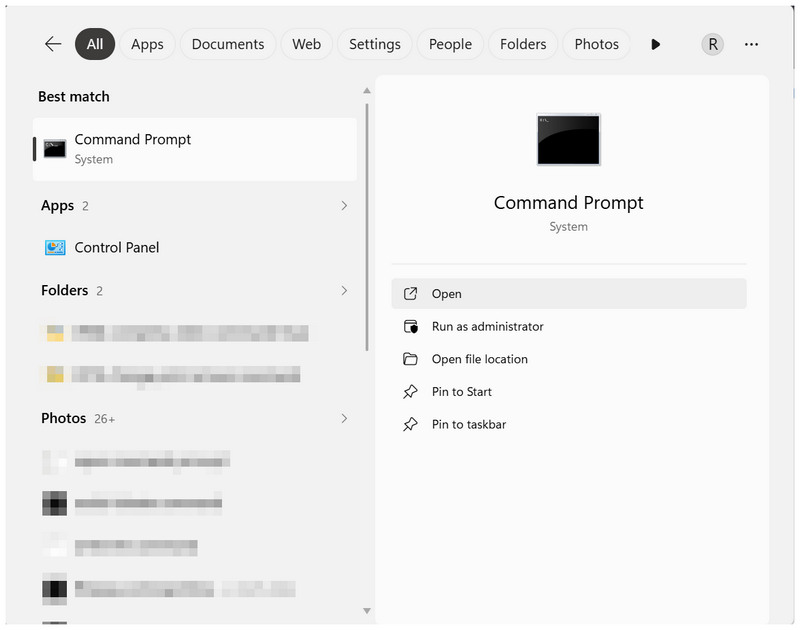
Open your device’s terminal; on Windows, open Command Prompt; on macOS, open Terminal.
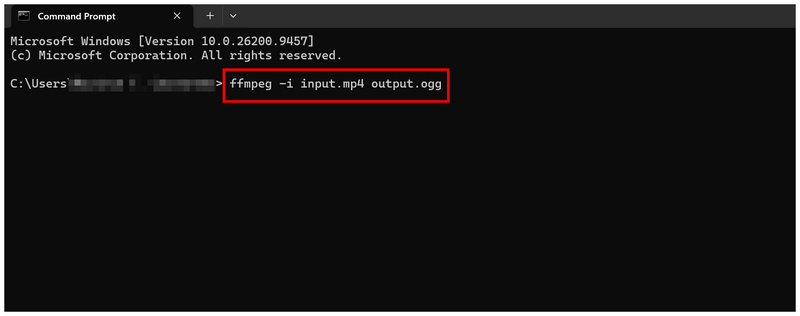
In the terminal program, copy and paste the command: ffmpeg -i input.mp4 output.ogg.
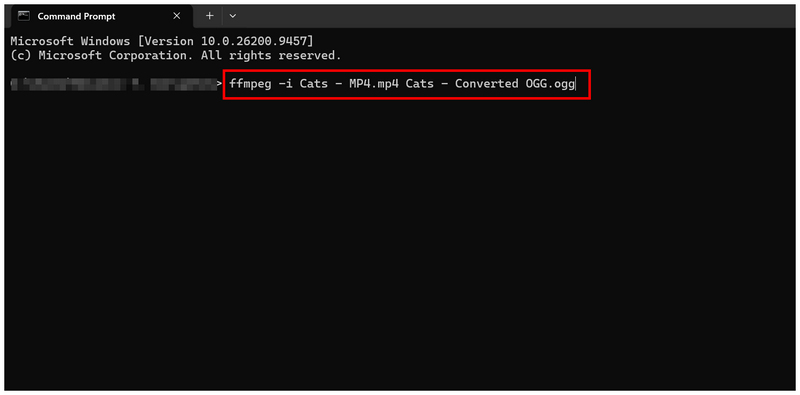
Rename input.mp4 to the file name of the video you want to convert. Then rename output.ogg to set the file name for the converted OGG media. Press Enter to begin format conversion.
Although the basics of converting MP4 to OGG with FFmpeg have been discussed, we still discourage using FFmpeg for file management purposes if you are a beginner or intermediate user. Typing the wrong command-line may negatively affect not only your file but also your device.
Part 5. Extract and Convert MP4 Audio with Audacity
When you want to extract audio from an MP4 video to OGG, the best tool to use is Audacity, an exclusive audio editing software. This program has an Export Audio option that can be used as an unconventional solution to convert audio files.
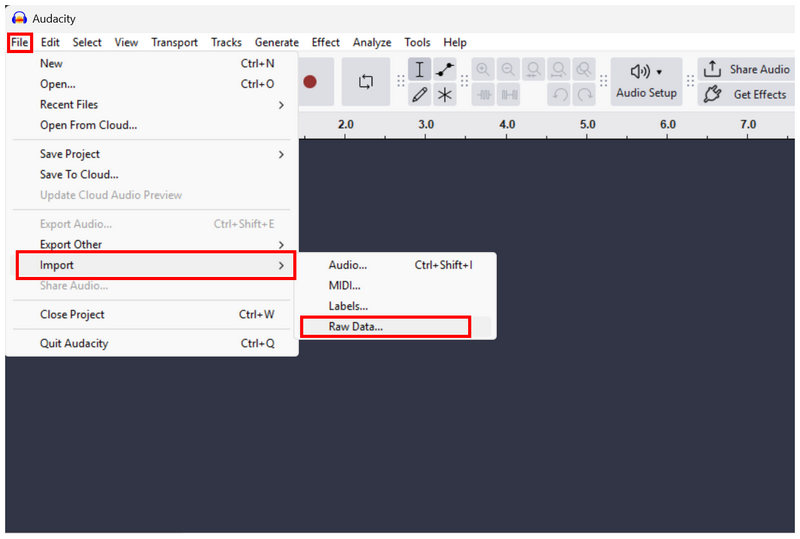
Open Audacity and click File. Then select Import > Raw Data. This is important since Audacity will not open the MP4 file if you select the basic Open File option.
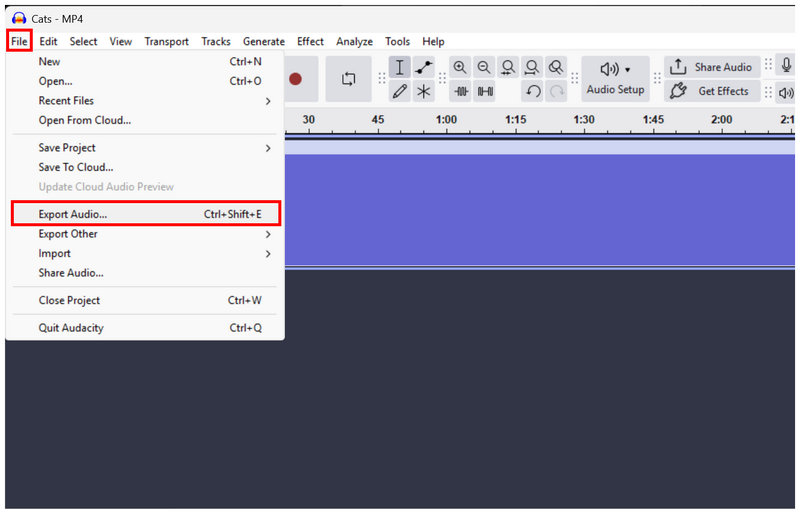
Once the MP4 is uploaded, select File > Export Audio.
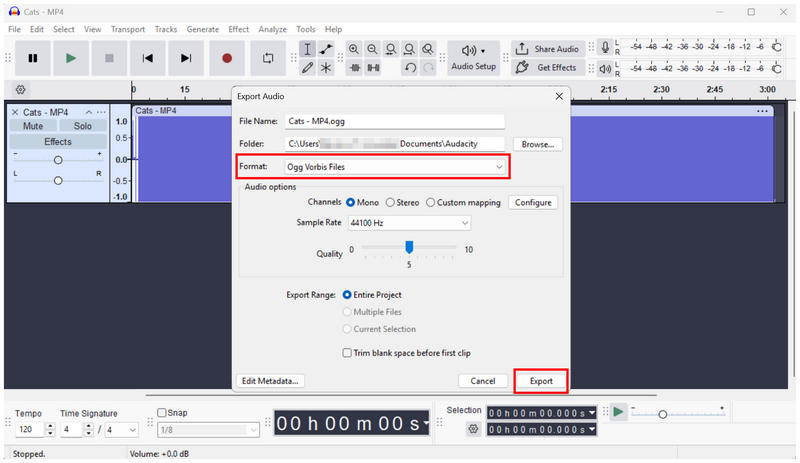
In the Export Audio menu, set the Format to OGG Vorbis Files, then select Export to begin converting the MP4 audio to OGG.
In addition to converting media files to different audio formats, Audacity offers manual audio editing options for advanced users seeking complete control over audio quality.
Part 6. FAQs About MP4 to OGG
Can I convert MP4 to OGG online?
Yes, you can. Online media converter tools support video format conversion. A good exclusive option is ArkThinker Free Video Converter Online.
Can videos be converted to audio format?
Yes, they can. Media format conversion can be done for video to audio. The programs that we have featured in this article can all convert MP4 files to OGG audio.
Are OGG files video or audio?
OGG files can be both. It is a container format that can be saved as audio or video. However, it is often used as an audio format.
Can I convert media files using export settings of editing tools?
Yes, you can. Media editing tools can be used to convert files via exporting. This is a good alternative solution for quickly converting audio or videos.
Are online tools safe to use?
Yes, they are. Online tools can be used to change media format safely. One good example is ArkThinker Free Video Converter Online, which converts audio and video files.
Conclusion
With the tools to convert MP4 to OGG format now discussed, you can now easily extract the audio track from your MP4 videos. However, always keep in mind that the programs we have featured in this article are made for users of different skill levels. For beginners, we recommend using the online tool ArkThinker Free Video Converter Online. For intermediate users, VLC is a good choice. For advanced practitioners, FFmpeg is the most efficient.
What do you think of this post? Click to rate this post.
Excellent
Rating: 4.9 / 5 (based on 611 votes)


