


How to Use FFmpeg to Speed Up Videos: A Detailed Tutorial
Although unconventional in previous years, speeding up your video’s playback is now a practical editing option, as short-form content has taken over social media. When a sped-up video is easier to watch and digest, it is perfect for modern short-form standards. In this article, we will provide a detailed guide to using FFmpeg to speed up videos and optimize them for online posting. We will provide a detailed guide for FFmpeg because it is quicker and more efficient for applying video adjustments. However, we will also provide an alternative tool you can use instead of FFmpeg if the software’s technical requirements are beyond your skills.

- GUIDE LIST
- Part 1. Basic FFmpeg Commands to Speed Up Videos
- Part 2. How to Speed Up Video with FFmpeg
- Part 3. Best Alternative to FFmpeg to Speed Up Video
- Part 4. FAQs About Speeding Up Videos in FFmpeg
Part 1. Basic FFmpeg Commands to Speed Up Videos
Unlike multimedia tools and traditional audio editors, FFmpeg works exclusively in your computer’s command terminal, as it was designed as a command-line software suite for editing files, commonly for format conversion, recording, and audio and video editing.
Since it is fully command-based and lacks a built-in graphical user interface (GUI), editing files in FFmpeg is done exclusively via command lines that its users must already know. Unfortunately, this is not the most beginner-friendly approach, so it is not the best choice for all users, especially those who only want to speed up videos on TikTok or other short-form content.
If you want to get started with using FFmpeg as a multimedia tool, we’ve provided some basic speed-up commands below. These commands are all you need in FFmpeg to make playback adjustments.
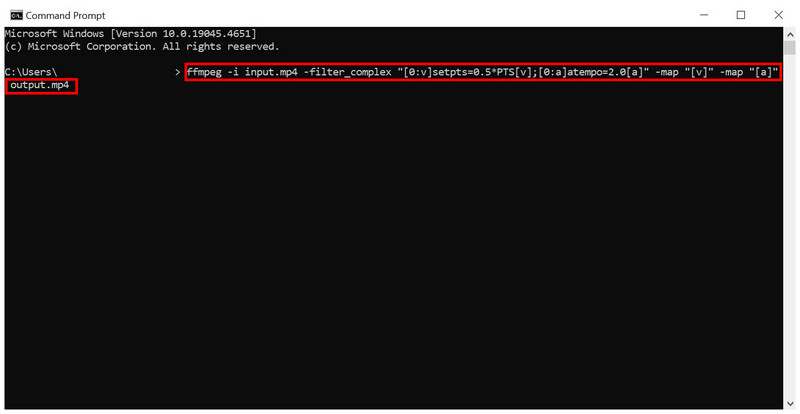
Keep Video In-Sync: ffmpeg -i input.mp4 -filter_complex “[0:v]setpts=0.5*PTS[v];[0:a]atempo=2.0[a]” -map “[v]” -map “[a]” output.mp4
Speed-Up Multiplier (2X): ffmpeg -i input.mp4 -filter_complex “[0:v]setpts=0.5*PTS[v];[0:a]atempo=2.0[a]” -map “[v]” -map “[a]” output.mp4
No Audio Video Speed Up: ffmpeg -i input.mp4 -filter:v “setpts=0.5*PTS” output.mp4
Audio Only Speed Up: ffmpeg -i input.mp4 -filter:a “atempo=2.0” output.mp4
Speed Up With Re-Encoding for Quality: ffmpeg -i input.mp4 -filter_complex “[0:v]setpts=0.5*PTS[v];[0:a]atempo=2.0[a]” -map “[v]” -map “[a]” -preset fast -crf 23 output.mp4
Speed Up All File Formats (MP4): for %i in (*.mp4) do ffmpeg -i “%i” -filter_complex “[0:v]setpts=0.5*PTS[v];[0:a]atempo=2.0[a]” -map “[v]” -map “[a]” “fast_%~ni.mp4”
With all these command lines now discussed, let us move on to the tutorial on using FFmpeg to help our readers apply these commands to the media files they want to edit. Please proceed to the next section of the article to learn how to use FFmpeg to speed up videos in MP4, MKV, MOV, or any video format.
Part 2. How to Speed Up Video with FFmpeg
Speeding Up Video with Audio Sync
The first tutorial in this guide shows how to use FFmpeg to speed up videos by 2X. This playback multiplier was selected because it is often the standard option for maintaining audience attention in short-form content.
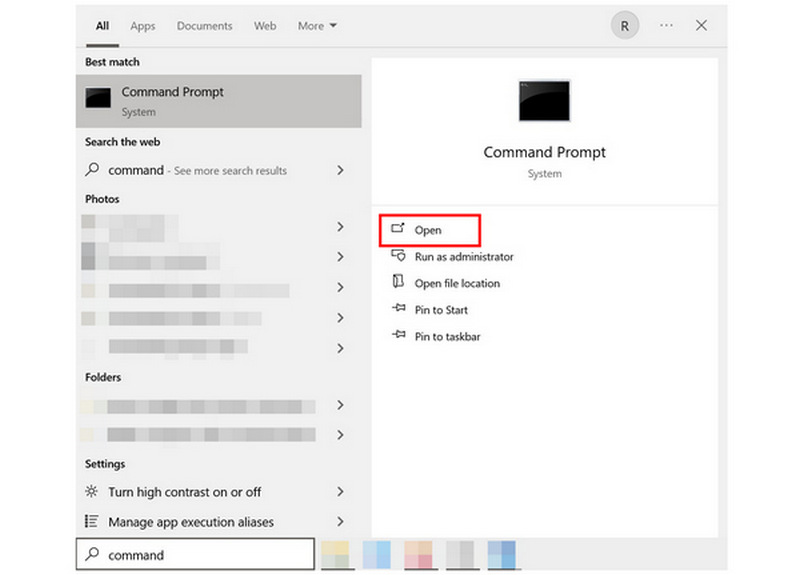
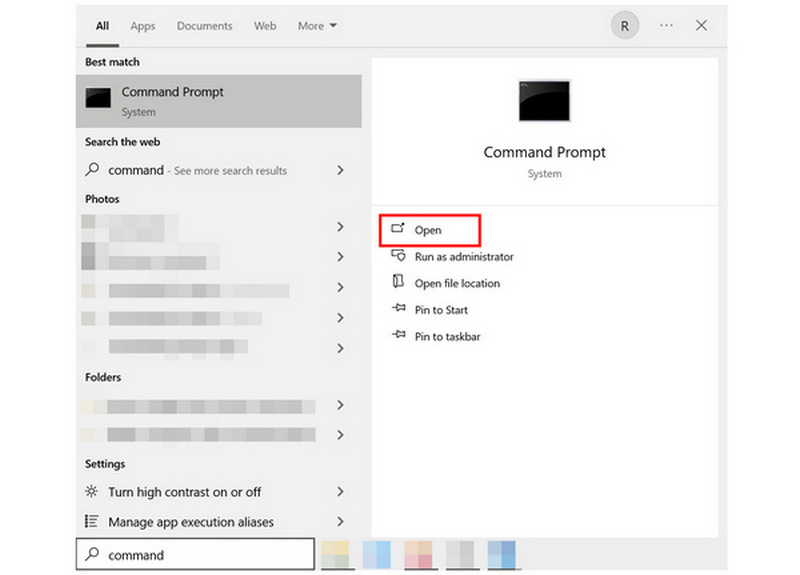
Open your computer’s command-line software. On Windows, open Command Prompt. On macOS, open your device’s Terminal.
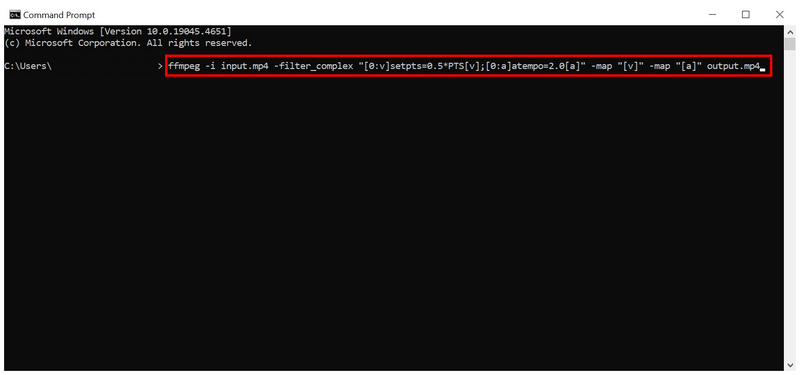
In your command software, copy and paste the speed-up multiplier command we have provided above: ffmpeg -i input.mp4 -filter_complex \"[0:v]setpts=0.5*PTS[v];[0:a]atempo=2.0[a]\" -map \"[v]\" -map \"[a]\" output.mp4.
Once the command has been pasted, edit the input.mp4 and output.mp4 commands. Rename the input to the name of the video you want to speed up, and adjust the output to how you want the sped-up video to be saved. With the Input and Output name now set, press Enter to begin the speedup adjustment.
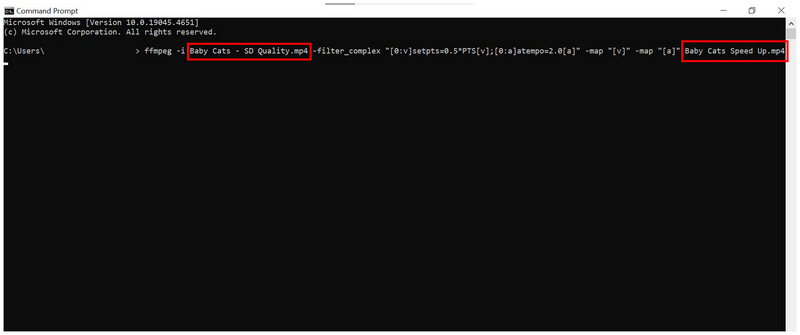
Using this command, you can now apply simple audio speed adjustments to your FFmpeg command software.
Batch Processing Multiple Videos
To batch process multiple videos on your computer, the simplest option is to apply the playback adjustment to all videos in your set format. In this case, the guide features batch processing of all videos saved as MP4 files.
Open your computer’s command line software.
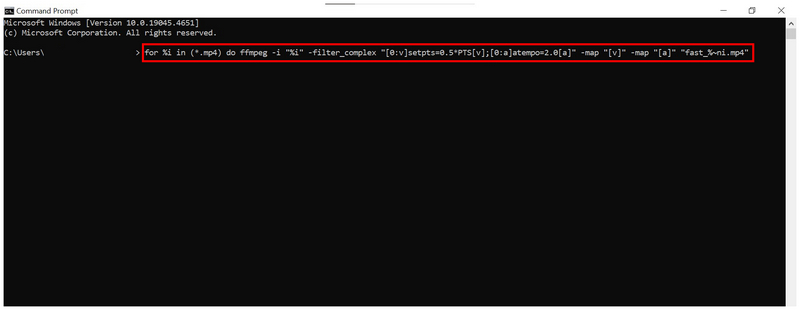
In the command terminal, copy and paste the command to batch-process videos in a set format. In this case, MP4 videos: for %i in (*.mp4) do ffmpeg -i \"%i\" -filter_complex \"[0:v]setpts=0.5*PTS[v];[0:a]atempo=2.0[a]\" -map \"[v]\" -map \"[a]\" \"fast_%~ni.mp4\".
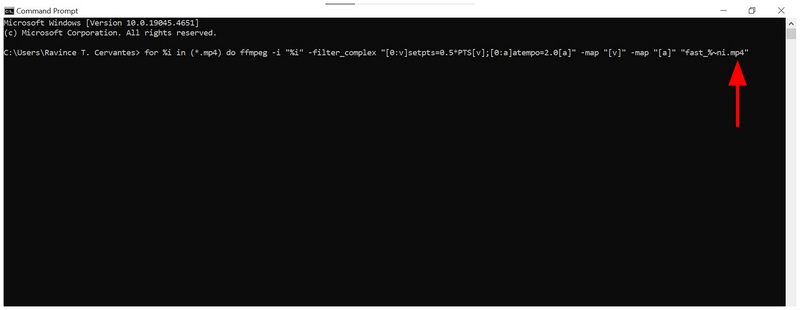
If you want to change the video format of the videos you want to speed up, edit the desired format to the end of the command.
Although it is not the best, speeding up all files saved in a defined format still gets the job done. As such, we recommend using this command if you are sure that the videos you want to edit are saved in a uniform file type.
Part 3. Best Alternative to FFmpeg to Speed Up Video
With the command-line options for video speed-up in FFmpeg now discussed, their advanced nature is definitely not ideal for amateurs. Using command lines also carries a significant risk if you make a mistake while editing media files. With that in mind, using a multimedia tool to speed up video is a better choice, and ArkThinker Video Converter Ultimate may be exactly what you need.
Unlike the 100% command-based interface of FFmpeg, ArkThinker Video Converter Ultimate offers video speed-up adjustments using an exclusive beginner-friendly tool. Instead of using complex commands, all you need to do in this software is select the speed multiplier you want to use and then hit export.
Once done, your software will now start producing the video with a modified playback speed. You can even preview the video first to maintain quality control and ensure that the modification is applied correctly.
To learn how to use the software and discover its most practical features, read its key strengths below and refer to our three-step guide for using the Video Speed Controller tool.
Main Features:
- • Easy-to-use video speed controller tool.
- • Versatile video speed modifiers from 0.125X to 8X.
- • Beginner-friendly interface design.
- • Versatile toolbox for different multimedia adjustment tools.
- • It can process media formats across 1000+ file types.
Make sure to download the software first to follow our tutorial more easily.
Open ArkThinker Video Converter Ultimate and then go to the Toolbox tab. Scroll down and then find the Video Speed Controller tool.
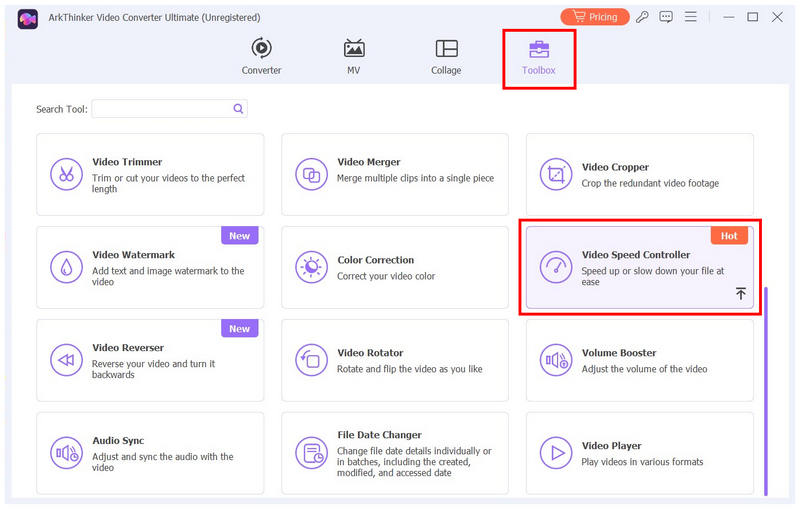
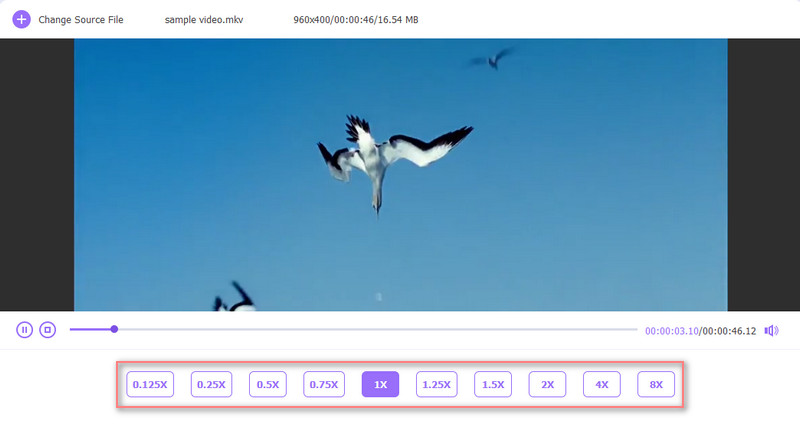
Once your video has been added to the tool, select the speed modifier you want to use, ranging from 0.125X to 8X. To speed up your video, select a multiplier higher than 1X. To slow down, select an option under 1X. For a safe video speed-up option, the 2X multiplier is a good starting point.
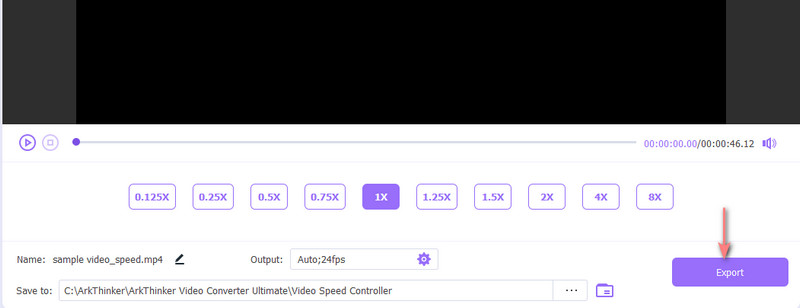
With the speed multiplier set, click Export to begin producing the video at a faster playback speed.
Now that we have provided the steps for using the easier alternative for speeding up videos, you can reliably use the software to speed up videos on your desktop. This is more reliable than other tools, such as speeding up videos on CapCut online or mobile.
Part 4. FAQs About Speeding Up Videos in FFmpeg
Can I use FFmpeg to edit videos?
Yes, you can. FFmpeg can edit multimedia files on your device. You need to write the proper commands to make this possible.
Is it hard to use FFmpeg?
Yes, it is. FFmpeg is very complicated to use. You need to learn the commands before using them, and learning what each line does is another story.
Why is using FFmpeg popular?
FFmpeg is popular because it is open-source. It offers the best options for managing multimedia files. It is also popular among advanced users because command lines are the most efficient way to work.
Does editing video speed affect the audio?
Yes, it does. Editing the video speed will affect the audio. The most common effect is an increase in audio pitch.
Is it hard to change video playback settings?
It depends on what you are using. Using FFmpeg is hard. However, multimedia tools like ArkThinker Video Converter Ultimate are much easier to use.
Conclusion
Now that we have provided a detailed tutorial on using FFmpeg to speed up videos, we hope this article has helped you learn the basic commands in the multimedia tool. Given its background, we do not recommend it for beginners. New multimedia users should use software like ArkThinker Video Converter Ultimate; it will be a better choice due to its ease of use. Make sure to download it using the link below.


