


Top 5 WebM to MP3 Converters for Windows, macOS, and Mobile
Converting videos to audio files is one of the most efficient ways to save storage space, especially if you are only looking to use the audio track of the clip. This is often used for editing projects or for users who want to convert online videos as an audio file for personal use. Since WebM videos are one of the most popular formats for online clips, this article will provide our readers with a detailed guide on how to rip or extract audio tracks by converting WebM files to MP3. The five methods we will highlight in this article will involve direct conversion to the MP3 file format. For an objective review, we featured the programs we have selected by highlighting their most notable strengths and limitations, as well as a tutorial on using their converter features.

- GUIDE LIST
- Method 1: Fast & Free – Use Online Converter CloudConvert (No Installation)
- Method 2: Best for Bulk & High Quality – Use ArkThinker Video Converter Ultimate (Dedicated Desktop Converter)
- Method 3: Completely Free & Offline – Use VLC Media Player (Cross-Platform)
- Method 4: Built-in Windows Solution – Use Windows Media Player (Legacy CD Rip)
- Method 5: Mobile Conversion – How to Convert WMA to MP3 on Android & iOS with AiseeSoft AllVidConverter
- Part 6. Pro Audio Guide: How to Keep Maximum Sound Quality When Converting
- Part 7. FAQS About Converting WebM to MP3
| WebM to MP3 Converter | Best Used For | Internet Required | Batch Conversion | Audio Quality | Pricing |
| CloudConvert | One-time conversions. | Yes | Yes | 256kbps | Free – $18.00 |
| ArkThinker Video Converter Ultimate | Fast batch conversion of a handful or a library of files. | No | Yes | Lossless Quality 320kbps | Free – $31.20 |
| VLC Media Player | Desktop-based one-time conversions. | No | No | 320kbps | Free (Open Source) |
| Windows Media Player | Digitising physical media from CDs. | No | No | 320kbpbs Lossless | Free (Built-in) |
| AiseeSoft AllVidConverter | Mobile-based format conversion. | No | Yes | 128kbps 256kbps 320kbps | Free – $19.99 |
Method 1: Fast & Free – Use Online Converter CloudConvert (No Installation)
The first method we will discuss in this article is the most reliable online WebM to MP3 converter with the CloudConvert online tool. Since it is a web-based program, this software requires minimal setup, as all you need to do is go to their website and adjust the formats. It is also completely installation-free.
Among the options on this list, this program is a solid option for beginners and casual multimedia users. On top of requiring no setup, installing the software is also not required. Unfortunately, the program has severe limitations when it comes to regular use. It has both a file size upload limit as well as daily processing limits when you are only using their free version.
To learn how to use CloudConvert as your web-based converter of choice, make sure to read its pros and cons below, and continue reading our tutorial on how to use the software.
- Accessible on desktop and mobile devices.
- Does not require any setup or installation.
- Optimized for beginners.
- Limited upload file size.
- Daily upload limits.
- Users must pay for the premium version to remove upload limits.
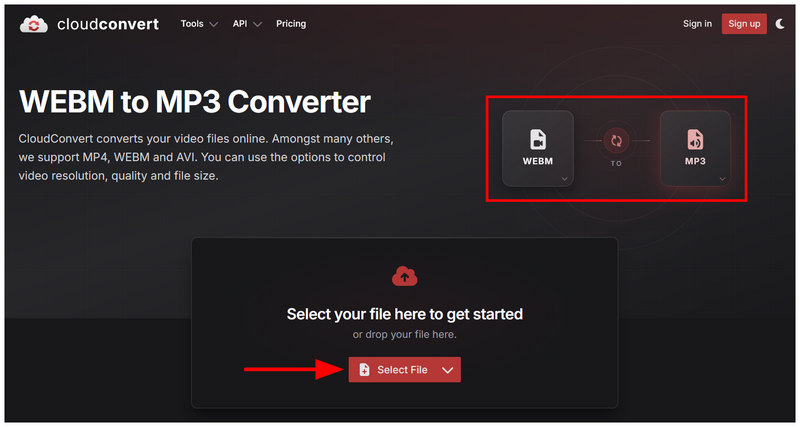
Go to the CloudConvert website and set the converter formats to WebM to MP3. Then, click on Select File to import your WebM video.
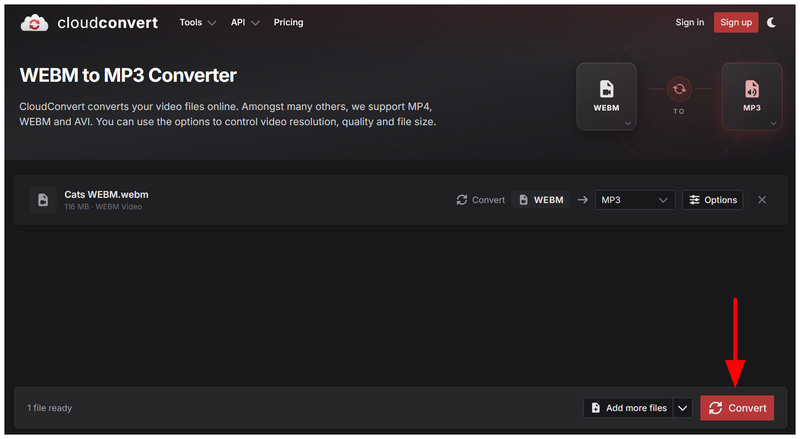
Once your WebM file is uploaded, select Convert to begin the process.
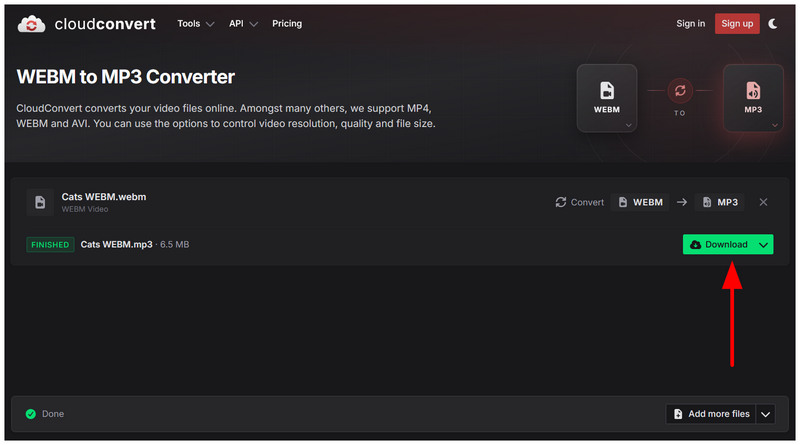
After your WebM file has been converted, select Download to save the converted MP3 to your computer.
Now that we have discussed how to use CloudConvert for WebM to MP3 conversion, we hope that you can use this article as one of your pocket solutions for quick format conversion.
Method 2: Best for Bulk & High Quality – Use ArkThinker Video Converter Ultimate (Dedicated Desktop Converter)
In the second option for this article, we will discuss the most reliable desktop-based tool if you are looking for an effective video to audio converter for WebM to MP3. This is none other than ArkThinker Video Converter Ultimate.
As its name suggests, this program is especially designed for multimedia format conversion, making it an optimal solution for video to audio processing. Due to its background as a multimedia tool, it fully supports 500+ media formats, including both WebM and MP3 as its input or output format.
To make the software accessible, its interface is also optimized to be easy to use. When it comes to performance, its GPU acceleration system makes it highly compatible with handling format conversion efficiently.
For a complete guide on using the program, make sure to read its pros and cons below. Make sure to also read our three-step guide on using the tool down below.
- GPU-accelerated conversion performance.
- Highly optimized for batch conversions.
- Stable and reliable performance since it is desktop-based.
- 5-minute conversion limit on the free version.
- Other advanced features require the premium version.
Before proceeding to our tutorial, make sure to download the software first for an easier time following it.
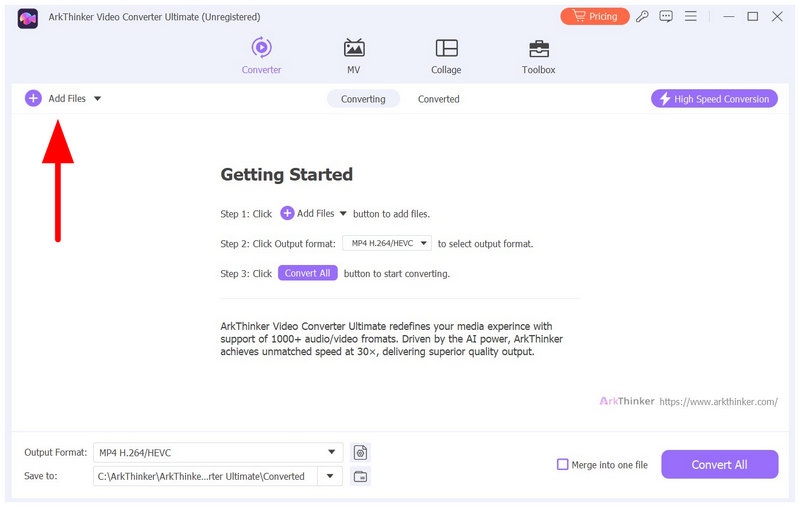
Open ArkThinker Video Converter Ultimate and select the Add Files button in the Converter tab to add your WebM video.
Next, select Output Format once your WebM file has been uploaded. Then, go to Audio, select MP3, and choose your desired Conversion Profile.
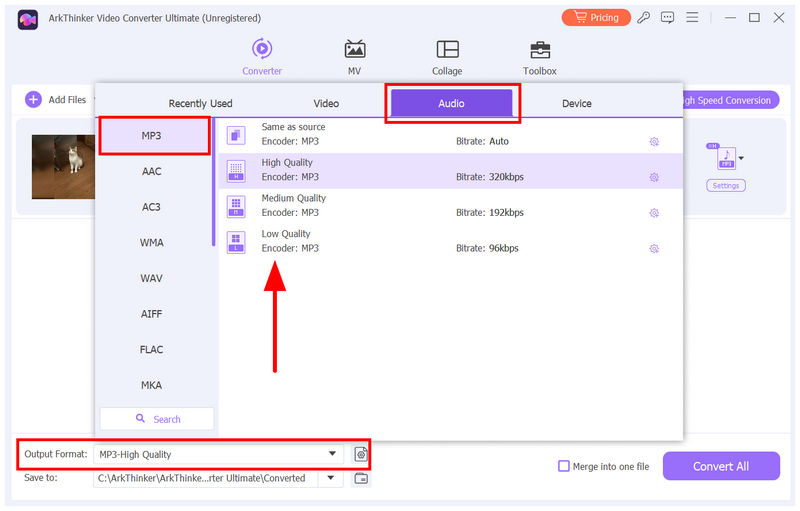
Finally, with the output format settings set up, simply select Convert All to begin the video-to-audio format conversion.
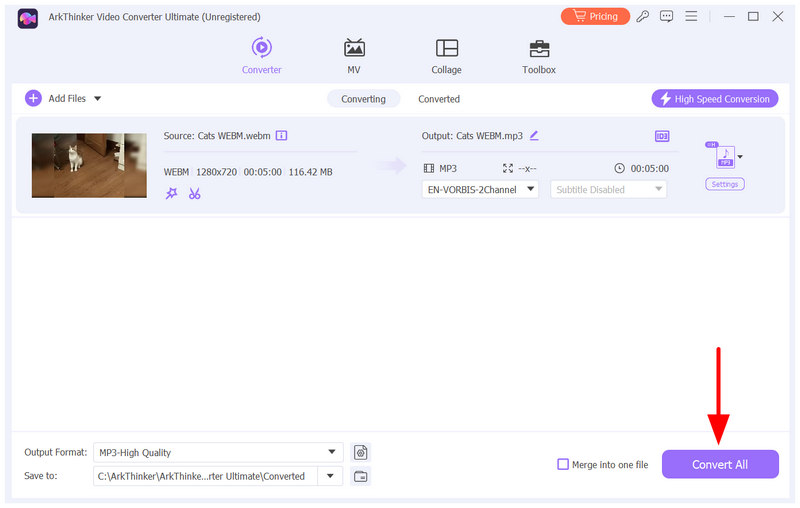
Among the methods in this article, ArkThinker Video Converter Ultimate offers the perfect balance when it comes to features, ease of use, and accessibility.
Method 3: Completely Free & Offline – Use VLC Media Player (Cross-Platform)
For open-source users, VLC Media Player is a popular multimedia player program across different operating systems. Unbeknownst to its users, the software also works as a viable solution for basic format conversion.
Using the Media tab of VLC, basic audio-to-audio conversion is possible, such as OGG to MP3 or even video-to-audio conversion with WebM to MP3. Although the output formats are limited, the software luckily offers an MP3 option, making it a viable choice for video-to-audio conversion.
- Built-in converter tool for audio and videos.
- Reliable multimedia player.
- Cross-platform availability for Windows, macOS, Android, and iOS.
- Limited audio and video output formats.
- Its format conversion option is only an additional feature.
- Subpar format conversion performance.
Open VLC Media Player and select Media, then select Convert/Save in the menu.
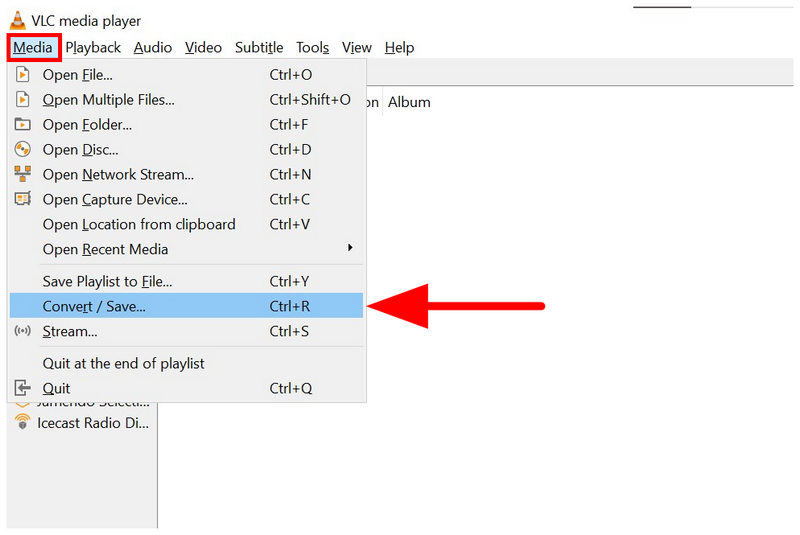
In the Open Media menu, select Add and navigate through your files to upload your WebM. Once added, select Convert/Save.
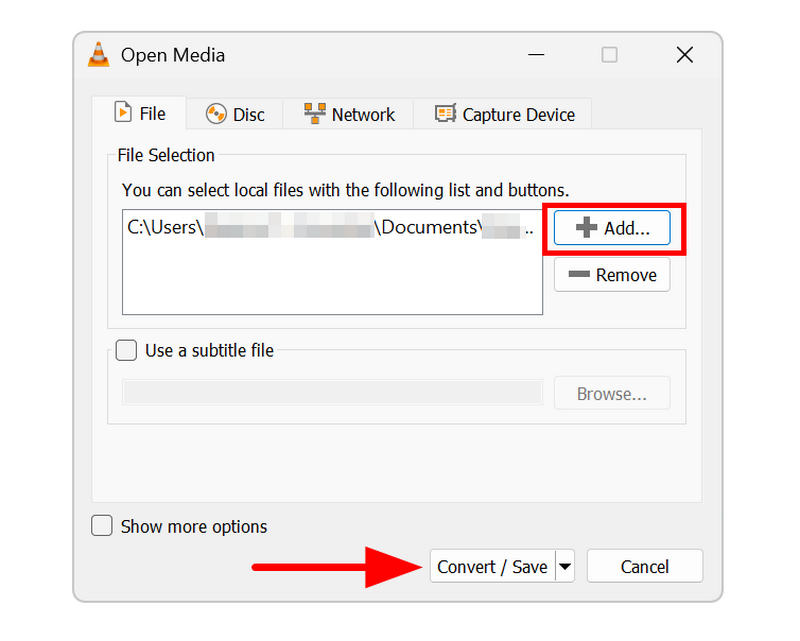
In the Convert menu, click on Profile and select the Audio - MP3 option. Next, select Browse in the destination option to set where your converted MP3 will be saved. Click Start to begin the WebM to MP3 conversion process.
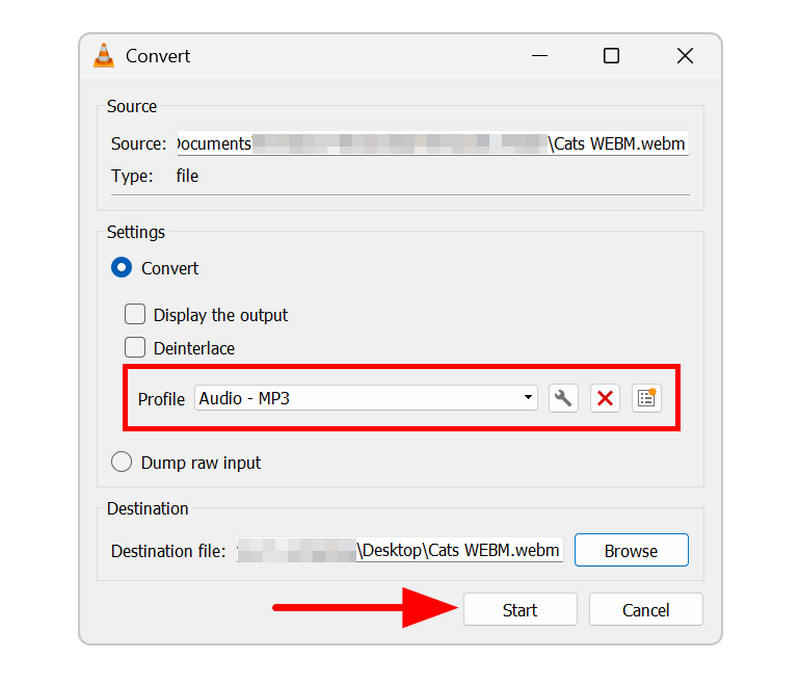
Although VLC has a format conversion feature, it is not advisable as a regular solution. It is a multimedia player first, and its convert option is only an addition. Only use it for one-off or occasional processes.
Method 4: Built-in Windows Solution – Use Windows Media Player (Legacy CD Rip)
The fourth method we will highlight in this article is using the CD ripping tool in Windows Media Player. Although this option is not a direct solution for WebM to MP3, it is still a useful way to turn physical media content into digital files.
However, the program won’t get the job done if you want to use it for video-to-audio conversion. This is only advisable if you want a proper solution for converting physical media to a digital audio format.
- Built-in tool for Windows computers.
- Equipped with a rip CD function for loaded physical media.
- Natively optimised for Windows computers.
- It can only convert files from CD media.
- Does not support digital file conversion.
- Basic multimedia playback options.
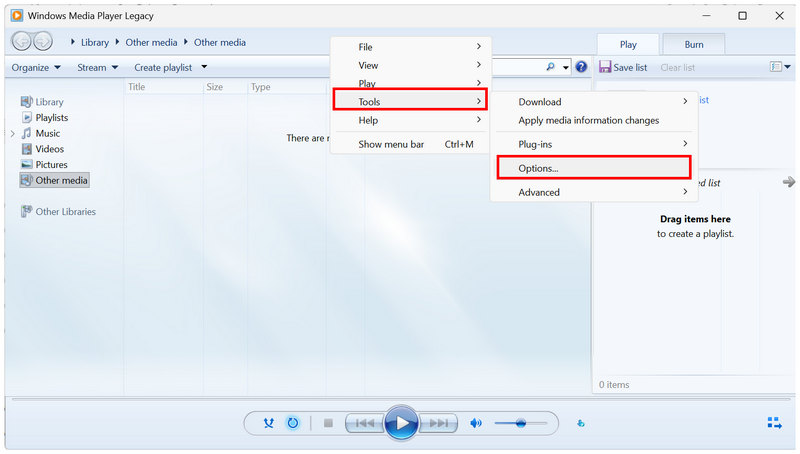
Open Windows Media Player, then right-click on any portion of the program’s menu. Then, hover your cursor over Tools and select Options.
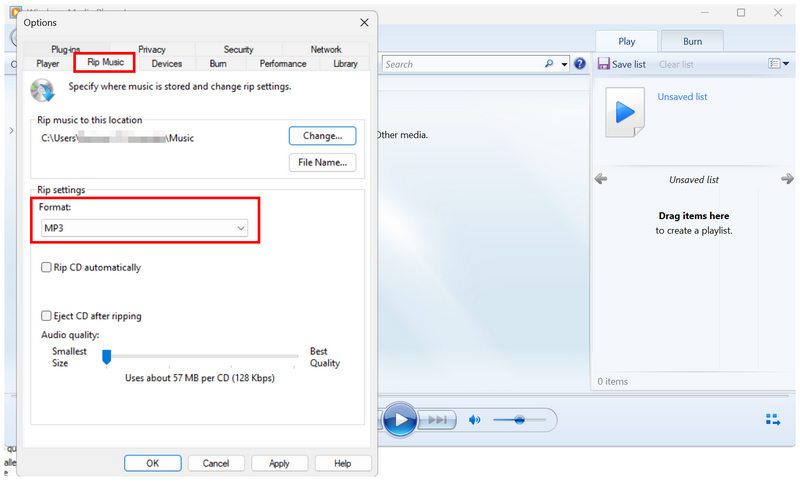
In the Options menu, go to the Rip Music tab. Then check if the Format is set to MP3.
With the CD ripping settings now set, load your CD to your computer. Then, select the loaded CD in the program to access it. Finally, click on Rip CD to begin converting the CD content to MP3.
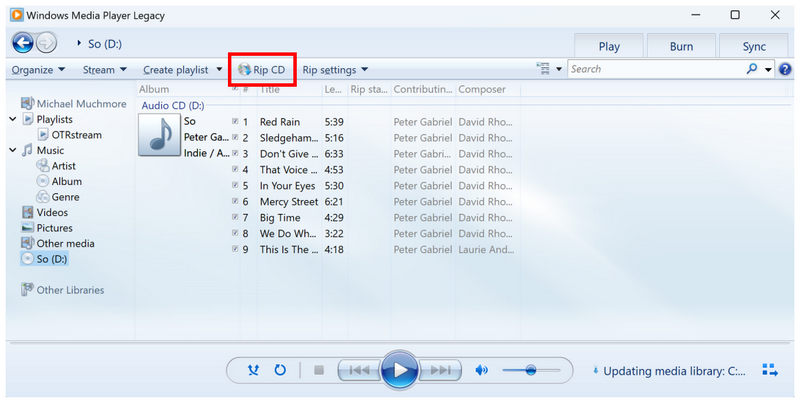
Unfortunately, using the program to access WebM files is not possible since it does not have the required codecs to open such video formats.
Method 5: Mobile Conversion – How to Convert WMA to MP3 on Android & iOS with AiseeSoft AllVidConverter
Finally, we will now proceed to one of the most reliable media format converters for mobile devices with AiseeSoft AllVidConverter. If you want to maximize portability, using this app is the best for multimedia format conversion.
However, you have to deal with the downsides of using mobile freewares. The program is plagued with ads, and it suffers from privacy risks since you have to upload your media files to their server to proceed with the conversion.
- Available for both Android and iOS devices.
- Designed as a format converter for mobile devices.
- Supports converting to video and audio formats.
- High battery power consumption.
- Plagued by in-app ads.
- Cloud privacy risk since files for conversion are uploaded to their servers.
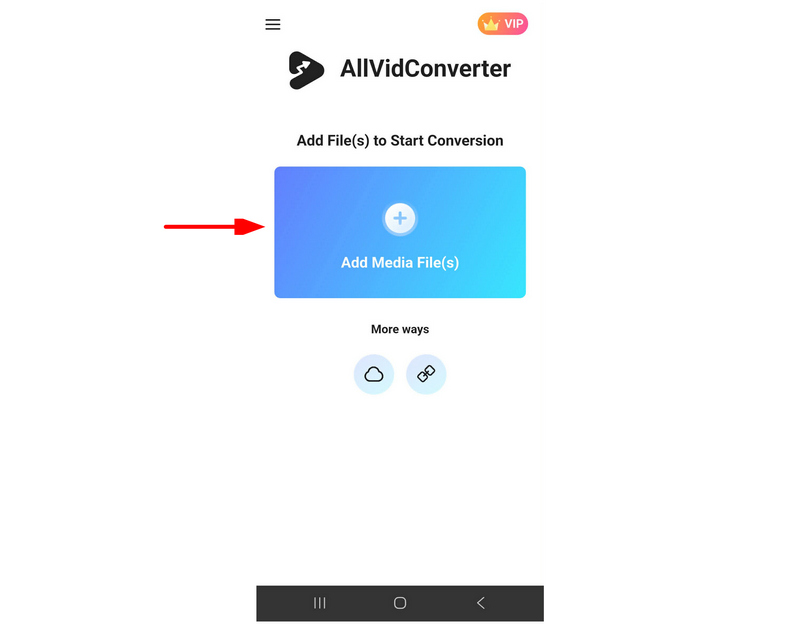
Open AllVidConverter and select Add Media Files to import the WebM file you want to convert.
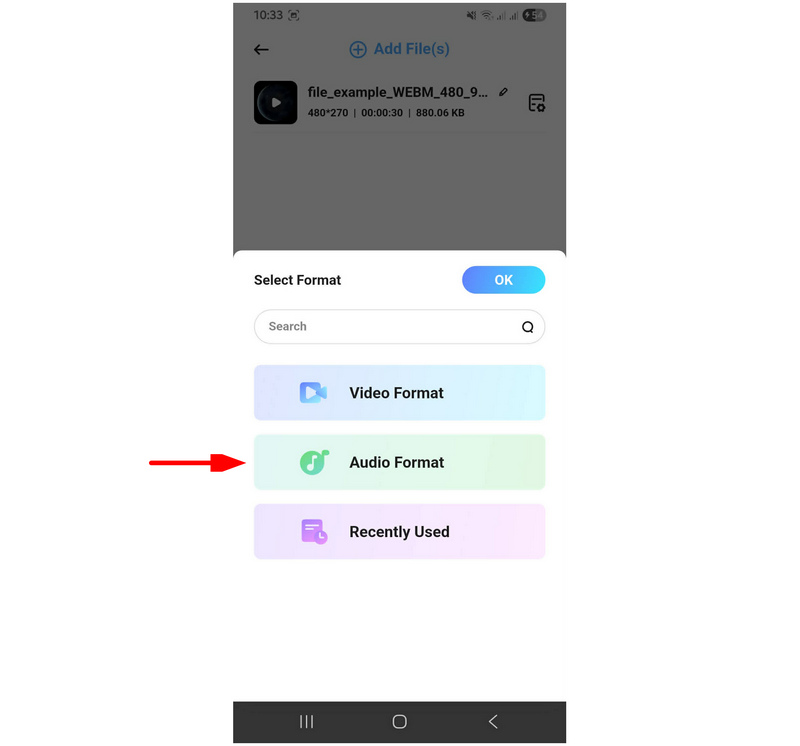
With your WebM file uploaded, select the format where you want to convert the media file. In this case, select Audio Format.
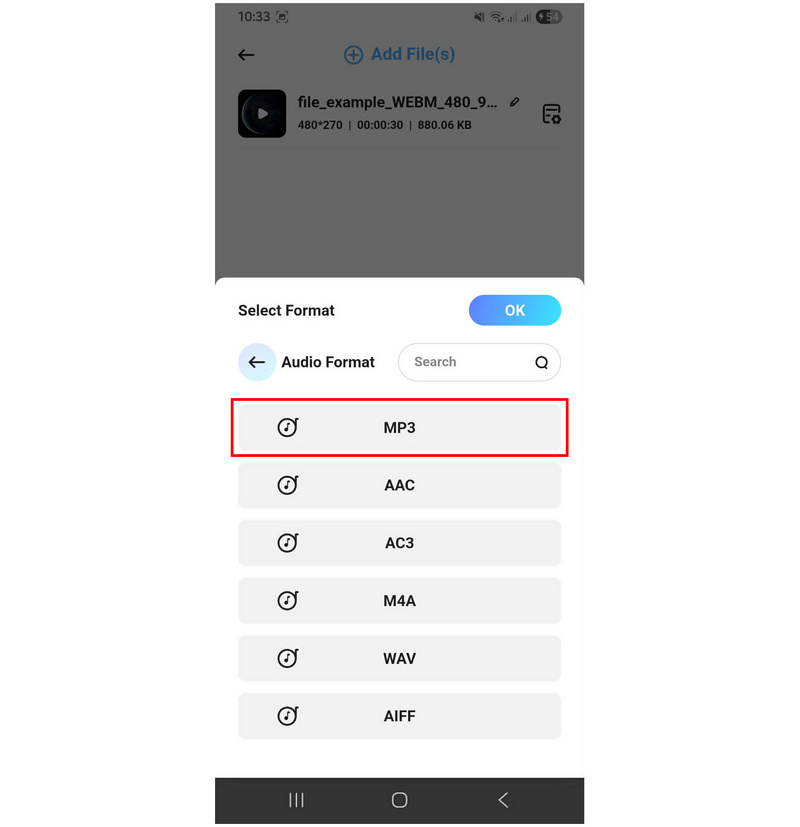
In the Audio Format options, select MP3.
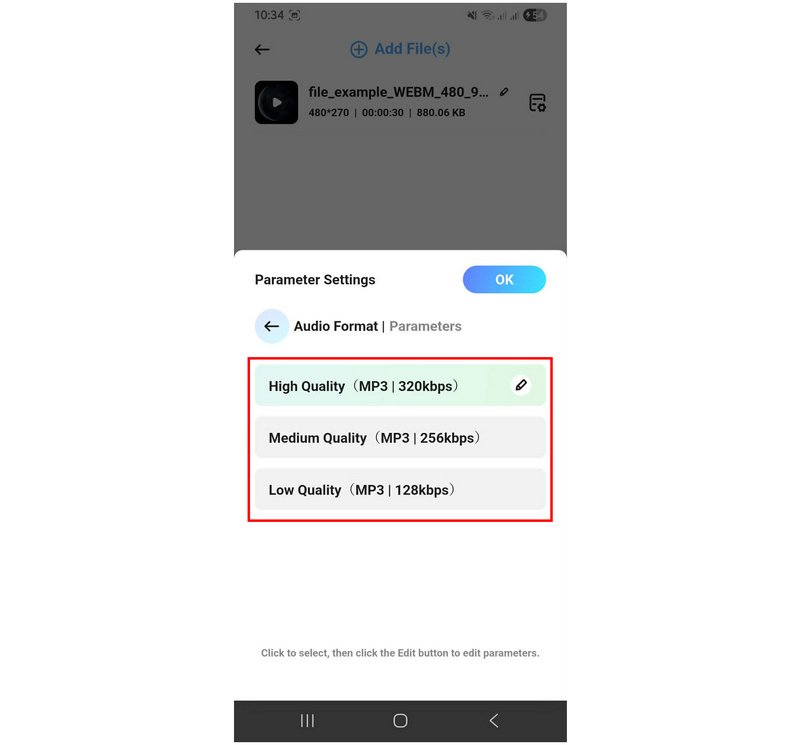
Select the Audio Quality based on how you want to save your converted MP3 file.
With the media file uploaded and the conversion options now set, click on Start to Convert to begin the WebM to MP3 format conversion.
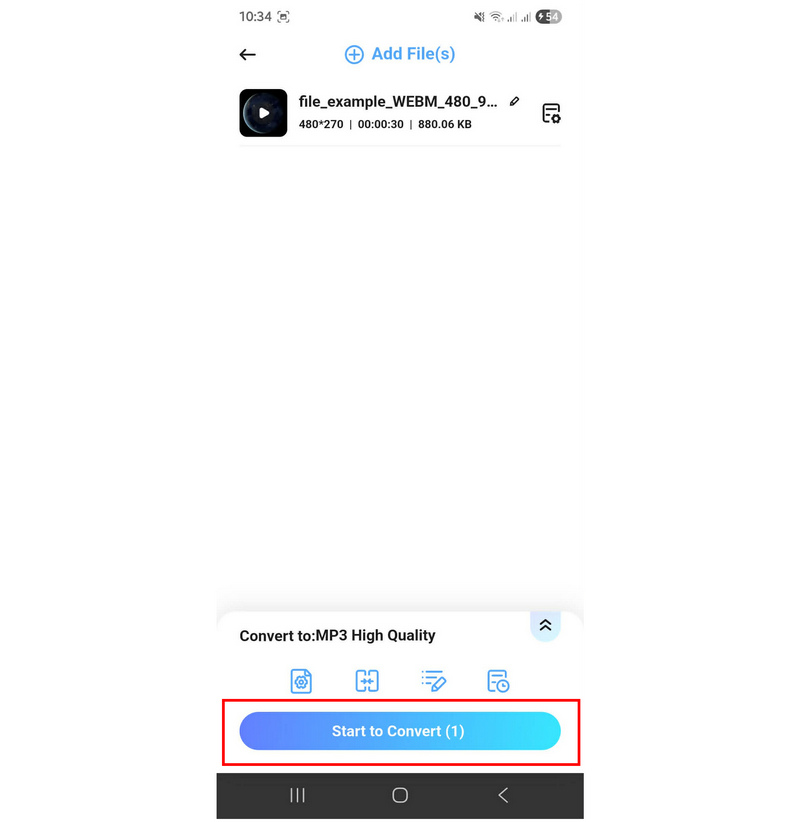
Beware when using the program’s free version since you have a high-risk of opening in-app ads which may interrupt your workflow.
Part 6. Pro Audio Guide: How to Keep Maximum Sound Quality When Converting
Use the Right Audio Codec
The codec will define whether your audio file will play properly. If you use the wrong one during conversion, the quality of sound will not be significant since your file may fail to play properly. The codec is important whether you are converting MP3 to WAV or a higher-quality format to MP3.
Set to High Audio Quality
During format conversion, most multimedia converter tools have settings and options that will affect your file’s quality. In this case, make sure to set your conversion settings to High Quality to ensure that your video will be converted to a high-quality audio format.
Convert to Lossless Quality Format
If your converter tool supports lossless format conversion, this is the best setting you may use. As its name suggests, it is the best when handling media conversion since you will be able to convert your media to the original quality of the file it was converted from. The audio quality of your WebM video will also be the quality of your MP3 file.
Part 7. FAQS About Converting WebM to MP3
Can I use FFmpeg to convert WebM to MP3?
Yes, you can. However, FFmpeg is not advisable for beginners. Using the wrong commands may affect your entire device or media files negatively.
Should I convert WebM to MP3 using command lines?
Yes, you can. You can do this using the FFmpeg multimedia program. However, this is not advisable for new users since improper command lines may damage or negatively affect your files and device.
What are WebM videos used for?
WebM is used for online streaming. It is designed to work efficiently in browsers. As such, they are usually unsupported on common media players such as Windows Media Player.
Does MP3 have good audio quality?
Yes, it does. MP3 has good quality relative to its compression rate. However, its quality is not its strongest suit; its universal compatibility is.
Are online converters safe to use?
Yes, they are. However, they are not advisable for private media files. Most online converters require uploading raw files to their servers, which could be a privacy issue.
Conclusion
Now that we have provided the methods to help our readers learn how to convert WebM to MP3, we hope that you can now choose which program best suits your needs as a multimedia practitioner. If you prefer quick conversions and accessibility, CloudConvert is a good choice. When you are looking for balance and ease of use, ArkThinker Video Converter Ultimate is our most recommended solution. You may download the program using the link below.
What do you think of this post? Click to rate this post.
Excellent
Rating: 4.9 / 5 (based on 592 votes)


