


How to Use iMovie to Remove Audio From Video for iOS & Mac
iMovie is a free-to-use video editing program developed by Apple, accessible to its ecosystem. As a tool available on both iOS and Mac devices, it allows Apple users to seamlessly have quick access to a video editing tool, making basic to average video editing and enhancing on the device more convenient. Having that said, iMovie is already an easy-to-use video editing program of Apple to cater to users who are not familiar with using video editing tools, but iMovie still invokes a premium feel through its features and tools to edit or remove audio in video clips more easily through its straightforward user interface.
Furthermore, to help users properly perform the removal of audio in iMovie, this article will list an easy-to-follow guide on how to do it through the iOS and Mac versions of iMovie. In addition, this article will also feature the use of a tool alternative to iMovie in removing audio in the video clips to ensure users will get what they need in searching for the perfect assistant tool for removing or editing audio in a video.

- GUIDE LIST
- Part 1. How to Remove Audio From iMovie
- Part 2. How to Lower the Volume Level to Zero in iMovie
- Part 3. Bonus: Disable Audio Instantly with ArkThinker Video Converter Ultimate
- Part 4. FAQs about How to Remove Audio From iMovie
Part 1. How to Remove Audio From iMovie
In this section, we list two methods for users to learn how to remove sound from video in iMovie using Mac and iOS verion of iMovie to properly help users navigate the completely removal of their video audio in straightforward steps.
Method 1: Detach and Delete Audio on iMovie for Mac
In how to delete audio on iMovie using Mac, the process will require users to navigate to their iMovie Mac audio settings, and from there choose to detach the audio from the video first, and after that, users have the option to completely delete the audio or simply mute the audio from the video.
Open your iMovie program from your Mac device.
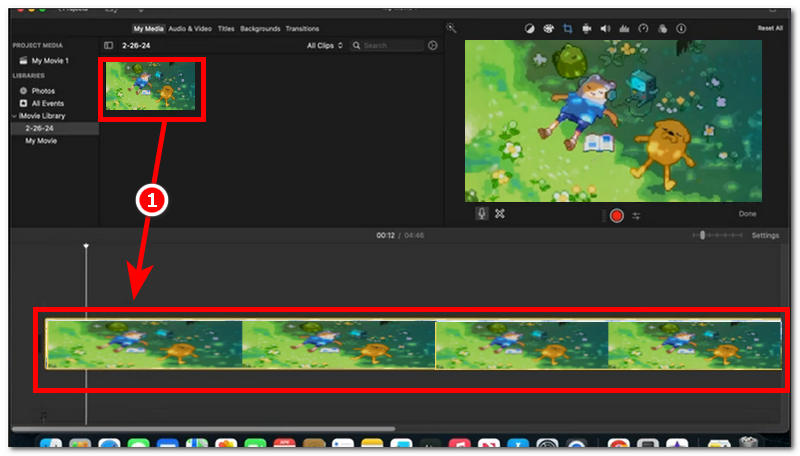
Once you have opened your iMovie program, you are now in the program’s main interface. Proceed to load your video clip you wish to mute or detach its audio into the program, and drag the video clip to the editing timeline of the iMovie.
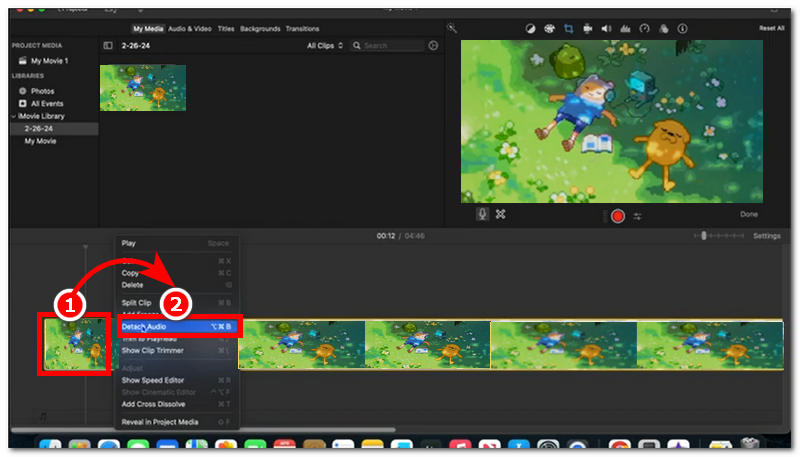
After dragging the video clip into the timeline, right-click on the video clip and from the extended menu setting click on Detach Audio to separate the audio from the video clip.
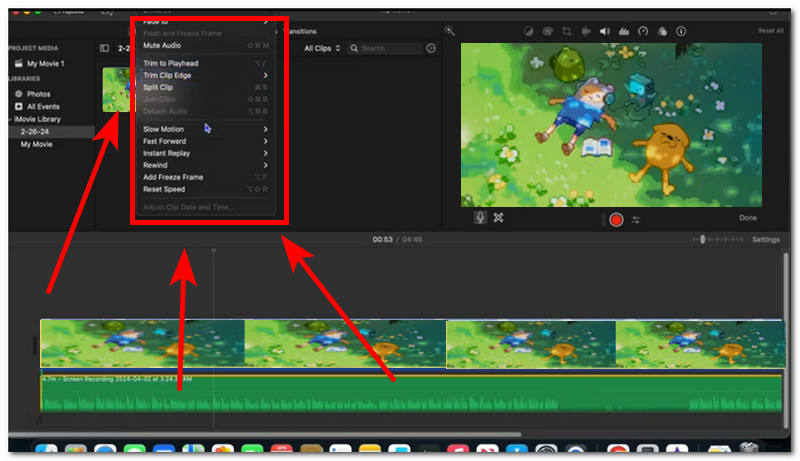
Once the video and audio have been successfully separated, head over to the Audio setting situated on the upper part of your iMovie program. Click on the Audio Setting and from there you may choose to Mute Audio or completely delete the audio clip from the editing timeline to effectively remove the audio from the video.
Method 2: Mute Video Clips in iMovie for iOS
On the other hand, if you only have your iOS device with you, you may still use iMovie to detach audio from your video using the iOS version of the tool. Although there’s a difference in terms of features and functionality offered by the iOS version, the removal of audio from video is doable. Hence, the process for iOS iMovie audio removal is simpler and much easier.
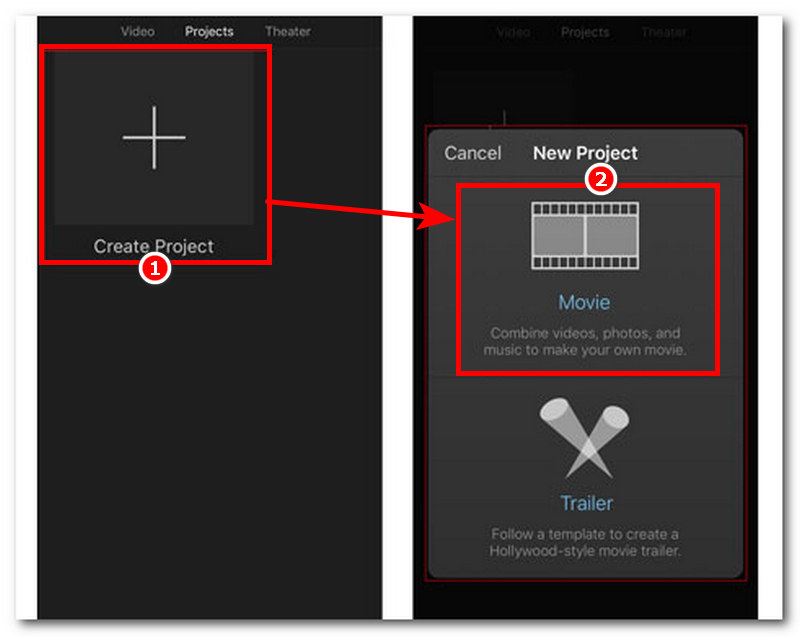
Open your iMovie application on your iOS device, and from there, proceed to Create Project and choose Movie as the project.
After selecting Movice as the project, you will then be given access to your media library and from there select the video you wish to edit or remove the audio using the iOS version of iMovie.
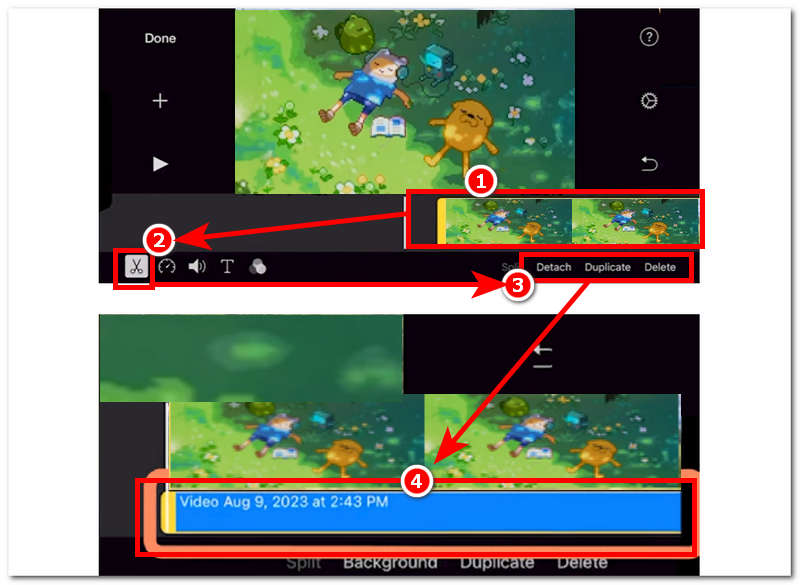
After selecting the video clip you wish to remove the audio from, you will then be redirected to the iMovie editing timeline, and from there, you will see your video clip. Simply click on your video clip to proceed.
After clicking on the video clip, a scissor icon will appear from the lower-left corner of your screen. Click on it and from there choose the Detach function to separate the audio from your video clip. Only after separating your audio from the video, you may click on the audio from your timeline to mute the video or completely remove the audio. Just like that, you successfully separate and remove your video audio using iOS iMovie by using this background noise remover.
Part 2. How to Lower the Volume Level to Zero in iMovie
Now that you have learned the steps in iMovie how to detach audio from video through the separated steps for the iOS and Mac versions of iMovie. In this section, you will learn how to lower or adjust your audio clip to your desired volume in iMovie.
Open your iMovie application on your iOS or Mac device.
From there, proceed to load your video clip onto the iMovie tool.
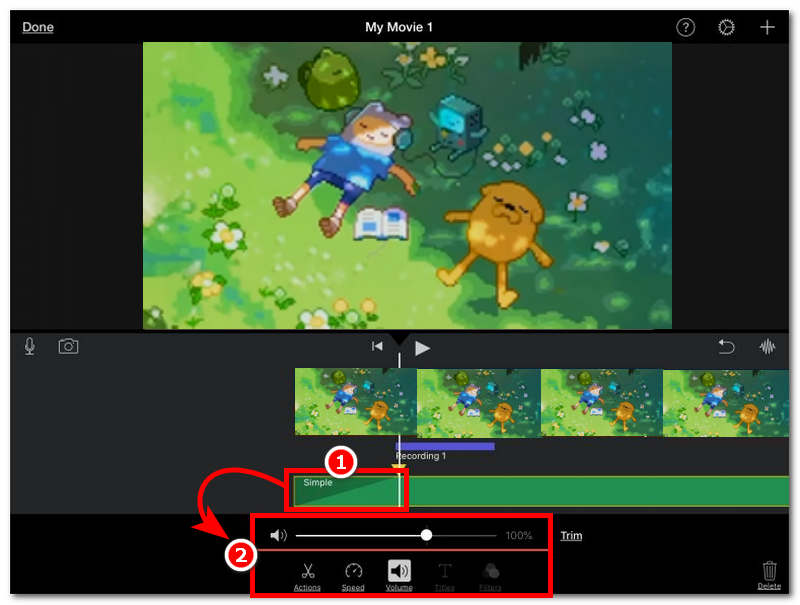
Once the video clip is loaded in the iMovie editing timeline, head over to the video editing panel of iMovie and from there click on the Volume to proceed.
Once you have clicked on the Volume setting, a slider of volume will appear on your screen, and from there, simply drag the slider to the left completely to lower your video audio to zero.
Part 3. Bonus: Disable Audio Instantly with ArkThinker Video Converter Ultimate
In the process of learning how to mute a video in iMovie , and you find yourself using the iMovie video editing tool still complicated for your audio removal needs, or your iOS and Mac devices seem to have issues opening the video editing tool on your device, then an alternative solution for you is to use a free-to-use all-in-one video editing tool like the ArkThinker Video Converter Ultimate. This tool is jam-packed with various video and audio editing tools and features, allowing its use to be versatile to all needs. As a third-party video editing tool, this is made to be accessible not just for Mac devices but also for Windows, as this is a software-based tool.
Key Features:
- • Lightweight tool.
- • It has a straightforward and easy-to-use user interface.
- • Can easily disable audio instantly and easily.
- • Safe to use tool.
- • Supported a wide range of video and audio file formats.
- • Can be used to mute and boost the video audio.
In your Windows or Mac device, open your ArkThinker Video Converter Ultimate tool. If you haven’t yet installed the program, you may want to go to ArkThinker website and download the tool there, or use the link below and have the tool installed in your device.
Once you have opened the tool, from its user interface, simply head over to the Toolbox section of the tool and from the listed tools and functions locate the Volume Booster.
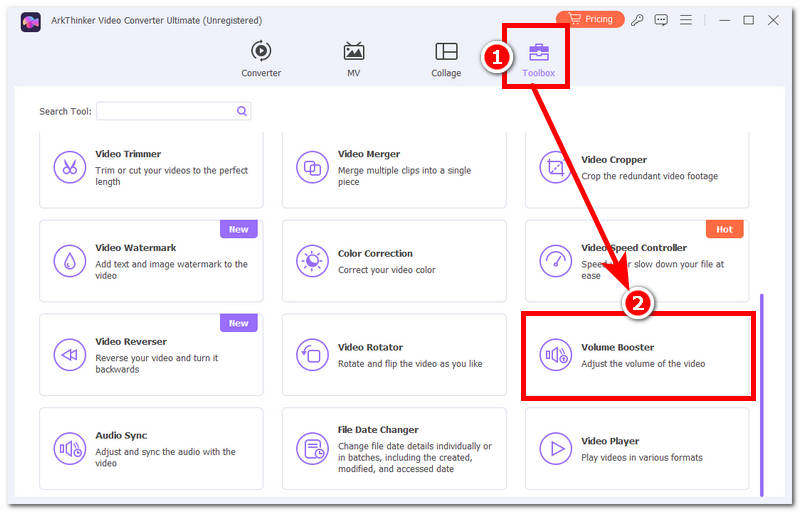
Before proceeding, after you click the Volume Booster functions the program will let you browse your library to select the video file you wish to lower its volume to zero using the tool.
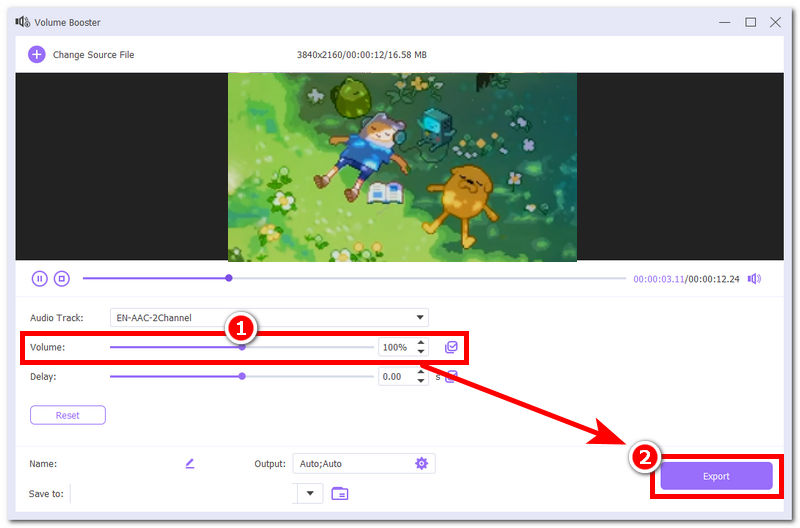
Once you have selected your video file, you will be redirected to the Volume Booster setting, and from there, to completely lower your video to zero. Go to the Volume setting of the tool and adjust the volume slider to the left. Once you have lowered your video and audio to zero, you may proceed to click the Export button to save your video to your device.
Part 4. FAQs about How to Remove Audio From iMovie
How to extract audio from video in iMovie ?
To extract your audio from your video file completely using the iMovie program, users must first separate or detach the video from its audio. The steps for separating the two are listed above.
Can I mute audio without deleting it?
Yes, users can mute their video audio without detaching it or even deleting the audio clip from the video by lowering the video volume. This can be done in iMovie and the ArkThinker software tool.
Conclusion
iMovie is indeed a useful video editing tool made for instant access to simple video editing needs, such as detaching audio from the video or removing its audio. While it is a free-to-use tool, having said that, iMovie consumes a larger storage space in user devices, both in Mac and iOS devices, as it is promoted as a video editing tool, meaning it is equipped with other editing tools, making it usable, yet on the other hand, may overwhelm novices. Furthermore, this article has listed two methods how to remove audio from video iMovie via the Mac and iOS versions of the tool. Hence, an alternative use of the third-party tool ArkThinker is also featured in this article for novices or users who want to use a more straightforward and lightweight video audio removal tool for their convenience.
What do you think of this post? Click to rate this post.
Excellent
Rating: 4.9 / 5 (based on 692 votes)


