


How to Use Canva to Convert HEIC to JPG Using 2 Methods
Do you want to learn whether the advanced iPhone HEIC format is compatible with Canva? This article will answer your question by providing a detailed guide on how to use HEIC photos in Canva’s editing platform. We will provide a detailed guide on using Canva to convert HEIC files to JPG, a highly compatible image format. Additionally, we will also recommend a good alternative for bulk HEIC-to-JPG conversion via installation-free web-based tools.

- GUIDE LIST
- Part 1. Does Canva Support HEIC Files Directly
- Part 2. How to Convert HEIC to JPG in Canva
- Part 3. Best Alternative to Convert HEIC to JPG in Bulk
- Part 4. FAQs About Converting HEIC to JPG in Canva
Part 1. Does Canva Support HEIC Files Directly
Yes, it does. Canva is a web-based multimedia editing tool primarily designed as a beginner-friendly alternative to photo editing. Unlike traditional image editing tools like Adobe Photoshop, it is a beginner-friendly solution.
Given its photo-editing background, the software is fully capable of editing advanced image formats, including HEIC photos. This makes using Canva as an HEIC converter functional, as it can do so via download settings
Part 2. How to Convert HEIC to JPG in Canva
If you want to know how to convert HEIC to JPG in Canva, you need to learn the Share and Download settings in Canva’s image editing tool. Along with these download settings, we will also provide a step-by-step guide to uploading HEIC files to Canva, since this image format is unsupported by default. Once you have learned these setup requirements, you can now use Canva as an unconventional online image converter.
Method 1: Conversion via Canva Download Settings
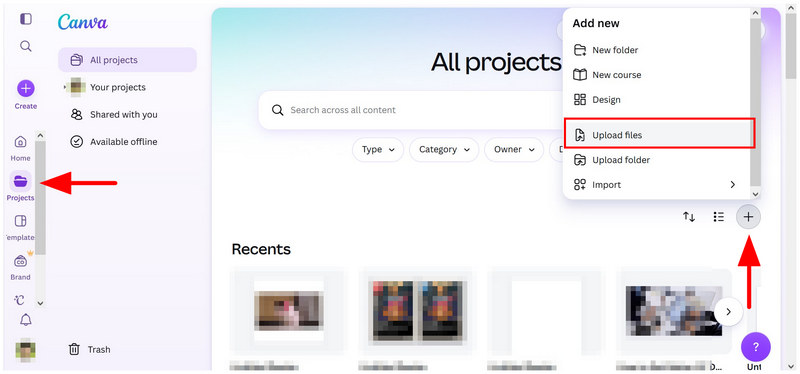
Go to the Canva online tool and select Projects. In the Projects tab, click on the Add New button and select Upload Files. Navigate your file manager to open the HEIC image you want to convert.
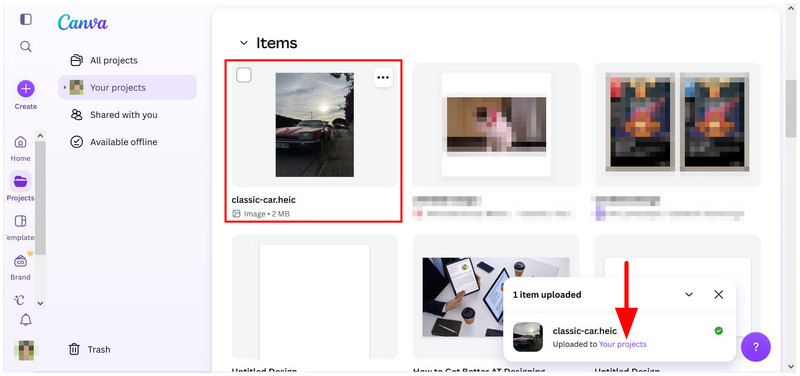
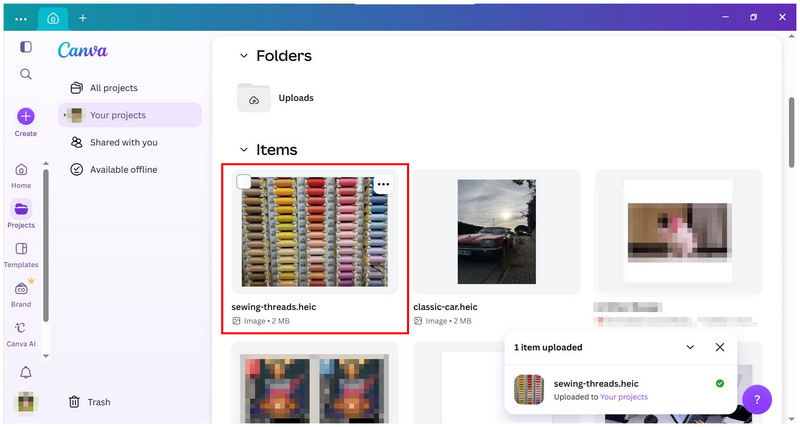
Once the HEIC image is uploaded, click on Your Projects in the upload confirmation notification to redirect to that location. Then, click on the uploaded file in the Your Projects menu.
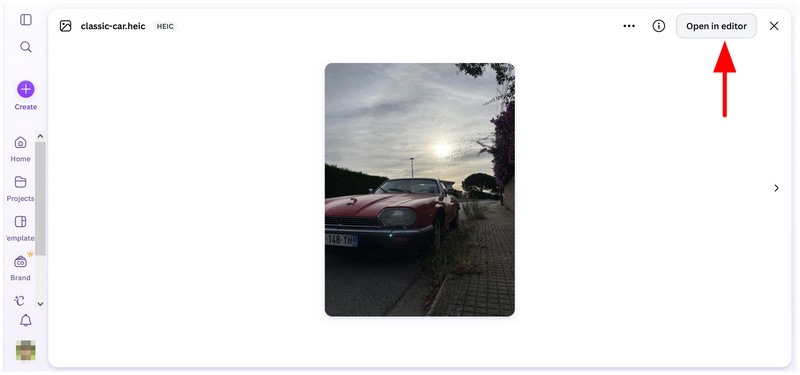
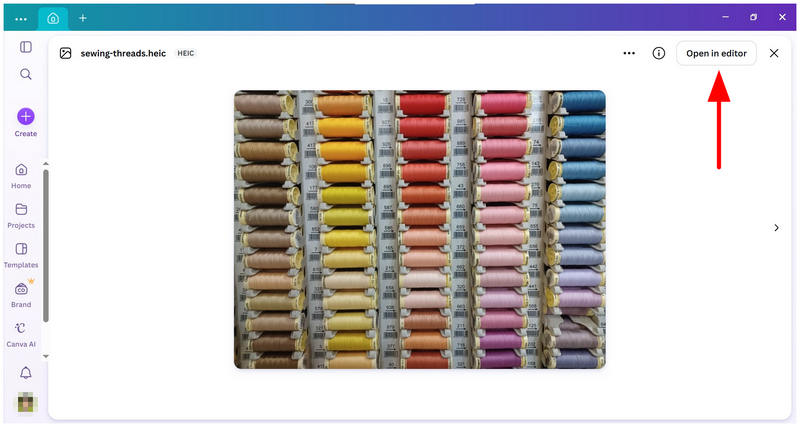
After selecting the file, click Open in Editor.
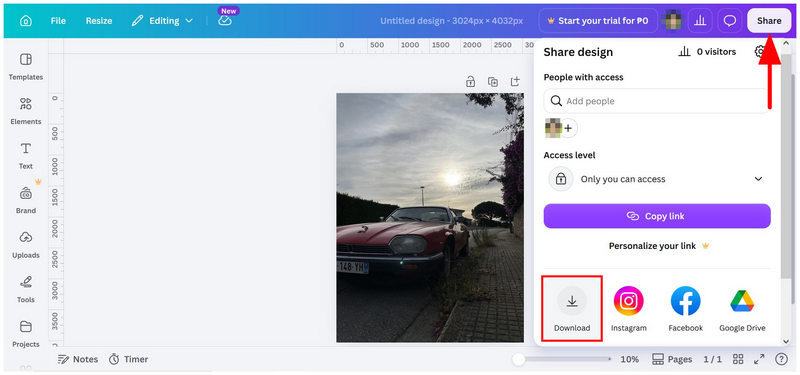
In the image editor menu, select Share, then click Download.
In the Download settings, set the File Type to JPG, then click the Download button to convert the uploaded HEIC file to JPG once it has been downloaded.
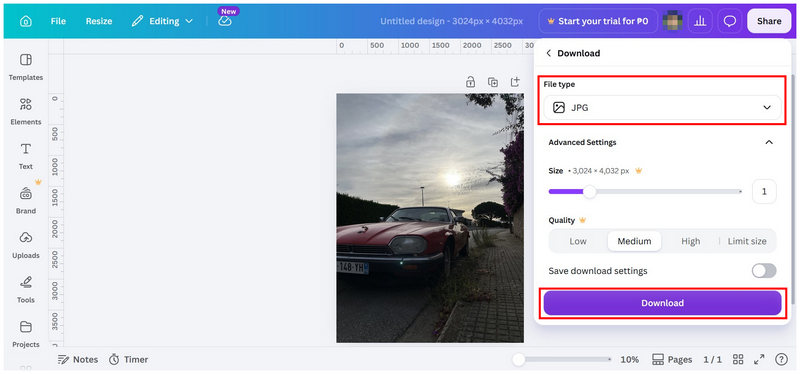
If you simply upload your HEIC image to Canva’s Photo Editor tab, the tool will fail to upload it for some unknown reason. This may be challenging and confusing for some users, since the HEIC format is one of the formats Canva lists as supported in the notice that appears.
Method 2: Using Canva Desktop to Download HEIC as JPG
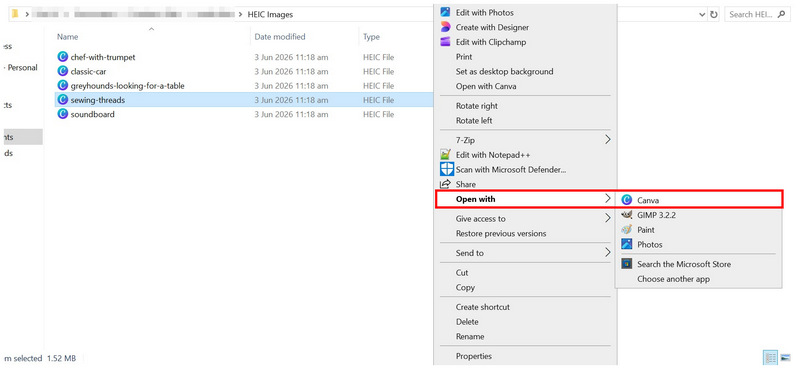
Navigate through your file manager to find the HEIC image you want to open. Right-click on it, hover on Open With, and select Canva.
Once the HEIC image is uploaded to Canva Desktop, click it.
With the file selected, click Open in Editor in the file preview.
In the Editor Window, click Share, then select Download settings. In the download menu, set the File Type to JPG, then select the Download button to save the imported HEIC file as a JPG.
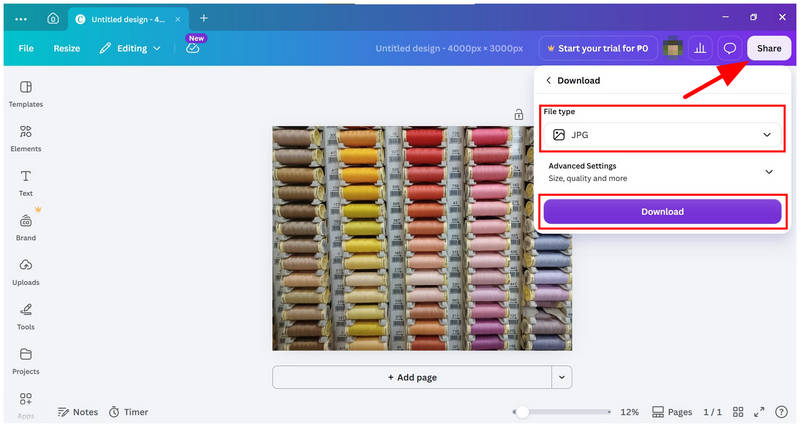
Since the process for converting HEIC to JPG in Canva Desktop and Online is nearly identical, it may not be necessary to upload the desktop version. Canva’s online tool should be enough.
Part 3. Best Alternative to Convert HEIC to JPG in Bulk
If you are a fan of web-based solutions such as Canva, but its lack of native HEIC support and a tricky upload process are too limiting for you, you can use an exclusive HEIC converter tool such as ArkThinker Free HEIC Converter Online as your perfect alternative.
Unlike Canva, which operates as a format converter via its complex download settings. ArkThinker’s HEIC to JPG converter was designed to specifically handle such operations. As a result, the online tool could batch-convert and apply format conversion in two simple steps.
To learn how to use the program for rapid single-file or batch conversion, make sure to read our simple two-step guide below, which contains everything you need for a practical HEIC-to-JPG conversion.
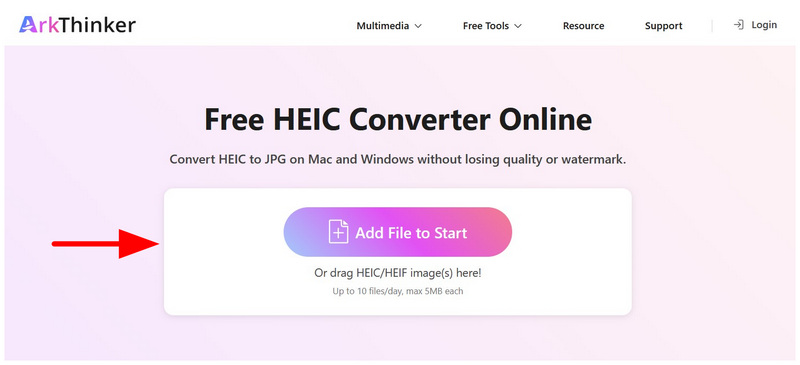
Open ArkThinker Free HEIC Converter Online’s website. Then select the Add Files to Start option and choose the HEIC images you want to convert from your file manager. Alternatively, you may drag and drop up to 10 files to the Upload Box at once.
Once you have selected the HEIC images for conversion, wait for ArkThinker’s conversion process to finish. Once done, simply click on the Download button on each uploaded HEIC file.
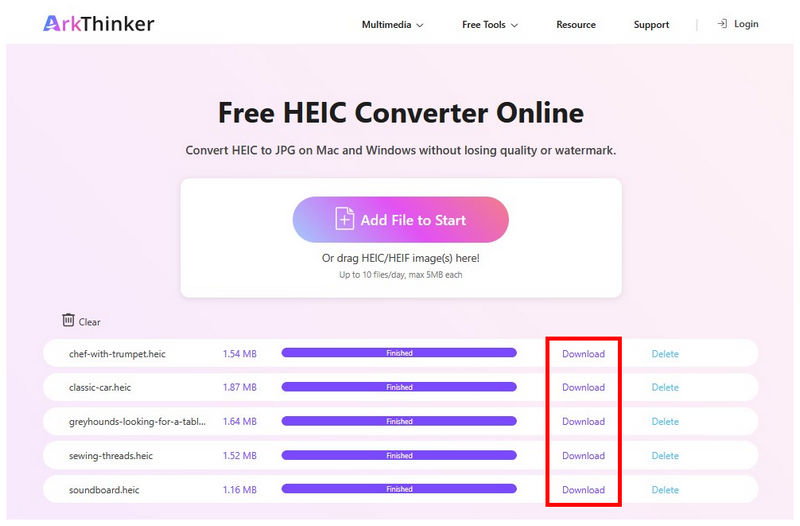
With two simple steps, you can now batch-convert HEIC images and save them to your computer as JPGs. In addition to providing batch conversion services, ArkThinker Free HEIC Converter Online is also much simpler to use than Canva, since it natively supports HEIC.
Part 4. FAQs About Converting HEIC to JPG in Canva
Why should I convert HEIC to JPG?
HEIC is an exclusive format for Apple devices. It may have better quality, but opening it outside the Apple ecosystem will be tricky. By contrast, JPGs are way superior to HEICs because they are universally compatible. As such, JPG conversion is a popular adjustment for other image formats.
Can I use Canva to convert image formats?
Yes, you can. However, you need to learn the basics of adjusting Canva's download settings. Canva offers the option to download uploaded images in JPG and other formats, which makes it an indirect solution for converting HEIC images.
Is Canva Desktop worth downloading?
Canva Desktop is completely optional. Canva’s web-based version is highly reliable and quite stable. As such, downloading their desktop version is completely optional and may not be worth it for general editing needs.
What online tool should I use to convert HEIC images?
There are multiple file-size conversion tools available online. Both options featured in this article are solid choices. However, ArkThinker’s exclusive design makes it the superior choice over Canva, and it is one of the best solutions for HEIC conversion, as it was designed specifically for this purpose
Are online tools safe to use?
It depends on what web-based software you will use. Some of the safest options are ArkThinker, Canva, and FreeConvert. Among these tools, ArkThinker’s online tools are the easiest to use, giving it a solid advantage over the other online programs.
Conclusion
Now that we have discussed Canva’s HEIC-to-JPG conversion options, we hope this article has provided you with useful ways to improve the compatibility of your iOS captured images outside the Apple ecosystem. Fortunately, our proposed alternative solution for batch-processing HEIC files into JPG is quite easy to learn, thanks to ArkThinker Free HEIC Converter Online’s intuitive software design and superb user safety.
What do you think of this post? Click to rate this post.
Excellent
Rating: 4.9 / 5 (based on 670 votes)


