


How to Use IrfanView to Convert HEIC to JPG: 2026 Guide
Among third-party image viewers, IrfanView is one of the most popular options because it offers a built-in image converter that improves access to uncommon image formats. In this article, we will provide a detailed tutorial to solve this issue and answer which plugins are needed to view and convert HEIC to JPG in the IrfanView image viewer. We will provide detailed tutorials on installing plugins in IrfanView, opening HEIC images on Windows, and three HEIC-to-JPG conversion guides featuring IrfanView and other alternatives.

- GUIDE LIST
- Part 1. How to Enable HEIC Support in IrfanView (Required Plugins)
- Part 2. 3 Best Ways to Convert HEIC to JPG Successfully
- Part 3. FAQs About IrfanView to Convert HEIC to JPG
Part 1. How to Enable HEIC Support in IrfanView (Required Plugins)
Before heading out to our tutorial on using IrfanView to convert images to JPG, let us first discuss the steps required to make HEIC files accessible on the image viewer. The two tutorials below provide detailed guides on installing IrfanView and the advanced plugins required to open HEIC files. As well as the essential plug-in to open HEIC images on Microsoft computers.
Install the IrfanView All Plugins Bundle
Go to the IrfanView website and select the Download button to get the image viewer software for your desktop.

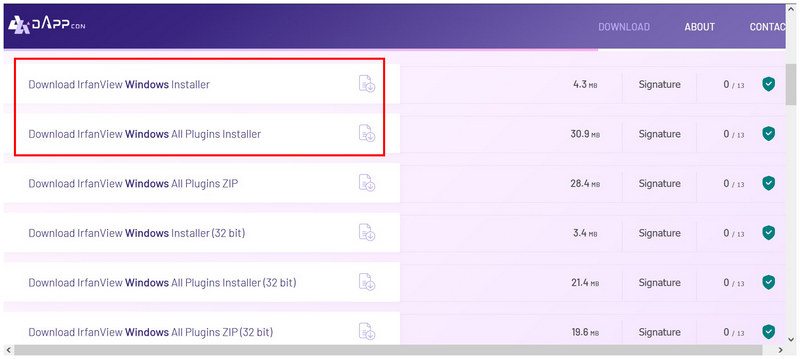
On the IrfanView download page, select the Windows Installer and the Windows All Plug-ins Installer to install both the app and the advanced plug-ins required to open HEIC files.
Once the installer apps are downloaded, open the installation program and follow the setup process.
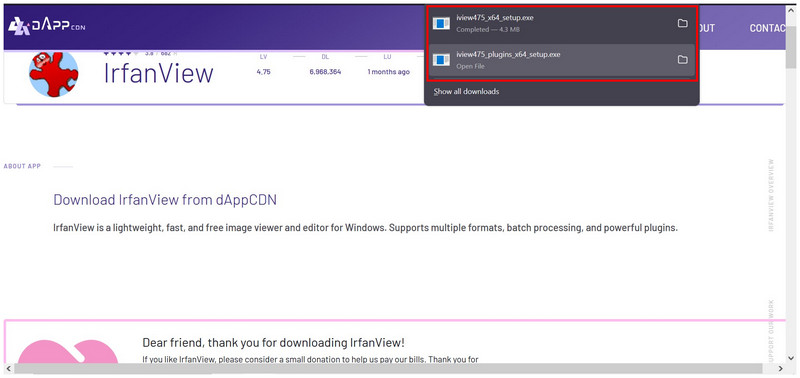
After installing both IrfanView packages, you can use the image viewer to open your HEIC images and use the software’s batch conversion option. Make sure to read the next section of the article for a full tutorial on using IrfanView for HEIC to JPG conversion.
Download Microsoft HEVC Video Extensions (System Requirements)
Go to the Microsoft Store app or website and search for HEVC Video Extensions. Select the app to download it.
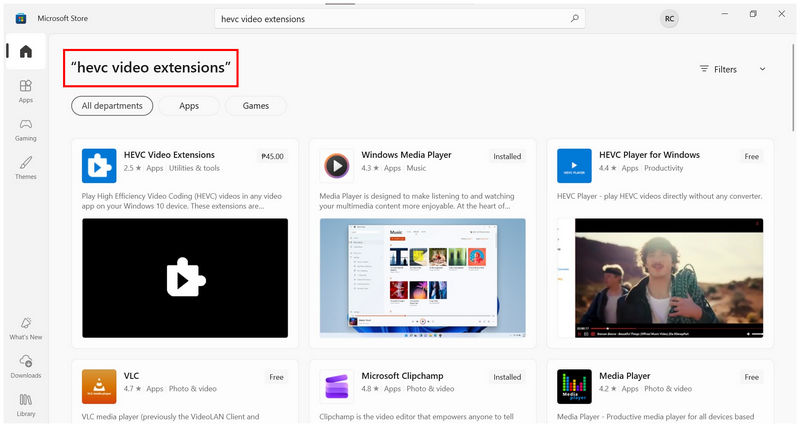
Since the official Microsoft extension is a paid plug-in, you must purchase it to install it on your computer.
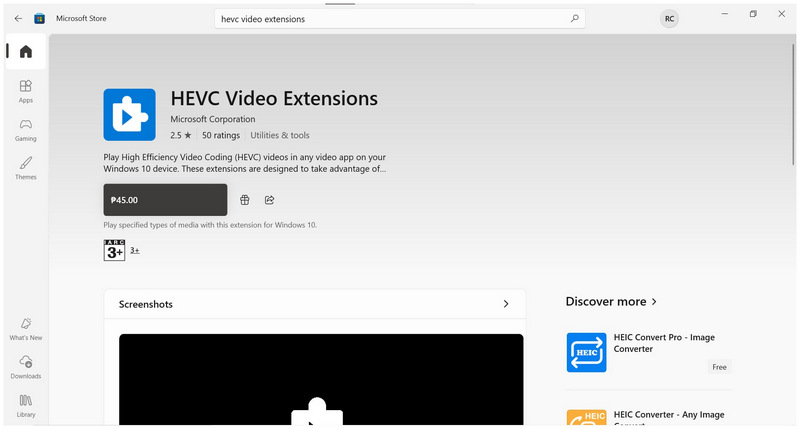
Once the program is installed, you can open HEIC images in the built-in Photos app on Windows.
Unfortunately, the extensions required to open HEIC files by default on Windows computers are a paid plug-in. To access these files, you have to install a plug-in on your chosen image viewer or buy the HEVC Video Extensions app from the Microsoft Store.
Part 2. 3 Best Ways to Convert HEIC to JPG Successfully
Method 1: Using IrfanView’s Batch Conversion (The “B” Hotkey)
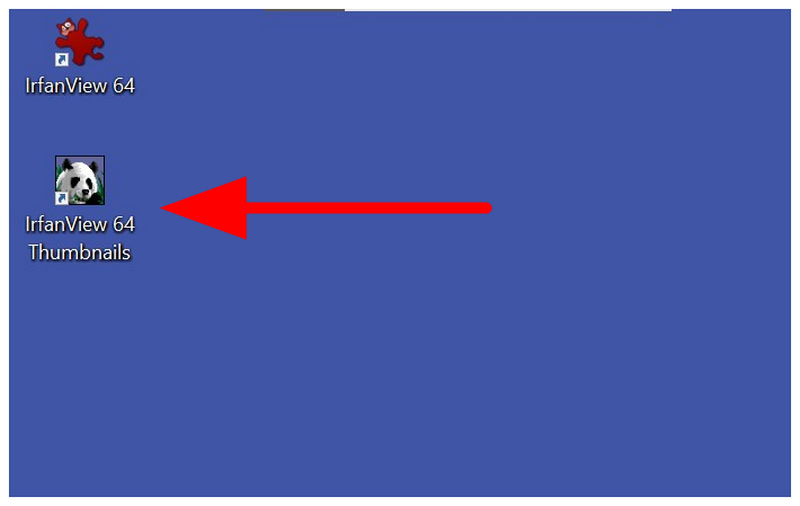
Open the IrfanView 64 Thumbnails app installed by the plugins setup from IrfanView’s website.
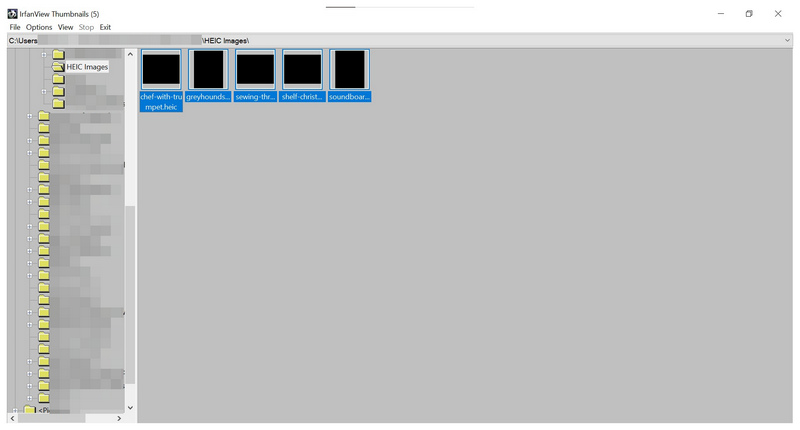
In the program’s main menu, locate the folder where your HEIC files are stored. Select all the media files, then press the B key on your keyboard to open the Batch Conversion menu.
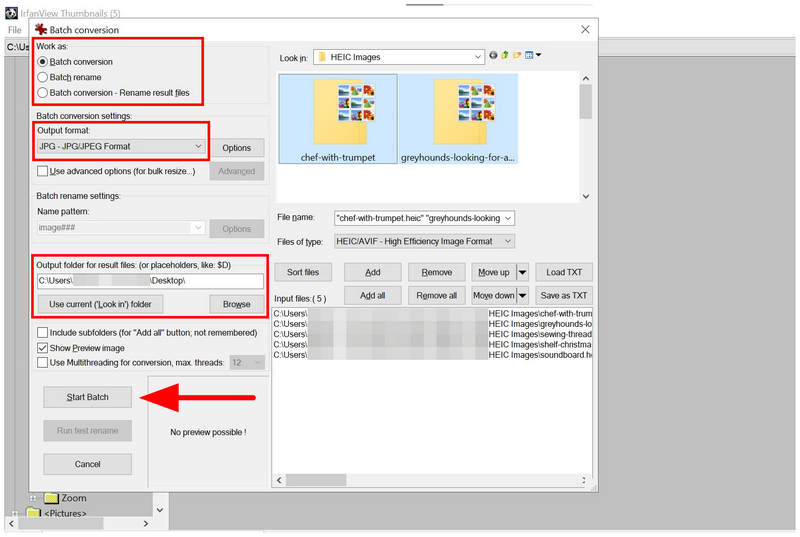
In the Batch Conversion menu of IrfanView, set the Work to Batch Conversion, the Output Format to JPG, and click on Browse to set the destination where the converted files will be saved. Once all of these are set up, select Start Batch to begin batch processing.
Since it is possible to use IrfanView to batch-convert HEIC to JPG, the plug-in is essential if you wish to improve the practicality of your image-viewing software.
Method 2: ArkThinker Free HEIC Converter Online for Better Quality & Speed (Top Alternative)
With the guide on using IrfanView to convert HEIC to JPG now discussed, let us proceed to the best alternative for converting HEIC files to JPG: web-based file manager tools such as ArkThinker Free HEIC Converter Online.
As its name suggests, this web-based solution is designed exclusively to handle HEIC-to-JPG conversion without any prior download, installation, or setup. It is fully online and can be used directly on your browser.
In addition to its accessibility, it is very easy to use: you can upload HEIC images directly, and the app will automatically convert them. Since it is not installed locally, you will not have any problem uploading HEIC files to it.
To learn how to use ArkThinker Free HEIC Converter Online, make sure to read our three-step guide below.
Open ArkThinker Free HEIC Converter Online’s website. In the main menu of the web-based tool, select Add Files to Start and import the media files you want to convert. For bulk conversion, you may drag and drop up to 10 files to the Upload Box.
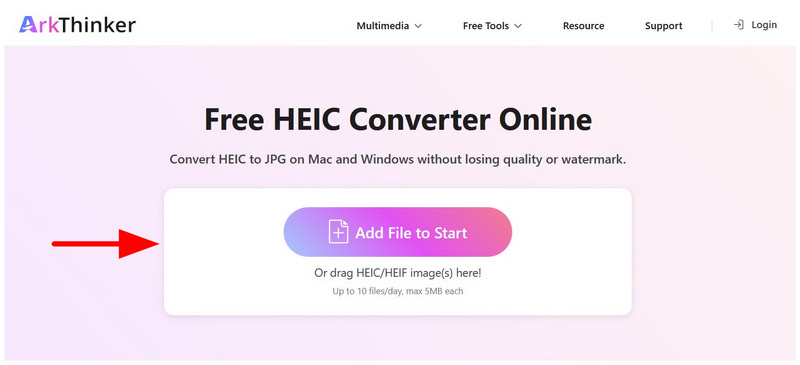
Once your HEIC images have been uploaded to the online tool, they will be automatically converted to the JPG format. Once done, select the Download button to save the converted images to your device.
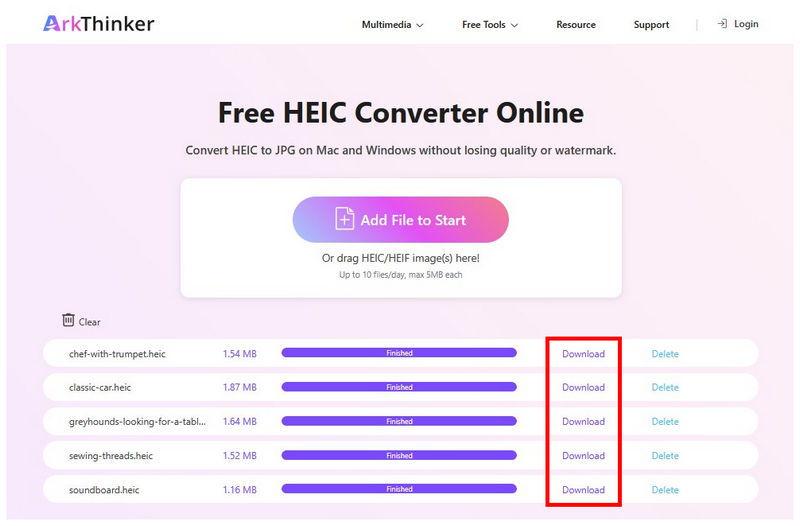
Once you are done converting, you can now open your HEIC image in the much more accessible JPG format. The converted image will maintain its original quality and embedded metadata.
Method 3: Comparing with FastStone Image Viewer for Basic Users
Another third-party image viewer software is FastStone Image Viewer. Although this option cannot open HEIC files, you can still use it as an HEIC image viewer after installing the required plug-ins.
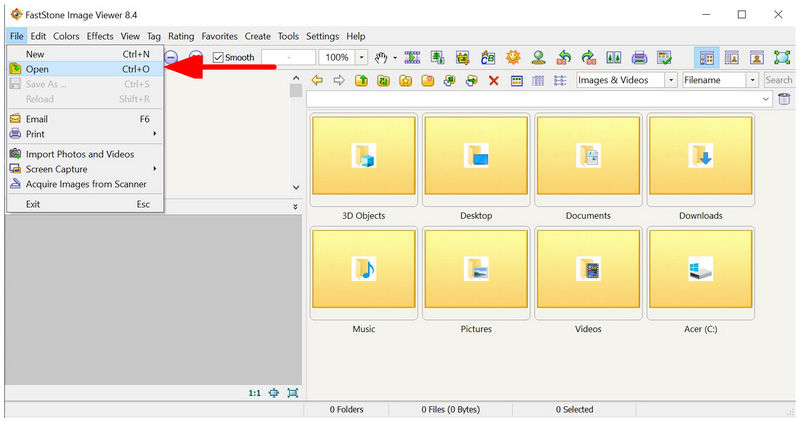
Open FastStone Image Viewer, then select File and choose Open.
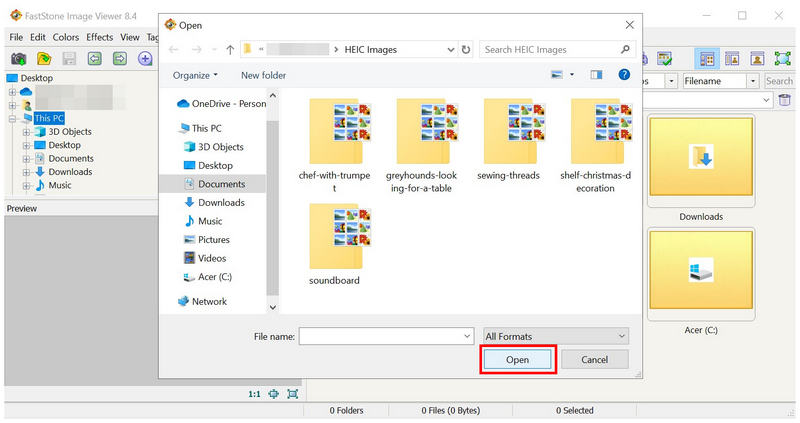
In your File Manager, locate the folder where your HEIC images are located and select Open once the files have been selected.
If your computer does not have the HEVC plug-in installed, FastStone Image Viewer won’t be able to open your image file. However, the image will be previewed and may be opened if the HEVC Video Extension from Microsoft is installed.
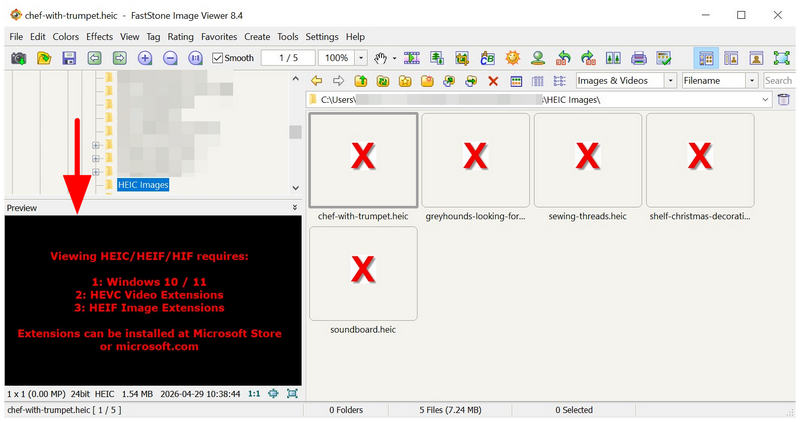
Once you have installed the required plug-in to open HEIC files, you will be able to view the preview and the image itself in FastStone Image Viewer.
Part 3. FAQs About IrfanView to Convert HEIC to JPG
Is IrfanView free?
Yes, it is. IrfanView can be downloaded for free. It is reliable freeware.
Can IrfanView open HEIC files?
No, it cannot. By default, HEIC images cannot be opened in the program. You have to install an additional plug-in to open advanced image files like HEIC.
Is IrfanView safe to use?
Yes, it is. However, make sure to only download from their official site. Downloading from the wrong website may harm your computer.
Should I use IrfanView for opening images?
Yes, you can. IrfanView was specifically designed as an image viewer. However, you need more advanced plug-ins on the software to access advanced image formats such as HEIC.
Should I convert my HEIC image to JPG or PNG?
Yes, you should. Since HEIC is poorly compatible outside the Apple ecosystem, converting it to JPG or PNG is a good solution. Both of these formats have superior compatibility.
Conclusion
Now that we have discussed the detailed guide on using IrfanView to convert HEIC to JPG, we hope this article has provided our readers with useful guidance to enhance the accessibility of their HEIC files. Although IrfanView can handle HEIC files, you can use a web-based solution to enhance the practicality of your HEIC to JPG conversions greatly. The best solution for this option is ArkThinker Free HEIC Converter Online.


