


Clipchamp Crop Video Guide: An Online Video Editor by Microsoft
Microsoft’s Clipchamp is a browser-based and pre-installed video editing program that comes with Windows 11. This video editing tool by Microsoft has allowed users to have access to video editing tools for seamless and almost instant production of videos that are ready to post on social media platforms and more. Clipchamp is a promising tool that offers a wide range of video editing and enhancement tools that require no experience or expertise required to fully navigate the tool. That’s why in this article, we will delve into a specific function of Clipchamp, that is, if it's capable and if it's easy to crop a video clip in the program. Furthermore, along with a discussion of capability, this article will also feature how one can crop video in Clipchamp, along with an alternative tool for a variety of options in video cropping needs.

- GUIDE LIST
- Part 1. Can Clipchamp Crop Video?
- Part 2. How to Crop Video in Clipchamp
- Part 3. Is Clipchamp Good for You?
- Part 4. Best Alternative to Clipchamp
- Part 5. FAQs about Microsoft Cipchamp Cropping Video
Part 1. Can Clipchamp Crop Video?
Yes, as included among its many functions, cropping of video in the program is possible. It is done easily through its dedicated change of aspect ratio function that usually appears on the upper part of your video clip– a more detailed description of the steps in the crop function will be elaborated under this section. Moreover, another thing that makes Clipchamp a good video editor tool, apart from its capability to crop and change the video clip’s aspect ratio, is that it is accessible whether via a web browser or software, meaning users will have all the means to access it, while also the tool remains not too complicated to use for novices and casual users of video editing tools.
Part 2. How to Crop Video in Clipchamp
Firstly, open the Microsoft Clipchamp software on your Desktop device (Windows), or if you are using a non-Windows device, go to your device's web browser and go to the official web-based page of the Clipchamp video editor tool.
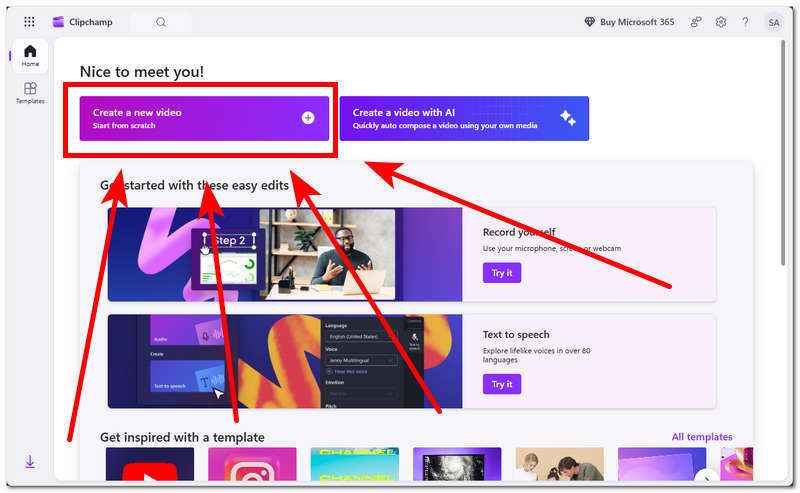
Once you are in the Microsoft Clipchamp’s video editor tool main interface, proceed to click on the Create A New Video button to start on an empty project.
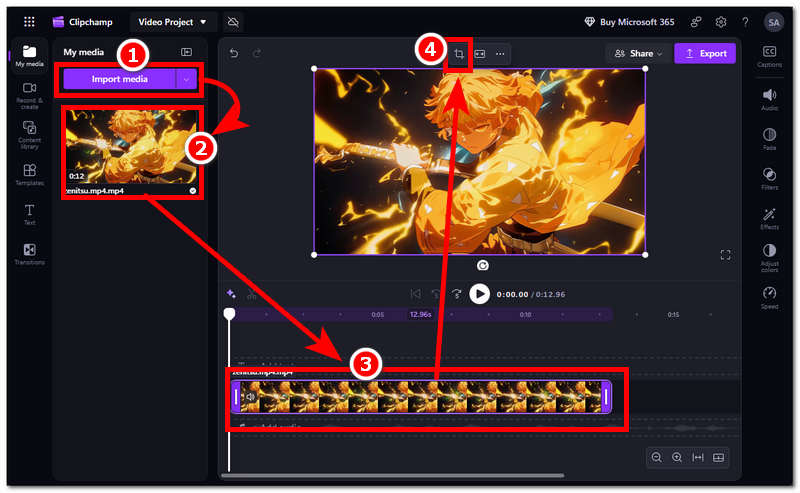
Once you are in the video editing timeline, proceed to import your video clip into the tool. After loading your video clip, proceed to drag the video clip into the timeline and from there click the video in the timeline and proceed to click on the Crop icon that will appear in the upper part of your video to proceed.
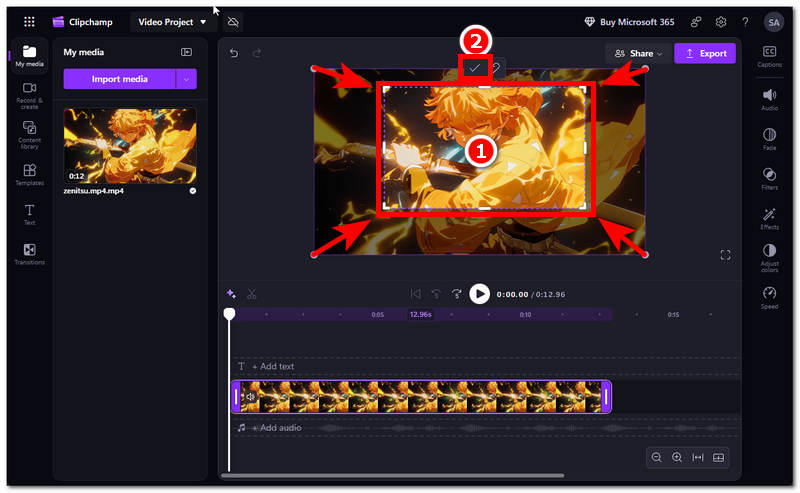
After clicking the crop icon, you may now change your video aspect ratio by dragging the crop rectangle inward to the parts of your video you want to retain in the video. Once you are satisfied with the cropping you just did in your video clip, proceed to the check mark above it to save the changes.
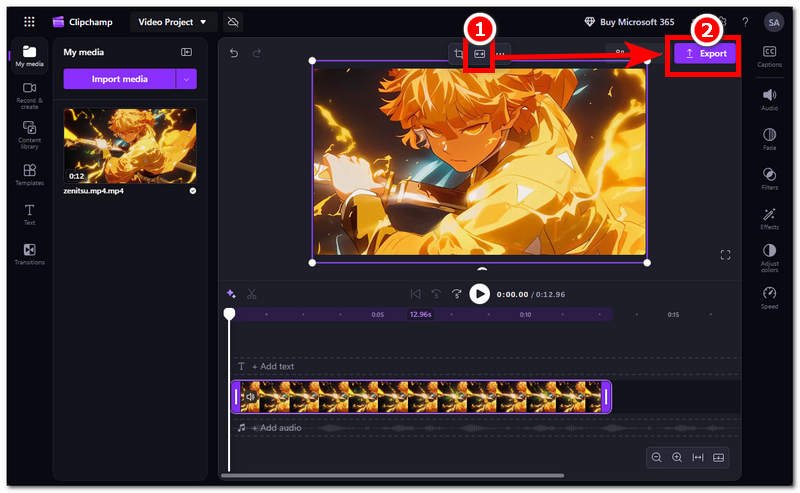
After clicking the check mark, proceed to click on the Fit icon still located in the upper part of your video to effectively make your cropped video fit your video screen. Once the video has filled your video screen size, you may now proceed to save your video on your device by clicking on the Export button.
Part 3. Is Clipchamp Good for You?
In wondering if Clipchamp is good for you or worth it would really depend on your needs as a video editor and the amount of features and functions you are looking for in cropping your video. We could say that Microsoft’s Clipchamp is worth trying as a basic and straightforward video editing tool to crop videos, especially for Windows users who don’t have access to premium tools. While it mas appear lacking in some features and function one can hoped for in a video editor, considering that the tool is in its early phase, there is potential for use and development for future updates in using the tool.
| Watermark Presence | Free Tier Limitations | Export Speed | Cloud Storage |
| No watermark in both free tiers | The free plan is limited to exporting video quality of up to 1080p resolution while also being locked out from accessing premium filters, effects, and stock assets. | Microsoft Clipchamp crop video is being exported depending on the device’s CPU/GPU hardware and a stable internet connection. | Clipchamp projects are safe and secure as the program uses a cloud-based storage system from Microsoft that automatically saves to its dedicated folder. |
Part 4. Best Alternative to Clipchamp
If you are still not comfortable using Clipchamp to crop your video clips, is needing video cropper tool that lie towards convenient usage then you will like the use of this alternative video cropper tool called ArkThinker Free Video Cropper Online. This tool is a web-based video cropper tool that is also free to use, but the difference lies in the convenience of use, as ArkThinker is a straightforward video cropper tool, meaning it does not have this complexity and many steps just to crop your video. It has become useful for users who are in dire need of an easy-to-use, accessible, fast-processing video cropper tool.
Using your desktop (Windows or Mac) device, open your web browser and go to the ArkThinker official website to access the Free Video Cropper Online tool.
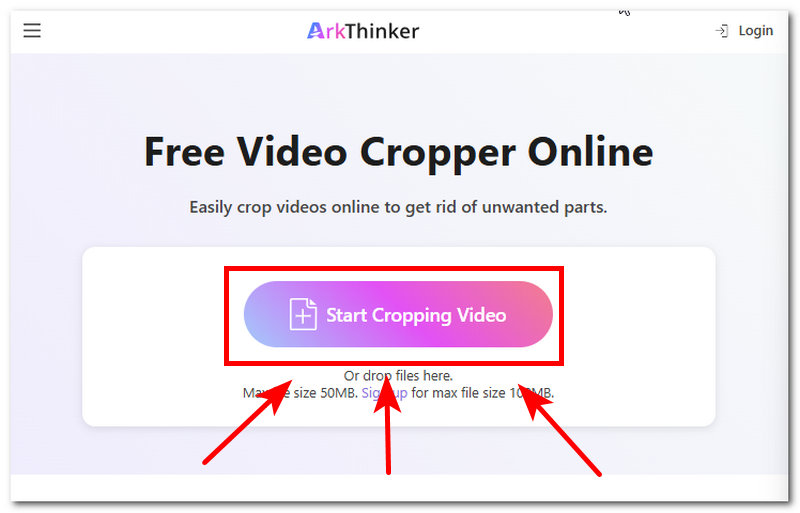
Once you are on the ArkThinker video cropper official website’s main page, click on the Start Cropping Video button and load the video clip you want to easily crop using the tool.
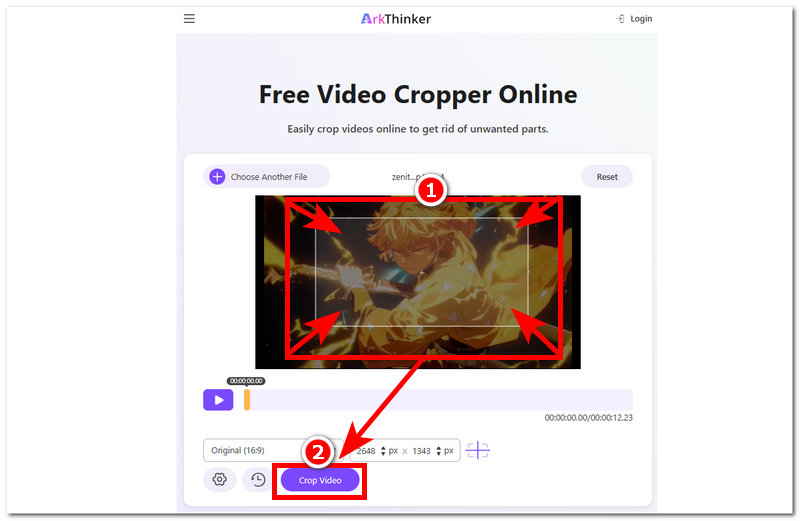
After your video clip loads up in the tool, proceed to crop your video by dragging the crop rectangle area towards the part of your video you wish to retain in your crop.
Once you are satisfied with your crop, click on the Crop Video button to finally export your video to your desktop device.
Part 5. FAQs about Microsoft Cipchamp Cropping Video
What is cropping in Clipchamp?
Cropping in Clipchamp is like what cropping is to other video editor tool. It allows users to remove or cut out unwanted parts or areas in the video frame by dragging a rectangular crop area, which will give more emphasis on the certain part the user wants to highlight in the frame.
Can I crop videos into specific aspect ratios?
Yes, Clipchamp supports cropping of video to a specific aspect ratio, making it easier for users to change the video aspect ratio to the format they want their video to be posted or shared across. It can crop videos to the standard 16:9 of YouTube or the 1:1 square ratio of Instagram.
Can I undo a crop in Clipchamp?
Yes, users have been given the ability to undo their accidental crop in their video by simply using the combination key of Ctrl + Z or simply go back to the crop function to reset and re-adjust the crop the user likings.
Conclusion
Microsoft Clipchamp is a worthwhile video editor tool, especially for those who have just started exploring video editing, as it has a very user-friendly interface, making it easy to use, especially in video cropping. Apart from its video cropping, it also houses many basic and simple video editing and enhancement features, which also allow users an endless opportunity to use the tool for various video editing needs.
Furthermore, while it is possible to crop videos in Microsoft’s Clipchamp, it can be said that not everyone can grasp the tool; that’s why this article also features an alternative tool, ArkThinker, to have access to a faster processing and straightforward video cropper tool.


