


How to Use FFmpeg to Combine Videos: A Detailed Tutorial
When it comes to video editing, merging multiple video files is a practical way to combine different media and make them more cohesive. Unfortunately, video merging is complicated with traditional video editing tools, making alternative multimedia file editors a better fit. Among them, FFmpeg is one of the most popular tools for merging video files and keeping their original quality. In this article, we will provide a detailed guide to using FFmpeg to merge videos with its command-line options. We will also provide an alternative that lets you combine video files without the intricacies of FFmpeg commands.

- GUIDE LIST
- Part 1. Why You Need FFmpeg to Combine Videos
- Part 2. Step-by-Step Workflow to Use FFmpeg to Combine Videos
- Part 3. Best Alternative to FFmpeg to Combine Videos
- Part 4. FAQs About Combining Videos in FFmpeg
Part 1. Why You Need FFmpeg to Combine Videos
Although video merging is mostly done in traditional video editors, the steep learning curve and high hardware requirements of these tools can be limiting for most amateur editors, since they are generally not beginner-friendly and resource-heavy.
As such, command-based multimedia programs take the cake if you are looking for an easier-to-use video merger that doesn’t rely on powerful hardware. In this case, we highly recommend using FFmpeg to join videos. Since it is fully command-based software, you can perform virtually any multimedia task, including video encoding, format conversion, batch processing, and use it as a video merger tool.
Unfortunately, FFmpeg has its limits in terms of the commands you need to learn to use it effectively. As such, this article will provide exactly that, giving our readers the inputs they need to make video combining easier.
Please read the next section of the article to learn how to concatenate videos with FFmpeg.
Part 2. Step-by-Step Workflow to Use FFmpeg to Combine Videos
Given the strengths of using FFmpeg over traditional video editors to combine files, the biggest obstacle you face is learning the right command-line options. As such, this guide aims to provide exactly that, offering the input you need when using FFmpeg to concatenate video files.
In addition to the command-line, we also provided detailed, step-by-step instructions for using FFmpeg to merge your video files into a single media file. Please read our guide to learn how.
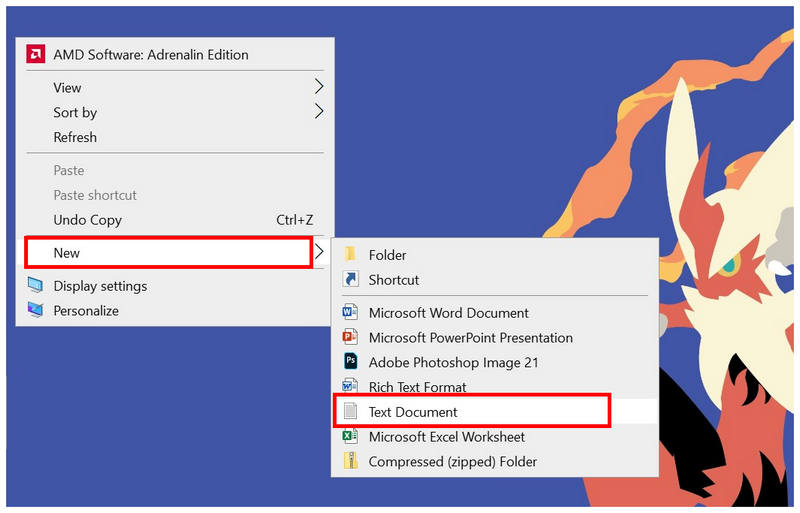
First, create a new text file and list the videos you want to combine. Name it as list.txt.
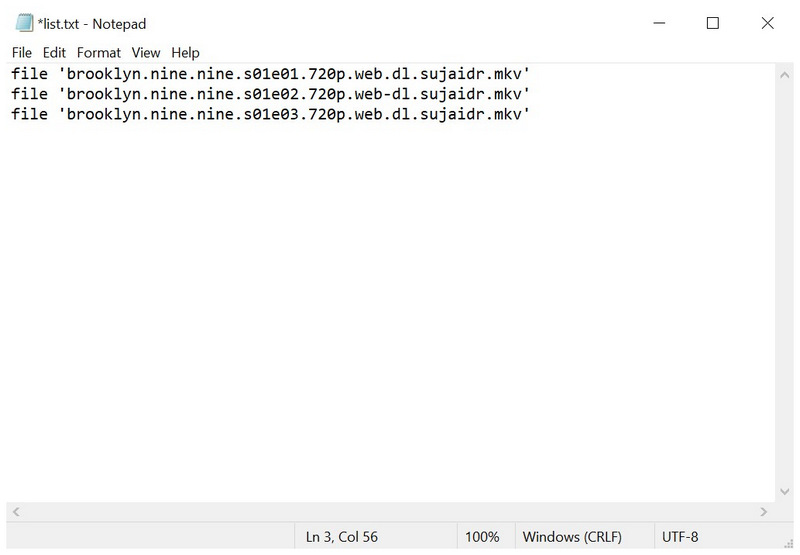
When choosing the video files you want to merge, list them down by following this format:
file 'video1.format'
file 'video2.format'
file 'video3.format'
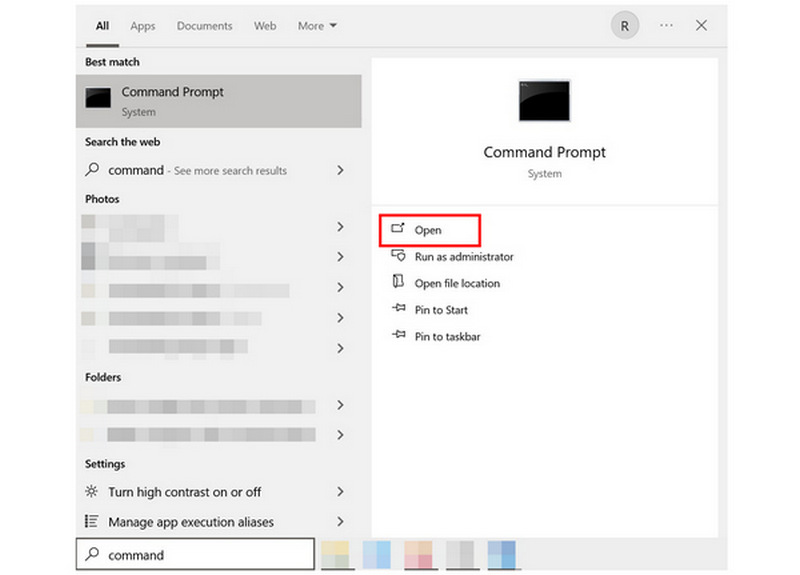
Open your computer’s Command Prompt or Terminal.
In your device’s command prompt, write the following command line: ffmpeg -f concat -safe 0 -i list.txt -c copy output.format
Make sure to edit the output.format line to how you want to save your merged video file. Once the file type is set, press Enter.
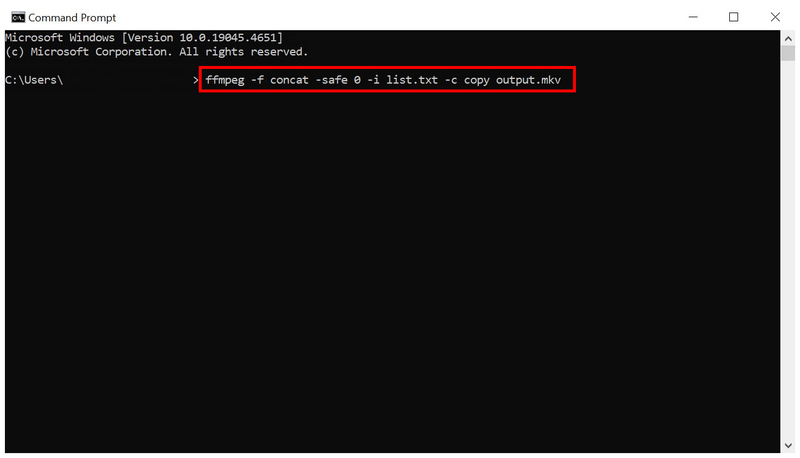
When done properly, following these steps will allow FFmpeg to combine the audio and video of the files listed in the text document. As such, it is very important to remember the name and format you have selected for the new output file.
Part 3. Best Alternative to FFmpeg to Combine Videos
Now that we have provided an overview of how to use FFmpeg to concatenate two videos, its complexity, due to the lack of a GUI, can be very intimidating for amateur users. As such, a beginner-friendly multimedia software is more suitable for beginners, such as ArkThinker Video Converter Ultimate.
Unlike FFmpeg, which uses command lines exclusively, this alternative software includes a Video Merger tool that lets users combine videos with just a few clicks. It can also be used to edit specific video file elements to the merged video output you will save, such as Format, Resolution, Frame Rate, and more.
Aside from its ease of use, another strength of ArkThinker Video Converter Ultimate is its safety. Unlike FFmpeg, which operates in your command terminal, the program will not be affected by improper command lines. This makes file integrity safer than relying on command-line tools alone.
To learn the best features of ArkThinker Video Converter Ultimate, make sure to read the main features of the program below. Do not forget to download it as well to make it easier to follow our Video Merger guide.
Main Features:
- • Video Merger tool for easily combining media files.
- • Video Compressor tool to reduce the file size of large videos.
- • Format Converter feature for simple file type adjustments.
- • GPU-accelerated for 30x faster processing speed than other multimedia tools.
- • Supports adjusting 1000+ media formats for all of its multimedia features.
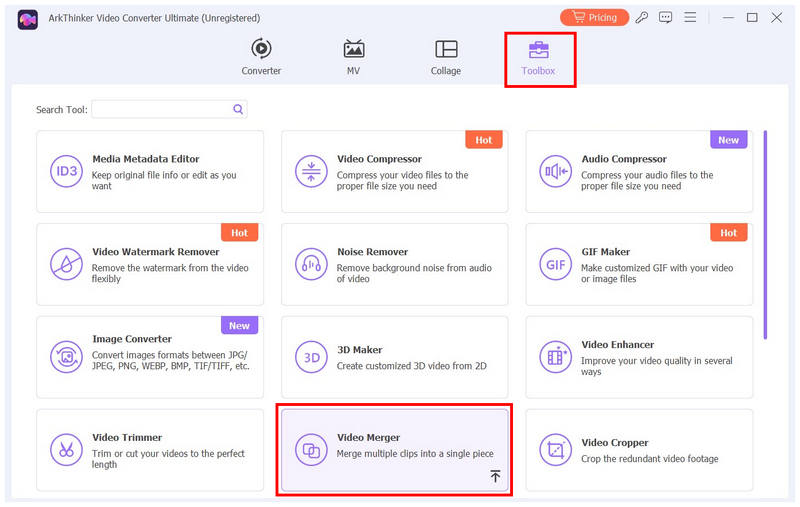
Open ArkThinker Video Converter Ultimate and go to the Toolbox tab. Under the available tools, select Video Merger.
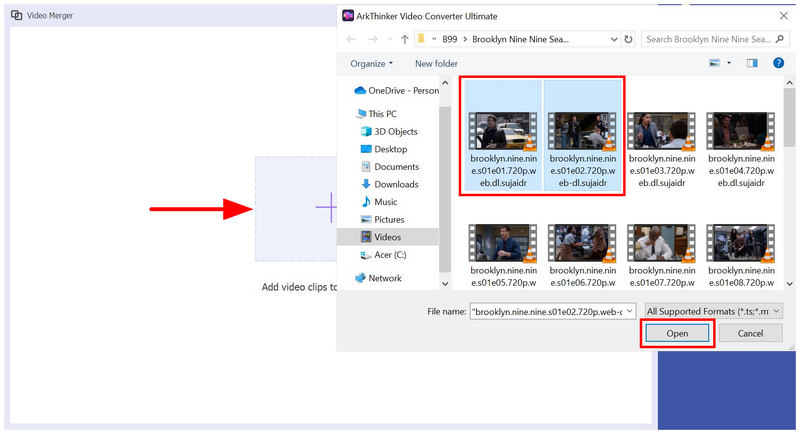
After selecting the Video Merger tool, click the Add button in the pop-up that appears.
Then, navigate through your files to find the videos you want to merge. Select them, then click Open to confirm the videos you want to merge.
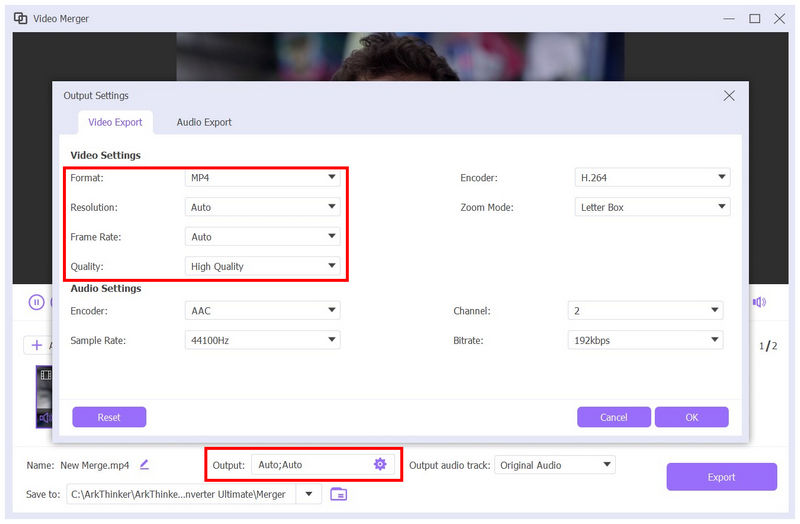
With the video now added to the Video Merger tool, select Output Settings to customize how you want the merged video saved. You can edit its Format, Resolution, Frame Rate, Quality, and other advanced video elements.
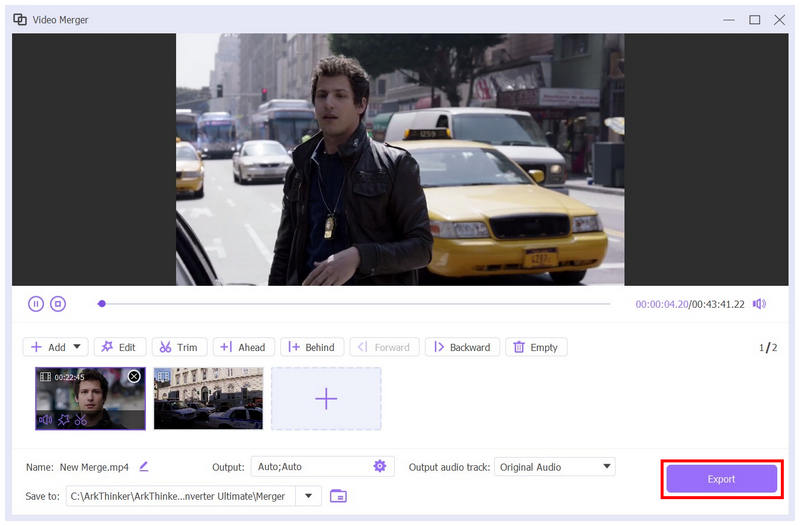
Once you are satisfied with the set Output Settings, select Export to begin merging the selected videos.
Part 4. FAQs About Combining Videos in FFmpeg
Is FFmpeg complicated to use?
Yes, it is. FFmpeg is very technical to use. It requires its users to learn command-line syntax before using it.
Can I use FFmpeg to combine video files?
Yes, you can. However, it is not the easiest to use. In fact, using FFmpeg to merge MKV video files and other formats requires prior knowledge of the right command lines.
Is FFmpeg safe to use?
Yes, it is. FFmpeg is supported on multiple platforms. This superb support is a testament to its safety and software integrity.
Can FFmpeg accidentally affect other files on your computer?
Yes, it can. This may occur if you wrote the wrong command line. At the worst, FFmpeg may even corrupt media files on your computer.
Is learning FFmpeg worth it?
Yes, it could be. Learning basic FFmpeg commands may be practical. Command lines are most efficient for workflow when the right commands are used.
Conclusion
Now that we have discussed the steps you need to learn to use FFmpeg to combine videos, we hope this article has provided you with useful information to make your media file-merging process easier. If you think the risks and complexity of using FFmpeg are too high, we highly recommend using ArkThinker Video Converter Ultimate’s Video Merger feature as both an easier and safer alternative. Make sure to download it using the link below.


