


Crop Video on Android: Mobile Apps & Online Video Cropper
Video cropping is a technique used to remove unwanted parts from the video or make a video aspect ratio to match the social media video aspect ratio. As various social media platforms have a very specific formatting when it comes to the aspect ratio of the video, this presents the need for video cropping to better present the video on the platform. While video cropping should be an easy task for Android users, many still have problems with what is the most effective or better way to crop video. This article uses this opportunity to shed light on the best way to crop videos, whether it be Android app to crop video or online tools. This article will list four ways to crop videos with steps.

- GUIDE LIST
- Part 1. Can I Crop A Video on Android?
- Part 2. How to Crop A Video on Android?
- Part 3. FAQs about How to Crop A Video on Android
Part 1. Can I Crop A Video on Android?
Yes, video cropping in general is a process of trimming away or removal of unwanted parts of the video it is a built-in feature to video editing platforms as well as on mobile device gallery app to easily modify a video aspect ratio. It works by having the rectangular area that appears in the video to be adjusted by users however they like and the inside of the area is supposed to be what remains of when the video is crop completely disregarding the parts outside of the area.
Part 2. How to Crop A Video on Android?
Method 1: Google Photos
Best For: Universal cloud-based photo and video editing and storage app
Google Photos developed by Google is a cloud-based storage system for media file such as photo and video allowing user to store and do light edit with their media files across devices (Android and iOS). This has become its main strengths as it is easy to share files across device especially in terms of sharing the cropped videos.
Features:
- • Cloud-based and lightweight.
- • Compatible to both Android and iOS devices.
- • Easy file sharing.
- • Safe and secured.
How to Crop A Video on Google Photos
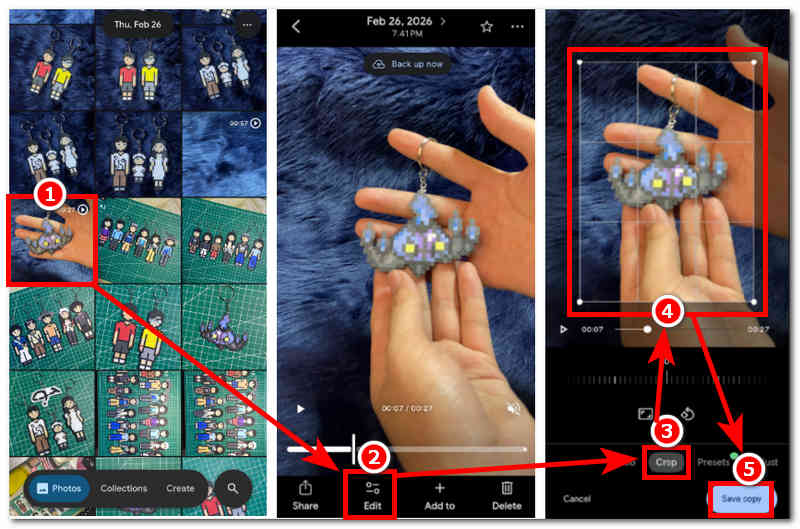
Using your Android device, open your Google Photos app.
From Your Google Photos app, browse to your Photos collection and look for the video file you want to crop in using the Google Photos app.
Once you have found your your video file, tap to open. Next is to tap on the Edit section to open the video edit setting of your video.
Once you are in the edit setting of your video, proceed to tap on the Crop function and proceed to drag the rectangular crop area to the parts of your video you want to crop. Once done tap on the Save Copy button situated in the lower-right corner of your screen to save the changes of your video.
Method 2: Samsung Gallery
Best For: Quick access to simple video cropping among One UI users
Samsung Gallery is the default phot and video storage management application among Samsung devices. Just like any other mobile devices it features basic editing features like video cropping.
Features:
- • Built-in-application for Samsung Galaxy devices.
- • No installation needed.
- • Quick video cropping access.
- • Easy to navigate.
How to Crop A Video on Samsung Gallery
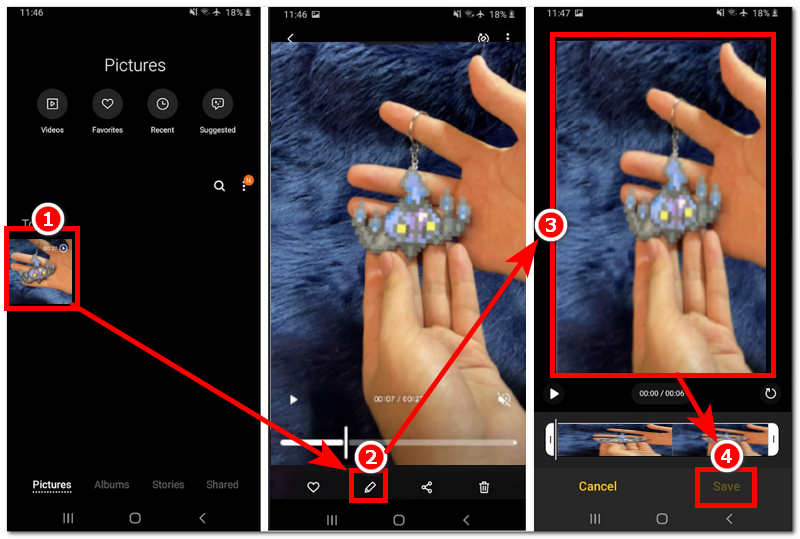
Using your Android Samsung device, open your Samsung Gallery app.
From your Samsung Gallery app find your video file you wish to crop with using the default cropping function of Samsung Gallery.
Once you find your video, simply tap on it to open its preview and from there tap on the Edit button or the Pen icon situated in the lower part of your screen to access the crop function.
Once you are in the Edit setting of Samsung Gallery proceed to crop your video to your preferred aspect ratio. Once satisfied with your video crop ratio tap on the Save button to save the changes you have made in your video.
Method 3: Capcut
Best For: All-in-one multi platform video editing and cropping app
CapCut is regarded as among the best video editing application for Android device one can have as it features all kinds of features and function from basic up to advanced video editing needs. This application can easily handle video cropping task with precision and control on the user hands. Here’s how to crop a video using CapCut.
Features:
- • Wide array of video editing and enhancement functions.
- • Free to use tool.
- • Large library of ready to use template.
- • Effects and overlays function.
- • High-quality export.
How to Crop Video in Capcut Android
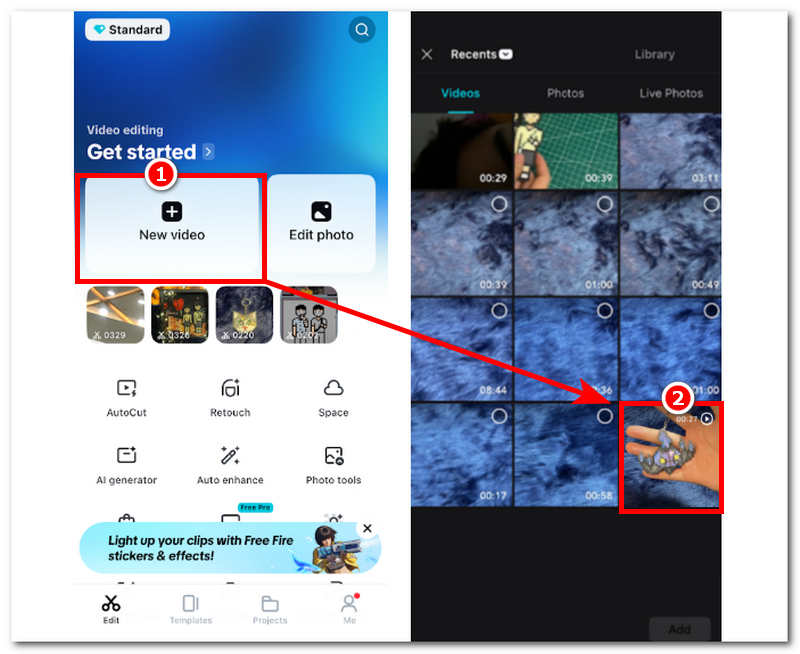
Using your Android device, open your CapCut mobile application.
Once you are in the CapCut’s main interface proceed to tap on the New Video to create new project. After tapping on the New Video, CapCut will then let you browse your gallery and from there simple browse and tap on the video file you want to crop using CapCut.
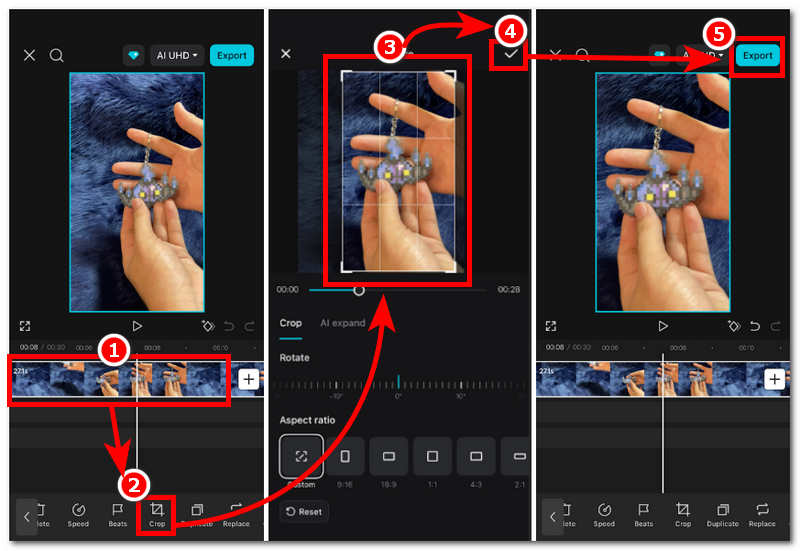
Once the video loads up in the CapCut editing page, tap on your video file in the timeline and from the editing tools in the lower section of your screen tap on the Crop function to proceed.
From the Crop function, simply adjust the rectangular border from your video to your preferred aspect ratio of your video. Once satisfied with the amount of crop you have in your video tap on the check button situated in the upper right corner of your screen and finally Export your video to have it be save in your gallery.
Method 4: ArkThinker Free Video Cropper Online
Best For: Quick and easy free video cropper tool
If you are tired of using third-party application and is wondering how to crop a video on ndroid without app, then ArkThinker Free Video Cropper Online is a web-based video cropping tool that is accessible and available all across devices and browser. A lightweight type of tool that works to crop any type of video at the expense of zero installation of application or complicated user interface.
Features:
- • User-friendly video cropper tool.
- • Web-based free video cropper tool.
- • Fast processing tool.
- • Safe and easy to use.
How to Crop A Video Using Online Tool
Using your Android device go to ArkThinker Free Video Cropper Online website using your device browser.
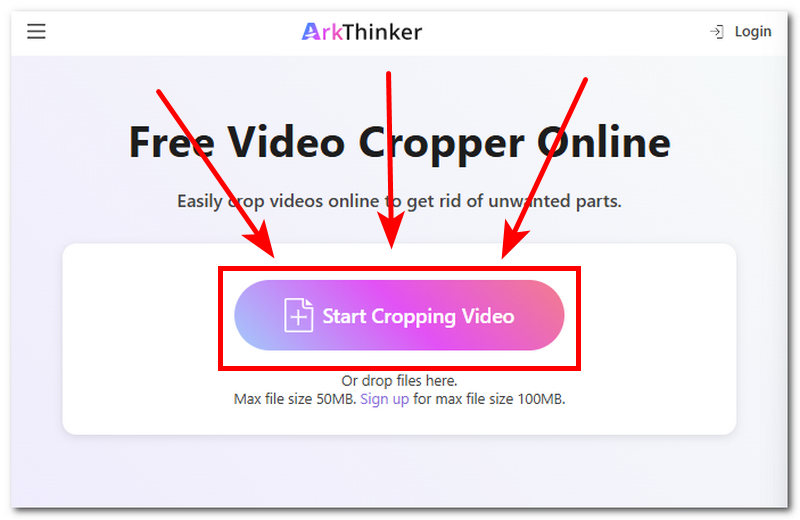
Next is to tap on the Start Cropping Video button situated from the webpage of the tool and load the video file into the tool that you want to crop.
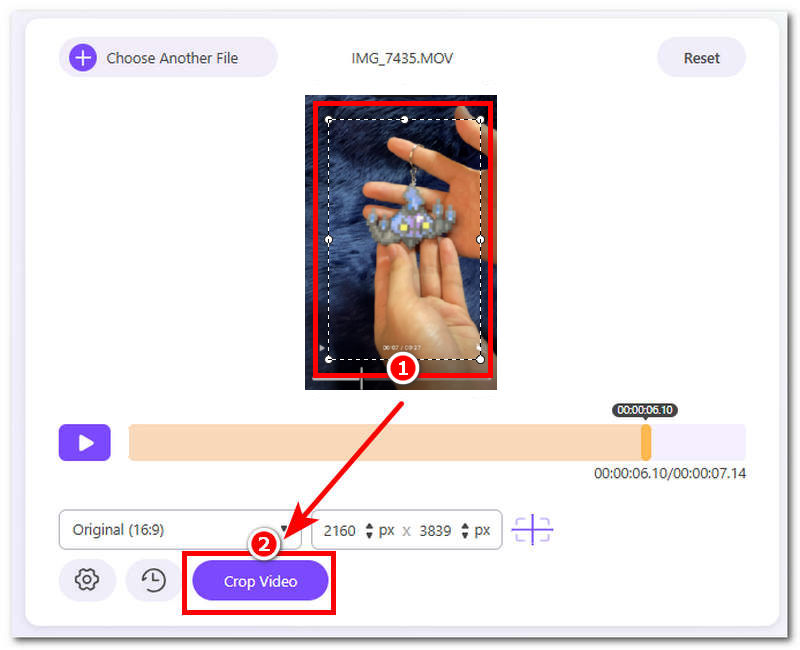
Crop your video by adjusting the rectangular shape that appears from your video.
Once you are satisfied with the crop that you do in your video file you may now proceed to tap on the Crop Video button to have it be exported in your device.
Part 3. FAQs about How to Crop A Video on Android
What aspect ratios can I crop my video into?
There are a variety of aspect ratios one can use to crop their video, and most tools and applications have templates ready to use, such as 1:1 (Square), 9:16 (vertical), and more.
Can I undo a crop after saving the video?
If you have already exported the crop video and deleted the original file, then you can not undo the crop. This is for when you used a third-party application to crop your video file. If, on the other hand, you use your device's gallery app to crop videos, you can export the cropped video as a separate copy, so you can undo the crop anytime you want.
Conclusion
This article concludes that cropping videos in Android has many forms ans ways thus it is a matter of user preference which method to use for their video cropping needs. This article have listed four methods for Android users to crop their videos from mobile application up to online-based tools, while also providing a brief overview of each tool and its features to give more information on what kind of video cropping tool each is. Furthermore, the best video crop app Android is subject to, and all of the listed methods are the best video cropping tools, as each of them has its purpose and functions.
What do you think of this post? Click to rate this post.
Excellent
Rating: 4.9 / 5 (based on 578 votes)


