


Crop Video on iPhone: Photos App, iMovie, & Web-Based Tool
Video cropping is a technique used to remove unwanted parts of a video, or simply a way to change the video aspect ratio to perfectly match video playback and upload on social media platforms. Video cropping is accessible on devices, specifically on the iPhone’s Photos App as a built-in feature for performing quick video modification and various video editing platforms. This just means that video cropping is relatively easy to do, specifically on your iPhone device, which this article will further highlight through a simplified step-by-step process of how can you crop a video on iPhone using the Photos App, additionally using the iMovie app as well as an online video cropping tool free to use.
So to ensure that your video is using the right aspect ratio before uploading on social media, read this article to learn effective and straightforward ways to crop your video using only your iOS device.

- GUIDE LIST
- Part 1. Using the Built-In Photos App (Free)
- Part 2. Using iMovie (For Precise Control)
- Part 3. Best Online Tool for Advanced Cropping
- Part 4. FAQs about How to Crop Video on iOS
Part 1. Using the Built-In Photos App (Free)
Best For: Quick accessibility and basic video cropping needs.
Photos App is Apple’s built-in gallery and photo management application tool for their devices where all pictures and videos are stored. These pictures and videos are either taken by the device camera or simply saved from an external source, which automatically stored and organized the media files accordingly for efficient media playback and as well as a platform for quick access to basic modification like cropping. In figuring out how to crop a part of a video on iPhone using Photos App simply refer on the steps below.
How to Crop Video Using Photos App
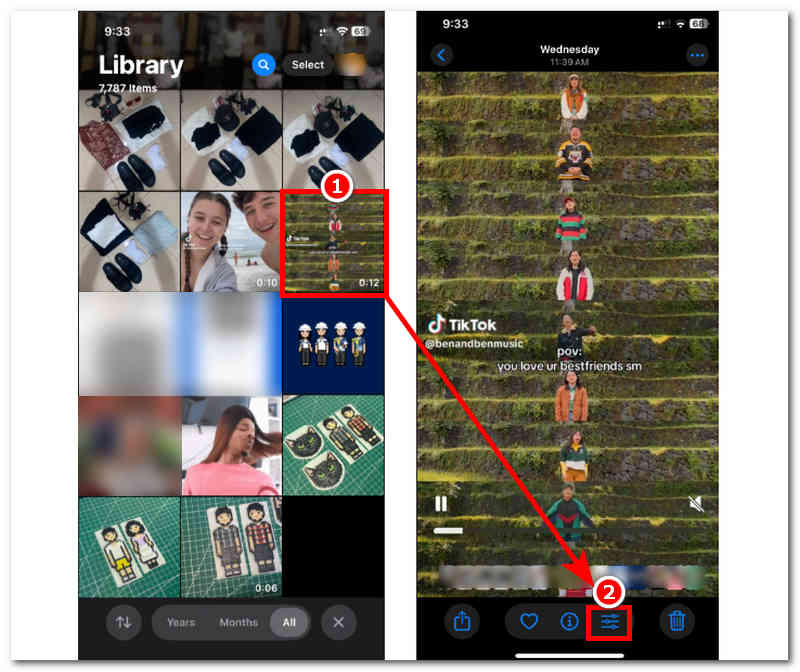
Using your iPhone device, open your Photos App and from there simply browse to your media and locate the video you want to crop using its built-in cropping tool.
Once you locate your video file from your Photos App proceed to tap the video to preview it.
Once the video is enlarge to your screen proceed to tap on the video setting situated on the lower part of your screen.
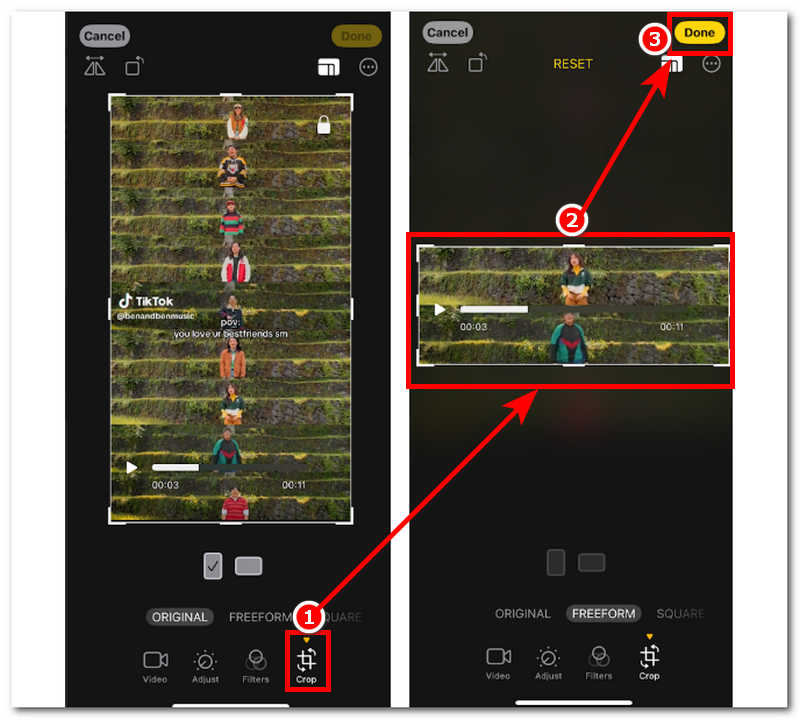
From the video setting, tap on the Crop button, and from there begin dragging the border of your video to the parts of the video you wish to retain in cropping your video. Once you are satisfied with your video cropping you may proceed to save your video by tapping on the Done button on the upper-right corner of your screen.
Part 2. Using iMovie (For Precise Control)
Best For: Advanced and precise video cropping needs.
iMovie is a video editing application developed by Apple that works on their iPhone, iPad, and Mac devices. This video editing application allows users to gain access to advanced video editing tools that are not available to the Photos App for a more precise control especially for cropping videos. To effectively perform iMovie cropping video on iPhone simply refer to the steps below.
How to Crop Video Using iMovie App
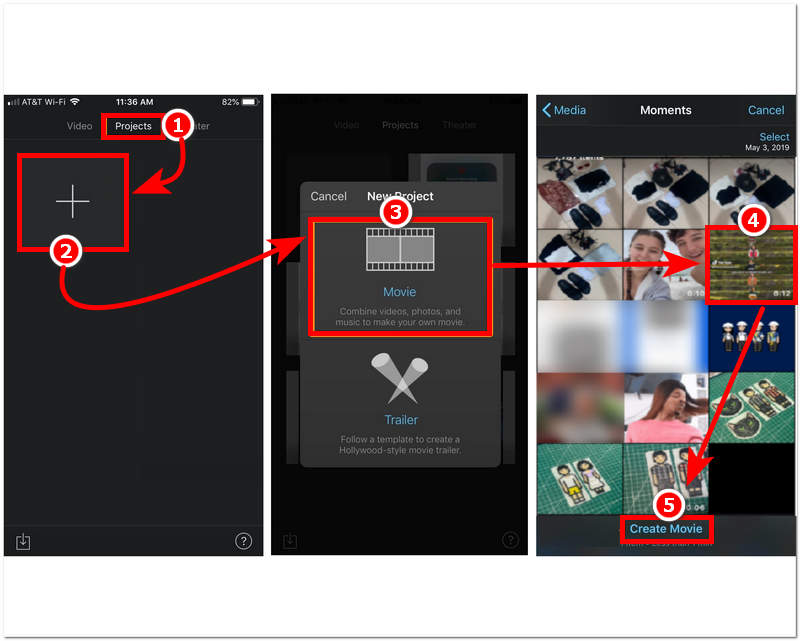
In your iPhone, open the iMovie App and from its main interface, proceed to tap create New Project and select the Movie setting to crop your video.
Once you select the Movie option, your Photos App will open and from there locate and select the video you want to load in iMovie to crop then tap on Create Movie to proceed.
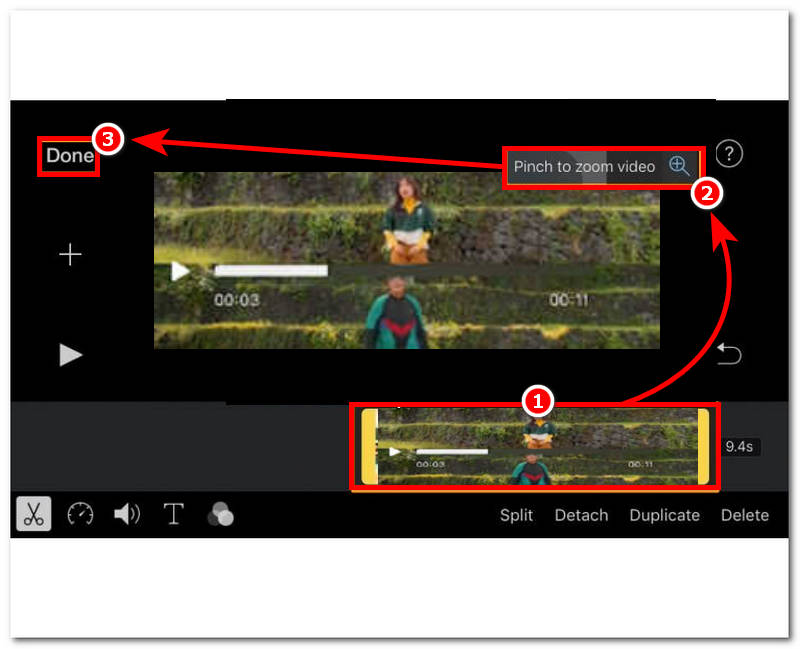
Once the video is loaded into iMovie timeline, to begin cropping your video simply tap on your video file in the iMovie timeline.
Once you tapped the video file proceed to pinch on your finger in your screen to zoom your video. From there pinch however you want and adjust accordingly to your likings to crop your video. Once done and satisfied with the result, proceed to save your video file by tapping on the Done button.
Part 3. Best Online Tool for Advanced Cropping
Best For: Easy-to-use and advanced video cropping needs.
When you find the the default method of cropping your video using your iPhone’s Photos App lacking crop features and control, as well as find the use of the iMovie app too overwhelming for your video cropping needs, then there’s one other method you may use to crop your videos in your iPhone effectively.
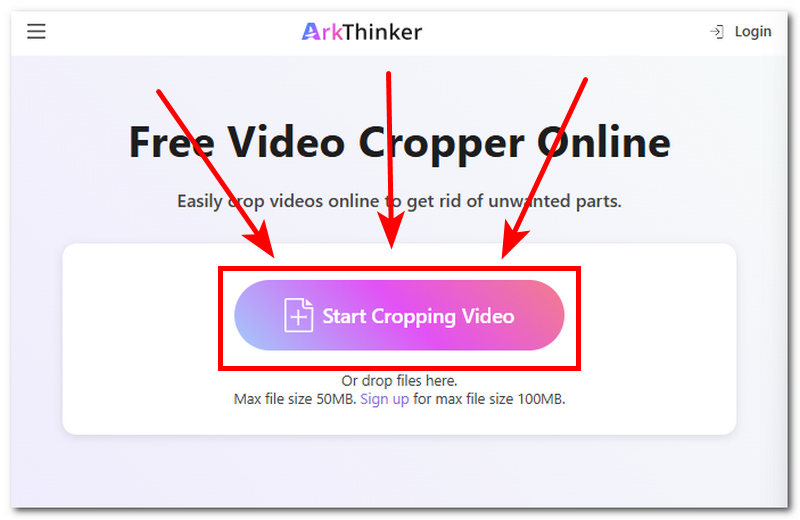
The method is the usage of an online video cropping tool, ArkThinker Free Video Cropper Online. This tool is accessible via a browser, which implies that it doesn’t have the installation hassle that you will experience with iMovie. Additionally, this video cropper is lightweight and easy to use, but it surpasses the cropping capabilities of what you have in the Photos App, as this tool supports a wide range of video file formats like MP4 to crop, yet retains its usability.
How to Crop Video in iPhone Using Online Tool
Using your iPhone’s Safari browser, go to the ArkThinker Free Video Cropper Online website to access the video cropper tool.
Once you are on the webpage's main interface, proceed to tap on the Start Cropping Video button and load the video file into the tool that you want to crop.
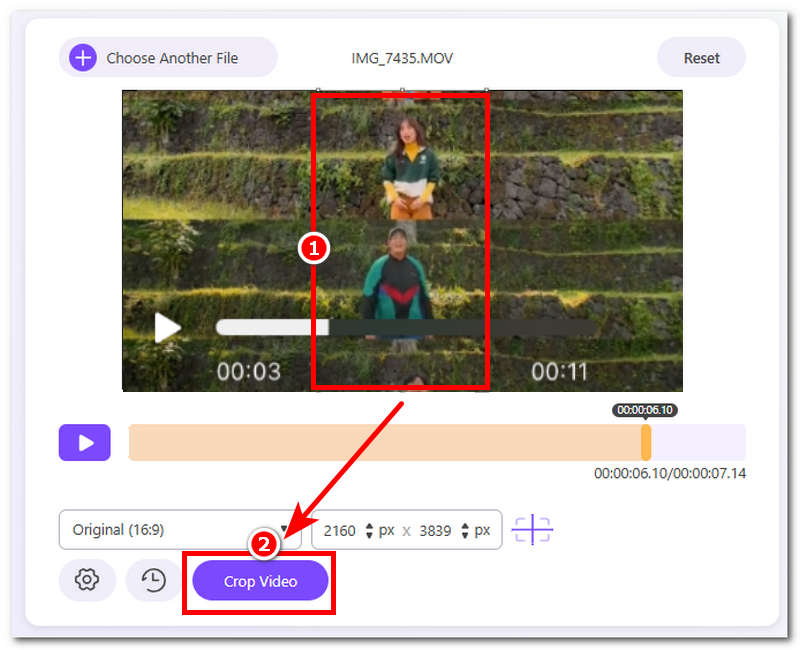
Once the video is in the tool, simply adjust the video aspect ratio to your preferred crop by dragging the crop border that appeared in your video file.
Once you are satisfied with the crop that you do in your video file, you may now proceed to tap on the Crop Video button to export it to your device.
Part 4. FAQs about How to Crop Video on iOS
Can you crop the middle of a video on iPhone?
Yes, users can crop in the middles of the video using an iPhone device. Weather user is using the Photos App, iMovie App, or Online Tool method to crop videos these method allows users a certain control of crop which involves adjusting the crop in the middle part of the video or any part of the video.
Can I crop a video for social media platforms like Instagram or TikTok?
Yes, users can crop video for social media platforms. As social media platforms like Instagram and TikTok is basically has a certain aspect ratio which videos and images need to follow in order to show the file better.
Does cropping affect the file size of the video?
Yes, cropping of video can reduce the and have an effect to the size of the video, especially when cropping out most of the video, it usually change into minimal size but expect the quality to lowered as well as cropping into a video may result to zooming in on the video resulting to blurring of the video.
Conclusion
Cropping video in iPhone surely is easy especially with the proper guide like this article. This article not only provided a straightforward guide on how users can crop their videos in their iPhone through their Photos app but also included steps on how to use iMovie and a web-based free video cropper for accessibility and option for wanting precise and control when it comes to video cropping. Regardless of what method user may opt in following all of the listed method produce easy and quick video cropping its a matter of user preferences.
What do you think of this post? Click to rate this post.
Excellent
Rating: 4.9 / 5 (based on 547 votes)


