


How to Fix Videos That Cannot be Played on Google Drive
Since the development of cloud storage services, accessing media files has not only been limited by offline storage; you can now also upload files to these services to save space and share them online more easily. Unfortunately, cloud storage, such as Google Drive, has limitations, preventing files from being opened directly on it. In this article, we will provide a detailed guide on how to fix Google Drive videos that won't play properly or fail to open altogether. To help our readers understand this issue, we also provided the most common reasons why video playback problems occur on Google Drive.

- GUIDE LIST
- Part 1. Common Reasons Why Google Drive Videos Fail to Play
- Part 2. How to Fix Google Drive Video Playback Issues
- Part 3. FAQs About Videos Failing to Play on Google Drive
Part 1. Common Reasons Why Google Drive Videos Fail to Play
When you are storing videos in Google Drive storage and are facing playback issues, the most common reasons you cannot play a video on Google Drive are an outdated browser, an unsupported H.265 codec, plug-in interference, or a file size that is simply too large. Fortunately, these issues can be solved easily using basic adjustments on your browser or via multimedia tools available on a desktop.
Without further ado, let us now move forward to our step-by-step guide on solving the issues causing Google Drive videos to have playback problems.
Part 2. How to Fix Google Drive Video Playback Issues
Check If Your Browser is Updated
Fortunately, an outdated browser is no longer an issue, as most browsers today automatically update themselves when you open the software. However, if you haven’t opened your browser in a while, it is smart to check whether it's up to date. Although rare, outdated browsers may cause problems with Google Drive when playing videos.
To learn how to check for browser updates on Firefox and Chrome, please read our guide below:
Firefox
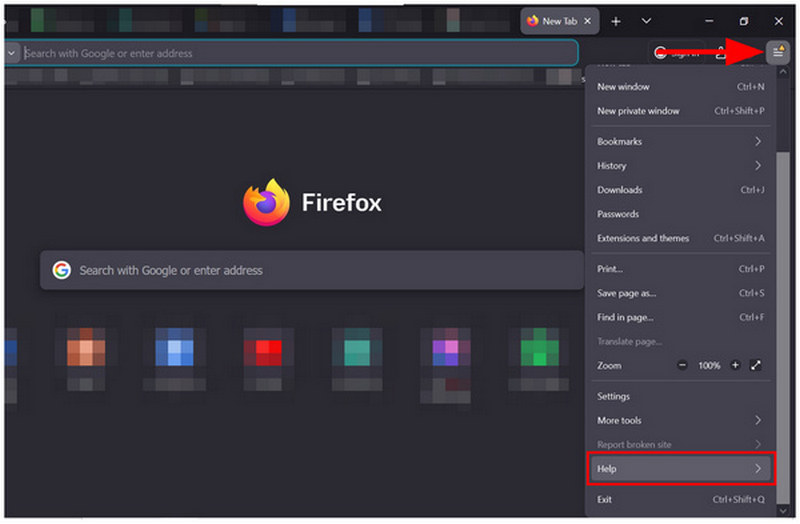
Open Firefox and then select the Open Application Menu button. In the menu that will open, select Help.
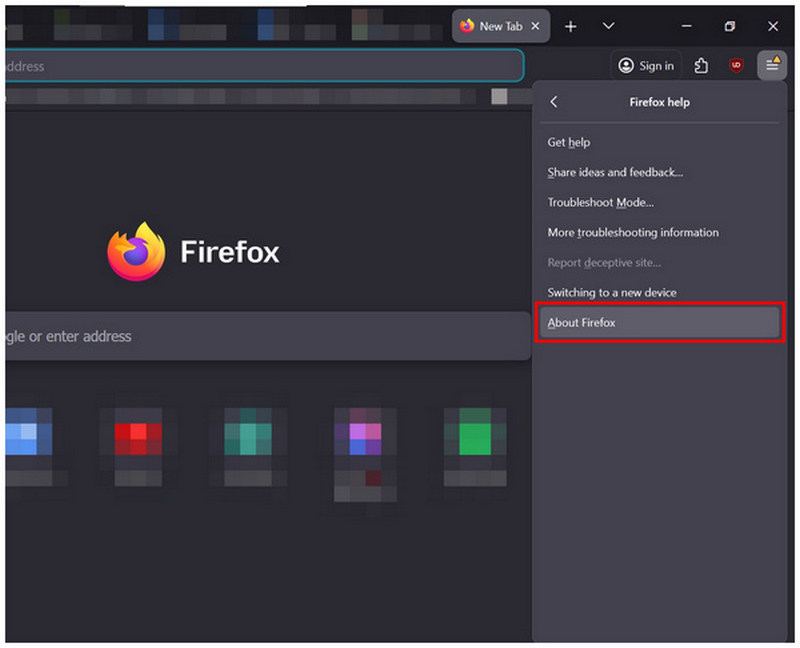
Inside the Help menu, select About Firefox.
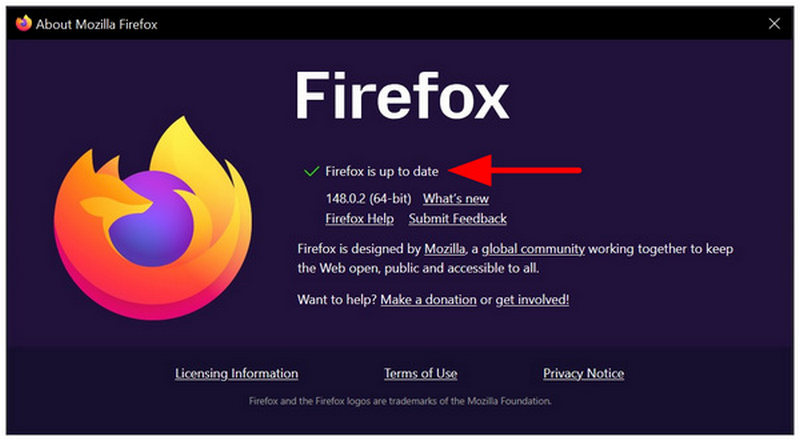
Finally, an About Firefox pop-up will appear on your screen. You can see the information on it if your browser is up to date.
Google Chrome
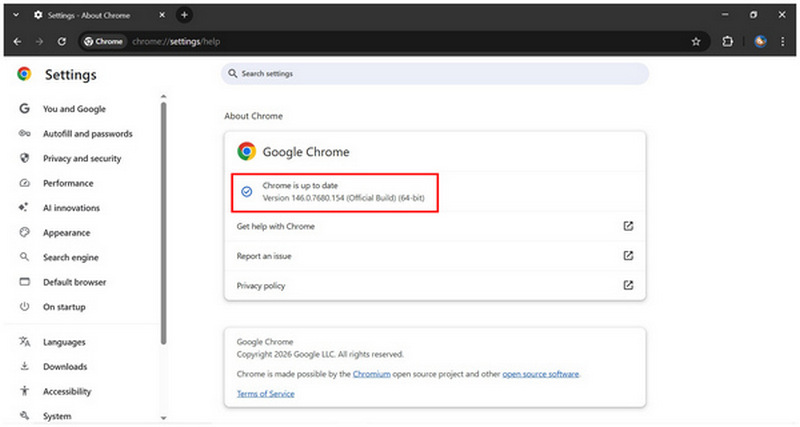
Open Google Chrome and select the Customize and Control button on the upper right section of the screen. Then hover your cursor over Help and click About Google Chrome.
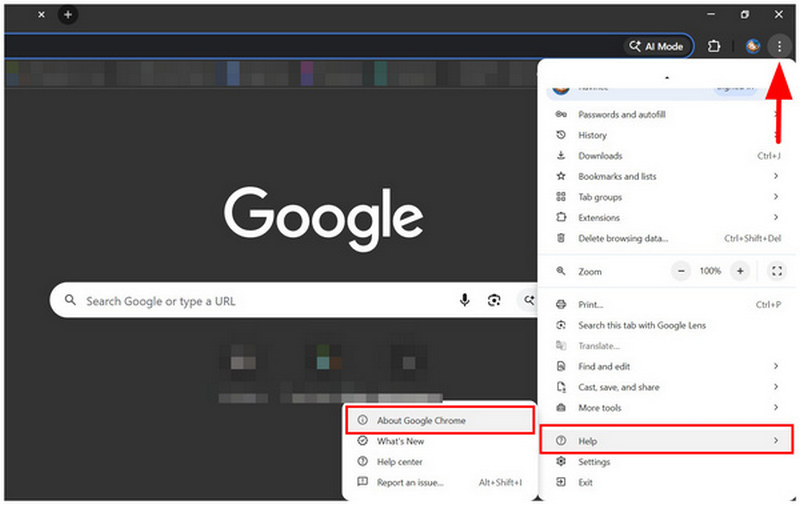
In the About Chrome settings, you will see your browser's Update Status. If the settings are outdated, they will automatically update, and you will only need to relaunch the software to complete the update.
Use ArkThinker Video Converter Ultimate to Fix Codec Issues
Google Drive has codec restrictions based on what videos it can play when in storage; it can only support videos saved in the H.264 codec and AAC audio. With that in mind, you can fix playback issues on Drive by simply converting your video file’s codec using a multimedia tool such as ArkThinker Video Converter Ultimate.
Designed exclusively for format conversions, this software is optimized to have wide codec support, fast conversion speed, and batch conversion. All of these features are set to ensure that its main purpose is as effective as possible.
Additionally, it has a versatile toolbox for compressing, enhancing, and generally improving the quality of videos processed through it.
To learn how to fix codec issues with ArkThinker Video Converter Ultimate, please read our three-step guide below. Make sure to download it as well to follow our tutorial more easily.
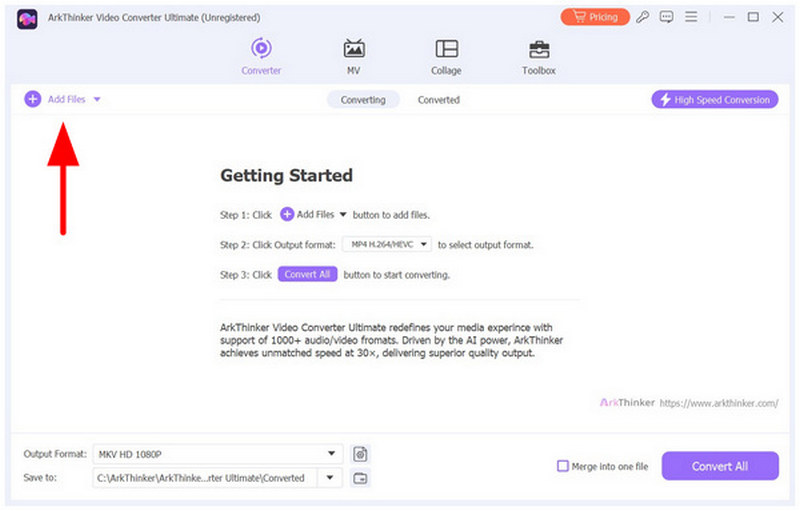
Open ArkThinker Video Converter Ultimate and then select Add Files.
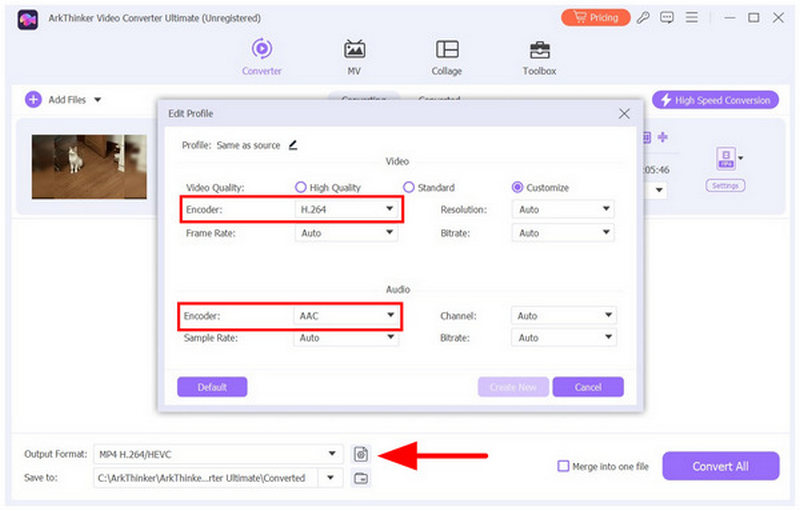
Once the video you want to adjust its codec for is added, click Output Settings to check whether the codec and audio encoder are set to H.264 and AAC. By default, ArkThinker Video Converter Ultimate uses this combination, but it is smart to double-check.
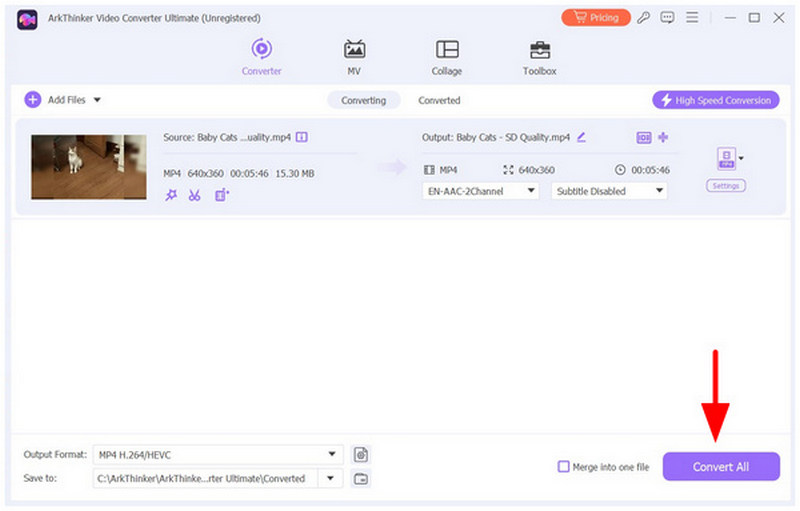
With the video and audio codecs now set, click on Convert All to produce the video with its codec optimized for Google Drive.
Aside from video and audio codecs, it is also recommended to use a widely supported video format when storing videos on your Google Drive. We recommend using the MP4 format as the safest option to ensure it is not the reason Google Drive can’t play your video.
Use ArkThinker Video Repair to Fix Corrupted Video Codecs
For videos with worse corruption issues, using a video repair tool such as ArkThinker Video Repair is a good solution. In addition to codec repair, this option can also resolve underlying playback issues in the file itself.
You can use the software if you suspect your file is corrupted due to video conversion issues, file format damage, or if it was involved in a failed file transfer or interrupted export during video editing. To learn how to use the program, please read our guide below.
You may also download it to make it easier to repair your Google Drive shared video that is not playing.
Open ArkThinker Video Repair and then select the Orange Add Button to import the corrupted video you want to repair.
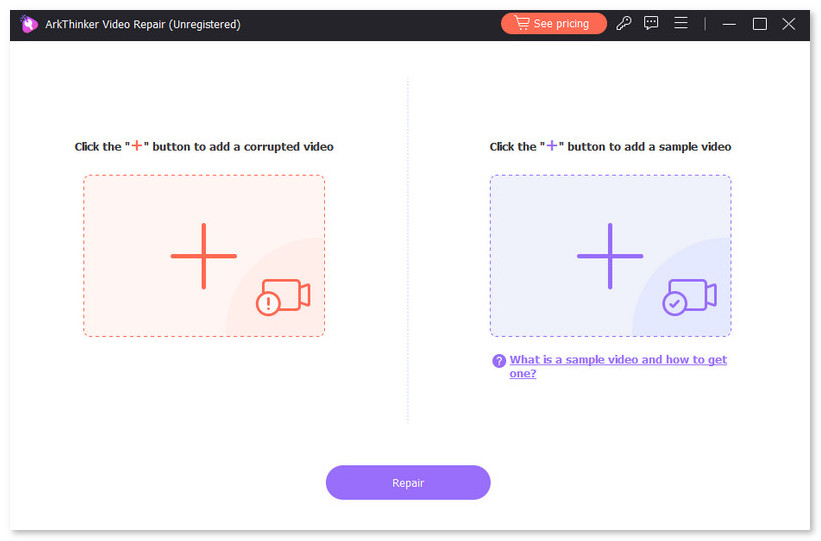
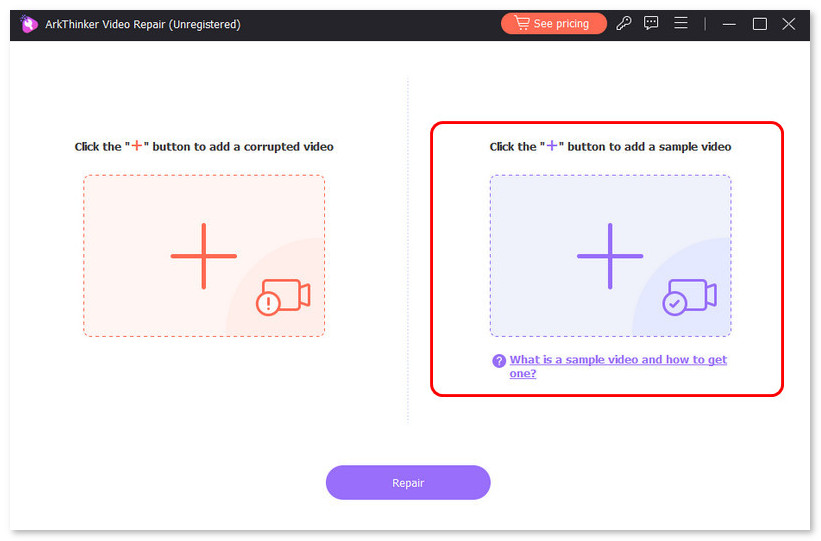
Next, click the Purple Add Button to import the sample video as a reference for the video repair. Make sure that the sample video is saved in the same format as the corrupted file.
With both the corrupted and sample files now added, click on Repair to begin fixing your corrupted video.
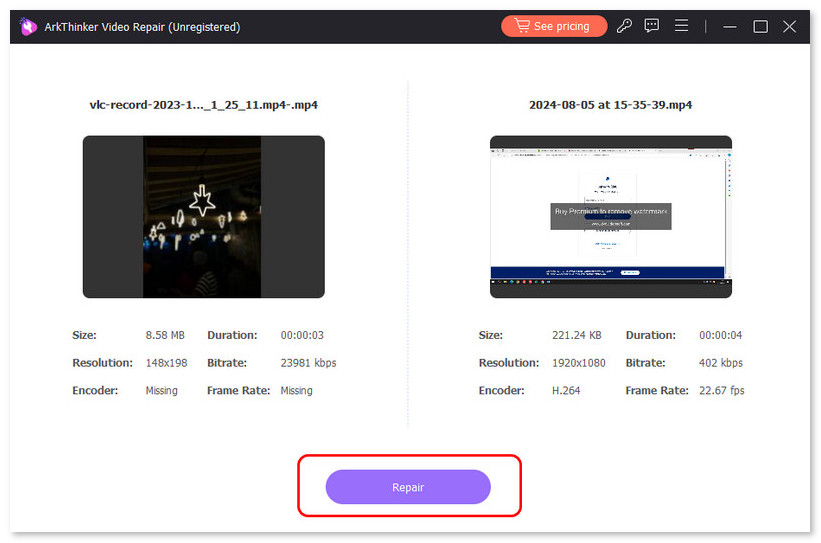
After the video repair, you can now confidently upload it to Google Drive without worrying about playback issues.
Remove Unwanted Plug-ins
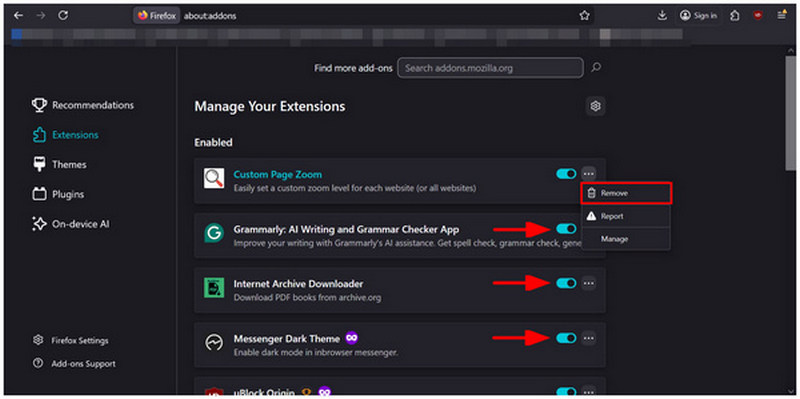
If you suspect issues with your browser extension interfering with Google Drive, causing the “this video cannot be played” error, you may test it by disabling your browser’s installed extensions and plug-ins. To learn how to do so in Firefox or Chrome, please read our guide below.
Firefox
Select the Extension button on the upper right section of the screen. Then, select Manage Extensions.
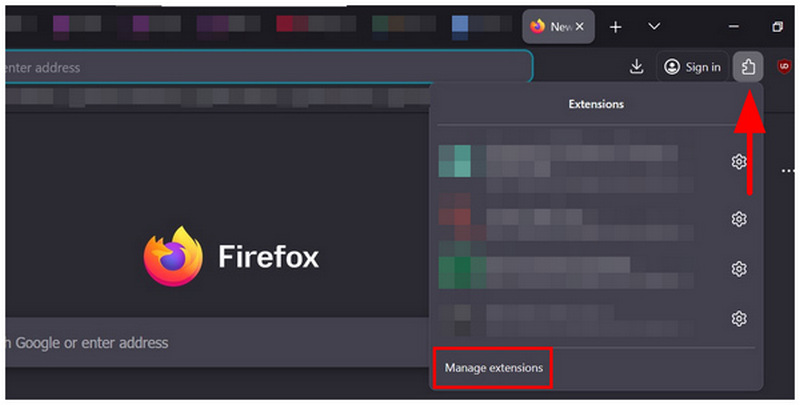
In the Extension menu of Firefox, you can click on the Toggle of each extension to turn them off. Alternatively, you may click on the Three-Dot button to access the Remove option.
Google Chrome
Select the Extension button on the upper right section of the screen. Then, select Manage Extensions.
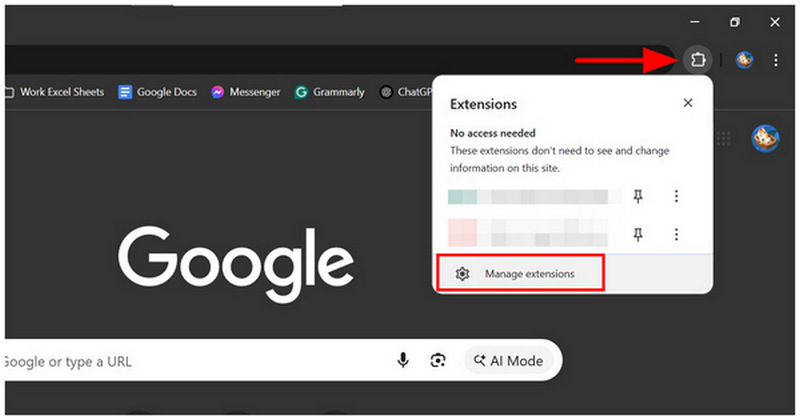
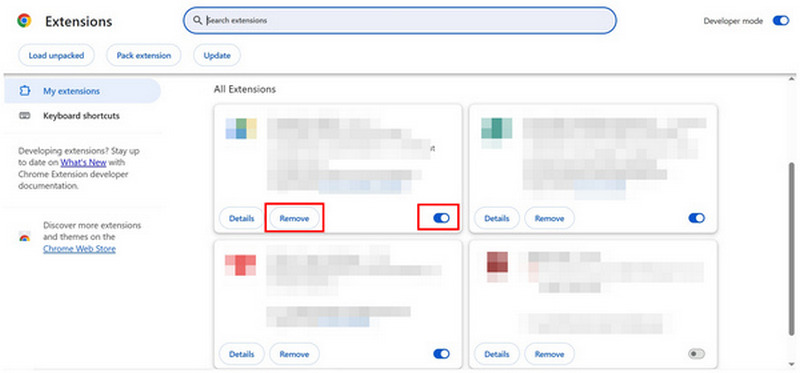
In Google Chrome’s All Extensions menu, you may click on Remove or Turn Off the toggle button to either uninstall or disable the extension you selected.
Compress Videos Before Storing Them on Google Drive
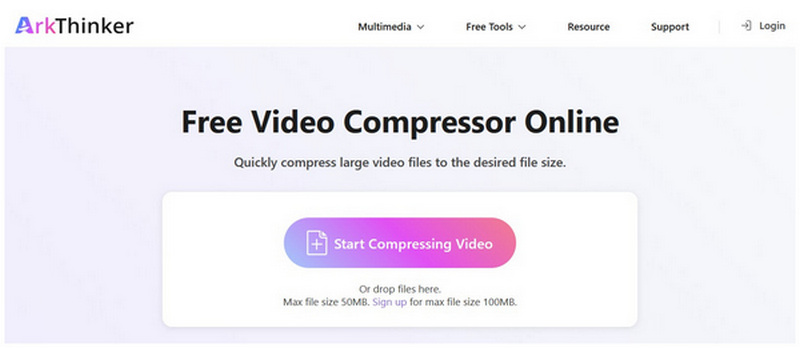
When looking for a quick fix to compress small videos, using online tools such as ArkThinker Free Video Compressor Online is a good choice. Unlike its desktop counterpart, this software is fully web-based, which makes it bypass installation and downloads altogether.
However, it is limited to the file size it can support, since it can only compress videos up to 100 MB. Despite that, it can still get the job done if you want to maximize Google Drive storage by compressing videos before uploading them.
Make sure to read our guide below to learn how to use this online tool:
Go to ArkThinker Free Video Compressor Online’s website, then select the Start Compressing Video button.
Wait for the uploading process to finish.
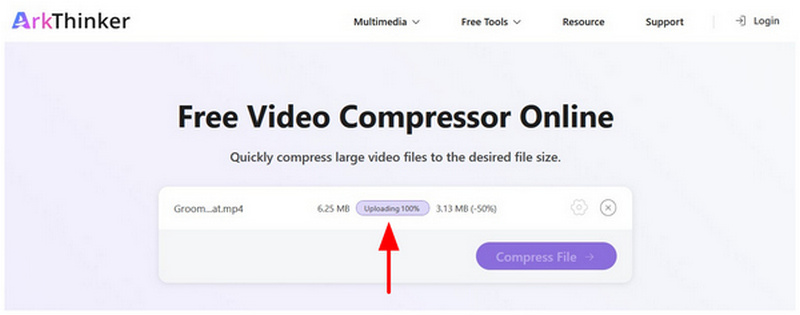
With the video file uploaded, select Compress File to start producing a lower-file-size version.
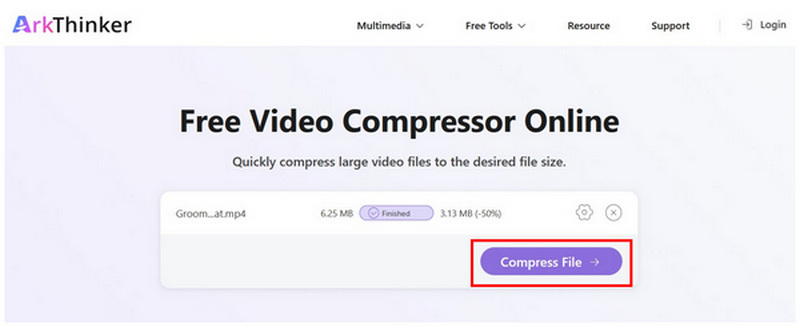
Although its main use is file compression, the program also supports video processing, saving in H.264 and AAC codecs. This made it a functional solution if you suspect that your file’s error is rooted in codec problems.
Part 3. FAQs About Videos Failing to Play on Google Drive
Should I upload videos to Google Drive?
Yes, you can. Google Drive is a trusted cloud storage service. Plus, if you have a Google account, you will have access to Drive for free.
Is it safe to store backup videos in Google Drive?
Yes, you can. In fact, being a backup storage is one of the most common uses of cloud services. Google Drive is also trusted, reliable, and safe.
What is the most common reason why I can't play videos on Drive?
Your video may be too big for Drive’s built-in player. File size restrictions are common on Drive since it is a cloud service. One of the most common occurrences of this limit is in file virus scanning for files larger than 100 MB.
Do videos on Google Drive have reduced quality?
No, they don’t. Videos saved on Google Drive have preserved quality. You may download files stored on Google Drive and still enjoy the video’s original resolution.
Is it complicated to fix video codecs?
No, it is not. Most multimedia tools can fix video codecs. ArkThinker Video Converter Ultimate is a good option, especially when you save your video in MP4 format for best compatibility.
Conclusion
Now that we have discussed the best solution on how to fix Google Drive problems when playing video s, we hope that the files you will store or download to Google Drive will now play properly. This is very important, since you need to ensure the integrity of your video files stored in the cloud, especially if they are intended as backup files. You may use ArkThinker Video Converter Ultimate to ensure that your files retain their original codecs, are compressed, and are saved in a widely supported format. You may download the software using the link below.


