


How to Compress FLAC Files Using Desktop and Online Tools
Are you having trouble with the space FLAC music files consume on your computer storage? Fear not, since this problem won’t be an issue anymore once you learn what FLAC compression is . In this article, we will feature three ways on how to compress FLAC to reduce file size while preserving the original FLAC sound quality. These multimedia file management programs are selected based on their best uses, pros, cons, and the platforms on which they are available, both on desktop and in online browsers.

- GUIDE LIST
- Part 1. Why FLAC Files Are So Big
- Part 2. Know Your Goal Before You Start
- Part 3. How to Compress FLAC
- Part 4. FAQs About Compressing FLAC
Part 1. Why FLAC Files Are So Big
Free Lossless Audio Codec (FLAC) files are naturally larger than most audio files because they preserve the source’s original audio quality. This is very different from most standard audio files, such as MP3s, which are compressed to reduce file size for more efficient storage.
Although FLAC files are typically 30-60% smaller than other lossless formats like WAV, they are still significantly larger when stored in large quantities in local file libraries. This makes file compression a smart solution for easier file storage.
Part 2. Know Your Goal Before You Start
Since the downsides of FLAC audio are largely associated with its file size, understanding why you compress audio files in that format should be your first step.
As such, it should be clear whether you want to keep the lossless quality of FLAC or use a slightly lossy format to save more space at a more aggressive compression rate. This will be easier if you have sufficient knowledge of general audio and FLAC compression settings.
Fortunately, the programs we have featured have variations in compression, as these tools can compress FLAC files losslessly or lossily.
Part 3. How to Compress FLAC
ArkThinker Free Audio Compressor Online
Best Used For: Browser-based audio compression without installation.
We will start this article by featuring the most accessible audio compression method: ArkThinker Free Audio Compressor Online. A browser-based solution highly optimized for ease of use.
Unlike the other options in this list, ArkThinker’s online tool is designed to automate audio file compression in the program. As such, FLAC files imported into the tool will be automatically compressed to 50% of their original file size.
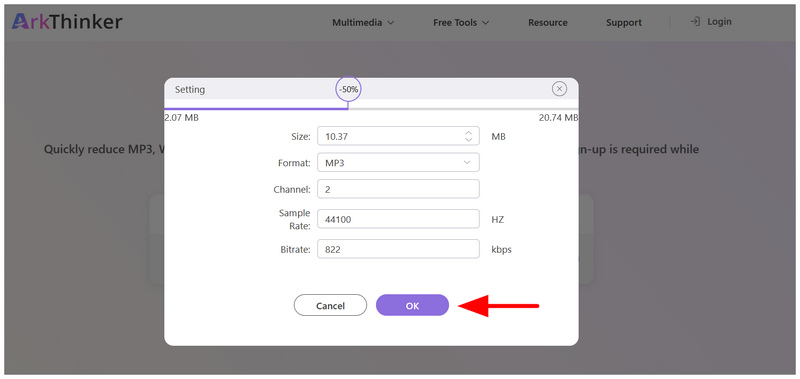
However, for advanced users who want more manual control, a dedicated setting in the software can be used to edit specific audio parameters such as format, channels, sample rate, and bitrate.
To learn the main strengths and limitations of the tool, continue reading below and follow our three-step guide to use the program.
- Readily available on browsers.
- Large file size limit: 50MB-100MB.
- Automatically compresses audio files by 50%.
- Offers advanced audio editing tools for experienced users.
- It has an optional desktop version for more stable performance.
- Does not work offline.
- Performance is based on internet quality.
Go to the ArkThinker Free Audio Compressor Online website and click the Add File to Start button to import the FLAC file for compression.
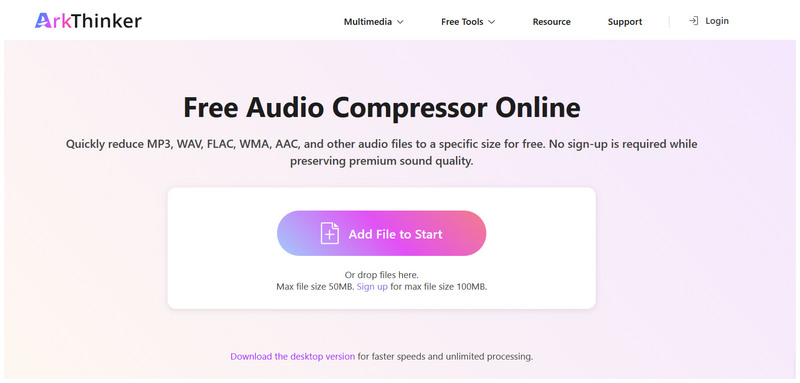
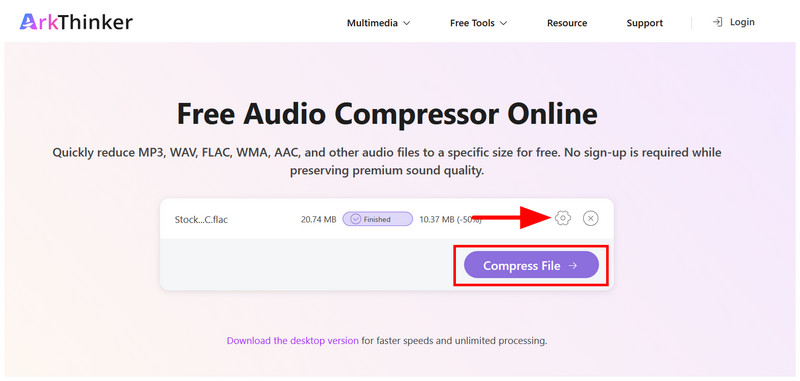
Wait for the upload process to finish. To access the more advanced audio settings, select the Settings button. Otherwise, click Compress File to proceed.
In the Settings tab, you can manually control the compression rate, format, channel, sample rate, and bitrate. Click on OK to confirm your settings.
After compression, select Download to save the audio file back to your computer.
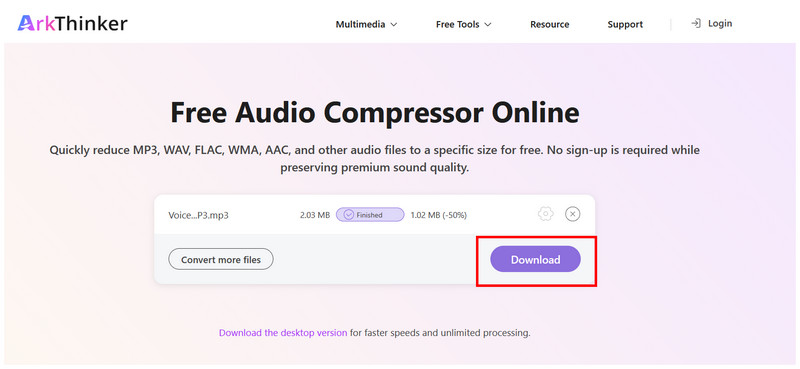
To ensure maximum accessibility, applying an automatic FLAC compression ratio of 50% makes the tool one of the best on the market, especially for beginners.
Foobar2000
Best Used For: Converting FLAC audio files to a lossy format such as MP3 or AAC.
To get started with a desktop-based option, we will feature Foobar2000, an audio player designed for desktop devices due to its wide media format support. In addition to the tool’s playback options, it offers advanced features for converting audio files to more compressed formats.
Since FLAC is not compressed, you can use Foobar2000’s conversion feature to convert your file to a more compressed audio format. Unfortunately, this will result in a lossy audio file. As such, we only recommend using this tool for users who do not mind subpar audio quality.
- Works well as a third-party audio player.
- Natively supports 200+ audio formats for improved user accessibility.
- Equipped with basic file management tools.
- Minimal interface design.
- Complex workflow for audio format compression.
- Limited advanced editing options for audio files.
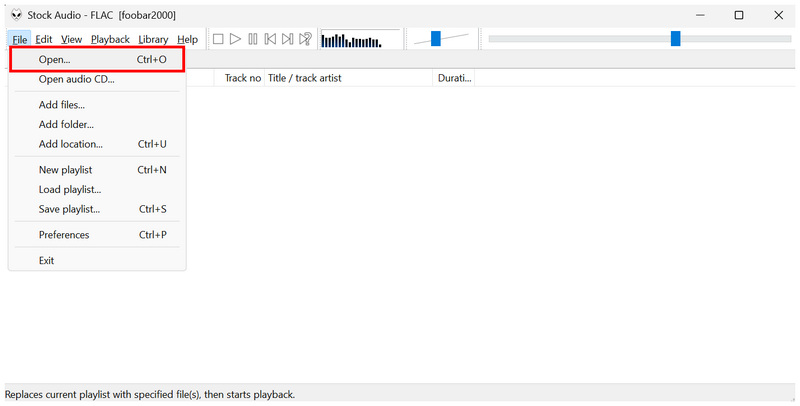
Open Foobar200 and select File > Open to open the FLAC file you want to compress.
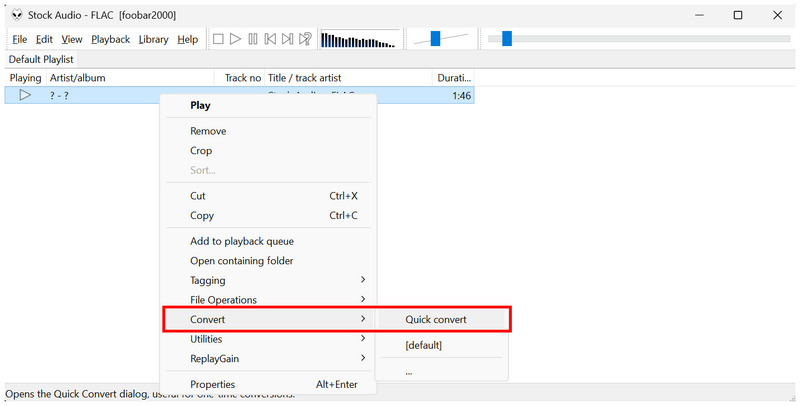
Once the FLAC audio is imported, right-click on it and select Convert > Quick Convert.
In the Quick Convert Settings, select MP3 or AAC, both of which are lossy file formats. Select Convert to confirm and begin the file compression process.
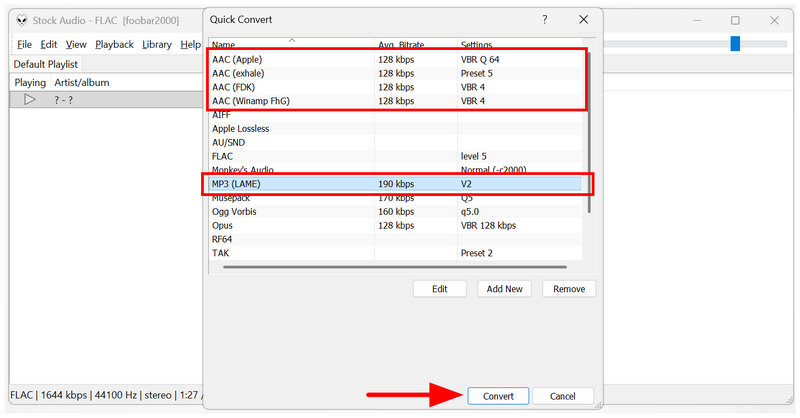
Since Foobar2000 uses format conversion, keep in mind that it applies compression by changing the audio’s format.
FFmpeg
Best Used For: Full control over FLAC audio files for multimedia management.
Finally, the last option we will discuss for compressing FLAC is the most technically demanding, using the FFmpeg plug-in. Among the options on this list, this program has no dedicated GUI or main interface since it is purely script-based.
Due to the high requirement for using FFmpeg and prior scripting knowledge, the tool is a poor choice for beginners and even intermediate users. As such, we recommend using the program only if you have prior experience with command-line tools for multimedia handling.
- Free and open-source multimedia management tool.
- Natively supports FLAC and other audio formats.
- Full customization options for editing media formats.
- Lacks a main menu and a graphical user interface.
- Requires knowledge of command lines to be used effectively.
- Unsuitable for beginners and intermediate users.
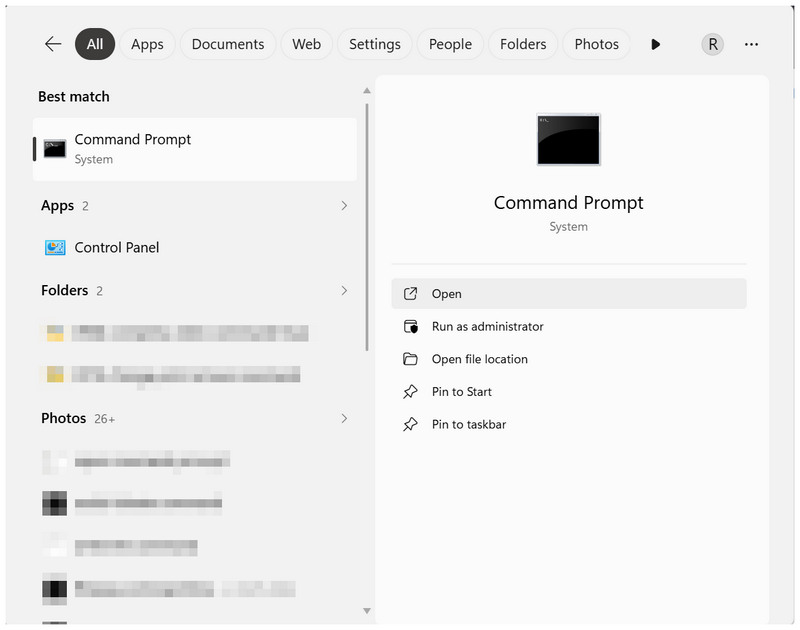
Open your computer’s terminal program, Command Prompt in Windows or Terminal in macOS.
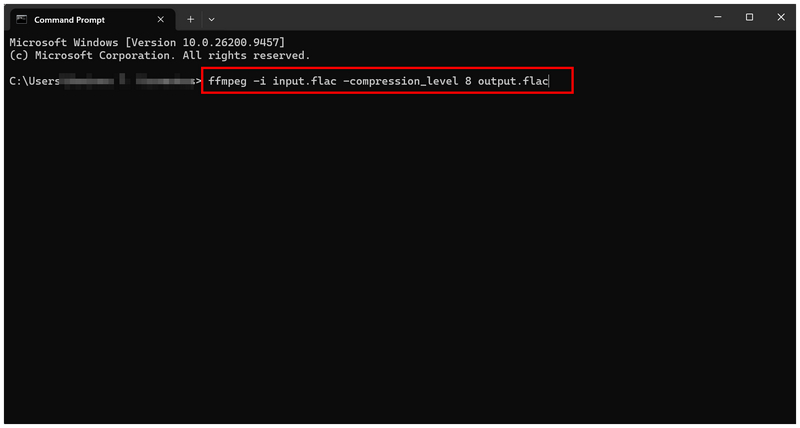
In the terminal program, copy and paste the command: ffmpeg -i input.-compression_level 8 output.flac.
You can adjust the compression level to 0, 5, or 8, with 0 being the lightest and 8 the most aggressive.
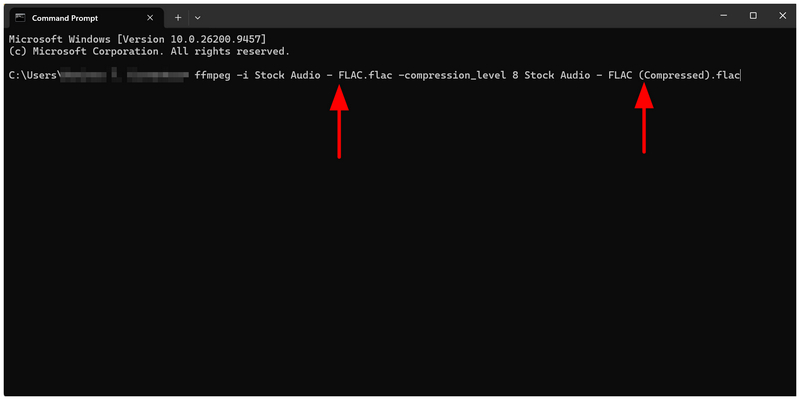
Rename the input.flac to the file name of the FLAC file you want to compress. Then rename output.flac to whatever you want to save your compressed audio as. Press Enter to begin compressing the audio file.
If you want to get started with FFmpeg, the basic command line we added in this tutorial should be enough to handle your FLAC videos.
Part 4. FAQs About Compressing FLAC
Can you do FLAC compression in FL Studio ?
Yes, the FL Studio app can compress FLAC. It offers standard file compression to keep the FLAC format. An option to convert FLAC to a lossy file type is also available.
Are FLAC audio files of good quality?
Yes, they are. FLAC audio files are lossless. They are among the highest-quality digital audio formats.
Can I play FLAC on Apple devices?
No, you cannot. Apple has its own lossless audio file format, ALAC. FLAC is not playable on Apple devices.
Are WAV and FLAC the same?
No, they are not. However, both file types are lossless quality audio. In terms of file size, FLAC files are usually smaller than WAV files.
What format should I convert my FLAC file into?
To improve the accessibility of FLAC, convert it to MP3 format. Another good alternative is AAC. Both formats will reduce your audio file size at the expense of a minor decline in quality.
Conclusion
Now that the best programs for compressing FLAC have been reviewed, we hope this article will greatly improve your file management. To help our readers decide which audio compressor to use, we will provide a quick overview of each tool’s best uses. For accessibility and lack of installation, use ArkThinker Free Audio Compressor Online. To compress FLAC to a more compact lossy format, use Foobar2000. Finally, experienced users are advised to use FFmpeg.
What do you think of this post? Click to rate this post.
Excellent
Rating: 4.9 / 5 (based on 541 votes)


