


How to Compress a Video on iPhone Using 4 Methods in 2026
Are you having trouble with your iPhone’s storage filling up from large videos, or do you want to send videos via messaging apps with steep file size limits? Both of these problems can be solved by knowing how to compress videos on an iPhone. In this article, we will provide a tutorial to help you learn how to use four practical video compression solutions, featuring unconventional solutions and exclusive tools.

- GUIDE LIST
- Part 1. Can I Compress a Video on my iPhone
- Part 2: How to Compress a Video on iPhone
- Part 3. FAQs About Compressing Videos on iPhone
| Compression Factor | ArkThinker Free Video Compressor Online | Google Photos | CapCut | |
| Ad Intrusion | Very Low (No ads) | Moderate (Small promotions) | Very Low (No ads) | Heavy (Aggressive pop-up ads) |
| Speed | Very Fast | Fast | Moderate | Moderate |
| Quality Retention | Medium | Adjustable Compression Rate | Medium – High | High |
| Batch Processing | None | none | Yes | None |
Part 1. Can I Compress a Video on my iPhone
Yes, you can. There are multiple apps that you can use to learn how to compress videos on iPhone devices. On the App Store, there are exclusive file-size compression apps built for this exact purpose. However, the programs we will highlight in this article offer a range of unconventional solutions, including messaging apps, online tools, cloud storage, and export settings in a video editing app.
To learn how to use such options, make sure to read our full guide and quick review of this software.
Part 2: How to Compress a Video on iPhone
WhatsApp (Self-Chat Method)
Best Used For: Quickly reducing the file size of videos for faster file sharing.
As a messaging app, WhatsApp offers a built-in feature to speed up file sharing among its users. When it comes to video files, it automatically compresses them slightly to speed up file sharing. With this system, you can use WhatsApp to send a video to yourself and then download it as a slightly compressed version. Among the options on this list for learning how to compress a video on an iPhone for free , this may be the most unconventional.
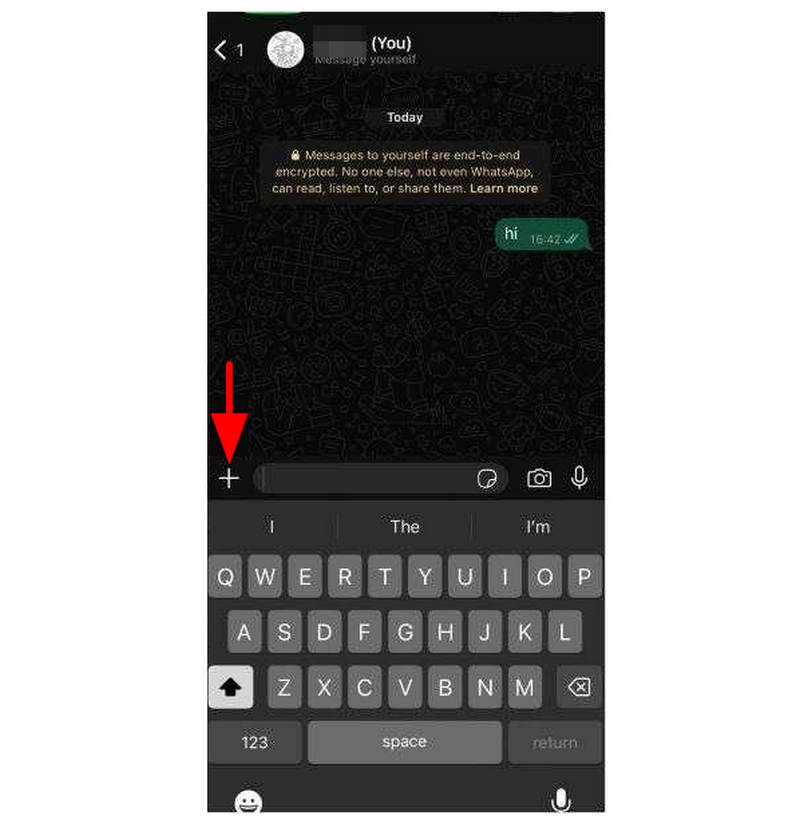
Open WhatsApp and look for your name labeled with the You tag. In your own profile’s conversation window, select the Add button.
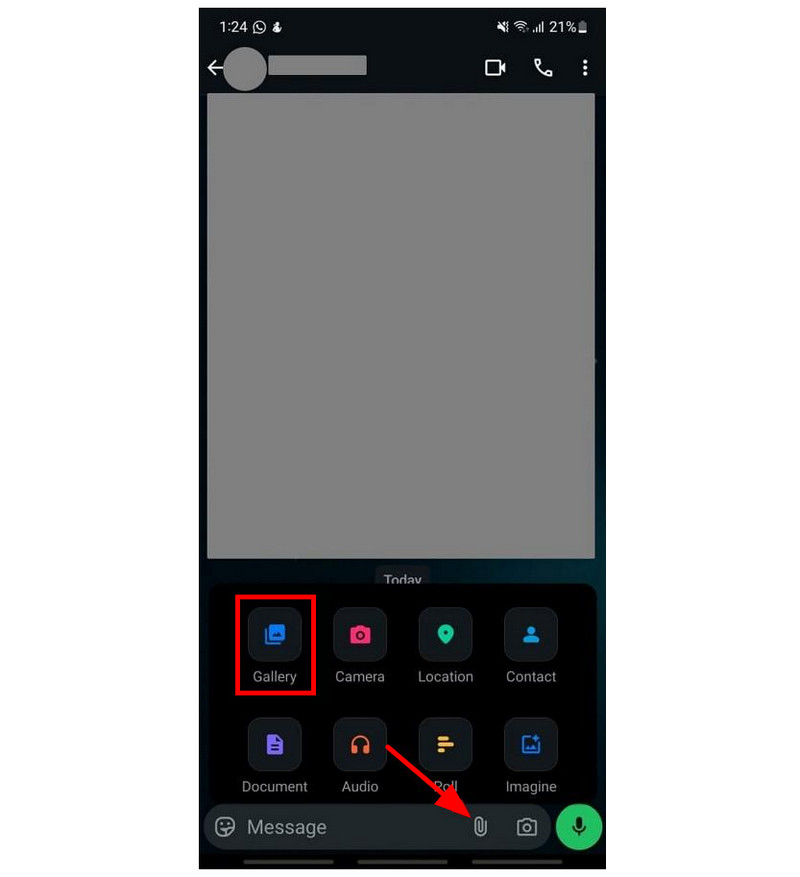
In the Message text box, tap on the Attachment button. Then select Gallery from the menu that pops up. Select the video you want to send to your Gallery.
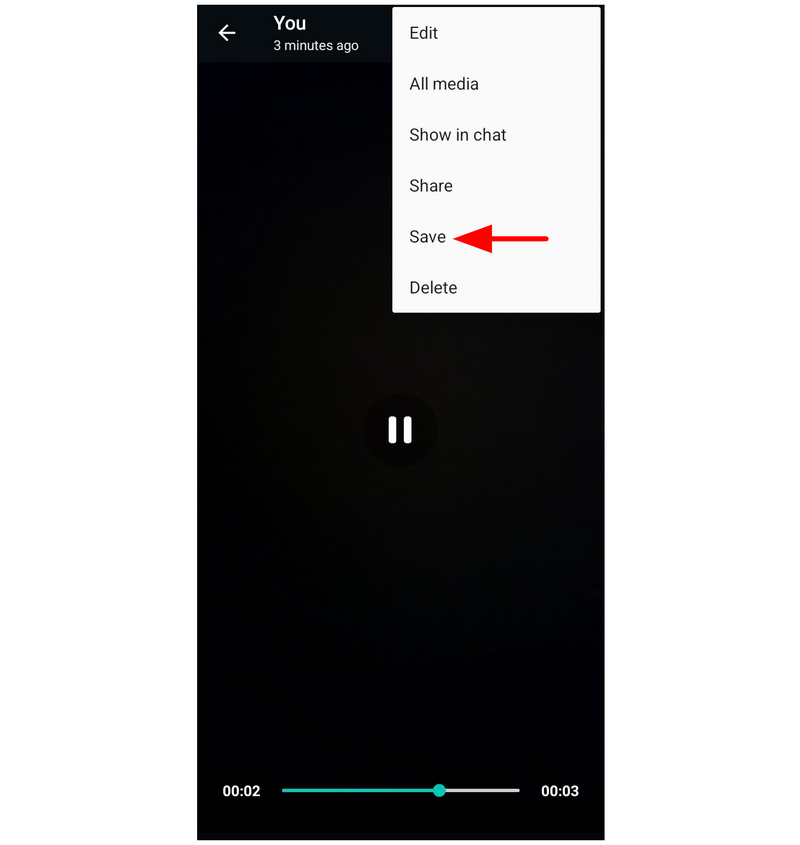
Once the video is sent to your WhatsApp messages, tap the video and select Save from the menu.
WhatsApp’s built-in video compression setting is minimal at best. Because of that, it is not the most reliable if you want major file size adjustments.
ArkThinker Free Video Compressor Online
Best Used For: Browser-based compression without the need to install another app.
If you don’t mind using online media editing tools, we highly recommend using ArkThinker Free Video Compressor Online. Compared with WhatsApp, Google Storage, and CapCut, this web-based option is the only tool on this list designed specifically to compress videos.
Aside from its exclusive design and function, the tool is also the most practical, as you don’t have to install and set up another app to use this option. All you need to do is open your chosen browser and look for the ArkThinker’s website.
In addition to its accessibility, the program also excels in its video adjustment settings. You can use the web-based tool to edit your video’s compression rate, format, resolution, and bitrate. If you don’t wish to tinker with these settings, the program can automatically compress your video to 50% of its original size once your file is uploaded.
To learn how to use the program, make sure to read our guide below.
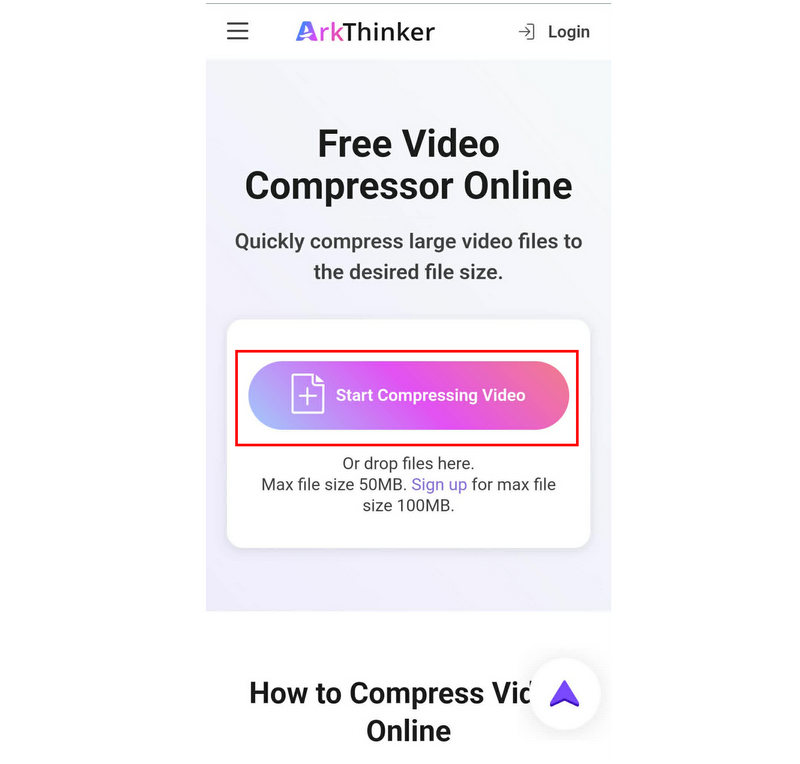
Open your chosen browser and go to ArkThinker Free Video Compressor Online’s website. In the main menu, select the Start Compressing Video button.
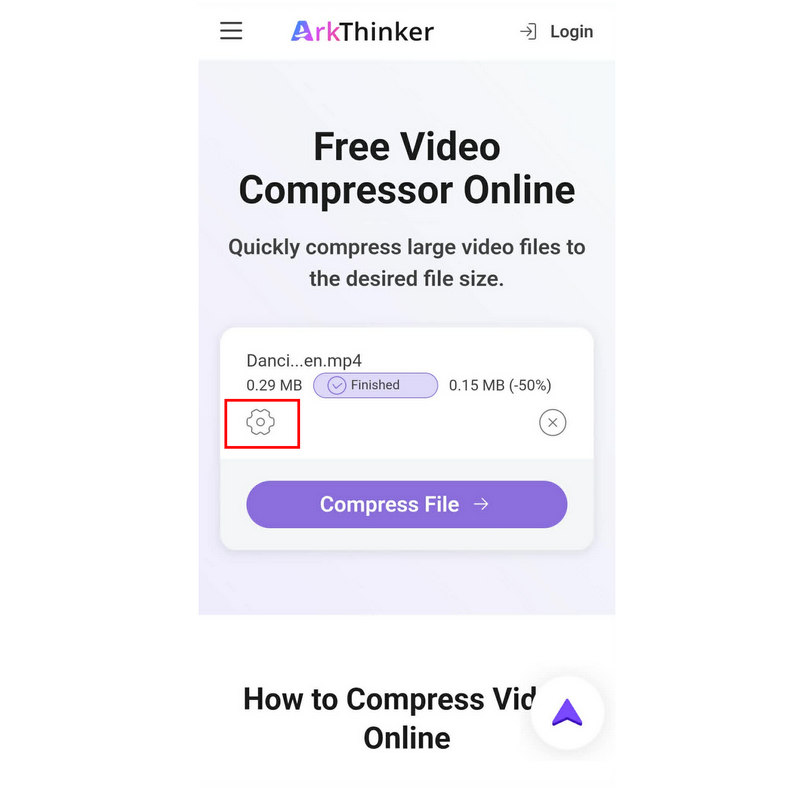
Once the file has been uploaded, it will be automatically compressed to 50% of its original size. If you wish to access advanced compression options, click on the Settings icon.
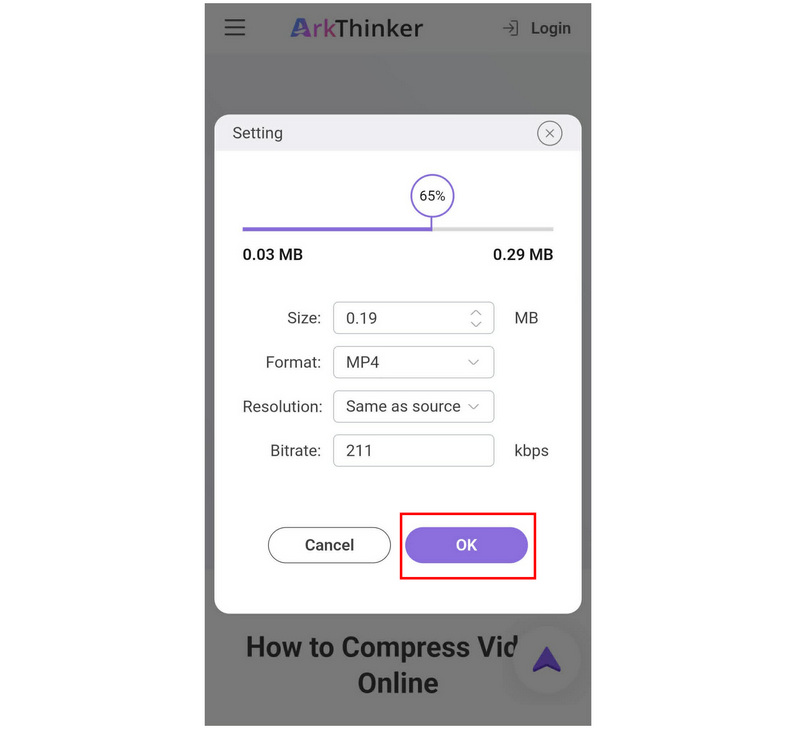
In the advanced video compression settings, you can adjust the video’s Size, Format, Resolution, Bitrate, or edit the Compression Rate using the slider. Click OK to confirm.
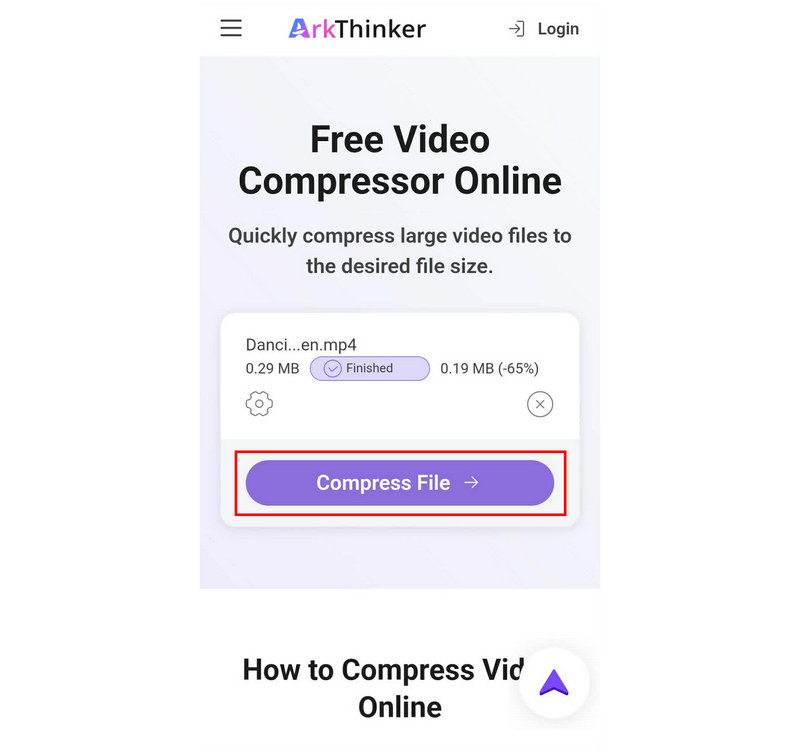
With your desired settings in place, tap Compress File to begin reducing the file size.
Among the options on this list, only ArkThinker Free Video Compressor Online is an exclusive tool and one of the top video compression options today. If you want to reduce your video’s file size while maintaining quality, this option is the best for you.
Google Photos (Storage Saver)
Best Used For: Cloud storage and light file size compression to free up space on your device.
Google Photos backup function has a storage saver setting. When enabled, it automatically compresses the files uploaded for backup. As such, if you enable this setting, you can back up the videos you want to compress to Google Photos and download their compressed version.
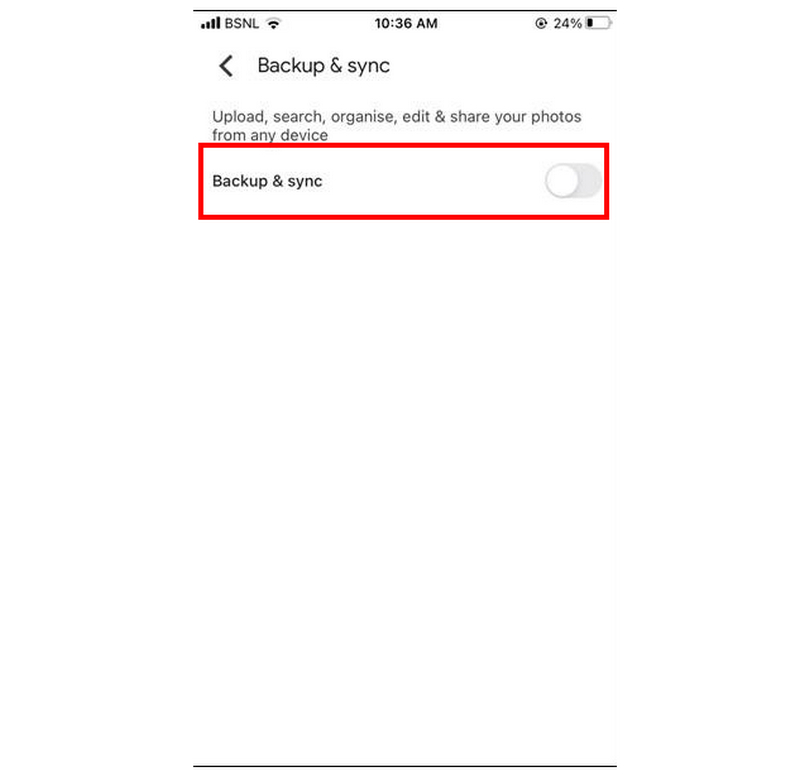
Open Google Photos, go to Settings, and select Backup & Sync. Then, enable the backup function.
In the Backup & Sync settings, select Upload Size and choose the Storage Saver option.
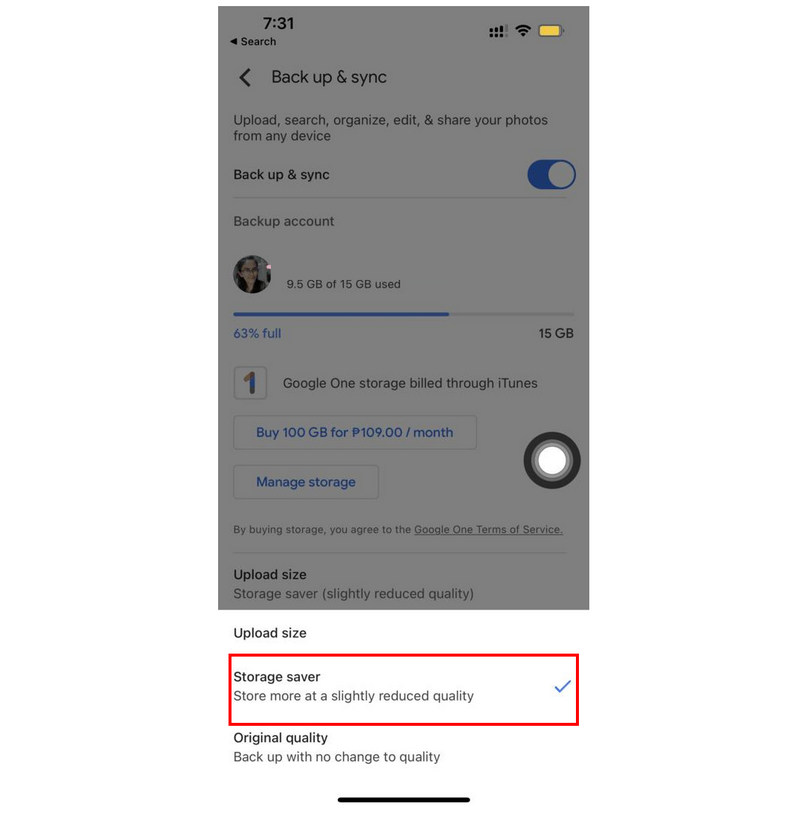
With the Backup settings and Storage Saver option now enabled, go back to Google Photos settings and select Backup. Then click Start Backup to begin syncing your device’s videos to Google Photos.
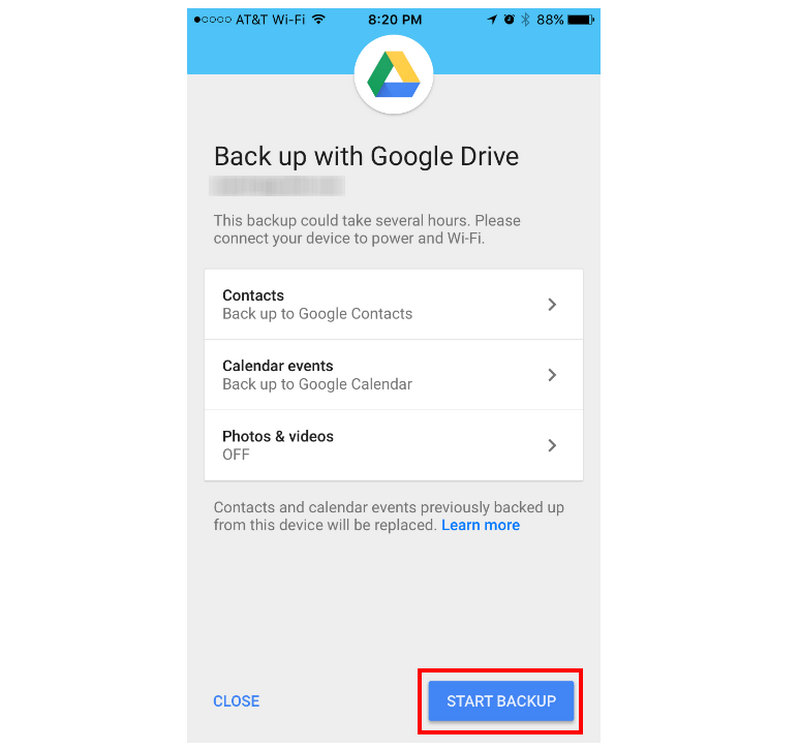
Media files, including videos, backed up in Google Photos, will have a compressed file size. As such, once you download the files to your device, they are compressed due to Google’s Storage Saver photo backup settings.
CapCut (Export Settings)
Best Used For: Manual quality control and for reducing the size of compressed video files.
When editing media projects in CapCut, you will have access to the Export settings. Here, you can edit your video’s resolution and bitrate, both of which play a huge role in your video’s file size. This essentially makes the program an app for compressing video.
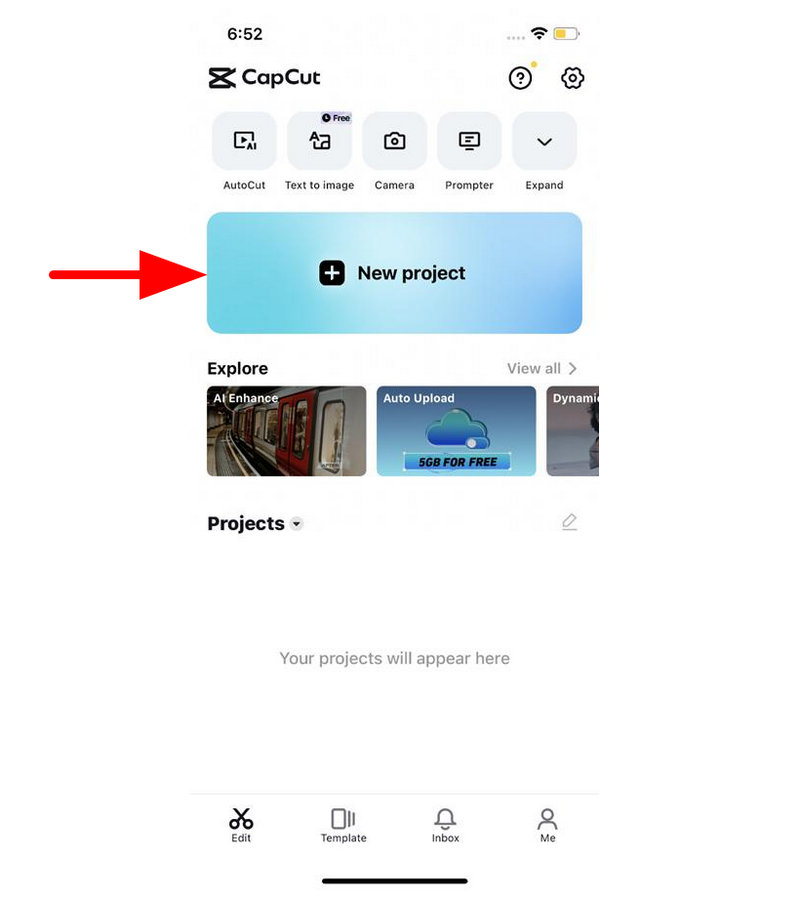
Open CapCut and select New Project. Then, select the video you want to edit in your library.
Once your video has been added, click the Video Quality button in the upper-right corner of the video preview to open the export settings.
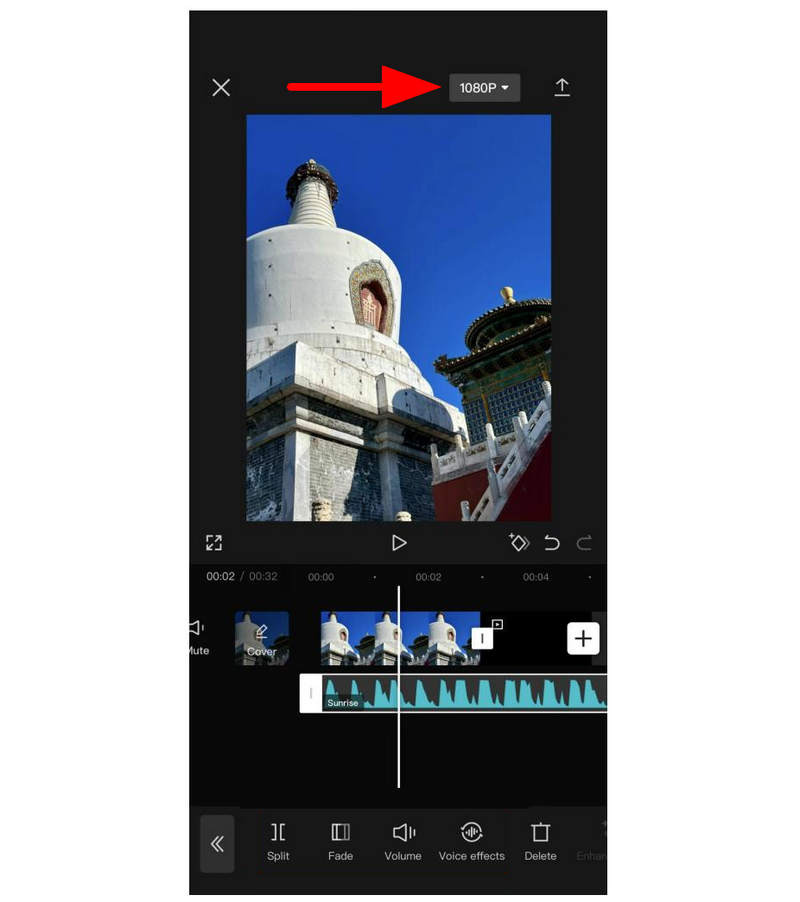
In the export settings, adjust both the Resolution and Bitrate sliders to the left to lower their quality. Once done, click on Export.
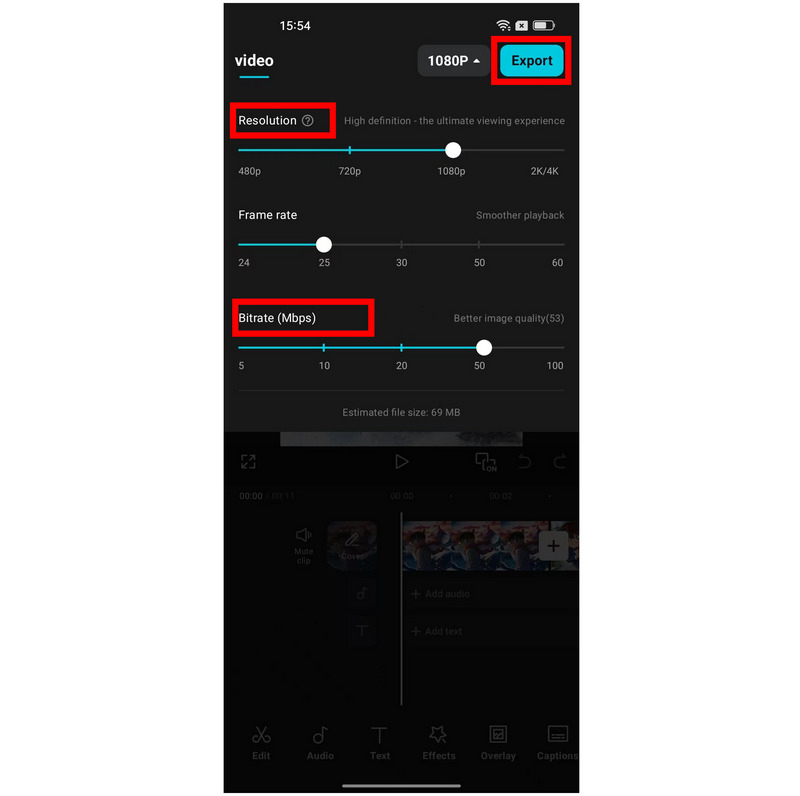
If you plan to use capture for video compression, be aware that reducing resolution and bitrate is an effective way to cut file size and can drastically affect your video’s quality. It will be smaller, but its quality will be drastically reduced.
Part 3. FAQs About Compressing Videos on iPhone
Can I compress a video on my iPhone ?
Yes, you can. There are several apps you can use to adjust this file. Unfortunately, there is no built-in solution on iPhone for file compression.
How to compress a video on an iPhone after recording?
Unfortunately, there are no default compression options on the iPhone. Your best bet is third-party apps or the unconventional solutions we provided in this article. Web-based tools like ArkThinker Free Video Compressor Online are a good example.
Is it hard to compress videos on an iPhone?
It depends on which option you will use. Using exclusive apps will be easy. Online tools are also quite simple to use.
Are online tools safe to use on mobile devices?
Yes, they are. Most online tools are also compatible with mobile browsing. They are excellent choices if you want to learn how to compress videos on Android or iOS. However, make sure only to use trusted options such as ArkThinker, ZamZar, FreeConvert, and more.
What web-based tools are safe to use?
When it comes to the safety of online tools, ArkThinker is a good option. This program works best for multiple video adjustment solutions. Some notable tools Arkthinker offers include a video compressor, a video cropper, a video converter, and more.
Conclusion
We hope this article has given you a clear idea of which software you will use to compress videos on your iPhone. Unfortunately, the lack of a built-in file management option on iPhone devices means third-party apps are a good option. However, if you want to avoid any installation or setup, we highly recommend using ArkThinker Free Video Compressor Online.
What do you think of this post? Click to rate this post.
Excellent
Rating: 4.9 / 5 (based on 603 votes)


