


How to Compress Videos on Mac Using Four Options in 2026
Large video files are a common problem on modern computers and smartphones. On top of being greedy in storage space, large files are also way harder to share. In this article, we will provide the best options for you to compress videos on Mac to drastically reduce video file sizes for more efficient digital storage and faster file sharing. We will provide a tutorial using four popular options from built-in tools, web-based options, and open-source programs.

- GUIDE LIST
- Part 1. How to Compress a Video on Mac with Built-in QuickTime
- Part 2. How to Compress a Video on Mac for Free Online
- Part 3. How to Compress a Video File on a Mac with Free Software
- Part 4. FAQs About Compressing Videos on Mac
| Feature | QuickTime Player | ArkThinker Free Video Compressor Online | HandBrake | VLC media player |
|---|---|---|---|---|
| Compression Speed | Moderate | Moderate to Fast (Based on internet speed) | Fast (Hardware acceleration support) | Slow |
| Visual Quality | 1080p, 720p (Uses resolution reduction) | Lossless to moderate quality based on the compression setting. | Good to moderate quality based on the compression setting. | Moderate quality conversion due to a lack of adjustment options. |
| Format Support | MOV, MP4 | MP4, MOV, AVI, MKV, and more. | MP4, MKV, WebM | MP4, MOV, AVI, MKV, and more. |
| Cost | Free (Built-in) | Free | Free and open-source | Free and open-source |
Part 1. How to Compress a Video on Mac with Built-in QuickTime
Best Used For: Built-in file size reduction through video quality reduction.
If you want to learn how to compress a video in the Mac QuickTime player, you are in luck, since this will be the first method we highlight. Since it was designed as a media player first, its compression option is more of a setting to reduce your video's quality.
Although it is technically not a compression solution, reducing the quality gets the job done for file size reduction. As such, you can still use it as a solution.
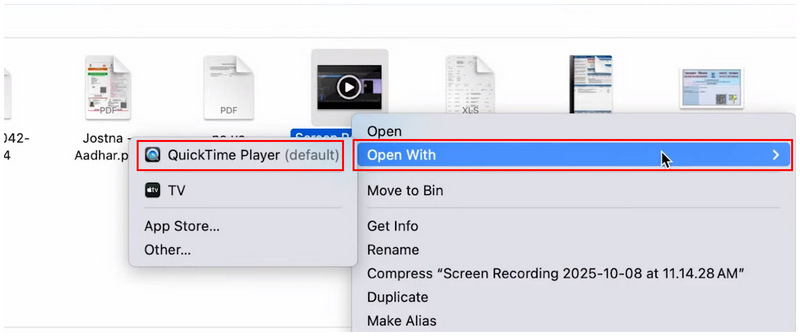
Right-click on the video you want to open with QuickTime. Hover to Open With and select QuickTime Player.
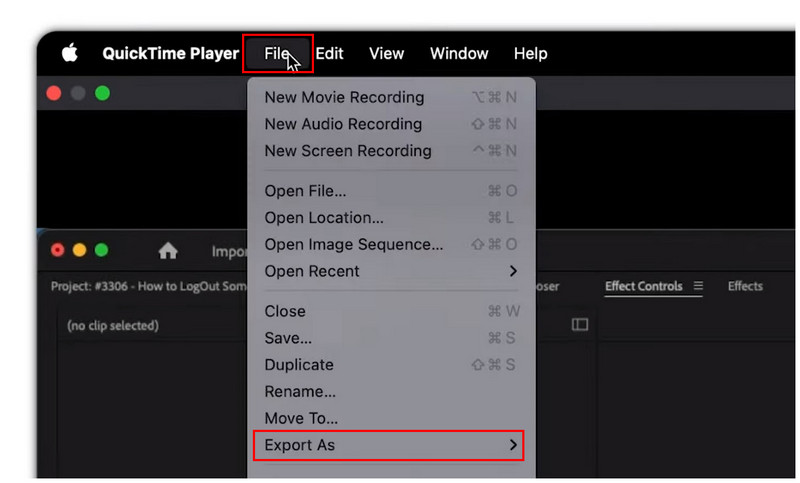
In QuickTime Player, click File and select Export As.
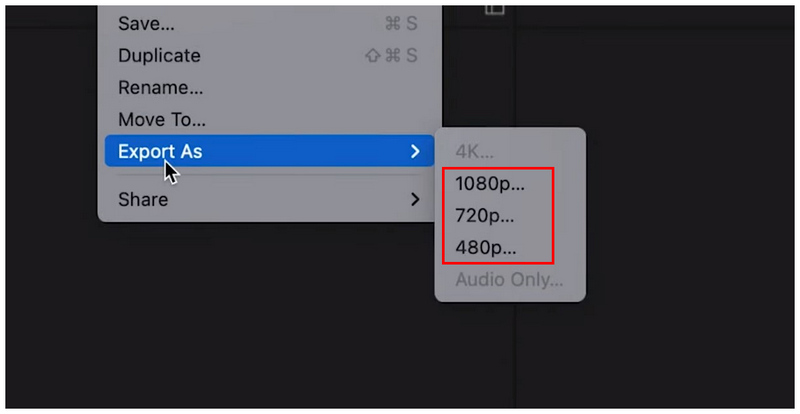
Among the Export As options, select any of 1080p, 720p, or 480p. Choose a resolution lower than the video’s original quality. For aggressive file size and quality reduction, select 480p.
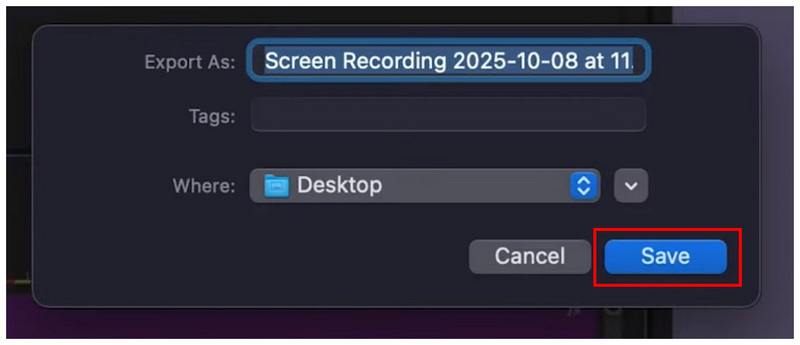
Once you have selected your desired resolution, you may now rename the file in the export pop-up menu. Select where to save it, then click Save to export the video at a lower quality and file size.
Part 2. How to Compress a Video on Mac for Free Online
Best Used For: Quick video compression of files under 50 MB.
If you are looking for more advanced video compression options with advanced settings yet easy-to-use, web-based solutions, such as ArkThinker Free Video Compressor Online, should be one of your top considerations.
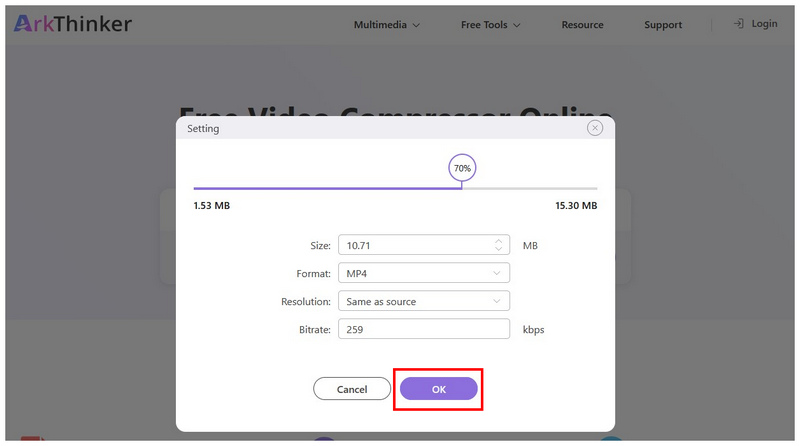
Unlike QuickTime Player, this online alternative offers more advanced settings for users who want more control over the video file that they are compressing. In the program, you can edit your imported video’s Size, Format, Resolution, and Bitrate. All of which are designed for file size management.
If you want quick file-size conversions, it still gets the job done because the program automatically compresses your video to 50% of its original size. This makes the software an excellent choice for users with no knowledge of the technical settings.
To learn how to use the most balanced video compressor program online, make sure to read the tutorial below to start using ArkThinker Free Video Compressor Online effectively.
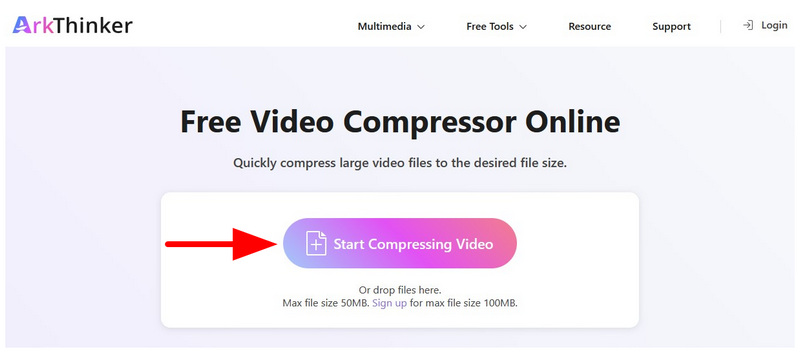
Go to ArkThinker Free Video Compressor Online and select the Start Compressing Video option.
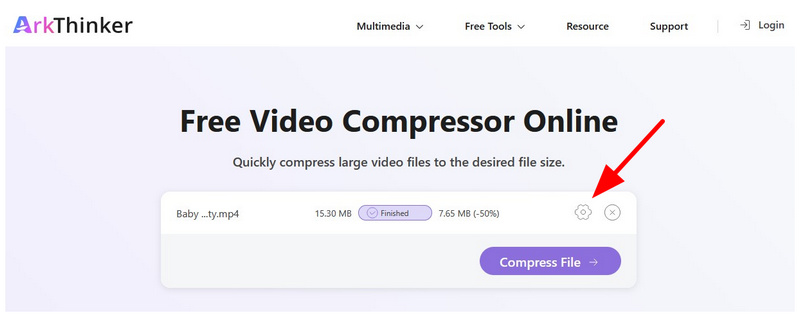
By default, the uploaded file will be compressed at 50% of its original size. However, you can access more advanced compression options by clicking on the Settings button.
In the Compression Settings, you can adjust your video file’s Size, Format, Resolution, and Bitrate. For easier compression adjustment, you can also use the compression percentage Slider. Click on OK to confirm your manual adjustments.
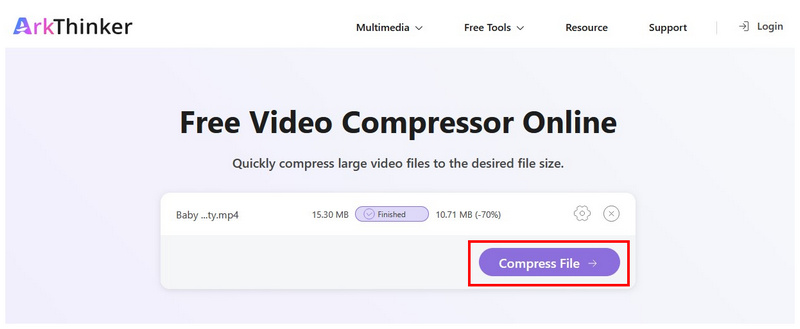
Once these compression adjustments are applied, click Compress File to begin the compression process.
Because the program is an online option, it has a 50 MB file size limit per upload. This makes it a perfect choice for reaching the limits of messaging apps. This makes ArkThinker Free Video Compressor Online a perfect choice for creative messaging.
Part 3. How to Compress a Video File on a Mac with Free Software
HandBrake
Best Used For: Manual video compression with access to advanced and technical settings.
We will start with our proposed open-source software for compressing video for free on Mac with HandBrake, a video transcoding tool designed to handle multiple video editing needs, including video compression. Among the options on this list, this program is one of the top video compressors in the market. Unfortunately, this comes at the cost of its extremely steep learning curve. Its video compression options are quite complex.
To learn the basics of video compression in HandBrake, as well as the easiest ways to improve editing quality while reducing file size, please read our guide below.
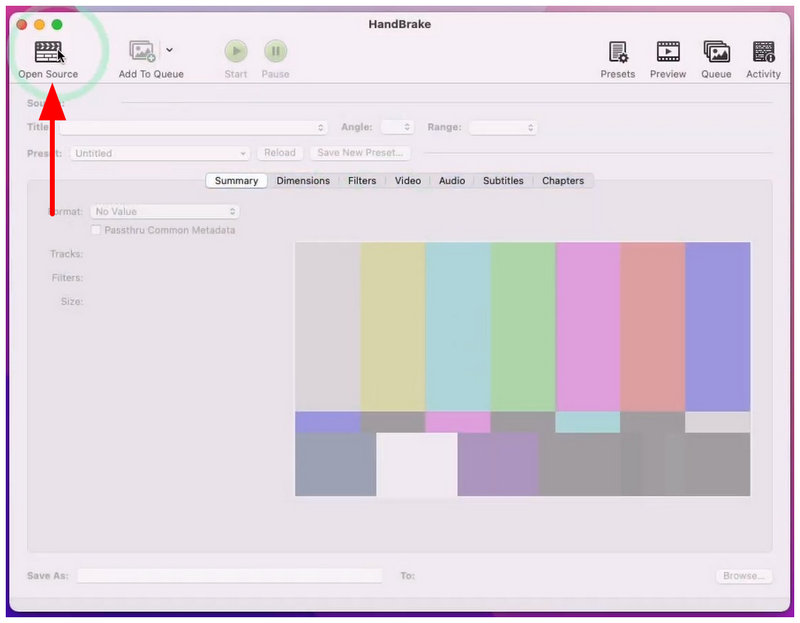
Open HandBrake and select Open Source.
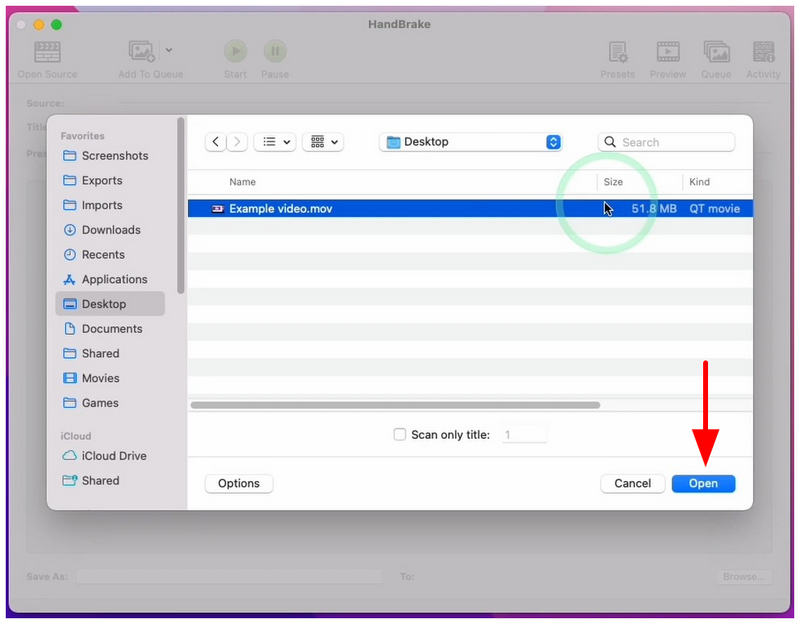
Then, navigate through your files to find the video you want to open. Select it and click on Open.
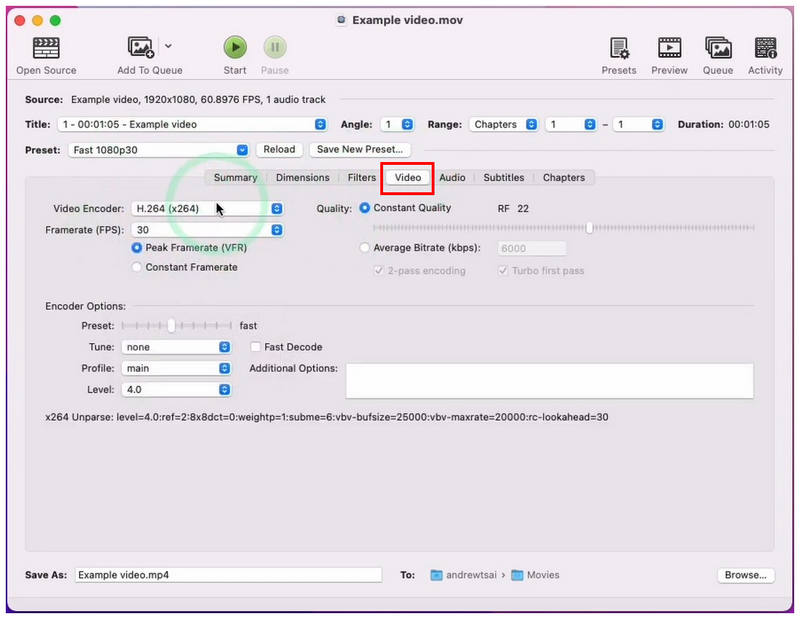
In HandBrake’s menu, go to the Video tab first. There, you can adjust your files, Encoder, Framerate, Quality, and Encoder Options. All of which greatly affects the size of the video.
For more advanced settings, you may also go to Dimensions. There, you can access more advanced settings under the Resolution & Scaling, all of which also affect file size and video quality.
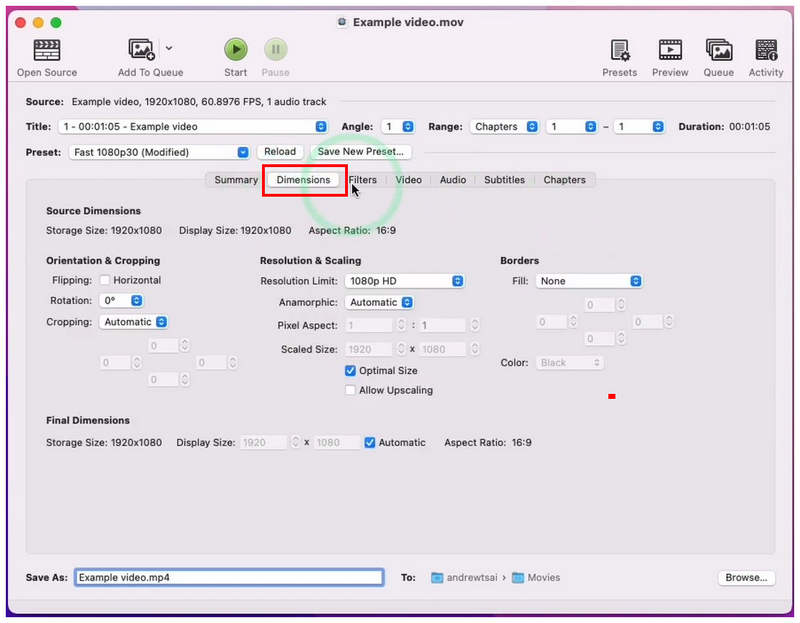
Among these settings, we recommend editing the Quality Slider, Framerate, and Resolution Limit, as they significantly affect your video’s size.
Once you are satisfied with your adjustments, simply click the Start button above to begin encoding your video with a much smaller file size.
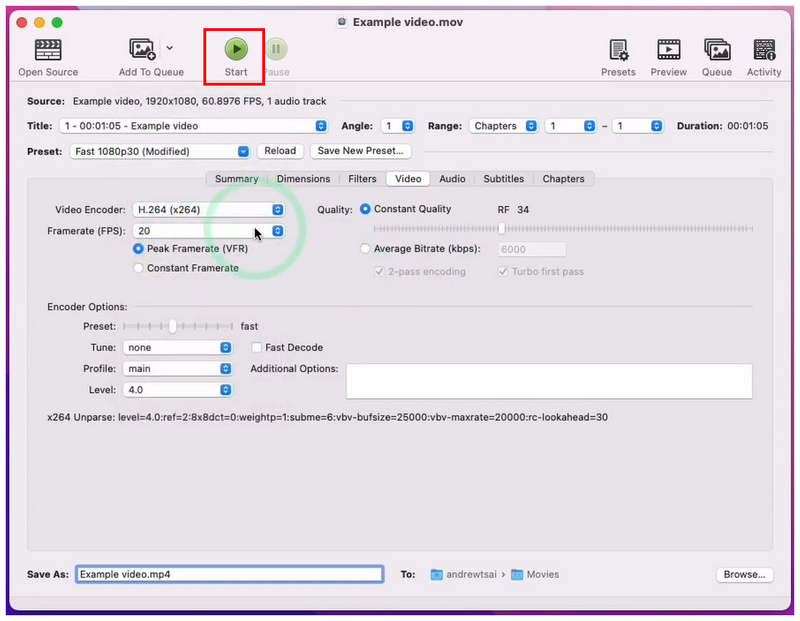
HandBrake is quite advanced and practical, but it is also designed for users who understand its features and settings.
VLC Media Player
Best Used For: One-off or emergency video compression.
If you are using a Mac or Windows computer, the chance of having VLC Media Player as your third-party multimedia tool is quite high. Fortunately, your selected video player offers an advanced video converter tool that indirectly functions as an MP4 and video compressor. This makes VLC a versatile solution for both playing and compressing MP4 videos on Mac.
To learn how to use VLC’s conversion profile setting for media compression, please read our guide below.
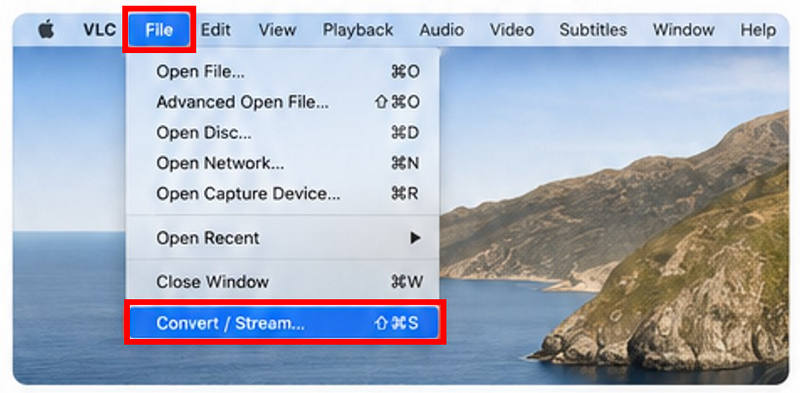
Open VLC Media Player, click on File, and select Convert/Stream.
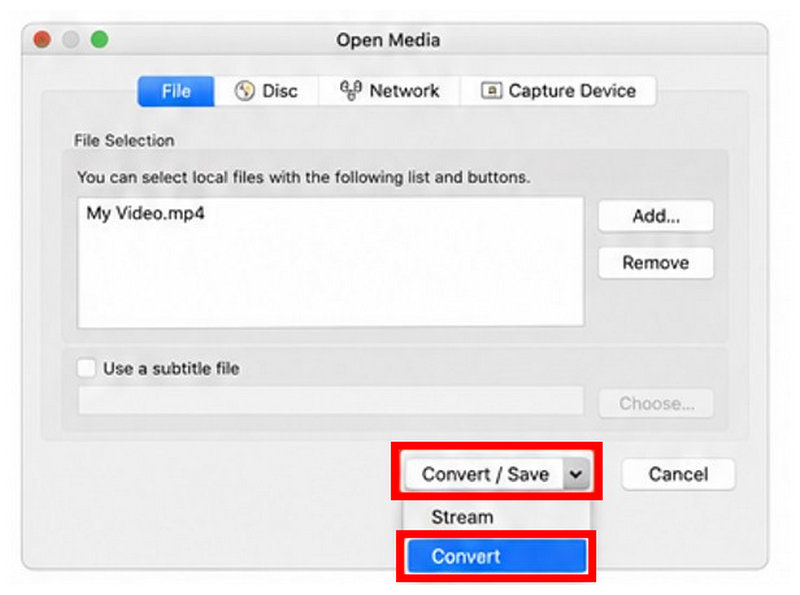
In the Open Media setting, click on Add to import the video you want to compress. Then, select Convert in the Convert/Save button.
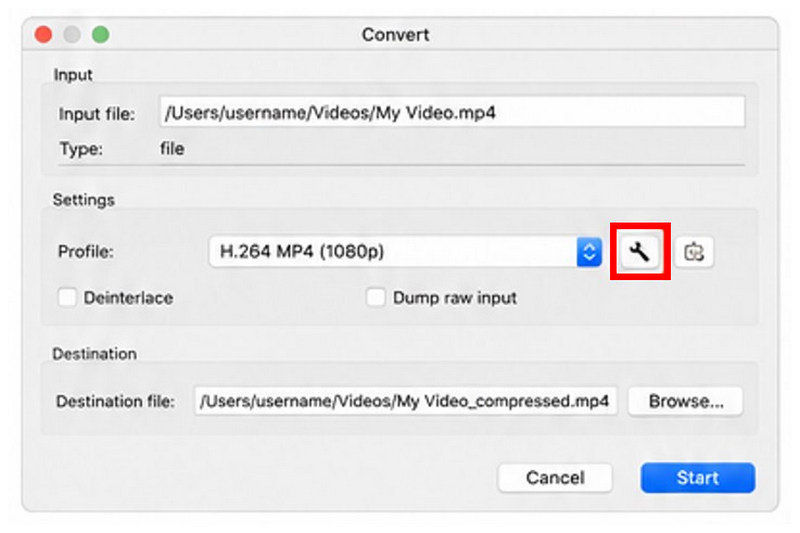
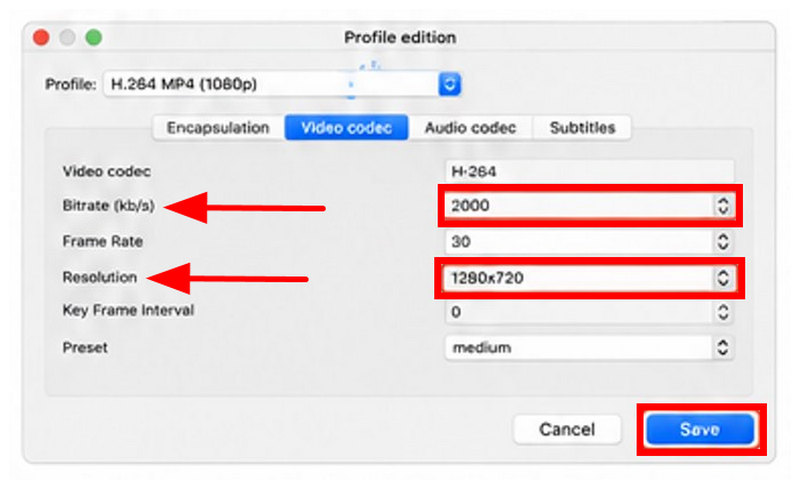
In the Convert Settings, click the Settings option next to the Conversion Profile.
In the Profile Settings, adjust the Bitrate and Resolution based on your compression preference. These two factors are the most prominent settings that affect file size and quality. Select Save once you have set your preferred setting.
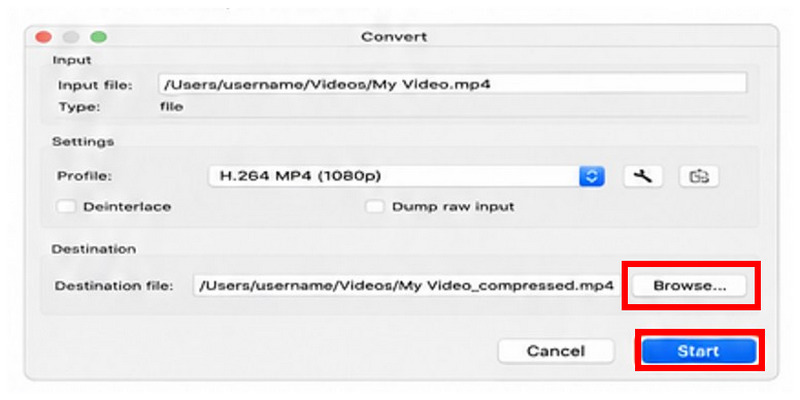
With the Conversion Profile now edited, select Browse to set the saving destination. Finally, click Start to begin producing the compressed video.
Since VLC Media Player requires editing tools for video compression, it is not a recommended go-to solution. However, it works best for emergency editing needs or one-off editing.
Part 4. FAQs About Compressing Videos on Mac
Is it hard to compress videos on a Mac?
No, it is not. There are multiple easy-to-use options for compressing videos on Mac. The easiest among them are online tools such as ArkThiner Free Video Compressor Online.
Can QuickTime Player compress videos?
Yes, it can. But it is more like file size reduction than compression. QuickTime Player can reduce file size by adjusting resolution.
What is a good third-party tool for compressing videos on Mac?
Good freeware options include HandBrake and VLC. However, they are not beginner-friendly. If you don’t mind online tools, ArkThiner Free Video Compressor Online is a solid choice.
Are online tools reliable and safe?
Yes, they are as long as you are using trusted solutions. A good, safe option is our featured ArkThiner Free Video Compressor Online.
What online tool should I use for video compression?
Video compression is quite an advanced media adjustment. It is more complex than basic video cutting or cropping. As such, you have to use high-quality, safe online tools, such as ArkThiner Free Video Compressor Online.
Conclusion
Now that we have provided some of the best solutions for video compression on Mac, we hope we have helped you decide which of these tools best suits your needs. Do you want built-in solutions, advanced third-party settings, or the simplicity of online tools? We have all these options for you. Among them, ArkThiner Free Video Compressor Online is our most recommended.
Find More Solutions
How to Compress GoPro Videos Using 3 Options (2026 Guide) How to Compress a Video in Adobe Premiere Pro (2026 Guide) 3 Ways to Compress VOB Files Online, on Windows, and MacOS 3 Free Ways to Compress Images for Email for High-Quality Sharing 2 Ways to Compress Videos in Shotcut: A 2026 Guide How to Compress Videos for Twitter Online and on PC (2026)- Edit Video
- How to Make a Short Video Longer with 3 Different Methods
- Loop a Video on iPhone, iPad, Android Phone, and Computer
- Free Video Editing Software – 7 Best Free Video Editor Apps
- 3 TikTok Watermark Remover Apps to Remove TikTok Watermark
- Video Filter – How to Add and Put a Filter on a Video 2024
- How to Slow Down a Video and Make Slow Motion Video 2024
- Split Your Large Video File with 3 Best Movie Trimmers 2024
- How to Add Watermark to Video on Different Devices 2024
- 5 Best MP4 Compressors to Reduce the Video File Size 2024
- Detailed Guide on How to Slow Down a Video on Snapchat 2024


