


How to Compress Audio in Audacity: A Step-by-Step Tutorial
Among audio-editing and multimedia software, Audacity is one of the most reliable options for managing audio files. Although it was originally designed as an audio editor, it also offers versatile features for basic file management. One option in the software is customizable export settings, which can be used for compressing audio files. Unfortunately, learning to compress audio file size in Audacity takes skill, as the tool only offers manual adjustments. To solve this issue, we will provide a full tutorial on reducing audio file size in the software, explaining how each adjustment option works.

- GUIDE LIST
- Part 1. What "Compress" Means in Audacity
- Part 2. How to Compress Audio in Audacity
- Part 3. How to Compress Audio to a Designated Size for Free Online
- Part 4. Best Audacity Export Settings for Smaller Audio Files
- Part 5. FAQs About Compressing Audio in Audacity
Part 1. What "Compress" Means in Audacity
Before proceeding to the tutorial on using Audacity for audio editing, let us first clarify what "compressing" means in the program. Since Audacity is made for audio engineering and editing, its audio compressor feature is designed to adjust the dynamic range of an audio file. It can be used to make certain sections of audio have softer or louder volume to avoid unwanted clipping and achieve smoother audio transitions.
However, compression can also refer to reducing a file's size by adjusting specific settings in your audio file. This can also be done in Audacity’s export settings. To clarify audio compression in Audacity, the guide we will feature will focus on audio management to reduce file size.
With file terminology now defined, let us proceed to the detailed tutorial on how to compress an audio file's size in Audacity.
Part 2. Know Your Goal Before You Start
Without further ado, let us now proceed to the steps for compressing audio in Audacity. The steps below provide one-for-one instructions you can directly replicate when compressing files in Audacity.
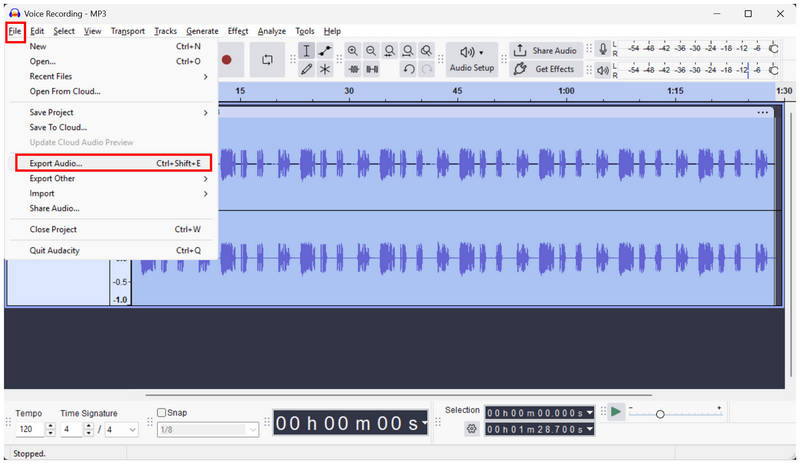
Open Audacity and click on the audio you have imported. Next, click on File > Export Audio.
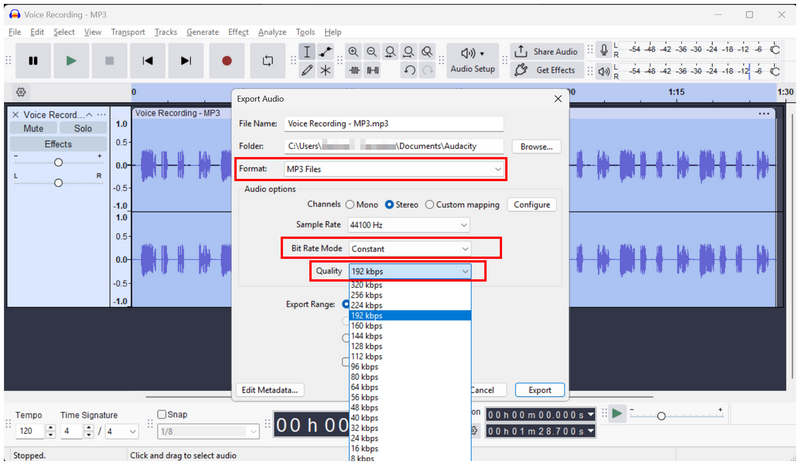
In Audacity's Export settings, set the Bit Rate Mode to Constant, as it offers the most stable file size.
Set the Format to MP3 or M4A (AAC), since both these options are compressed formats.
Then set the Quality to the range between 92 kbps and 192 kbps, as these settings strike a good balance between quality and compression.
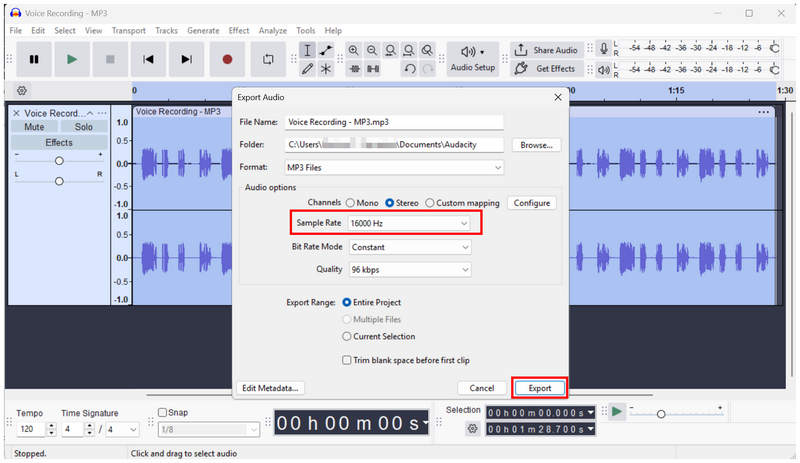
After selecting the audio quality value, set the Sample Rate to a value lower than the default 44100 Hz; in this case, we used 16000 Hz. Choosing a lower sample rate will reduce your audio file size.
Finally, click Export to start applying the file compression settings you set.
To learn more about the advanced settings in Audacity's audio export, you may proceed to the fourth section of the article, where we added a detailed section covering bitrate, format, and audio quality.
Part 3. How to Compress Audio to a Designated Size for Free Online
Now that the basics of using Audacity to compress audio files have been discussed, the complexity of the program's export settings is hard to ignore. As such, looking for a more practical alternative is a reasonable choice, and ArkThinker Free Audio Compressor Online is one of the best options.
In terms of ease of use, ArkThinker’s online solution simply takes the cake. Unlike Audacity, which requires manual editing, this alternative applies file compression automatically once your file has been uploaded.
However, it also caters to experienced users, with optional advanced settings that allow manual control. In it, you can control the compression rate, format, channel, sample rate, and bitrate of your file during compression.
To learn more about using the online tool for practical audio compression, read our three-step guide below.
Main Features:
- • Installation-free audio compression software.
- • It has a large file size limit for an audio editing tool: 50MB-100MB.
- • Automatically compresses audio files by 50%.
- • Offers advanced audio editing tools for experienced users.
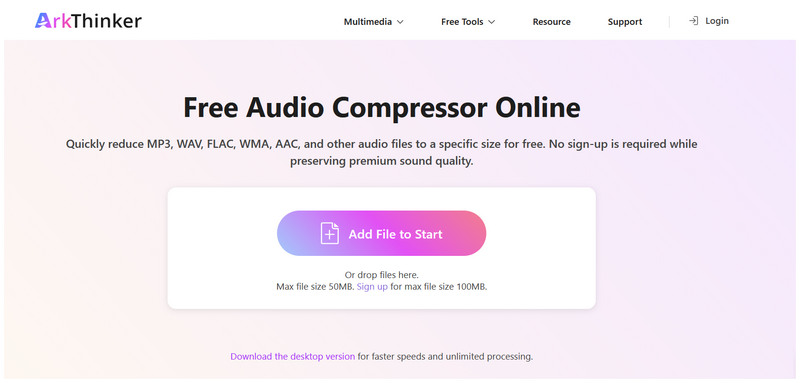
Open the ArkThinker Free Audio Compressor Online website and select the Add File to Start option to import the audio file you want to compress.
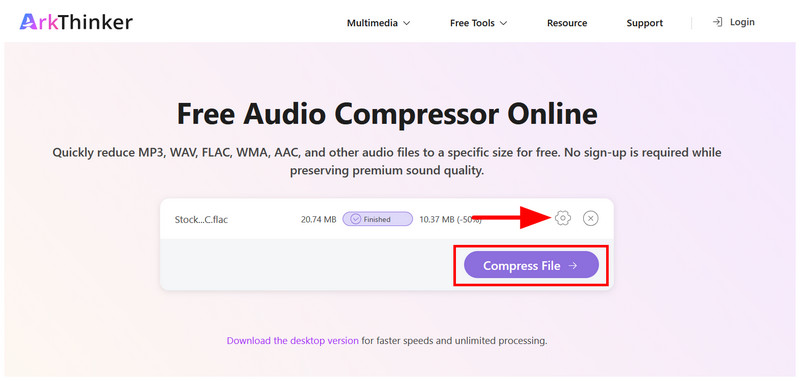
Once the file is uploaded to the online tool, you may select the Settings button to open the manual controls. Otherwise, click Compress File to proceed if the default 50% compression rate is good enough for you.
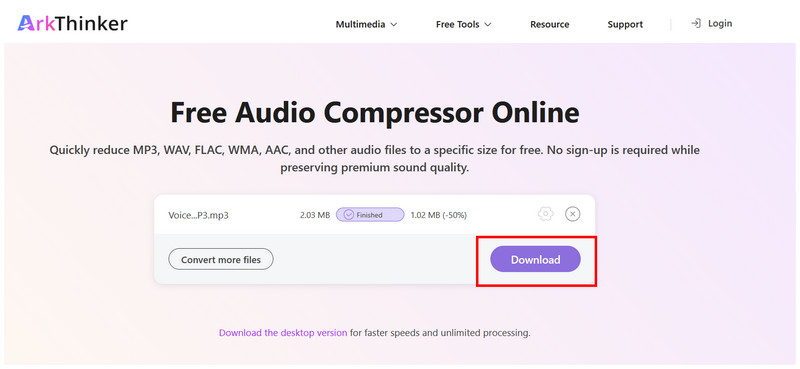
Finally, select Download to save the now-compressed audio file to your computer.
Simply put, ArkThinker Free Audio Compressor Online is an excellent choice for audio file management regardless of your skill level. But unlike Audacity, it offers a significant accessibility advantage, as it does not require prior installation.
Part 4. Best Audacity Export Settings for Smaller Audio Files
To start, we used the compressed formats MP3 and AAC, since saving audio in these formats naturally results in a smaller file size. For bitrate mode, contrast was selected since it has the most stable file size compared to Variable and Average.
In terms of sample rate, the safe threshold is 44.1 kHz, as this option strikes a balance between audio quality and file size. If you prefer a more compressed option, you may select a lower sample rate in exchange for lower audio quality. Finally, make sure to set the quality to an option not lower than 96 kbps.
Format: MP3 or AAC
Bitrate Mode: Constant
Sample Rate: 44.1kHz and below
Audio Quality (kbps): 96 kbps to 192kbps
Part 5. FAQs About Compressing Audio in Audacity
Is Audacity beginner-friendly?
No, it is not. Audacity is not a good option for beginners. It is best used by users ranging from intermediate to professional producers.
Can I compress audio in Audacity?
Yes, you can. Audacity can be used to reduce the size of an audio file through its export settings. However, it is not beginner-friendly, as it offers only manual editing options.
Is Audacity free to use?
Yes, it is. Audacity is an open-source freeware. Unfortunately, its ease of use is not the best.
Are there audio compressors that are easier than Audacity?
Yes, there are easier Audacity alternatives. There are dedicated compressor tools that can handle audio files. Good examples are Reaper and ArkThinker Free Audio Compressor Online.
Are online tools safe to use?
Yes, they are. However, make sure your program is from an official, reputable site. Some good examples are the featured ArkThinker online tools and AnyMP4.
Conclusion
When looking for a solution to compress audio files, Audacity may not be the first thing that comes to mind. However, we hope that this article helped our readers learn how to compress audio files in Audacity. Unfortunately, Audacity's technical requirements may be too much, and using an alternative, such as ArkThinker Free Audio Compressor Online, may better suit your needs.
What do you think of this post? Click to rate this post.
Excellent
Rating: 4.9 / 5 (based on 551 votes)


