


How to Use Dropbox to Convert HEIC to JPG Using 2 Options
Are you looking for a way to convert HEIC images to JPG in your Dropbox? This article is made for you, as we will discuss easy-to-use solutions to automatically convert iPhone uploads to JPG format for more accessible file sharing. We will provide two solutions you can use: adjusting the camera settings on iPhone to save files in JPG format and using the built-in Dropbox HEIC-to-JPG conversion option in the cloud storage service. To start managing your HEIC files directly on Dropbox, make sure to read our tutorials.

- GUIDE LIST
- Part 1. How to Use Dropbox to Convert HEIC to JPG
- Part 2. Converting Existing Dropbox Files with Arkthinker HEIC Converter
- Part 3. FAQs About Using Dropbox to Convert HEIC to JPG
Part 1. How to Use Dropbox to Convert HEIC to JPG
Since Dropbox is designed as a cloud storage service, it lacks advanced file management tools, such as a JPG format converter. However, it offers a simple, indirect solution to save HEIC files uploaded to it as JPGs.
With that in mind, this section of the article will provide you with two detailed solutions to convert HEIC to JPG in Dropbox. One uses the built-in option on the iPhone, and the other features the option in Dropbox export settings.
Enabling "Save HEIC Photos as JPG" on iPhone
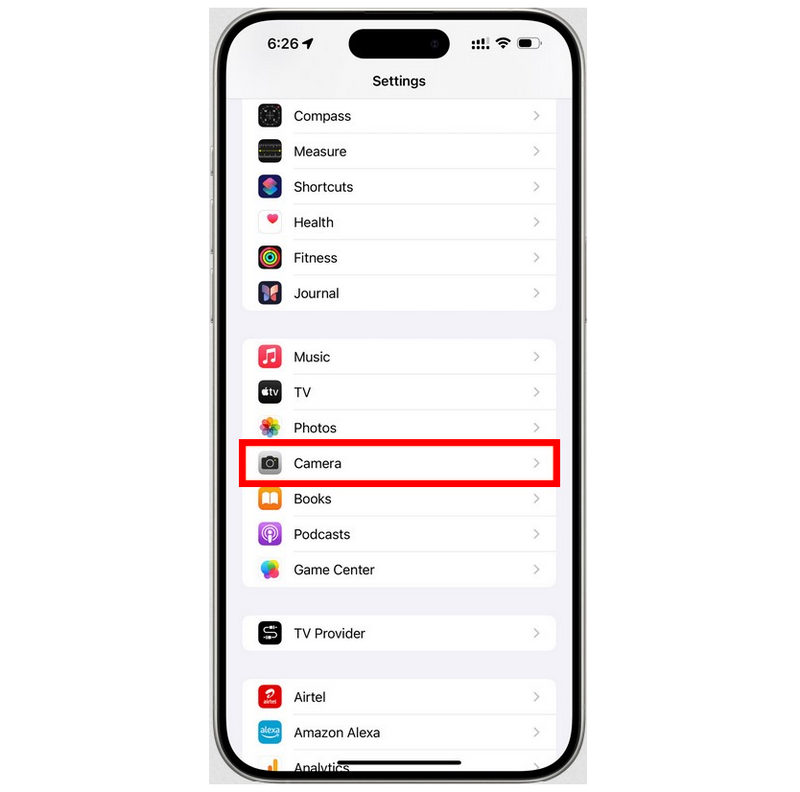
Go to your device’s Settings and select Camera.
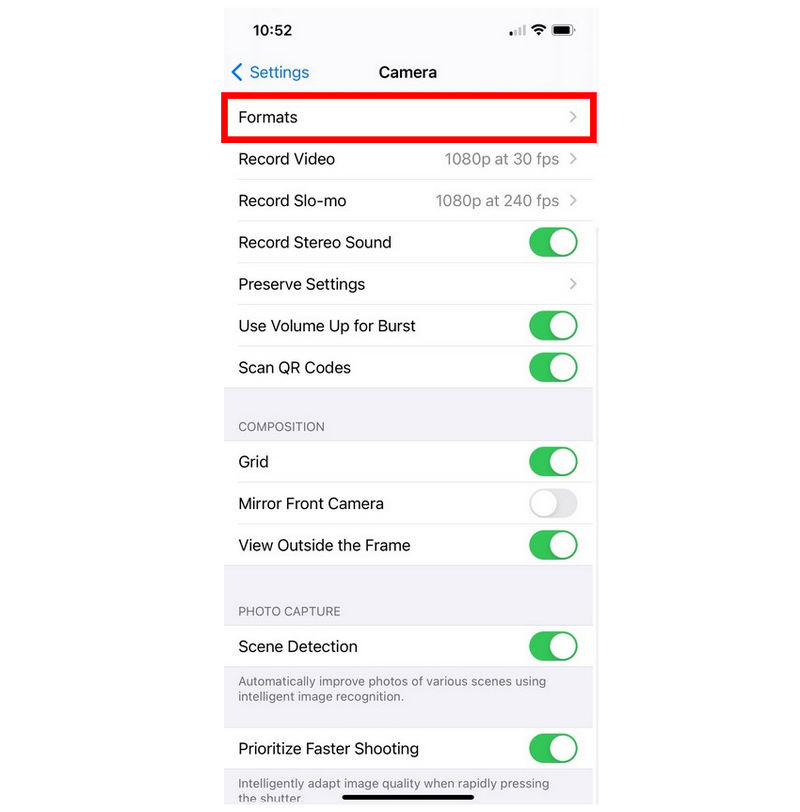
In the Camera settings, tap on the Formats option.
In the Formats setting, set the Camera Capture option from the default High Efficiency to Most Compatible. Using the default option saves images in HEIC format; when set to Most Compatible, your iOS camera captures are saved in JPG format.
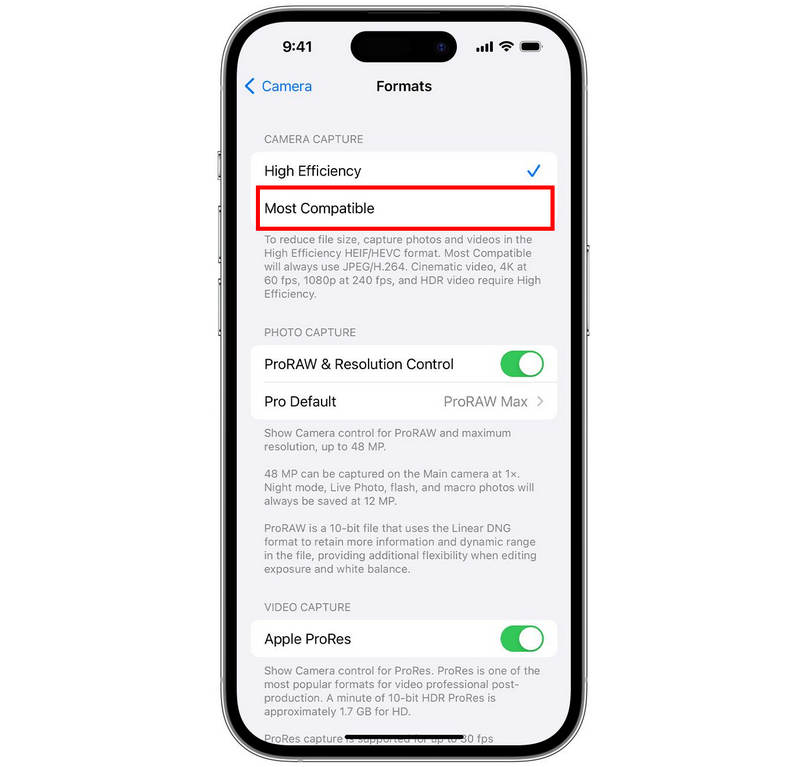
Although this option is not connected to Dropbox, it is the best way to ensure that the images your iPhone captures are not saved in HEIC format. When your iOS images are saved in JPG, file sharing will be way easier once they are uploaded to Dropbox or other backup storage.
Using Dropbox Web Export Features
Go to your Dropbox account and select the More Options (Three Dots) setting in the HEIC image you want to download.
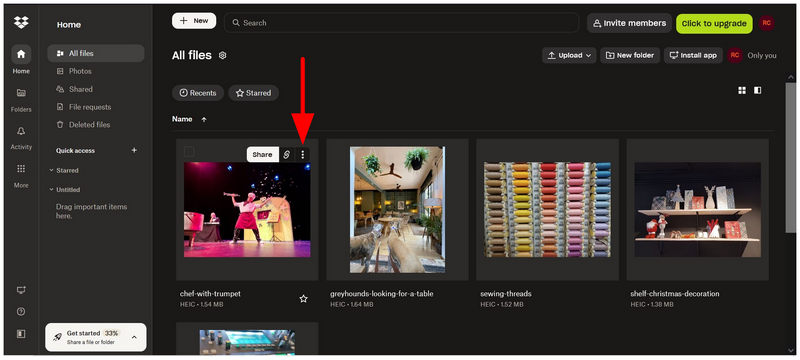
Scroll down through the More Options settings, set your cursor to Save as, and select JPG.
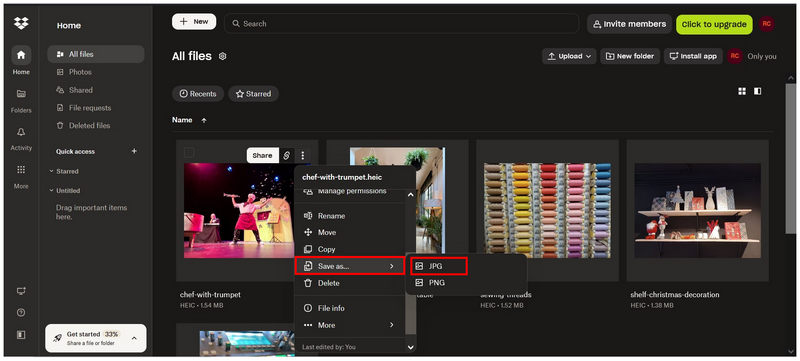
Selecting the Save As option will create a copy of the HEIC image in your files as a JPG. In the created JPG copy, select More Options, then select Download.
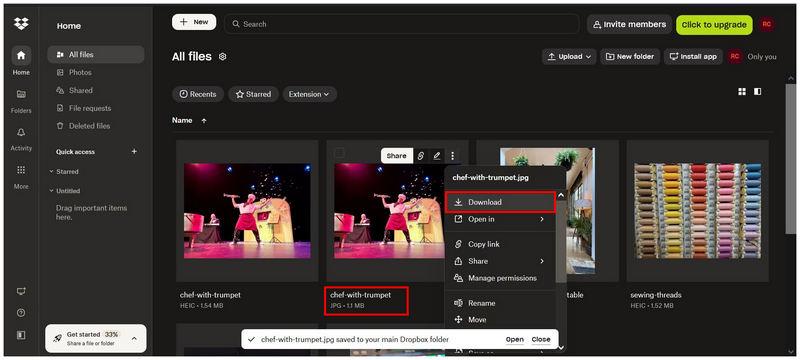
Once a JPG copy of the HEIC file has been created, you can now download it back to your computer. Although it is a copy of the HEIC image and it is not converted, you still get an exact copy of the HEIC file, but it is now saved in JPG format.
Part 2. Converting Existing Dropbox Files with Arkthinker HEIC Converter
Since both of our proposed options above involve editing your iPhone’s settings and creating a JPG copy in Dropbox, neither solution provides format conversion, which is preferred by users who want to maintain image quality. With that in mind, ArkThinker Free HEIC Converter Online should be one of your top choices if you wish to convert HEIC images saved in Dropbox.
As its name suggests, ArkThinker HEIC converter is one of the best web-based solutions specifically designed to handle direct HEIC-to-JPG conversion. Unlike the Save as function in Dropbox, this program directly converts an HEIC file to an exact JPG copy while preserving its quality and retaining all metadata.
In addition to its superb quality preservation, this web-based option is very easy to use. ArkThinker Free HEIC Converter Online automatically converts your HEIC file to JPG once it’s imported into the program.
To learn how to use the software, make sure to read our easy two-step guide below.
Go to ArkThinker Free HEIC Converter Online’s website. Then, select the Add Files to Start button to import the image you want to convert. Alternatively, you can bulk-convert up to 10 files at once from your File Manager by dragging and dropping the files to the Upload Box.
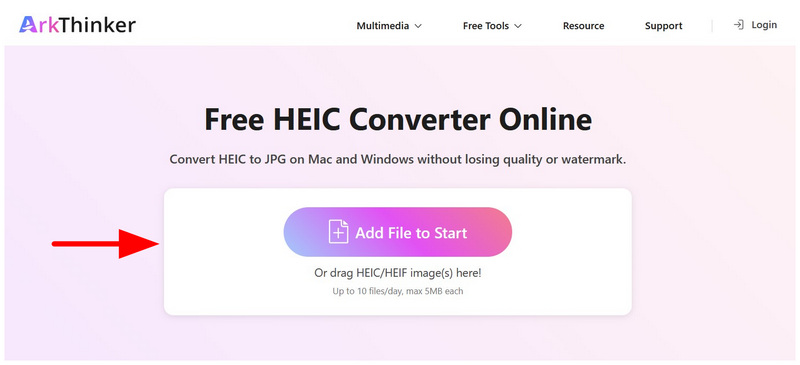
Importing HEIC images into the program will automatically convert them almost instantly. Once the conversion is complete, select the Download button to save the converted HEIC files to your device.
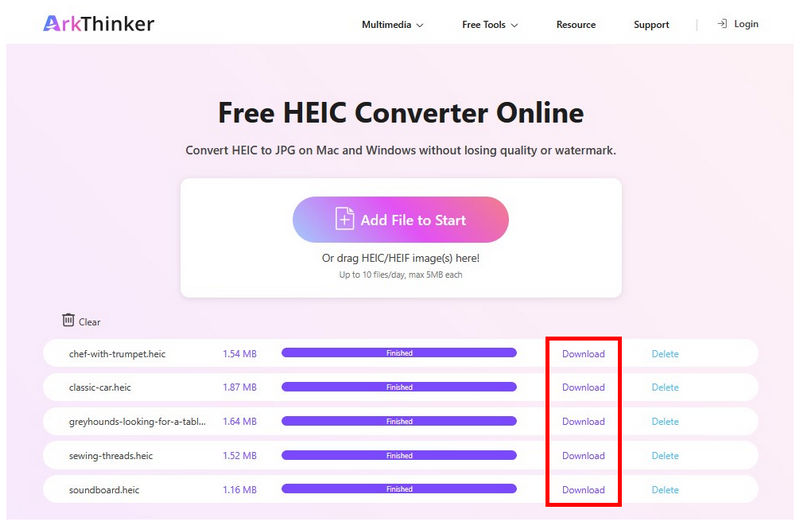
If you are already dealing with a bunch of HEIC files that you have to convert, but Dropbox’s Save As option feels inefficient for you, you can reliably use web-based options like ArkThinker Free HEIC Converter Online for quick and easy format conversion without prior installation or setup.
Part 3. FAQs About Using Dropbox to Convert HEIC to JPG
Does Dropbox have a format converter tool?
No, it does not. Dropbox does not have a dedicated converter tool. It can only copy HEIC files to JPG, and you can then download the copied JPG file.
Can I download HEIC files as JPGs on Dropbox?
No, you cannot. However, you can convert HEIC files to JPG and download them once converted. This is the closest option you can use to download HEIC files in Dropbox as JPG.
Can I edit iOS camera settings to capture images in JPG?
Yes, you can. A good option to avoid the need for conversion is just to capture images saved in JPG format. You can adjust this on your iPhone’s camera format settings.
Are online tools a good option for converting image formats?
Yes, they are. Online tools are completely viable for basic format conversion. Dedicated HEIC-to-JPG converters, such as ArkThinker Free HEIC Converter Online, are a good example.
Should I convert my HEIC files to JPG?
Yes, you can. Among our proposed solutions, you can use Dropbox to create a JPG or PNG copy of your HEIC file before downloading it. Alternatively, you can use format converters such as ArkThinker’s exclusive HEIC-to-JPG converter.
Conclusion
Now that we have provided two options for indirect conversion of HEIC to JPG in Dropbox, we hope you can manage your image files much more smoothly. Unfortunately, Dropbox does not have a functional conversion tool. This makes it worthwhile to look for alternative solutions, such as the ArkThinker Free HEIC Converter Online, for direct HEIC-to-JPG conversion.
What do you think of this post? Click to rate this post.
Excellent
Rating: 4.8 / 5 (based on 469 votes)


