


How to Use ImageMagick to Convert HEIC to JPG: 2026 Guide
For experienced developers and advanced script users, command-line-based solutions are the most optimal tool for HEIC conversion. In the current market, ImageMagick is one of the most reliable command-line tools for image conversions. If you want to learn the practicality of command-based file management, make sure to read our guide in this article, featuring the process you need to learn to use ImageMagick for HEIC to JPG conversion. We will also provide a GUI-based alternative for non-coder users who want to convert HEIC images as simply as possible.

- GUIDE LIST
- Part 1. How to Convert HEIC to JPG with ImageMagick
- Part 2. The GUI Alternative: Arkthinker HEIC Converter (For Non-Coders)
- Part 3. FAQs About ImageMagick for HEIC to JPG Conversion
Part 1. How to Convert HEIC to JPG with ImageMagick
Similar to FFmpeg, ImageMagick is a command-line-based multimedia editing tool designed exclusively for handling image files, offering basic editing options such as resizing and cropping, as well as advanced file management options such as JPG format conversion.
With that in mind, you can use ImageMagick to batch convert HEIC to JPG or to convert single images one at a time. With that in mind, we have provided two tutorial options below that feature the commands needed for single-image and batch conversions using mogrify.
Simple Command for Single Image Conversion
Open your computer’s command line software.
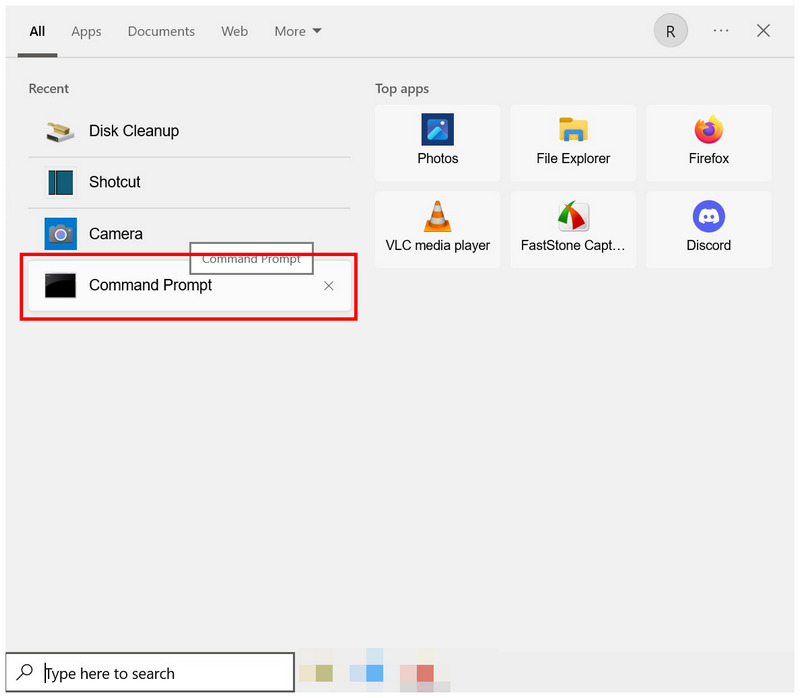
For single-image conversion, copy and paste the command line: magick input.heic output.jpg. Make sure to change the "input" to the name of the HEIC file you want to convert, and the "output" to the path where you want to save the converted JPG.
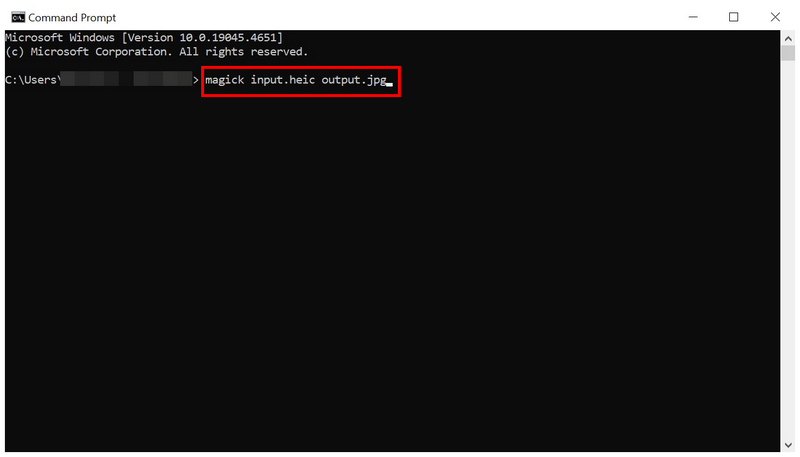
Once you have set the edited input and output commands on your files, press Enter on your keyboard to begin the format conversion.
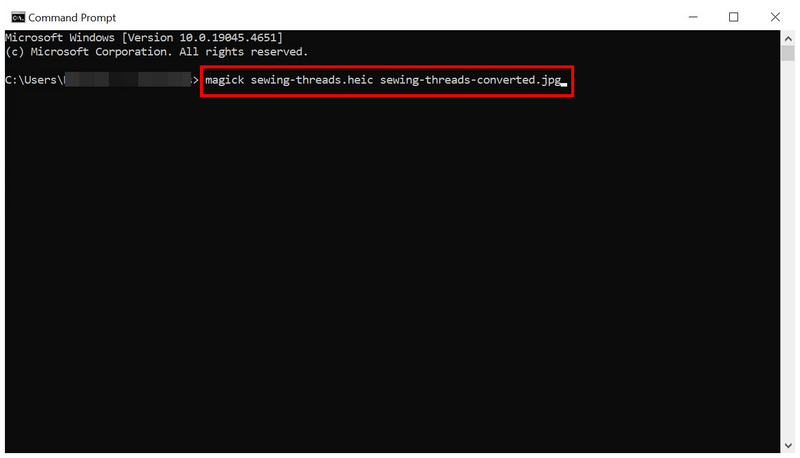
If you are an experienced command-line user, the input and output commands used by ImageMagick should feel very familiar. This command is also the option used on FFmpeg and other command-based programs for basic format conversion.
Bulk Batch Conversion Using the 'Mogrify' Command
Open your computer’s command line software.
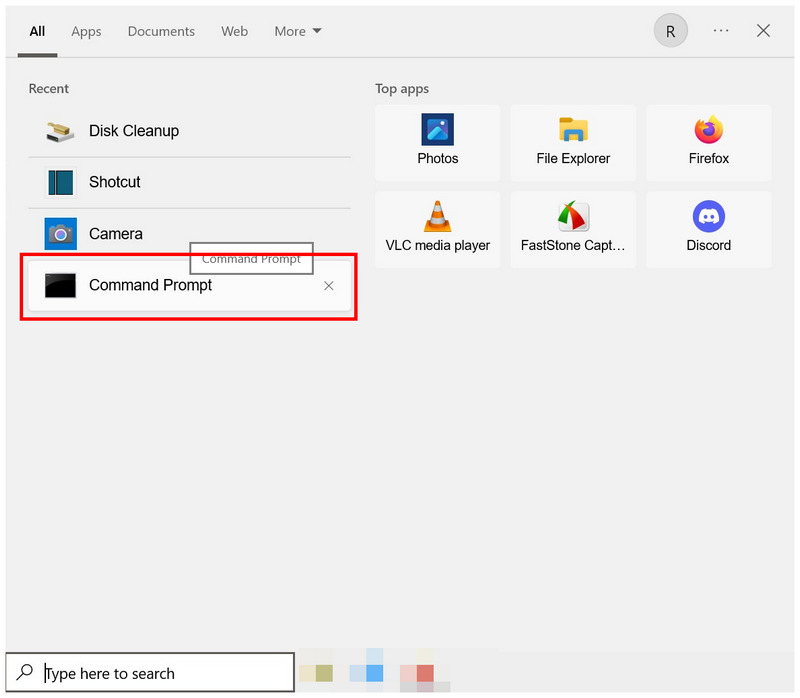
In the software, copy and paste the following command line: magick mogrify -format heic * .jpg. Once written, press Enter on your keyboard.
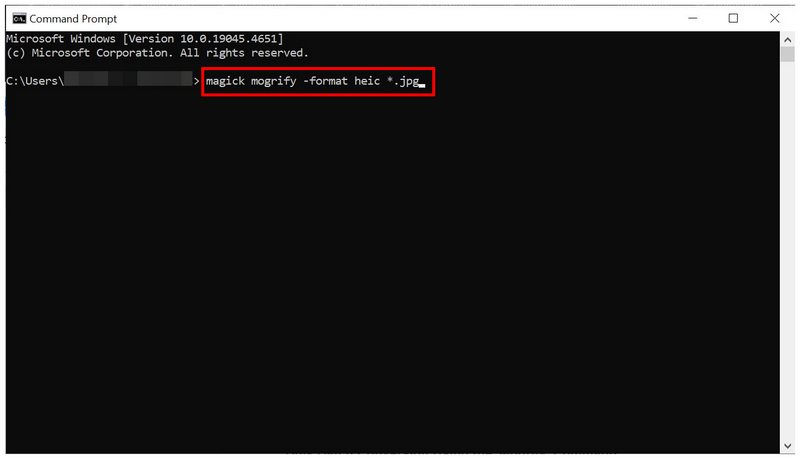
The mogrify command, when using ImageMagick to convert HEIC to JPG, is all you need to write to make batch processing and conversion possible in the software. This is highly practical to avoid repetitive processes when handling a specific folder of images you want to edit.
Part 2. The GUI Alternative: Arkthinker HEIC Converter (For Non-Coders)
When it comes to efficiency and workflow speed, command-based adjustments are the number one option. Unfortunately, learning the right commands is a challenge in itself since mistakes on these command lines may negatively affect your entire system. To avoid such issues, you can instead use a GUI-based alternative such as ArkThinker Free HEIC Converter Online.
In addition to having a functional graphics user interface, ArkThinker’s HEIC converter tool is also fully online. As such, it does not require any complex downloads, installations, or setup before you can use it to convert your HEIC files. It also helps that its interface is very intuitive and well-labeled, making its design optimized for beginners.
To get started with the program, upload your HEIC files and let the software handle the conversion automatically. For a complete tutorial on using the program, make sure to read our two-step guide below:
Search for ArkThinker Free HEIC Converter Online and go to their website. In the online tool’s main menu, click on the Add Files to Start button to import the image you want to convert. If you wish to bulk-convert, drag and drop up to 10 files at once from your File Manager into the Upload Box.
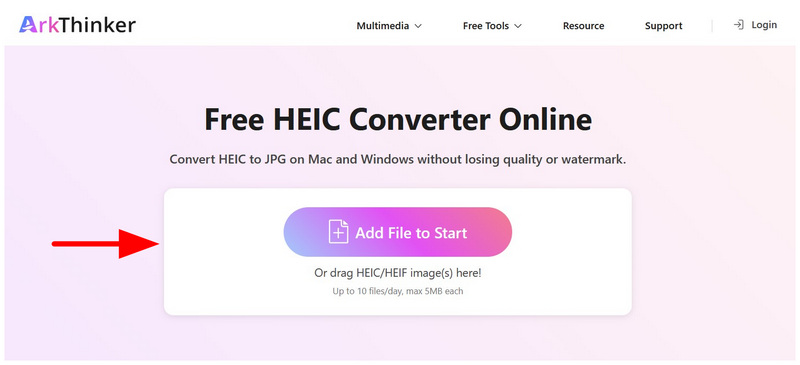
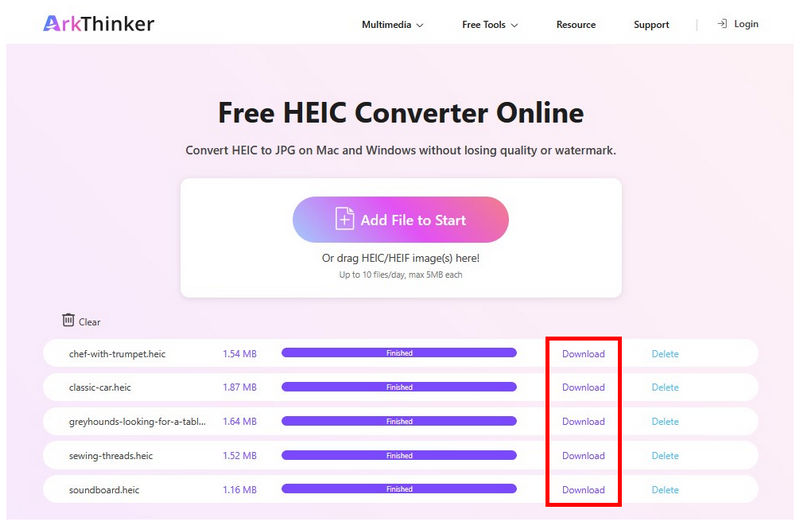
Since the online tool automatically converts uploaded images, your HEIC images will be converted after a few seconds. Once the conversion is complete, select the Download button for each converted HEIC file to download it to your device.
If you are an amateur user with no knowledge when it comes to code and command lines, exclusive converter tools will be your lifesaver. Fortunately, ArkThinker Free HEIC Converter Online was designed to be as accessible, reliable, and beginner-friendly as possible.
Part 3. FAQs About ImageMagick for HEIC to JPG Conversion
Is ImageMagick based on FFMpeg?
No, it is not. ImageMagick is independent of FFmpeg. However, both programs are command-line tools made for handling multimedia editing.
Can I edit images in ImageMagick?
Yes, you can. ImageMagick was specifically designed for photo editing. However, you need to use commands to run the software, as it does not have a GUI.
Is ImageMagick free?
Yes, it is. ImageMagick is a free and open-source software package. You can use it without any payment required.
Is it hard to convert image formats in ImageMagick?
Yes, it is. Although the commands themselves are simple, you need to learn how to install ImageMagick first. Unfortunately, installing the command source is trickier than regular software.
What format should I convert my images into?
When converting images, both PNG and JPG formats are safe options. JPG is more recommended since it is smaller and has passable image quality. However, PNG is better suited to users who prefer higher image quality.
Conclusion
Now that we have provided our readers with two detailed tutorials on using ImageMagick for HEIC-to-JPG conversion, we hope you can now start using the tool for basic image conversions. This is highly beneficial for users who prioritize conversion speed and have sufficient technical skills. For those new to multimedia file management, we recommend beginner-friendly options first, such as ArkThinker Free HEIC Converter Online, which you can use without needing any advanced skills.
What do you think of this post? Click to rate this post.
Excellent
Rating: 4.8 / 5 (based on 478 votes)


