


Loop A Video in PowerPoint with Easy-to-Follow Steps & Tips
Ever planning to put a video in your PowerPoint slides to make more impact, or just simply using the application to play a video on loop in a display kiosk, but don’t know how to do it? Believe us when we say that it is a lot easier to use PowerPoint, a presentation software developed by Microsoft, which enables users to design and create visual and interactive presentations to put and play looping video in PowerPoint than creating an actual presentation. Thus, this article will discuss and shed light on some confusion among users online about whether it is really possible to video loop in PowerPoint, and will also provide the actual steps for doing so in PowerPoint, as well as some troubleshooting tips for why a loop may stutter.

- GUIDE LIST
- Part 1. Can You Loop A Video in PowerPoint
- Part 2. How to Loop A Video in PowerPoint
- Part 3. Troubleshooting: Why Your Loop Might Stutter
- Part 4. Best Free Online Alternative to PowerPoint for Video Looping
- Part 5. FAQs about How to Loop A Video in PowerPoint
Part 1. Can You Loop A Video in PowerPoint
Yes, a video can be set to play in a loop and automatically in PowerPoint, making it the ideal program for this specific task, whether for presentations or display purposes. The user can simply repeat a video to play on a loop without having to play it over and over again after it finishes. To loop a video in PPT (PowerPoint), simply read and follow the steps below accordingly to ensure you do it correctly without breaking a sweat.
Part 2. How to Loop A Video in PowerPoint
This section will explore how to loop a video in PowerPoint, thereby demonstrating that the application can indeed loop a video. To loop the video properly, follow the steps below to avoid playback issues.
Open PowerPoint on your Desktop device and start with a blank slide.
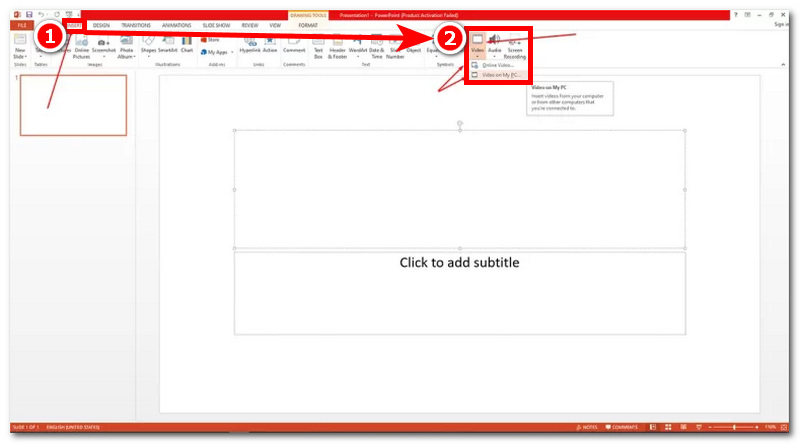
From a blank or empty slide, add the video you wish to play on loop in PowerPoint by heading to the INSERT section in the upper-left corner of the program, then selecting the Video icon from its menu to add your video to the program.
Once the video is loaded into the PowerPoint slide, simply click the video to adjust its size and position on the slide. Once you are satisfied, click the video on the slide again and click the PLAYBACK menu setting above the program to proceed.
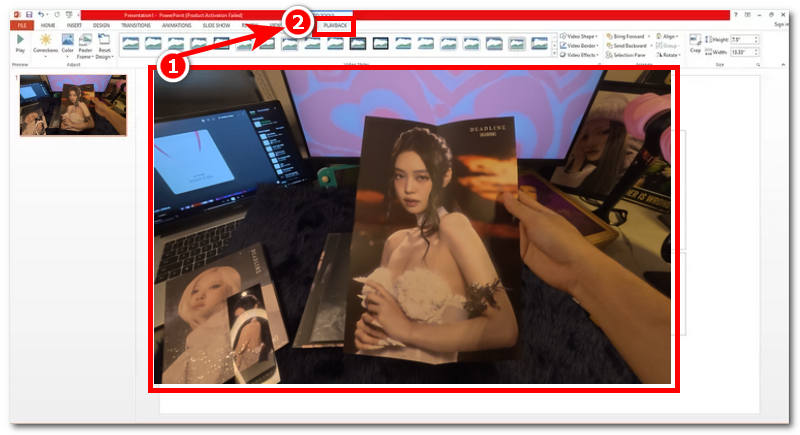
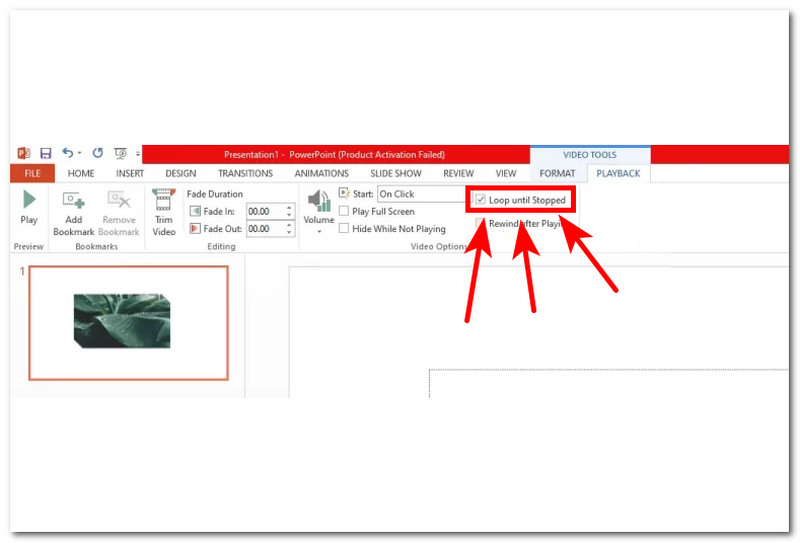
Within the Playback setting, you must do and should not forget doing the two things.
First, in your video playback settings, check the 'Loop until stopped' box to ensure your video plays in a loop.
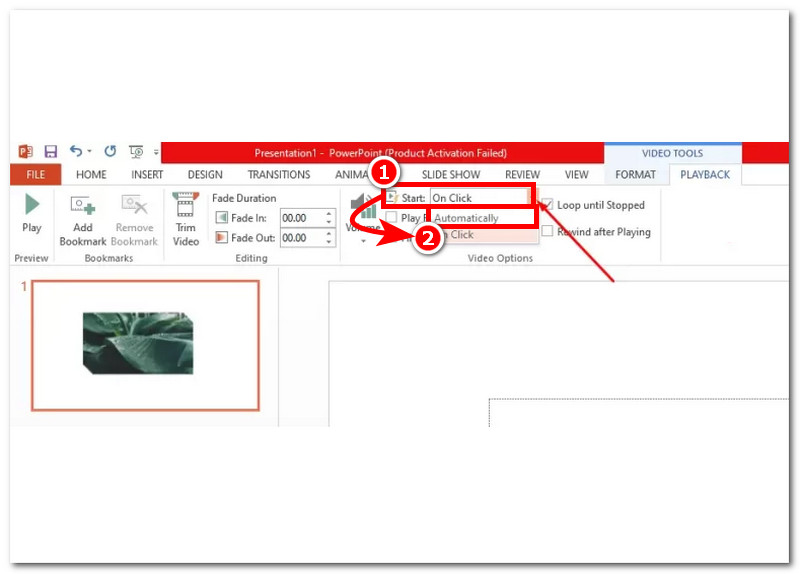
Next, set your video to play Automatically and loop as soon as the presentation slide opens.
Part 3. Troubleshooting: Why Your Loop Might Stutter
Now that you managed to make a presentation video slide to play on loop and automatically using Microsoft’s PowerPoint program, chances are there is a possibility that your video may encounter some playback problems, like video stuttering. This section will give you some tips on handling this problem, so you are not confused about what to do when it happens to your video.
- The video the user uploaded to create a loop in PowerPoint is large, which may consume more memory and bandwidth.
- The device the user used to make a video loop in PowerPoint has limited RAM or insufficient memory to run the program, affecting its performance and overall functionality.
- The device the user used may have other apps running in the background, causing the CPU/GPU to run more slowly.
- The user's video is not in a supported PowerPoint video format, causing hiccups or an inability to play the video.
- For a larger video file size, consider converting the video to a lighter format like MP4.
- For devices with limited RAM or CPU/GPU performance, consider closing other apps and background programs.
- For videos that are not in a supported format, consider converting them to a format supported by PowerPoint, such as MP4, WMV, AVI, or MOV.
Part 4. Best Free Online Alternative to PowerPoint for Video Looping
As PowerPoint is a subscription-based program designed by Microsoft, some users aren’t subscribed to making looping of video in PPT (PowerPoint) impossible. However, the user should not be hindered from making looping videos, and one of ther ways users can do so is by using a third-party video loop tool like the ArkThinker Free Video Looper Online.
What makes online video looper such as ArkThinker make PowerPoint looping video is that users are not required to download the PowerPoint program on their device, nor subscribe to Microsoft 365 just to have access to PowerPoint. Furthermore, the web-based video looper tool is lightweight on the device, making it perform faster and preventing the device from running slowly.
How to use ArkThinker Free Video Looper Online
Go to the ArkThinker Free Video Looper Online official website using any of your preferred web browsers.
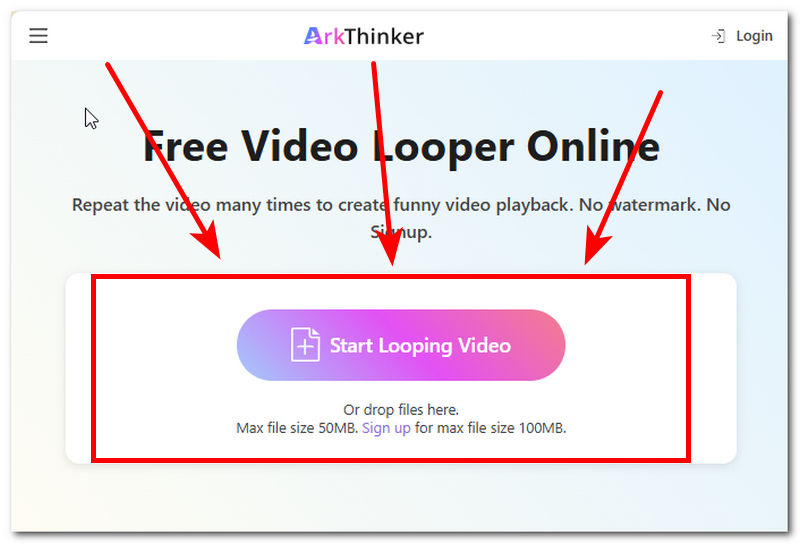
From ArkThinker’s webpage, you will instantly see the drop files. Simply drag your video file you wish to loop into the field space, and wait for it to finish uploading.
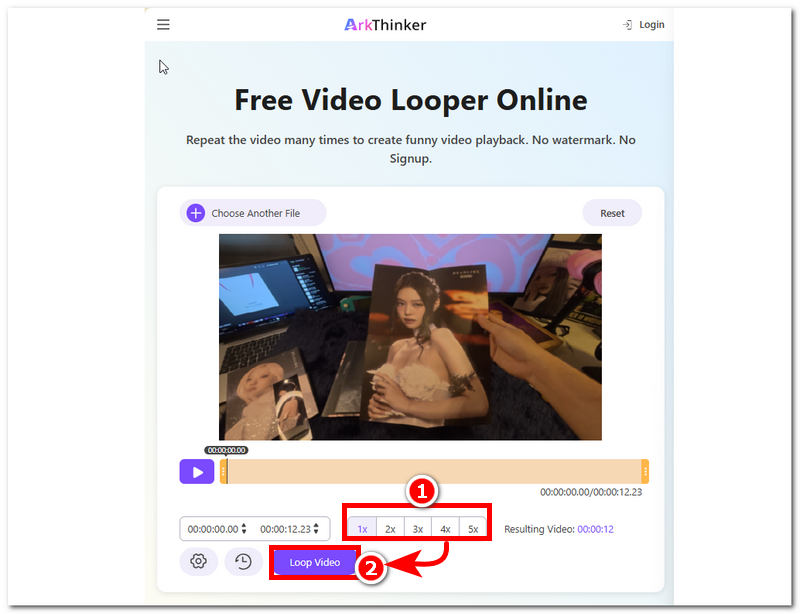
Once your video is loaded into the tool, select the number of loops you want, then click the Loop Video button to start the process. Once done, your video will be saved as a looping video that you can play without using PowerPoint.
Part 5. FAQs about How to Loop A Video in PowerPoint
Does looping work in slideshow mode?
Yes, looping will be applied automatically in slideshow mode as long as you check and select the correct looping setting in your video playback settings.
Can I loop only part of a video?
No, users cannot loop a specific part of their video in PowerPoint. Users will have to trim their video first, leaving only the parts they want to loop, using an external editing program or a dedicated video trimming tool.
Why is my video not looping?
A video may not loop properly in PowerPoint; it may be because the user has not checked the ‘Loop until stopped’ option in the video playback settings, or because the video is set to play once, resulting in it stopping from looping after it finishes.
Can I loop videos on older versions of PowerPoint?
Yes, you can loop your videos in older versions of PowerPoint, as video looping was introduced in Microsoft PowerPoint 2010. Since then, looping has been available for videos in all versions of PowerPoint.
Conclusion
Video looping in PowerPoint is an additional way to play a video on loop, without manually replaying it as soon as it finishes. This task may be too specific for presentation or video display on a kiosk, but you’ll never know when you’ll need it. This article uses this opportunity to confirm whether it is possible to loop a video in PowerPoint and includes steps on how to do it effortlessly. Furthermore, this article also provides some insights into what the possible causes are of why a video looping appears to be stuttery and gives some possible fixes to the problem to help users resolve the problem right away.
What do you think of this post? Click to rate this post.
Excellent
Rating: 4.9 / 5 (based on 612 votes)


