


How to Loop a Video in Premiere Pro Using 3 Methods (2026)
When producing short-form videos for modern social media postings, learning how to smoothly loop clips is an essential skill. A properly set up video on repeat can highly enhance your short-form content since it will feel like it is continuously playing. In this article, we will explore the multiple options you can use to learn how to loop a video in Premiere Pro using three methods available in the app. We will also provide an alternative online tool that you can use to add video loop effects smoothly.

- GUIDE LIST
- Method 1: Use the Loop Playback Button for Previewing
- Method 2: Manually Duplicate Clips on the Timeline
- Method 3: Create a Seamless Loop Transition for Export
- Part 4. Easiest Alternative - ArkThinker Free Video Looper Online
- Part 5. FAQs About Looping Videos on Adobe Premiere Pro
Method 1: Use the Loop Playback Button for Previewing
We will begin this guide by presenting the easiest option for learning how to make a looping video in Premiere Pro. This involves using the Loop Playback button in the video editor’s preview window.
To get started with using this method, please read our three-step guide below.
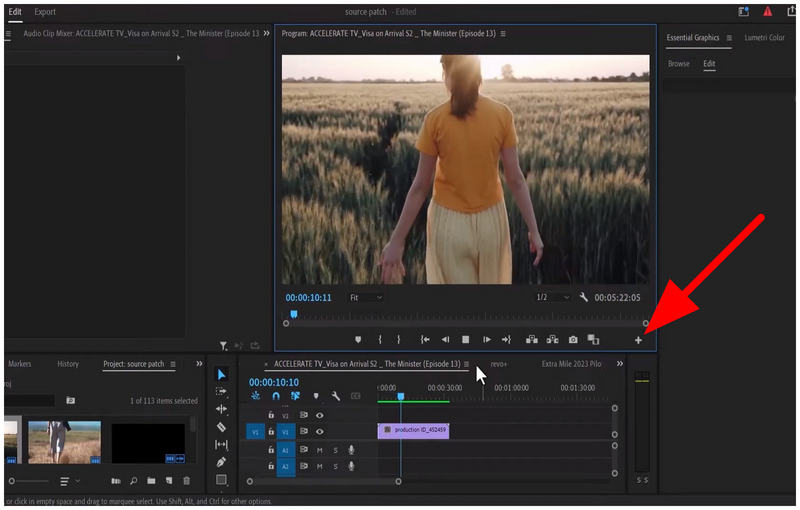
Select the Plus button on the editor Toolbar to access the more advanced tools.
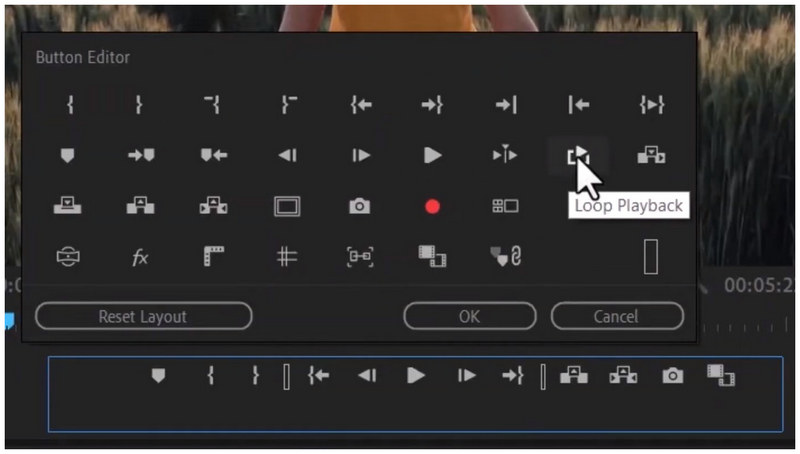
In the Button Editor menu, select the Loop Playback to activate it. You may also click and drag it to the toolbox to make it easier to access.
With the Loop Playback active, move the Playhead to the end of your video, then press Enter to confirm the tool adjustment.
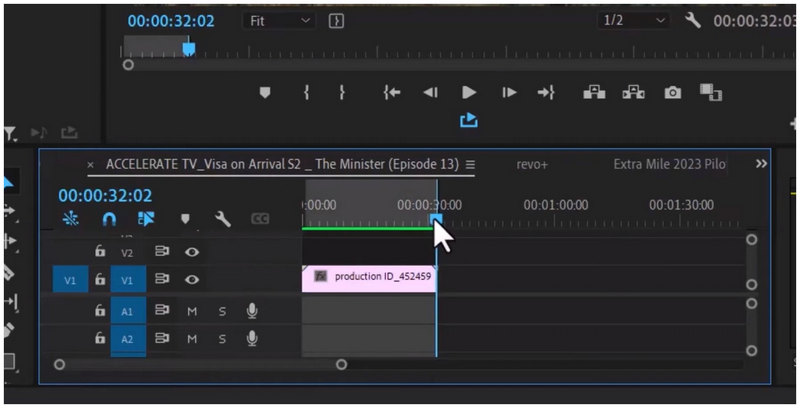
Although it is the easiest, it does not offer the smooth looping effect on your video since it essentially works like using the video looping in VLC Media Player or other multimedia players.
Method 2: Manually Duplicate Clips on the Timeline
If you want to export a looped video in Premiere Pro , your go-to option should be the duplicate clip effect. Fortunately, this is very simple to do and only requires the copy-paste method.
To learn how to use it, please read our two-step guide below.
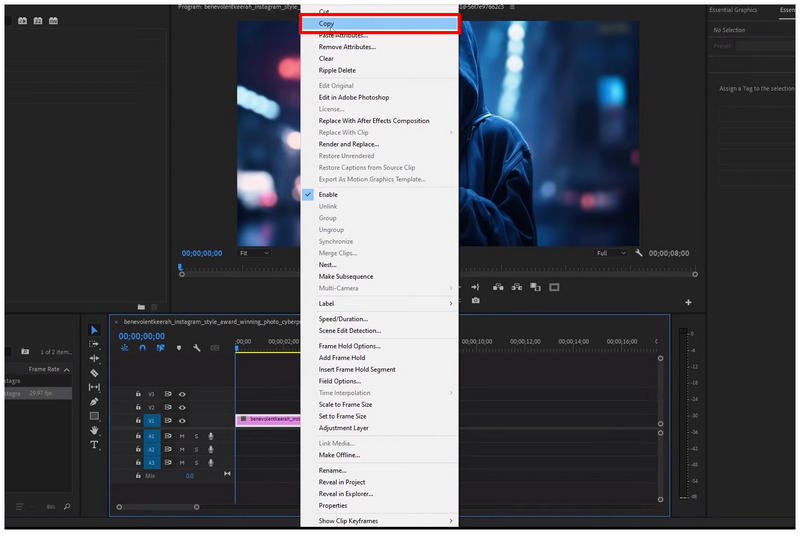
Select the video you want to copy, then right-click it. Then, select the Copy option. Alternatively, you may use the keyboard combination Control/Command + C.
Move your playhead to the position you want your copied clip to be. Then paste it using the Control/Command + V combination.
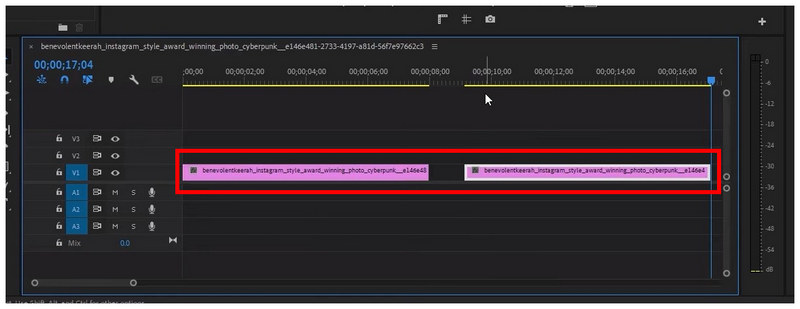
To finish the loop, make sure to link the duplicated clip to the original you have copied by moving the video.
The Quick Alt/Option + Drag Shortcut
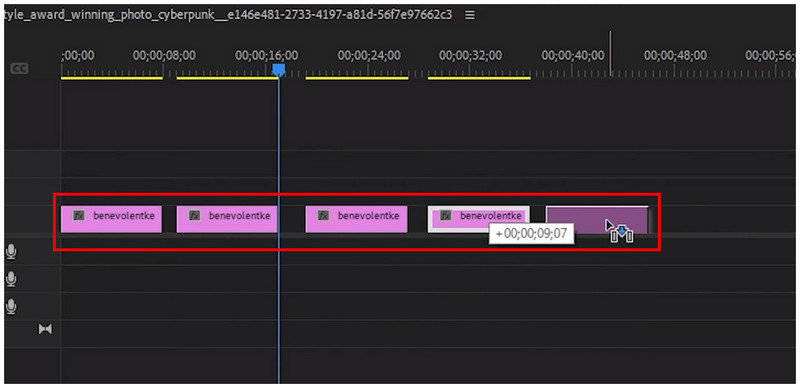
For more efficient video duplication, we recommend using the Alt/Option + Drag shortcut. You can use this method by holding the Alt/Option key and clicking and dragging the video file you want to duplicate. This can be done on repeat while you are still holding down the Alt or Option key. This is very practical, as it does not require right-clicking and selecting Copy/Paste or repeatedly using the keyboard shortcut.
Method 3: Create a Seamless Loop Transition for Export
Finally, the third method is the best option if you want to export a video to loop seamlessly in Premiere Pro. Unfortunately, it is the most complicated to set up and apply to your editing timeline.
To get started with this method, we provided a quick guide on the basics of using transitions for seamless video looping.
Select the video you want to loop, then click on the Razor Tool or press C to activate it. Move the razor tool to the halfway point of your video to cut it.
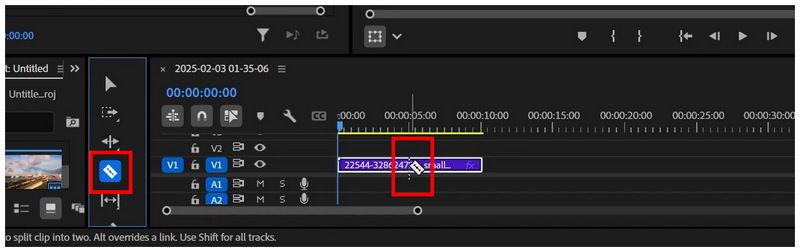
Once the video has been cut in half, select the second half of your clip and click-and-drag it to move it on top of the first half.
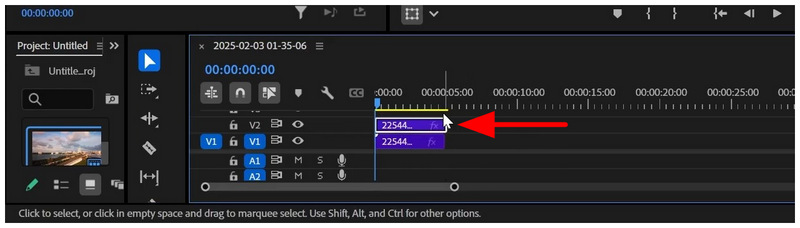
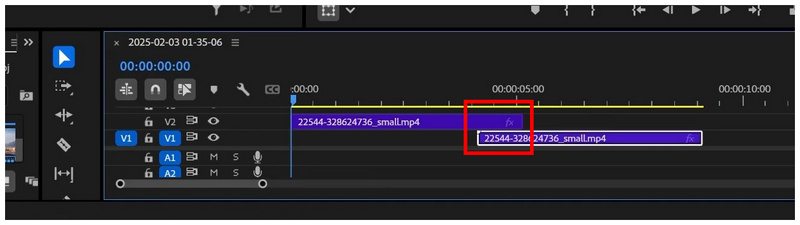
Move the first half of the cut video forward, but ensure the cut portions still overlap.
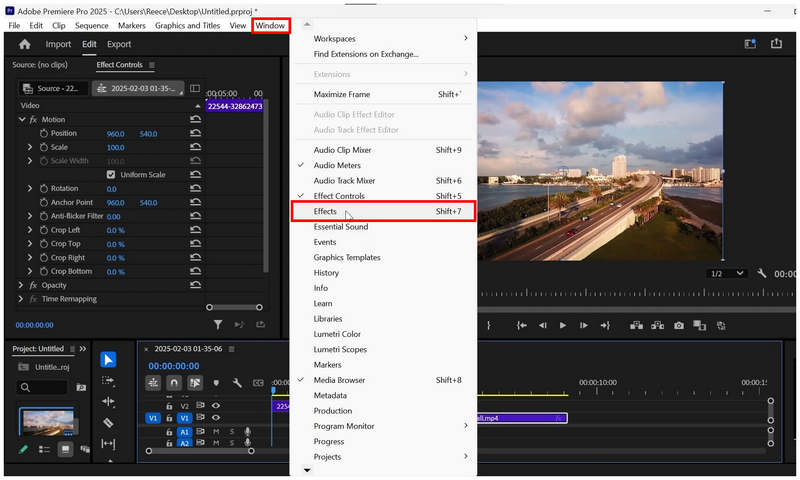
Then, select Window on the Premiere Pro toolbar, and select Effects.
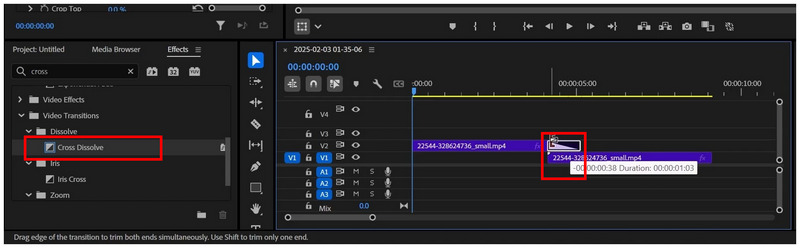
In the Effects tab, search for Cross Dissolve, then click and drag it onto the editing timeline. Position the video effect on the overlapping portion of the cut video. Add it to the video, positioned on top, and adjust its duration to cover the overlapping portion of the clips.
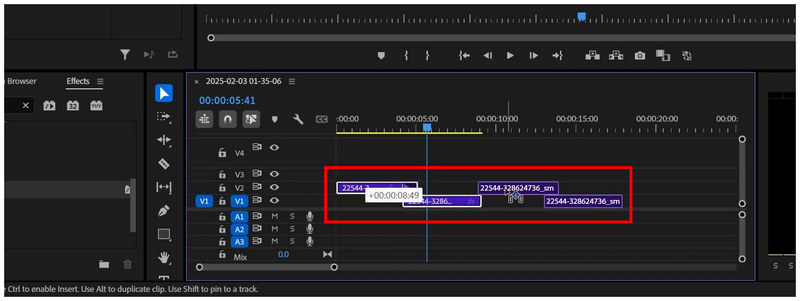
With the Cross Dissolve effect added, you may now duplicate the video with effects repeatedly as many times as you like the video loop to repeat.
Aside from the Cross Dissolve effect, there are numerous effect options on Premiere Pro that you can also use to enhance the seamlessness of your video loops. The video editor's advanced capabilities made this possible.
Part 4. Easiest Alternative - ArkThinker Free Video Looper Online
Now that we have reviewed Premiere Pro's video looping options, we can conclude that the program is more geared towards experienced editors. As such, seeking a beginner-friendly alternative is a good idea, and online tools like ArkThinker Free Video Looper Online should be among your top picks.
On top of being easier to use, ArkThinker’s online alternative is also more accessible, as it does not require installation, setup, or licensing. When using it for free, you can upload videos up to 50MB, or up to 100MB if you sign up. However, signing up is completely optional, and all videos edited in the program are watermark-free and maintain their original quality.
To learn how to use this online tool solution for video looping, make sure to read our three-step guide below on how to use ArkThinker Free Video Looper Online.
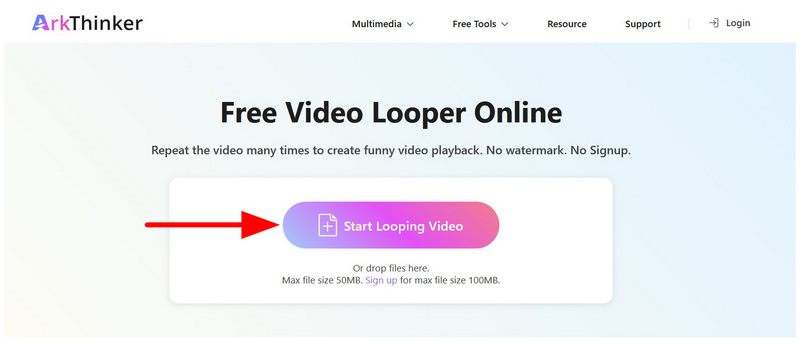
Go to ArkThinker Free Video Looper Online’s website, and select the Start Looping Video button. Wait for the video to be uploaded to the online tool.
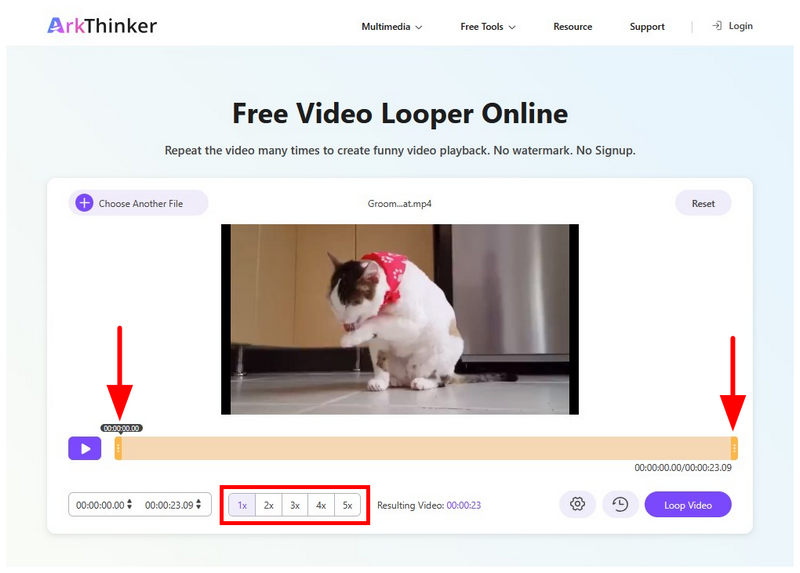
With the video uploaded, you can now trim it using the Trim Sliders to select the portions you want to keep. You may also adjust the Playback Speed.
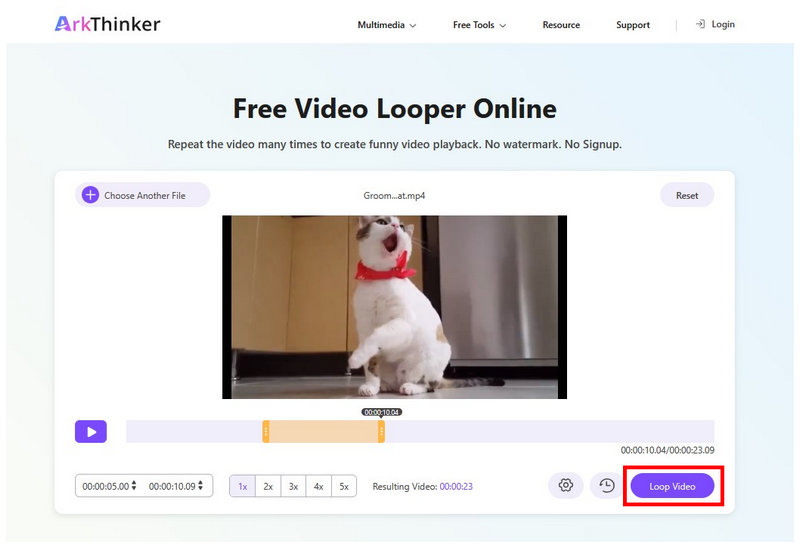
Once the trim or playback adjustments are applied to your needs, simply click Loop Video to begin producing the video clip that loops smoothly.
Whether you are a beginner or an experienced video editor who wants to apply basic looping to your short-form content, ArkThinker Free Video Looper Online fits your needs. This program is a solid alternative for users who prioritize accessibility and ease of use.
Part 5. FAQs About Looping Videos on Adobe Premiere Pro
How to seamlessly loop a video in Premiere Pro?
The best option for seamless video looping in Premiere Pro is through video Effects. Among them, the safest choice is to use the Cross Dissolve option. However, you can explore other choices to enhance the quality of your video loops.
Is it hard to apply a looping effect on videos in Premiere Pro?
No, it is not. It is actually easy. The easiest to use may be the Loop Playback or the duplicate option.
What is the easiest tool to loop video in Premiere Pro?
For complete beginners, we recommend using the duplicate video option. All you need to do is copy and paste the video into the editing timeline. However, this solution does not offer the most seamless effect.
Are online tools a good alternative for video editing?
Yes, they are. There are multiple online tools designed for beginner-friendly video editing. For video looping, a good solution is ArkThinker Free Video Looper Online or the Canva video editor’s looping tool.
Is Premiere Pro a beginner-friendly editor?
No, it is not. Premiere Pro is designed for intermediate to experienced editors. However, it has accessible video editing options that are easy to pick up and use.
Conclusion
With three of the most popular video looping methods in Premiere Pro now discussed, we hope this article has provided useful guidance for learning the basics of the program. For users looking for an easy-to-use alternative, consider ArkThinker Free Video Looper Online.


